Wk Bookart
 Wolfram Kampffmeyer


Blender Addon wk_BookArt Documentation
Installation:
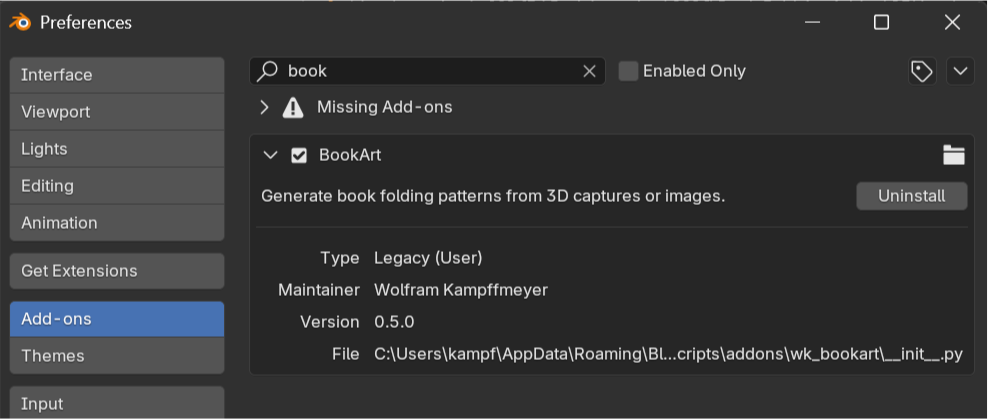
- In Blender go to Edit > Preferences > Add-ons
- Click Install, then choose the wk_bookart.zip file
- Enable wk_BookArt in the list
- Access it from the Sidebar (N) > BookArt
Quick Overview:
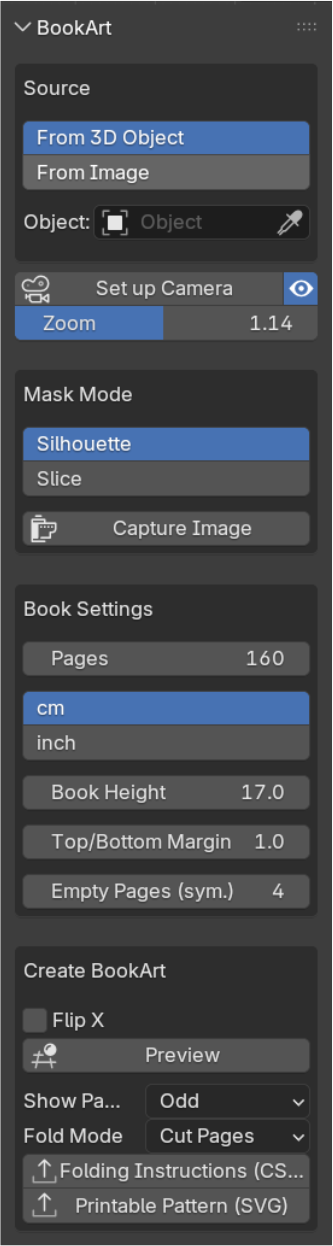
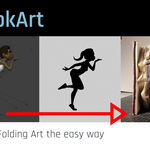
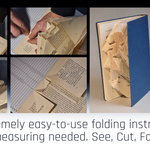
wk_bookart is a Blender add-on for generating BookArt sculptures by folding (and cutting) book pages.
It takes an image or a 3D silhouette and generates printable folding instructions for each book page.
Based on this it creates:
• Preview in 3D as a quick visual check of the motif layout.
• CSV folding instructions that tell you where to fold or cut for each page in the book block.
Printable Pattern (SVG): A ready-to-print page layout with gray/white fold bars for every sheet.
The add-on supports two source modes:
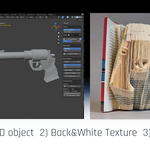
• From 3D Object — uses a silhouette rendered from your mesh.
• From Image — uses a directly loaded black/white image without requiring a mesh.
wk_bookart offers two folding modes: Cut and Alternate.
• Cut inserts a cut when multiple segments need to remain on the same sheet.
• Alternate distributes top and bottom segments across successive book sheets.
Workflow „From Image“:
(specific settings for each section see below)
Source
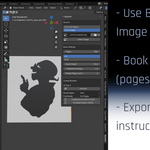
Choose From Image to use a black-and-white image as the source.
Click Open Image to load and display the image in Blender’s Image Editor.
Book Settings
Set the book dimensions and page count to match your real book.
Create BookArt
Click Preview to generate a visual preview made of black and white cubes, approximating the final BookArt result.
Choose a Fold Mode (Cut or Alternate).
Export either:
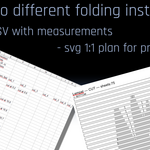
• CSV folding instructions with measurements, or
• a printable SVG folding pattern.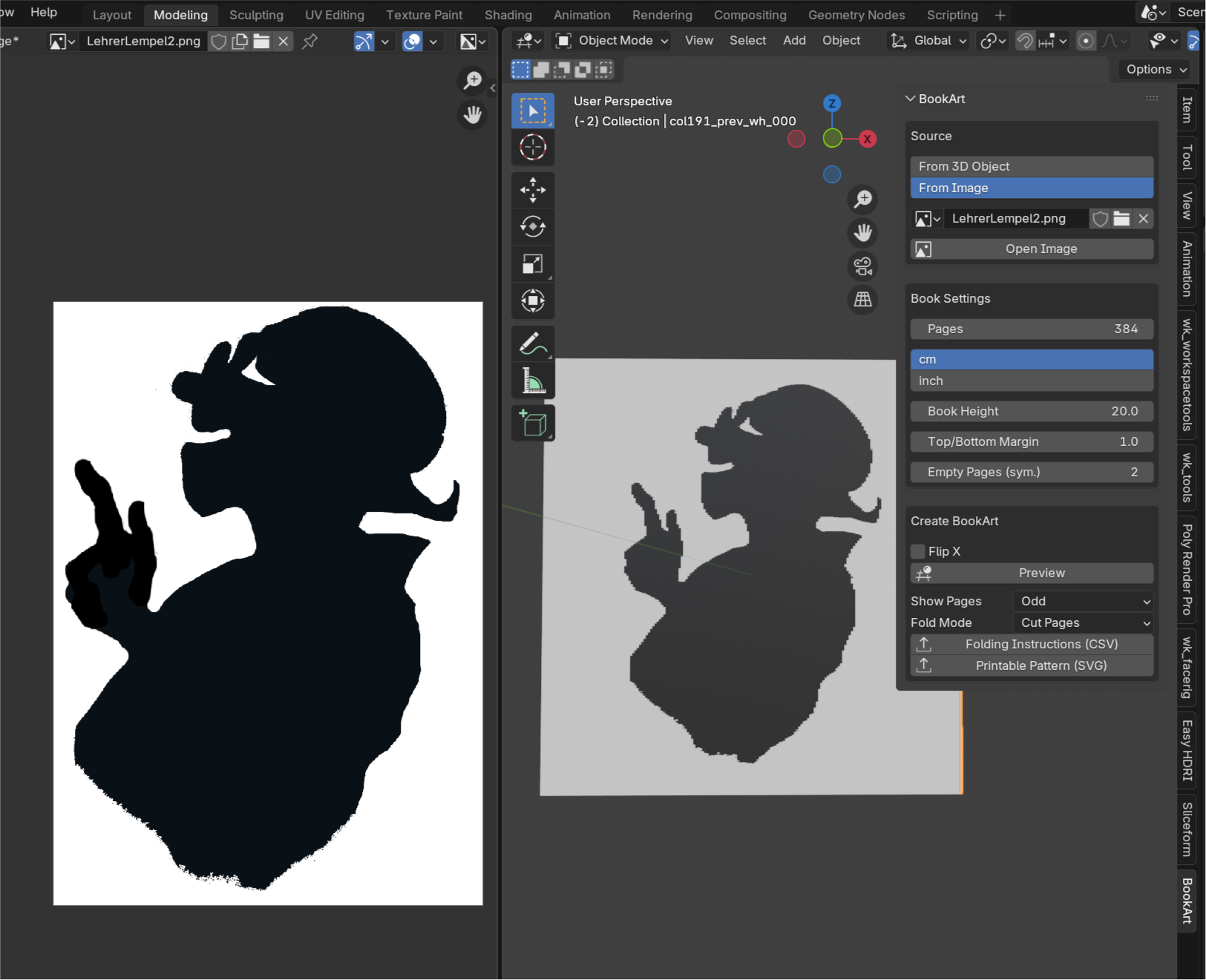
Workflow „From 3D Object“:
(specific settings for each section see below)
Source
Choose From 3D Object and select your mesh.
Click Set up Camera to preview the object as a silhouette. You can rotate or edit the object and click Set up Camera again if needed.
Mask Mode:
Leave the mode set to Silhouette or choose Slice to create a slice through the object (use Slice Position slider). Depending on the mesh, voxelizing the object may be required for a clean slice result.
Click Capture Image to generate the BookArt texture.
Book Settings
Set the book dimensions and page count to match your real book.
Create BookArt
Click Preview to generate a visual preview made of black and white cubes, approximating the final BookArt result.
Choose a Fold Mode (Cut or Alternate).
Export either:
• CSV folding instructions with measurements, or
• a printable SVG folding pattern.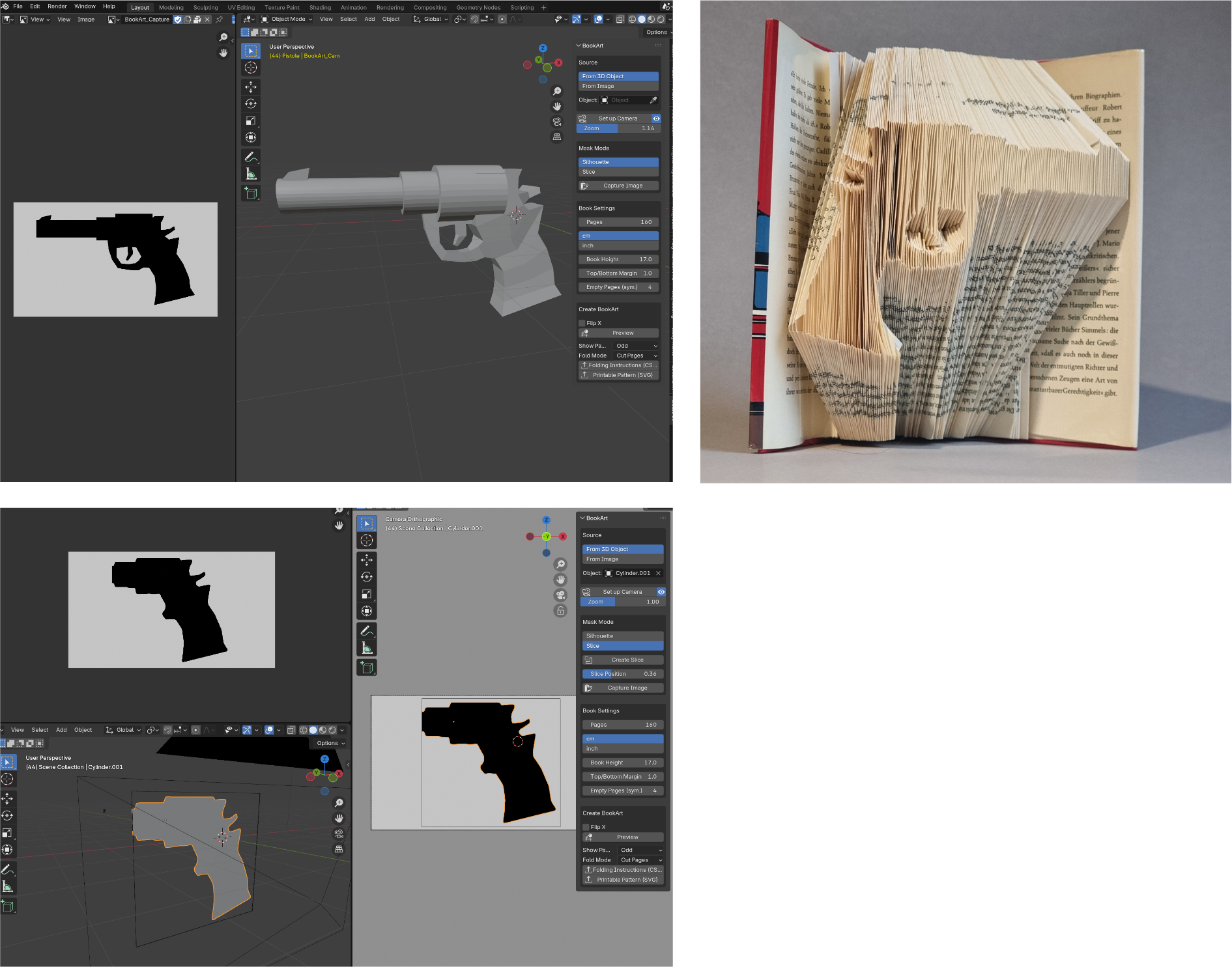
Slice through your 3D object and set the perfect look for your BookArt.
Book Settings
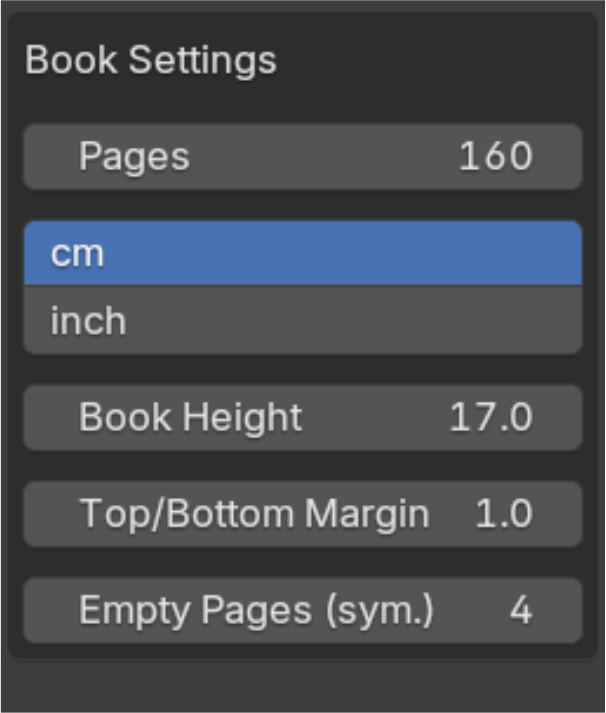
Pages
Set the total number of pages of the book.
Units
Choose between centimeters or inches.
Book Height
Set the height of the book in the selected units.
Top / Bottom Margin
Defines the distance between the motif and the top and bottom edges of the page.
Empty Pages (sym.)
Number of unused pages at the beginning and end of the book.
Create BookArt
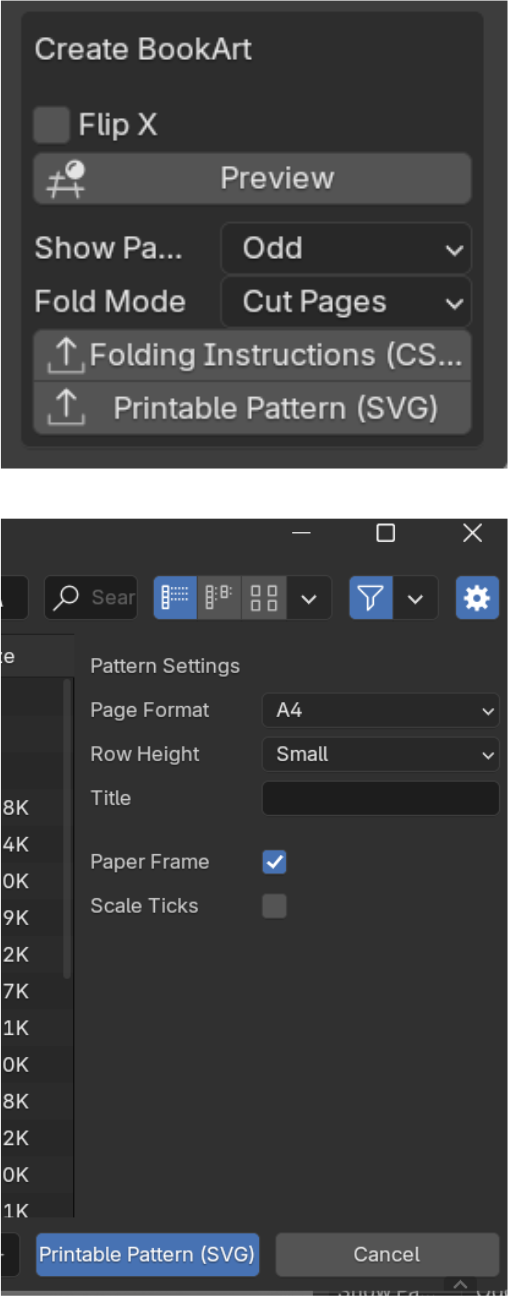
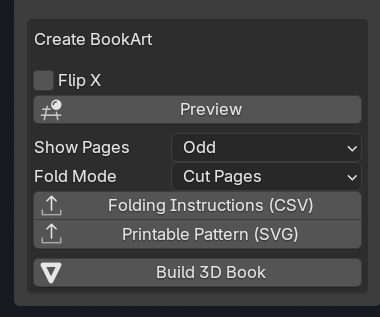
Flip X
Mirror the motif horizontally.
Preview
Generate a visual preview made of black and white cubes, approximating the final BookArt result.
Show Pages
Choose whether to generate instructions for Odd pages (1, 3, 5, …) or Even pages (2, 4, 6, …).
BookArt is created per sheet (front + back), so you always work on either the odd or the even page sequence.
Fold Mode
Choose how separated areas on a sheet are handled:
Cut Pages: If a sheet contains multiple separated segments, the page is cut between them.
Alternate: Separated segments are distributed across following sheets by alternating top and bottom segments.
Folding Instructions (CSV)
Export folding instructions with measures for the top and bottom fold, where to cut, page number,
Folding Instructions (CSV)
Export folding instructions with measurements from the top of the book.
The CSV contains three entry types:
• fold_back — no motif on this sheet (fold the full page away).
• segment — a motif segment with top_fold and bottom_fold values.
• cuts — cut positions between multiple segments on the same sheet (Cut Pages mode).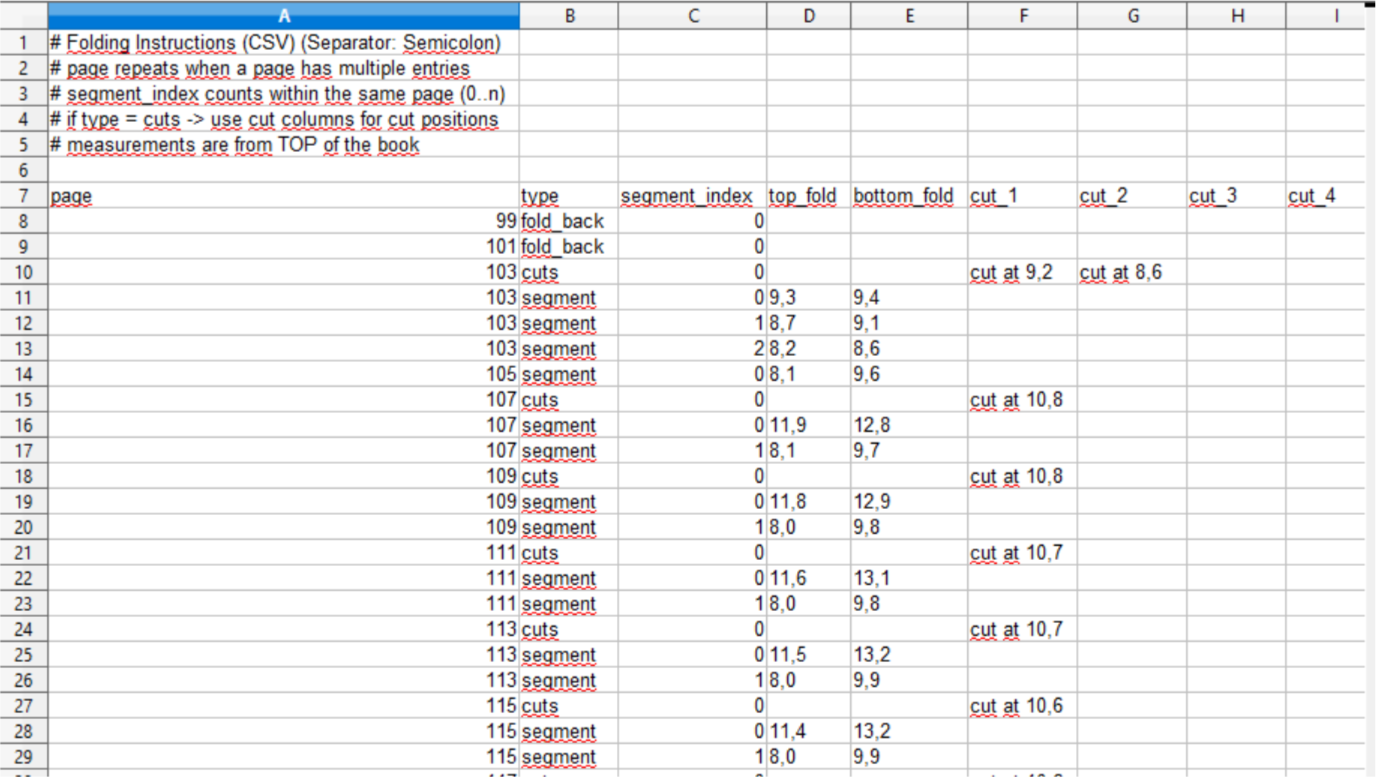
CSV Structure and Page Logic
The CSV file is organized by book sheets, not by individual folds.
A page number may appear multiple times in the table.
This happens when a sheet contains multiple segments that need to be handled separately.
Segment Index
The segment_index counts segments within the same page, starting at 0.
It must always be read together with the page number.
Example:
If a page contains three segments, so it needs two cuts.
In this case, the same page number appears three times with segment_index values 0, 1, and 2.
Each row in the CSV therefore represents one action on one segment of a book sheet.
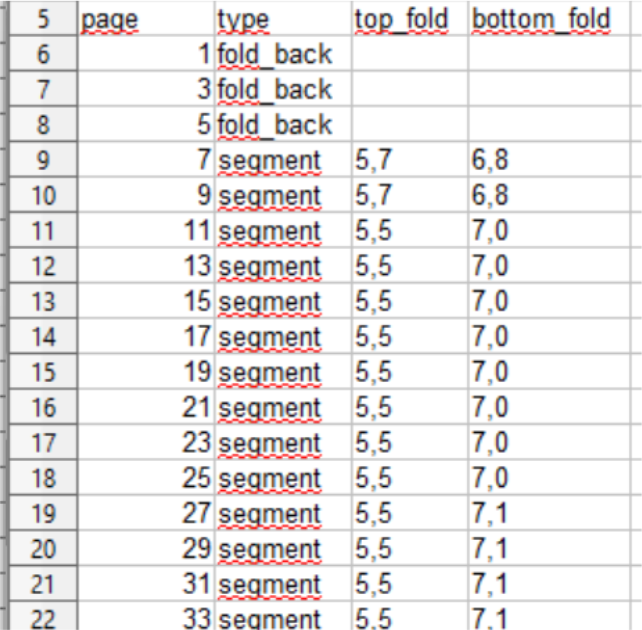
With „Alternate“, there only will be one action per sheet and your
table looks like this:
Printable Pattern (SVG)
The SVG export creates a ready-to-print folding template showing all book sheets as horizontal rows.
Each row represents one book sheet.
Gray bars indicate areas that stay in place, white areas are folded away.
• Vertical black lines mark cut positions when Cut Pages mode is used.
Pattern Settings
Page Format
Select the paper size used for printing (e.g. A4 or Letter).
The SVG is generated at 1:1 scale for accurate printing.
Row Height
Controls the vertical height of each sheet row in the layout.
Smaller values fit more sheets per page, larger values improve readability.
Title
Optional title printed at the top of each page.
Useful for labeling projects or versions.
Paper Frame
Draws a visible border around each page.
Recommended when printing or exporting to PDF.
Scale Ticks
Adds small tick marks along the rows to help visually estimate fold distances.
Optional and mainly intended as a visual aid.
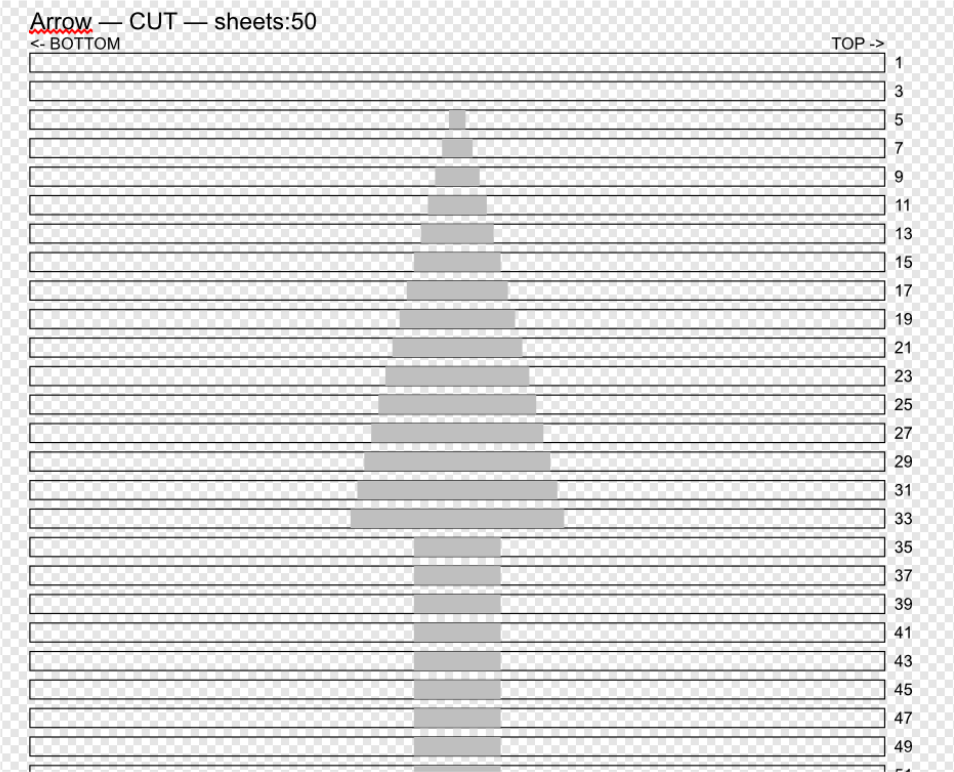
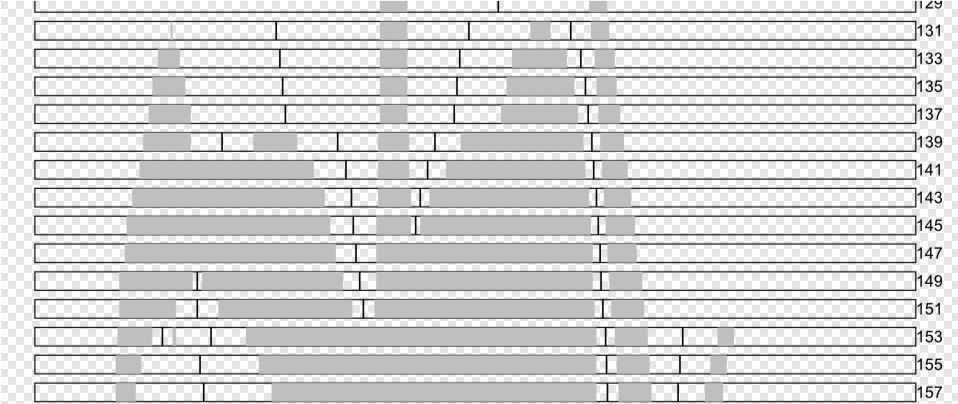
Black lines show where to cut the page.
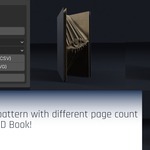
Build 3D Book
New feature in v1.0.0 - visualize how your book will look when folded!
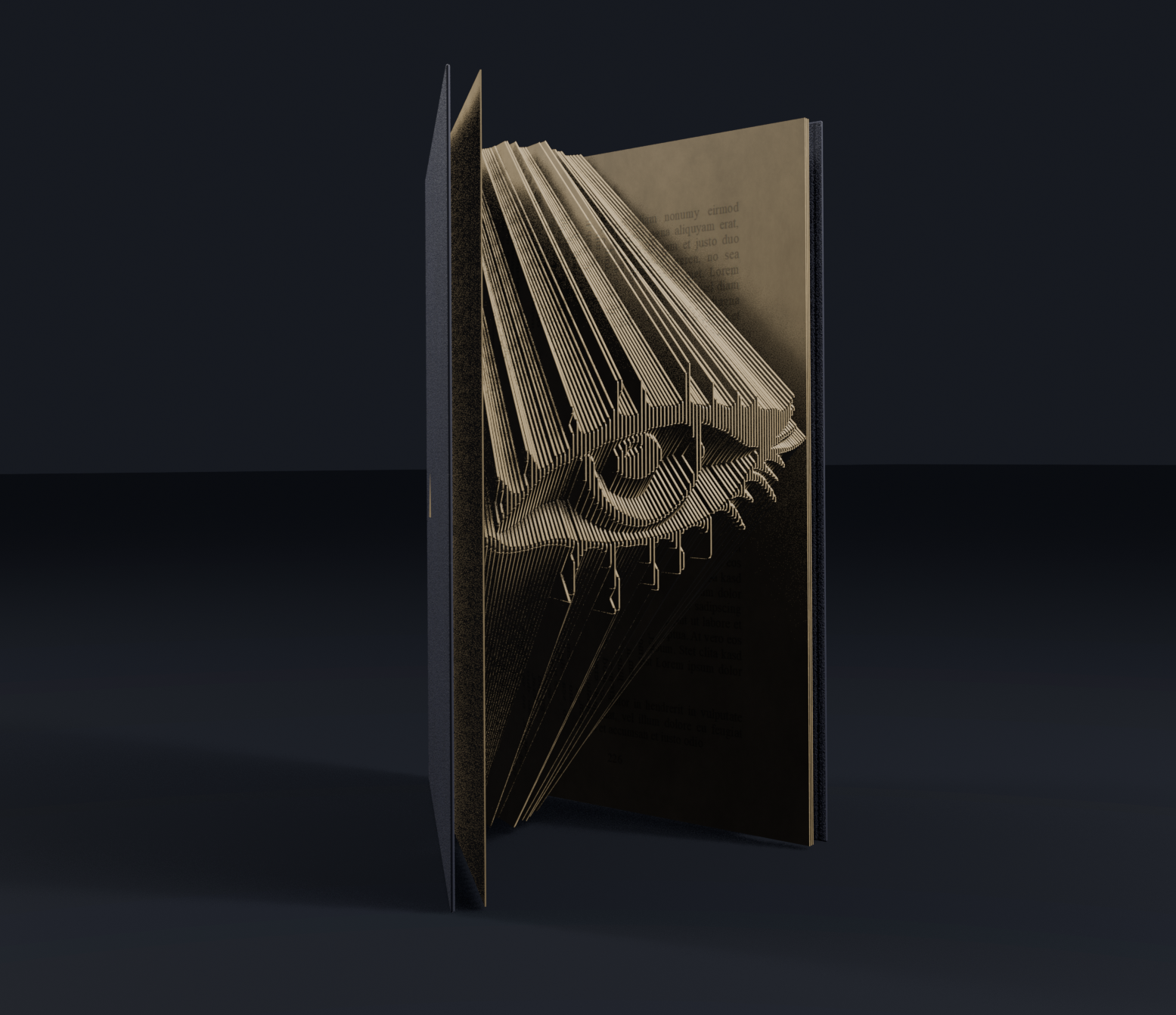
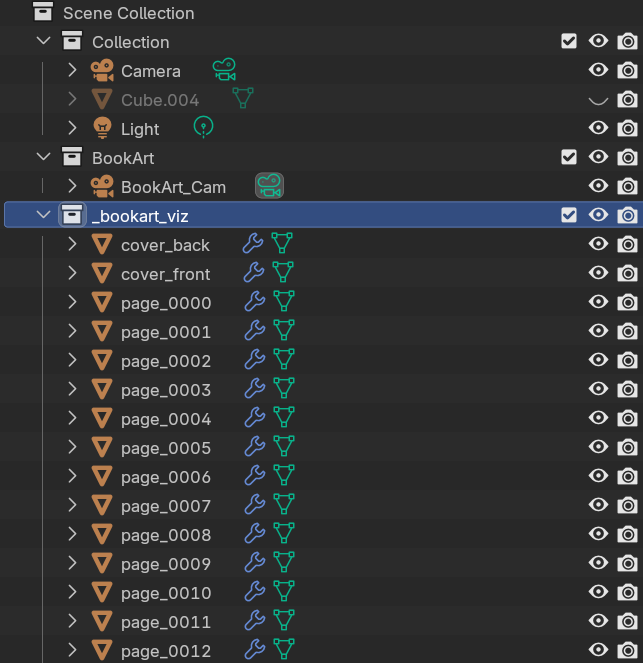
Note: The 3D book will be quite small. Often your source object is much bigger. So if you can't see it, simply hide your source object and look for the _bookart_viz Collection in outliner!
Have questions about this product?
Login to message
| Blender Extension Compatible | Yes |
| Dev Fund Contributor | |
| Published | 9 months ago |
| Blender Version | 4.5 - 5.1 |
| Extension Type | Add-on |
| Render Engine Used | Eevee |
| License | GPL |