WK Viewport Recording
 Wolfram Kampffmeyer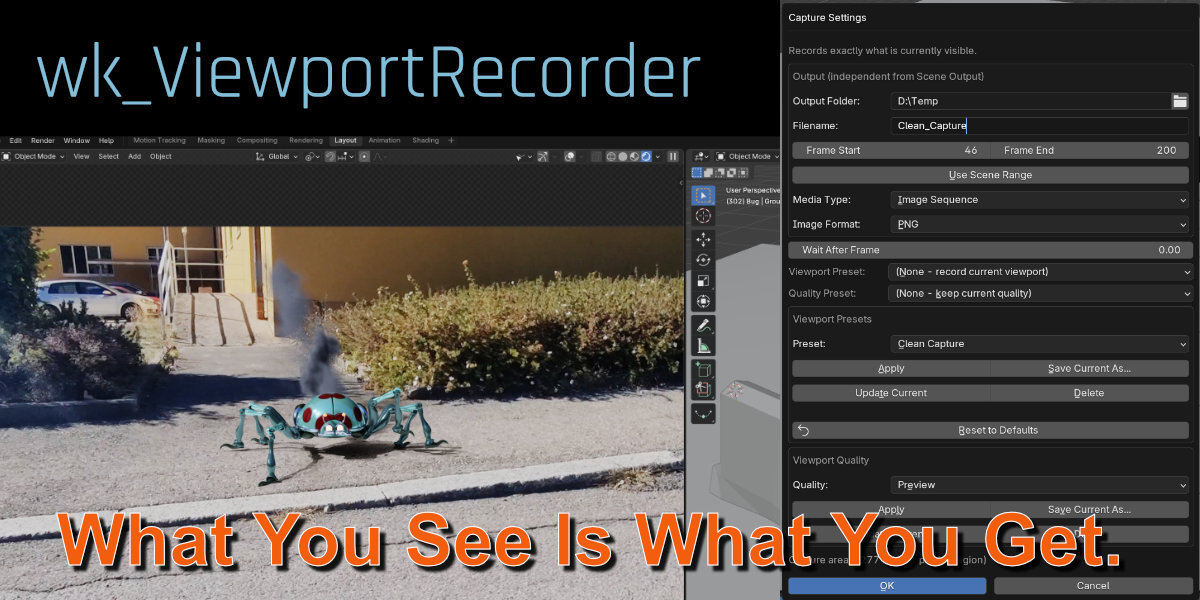
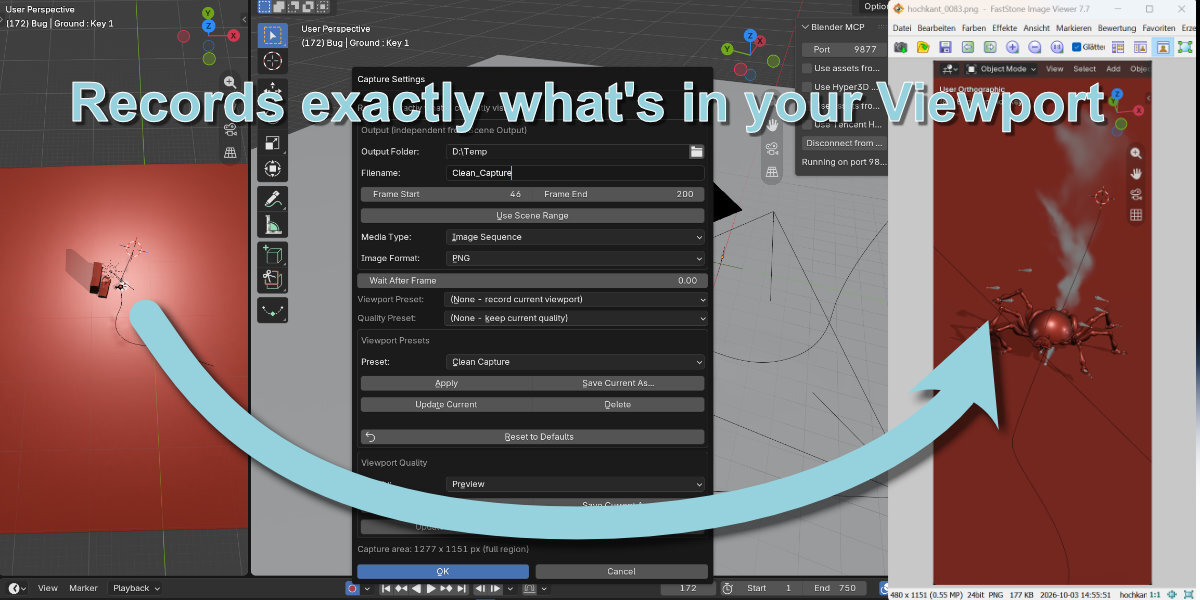
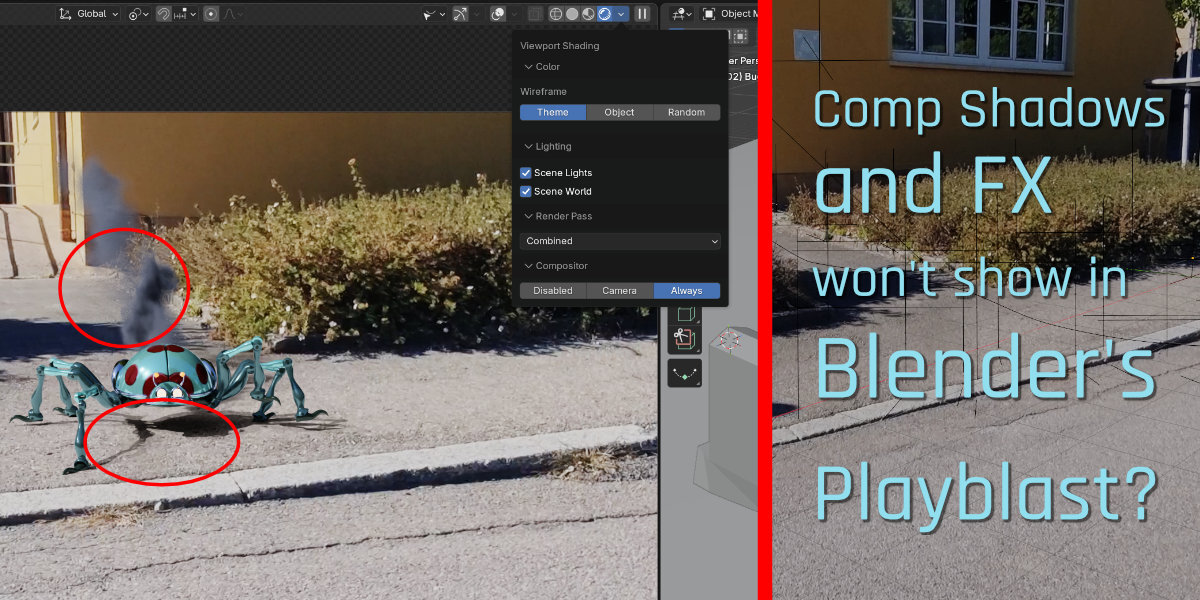
wk_ViewportRecorder
Documentation
Installation
• In Blender go to Edit > Preferences > Add-ons
• Click Install, then choose the wk_viewportrecorder_*.zip file
• Enable wk_viewportrecorder in the list
• Access it from the Viewport - View menu

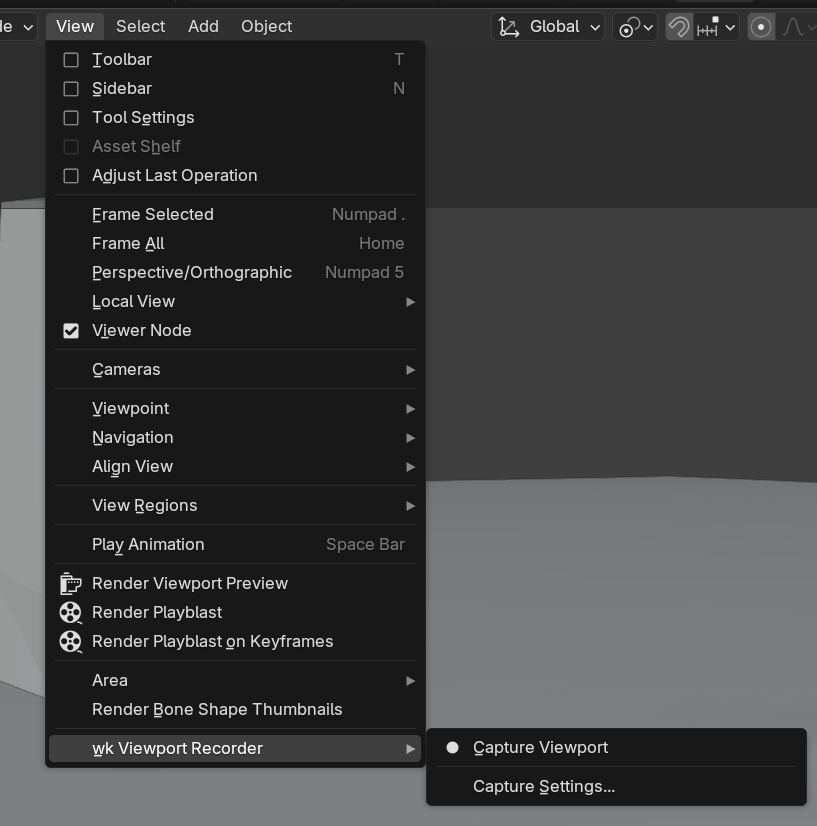
Capture Viewport
Click this button to start capturing with the settings you've set.
Hit ESC to cancel or stop the capturing.
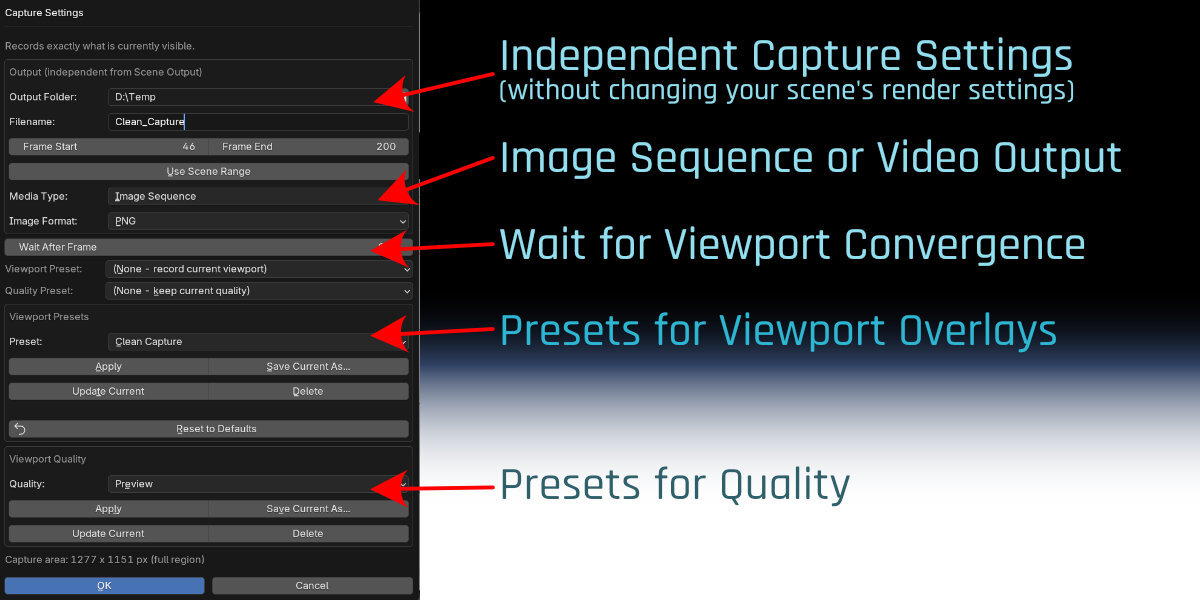
Capture Settings
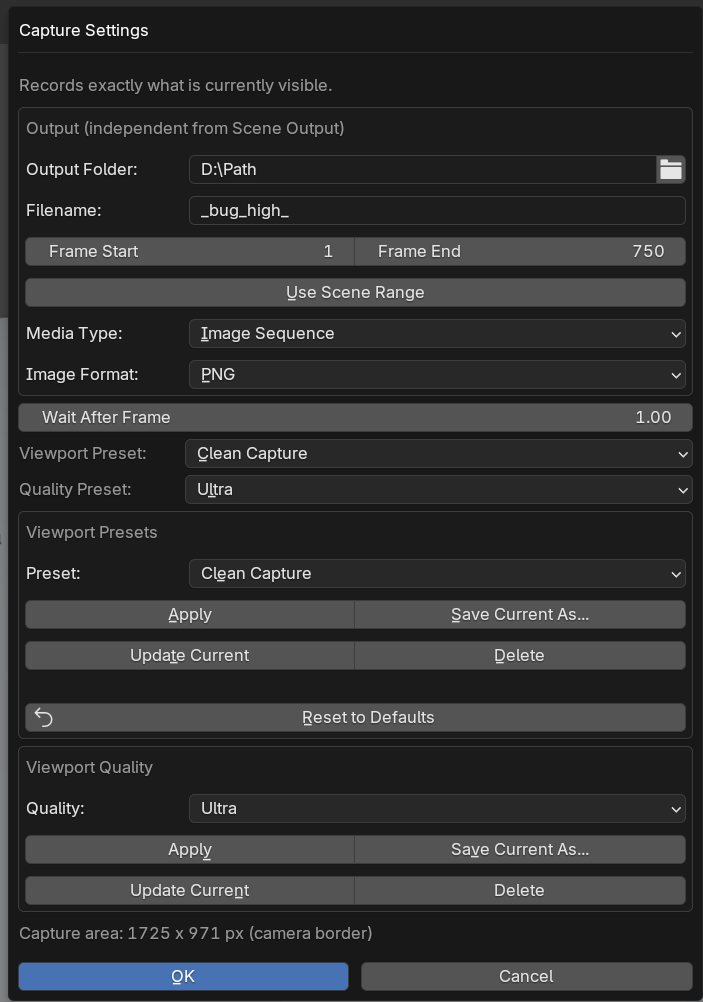
Output Folder
Choose where the recorded images or video will be saved.
Filename
Base name for the output files.
Examples:
-
shot_→shot_0001.png -
preview_→preview_0042.jpg
Frame Start / Frame End
Defines the frame range to record.
Use Use Scene Range to automatically copy the current scene frame range.
Media Type
Choose between:
- Image Sequence
- Video
Video recording first captures individual frames and automatically encodes them afterwards.
Image Format
Select the image format for image sequences.
Examples:
- PNG
- JPEG
- TIFF
- OpenEXR
Video Format
Choose the output video format.
Example:
- MP4 (H.264)
Video encoding uses Blender's built-in video encoder.
Note:
A video is created only when all frames of the current Scene Frame Range are available. This allows you to record long animations in multiple sessions. Simply capture different frame ranges (for example 1–100, 101–200, 201–300). Once all frames are present, wk_ViewportRecorder automatically assembles the final video.
Wait After Frame
Adds a delay after changing the frame before capturing it.
Useful for Cycles viewport rendering, where the image needs time to converge.
Example:
- 0.0 s → fastest recording
- 1–3 s → cleaner Cycles images with reduced noise
Viewport Preset
Applies a saved viewport configuration before recording.
Ideal for recording without overlays or using a dedicated viewport setup.
The original viewport is restored automatically after recording.
Quality Preset
Applies a saved viewport quality configuration before recording.
For example:
- Preview
- High
- Ultra
Useful for switching between fast previews and higher-quality viewport rendering.
Viewport Presets
Viewport presets save the visual appearance of the viewport.
Typical settings include:
- Shading mode
- Overlay visibility
- Compositor mode
- Background visibility
- Viewport options
Apply
Loads the selected preset.
Save Current As...
Creates a new preset from the current viewport.
Update Current
Overwrites the selected preset with the current viewport settings.
Delete
Deletes the selected preset.
Reset to Defaults
Restores Blender's default viewport appearance.
Viewport Quality
Quality presets store viewport render quality independently from viewport appearance.
Typical settings include:
- Viewport samples
- Denoising
- Simplify options
- Other viewport render quality settings
Apply
Loads the selected quality preset.
Save Current As...
Creates a new quality preset.
Update Current
Updates the selected preset.
Delete
Deletes the selected preset.
Capture Area
Displays the exact image size that will be recorded.
Depending on the current view this will either be:
- Camera Border (camera view)
- Full Region (free viewport)
This allows you to see the final output resolution before recording.
 Included
Includes 12 months of
- Support from Wolfram Kampffmeyer
- Product updates
Extend this product’s Support Period +12 months: 50% of product price
Have questions before purchasing?
Login to message
| Blender Extension Compatible | Yes |
| Published | 5 days ago |
| Blender Version | 5.2 |
| Extension Type | Add-on |
| Render Engine Used | Blender-Internal, Cycles, Eevee |
| License | GPL |
Discover more products like this
WYSIWYG blendercrash advanced-playblast workaround blender crash playblast viewport-recording