Wood Works
 Meta Meow Co., Ltd.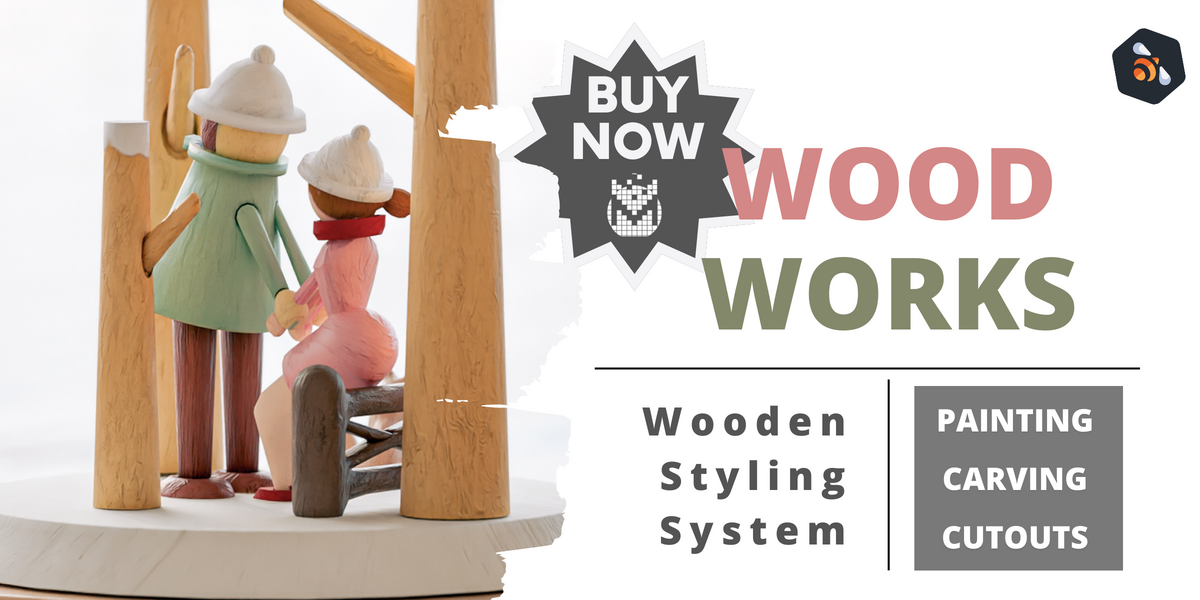
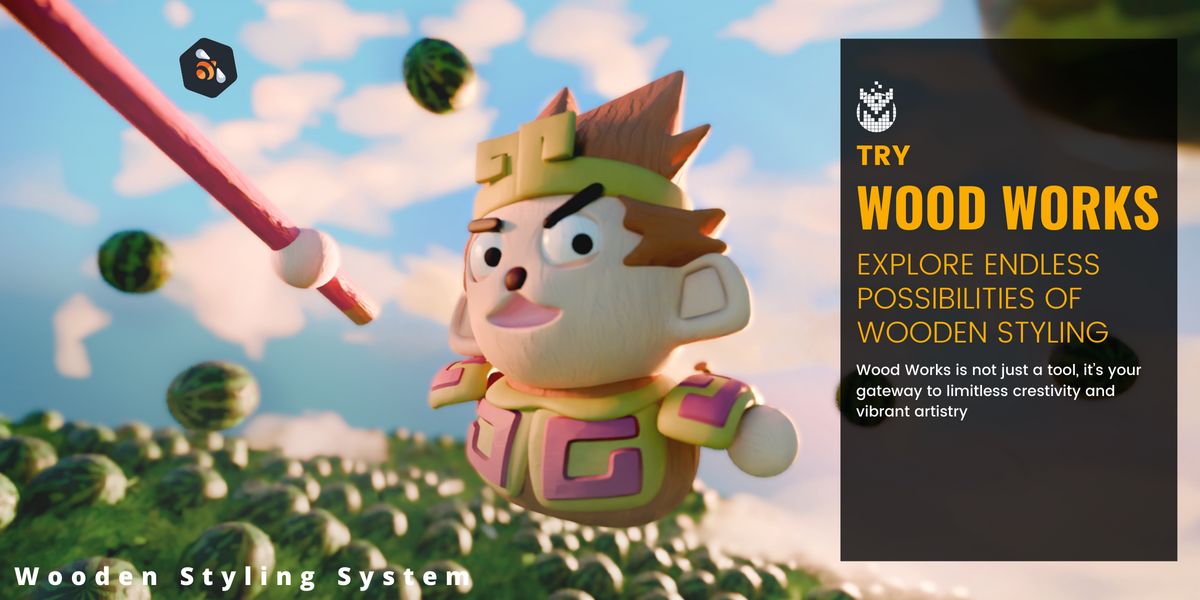


For the most up-to-date version of the Wood Works documentation please visit link: https://docs.google.com/document/d/1eKtlLSWTVj-p0ZXU3RSezuqRCG-AO2sv2iyUkn1MeJA/edit?usp=sharing
Table of contents
1.3 Limitations: what can Wood Works not do? (yet)
Getting started with Wood Works
2.3 Wood Works Settings and Parameters
2.4 Changing the Wood Works data files
1. Introduction
Thank you for purchasing Wood Works! Wood Works is a multi-functional tool designed to help you instantly transform your Blender scenes into cute wooden environments, enabling interesting models and textures without the need for deep technical knowledge of Blender. All of the handling of materials, textures and UVs can be left to Wood Works, so that the user can focus all their energy into creativity.
1.1 What is Wood Works?
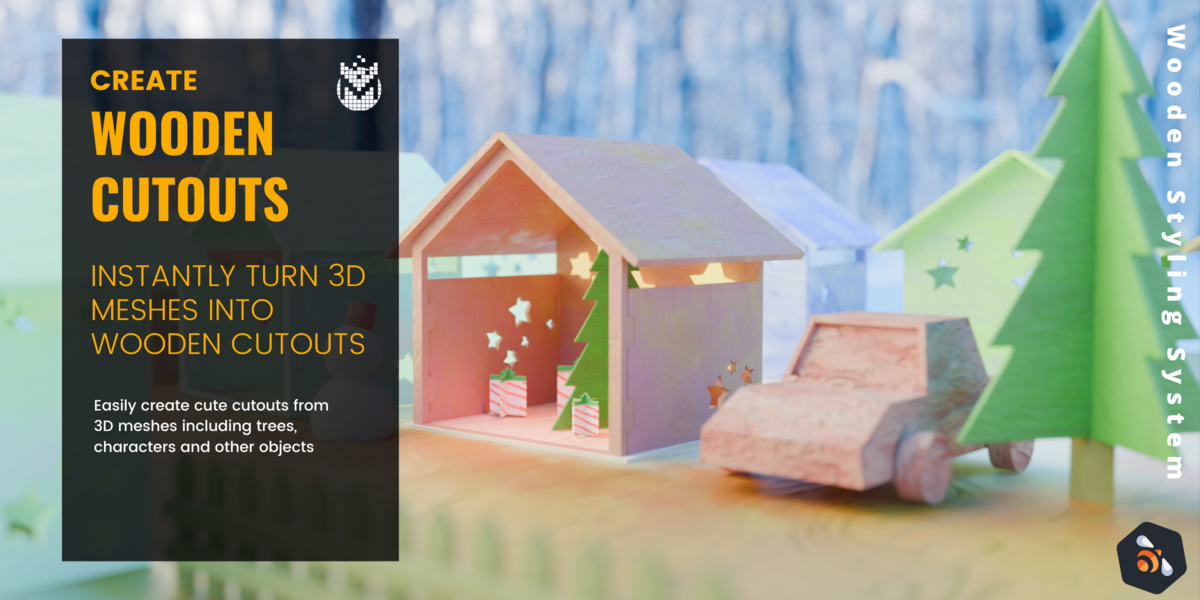
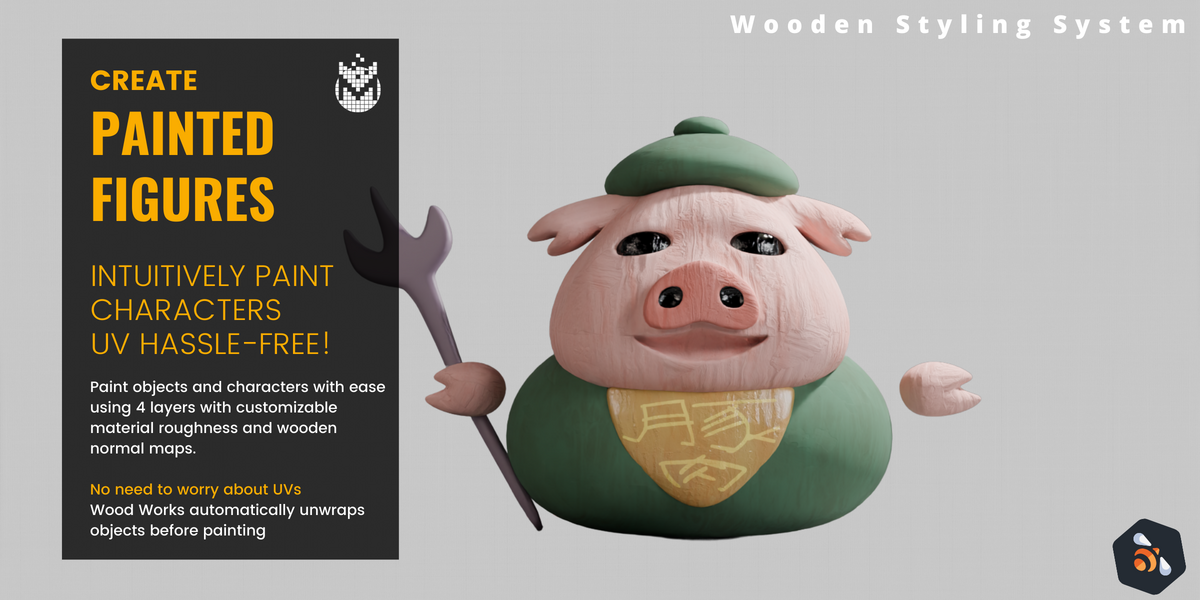
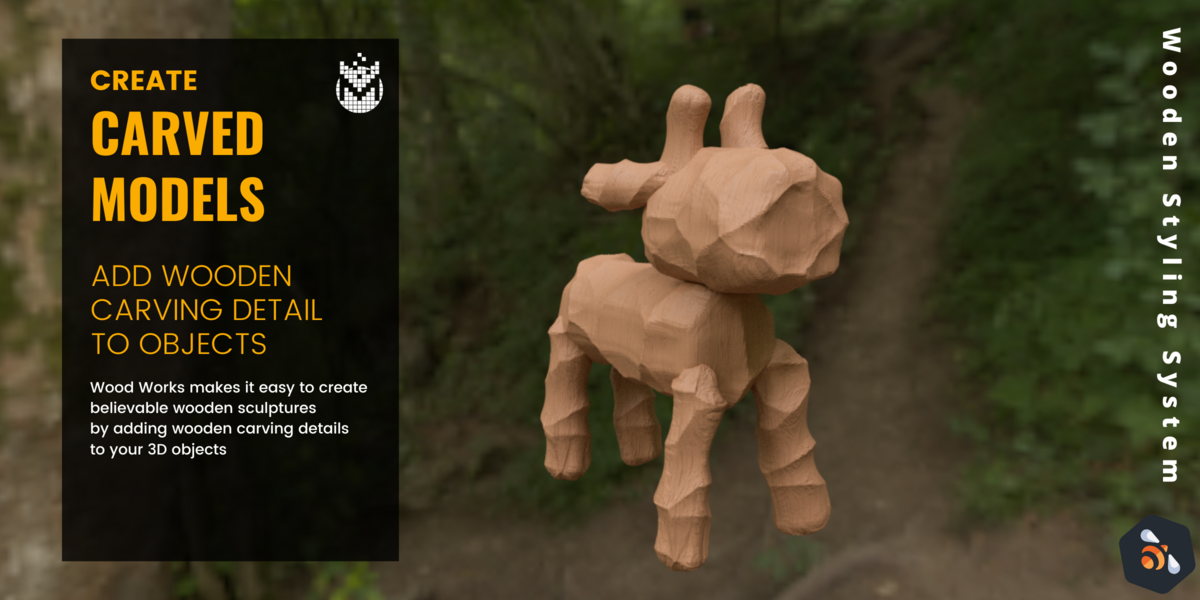
Wood Works is a Blender add on used to create a wooden finish on characters, models and scenes. Users can paint different wood colors and textures blended seamlessly together through one material, the different wooden textures can be easily modified from the Wood Works Panel. Users can access the carving tool to give their model a hand made wooden look, or the cutout tool to give a 2D billboard style to any object before painting it as they like.
1.2 Features: Why Wood Works?
Why Wood Works?
Easy Integration of complex systems of intertwined shader graphs, geometry networks and python scripting all brought together with no setup required
Multi-Functional - brings more to your scene than just a single material or texture. Use Wood Works’ different features to change multiple aspects of the whole scene.
No need for UVs, material set up or textures as it all comes together with Wood Works.
Features
Simple UI: The Wood Works Panel to control all the features from one simple to use interface
Complex Material Shader that handles multiple textures at once along with blending and layering
4 Customisable Textures with normals all controlled through the Wood Works panel
Texture Painting of the 4 different textures done throughout the material shader, painted on with the mouse and blended seamlessly together
Carved Wood Style applied through geometry nodes for procedural wood carving effect
2D Wooden Cutout Style also applied procedurally to any mesh in your scene for a DIY printed wooden look
1.3 Limitations: what can Wood Works not do? (yet)
Changing the available 4 textures is currently not done easily through the UX panel
The textures can be changed by going into the blender file in which the textures are imported from and changing them there. This is a feature we are looking to add into the main panel
Small and highly detailed meshes may not respond well to the carving or cutout feature
This is due to the re-mesh that happens within the geometry nodes
A work around to this would be to avoid making any highly detailed carved meshes very small. And carving them at a large scale then after scaling them back down
2. How to use
2.1 Quick start guide
Using Wood Works is just like installing any other blender add-on.
Navigate to the Add-ons menu. At the top of your blender window go to Edit > Preferences

On the left side of the Preferences window, select “Add-ons”

Install the add-on
In the top right corner of the Preferences window, click the down-facing arrow


Back in the Preferences Window you should now see the Wood Works add-on available


Make sure the check-box is ticked to enable the add-on

Use Wood Works
On the right edge of your viewport, press N on the keyboard or click the small arrow to expand the sidebarkNc99HAYA7afs6-oACiBXYK3LilynXYiXGDaPaT1WpNacwgowi?key=y7v24LAraPP3QTAuBXXTwCIA

Click on the Wood Works Tab

2.2 Detailed System Overview
In this section each of the features’ shall be outlined and explained as to how\why it works and how it can be used. For a detailed description of each individual parameter available in the outliner please refer to 2.3 Wood Works Settings and Parameters
Main Panel

Painting Panel

Carving Panel

Cutout Panel

2.3 Wood Works Settings and Parameters
This section will go over every single parameter in the tool and describe what it does. If there are any settings that are confusing or options that you think are missing please do not hesitate to contact us!
As the main panel is simply used for navigation, it is not covered in this section.
Painting Panel

Carving Panel
Cutout Panel
2.4 Changing the Wood Works data files
This section will briefly explain how to edit the Wood Works data so that you can build on top of the tool yourself and make more complex changes.
This section is only recommended for those who are experienced with Blender, and changing the source Blender files may cause issues when updating Wood Works.
In the Wood Works ZIP folder, the WoodWorks.blend file can be found, this file stores all of the base data used by the tool when it is used as an add-on.
To change the textures used for the 4 different painting options, the textures can be found in the M_WoodWorks material.
To change the Geometry Node set-ups, these can both be done through the geometry nodes editor.
It is not recommended to change the main Wood Works file as this may cause issues with your scene, again, only experienced users should do this if they feel as though it is necessary.
2.5 Common Issues / Questions
Will I have to UV my object before using Wood Works?
No, Wood Works handles all the UVs and material application so that you, the user, can enjoy the painting without having to deal with the boring parts of setting up and texturing a model.
Can I use Wood Works on characters and other deforming objects?
The painting mode can be used on characters before rigging. However, the carving feature is not compatible with deformations because it automatically remeshes objects. During this process the skinning information is lost.
Can I use more than 4 layers in Wood Works?
Currently Wood Works supports up to 4 layers. If you need more granular control, we recommend splitting your mesh into separate objects after which you can use 4 layers for each object.
Can I use Blenders in-built paint brushes with the tool?
Yes! Wood Works functions using Blender’s texture painting context menu and therefore - all brush types and options available when using texture painting can be used with Wood Works
Can I use custom textures in Wood Works?
The wood bump textures are currently locked, we are looking to expose controls for textures in the next update.
3. Future releases
We are always looking to improve our tools by both improving the current state of the features and adding more. If you have any ideas or suggestions please feel free to contact us!
Features currently being worked on or considered for future releases are:
Support for more than 4 colors per material
More wood textures and easy selection between them
4. Support
We welcome any questions, issues or feature requests about Wood Works. If you have any problems using Wood Works, please contact at [email protected]
5. Version history
-
$29.99
For non-revenue-generating projects. Redistribution, modification are not allowed.
-
$69.99
For revenue-generating projects. Redistribution, modification are not allowed.
Have questions about this product?
Login to message
| Published | over 1 year ago |
| Blender Version | 4.3 |
| Extension Type | N/A |
| License | Editorial |
