Work Time Tracker
 auphinity.tools


⏱ Work Time Tracker
Documentation — v2.1.0
Work Time Tracker — Documentation
Installation
- Download
work_time_tracker.zipfrom your Superhive purchases. - Open Blender and go to Edit → Preferences → Add-ons.
- Click Install… (top right corner).
- Select the downloaded
.zipfile and click Install Add-on. - Enable the add-on by checking the box next to "System: Work Time Tracker".
- The add-on is now active. No restart required.
Requirements
| Requirement | Value |
|---|---|
| Blender version | 3.0 or newer |
| Render engine | Any (not render-dependent) |
| External dependencies | None |
Getting started
- Open any 3D Viewport.
- Press
Nto open the sidebar (if not already visible). - Click on the ⏱ Time tab.
- Start working — the tracker detects activity automatically and begins counting.
That's it. No "start" button to press. The tracker watches for scene changes (moving objects, editing meshes, changing properties) and counts time whenever you're active.
Interface overview
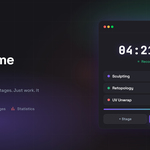
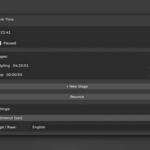
The entire tool lives in a single sidebar panel. Here's what each section does:
| Section | Description |
|---|---|
| Total time display | Shows the combined time across all stages in HH:MM:SS format. Updates every second while active. |
| Status indicator | ● Active — currently tracking. ○ Idle — waiting for activity. ⏸ Paused — manually paused by the user. |
| Stages list | Each stage shows: a radio button to make it active, the stage name, its tracked time, a pencil icon to rename, and an X to delete. |
| + New Stage button | Creates a new stage and makes it the active one. Time for the previous stage is preserved. |
| Pause / Resume button | Manually pauses or resumes tracking. Useful when you keep Blender open but aren't working. |
| Settings section | Idle timeout slider and language selector. |
Understanding the tracking system
Automatic activity detection
The tracker hooks into Blender's depsgraph_update_post handler. This means any action that changes the scene — moving an object, editing a mesh, adjusting a material, adding a keyframe — counts as activity.
When activity is detected:
- If the tracker was idle, it starts counting.
- If the tracker was already active, the "last activity" timestamp is updated.
Idle timeout
When no activity is detected for the configured number of seconds (default: 30), the tracker automatically pauses. The time between your last real action and the idle cutoff is not counted — only active work time is tracked.
You can adjust the idle timeout in the Settings section of the panel:
| Setting | Range | Default | Recommendation |
|---|---|---|---|
| Idle timeout | 5 – 600 seconds | 30 sec | 30 sec for most workflows. Increase to 60–120 if you frequently pause to think between actions. |
Where data is stored
All time data is stored directly in the .blend file as custom scene properties:
-
wtt_stages— a JSON string containing the list of stages with names and accumulated seconds. -
wtt_active_stage— the index of the currently active stage.
This means:
- No external files are created.
- No internet connection is needed.
- If you send the
.blendfile to someone, they see the same time data. - Time persists between Blender sessions as long as you save the file.
Working with stages
Creating a new stage
Click + New Stage. This:
- Flushes any unsaved time to the current stage.
- Creates a new stage named "Stage N" (or "Этап N" in Russian).
- Makes the new stage active — all new time goes here.
Switching stages
Click the radio button (○) next to any stage name. The current session's time is flushed to the old stage, and new tracking goes to the selected one.
This is useful when you go back to a previous phase — for example, you discover a modeling issue while texturing and want to log that fix time under "Modeling".
Renaming stages
Click the pencil icon (✏) next to a stage name. A dialog appears where you can type a new name. Press OK to confirm.
Suggested stage names for common workflows:
| Workflow | Suggested stages |
|---|---|
| Character modeling | Blockout, Sculpt, Retopo, UV, Texturing, Rigging |
| Environment art | Layout, Modeling, Materials, Lighting, Polish |
| Animation | Reference, Blocking, Spline, Polish |
| Archviz | Modeling, Materials, Lighting, Camera, Post |
Deleting stages
Click the X next to a stage name. A confirmation dialog appears. Deleting a stage permanently removes it and its tracked time.
Note: You cannot delete the last remaining stage. At least one stage must always exist.
Pause and resume
The Pause / Resume button gives you manual control over tracking.
| Situation | What to do |
|---|---|
| Leaving for lunch with Blender open | Click Pause. The tracker won't count time even if the scene updates from background processes. |
| Coming back from a break | Click Resume or just start working — if not paused, the tracker resumes automatically on activity. |
| On a video call but Blender is open | Click Pause to prevent accidental tracking. |
When paused, the status indicator shows ⏸ Paused and all activity detection is disabled until you resume.
Language
The add-on supports two interface languages:
- English (default)
- Русский (Russian)
To switch: open the Settings section at the bottom of the panel and change the Language / Язык dropdown. The change takes effect immediately — no restart needed.
All panel labels, button text, status messages, and default stage names change to the selected language.
Saving and persistence
Important: Time data is only permanently saved when you save the .blend file.
- The tracker automatically flushes current session time to the scene data on every File → Save.
- If Blender crashes before saving, unsaved session time is lost (but all previously saved time is safe).
- Save regularly (Ctrl+S) to protect your tracked time.
Tips
- Save often. The tracker flushes time data on every save. If Blender crashes, only unsaved session time is lost.
- Use stages for billing. If you bill by task, create a stage per task. At the end, each stage tells you exactly how long you spent.
- Adjust idle timeout to your style. If you're a thinker who pauses for 60 seconds between actions, increase the timeout so you don't lose that time.
- Don't worry about forgetting. The whole point is that you don't have to remember to start or stop a timer. Just work.
FAQ
Where is the time data stored?
Directly in the .blend file as custom scene properties. No external files are created.
What happens if I forget to pause?
The idle timeout (default 30 seconds) automatically stops tracking when you're not working. Only active work time is counted.
Can I rename stages?
Yes — click the pencil icon next to any stage name.
Does it track time across sessions?
Yes, as long as you save your .blend file. Time data persists between sessions.
Can I use it on multiple scenes in one file?
The tracker uses the active scene's custom properties. If you switch scenes, the tracker reads that scene's data. Each scene has independent time tracking.
Does it slow down Blender?
No. The activity detection is a lightweight handler that runs after scene updates (which already happened). The timer ticks once per second and only redraws the sidebar. There is no measurable performance impact.
Can I export the time data?
The data is stored as a JSON string in the custom property wtt_stages. Advanced users can read it via Blender's Python console: bpy.context.scene["wtt_stages"].
Changelog
v2.1.0
- Bilingual support (English / Russian)
- Stage management (rename, delete, switch between stages)
- Configurable idle timeout (5–600 seconds)
v2.0.0
- Multiple stages support
- Pause / resume functionality
Have questions about this product?
Login to message
| Published | 6 months ago |
| Blender Version | 3.0 - 5.1 |
| Extension Type | N/A |
| License | GPL |
Discover more products like this
productivity freelance billing stages time-tracking utility project-management Workflow timer time-tracker work time hours