Workspace Tools Addon Presets
 Wolfram Kampffmeyer


Overview
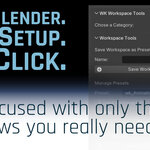
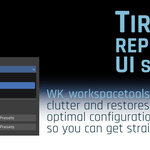
wk_workspacetools is a powerful Blender add-on that allows artists to quickly switch between customized workspace and addon setups. Whether you're modeling, animating, compositing, or editing video, wk_workspacetools gives you full control over your environment with just a single click.
With over 20 years of experience as a 3D artist, I created this tool to solve a simple but frustrating problem: Blender scenes often come with someone else's layout and active addons. This tool lets you instantly restore your own optimized setup, boosting focus and productivity.
Key Features
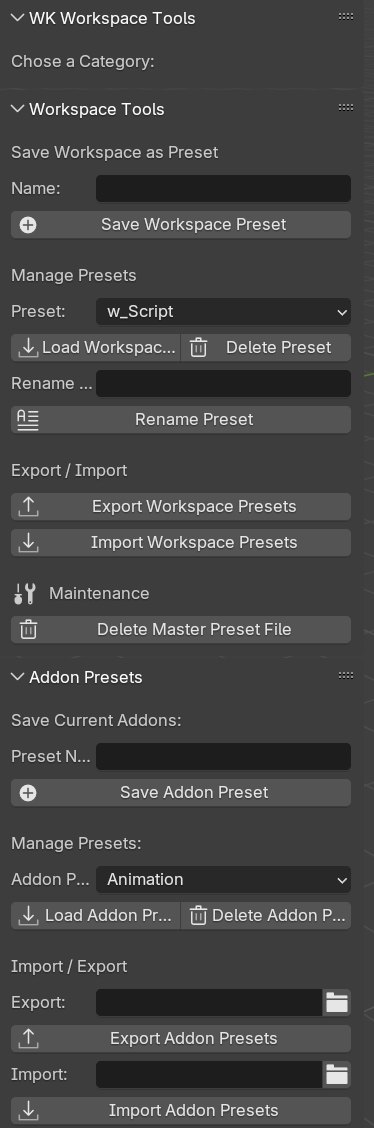
Workspace Presets
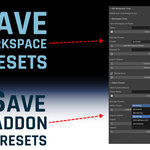
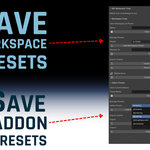
Save the currently active workspace with all settings, regions, and UI configurations.
Load any saved workspace into your current .blend file with one click.
Manage workspace presets: rename, delete, import/export.
All workspace presets are saved in a lightweight workspace_master.blend file and referenced in a presets.json.
-
Supports import/export to/from external folders (e.g. for use on another machine).
Addon Presets
Save the currently enabled addons as a named preset.
Load any saved preset and activate only those addons.
Streamline the N-Panel by showing only relevant tools for the current task.
Presets can be managed and accessed both from the Sidebar and the Preferences window.
Supports import/export to/from external folders (e.g. for use on another machine).
Installation:
-
In Blender go to Edit > Preferences > Add-ons
-
Click Install, then choose the wk_workspace_tools.zip file
-
Enable WK Workspace & Addon Presets in the list
-
Access it from the Sidebar (N) > wk_workspacetools
How To Use
Workspace Tools
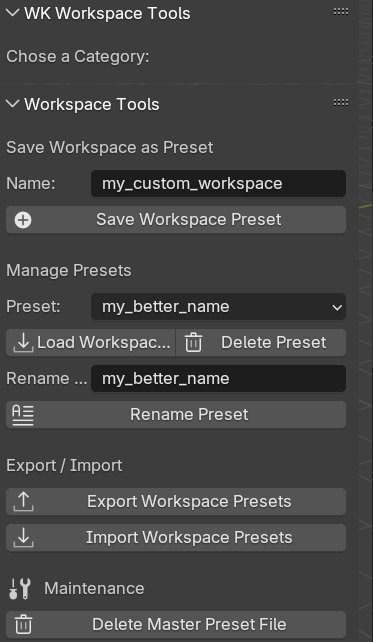
Set up your workspace with all regions, editors, and settings as desired.
Open the Sidebar and click "Save Workspace Preset".
Choose a unique name and confirm.
Later, click "Load Workspace Preset" to apply it to any .blend file.
Rename Preset if needed: Chose preset (under Manage Presets), write new name under "Rename", click Rename Preset
Delete Preset if needed.
Export all Presets: Chose a destination folder, confirm.
Import all Presets: Chose source folder, confirm. This will overwrite all existing presets.
Delete Master Preset File: Deletes all Presets from Blender's \config folder.
Tip: This also saves specific toggles like Auto Key, Play Settings, and Graph Editor options.
Addon Tools
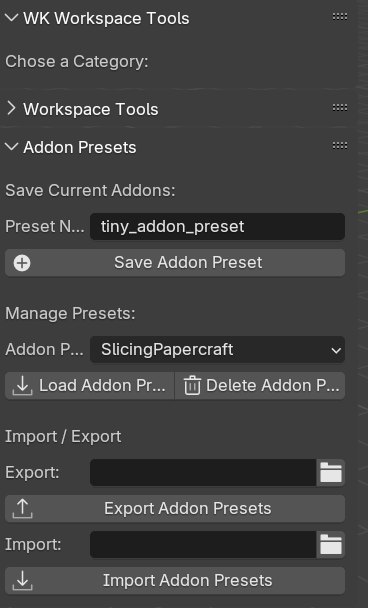
Activate only the addons you need for a specific task (e.g. Modeling, Rigging, Animation...).
Name your preset (e.g. "Modeling" or "Compositing").
In the Sidebar or Preferences, click "Save Addon Preset".
Switch between presets to clean up your interface and reduce clutter: Chose preset from drop down menu, click Load.
Import / Export: Chose destination folder, confirm.
Tip: Presets are stored in a readable addon_presets.json inside your config folder.
Use Cases
Freelancers working on multiple projects with different needs
Artists who switch roles (modeling, shading, animation)
Teams working in studios with shared scene files (always work in the perfect environment you are used to)
Anyone tired of reconfiguring their UI over and over
Note on Quick Favorites
Quick Favorites are context-sensitive and managed by Blender internally within the userpref.blend file. This add-on does not store or restore Quick Favorites.
If you deactivate an add-on that contributes an operator to the Quick Favorites menu and then close Blender, those entries may be lost permanently.
Tip: If you regularly use certain Quick Favorites (e.g. Copy Global Transform), we recommend keeping the corresponding add-on enabled across all presets to avoid losing access.
Compatibility
Tested from Blender 3.5 onwards
Support
If you run into issues or have feature suggestions, feel free to contact me via the SuperHive page.
Happy blending!
Have questions about this product?
Login to message
| Blender Extension Compatible | Yes |
| Dev Fund Contributor | |
| Published | over 1 year ago |
| Blender Version | 3.5 - 5.1 |
| Extension Type | Add-on |
| Render Engine Used | Cycles, Eevee |
| License | GPL |