 duchen
CurveForge. | |||||||||||||||
| |||||||||||||||
|
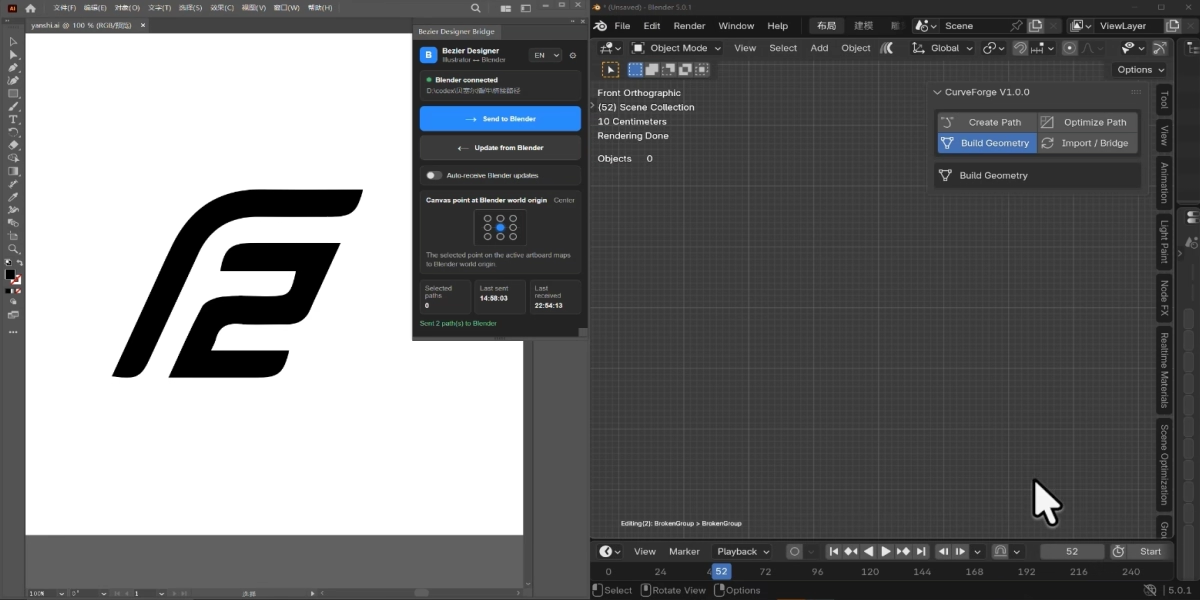
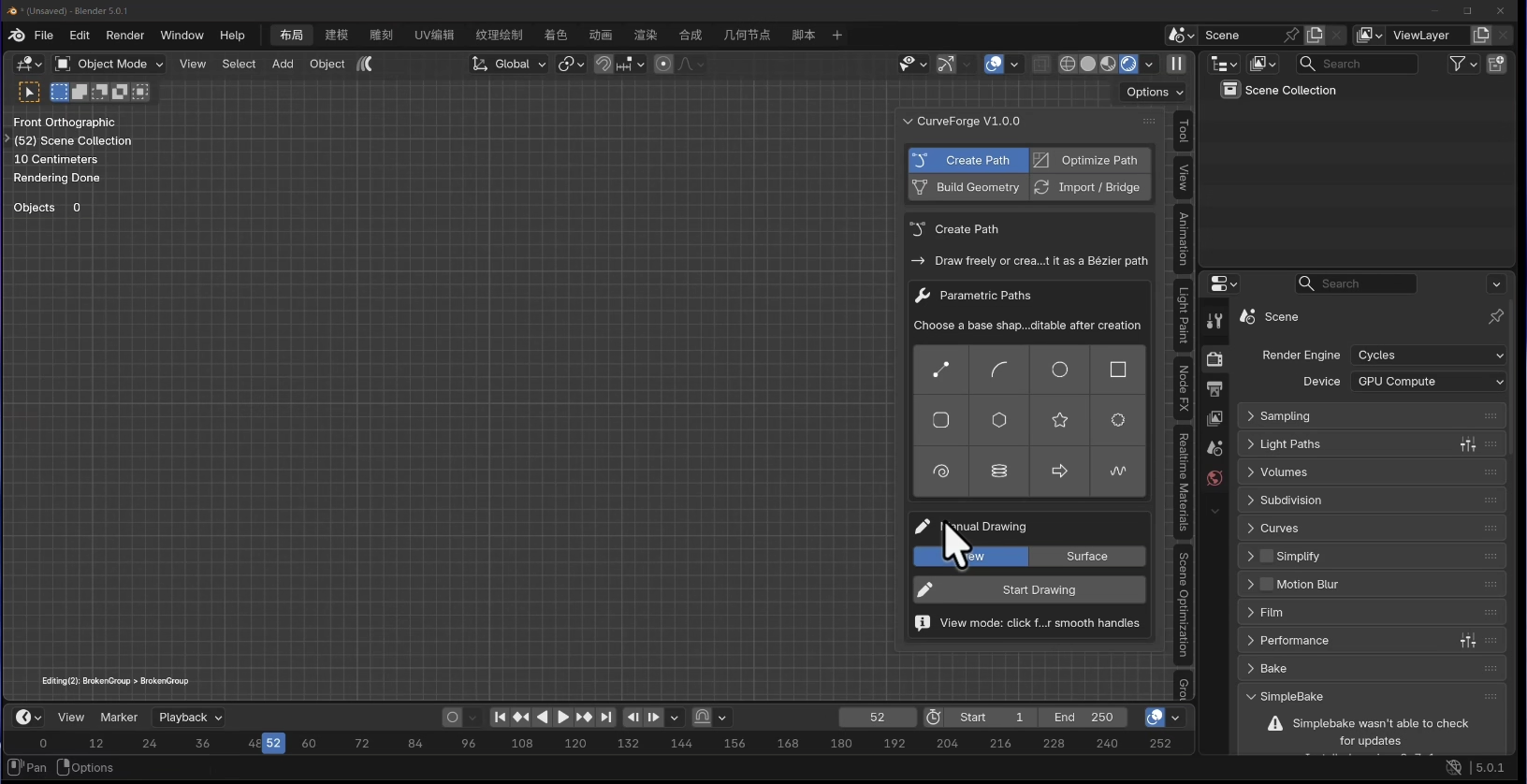
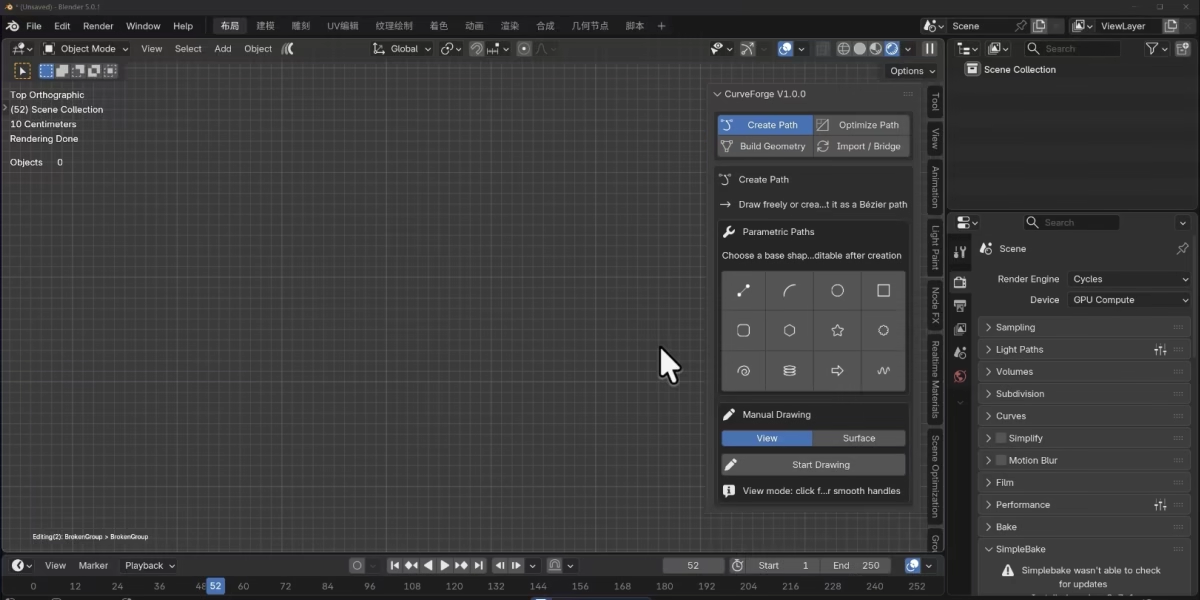
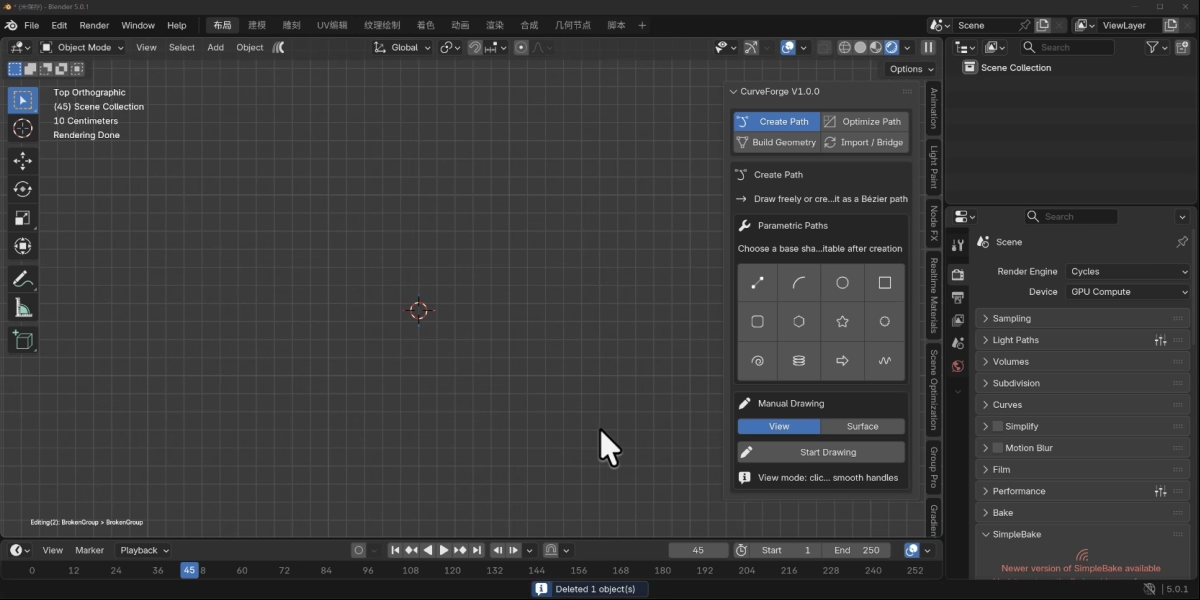
01 / WORKFLOW Start with your ideas. Import from Illustrator, draw in the viewport or start with a parametric shape. PARAMETRIC SHAPES Twelve starting points. Make them yours. Start with a familiar shape, adjust its parameters, then make it your own with direct Bézier editing.
| |||||||||||||||
|
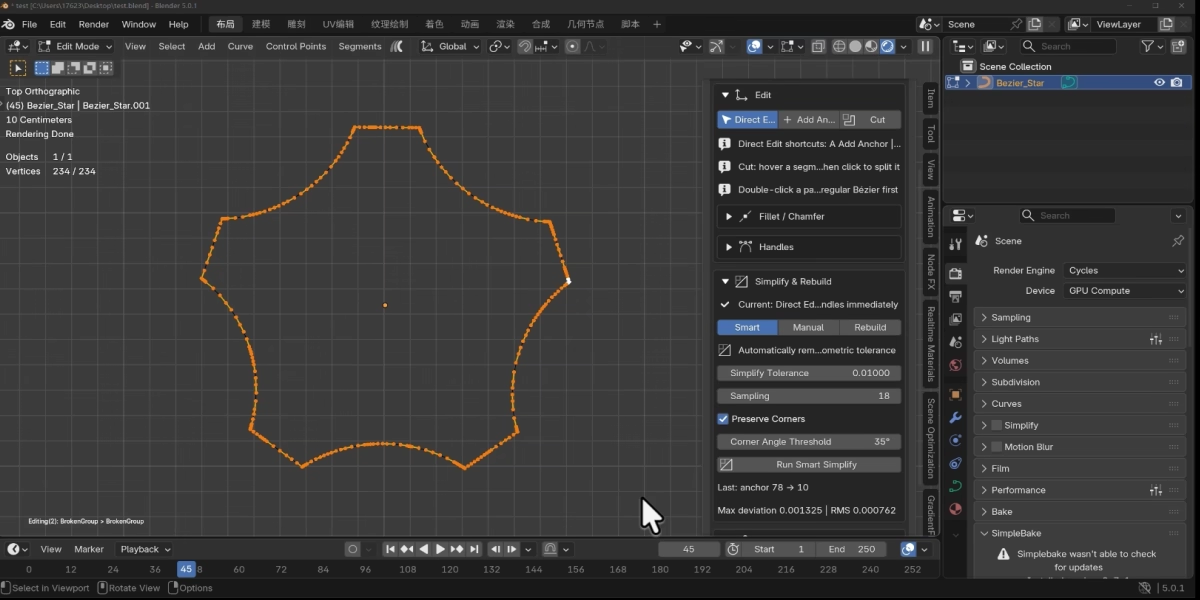
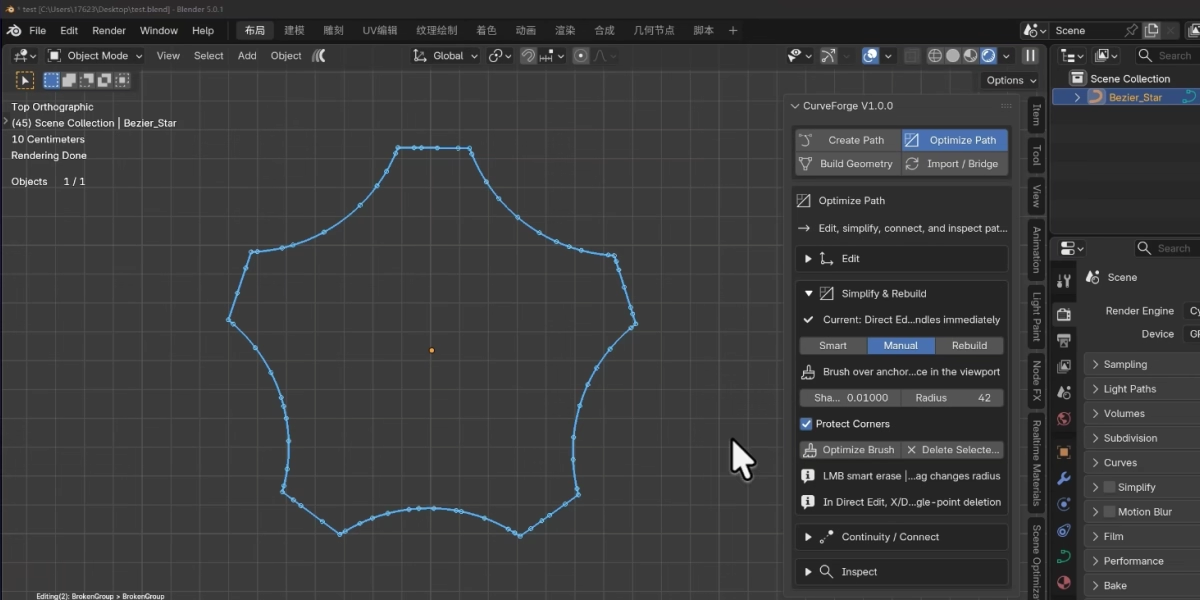
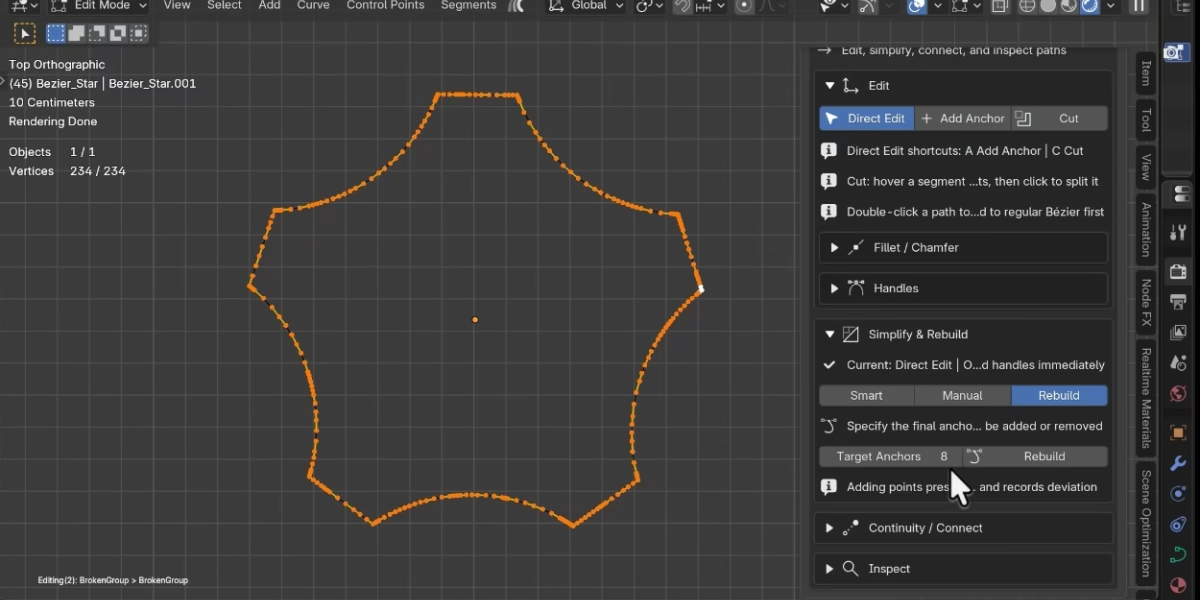
02 / WORKFLOW Fewer points. Clean imported or hand-drawn curves before you build.
| |||||||||||||||
|
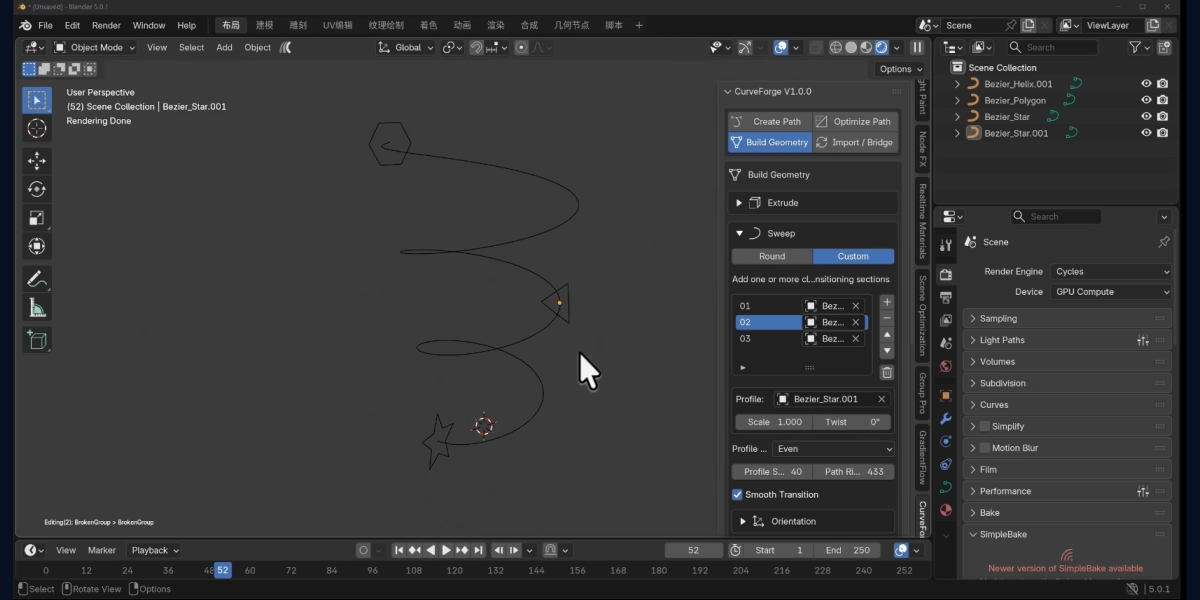
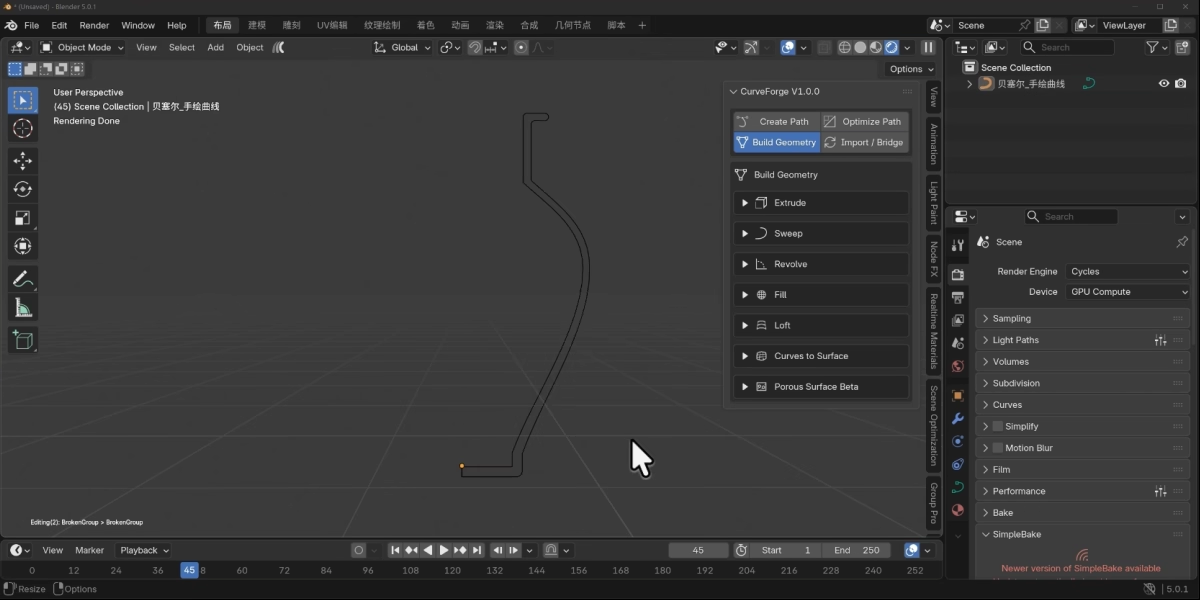
03 / WORKFLOW A path is only Six ways to turn curves into form, from profile-driven solids to connected surfaces.
| |||||||||||||||
|
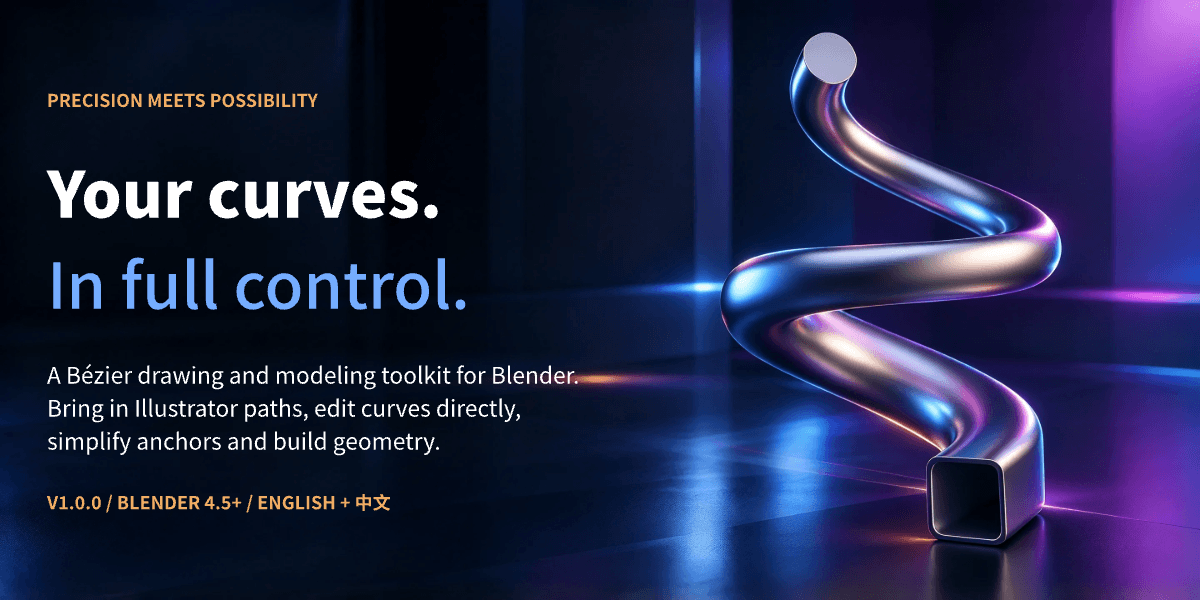
KEEP YOUR IDEAS MOVING Less repetition. Bring your paths, refine the details and explore new forms — in one focused Blender workflow. Reuse the artwork you already have. Keep curve editing close to the design. Spend more time shaping the result. FROM THE FIRST POINT TO THE FINAL FORM. CurveForge. |













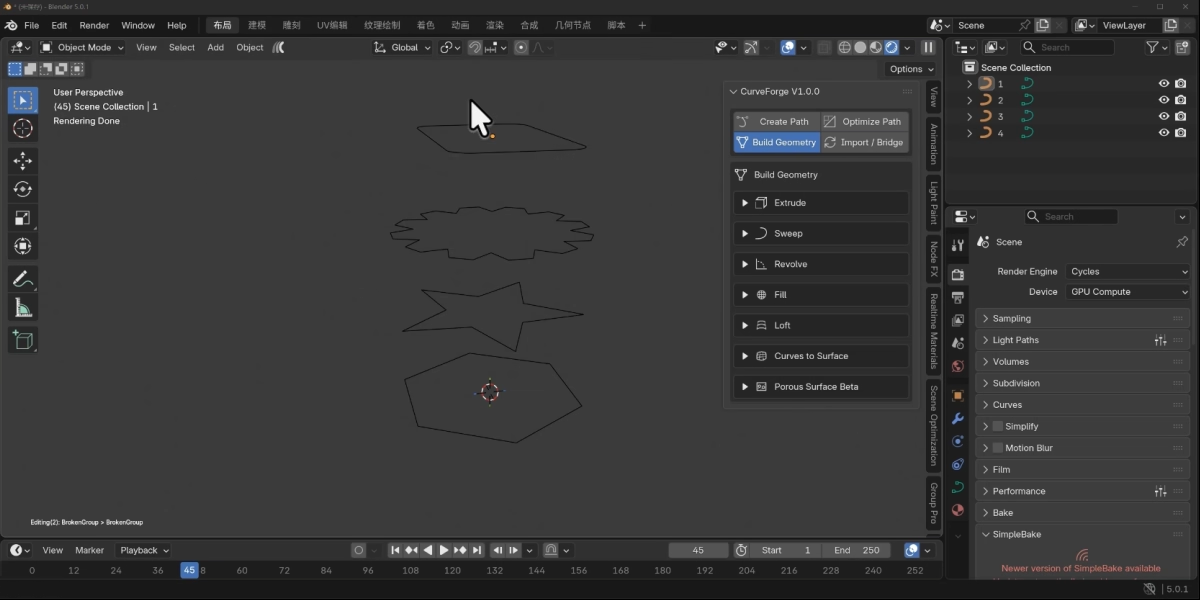
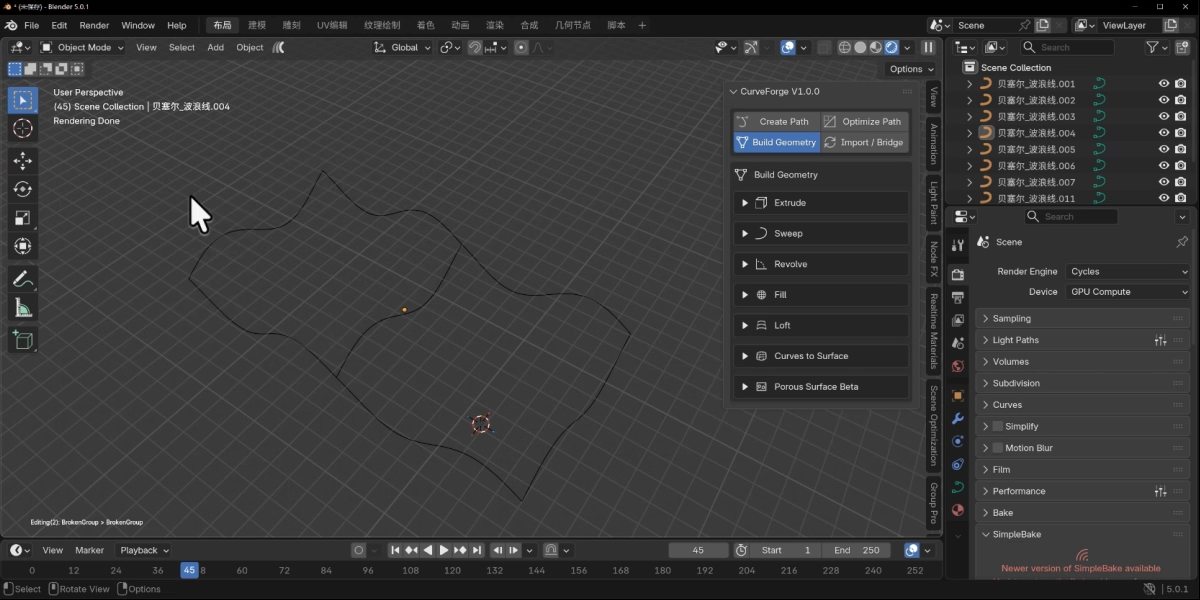
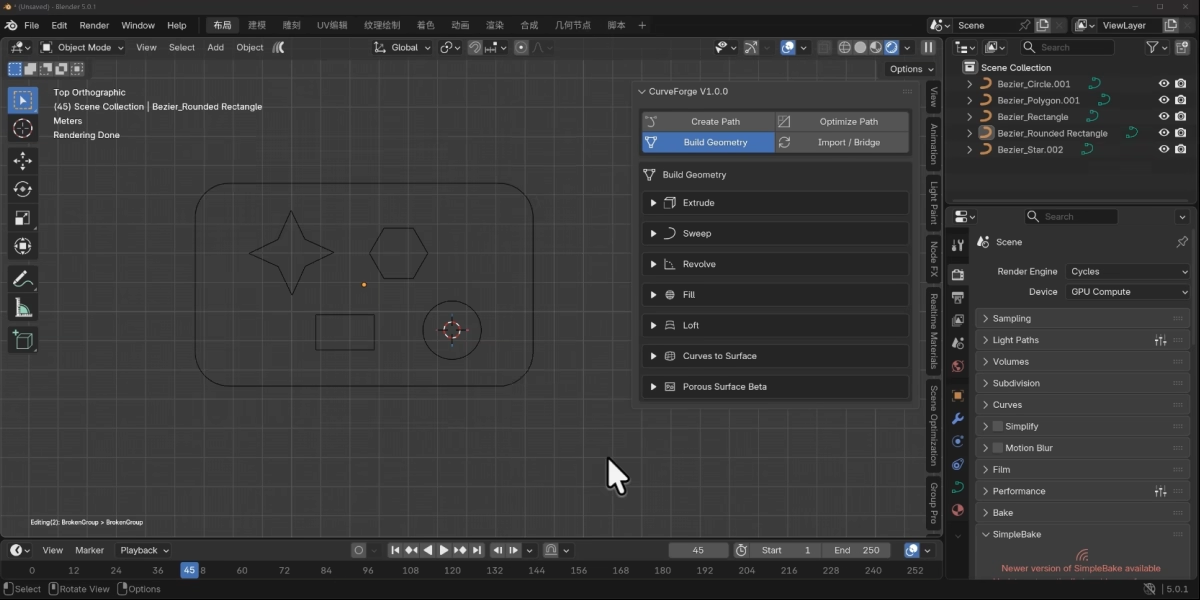
Discover more products like this
Have questions about this product?
Login to message
| Blender Extension Compatible | Yes |
| Dev Fund Contributor | |
| Published | about 2 hours ago |
| Blender Version | 4.2 - 5.2 |
| Extension Type | Add-on |
| Render Engine Used | Arnold, Blender-Internal, Blender-Game-Engine, Cycles, Eevee, Freestyle, Luxrender, Mental-Ray, Octane, Vray, Yafaray |
| License | GPL |