 AnimPal


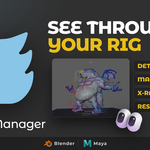

A production rig is a haystack. Fifty support controls, thirty facial controls, a tongue rig, four toe groups, and the one control you actually want is behind the mesh, on top of six others. So you zoom in, click, get the wrong thing, zoom again, then go digging through the outliner because clicking in the viewport is hopeless.
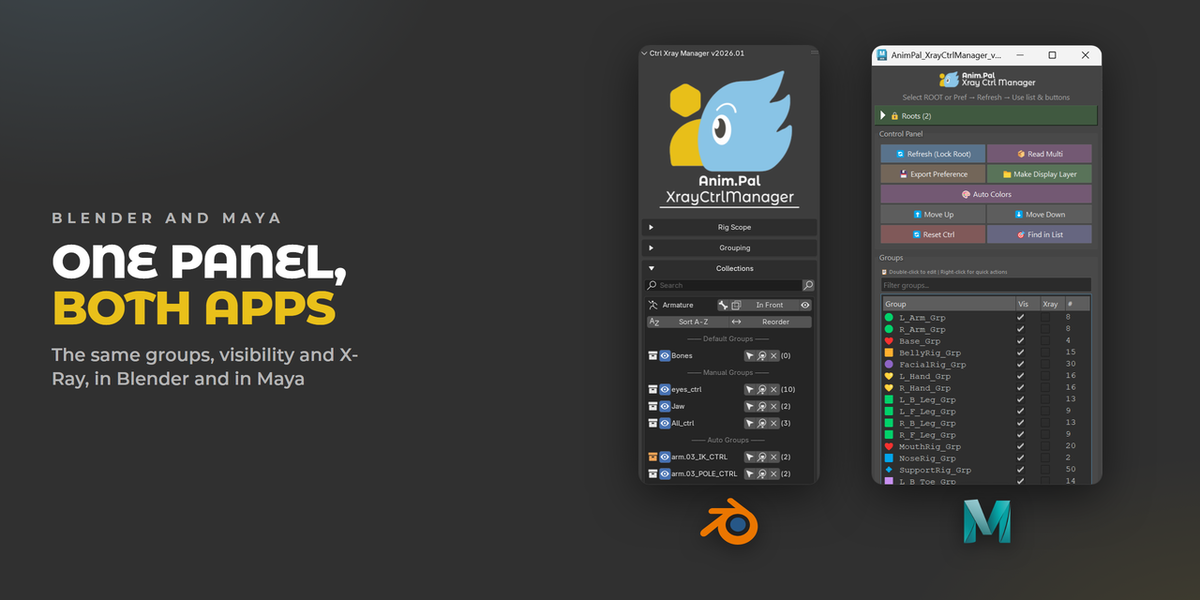
I built Xray Ctrl Manager because picking controls was costing me more time than posing them. It reads your rig, sorts the controls into groups, and gives every group its own visibility, selection and X-Ray switch. The rig does not change: nothing is renamed, reparented or constrained.
| Blender | 2026.01 | Lower than 1 MB |
Every control is drawn on top of every other one. Clicking the one you want is guesswork, and the more the rigger gave you, the worse it gets.


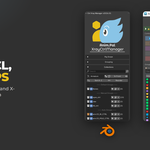
Pick the rig, choose how to group it, and the list builds itself. Naming Rules groups controls that share a name once a trailing number is removed, or follows your own regex rules. Hierarchy Branches makes a group out of each branch of the skeleton. Existing Collections just uses the bone collections the rigger already made. Change your mind and rebuild, the groups are regenerated.


Select the controls you care about, type a group name, and assign them. Manual groups sit in their own section of the list, next to the automatic ones. Sort the list A to Z, or turn on Reorder and drag the groups into the order you work in.

Every row has its own switches. The eye hides or shows that group. The arrow selects the whole group in one click, ready to key. In Front draws that group through the mesh, so a control inside the body is still reachable. One eye at the top hides or shows everything at once.


Focus isolates a group and hides the rest. Click another group and it joins the focus, so you can work on the arm and the hand together. Click the focused rows off again and the rig goes back exactly to the visibility it had before, because the original state is stored when focus starts.


Reset puts the selected controls back to rest, the way Alt+G, Alt+R and Alt+S do in Blender, but in one button and across a whole selection. Per axis locks are respected, so a control that is locked in Z stays where the rigger wanted it.

Bone colors: color left, center and right automatically, or paint a color onto the controls you select.
Presets that store the full setup, which controls are in which group plus their visibility, and rebuild it later.
Search the group list, and Find Active Bone to jump from a selected control to its group.
Multiple rigs in one scene, each with its own list, by locking the scope to a rig.
Delete empty groups and reset auto groups to start the grouping over.
