 Yuzurin


About yuzuWeightEditor
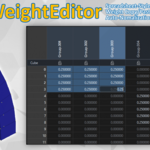
yuzuWeightEditor is a Blender add-on for viewing and editing weights in a spreadsheet-style interface.
Inspired by Maya's SiWeightEditor, it brings vertex group inspection, numeric editing, copy/paste tools, symmetry workflows, and binding helpers into a single editor window.
Note: The screenshots and GIFs in this README show the Japanese UI, but the released add-on also supports an English UI.
What It Does
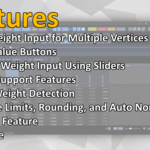
- View and edit vertex-group weights in a spreadsheet-style layout
- Switch between selected-only display, full display, and viewport-linked display
- Sync selection with the 3D viewport and highlight selected vertices
- Detect invalid weights
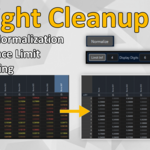
- Round weights, normalize values, and limit the maximum influence count
- Copy and paste by cell, vertex, or object
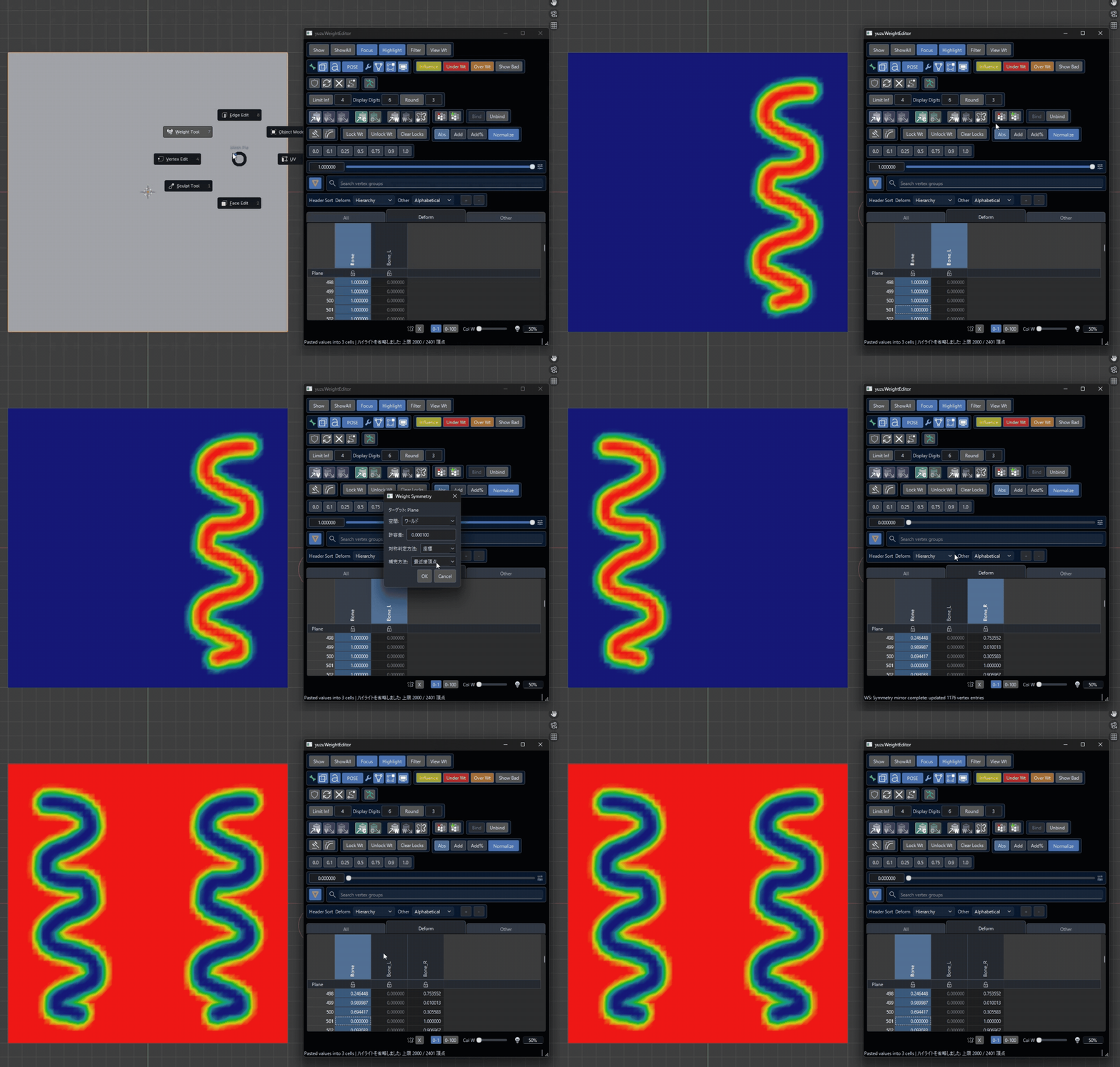
- Apply weight symmetry workflows
- Delete unused vertex groups and add missing bone vertex groups
- Assist with bone collection visibility, armature display, modifier visibility, and weight display
Requirements
- Blender 4.2 LTS
- Blender 5.0
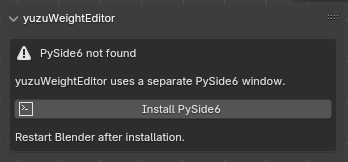
This add-on does not run purely inside Blender's standard UI. It opens a separate editor window built with PySide6.
If PySide6 is not installed yet, you can install it from the add-on panel using Install PySide6.
Main UI / Tools
Spreadsheet
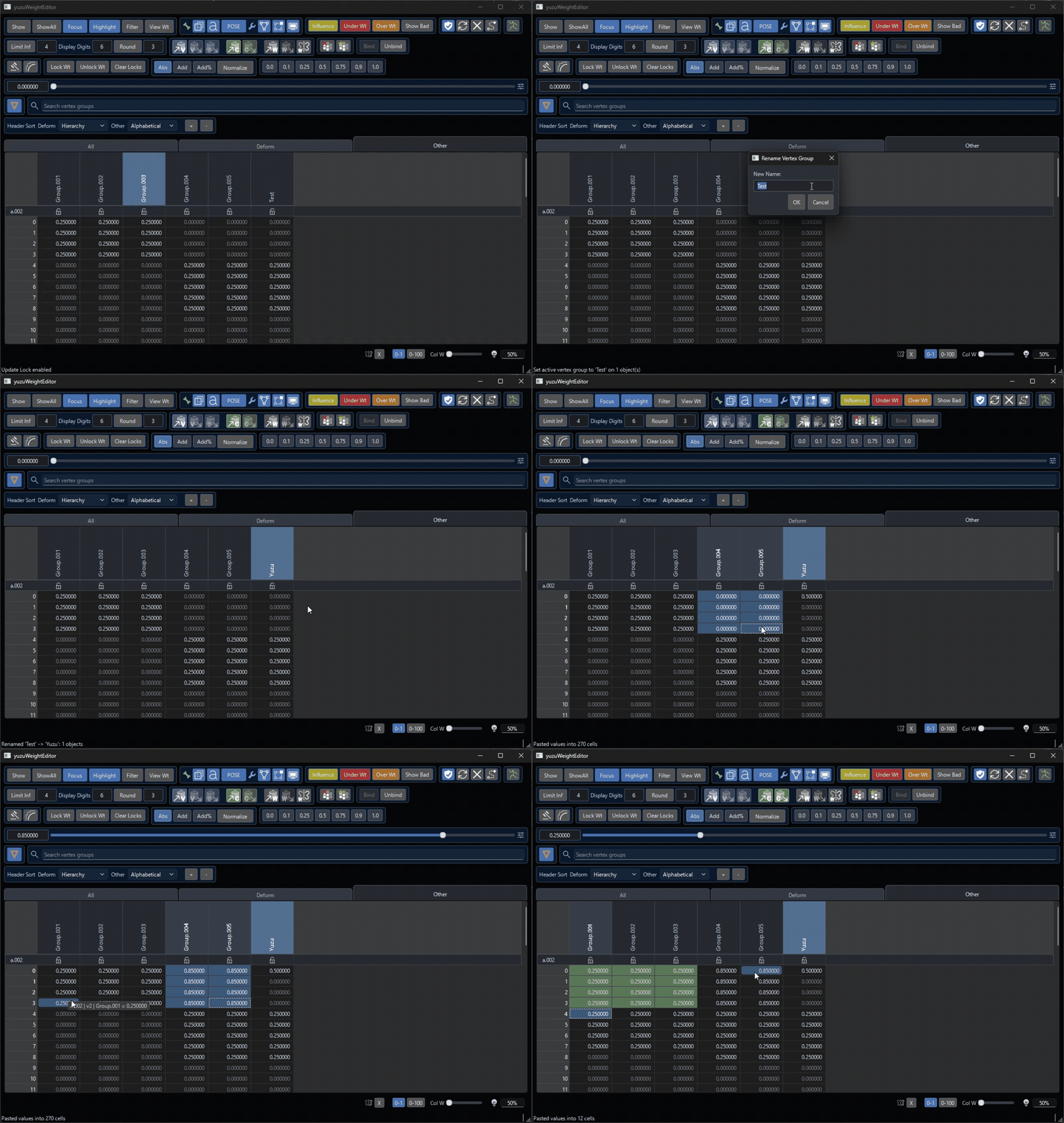
- Tabs: Vertex groups are separated into
All,Deform, andOther. - Header: Displays vertex groups. You can right-click to rename a vertex group. Renaming a
Deformgroup also renames the corresponding bone. - Vertex Group Lock: Click the icon to lock a vertex group.
- Cells: Edit weight values directly here.
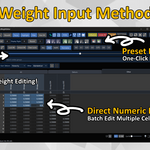
- Numeric Input: Right-click a selected cell, or select it and type a number key to start numeric input. When multiple cells are selected, the same value is applied to all of them.
- Copy/Paste Menu: Hold
ShiftorCtrlandRight-clickto open the copy/paste menu, where you can useVC / VP / MP / CC / CP.
Display Controls

-
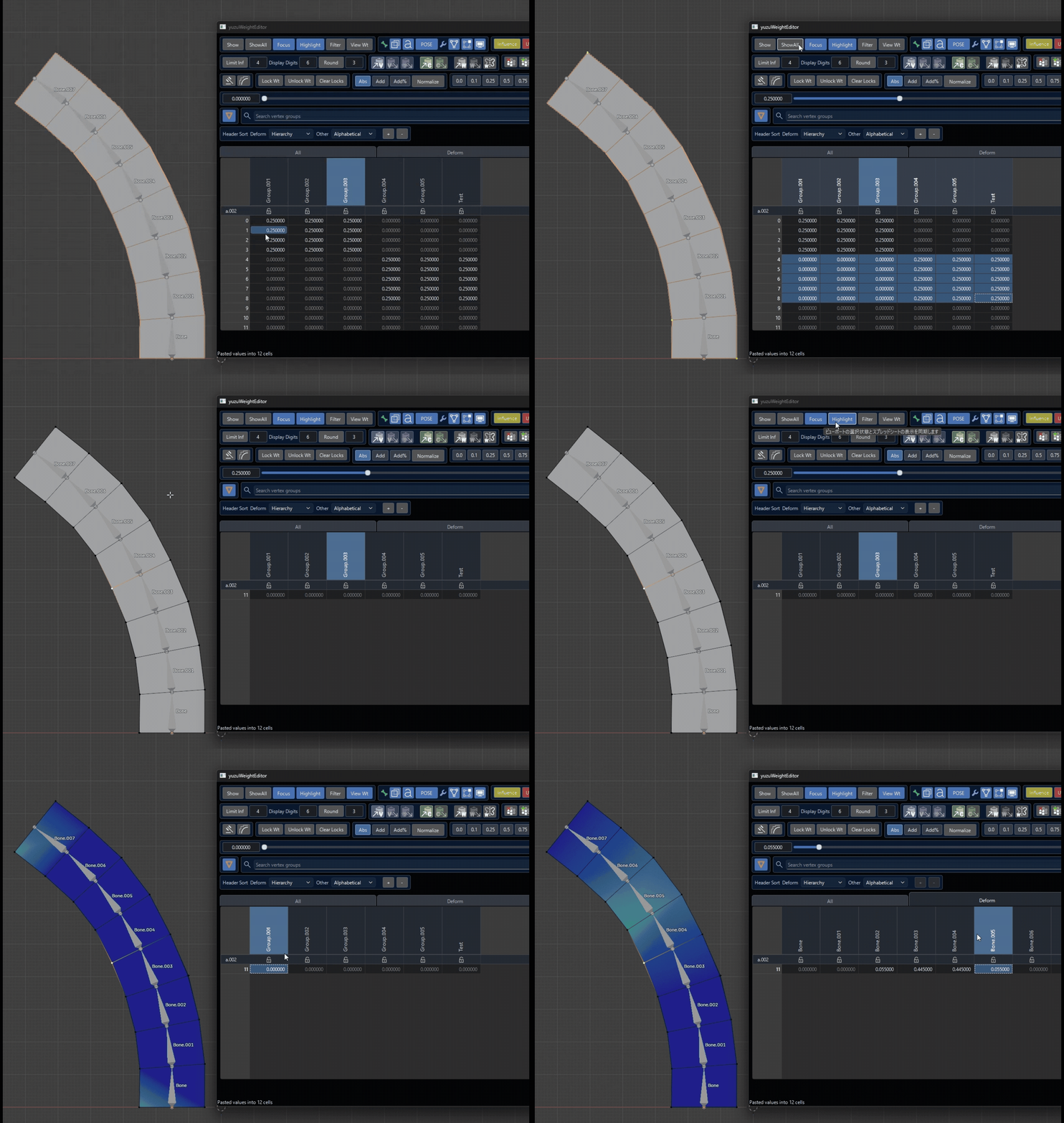
Show: Display selected vertices only. -
ShowAll: Display all vertices of the selected object. -
Focus: Sync viewport selection and sheet display. -
Highlight: Highlight vertices selected in the sheet inside the 3D viewport. -
View Wt: Keep weight display visible in Edit Mode.
Bone / Modifier Display

- Show Armature in Front
- Show Bone Names
- Toggle
POSE / REST - Toggle Cage Display
- Toggle Edit Mode Display
- Toggle Modifier Display
- Show Bone Collections
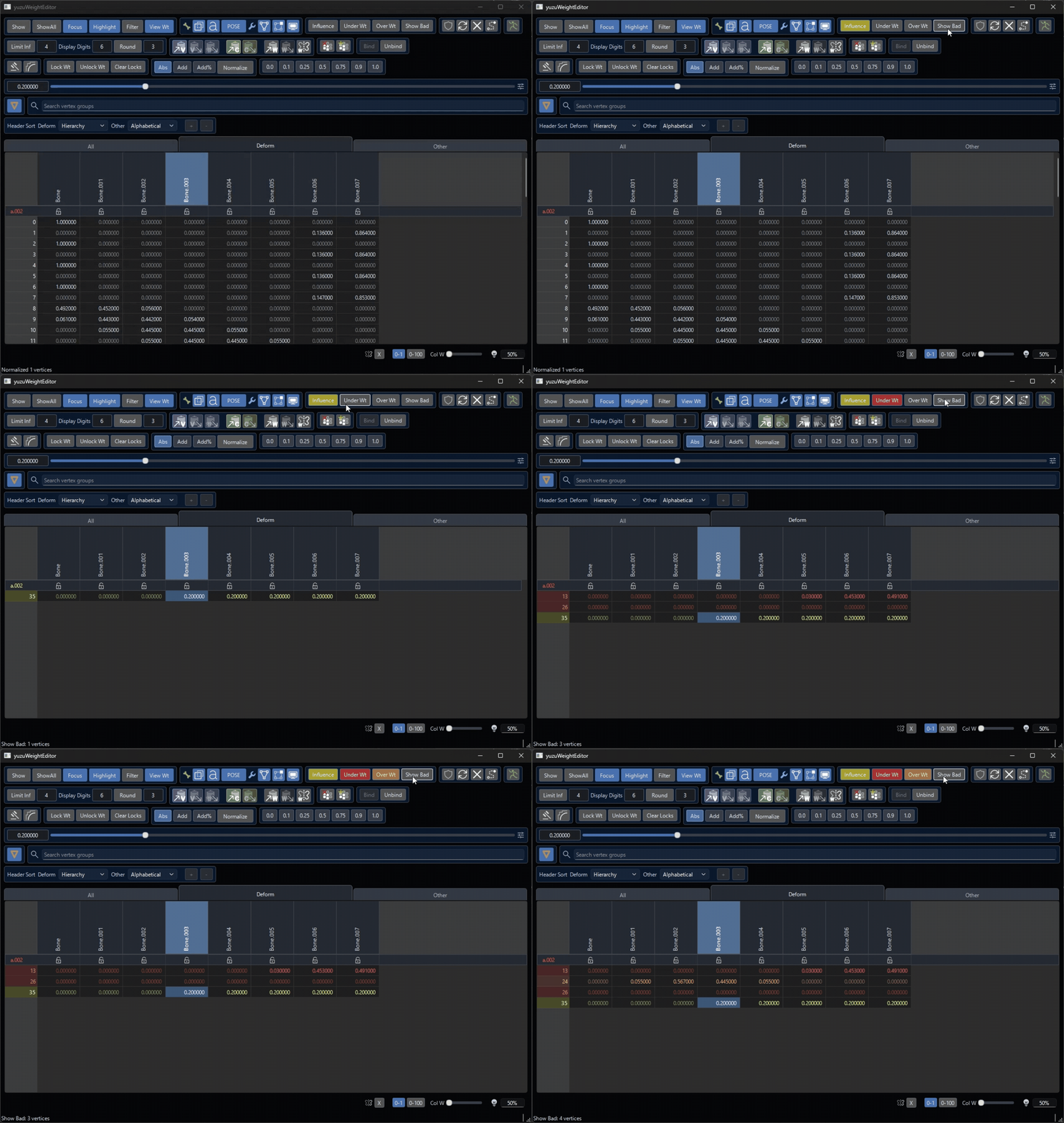
Invalid Weight Detection

-
Influence: Check how many bones affect a vertex. -
Under Wt: Check for insufficient total weight. -
Over Wt: Check for excessive total weight. -
Show Bad: Show only problematic vertices.
Spreadsheet Editing / Bone Collection

- Sheet Update Lock: Lock updates to the displayed vertices in the sheet.
- Force Refresh: Refresh the sheet manually. This is mainly useful while update lock is enabled.
- Clear: Clear the current sheet display.
-
Select: Reflect the current sheet selection in the viewport. HoldShiftto add to the current vertex selection. - Bone Collection Display: Adjust bone collection visibility directly from the editor.
Weight Processing

-
Display Digits: Set how many decimal places are shown. -
Round: Round weights to the chosen number of decimal places using the spin box. -
Limit Inf: Limit the number of influences. Set the limit in the spin box. A value of 0 means unlimited. If no cells are selected, the operation targets the entire sheet.
Copy / Paste Tools

-
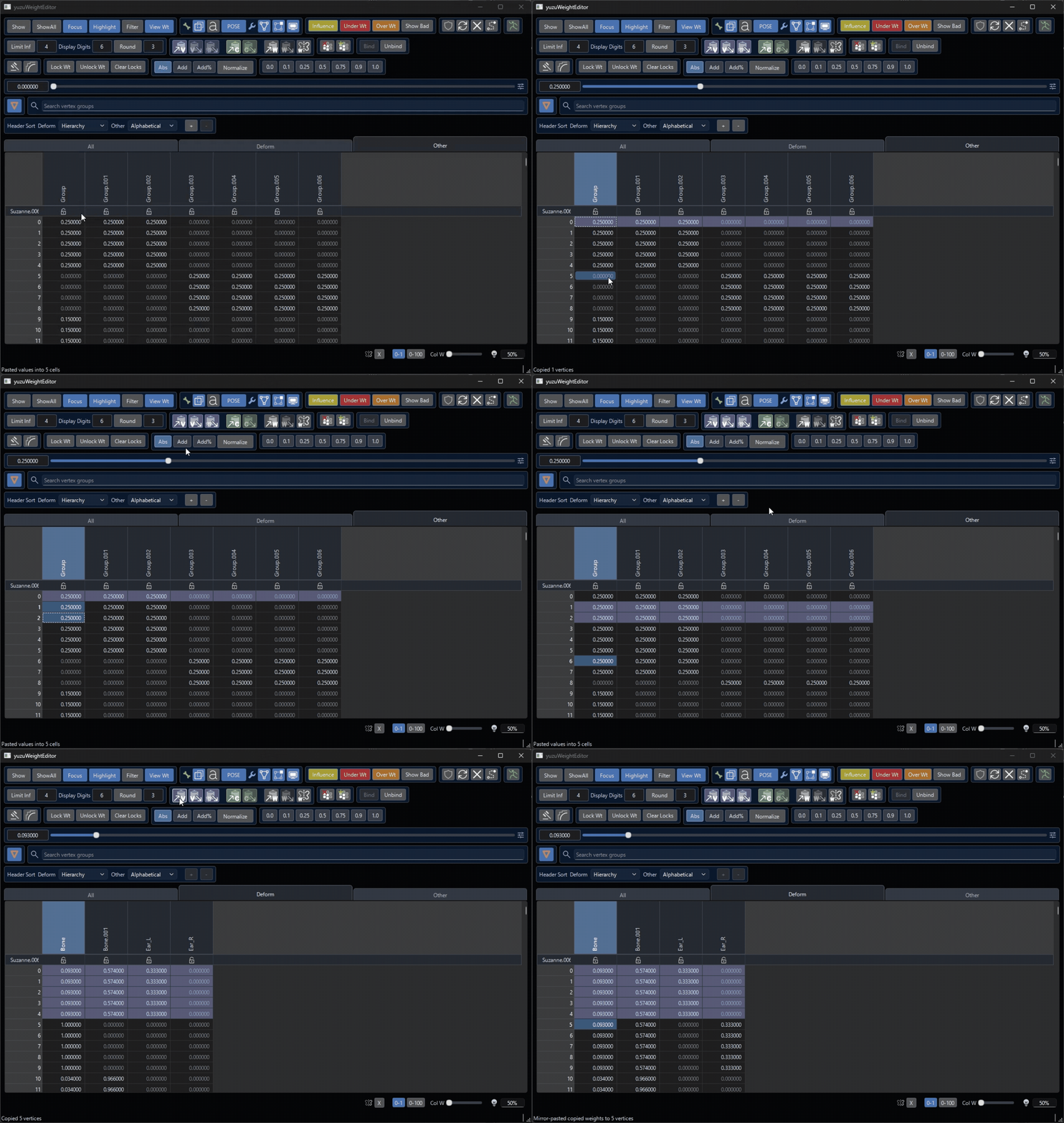
VC / VP: Copy and paste on a per-vertex basis. Vertex-group locks and cell locks are ignored when pasting. -
MP: Mirror-paste the contents ofVCbased on the symmetry naming dictionary.
-
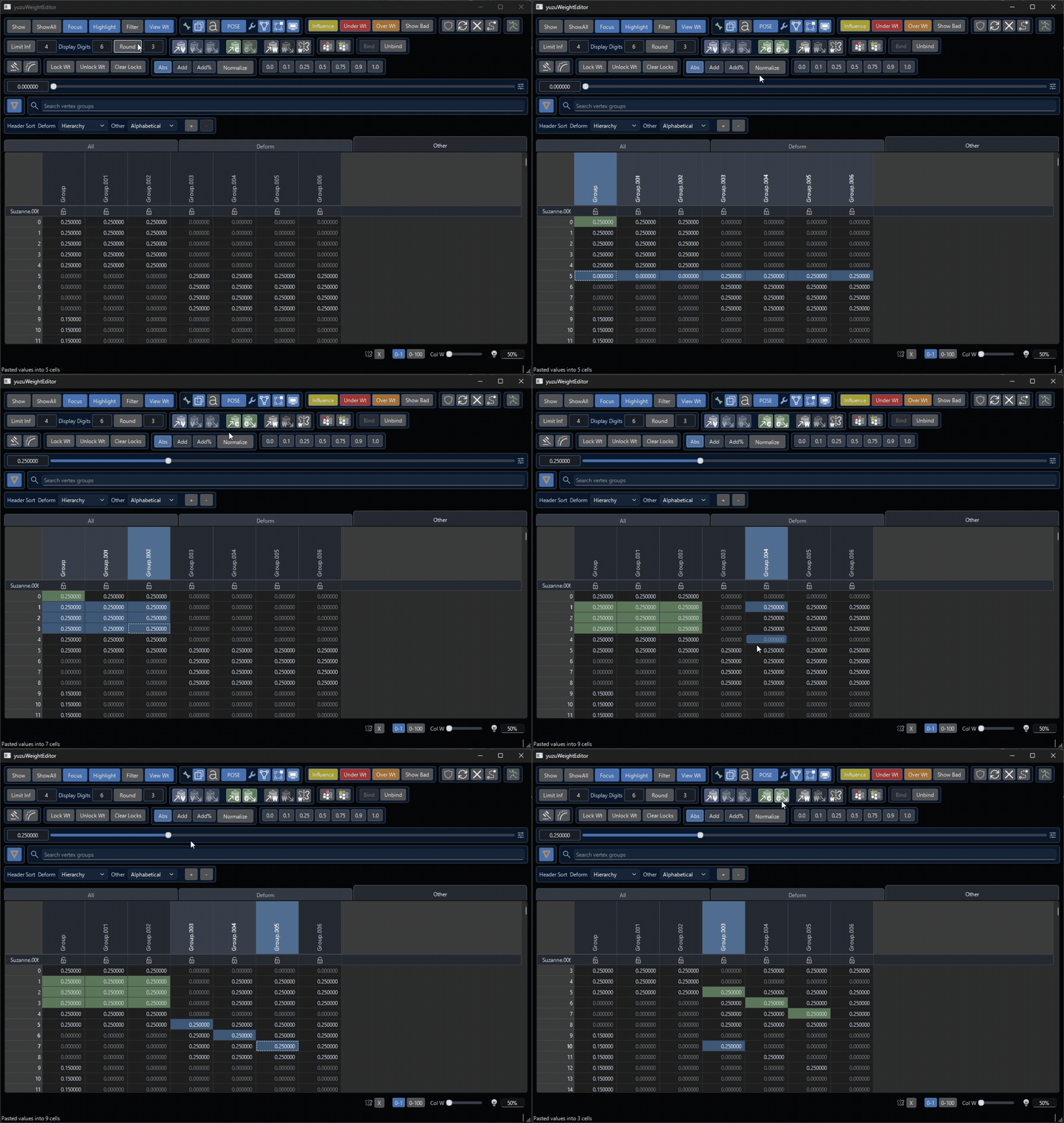
CC / CP: Copy and paste on a per-cell basis. Locked vertex groups and locked cells are skipped when pasting.
-
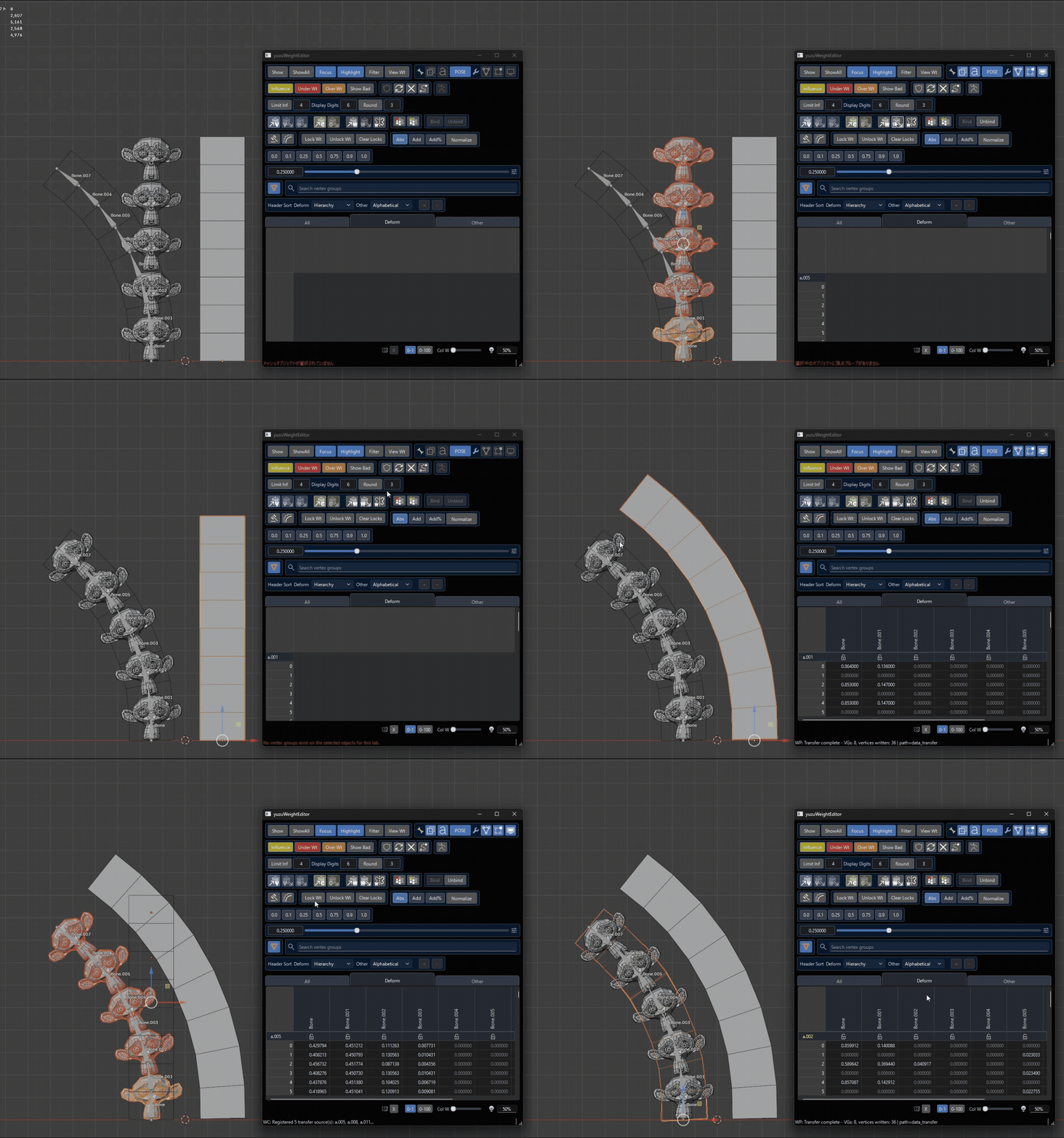
WC / WP: Transfer weights between selected mesh objects.
-
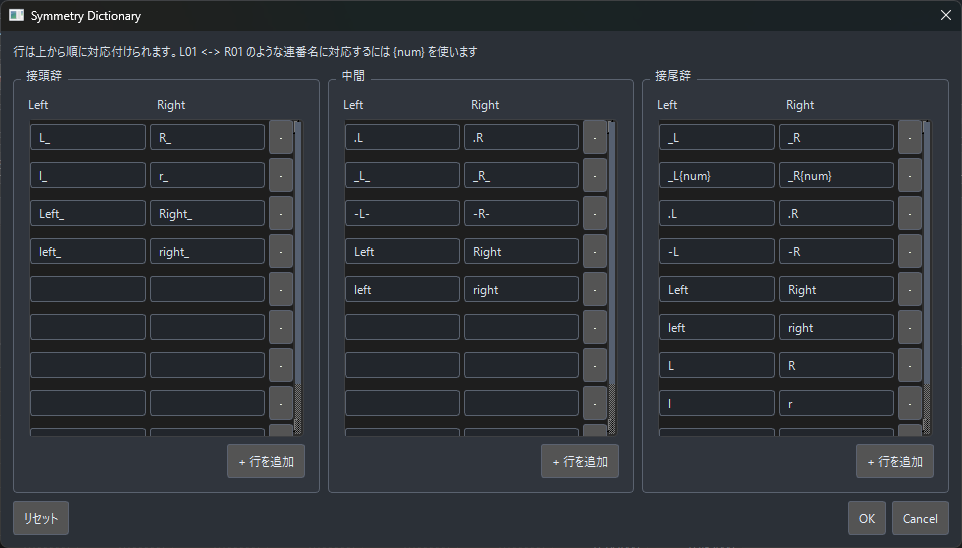
WS: Apply weight symmetry.Right Clickopens the symmetry naming dictionary.
Symmetry Naming Dictionary
Vertex Groups / Binding Tools
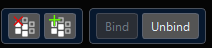
- Delete Unused Vertex Groups: Deletes vertex groups whose weight is
0on every vertex. - Add Missing Vertex Groups: Adds missing vertex groups in one click when a related armature has bones but the corresponding vertex groups do not exist.
-
Bind: Available when one armature and one or more mesh objects are selected. -
Unbind: Removes the armature modifier from mesh objects and also clears armature parenting if it exists.
Weight Hammer / Weight Smooth

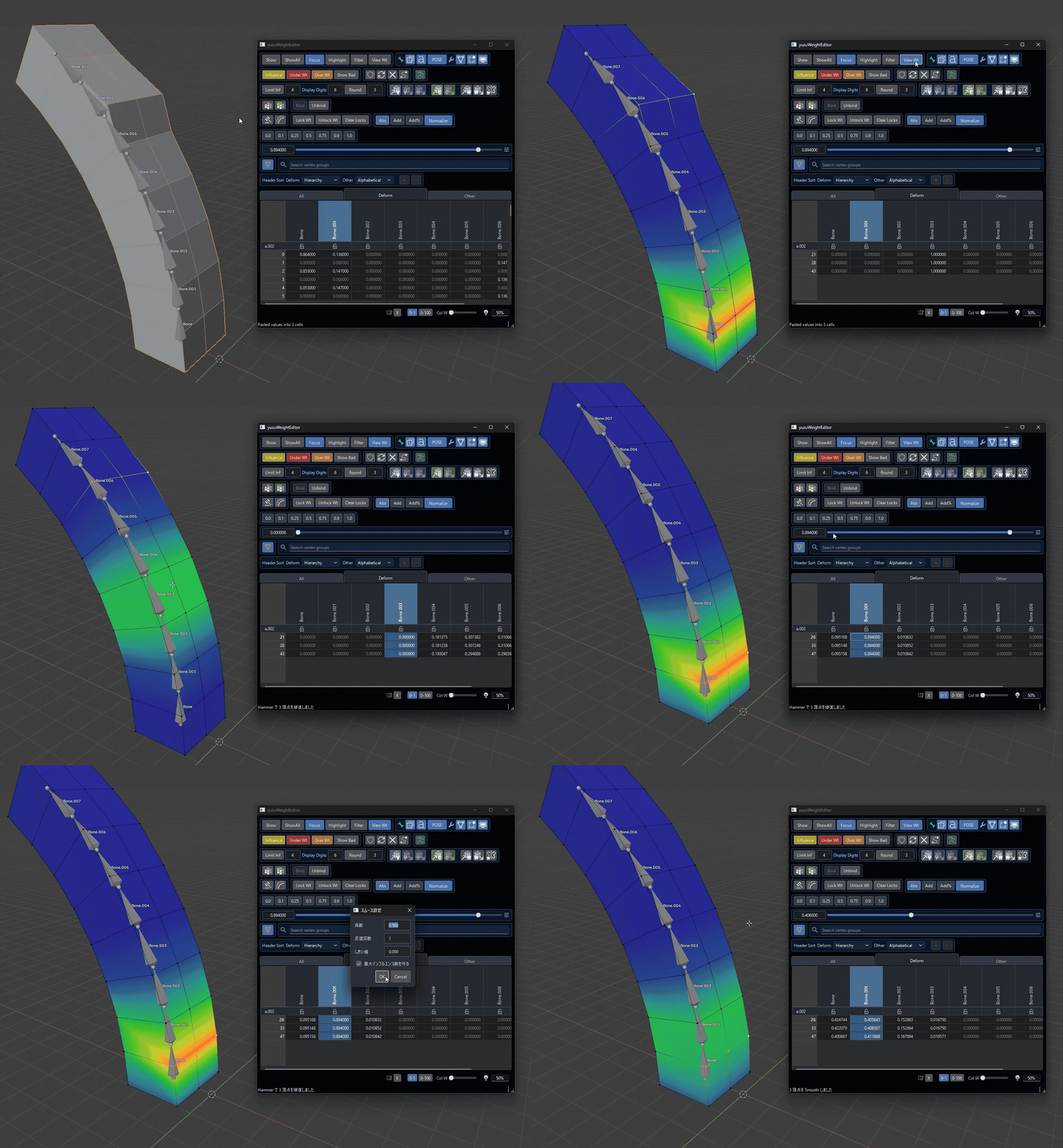
This is an experimental feature.
- Weight Hammer: Adjusts the weights of vertices selected in the sheet to better match surrounding weights. Useful when only a few vertices have incorrect weights.
- Weight Smooth: Smooths the weights of vertices selected in the sheet.
Right Clickopens its settings.
Cell Locks
-
Lock Wt: Lock selected cells so they cannot be edited in the editor. -
Unlock Wt: Unlock selected cells. -
Clear Locks: Clear cell locks for the selected object.
Numeric Editing / Normalize

- Absolute Input: Replace cell values with the slider value.
- Additive Input: Add or subtract the slider value from the current cell values.
- Percentage Additive Input: Add a percentage of the current value. For example, if the weight is
0.5and the slider is0.5, then0.25is added, resulting in0.75. -
Normalize: Auto-normalize toggle. When enabled, edits in the editor are automatically normalized.Right Clickforces normalization for the target range. If no cells are selected, it targets the entire sheet.
Preset Buttons

-
0.0~1.0: Quickly enter commonly used values. Click to replace,Shiftto add, andCtrlto subtract.
Active Sort / Vertex Group Search

- Active Sort: When multiple objects are selected, show the active object at the top of the sheet.
- Vertex Group Search: Search by vertex group name. When
Filteris enabled and some vertex groups are hidden, you can toggle their visibility. Clicking a vertex group name jumps to that group's position in the sheet.
Vertex Group Sort

- Set the display order of vertex-group columns.
DeformandOthercan each be configured separately. -
Hierarchy (Deform): Sort deform vertex groups by hierarchy. -
Alphabetical: Sort vertex groups alphabetically. -
List: Sort vertex groups according to Blender's list order.
Reordering Vertex Groups
You can reorder vertex groups only when vertex-group sorting is set to List. The result is also reflected back into Blender. Middle-click a header to select it, then middle-drag to reorder it.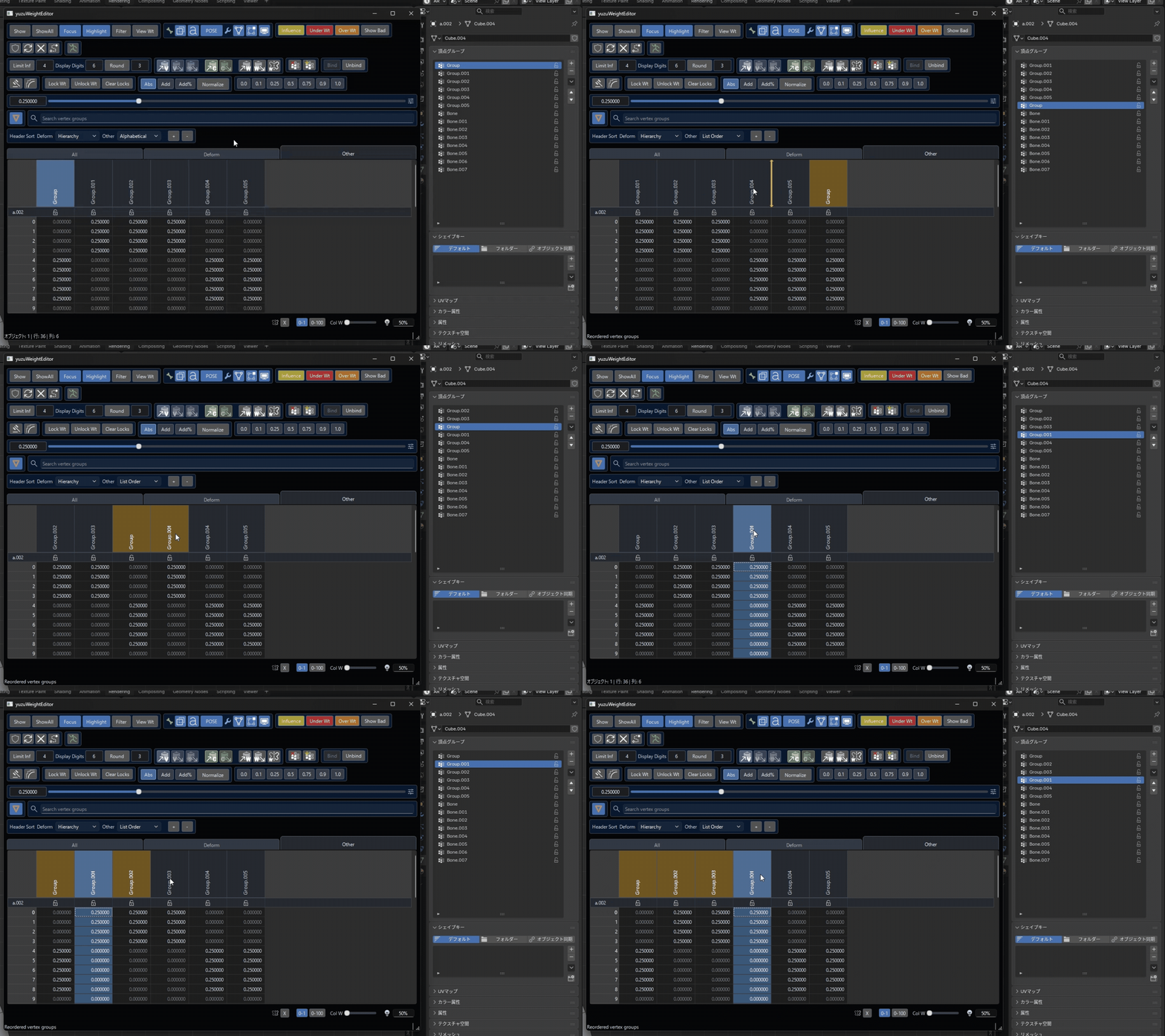
Bottom UI

- Toggle Mirror Editing: Toggle mirror editing in Edit Mode. When enabled, vertices on the opposite side of the selected vertices are also shown, and editing one side affects the other side.
-
0-1 / 0-100Display Toggle: Switch between displaying weights in the0-1.0range or the0-100range. -
Col W: Adjust column width. - Zero-Weight Brightness: Adjust the brightness of
0weights.
Preferences
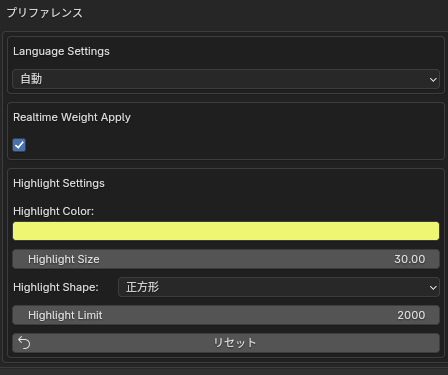
These settings are configured in Blender's preferences.
-
Language Settings: When set to automatic, some editor text such as descriptions and error messages follows Blender's language setting. You can also switch it manually. -
Realtime Weight Apply: Controls whether slider-based weight edits are applied in real time. Disable it if the editor feels heavy. -
Highlight Settings: Settings for viewport highlights. -
Highlight Color: Set the highlight color. -
Highlight Size: Set the highlight size. -
Highlight Shape: Set the highlight shape. -
Highlight Limit: Set the maximum number of highlight markers shown.