 GreenJin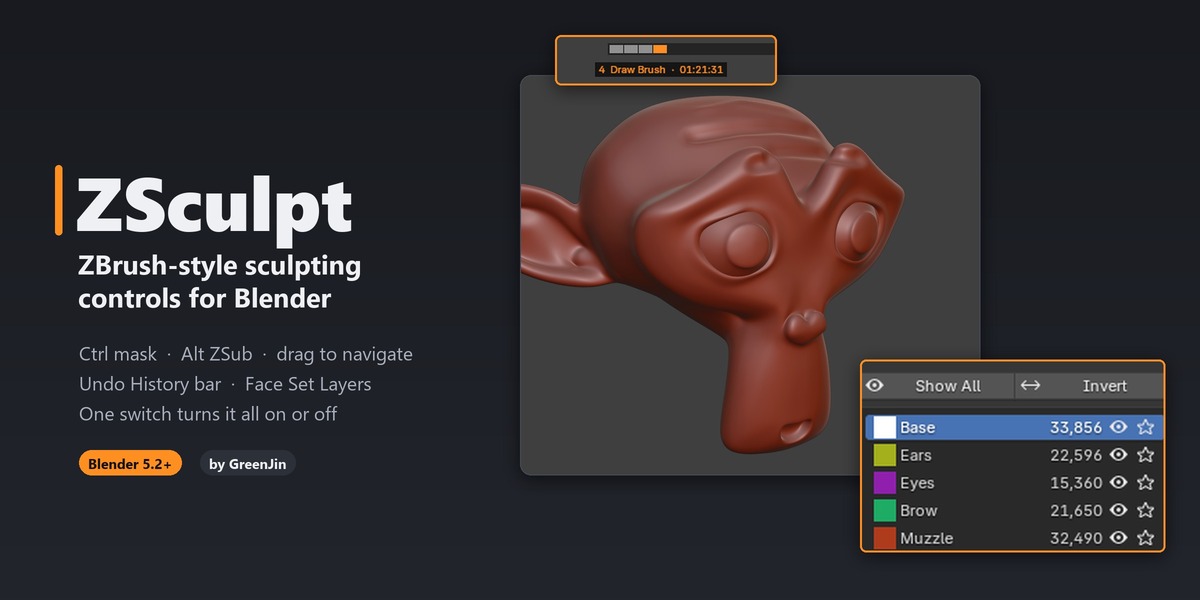

Your ZBrush hands, in Blender.
If you learned sculpting in ZBrush, Blender's Sculpt Mode keeps asking you to think twice. ZSculpt changes the controls so the habits you already have just work. It also adds a ZBrush-style Undo History bar and Face Set Layers.
Ctrl mask · Alt ZSub · Shift smooth · drag empty space to orbit · one switch turns it all on or off
Turn ZSculpt off, or disable it, and Blender's own sculpt controls come back untouched. It never edits your keymap.
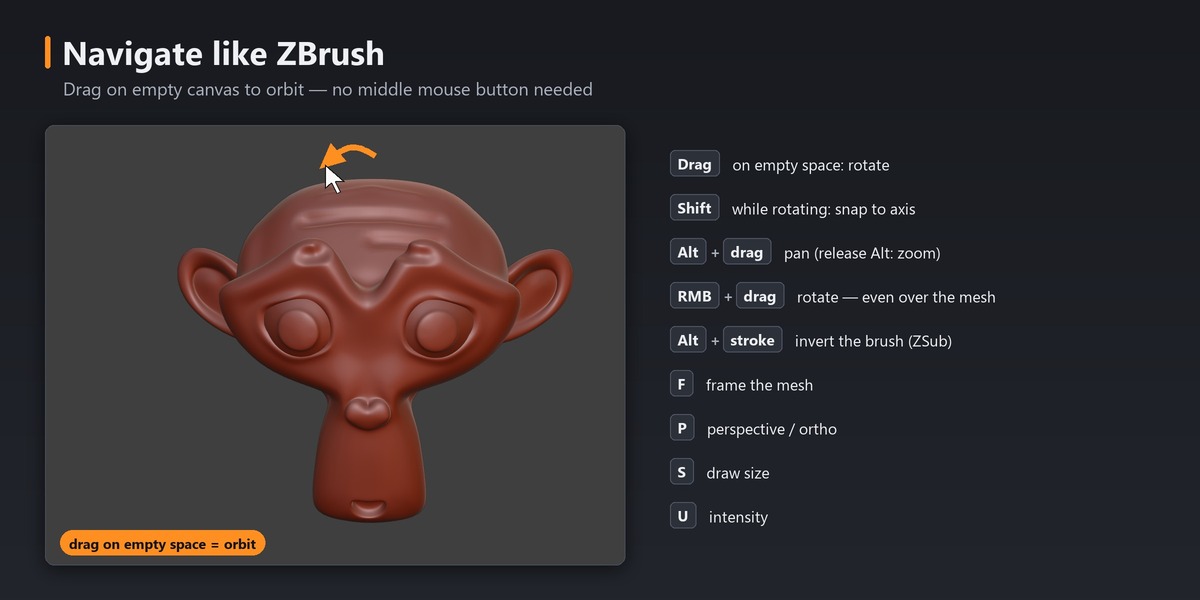
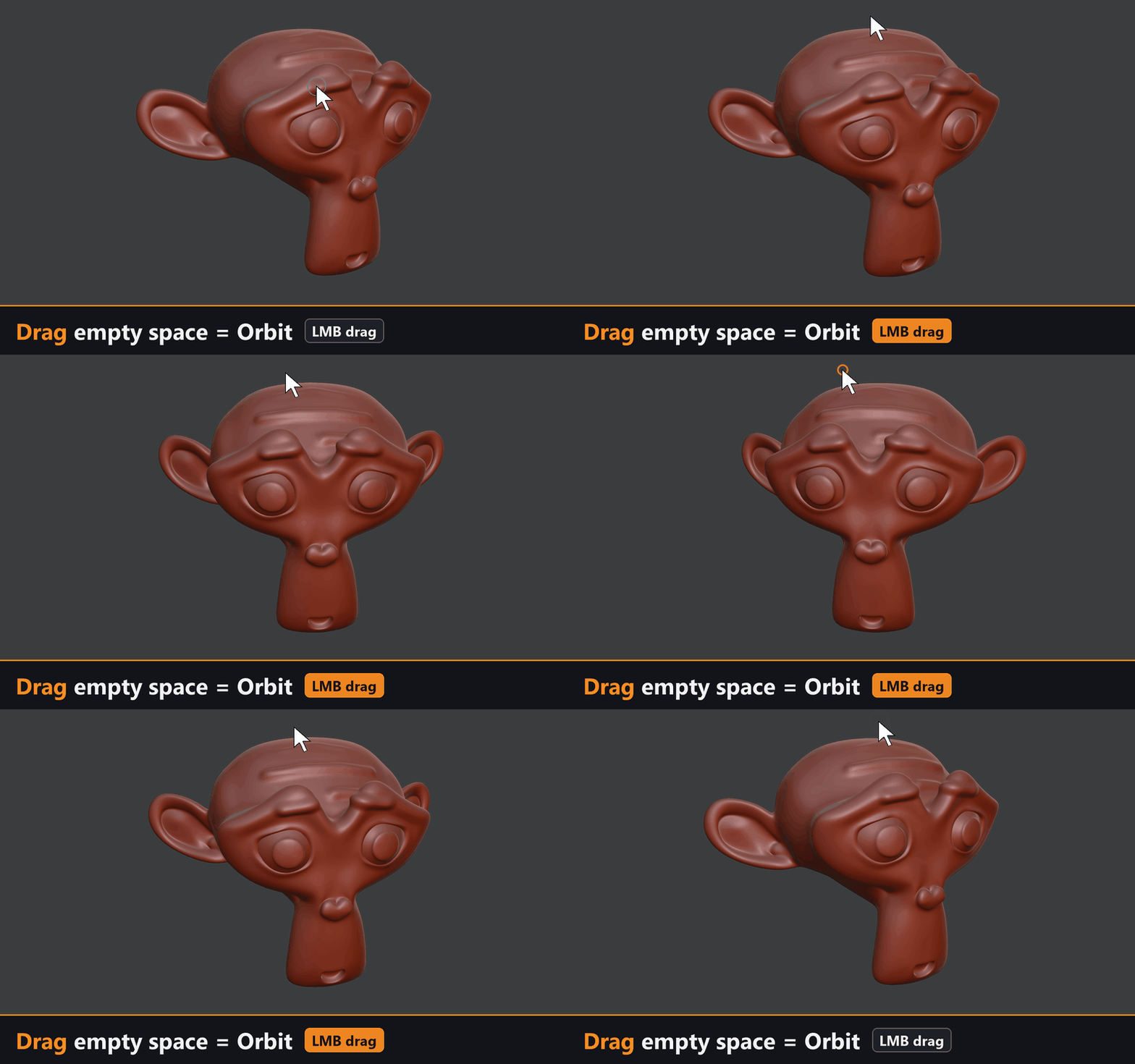
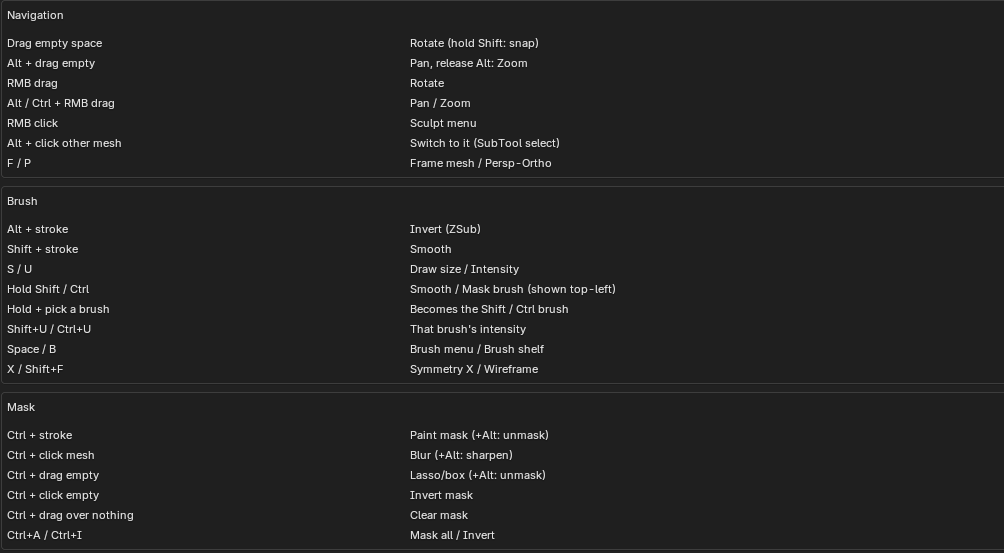
Drag empty space = Orbit
No middle mouse button needed, so it works great with a pen. Alt + drag pans, and releasing Alt mid-drag zooms. Hold Shift while rotating to snap to an axis.
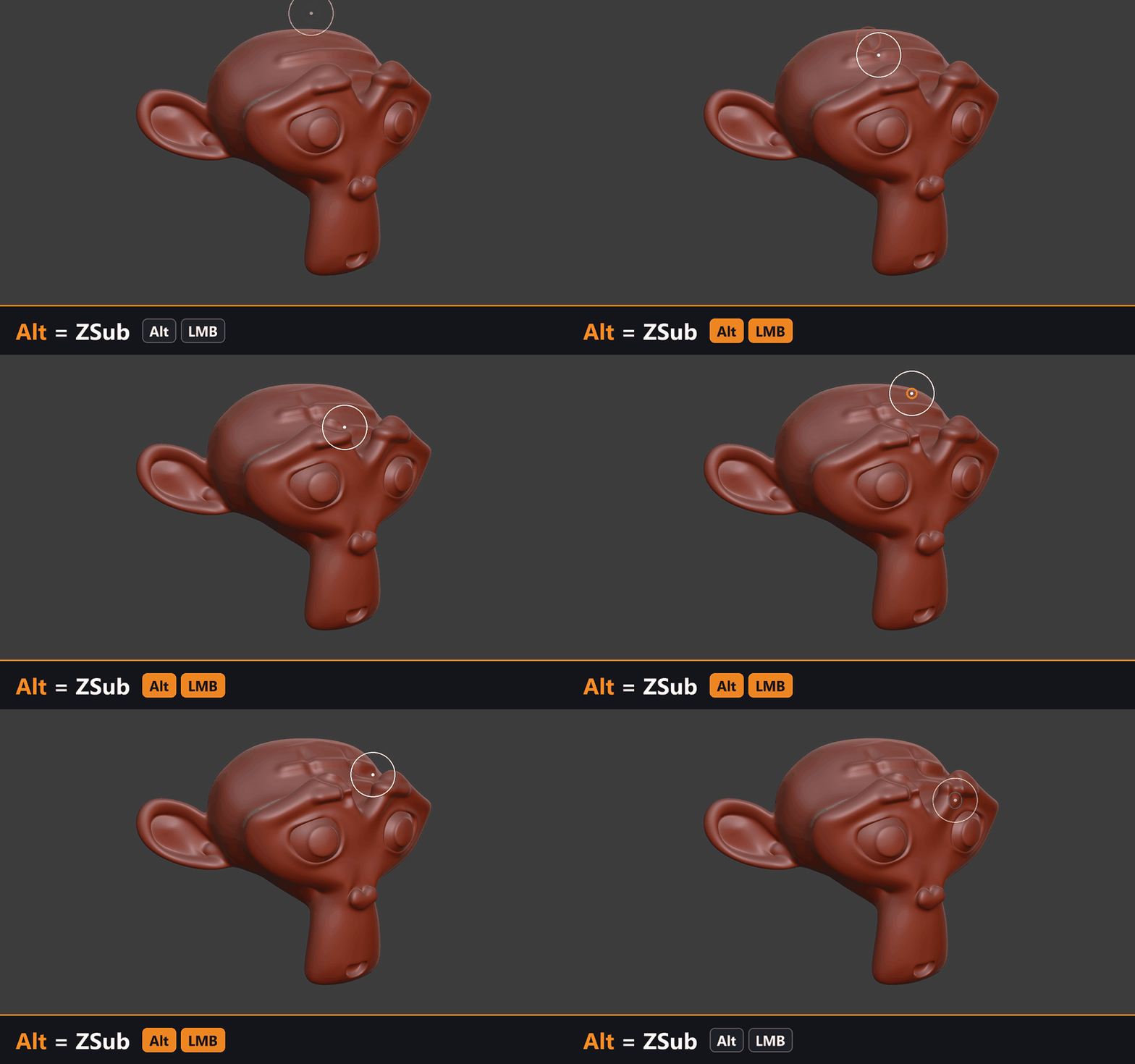
Alt = ZSub
Hold Alt to carve with any brush.
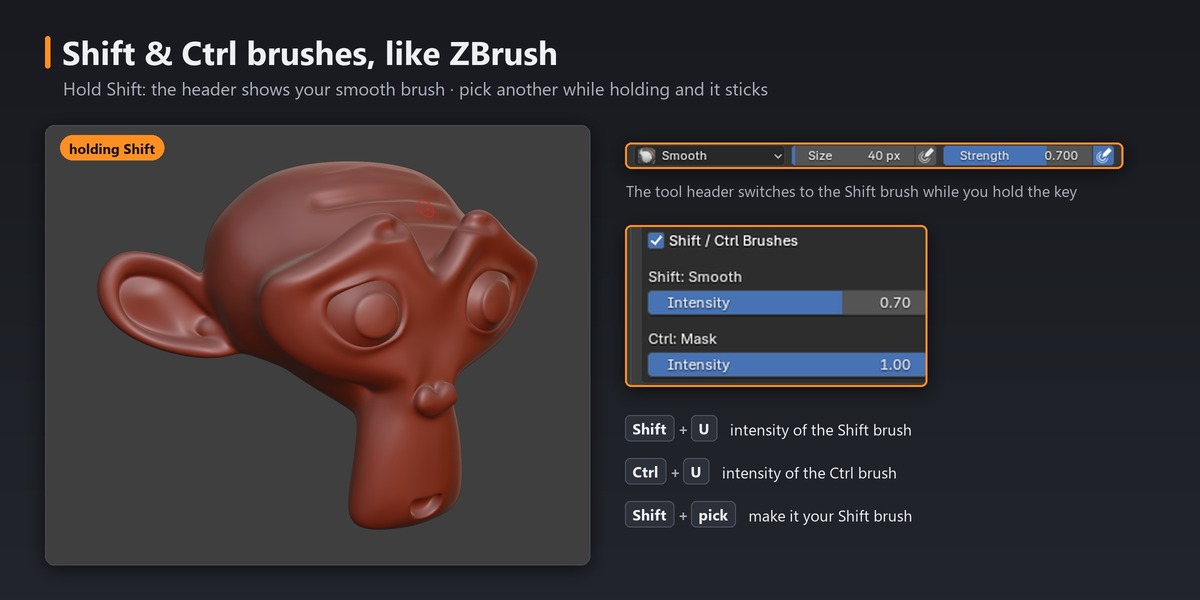
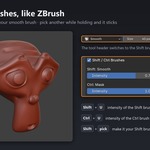
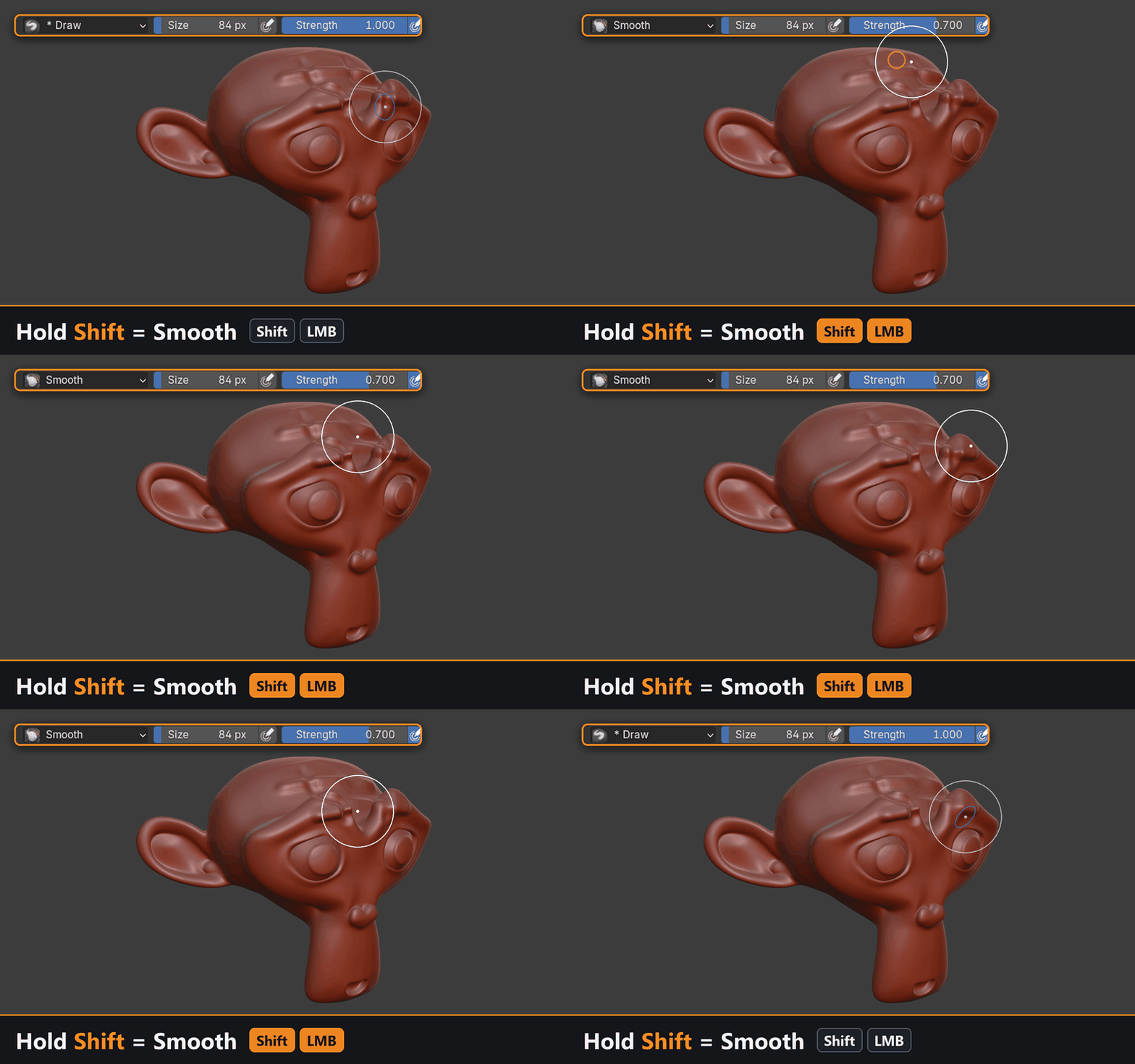
Hold Shift = Smooth
The tool header really switches to the Smooth brush while you hold Shift, and Ctrl works the same way for the Mask brush. Pick another brush while holding the key (Polish, for example) and it becomes your Shift brush from then on. Shift+U and Ctrl+U set their intensity.
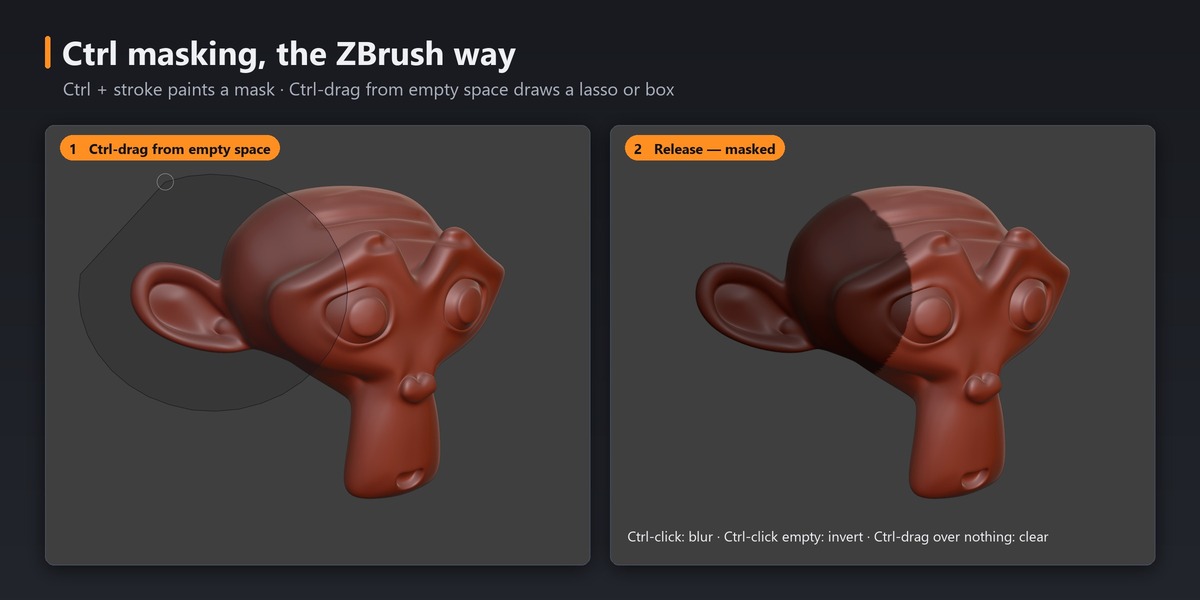
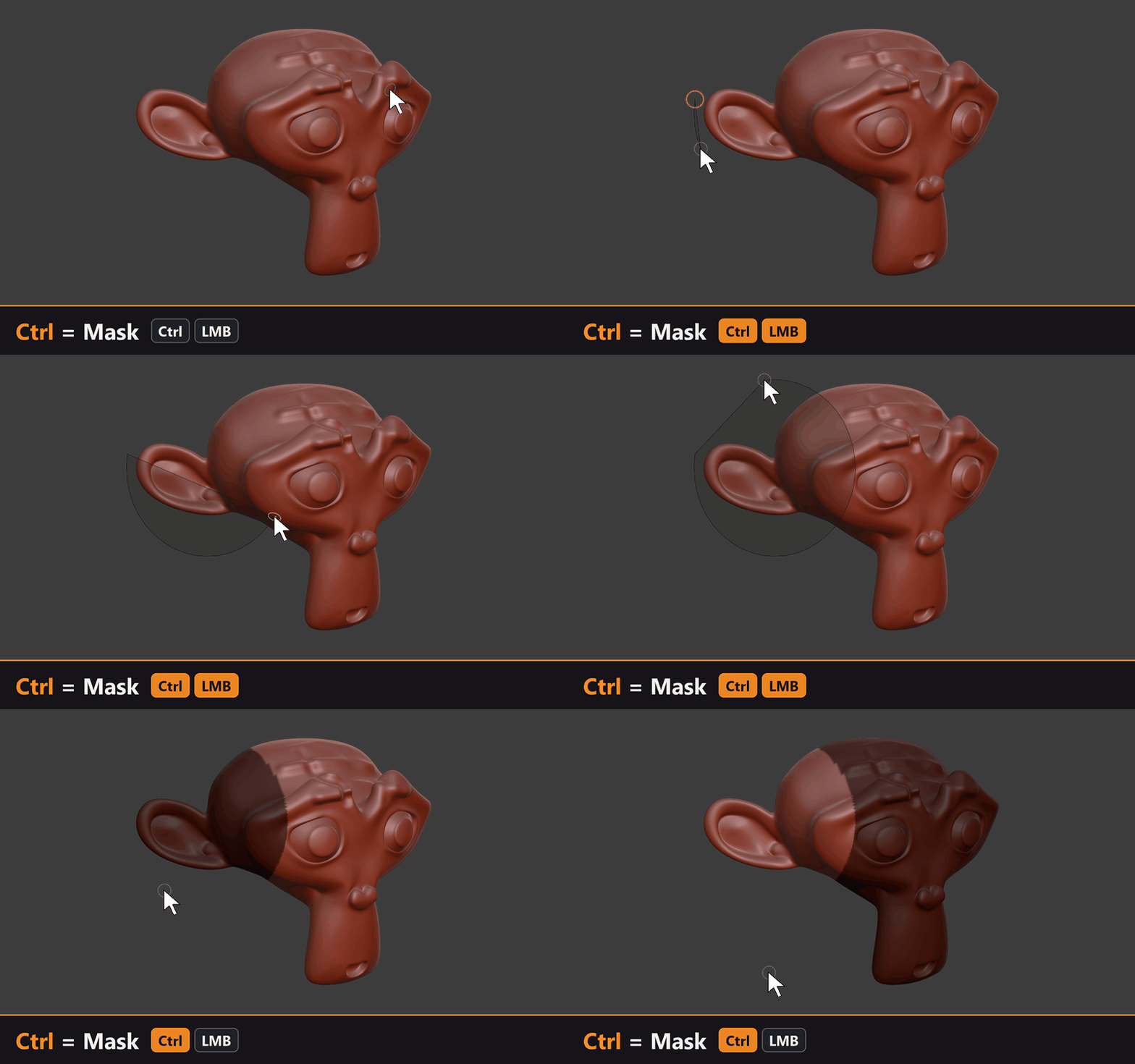
Ctrl = Mask
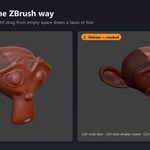
Ctrl + stroke paints a mask. Ctrl-drag from empty space draws a lasso or a box, Ctrl-click empty space inverts the mask, and a Ctrl-drag around nothing clears it. Ctrl-click the mesh to blur the mask (add Alt to sharpen).
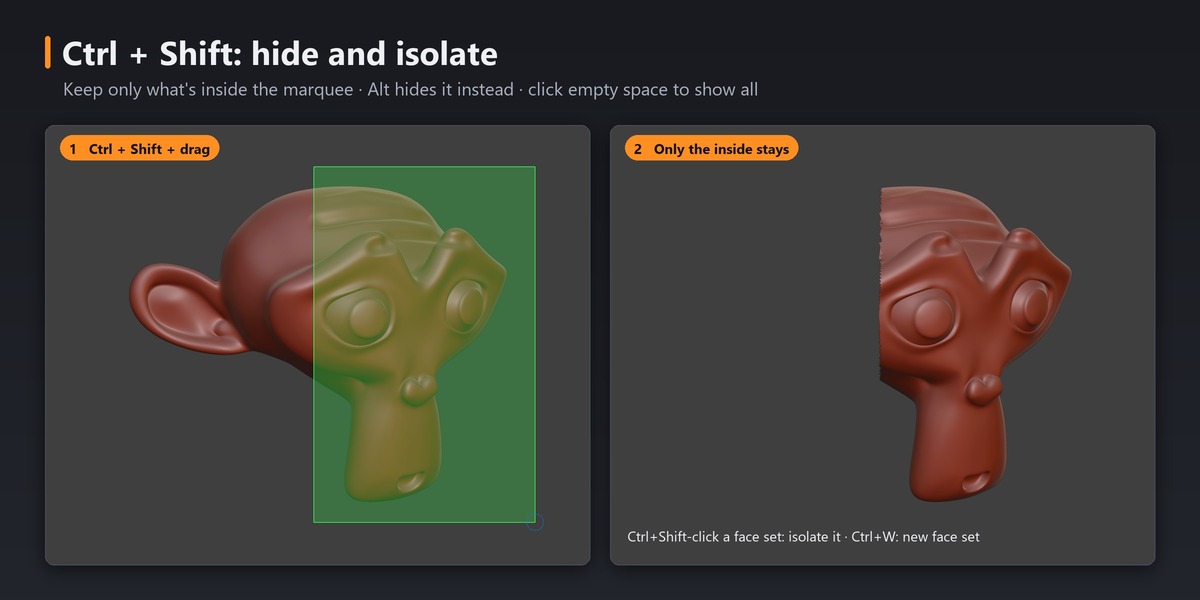
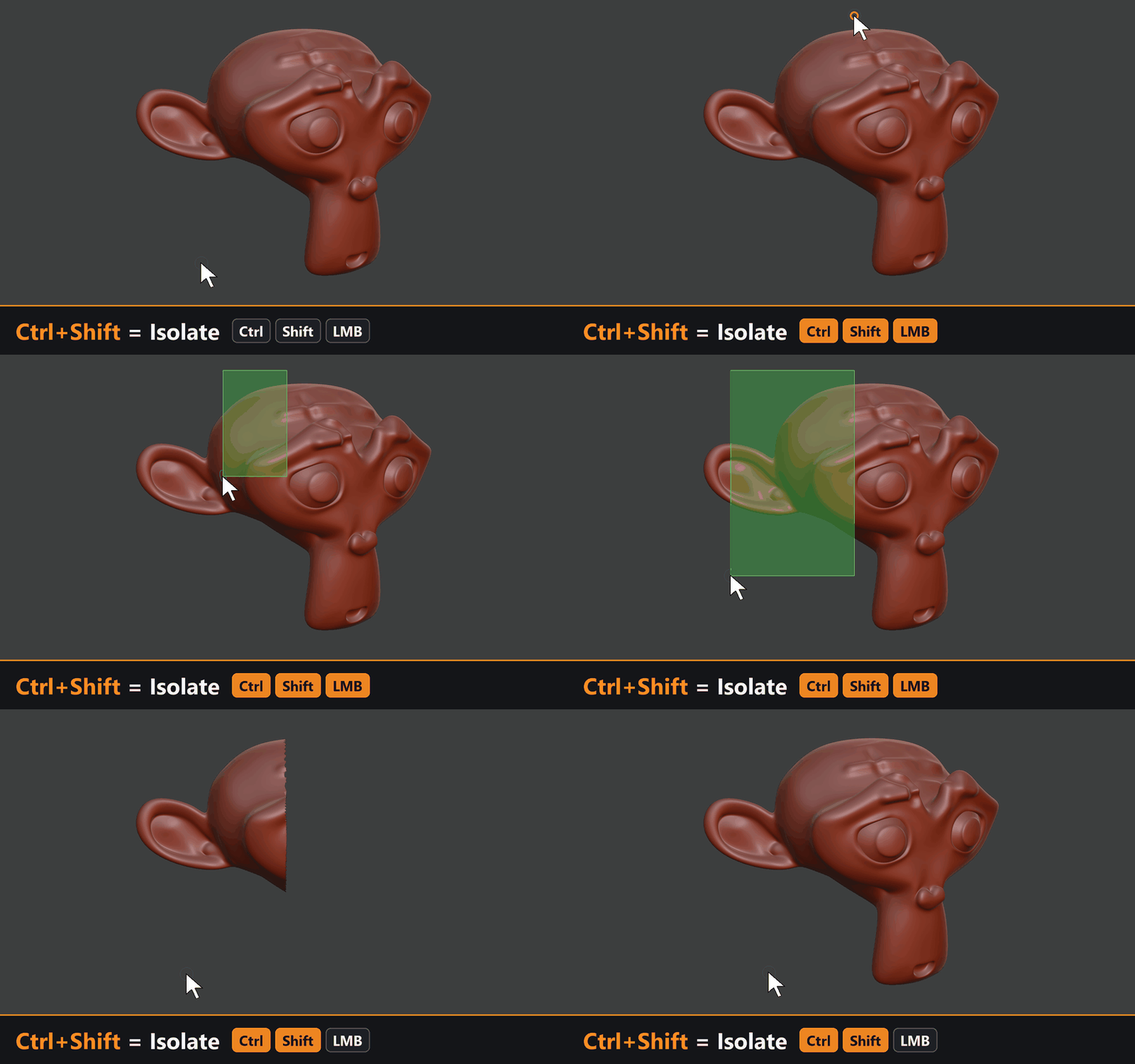
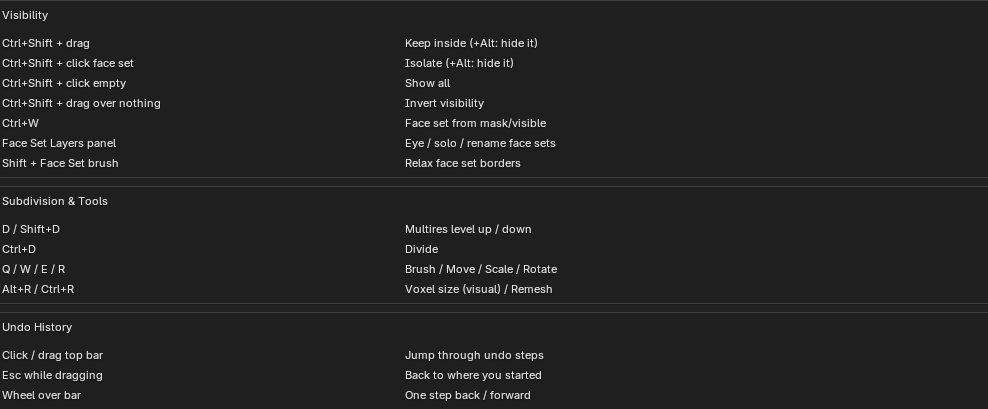
Ctrl+Shift = Isolate
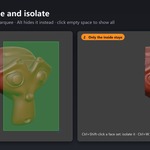
Keep only what's inside the marquee; add Alt to hide it instead. Ctrl+Shift-click a face set to isolate it, or click empty space to show everything again.
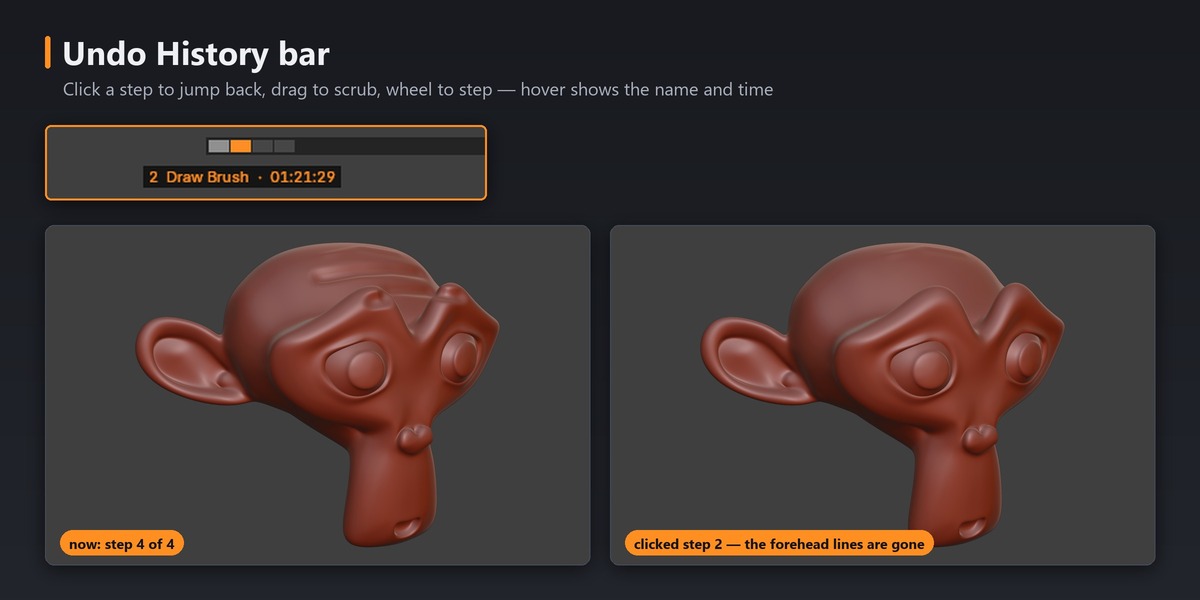
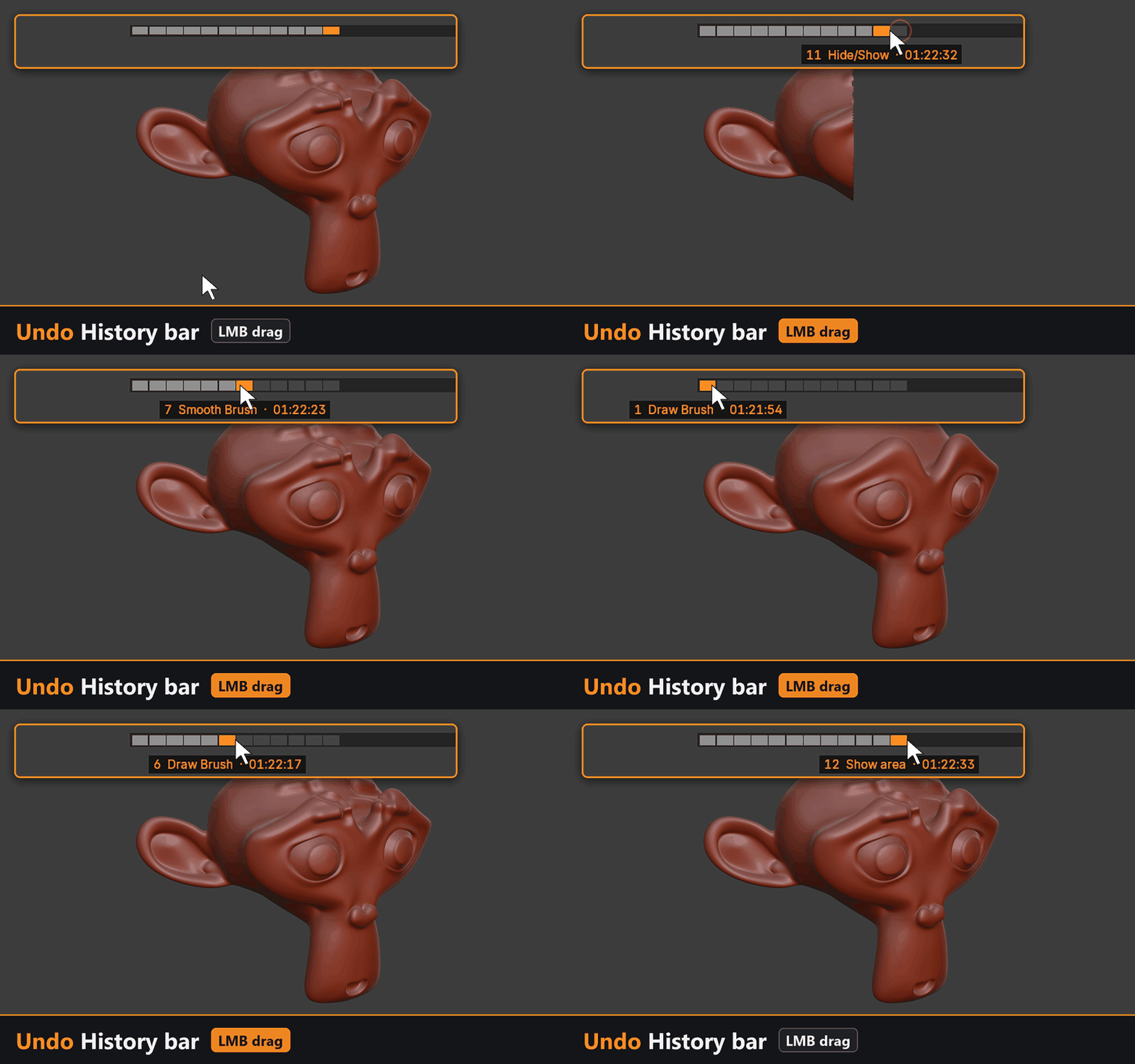
Undo History bar
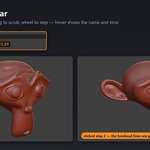
A ZBrush-style history bar at the top of the viewport. Click a step to jump to it, drag to scrub, or use the mouse wheel to step. Hover a step to see its name and the time it was made.
Undo history bar doesn't work in MacOS
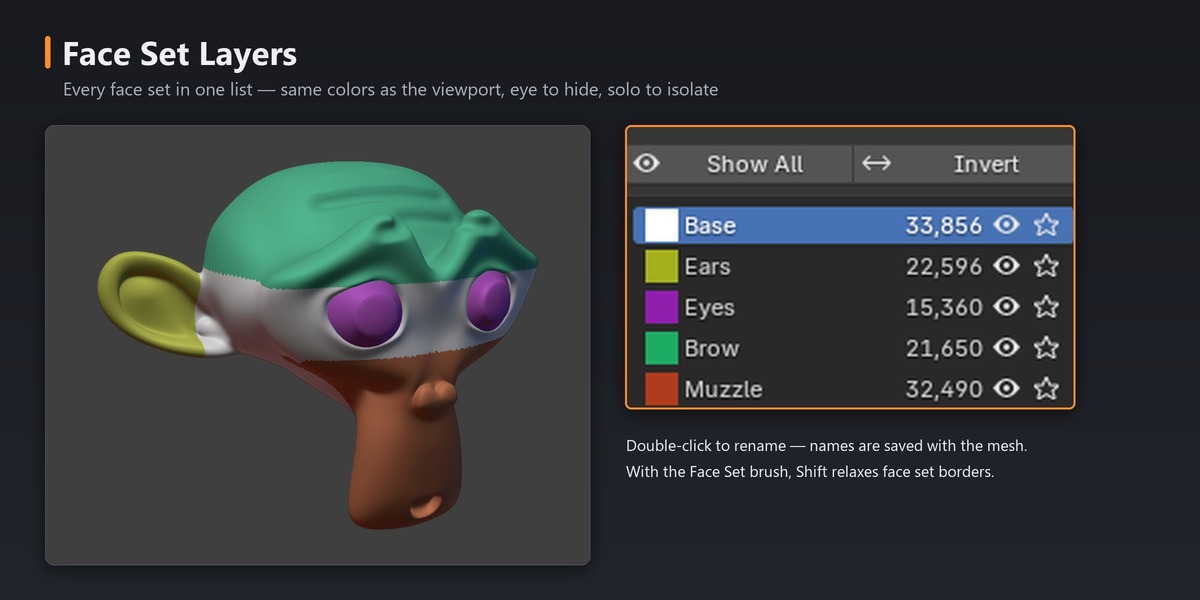
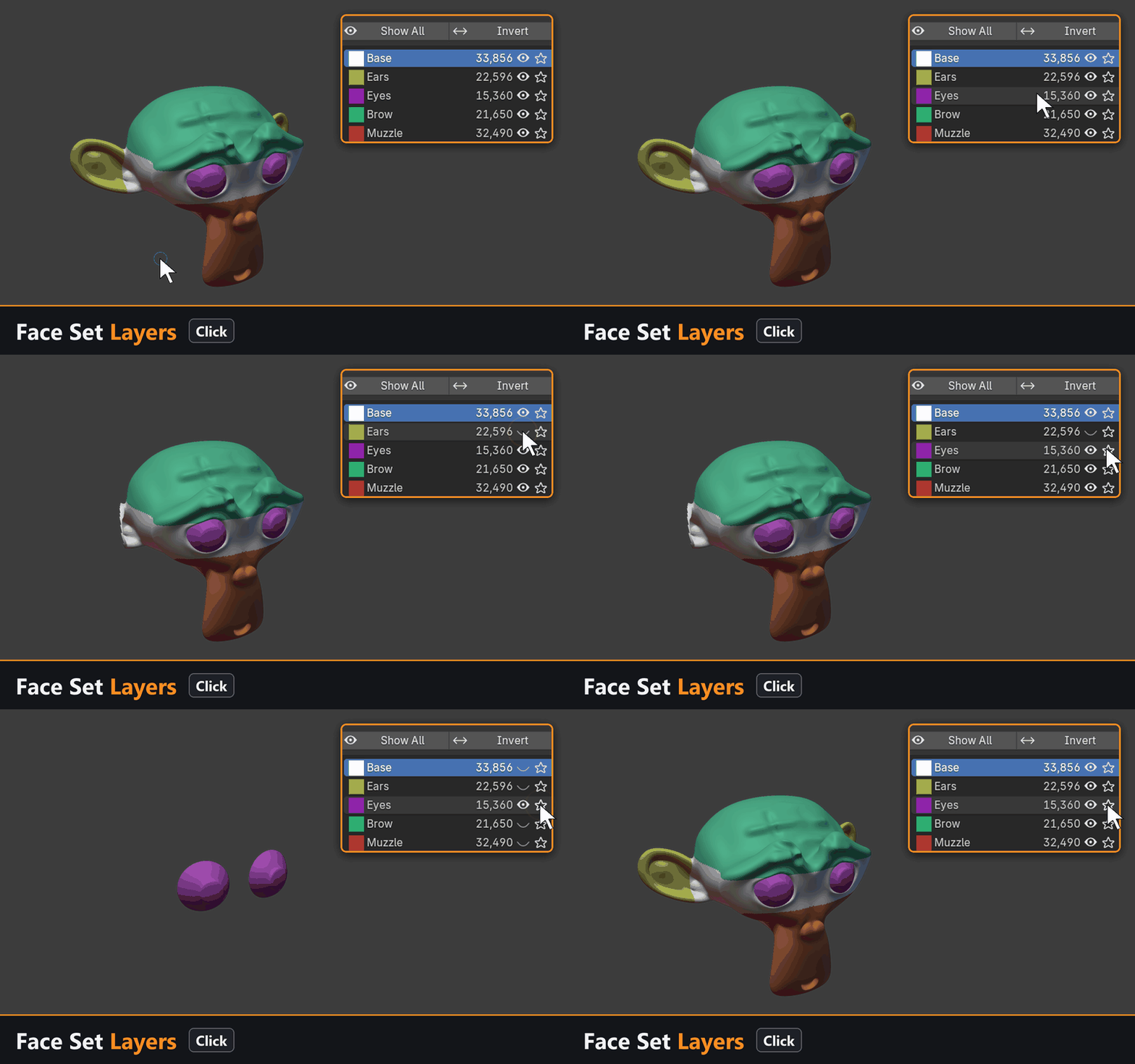
Face Set Layers
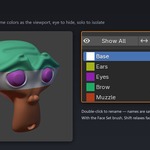
Every face set in one sidebar list, in the same colors as the viewport. Each one has an eye to hide it and a solo button to isolate it, and you can double-click a name to rename it. It works like ZBrush's PolyGroups.
The ZBrush keys you reach for
| S / U | Draw size / intensity |
| Space / B | Brush menu / brush shelf |
| X / Shift+F | X symmetry / wireframe |
| F / P | Frame the mesh / perspective ↔ orthographic |
| D / Shift+D / Ctrl+D | Multires level up / down / divide (SDiv slider in the sidebar) |
| Q / W / E / R | Brush / Move / Scale / Rotate tool |
| Ctrl+W / Ctrl+A | New face set from the mask / mask all |
| Alt+R | Voxel size (visual) |
Customizable Preference
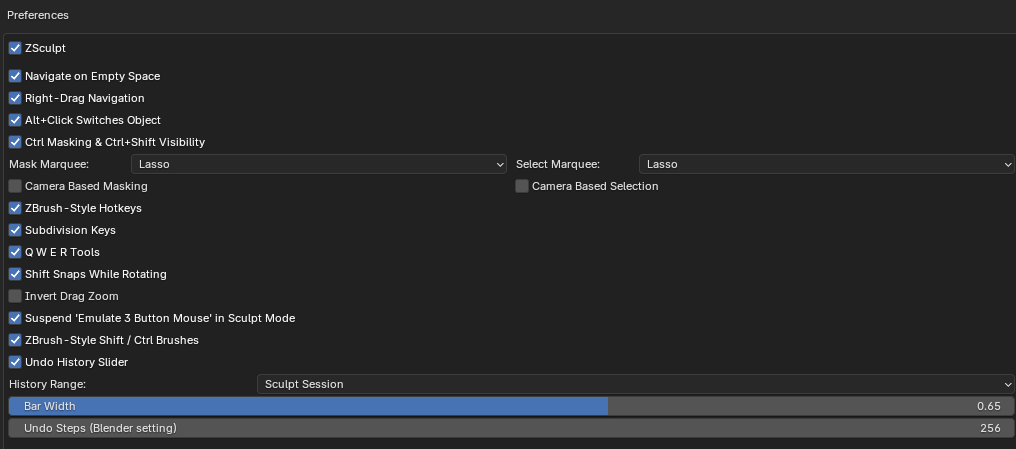
Changing Hotkeys :
Requirements
- Blender 5.2 or newer.
- The Undo History bar works on Windows and Linux. On macOS everything else works.
- Every feature group can be turned off on its own in Preferences.
How to Use
- Enter Sculpt Mode, and Open the Addon Panel in Sidebar (Press N for default), Find Zsculpt and Press "Enable Zsculpt" Button.
(If you press the ZSculpt disable button, all shortcuts and features will go back to the way they were.)
(If you press the ZSculpt disable button, all shortcuts and features will go back to the way they were.)
