 GreenJin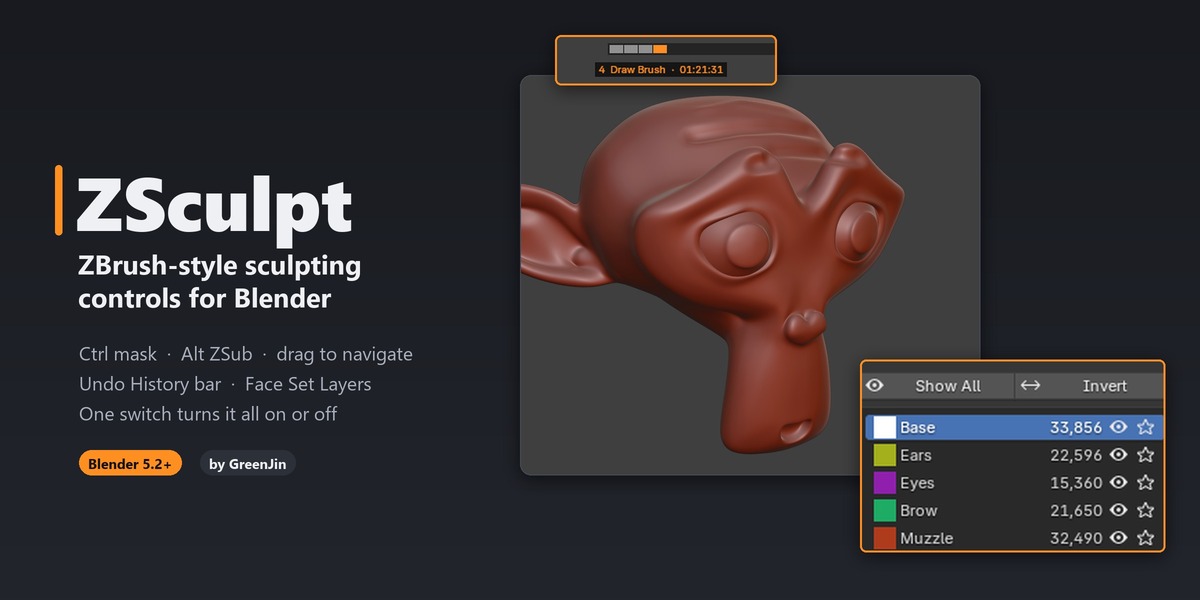
Installation
- Download zsculpt-1.0.0.zip. Don't unzip it.
- In Blender, open Edit → Preferences → Get Extensions, click the ▾ menu at the top right and choose Install from Disk…
- Pick the zip. ZSculpt is enabled right away.
- Enter Sculpt Mode and press N. The ZSculpt tab has the master switch, the most-used options and a Shortcuts cheat sheet.
To update, install the new zip the same way. To remove it, go to Preferences → Add-ons → ZSculpt → ▾ → Uninstall.
Quick start
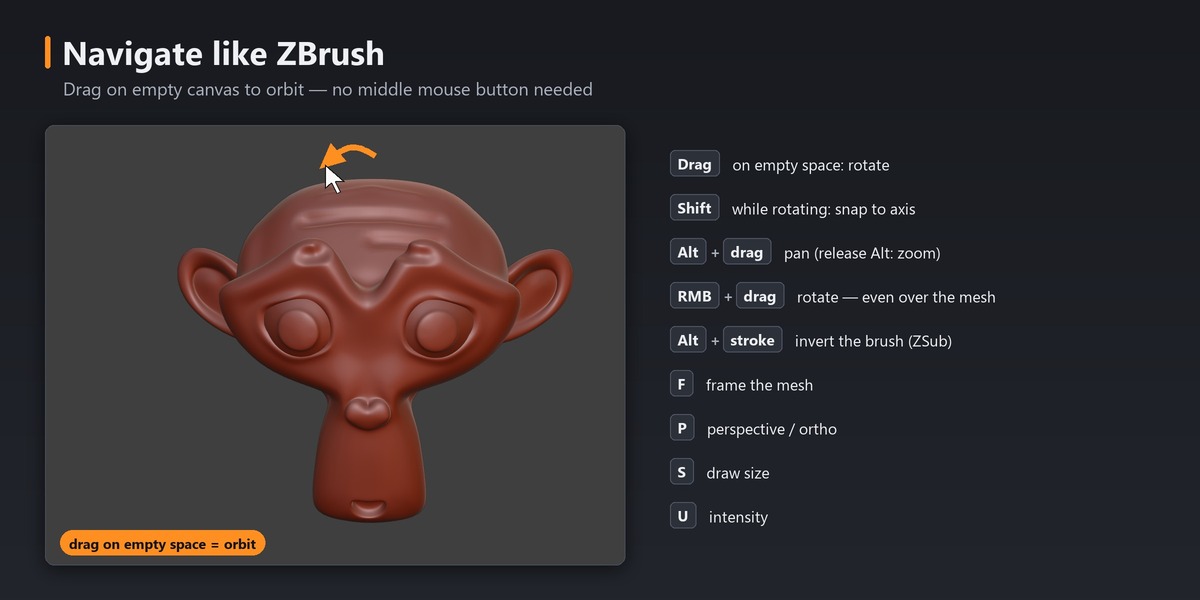
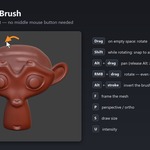
- Drag on empty space to orbit. Alt-drag to pan, then release Alt to zoom.
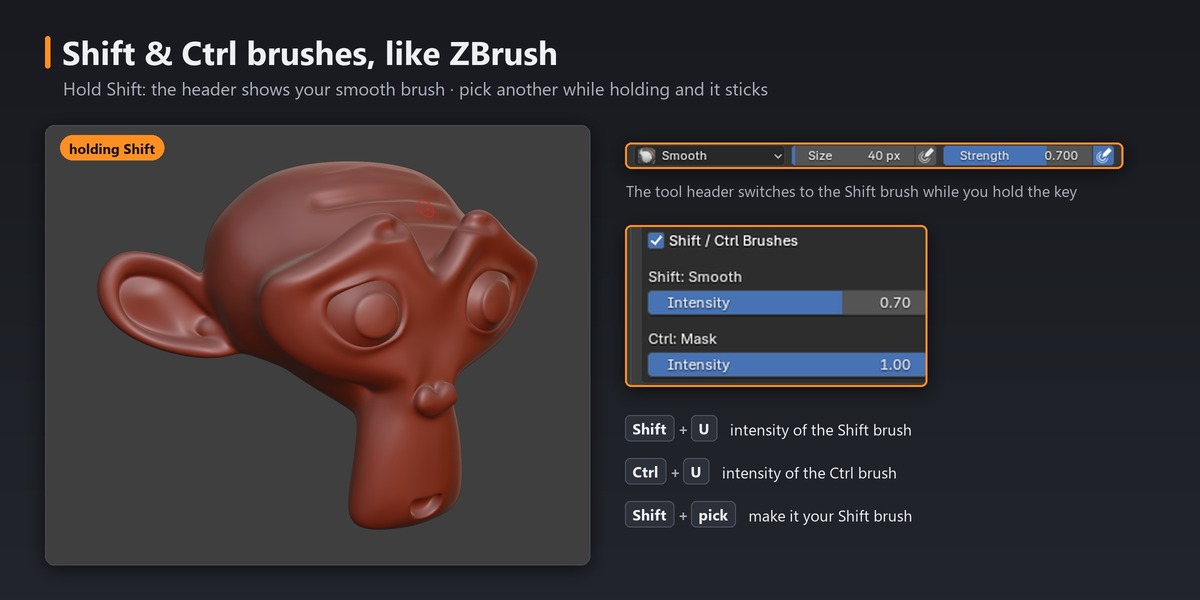
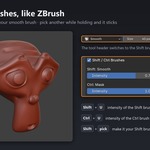
- Sculpt with Alt held to carve (ZSub). Hold Shift to smooth, hold Ctrl to mask.
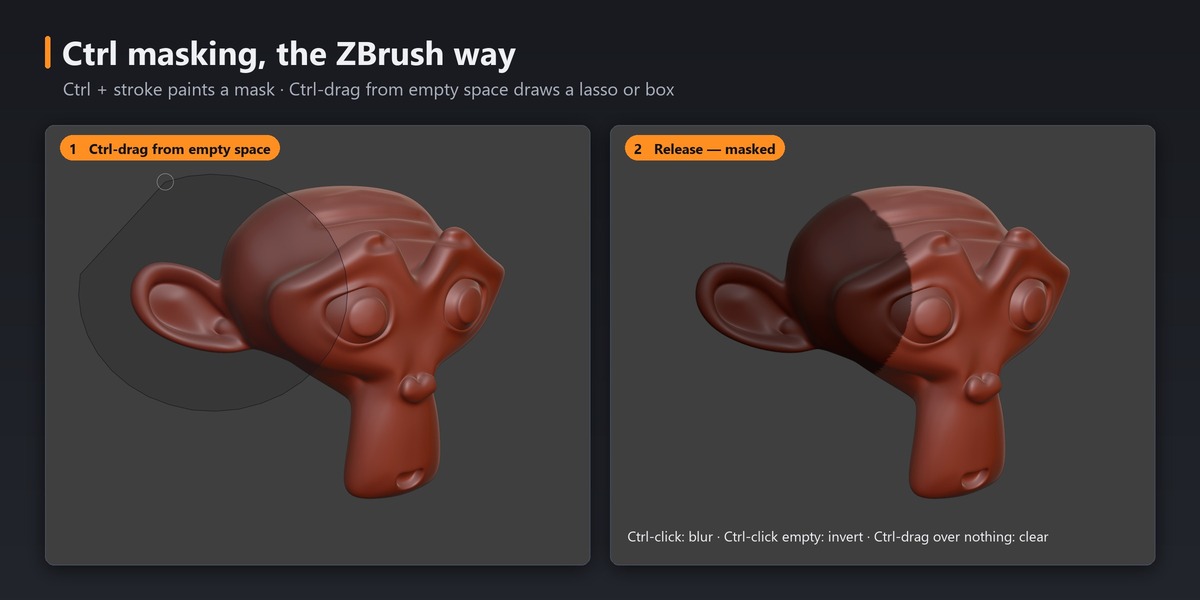
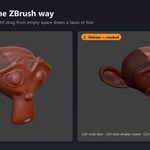
- Ctrl-drag from empty space to lasso-mask. Ctrl-click empty space to invert the mask.
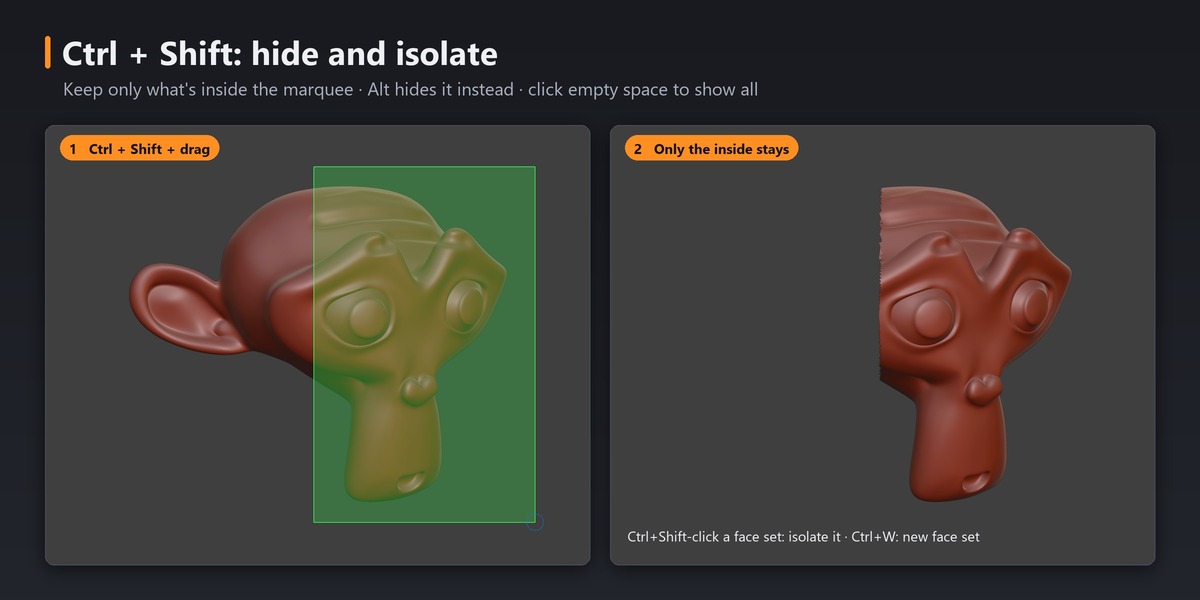
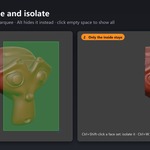
- Ctrl+Shift-drag to isolate part of the mesh. Ctrl+Shift-click empty space to show everything.
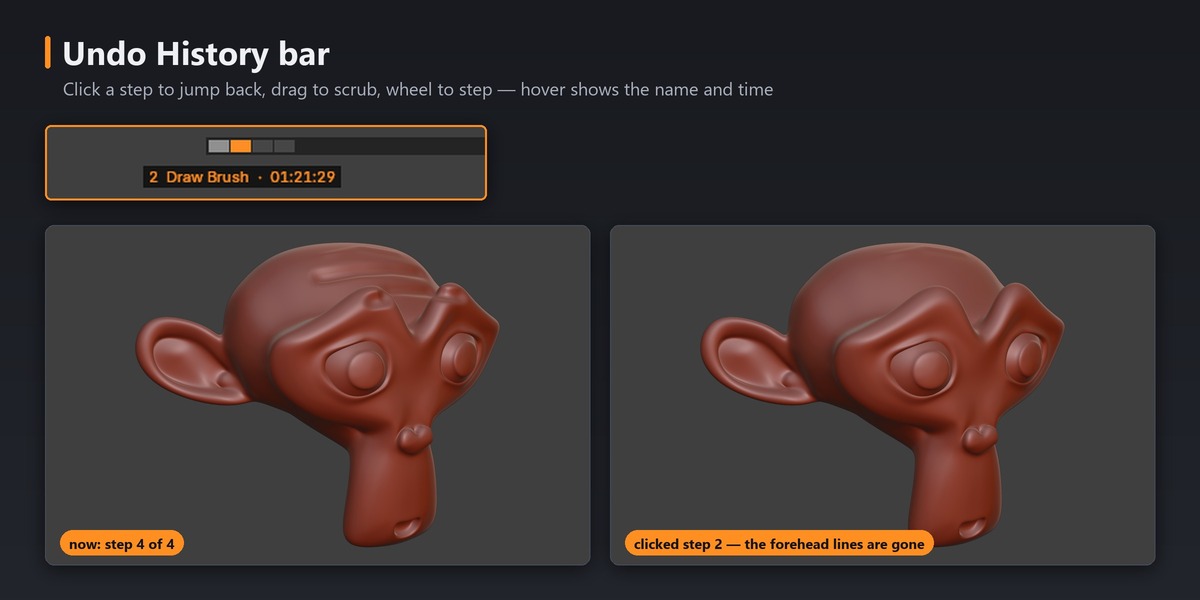
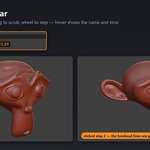
- Scrub the bar at the top of the viewport to go back in time.
Controls (Sculpt Mode only)
Navigation
- Drag on empty space: rotate (hold Shift while rotating to snap to an axis)
- Alt + drag on empty space: pan (release Alt to zoom)
- RMB drag: rotate · Alt+RMB: pan · Ctrl+RMB: zoom · RMB click: sculpt menu
- F: frame the mesh · P: perspective / orthographic
Brushes
- Alt + stroke: invert (ZSub)
- Hold Shift / Ctrl: Shift brush (Smooth) / Ctrl brush (Mask)
- Hold Shift or Ctrl + pick a brush (or Shift+B / Ctrl+B): set the Shift / Ctrl brush
- S: draw size · U: intensity · Shift+U / Ctrl+U: intensity of the Shift / Ctrl brush
- Space: brush menu · B: brush shelf · X: X symmetry · Shift+F: wireframe
Masking
- Ctrl + stroke: paint mask (+Alt: unmask)
- Ctrl + click on the mesh: blur mask (+Alt: sharpen)
- Ctrl + drag from empty space: lasso or box mask (+Alt: unmask)
- Ctrl + click on empty space: invert mask
- Ctrl + drag that encloses nothing: clear mask
- Ctrl+A: mask all · Ctrl+I: invert (Blender default)
Visibility
- Ctrl+Shift + drag: keep only the inside (+Alt: hide the inside)
- Ctrl+Shift + click a face set: isolate it (+Alt: hide it)
- Ctrl+Shift + click empty space: show all
- Ctrl+Shift + drag that encloses nothing: invert visibility
- Ctrl+W: new face set from the mask, or from everything visible
Subdivision & tools
- D / Shift+D: Multires level up / down · Ctrl+D: divide (adds Multires when needed)
- SDiv slider in the sidebar: jump to any level
- Q / W / E / R: Brush / Move / Scale / Rotate tool
- Alt+R: voxel size (visual) · Ctrl+R: voxel remesh (Blender default)
Undo History bar
- Click: jump to a step · Drag: scrub · Esc while dragging: go back · Mouse wheel over the bar: one step
- Hover a segment to see the step's name and time
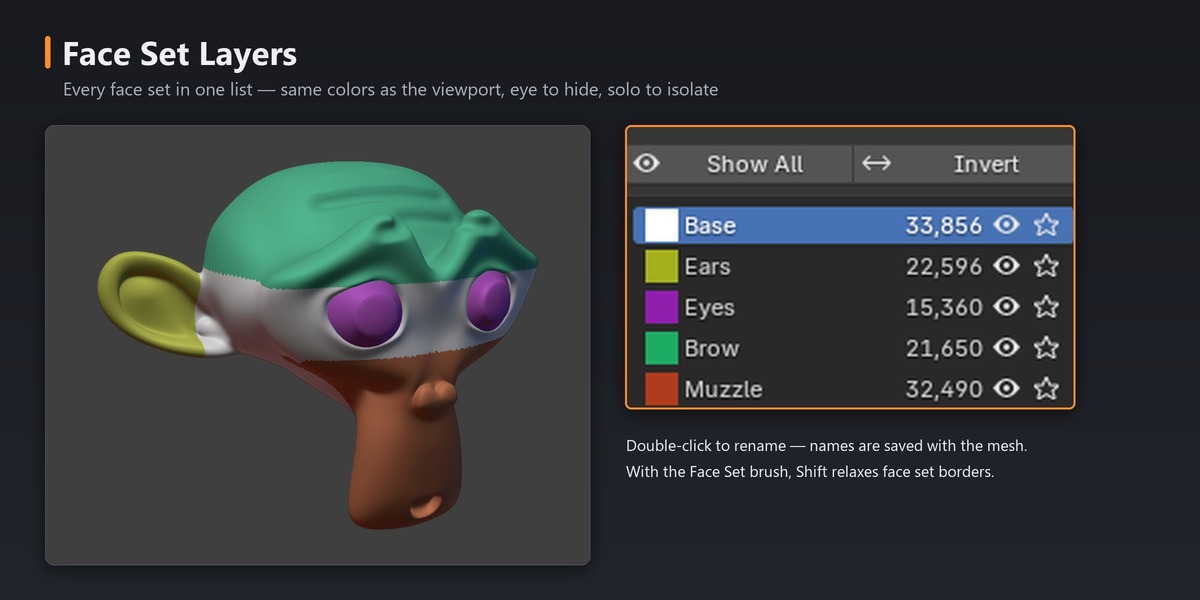
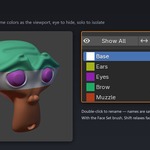
Face Set Layers (sidebar → ZSculpt → Face Set Layers)
- Eye: hide / show a face set · Solo: isolate it (click again to show all)
- Show All / Invert buttons · Double-click a name to rename it (saved with the mesh)
- With the Face Set Paint brush, Shift relaxes face set borders (Blender's own behavior)
Preferences
These are in Preferences → Add-ons → ZSculpt. Most are also in the sidebar tab.
- ZSculpt (master switch): turns every feature on or off
- Navigate on Empty Space, Right-Drag Navigation, Shift Snaps While Rotating, Invert Drag Zoom
- Ctrl Masking & Ctrl+Shift Visibility: Mask marquee (Lasso / Box), Select marquee (Box / Lasso)
- Camera Based Masking / Selection: off (default) = marquees go through the whole mesh, like ZBrush; on = only faces facing the camera are affected
- ZBrush-Style Hotkeys, Subdivision Keys, Q W E R Tools
- ZBrush-Style Shift / Ctrl Brushes
- Undo History Slider: range (this sculpt session or everything) and bar width
- Suspend 'Emulate 3 Button Mouse' in Sculpt Mode
Compatibility & notes
- Requires Blender 5.2 or newer.
- The Undo History bar works on Windows and Linux. On macOS the bar is unavailable, and everything else works.
- Emulate 3 Button Mouse (Alt) turns Alt+click into a middle-click before add-ons can see it. ZSculpt switches it off only while you are in Sculpt Mode and turns it back on when you leave. You can disable this in Preferences.
- With Camera Based Selection on, "keep inside" hides the far side in a second pass, so it takes two undo steps.
- Unified Strength: keep it off if you want separate intensities for the Shift and Ctrl brushes.
- NVIDIA App: Alt+R opens NVIDIA's statistics overlay by default. Change that shortcut in the NVIDIA overlay (Alt+Z → Settings → Keyboard shortcuts), or use the Remesh panel for voxel size.
- Keys ZSculpt takes over, in Sculpt Mode only: S, U, B, X, F, P, D, Q, W, E, R, Space, Shift+F, Shift+B, Shift+U, Ctrl+A, Ctrl+B, Ctrl+D, Ctrl+U, Ctrl+W, Alt+R, and the mouse behavior described above.
License
GPL-3.0-or-later, which is required for Blender add-ons. ZSculpt is not affiliated with or endorsed by Maxon. ZBrush is a trademark of Maxon.
$3
Have questions about this product?
Login to message
| Blender Extension Compatible | Yes |
| Published | 1 day ago |
| Blender Version | 5.2 |
| Extension Type | Add-on |
| Render Engine Used | Cycles, Eevee |
| License | GPL |

Discover more products like this
Sculpt mode undo history navigation Hotkeys Sculpt sculpting keymap zbrush controls Multires masking mask zbrush