10 Surface Mesh Effects Pack
 Blender Procedural


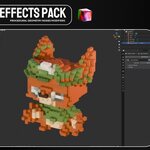
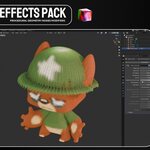
Documentation – Transferring Texture Colors
To make the generated effect match the colors of your object’s original texture, you must bake the texture into a Color Attribute.
- Select the original textured object.
- Open Object Data Properties → Color Attributes.
- Create a new Color Attribute named exactly Color.
- Make sure the newly created Color attribute is active.
- Change the render engine to Cycles.
- Open Render Properties → Bake.
- Select Diffuse as the Bake Type.
- Under Contributions, leave only Color enabled and disable Direct and Indirect.
- Click Bake to transfer the texture colors into the active Color Attribute.
- Apply one of the included Geometry Nodes effects.
The generated geometry will read the baked Color attribute and inherit the colors of the original texture.
Important: The attribute must be named exactly Color, including the capital “C.” Otherwise, the effect may not detect the baked color information.
Installation
- Download and extract the product files.
- Open your Blender project.
- Go to File → Append.
-
Open the downloaded
.blendfile. - Enter the NodeTree folder.
- Select the surface effect you want to use.
- Click Append.
The selected Geometry Nodes setup will now be available in your project.
Applying an Effect
- Select the object you want to transform.
- Open the Modifiers tab.
- Add a new Geometry Nodes modifier.
- Select one of the included node groups from the modifier’s dropdown menu.
- Adjust the exposed controls to customize the effect.
For the best results, apply the object’s scale before adding an effect:
Select the object → Press Ctrl + A → Apply Scale
Included Effects
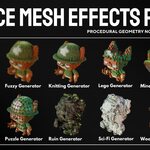
The pack contains 10 procedural surface effects:
- Brick Generator
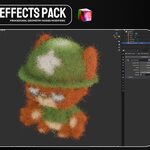
- Fuzzy Generator
- Knitting Generator
- LEGO Generator
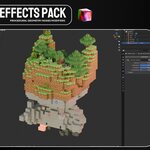
- Minecraft Generator
- Newspaper Generator
- Puzzle Generator
- Ruin Generator
- Sci-Fi Generator
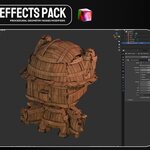
- Wood Generator
Each effect reconstructs the source object using a different procedural surface style.
Recommended Object Setup
For consistent results:
- Use a clean mesh with correct normals.
- Apply the object’s scale before using the effect.
- Avoid extremely small or extremely large object dimensions.
- Use a mesh with a reasonable polygon count.
- Make sure the original model does not contain overlapping geometry.
- Use closed or manifold meshes when possible.
If an effect appears too large or too small, first adjust its scale or size controls inside the modifier.
Have questions about this product?
Login to message
| Dev Fund Contributor | |
| Published | 2 months ago |
| Blender Version | 5.0 - 5.2 |
| Render Engine Used | Cycles, Eevee |
| License | Royalty Free |
Discover more products like this
voxel generator surface effects texture transfer procedural modeling blender assets mesh-generator geometry nodes stylized effects