 NAKIGRAL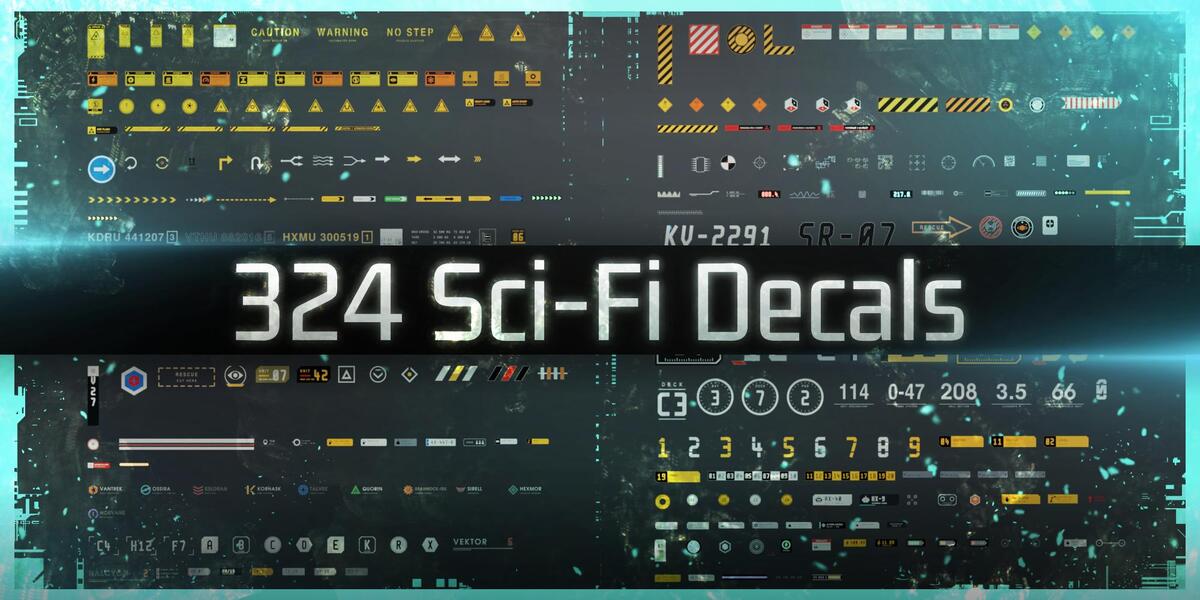
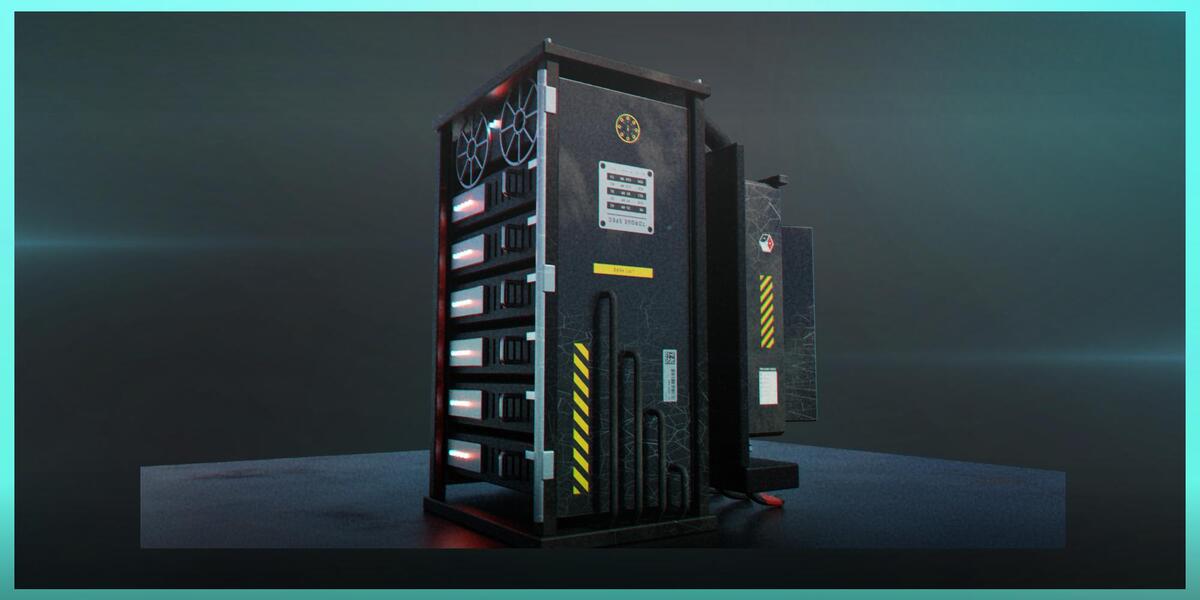
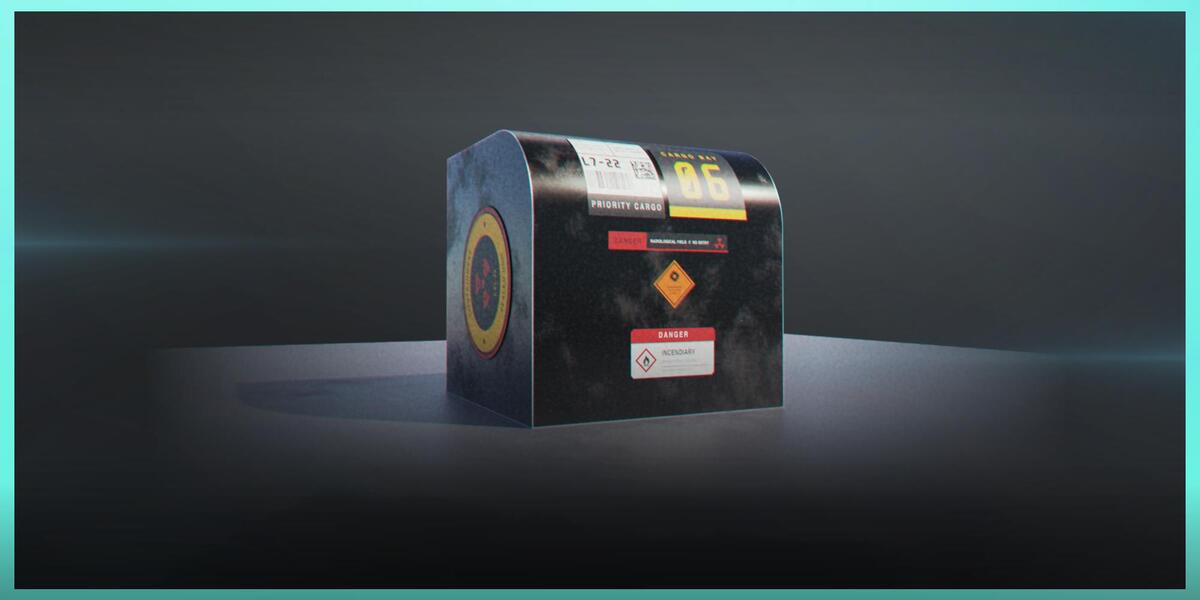
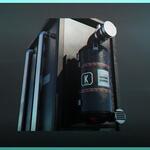
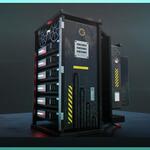
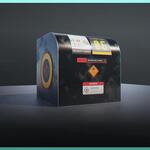
NAKIGRAL — Sci-Fi Decals
Installation & User Guide
Thank you for choosing NAKIGRAL — Sci-Fi Decals.
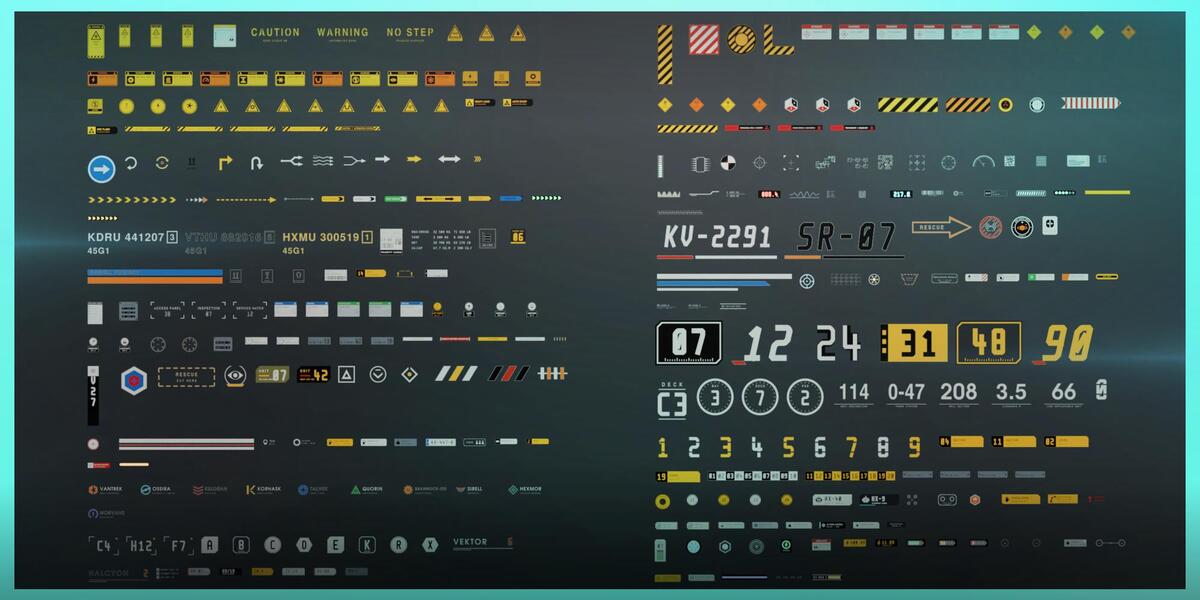
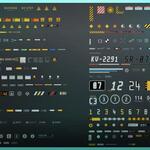
This product includes 324 original sci-fi decals organized into 13 categories, a Blender Asset Browser library, and the NK Decal Tools v2.1.1 companion extension.
The asset library and extension are installed separately.
1. Installing the Asset Library
Download the product files from Superhive.
Extract the main product archive to a permanent folder on your computer.
Open Blender and go to Edit → Preferences → File Paths.
Find the Asset Libraries section.
Click the button to add a new asset library.
Select the folder containing the provided
.blendlibrary file.Give the library a name, such as NAKIGRAL — Sci-Fi Decals.
Save your preferences.
Accessing the Decals
Open the Asset Browser in Blender.
Select the NAKIGRAL asset library.
Browse the available decal categories.
Drag your chosen decal into the 3D Viewport.
Position, rotate, and scale the decal as needed.
The library includes the following categories:
Warning, Hazard, Industrial, Technical, Arrows, Numbers, Letters, Vehicle, Aerospace, Robotics, Energy, Logistics, and Corporate.
Supporting Materials and Materials/Node Groups are also included.
All decal texture atlases are packed into the Blender library file.
Important: If you move the library to another folder, update its location in Blender Preferences.
2. Installing NK Decal Tools
NK Decal Tools v2.1.1 is an optional companion extension designed to adapt compatible decals to nearby curved mesh surfaces.
Open Blender.
Navigate to Edit → Preferences → Get Extensions.
Open the extension installation menu and choose Install from Disk.
Select the provided NK Decal Tools ZIP.
Install and enable the extension.
Return to the 3D Viewport.
Press N to open the Sidebar.
Find the NK Decals panel.
Panel location: 3D Viewport → Sidebar → NK Decals.
Note: Do not extract the extension ZIP before installing it.
3. Using the Decals
The decals are designed for sci-fi hard-surface modeling and environment detailing.
Basic Workflow
Open the NAKIGRAL library in the Asset Browser.
Choose a decal from the desired category.
Drag the decal into your scene.
Place it on or near your target object's surface.
Adjust its orientation and scale.
You can use the collection to add technical markings, identification labels, industrial graphics, and decorative surface details.
4. Adjustable Material Wear
The included materials provide adjustable wear controls.
To customize the appearance:
Select a decal.
Open its material settings.
Locate the available wear controls.
Adjust the values to achieve the desired appearance.
Preview the result in Material Preview or Rendered mode.
Use cleaner settings for newly manufactured equipment or increase the wear for aged and weathered surfaces.
5. Automatic Curved Surface Wrapping
NK Decal Tools can automatically adapt compatible decals to nearby curved mesh surfaces.
Automatic Wrapping
Open the NK Decals panel.
Enable Auto-wrap curved.
Place a compatible decal near a curved mesh surface.
The extension searches for an eligible nearby mesh within the configured search radius.
If a suitable curved surface is detected, the extension adds the necessary wrapping modifiers.
Adjust the wrapping settings if needed.
On surfaces detected as flat, automatic wrapping modifiers are not added.
Target detection is based on proximity, so the closest eligible surface is not guaranteed to be the intended target in every scene.
6. NK Decal Tools Controls
Auto-wrap curved
Enables automatic surface adaptation when a compatible decal is placed near suitable curved geometry.
Offset
Adjusts the separation between the decal and its target surface. Useful for reducing surface intersections or unwanted floating.
Wrap reach
Controls the reach used when adapting the decal to nearby geometry.
Wrap detail
Adjusts the detail used for surface conformity. Higher values may increase geometry and processing requirements.
Max subdivision
Sets the maximum subdivision level used during adaptation. Increasing subdivision adds geometry.
Search radius
Defines the distance within which the extension searches for eligible target meshes.
7. Manual Actions
Wrap to Surface
Manually runs surface wrapping for a supported decal. Useful when automatic wrapping needs additional adjustments.
Remove Modifiers
Removes the wrapping modifiers managed by NK Decal Tools.
Bake (Apply)
Applies the wrapping modifiers to the decal geometry.
Applying modifiers makes their geometric result permanent in the current mesh state. Save a backup or duplicate the decal before applying if you want to preserve an editable version.
8. Limitations & Recommendations
NK Decal Tools is intended to assist with decal placement on curved geometry. Results depend on the target mesh and placement conditions.
Tight curves and sharp edges may require manual adjustments.
Thin surfaces can produce imperfect wrapping results.
Nearby objects may influence automatic target detection.
Adjust Search radius if the extension selects an unintended surface.
Higher subdivision settings increase geometry.
Some decal placements may require manual repositioning.
Automatic wrapping modifiers are not added to detected flat surfaces.
For best results, position the decal close to the intended surface and adjust the wrapping settings gradually.
9. Troubleshooting
The Asset Browser library does not appear.
Verify that the correct folder is registered under Edit → Preferences → File Paths → Asset Libraries.
Confirm that the folder contains the supplied
.blendfile.I cannot find the decals.
Select the correct library in the Asset Browser and check the active category. Clear any search filters that may be hiding assets.
NK Decal Tools is not visible.
Check that the extension is installed and enabled.
Open the 3D Viewport, press N, and look for the NK Decals panel.
Automatic wrapping is not working.
Verify that Auto-wrap curved is enabled, the decal is compatible, and a suitable curved mesh is within the search radius.
Remember that flat surfaces do not receive automatic wrapping modifiers.
The decal intersects the surface.
Increase Offset slightly and check the decal's position and orientation.
The decal does not follow the curved surface correctly.
Adjust Wrap reach, Wrap detail, or Max subdivision.
You can also reposition the decal and use Wrap to Surface manually.
The wrong surface is detected.
Reduce Search radius or move the decal closer to the intended mesh.
Wrapping adds too much geometry.
Lower the wrapping detail or maximum subdivision settings.
How can I reset the wrapping?
Use Remove Modifiers before applying them. If the modifiers have already been applied, restore a saved backup if you need the original editable geometry.
10. Compatibility
Product: NAKIGRAL — Sci-Fi Decals
Extension: NK Decal Tools v2.1.1
Blender versions tested:
Blender 4.5.5 LTS
Blender 5.2.2 LTS
Rendering engines tested:
Cycles
Eevee
Operating system tested: Windows
Compatibility with other Blender versions and operating systems has not been verified.
11. Support
For assistance, please contact NAKIGRAL through Superhive.
When reporting an issue, include:
Blender version.
Operating system.
Description of the problem.
Steps to reproduce the issue.
Screenshots, if available.
Thank you for supporting NAKIGRAL.
Have questions about this product?
Login to message
| Published | 3 days ago |
| Blender Version | 4.5 - 5.2 |
| Render Engine Used | Cycles, Eevee |
| Misc Data | Textured |
| License | GPL |
Discover more products like this
decal tool decal pack industrial assetlibrary decals science fiction Industrial Decals asset library sci fi asset Scifi Decals decal