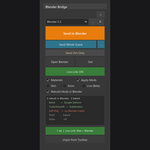
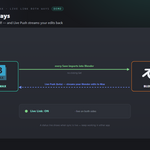
A two-way bridge between Blender and 3ds Max. Send meshes to 3ds Max and get them back — mesh, UVs, or everything — without exporting or importing files by hand. It reuses a running 3ds Max (and launches the exact version you pick), applies your clean-up steps inside Max on import, and syncs hands-free while you work. On Get you can take just the UVs or just the mesh, so a round-trip need never overwrite the work you want to keep.
Requirements - please read before buying
-
Windows only. The add-on detects and launches 3ds Max through Windows paths and processes. macOS and Linux are not supported.
-
Blender 3.3 - 5.2 - Extension on 4.2+, classic add-on on 3.3-4.1.
-
Autodesk 3ds Max is required and sold separately. You need your own licensed copy from Autodesk. No Autodesk 3ds Max licence is included with this product - it is the Blender-side bridge only, and is not affiliated with, endorsed by, or a reseller of Autodesk.
-
sync (Get / Live Link); Send from Blender works without it.
-
Network: none. Blender and 3ds Max exchange files on your own machine - the add-on opens no network connection.
Installation
Blender 4.2+ (Extension): Edit ▸ Preferences ▸ Add-ons ▸ drop-down ▸ *Install from Disk…* → pick universal_bridge_3dsmax-x.x.x-blender4.2-5.2.zip, then enable it. Blender 3.3–4.1: Edit ▸ Preferences ▸ Add-ons ▸ *Install…* → pick universal_bridge_3dsmax-x.x.x-blender3.3-4.1.zip.
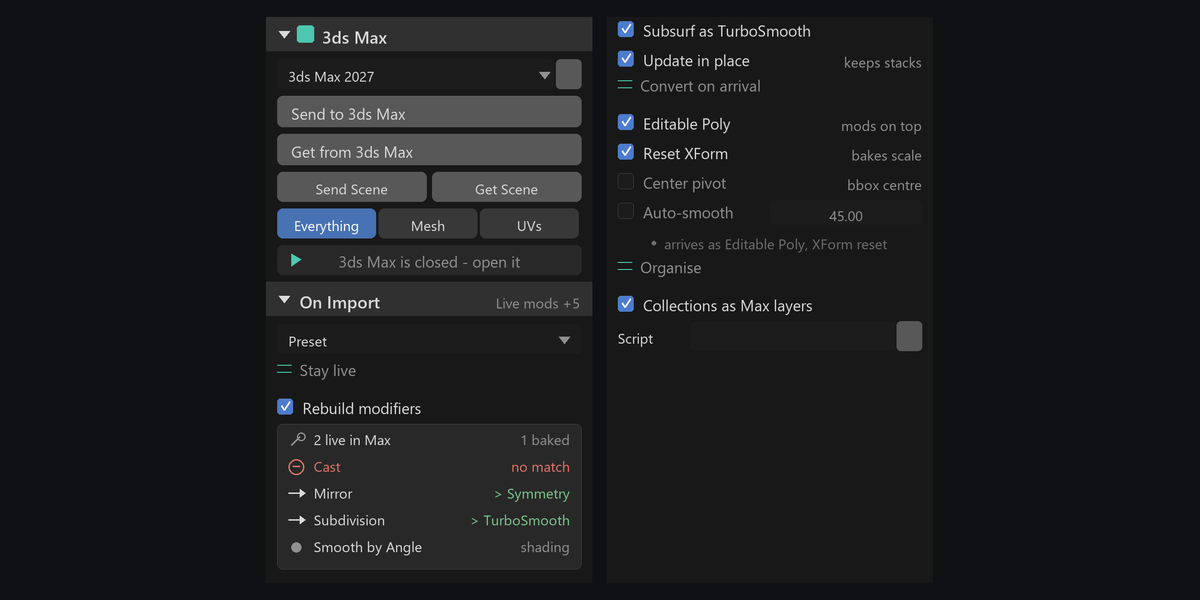
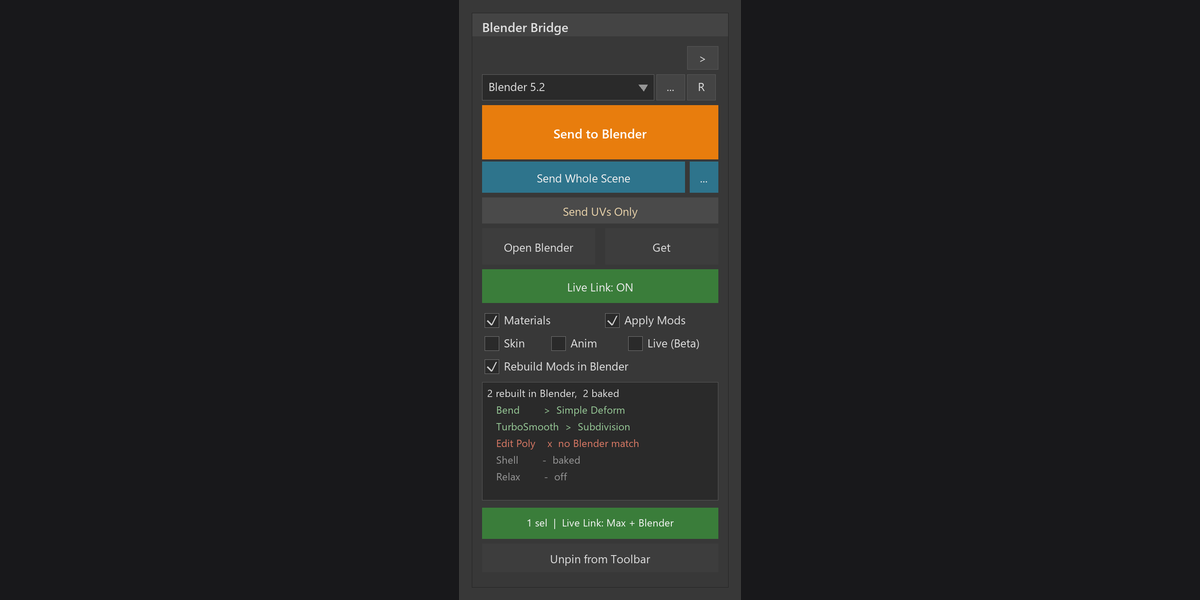
The panel is in the 3D Viewport sidebar (press N) under the 3ds Max tab (or the Universal Bridge Manager tab if you have the Manager installed). Open the add-on preferences and check the Version dropdown — it lists the 3ds Max installs found on this machine; pick one, or set the executable path by hand.
One-time 3ds Max setup (for two-way sync)
Pick either method — both install the companion MAXScript so Max watches for sends and can send back:
-
A) In the add-on preferences click Install / Reinstall, then restart 3ds Max.
-
B) Click Drag-in Installer and drag
DRAG_INTO_3DSMAX.ms into a running Max.
After installing, the bridge buttons appear under *Customize UI ▸ category "Universal Bridge"*. Sending from Blender into Max works without any of this; the script is what lets Max import automatically and send back.
Getting started
- Select mesh objects.
- Click Send to Max (or Open Max first if it's closed — that just launches it).
- In 3ds Max, edit as needed, then send back (or leave Live Link to do it).
- Click Get from 3ds Max — or turn on Live Link and skip this step.
Send & Get
-
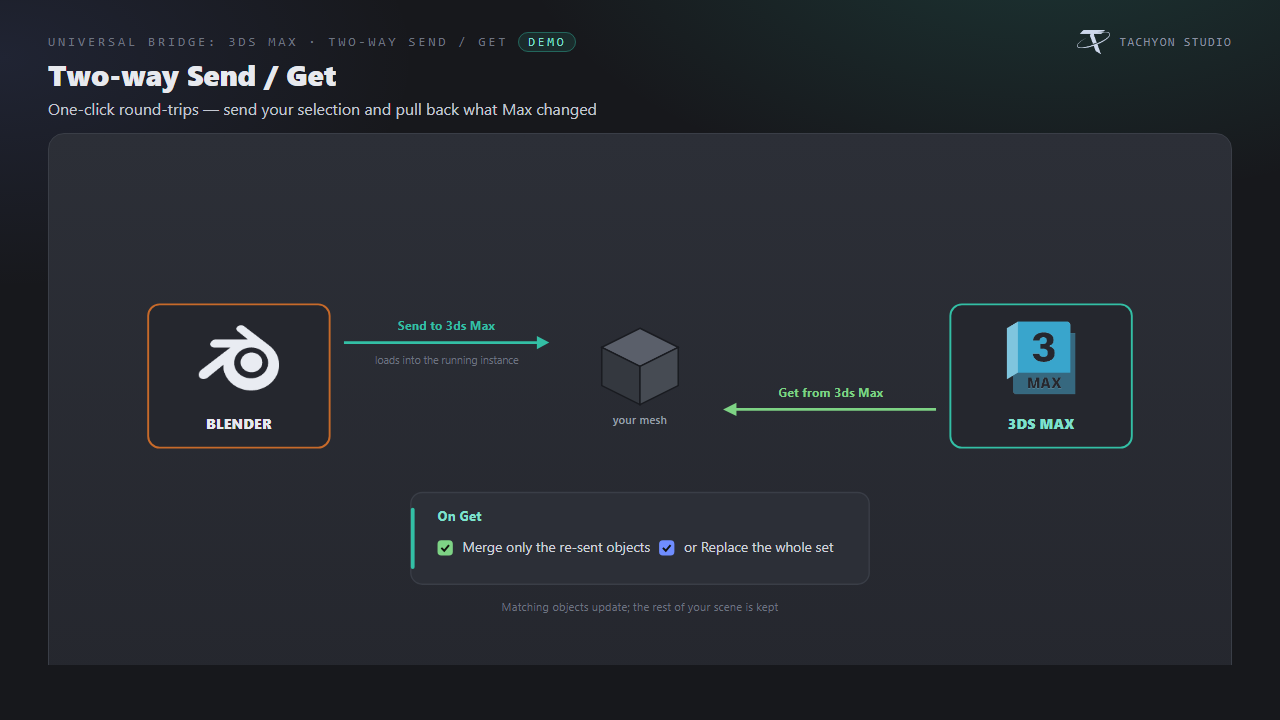
Send to 3ds Max exports the selected objects to FBX in a shared bridge folder
and signals Max to import them. If a 3ds Max is already open and Reuse Running is on, it goes straight there — no new window; otherwise the chosen version is launched.
-
Open 3ds Max just launches Max without transferring anything.
-
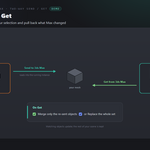
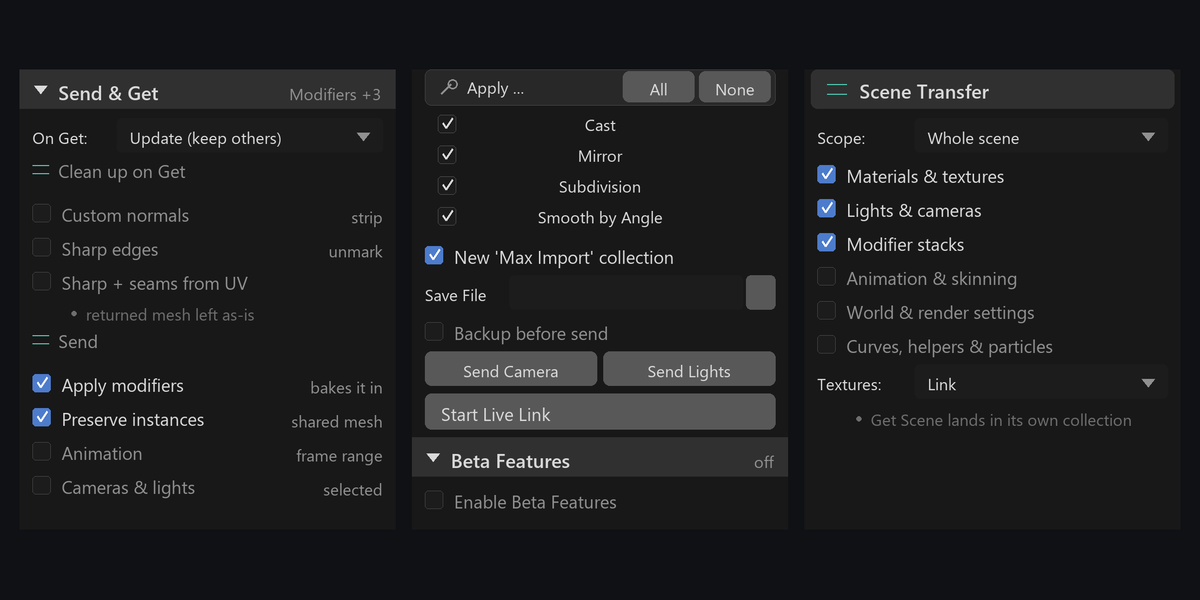
Get from 3ds Max imports what Max last sent. In Update (keep others) mode
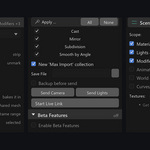
only the objects that came back are updated and everything else in the bridge collection is left alone; Replace all clears the "3ds Max Import" collection and imports fresh.
-
New "3ds Max Import" Collection — import into a dedicated collection, or turn
it off to import into the active collection.
-
Save File — export to a specific FBX path instead of the live bridge file.
-
Backup Before Send — duplicate the objects into a "3ds Max Backup" collection
first.
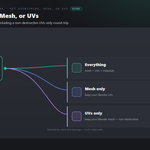
Get modes
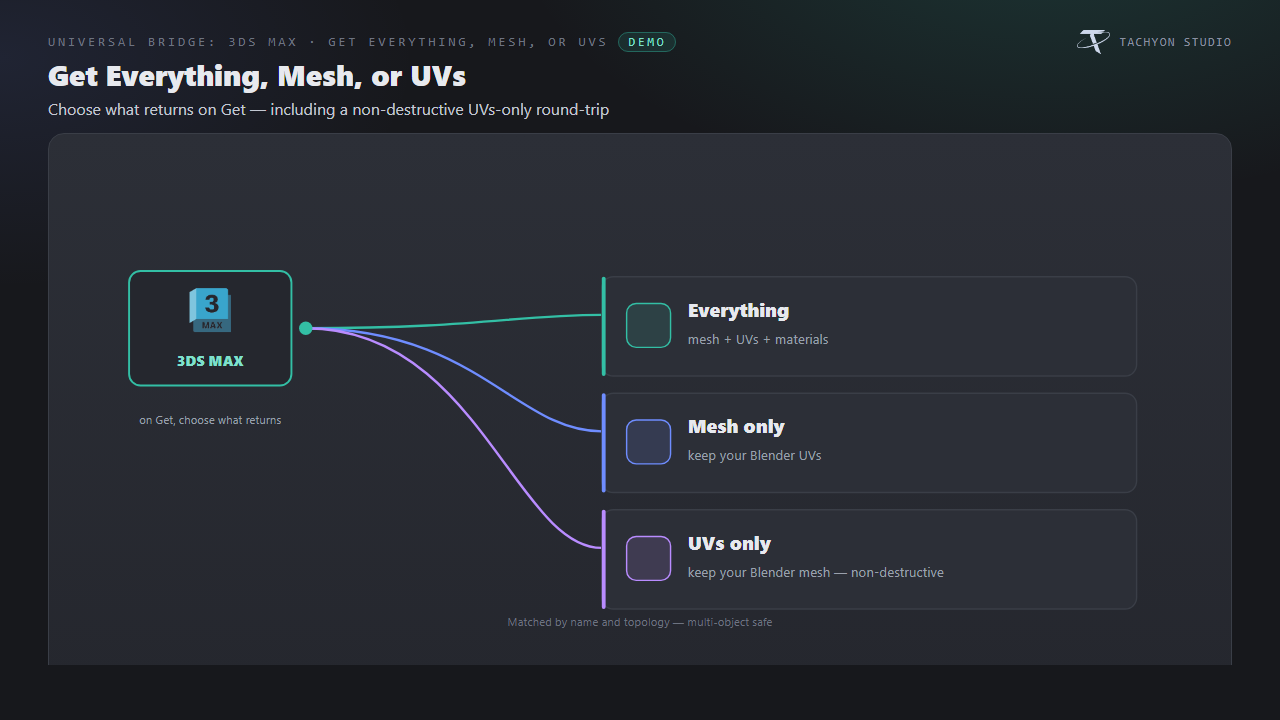
Choose what a Get brings back, on the panel:
| Mode |
What it does |
| Everything |
Replace your objects with Max's version — mesh, UVs and materials. |
| Mesh |
Bring back only Max's geometry and keep your existing Blender UVs. |
| UVs |
Bring back only Max's UVs and keep your existing Blender mesh (a RizomUV-style round-trip). |
Incoming objects are matched to your originals by name and topology, and the match is multi-object safe (it never lands two transfers on the same target). A Send UVs Only / Send Mesh Only action on the Max side drops a marker that overrides the panel's mode for that one pull.
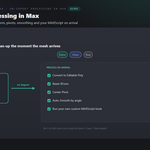
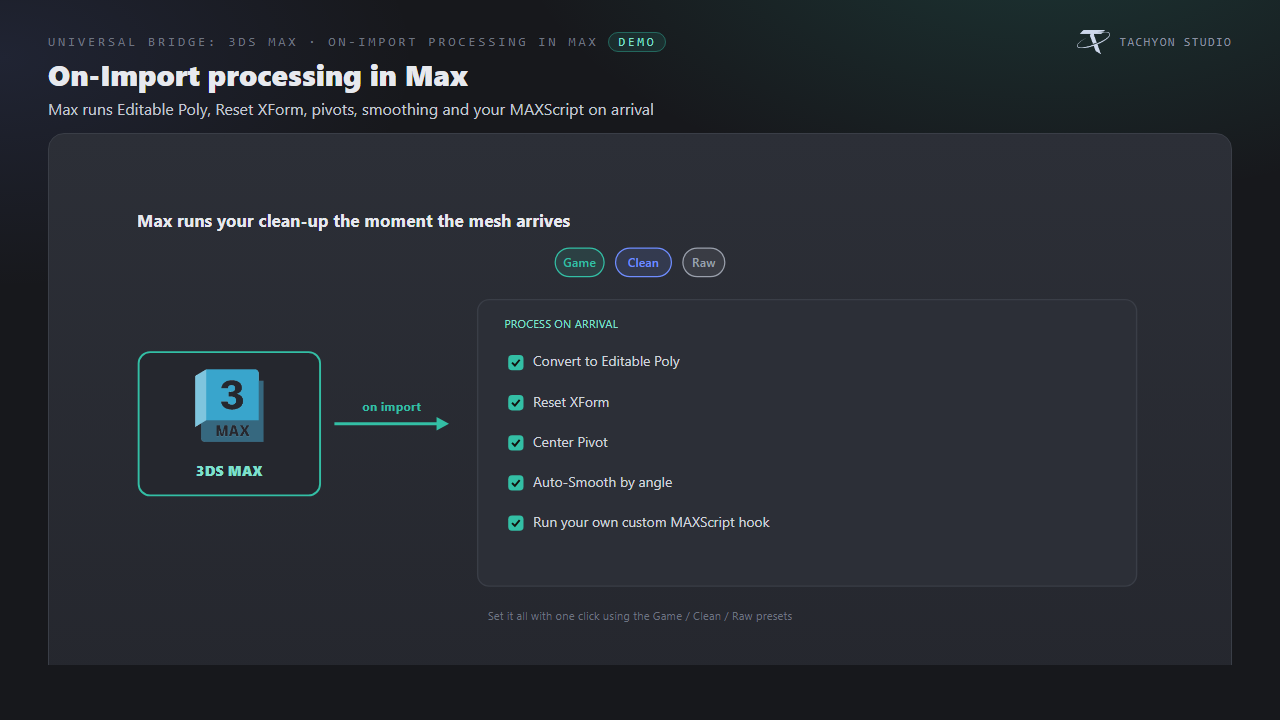
On-Import processing (applied inside 3ds Max)
Set what Max does to each mesh the moment it arrives:
-
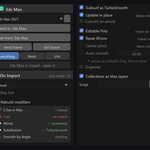
Convert to Editable Poly
-
Reset XForm — bake scale/rotation into the mesh.
-
Center Pivot — move each pivot to its bounding-box centre.
-
Auto-Smooth by a threshold angle.
-
Custom MAXScript — a
.ms file to run after each import (post-process hook).
-
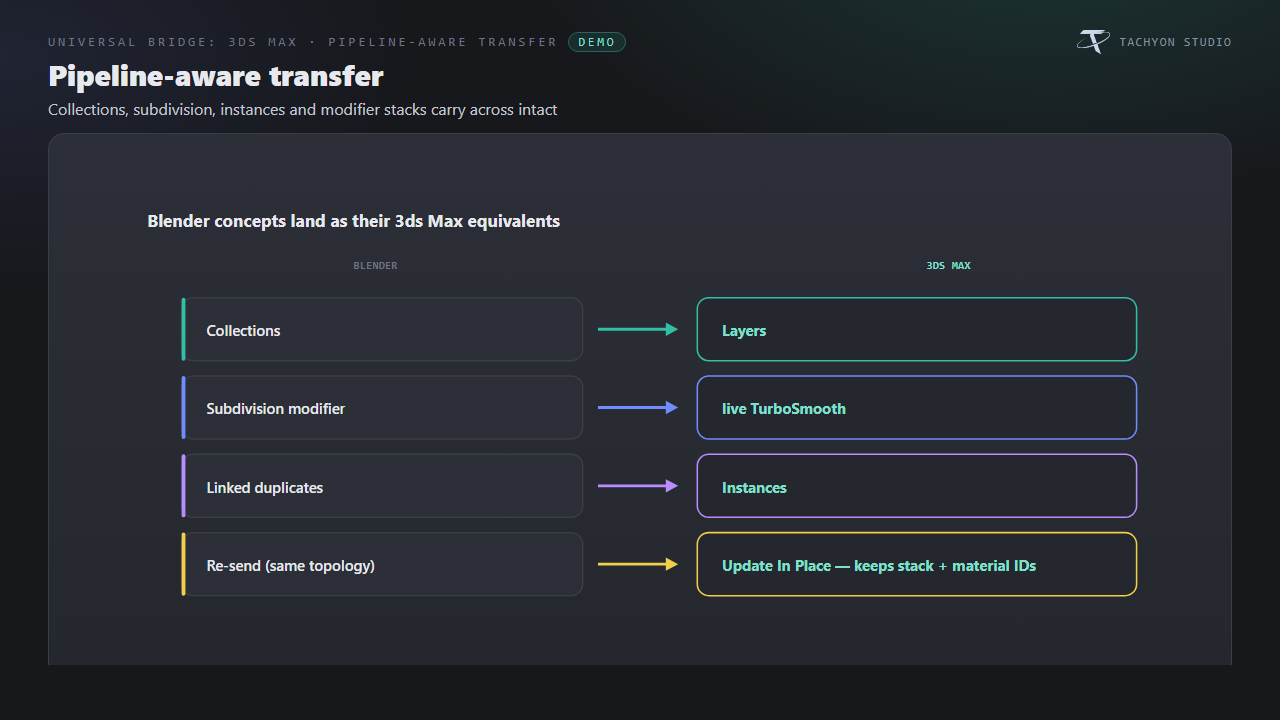
Update In Place — when a re-sent mesh has unchanged topology, Max updates the
existing node's vertices instead of replacing it, so modifier stacks and material IDs survive.
-
Presets — Game (Editable Poly + Reset XForm + Auto-Smooth), Clean
(Editable Poly + Center Pivot), Raw (import untouched).
Scene fidelity
-
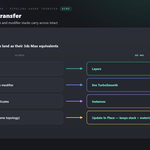
Collections as Max Layers — recreate each object's Blender collection as a
3ds Max layer on import.
-
Subsurf as TurboSmooth — an object with an *unbaked* Subdivision modifier
arrives with a live TurboSmooth at the same level instead of dense baked geometry.
-
Preserve Instances — linked-duplicate meshes become instances in 3ds Max.
-
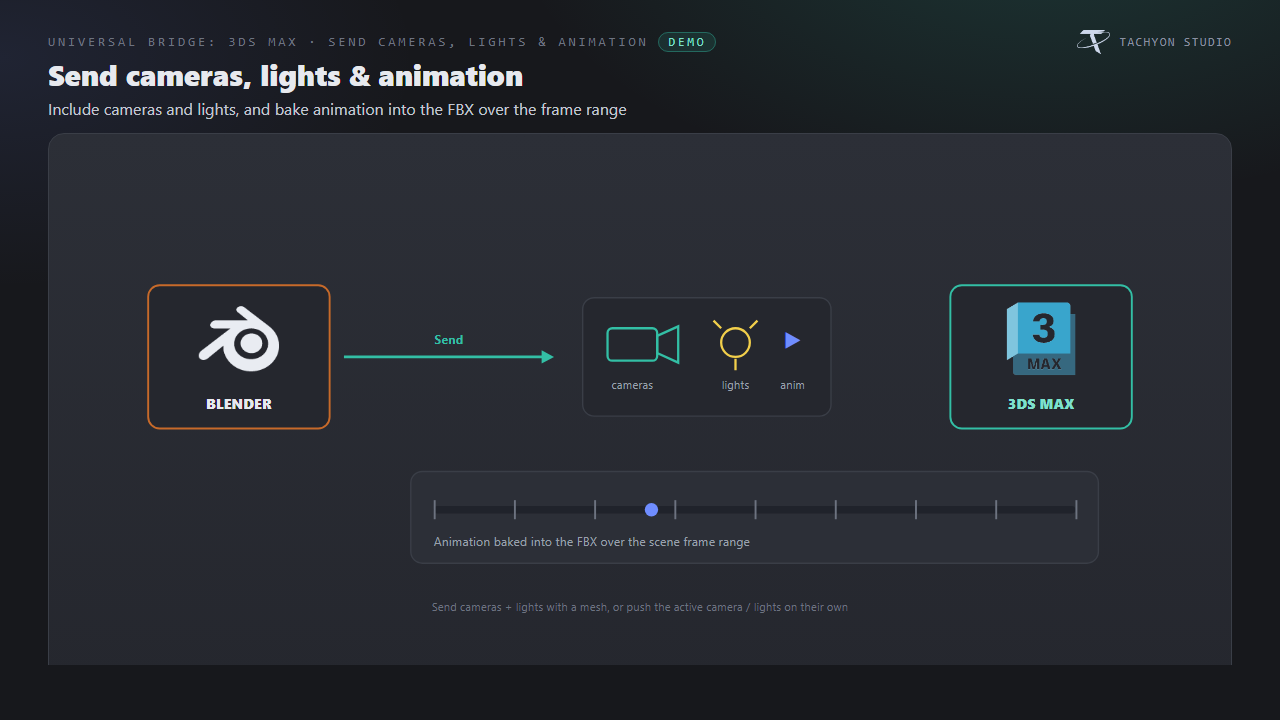
Include Cameras & Lights — also export selected cameras and lights with a send.
-
Include Animation — bake object/armature animation into the FBX over the scene
frame range.
-
Send Camera / Send Lights — push the active scene camera, or the selected
(or all) lights, on their own so layout matches between the apps.
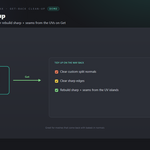
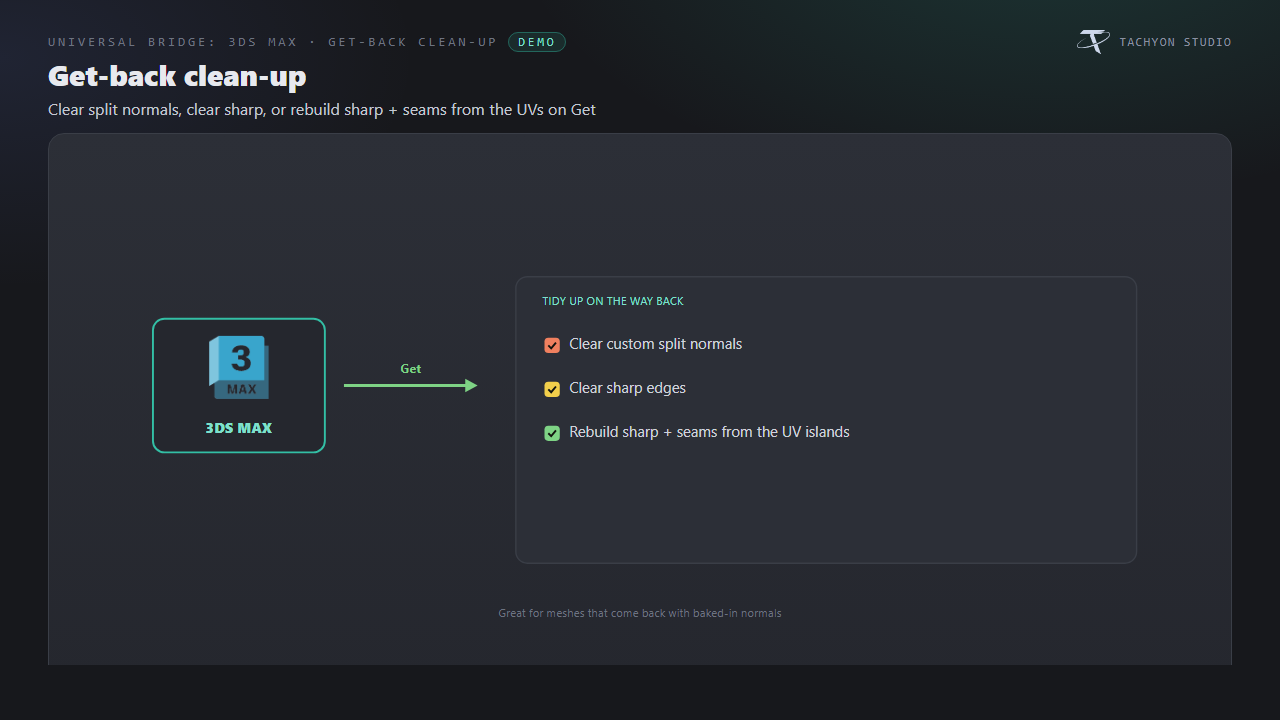
Get-back clean-up
Independent tidy-up steps that run on the objects Max sends back:
-
Clear Custom Normals — strip custom split normals so the mesh shades from its
own geometry (Max often bakes in custom normals).
-
Clear Sharp Edges — unmark every sharp edge on the returned mesh.
-
Sharp + Seams from UV — mark sharp edges and UV seams along the UV island
boundaries of the returned mesh.
Apply modifiers on send
With Apply Modifiers on, modifiers are baked into the mesh as it's sent. The panel lists the active mesh's modifiers with a checkbox each, plus All / None — only the ticked modifiers are baked; the rest are temporarily muted for the export and restored afterwards.
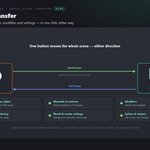
Whole Scene Transfer
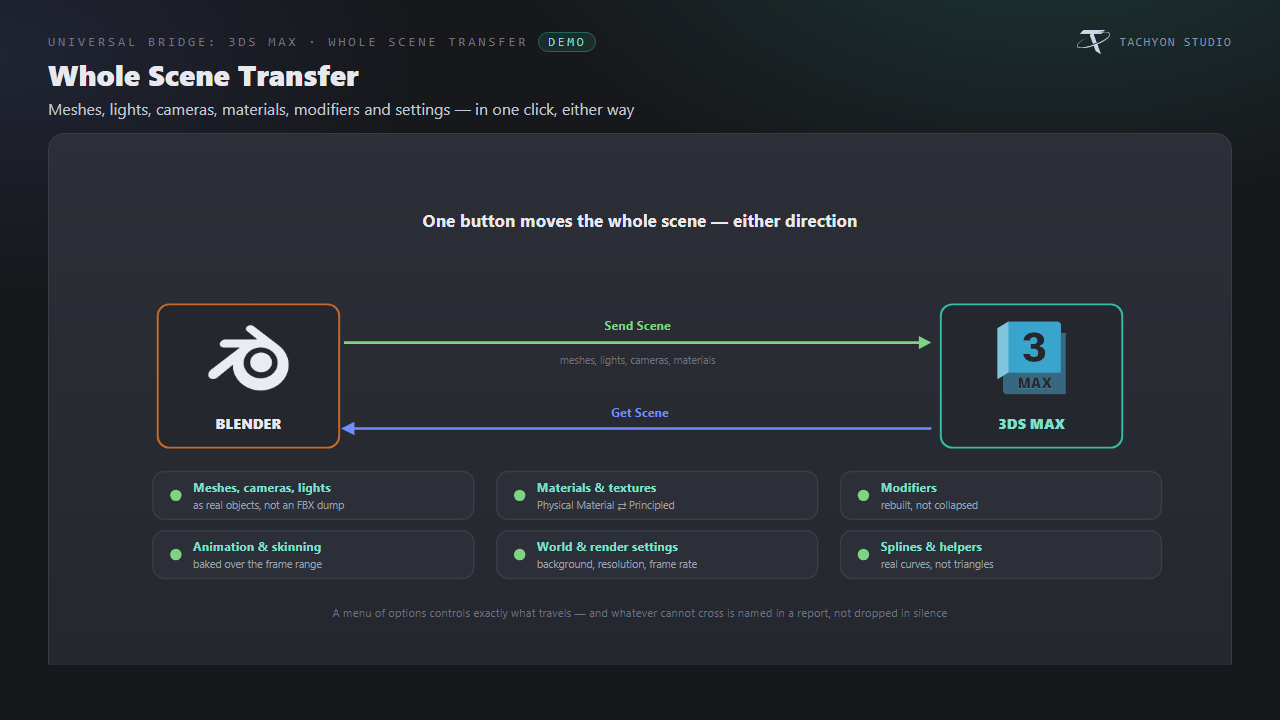
Send a whole scene in either direction from one button, instead of selecting objects and repeating the round trip. Send Scene to 3ds Max and Get Scene from 3ds Max sit at the top of the panel; the gear beside them opens the options.
What travels, each one switchable:
-
Meshes, cameras, lights, materials and textures - materials cross as a
recipe rather than through FBX, so they arrive as real Physical Materials in 3ds Max and Principled shaders in Blender, with their maps reconnected.
-
Modifiers - rebuilt as the nearest equivalent on the other side rather
than collapsed, wherever an equivalent exists.
-
Animation and skinning - baked over the scene frame range.
-
World, HDRI and render settings - background, resolution, frame rate and
frame range.
-
Splines, helpers and particles - splines cross as real curves, because FBX
either triangulates them or drops them.
Lights are converted, not copied: Blender counts a lamp in watts and 3ds Max in photometric units, so the value is converted for the far side while the original is carried alongside it - a round trip returns what it started with rather than an approximation of an approximation.
Scope can be the whole scene, visible objects only, or the current selection. On arrival in Blender everything is merged into its own collection, so a scene transfer never scatters objects through the file you already have open.
Anything that cannot cross - packed textures with no file on disk, particle systems with no counterpart, geometry nodes that can only be baked - is listed in a report after the transfer instead of being dropped silently.
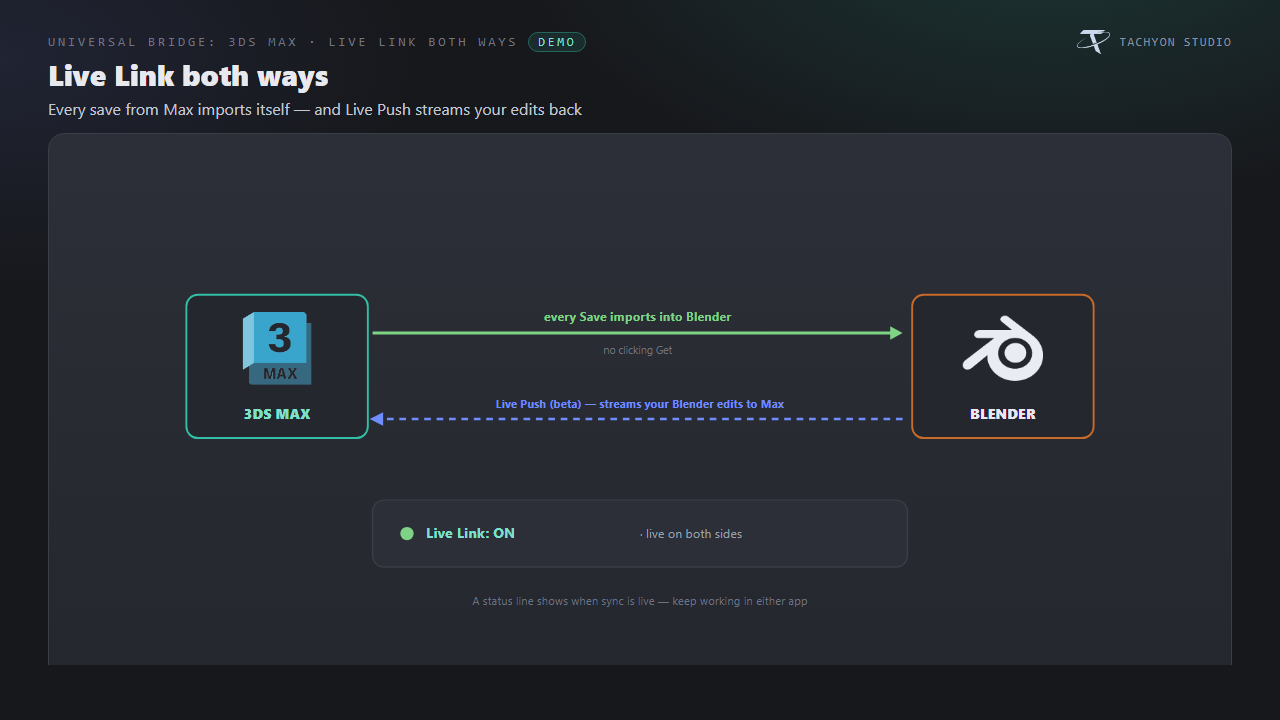
Live Link & Live Push
-
Start Live Link — while on, every change Max writes to the exchange file is
imported into Blender automatically (using your current Get mode). Click again (or ESC) to stop. A status line reports whether sync is live on Blender's side, Max's side, or both.
-
Live Push (beta) — under Beta Features, stream your Blender edits to Max a
beat after you stop editing, with no need to click Send. Controls: a debounce Push Delay, a Scope (Edited only / Selected / All meshes), and Push in Edit Mode (or hold the send until you leave Edit Mode). Needs Live Link running here and on the Max side.
Preferences
-
Version — the auto-scanned list of installed 3ds Max builds (2020+); pick one,
or choose Custom / Browse… and set 3ds Max Executable by hand.
-
Detect 3ds Max — rescan and use the newest install found under
Program Files\Autodesk.
-
Reuse Running 3ds Max — send to an already-open Max instead of launching a new
window.
-
Install / Reinstall and Uninstall the companion MAXScript, and **Drag-in
Installer** to reveal the drag-and-drop installer.
-
Show 3ds Max Panel — show or hide this bridge's panel in the sidebar tab.
Shared Universal Bridge tools
Registered once and shared with every other bridge you own, on the same tab:
-
Command Palette — a pop-up menu of every bridge action.
-
Send History — the last sends, each with a one-click re-send.
-
Selection Sets — save the current selection as a named set and reselect it later.
-
Naming — apply a convention to the selected meshes (low / high / LOD / UCX
collision / socket).
-
Preflight — check the selection for unapplied scale/rotation, missing UV maps,
missing materials, n-gons and non-manifold edges, with Apply Transforms and Add UVs fixes.
-
Batch (Send Each Collection) — send every scene collection that has meshes,
one at a time (pair with Versioned Files to keep them apart).
-
Version Exchange Files — keep a copy of each sent/received file in a
versions
subfolder.
Viewport overlay
A small corner overlay shows which watchers are live (e.g. "3ds Max sync") and flashes the last send result for a few seconds. Toggle it with the Viewport Status Overlay interface preference.
Troubleshooting
-
Get does nothing / Live Link never fires → install the companion MAXScript
(preferences ▸ Install / Reinstall, or the Drag-in Installer) and restart 3ds Max.
-
"3ds Max not found" → set or detect the executable in the add-on preferences,
or pick the right build in the Version dropdown.
-
Transfers arrive scaled → the panel warns when Blender's Unit Scale isn't 1.0;
set it back, or apply scale before sending.
-
A UVs/Mesh Get imported a new object instead of updating → the incoming object
had no name/topology match; it's kept as a normal import — rename to match and re-Get.
-
Two versions installed → pick the one you want in the Version dropdown; the
bridge launches exactly that build.
Button icons
The buttons in the bridge panels use a drawn icon set rather than Blender glyphs borrowed from elsewhere. Preferences ▸ Button Icons controls it:
-
Brand Colours (default) — each bridge in its own colour.
-
Mono — every icon in one accent colour you pick.
-
Blender Built-ins — no custom icons at all, exactly as before.
Colour-code Status keeps the link and modifier icons green / amber / red, where the colour is the message; turn it off and they take your accent too. Blender's own glyphs are kept wherever they are already the familiar thing — the trash can, the folder, the warning triangle — so the panels still look like Blender.
Support
Join the Discord: https://discord.gg/SuSqbZMDk5 (link on the panel and in preferences). Include your Blender and 3ds Max versions.
Part of the Universal Bridge line. Works on its own, and the free Universal Bridge Manager hub add-on is included with your purchase.
 Tachyon Studio