4D Polytope Engine
 Pardesco LLC


Requirements
- Blender 4.5 LTS or newer — Windows, macOS or Linux
- Tested against 4.5.3 LTS, 5.1.2 and 5.2, including the reworked 5.x compositor
- No external dependencies, no account, no licence server, no internet connection
The extension declares 4.5.0 as its minimum, so it will not install on 4.4 or earlier.
Installation
Either drag the zip straight into a Blender window, or use Edit → Preferences → Get Extensions → Install from Disk and pick the zip.
The panel then lives in the 3D viewport's N-panel, under the 4D Engine tab.
Your first polytope, in about a minute
- Open the N-panel in the 3D viewport and choose the 4D Engine tab.
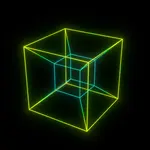
- In the Library list, pick Tesseract (8-cell) — the funnel icon searches — and press Spawn Polytope.
- Under Animation Speed, set XW to
1.0and press Play. What you're watching is the 3D projection of a rigid 4D object turning through a plane your 3D world doesn't have. - Under Style, leave Neon Gradient selected and press Apply — tube material, black world and bloom in one click. Press F12 to render, adding a camera first if the scene has none.
Where everything lives
One sidebar panel holds the whole add-on. Nothing opens in a separate window.
- Library — searchable shape list with vertex/edge counts and a live-point estimate, plus Spawn Polytope, Load .off and Load JSON.
- Projection — projection type and 4D Camera Distance.
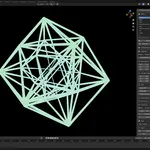
- Base Rotation — a starting angle for each of the six planes: XY, XZ, XW, YZ, YW, ZW.
- Animation Speed — degrees per frame for those same six planes.
- Tube — Radius Min, Radius Max and Tube Resolution for the Geometry Nodes skin.
- Cross-Section — enable, then set the hyperplane position and sweep.
- Loop Studio — motion preset, frames, turns, Setup Seamless Loop and Bake USD Curves.
- Style — preset dropdown and Apply.
- Export — Snapshot to Mesh, STL, GLB, and the SVG/DXF vector export.
The panel always edits the selected polytope. Click a different one in the viewport and the controls follow it.
The two projections
Perspective divides through by w and keeps edges straight; corner spheres are switched on automatically to close the tube joints.
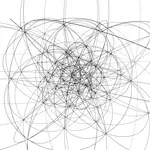
Stereographic is conformal: edges bend into arcs, and shapes evert — turn themselves inside out — as they pass through the projection pole. Corner spheres switch off, because curved edges meet cleanly.
Edges are subdivided 32× while still in 4D, so that curvature stays smooth in the viewport and in every export, not only at render time. Both projections describe the same object; they're two ways of flattening four dimensions into three, and it's worth trying each.
Cross-sections
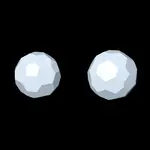
The other way to see a fourth dimension. Rather than projecting the whole shape, this takes its true 3D intersection with the hyperplane w = W — the same idea as a sphere passing through a flat plane and reading as a circle that grows and shrinks.
Enable Cross-Section, set Sweep to about 0.007, and press Play: the polytope passes through your scene as a morphing solid. Rotation can run at the same time, giving a slice that turns as it cuts. Leave the projected tubes visible for a ghost overlay of the whole shape, or hide them for the pure solid.
Every bundled shape carries the cell data this needs. Convex polytopes section exactly; star polytopes are best-effort, since their cells self-intersect.
Loop Studio
Choose a motion preset — Isoclinic, Isoclinic Right, Simple XW, Double, or Spin Tumble — set frames and turns, then press Setup Seamless Loop. Every rotating plane is given a speed that completes a whole number of turns over the range, so the last frame reproduces the first exactly. No crossfade, no hand-tuned keyframes.
Bake USD Curves writes the animated edge skeleton as time-sampled BasisCurves with per-point widths taken from the tube radius gradient, so thickness survives into Houdini, back into Blender, or any other USD pipeline. USD rather than Alembic on purpose: Alembic cannot carry per-point curve radius.
Several polytopes at once
Spawn adds — it doesn't replace. Each polytope keeps its own rotation, projection, tube settings and cross-section state, and they all animate together. Select one in the viewport to edit it; the × button removes it.
Styles
Neon Gradient sets distance-graded neon tubes, a black world and bloom — graded outward from each polytope's own centre, so an off-origin shape looks the same as one at the origin.
Wireframe Ink sets uniform black strokes on white, matching what the vector export produces.
Both work on the Blender 4.5 compositor and the reworked 5.x one. Press Apply after choosing — selecting a preset alone does not change the scene.
Exports
Geometry
- Snapshot to Mesh — freezes the current frame into a real mesh, tube geometry and corner spheres realized, ready to sculpt, print or hand off.
- STL and GLB — snapshot, export and clean up in a single step.
Vector, for plotters and lasers
Export SVG and Export DXF write the projected edge centerlines as seen through your scene camera — one smooth 33-point stroke per edge, rather than the doubled outline a silhouette pass produces. That single-stroke form is what a pen plotter or laser actually wants.
- Documents are sized in true millimetres.
- Layers bins strokes by tube thickness across up to 8 layers with proportional stroke widths — one pen or one power setting per layer.
- Frame Range writes one numbered file per frame, for a plotted animation series.
- DXF is written as plain R12
POLYLINEs, for the widest possible compatibility with laser software.
Both exports project through the scene camera, so the scene needs one.
Using your own shapes
Load any 4OFF or JSON file directly with Load .off / Load JSON, or set a Custom Library Folder in the add-on preferences to browse a whole collection of your own — it appears in the library browser under "Custom".
The demo files
Four scenes ship in the download, each framed and ready to render. Open one and press Play.
-
demo_neon_loop— a seamless isoclinic tesseract loop -
demo_cross_section— a 120-cell passing through 3D space -
demo_plotter_ink— a stereographic 600-cell staged for SVG/DXF export -
demo_multi— two polytopes under independent 4D motion
They are saved on EEVEE Next and render immediately; each also renders essentially identically in Cycles.
Performance
The library shows each shape's vertex and edge counts and an estimated live-point total before you spawn it, and warns on the heavy ones, so the cost is visible in advance.
If a dense shape such as the 600-cell or 120-cell makes the viewport sluggish, lower Tube Resolution first — it is by far the largest factor in the point count — then reduce the radii.
If something looks wrong
- The render is black. The scene has no camera, or the camera isn't pointed at the polytope. Add one and frame the shape.
- The style didn't change anything. Choosing a preset in the dropdown doesn't apply it — press Apply.
- SVG or DXF export does nothing. Both project through the scene camera, so the scene needs one.
- A star polytope's cross-section looks ragged. Expected: star cells self-intersect, so sectioning them is best-effort. Convex shapes section exactly.
- The add-on won't install. Check the Blender version — 4.5.0 is the hard minimum.
Updating
Scenes saved with older versions of the add-on migrate automatically when you open them, so upgrading doesn't break existing work.
Have questions about this product?
Login to message
| Blender Extension Compatible | Yes |
| Published | about 2 months ago |
| Blender Version | 4.5 - 5.1 |
| Extension Type | Add-on |
| Render Engine Used | Cycles, Eevee |
| License | GPL |
Discover more products like this
mathematical art wireframe cross section polytope procedural hypercube tesseract algorithmic art 3DMotionGraphics seamless loop 4d rotation 4D