Action Overlay
 Jonas Mangelschots


Action Overlay - Documentation
Overview
Action Overlay displays your keyboard inputs and scene changes as an on-screen overlay in real time. Perfect for tutorials, streaming, or keeping track of your workflow.
Getting Started
After installation, the overlay starts automatically. Access settings via:
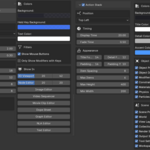
- N-panel → Action Overlay tab (in 3D Viewport)
- Or: Edit → Preferences → Add-ons → Action Overlay
Features
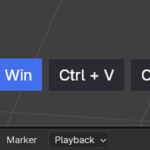
Keystroke Display
Shows your keyboard and mouse inputs on screen.
| Setting | Description |
|---|---|
| Enabled | Toggle keystroke display on/off |
| Show Mouse Buttons | Include mouse clicks in the display |
| Show Modifiers Only | Only show when Shift/Ctrl/Alt are held |
| Max Keys | Maximum number of keys shown at once |
| Lifetime | How long keys stay visible (seconds) |
| Fade Time | Duration of fade-out animation |
| Font Size | Text size for key display |
Property Tracking
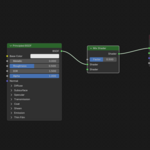
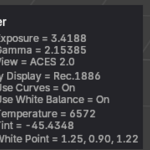
Shows changes to scene properties in real time.
| Category | What it tracks |
|---|---|
| Modifiers | Modifier values, add/remove |
| Constraints | Constraint settings |
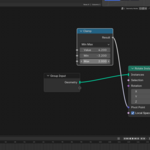
| Materials | Shader node changes |
| Object Properties | Transform, display, visibility |
| Object Data | Mesh, curve, light settings |
| Physics | Rigid body, cloth, soft body, fluid |
| Particles | Particle system settings |
| Render | Render engine settings (Cycles, EEVEE) |
| Output | Output path, format, resolution |
| Scene | Frame range, units, gravity |
| View Layer | Layer settings, passes, Freestyle |
| World | Environment, ambient occlusion |
| Collections | Visibility, holdout, indirect only |
| Tool Settings | Active tool options |
| Workspace | Workspace-level settings |
Supported Editors
The overlay can be shown in:
- 3D Viewport (enabled by default)
- Node Editor (enabled by default)
- Image Editor
- Video Sequencer
- Movie Clip Editor
- Dope Sheet
- Graph Editor
- NLA Editor
- Text Editor
Each editor has independent position offsets.
Settings
Display Settings
| Setting | Description |
|---|---|
| Anchor | Corner of screen (Bottom Left, Bottom Right, Top Left, Top Right) |
| Offset X/Y | Distance from screen edge |
| Max Items | Maximum number of property cards shown |
| Lifetime | How long cards stay visible |
| Fade Time | Fade-out duration |
| Font Size | Text size |
| Padding | Space inside cards |
| Spacing | Space between cards |
Colors
Customize the appearance:
- Background color
- Text color
- Accent color
Tips
- Reduce clutter — Disable tracking categories you don't need
- Adjust timing — Lower lifetime for fast workflows, increase for tutorials
- Per-editor settings — Configure different positions for different editors
- Recording — Works great with OBS or Blender's screen recorder
Troubleshooting
Overlay not showing?
- Check that the overlay is enabled in the N-panel
- Verify the current editor has display enabled
- Try toggling the enabled checkbox off and on
Too much information?
- Disable tracking categories you don't need
- Reduce "Max Items" to show fewer cards
- Enable "Show Modifiers Only" for keystrokes
Performance issues?
- Disable tracking categories you're not using
- Reduce the number of max items
Support
- Instagram: @jonasmangelschots
- Discord: Join Server