 ZibadMend


AddOn Manager Pro - Documentation
AddOn Manager Pro is a Blender add-on designed to streamline your workflow by providing a comprehensive set of tools to manage, backup, and restore your add-ons directly from within Blender's preferences. It simplifies the often tedious process of add-on management, allowing you to focus on your creative work.
🌟 Key Features
- Backup and Restore: Create a complete backup of all your installed add-ons to a designated folder. Easily restore them at any time with a single click.
- Persistent Confirmation: The restore function includes a confirmation dialog that appears every time, ensuring you don't accidentally overwrite your current add-on data.
- Automatic Activation: After restoring from a backup, the add-on automatically attempts to re-enable the restored add-ons for immediate use.
- Intuitive UI: A clean, easy-to-use interface located in the Blender Preferences.
- Quick Actions: Instantly open the backup folder, scan for broken add-ons, and even restart Blender.
- Add-on Control: Enable, disable, install, and uninstall add-ons directly from the same panel.
⚙️ Compatibility & Requirements
- Blender Version: Compatible with Blender 4.1 and newer.
- Operating System: Windows, Linux, macOS.
📦 Installation
- Download the add-on's ZIP file (e.g.,
addon_manager_pro.zip). Do not extract it. - In Blender, go to Edit > Preferences > Add-ons.
- Click the Install... button at the top.
- Select the downloaded ZIP file and click Install Add-on.
- In the add-ons list, search for "AddOn Manager Pro" and enable it by checking the box next to its name.
🛠 Usage
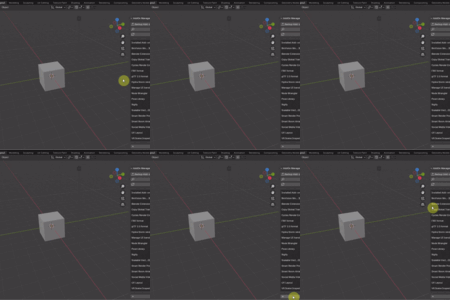
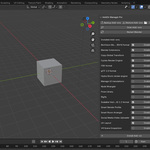
Once installed and enabled, the AddOn Manager Pro panel will be available in your Blender Preferences under the Add-ons tab.
1. Main Controls
-
Backup Add-ons: Creates a copy of all your currently installed add-ons in a folder named
_backupwithin your Blender scripts directory. -
Restore Add-ons: Copies all add-ons from the
_backupfolder to your main add-ons directory, overwriting any existing files. This action will trigger a confirmation dialog to prevent accidental data loss. - Open Backup Folder: Opens the backup directory on your operating system's file explorer.
- Scan Add-ons: Checks for any broken or missing add-on files and reports them.
- Restart Blender: Closes the current Blender session and immediately re-opens it.
2. Add-on List
The panel displays a list of all your installed add-ons. For each add-on, you have the following options:
- Enable/Disable: A checkbox to quickly enable or disable the add-on. The button will change to "Disable" when the add-on is active.
- Uninstall: A trash can icon (🗑️) to completely remove the add-on from your system. This action also includes a confirmation dialog.
3. Install Add-on
- Click the Install Add-on button at the bottom of the panel. This will open a file browser, allowing you to select and install a new add-on from a ZIP file or a single
.pyfile.
📝 License
This add-on is released under the GNU General Public License, version 3 (GPLv3). It is free software, and you are welcome to redistribute it and/or modify it under the terms of the license.
For more details, please refer to the LICENSE file included in the add-on's zip package.
-
$7
1 User
-
$29
5 Users
-
$99
20 Users
 Included
Includes 12 months of
- Support from ZibadMend
- Product updates
Extend this product’s Support Period +12 months: 50% of product price
Have questions before purchasing?
Login to message
Discover more products like this
backup addons install addon restore addons manage addons blender backup addons addon installer scan addon backup manager restart blender Addon manager