Advanced Bevel

Tachyon Studio in Modeling

CHANGELOG

Advanced Bevel

What's new in this version

1.1.1 — 25 September 2026

Every shortcut in the editor can now be changed, and any of them can take Ctrl, Shift or Alt.

Changed

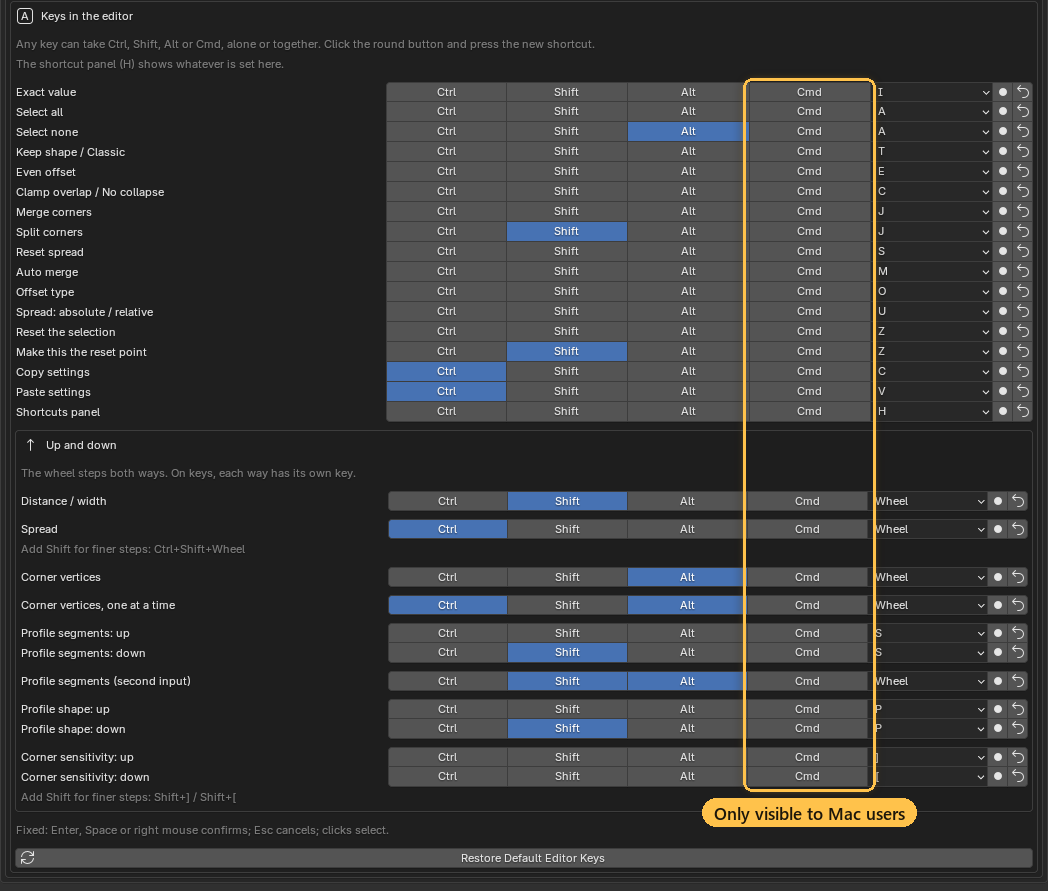
Every shortcut is yours to set. In the add-on preferences, under Keys in the editor, each action has Ctrl, Shift and Alt toggles and a key. Click the round button beside one and press the shortcut you want (Esc cancels). Any combination works, so Ctrl + Shift + D is as good as a plain letter. Two actions on the same shortcut get a warning, and the first one keeps it.

Anything that goes up and down can use the wheel or two keys. Width, spread, corner vertices, profile segments, profile shape and corner sensitivity can each be the wheel with your own modifiers, or a pair of keys, one for up and one for down: letters, numbers, arrows, the numpad or the side mouse buttons. The old Spread on and Segments on only chose between Ctrl and Alt; spread and vertex count now take any modifiers you like. Shift still gives finer steps on the spread and the corner sensitivity.

The shortcuts that rode on another key have rows of their own: Select none (Alt + A), Split corners (Shift + J), Set the reset point (Shift + Z), profile segments down (Shift + S) and profile shape flatter (Shift + P).

On a Mac, Cmd works too. Every shortcut gets a Cmd toggle as well, and Alt is shown as Option, the way the keyboard reads.

The shortcut preferences; the Cmd column only appears on a Mac

Nothing changes until you change it: every default is what it was, and a key you had already changed, or your Spread on and Segments on choice, carries over. The shortcut panel (H) shows whatever you set.

GPL-3.0-or-later · Copyright 2026 Tachyon Studio
A Blender add-on. It needs no engine, no external tool and no network access.
CHANGELOG

Advanced Bevel

Every release, newest first

Every release of the add-on, newest first. One package covers Blender 3.3 – 5.2: a modern extension on 4.2+, a classic add-on on 3.3 – 4.1.

Current version:  1.1.0

Released:  24 September 2026

Blender:  3.3 – 5.2

Licence:  GPL-3.0-or-later


1.1.0 — 24 September 2026

The bevel now handles structural edges: edges that run into existing geometry, and the corners of a box or a whole rounded strip. Corners can be sent back to a point you choose, and merged corners, wide rounds and Clamp Overlap all hold their shape.

Added



A reset point for your corners. Reset (the chip, or Z) used to put a corner back to plain defaults. Now it puts it back where it was when you started the tool. Liked a shape halfway through? Click Set Reset Point (or Shift + Z) and Reset returns there instead. It works per corner, so you can reset one corner while its neighbours keep their edits.

Set Reset Point and Reset on the bevel's corners



Structural edges. Bevel edges where three or more bevelled edges meet (the corner of a box, or a whole rounded strip selected at once) instead of being turned away. Where the edges meet, the geometry is exactly what Blender's own bevel builds, at any width. Every corner around it is still a handle you can widen, spread and give vertices.

Bevelling structural edges and adjusting the corners around them



The foot of an extrusion is one outline. Bevel the ring of edges around the base of an extruded shape and it comes up as one outline with its own corners, where it used to be a separate little corner for every face around it. A round corner grows around its own centre, and its first and last vertices go out square to the straight sides beside them. On the extrusion's wall, the matching round is one corner too, and spreading it slides it along the wall.

Perpendicular bevelling around the foot of an extrusion

Edit Corners is in the Bevel. Shift + Alt + C opens the corner editor on its own, as the Inset has it. With both add-ons installed it appears once in Blender's menus.


Paste a vertex count. Copy a round corner and paste its vertex count onto another. A corner that is still a single vertex takes it too. The row is labelled N vertices, so you can see what you are pasting.

The shortcuts panel sits on the left, clear of the toolbar and the sidebar. A new preference, Shortcuts panel, puts it on the right instead.

Changed



Clamp Overlap brings Auto Merge with it. With Clamp Overlap on, a bevel that runs into the structure beside it joins it on confirm instead of stopping dead against it. Auto Merge is still one key (M) away if you want it off.

Round corners keep their shape from the start. On a face bevelled along part of its outline, a rounded corner used to start on Blender's shrinking offset until you nudged its spread. It now starts in Keep Shape, the way it ends up anyway.


A rounded run is one corner. A round made of many small faces used to come up as a corner per face, each a single vertex. It is one corner now, which you can spread, give vertices and merge.

A pasted spread is the same size on any corner. Spread is copied as a length, so 0.3 copied off a round corner is 0.3 on a sharp one.

The first drag grows outward. A preference, First drag, changes it back.

Fixed



Clamp Overlap stops a bevel that runs into other geometry. An edge whose end meets an existing bevel could be driven straight through it, however wide it was asked for. It now stops at the vertex it runs into. With Auto Merge on it lands on it and welds there when you confirm.

Clamp Overlap holding a bevel at the structure it runs into



Merging corners is stable. Merging the corners over the top of a rounded face could send the merged corner sliding down its sides, with long edges running up from the corners below. A merged corner now keeps one clean arc between its sides, with Auto Merge on or off. A single round that turns further than about 140 degrees holds the bevel's width all the way round.

Merging corners that stay in shape

Faces cut into a fan of triangles bevel cleanly. A round with a fan of triangles beside it could have its outline read out of order, which threw vertices across the face.

Spreading a round slides its ends along the straights. Spread on a round at the foot of an extrusion now slides its ends along the straight sides, and Clamp Overlap stops it before it runs off the face or into the extrusion.


1.0.1 — 21 September 2026

Fixed

The corner handles are visible again on the Vulkan backend. On Blender set to Vulkan (Preferences ▸ System ▸ Backend), the coloured dots marking each corner did not appear, while OpenGL showed them normally. The tool itself worked throughout — only the dots were missing, so an edit could be made but not aimed.

The handles are drawn as GPU points, and the Vulkan backend ignores the requested point size for the shader the add-on used, which left every handle one pixel wide. They are now drawn with Blender's dedicated point shader, which honours the size on both backends. Nothing changes if you use OpenGL: the handles are drawn exactly as before.

Reported by a customer, and confirmed by measuring what actually reaches the screen on Blender 5.2 under both backends.


1.0.0 — First release

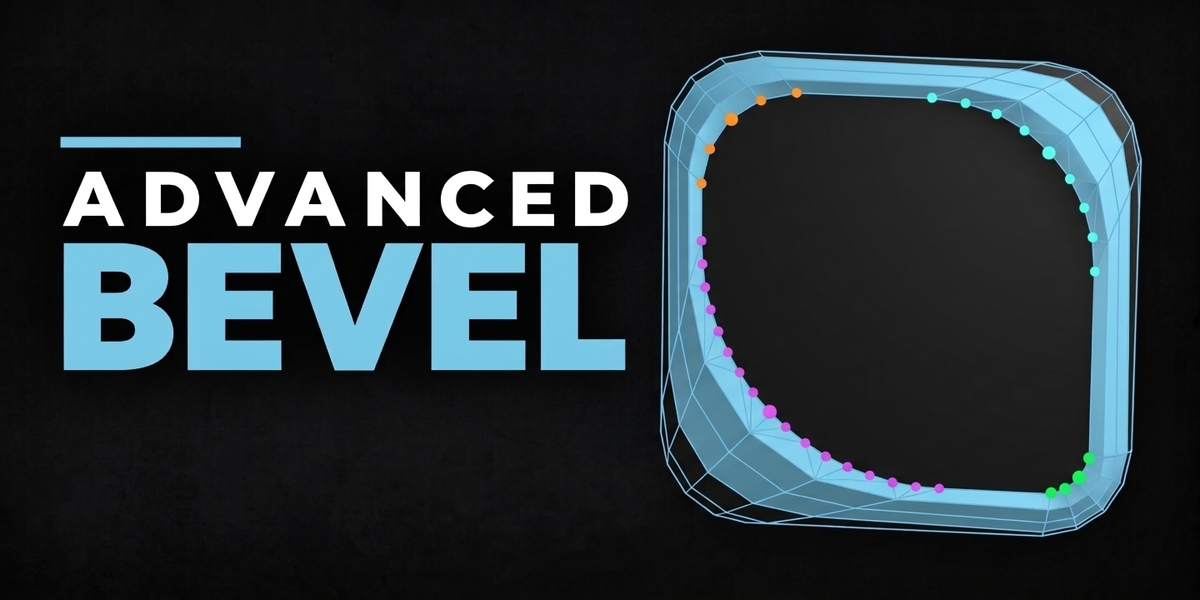

A bevel whose rounded corners hold their shape as the width grows.

What it does


  • Built on Blender's own bevel topology: the result starts where Blender would put it, and then every corner becomes a handle you can edit before you confirm.


  • Per-corner control: width, spread, vertex count, profile shape and segments, each on the corner you pick rather than on the whole loop.
  • A side — the stretch between two corners — has its own small handle and its own width, and follows its corners until you give it one.

  • J merges corners into one, and corners can be split back apart, so you say which vertices are one corner and which are along for the ride. Merging and splitting move nothing by themselves.
  • Copy one corner's settings and paste them onto another, choosing what to carry across.
  • Auto Merge, Keep Shape and Classic modes, Even offset and Clamp Overlap, each a single key.
  • [ and ] set how sharply a vertex has to turn to count as a corner, so the same loop can read as few corners or many.
  • The offset is worked out in world space, so on an object scaled in Object Mode the width is the width you see on screen and a round corner stays round on screen.
  • Nothing is committed until you confirm, and Esc puts the mesh back exactly as it was.

Pure Blender, and nothing to configure. No game engine, no external tool, and no network use of any kind: it opens no sockets, sends no telemetry and checks no licence. Blender's own Bevel is untouched and still on Ctrl + B.

GPL-3.0-or-later · Copyright 2026 Tachyon Studio
A Blender add-on. It needs no engine, no external tool and no network access.
CHANGELOG

Advanced Bevel

Every release, newest first

Every release of the add-on, newest first. One package covers Blender 3.3 – 5.2: a modern extension on 4.2+, a classic add-on on 3.3 – 4.1.

Item Detail
Current version 1.0.1
Released 21 September 2026
Blender 3.3 – 5.2
Licence GPL-3.0-or-later

1.0.1 — 21 September 2026

Fixed

The corner handles are visible again on the Vulkan backend. On Blender set to Vulkan (Preferences ▸ System ▸ Backend), the coloured dots marking each corner did not appear, while OpenGL showed them normally. The tool itself worked throughout — only the dots were missing, so an edit could be made but not aimed.

The handles are drawn as GPU points, and the Vulkan backend ignores the requested point size for the shader the add-on used, which left every handle one pixel wide. They are now drawn with Blender's dedicated point shader, which honours the size on both backends. Nothing changes if you use OpenGL: the handles are drawn exactly as before.

Reported by a customer, and confirmed by measuring what actually reaches the screen on Blender 5.2 under both backends.


1.0.0 — First release

A bevel whose rounded corners hold their shape as the width grows.

What it does

  • Built on Blender's own bevel topology: the result starts where Blender would put it, and then every corner becomes a handle you can edit before you confirm.
  • Per-corner control: width, spread, vertex count, profile shape and segments, each on the corner you pick rather than on the whole loop.
  • A side — the stretch between two corners — has its own small handle and its own width, and follows its corners until you give it one.
  • J merges corners into one, and corners can be split back apart, so you say which vertices are one corner and which are along for the ride. Merging and splitting move nothing by themselves.
  • Copy one corner's settings and paste them onto another, choosing what to carry across.
  • Auto Merge, Keep Shape and Classic modes, Even offset and Clamp Overlap, each a single key.
  • [ and ] set how sharply a vertex has to turn to count as a corner, so the same loop can read as few corners or many.
  • The offset is worked out in world space, so on an object scaled in Object Mode the width is the width you see on screen and a round corner stays round on screen.
  • Nothing is committed until you confirm, and Esc puts the mesh back exactly as it was.

Pure Blender, and nothing to configure. No game engine, no external tool, and no network use of any kind: it opens no sockets, sends no telemetry and checks no licence. Blender's own Bevel is untouched and still on Ctrl + B.

GPL-3.0-or-later · Copyright 2026 Tachyon Studio
A Blender add-on. It needs no engine, no external tool and no network access.
No versions found for this variant.
CHANGELOG

Advanced Bevel

What's new in this version

1.1.1 — 25 September 2026

Every shortcut in the editor can now be changed, and any of them can take Ctrl, Shift or Alt.

Changed

Every shortcut is yours to set. In the add-on preferences, under Keys in the editor, each action has Ctrl, Shift and Alt toggles and a key. Click the round button beside one and press the shortcut you want (Esc cancels). Any combination works, so Ctrl + Shift + D is as good as a plain letter. Two actions on the same shortcut get a warning, and the first one keeps it.

Anything that goes up and down can use the wheel or two keys. Width, spread, corner vertices, profile segments, profile shape and corner sensitivity can each be the wheel with your own modifiers, or a pair of keys, one for up and one for down: letters, numbers, arrows, the numpad or the side mouse buttons. The old Spread on and Segments on only chose between Ctrl and Alt; spread and vertex count now take any modifiers you like. Shift still gives finer steps on the spread and the corner sensitivity.

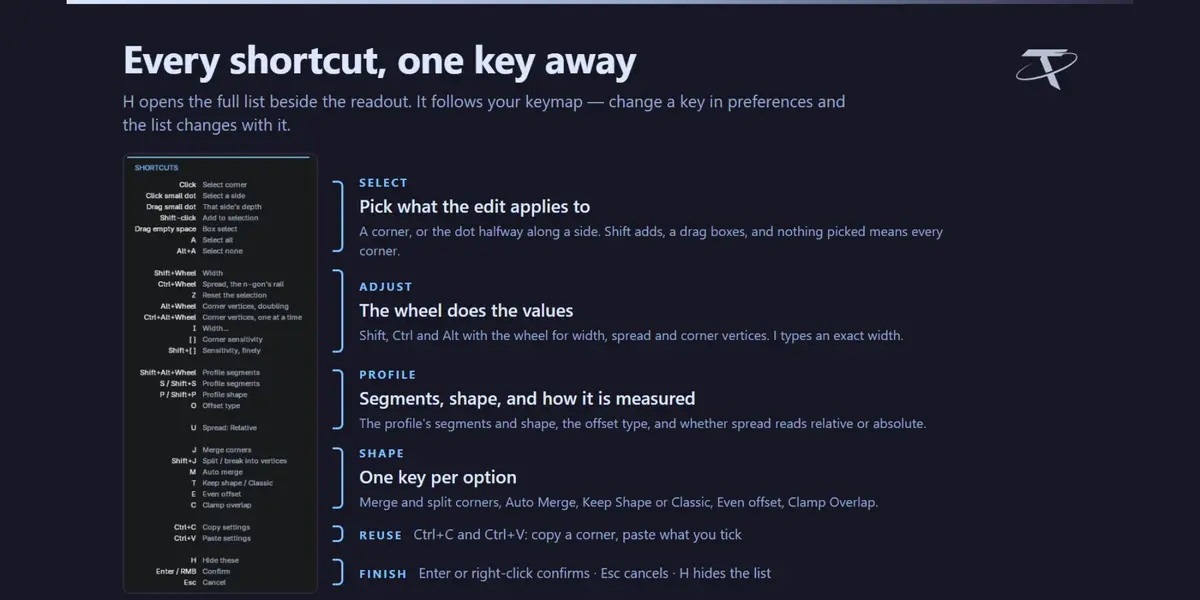
The shortcuts that rode on another key have rows of their own: Select none (Alt + A), Split corners (Shift + J), Set the reset point (Shift + Z), profile segments down (Shift + S) and profile shape flatter (Shift + P).

On a Mac, Cmd works too. Every shortcut gets a Cmd toggle as well, and Alt is shown as Option, the way the keyboard reads.

The shortcut preferences; the Cmd column only appears on a Mac

Nothing changes until you change it: every default is what it was, and a key you had already changed, or your Spread on and Segments on choice, carries over. The shortcut panel (H) shows whatever you set.

GPL-3.0-or-later · Copyright 2026 Tachyon Studio
A Blender add-on. It needs no engine, no external tool and no network access.
CHANGELOG

Advanced Bevel

Every release, newest first

Every release of the add-on, newest first. One package covers Blender 3.3 – 5.2: a modern extension on 4.2+, a classic add-on on 3.3 – 4.1.

Current version:  1.1.0

Released:  24 September 2026

Blender:  3.3 – 5.2

Licence:  GPL-3.0-or-later


1.1.0 — 24 September 2026

The bevel now handles structural edges: edges that run into existing geometry, and the corners of a box or a whole rounded strip. Corners can be sent back to a point you choose, and merged corners, wide rounds and Clamp Overlap all hold their shape.

Added

A reset point for your corners. Reset (the chip, or Z) used to put a corner back to plain defaults. Now it puts it back where it was when you started the tool. Liked a shape halfway through? Click Set Reset Point (or Shift + Z) and Reset returns there instead. It works per corner, so you can reset one corner while its neighbours keep their edits.

Set Reset Point and Reset on the bevel's corners

Structural edges. Bevel edges where three or more bevelled edges meet (the corner of a box, or a whole rounded strip selected at once) instead of being turned away. Where the edges meet, the geometry is exactly what Blender's own bevel builds, at any width. Every corner around it is still a handle you can widen, spread and give vertices.

Bevelling structural edges and adjusting the corners around them

The foot of an extrusion is one outline. Bevel the ring of edges around the base of an extruded shape and it comes up as one outline with its own corners, where it used to be a separate little corner for every face around it. A round corner grows around its own centre, and its first and last vertices go out square to the straight sides beside them. On the extrusion's wall, the matching round is one corner too, and spreading it slides it along the wall.

Perpendicular bevelling around the foot of an extrusion

Edit Corners is in the Bevel. Shift + Alt + C opens the corner editor on its own, as the Inset has it. With both add-ons installed it appears once in Blender's menus.

Paste a vertex count. Copy a round corner and paste its vertex count onto another. A corner that is still a single vertex takes it too. The row is labelled N vertices, so you can see what you are pasting.

The shortcuts panel sits on the left, clear of the toolbar and the sidebar. A new preference, Shortcuts panel, puts it on the right instead.

Changed

Clamp Overlap brings Auto Merge with it. With Clamp Overlap on, a bevel that runs into the structure beside it joins it on confirm instead of stopping dead against it. Auto Merge is still one key (M) away if you want it off.

Round corners keep their shape from the start. On a face bevelled along part of its outline, a rounded corner used to start on Blender's shrinking offset until you nudged its spread. It now starts in Keep Shape, the way it ends up anyway.

A rounded run is one corner. A round made of many small faces used to come up as a corner per face, each a single vertex. It is one corner now, which you can spread, give vertices and merge.

A pasted spread is the same size on any corner. Spread is copied as a length, so 0.3 copied off a round corner is 0.3 on a sharp one.

The first drag grows outward. A preference, First drag, changes it back.

Fixed

Clamp Overlap stops a bevel that runs into other geometry. An edge whose end meets an existing bevel could be driven straight through it, however wide it was asked for. It now stops at the vertex it runs into. With Auto Merge on it lands on it and welds there when you confirm.

Clamp Overlap holding a bevel at the structure it runs into

Merging corners is stable. Merging the corners over the top of a rounded face could send the merged corner sliding down its sides, with long edges running up from the corners below. A merged corner now keeps one clean arc between its sides, with Auto Merge on or off. A single round that turns further than about 140 degrees holds the bevel's width all the way round.

Merging corners that stay in shape

Faces cut into a fan of triangles bevel cleanly. A round with a fan of triangles beside it could have its outline read out of order, which threw vertices across the face.

Spreading a round slides its ends along the straights. Spread on a round at the foot of an extrusion now slides its ends along the straight sides, and Clamp Overlap stops it before it runs off the face or into the extrusion.


1.0.1 — 21 September 2026

Fixed

The corner handles are visible again on the Vulkan backend. On Blender set to Vulkan (Preferences ▸ System ▸ Backend), the coloured dots marking each corner did not appear, while OpenGL showed them normally. The tool itself worked throughout — only the dots were missing, so an edit could be made but not aimed.

The handles are drawn as GPU points, and the Vulkan backend ignores the requested point size for the shader the add-on used, which left every handle one pixel wide. They are now drawn with Blender's dedicated point shader, which honours the size on both backends. Nothing changes if you use OpenGL: the handles are drawn exactly as before.

Reported by a customer, and confirmed by measuring what actually reaches the screen on Blender 5.2 under both backends.


1.0.0 — First release

A bevel whose rounded corners hold their shape as the width grows.

What it does

  • Built on Blender's own bevel topology: the result starts where Blender would put it, and then every corner becomes a handle you can edit before you confirm.
  • Per-corner control: width, spread, vertex count, profile shape and segments, each on the corner you pick rather than on the whole loop.
  • A side — the stretch between two corners — has its own small handle and its own width, and follows its corners until you give it one.
  • J merges corners into one, and corners can be split back apart, so you say which vertices are one corner and which are along for the ride. Merging and splitting move nothing by themselves.
  • Copy one corner's settings and paste them onto another, choosing what to carry across.
  • Auto Merge, Keep Shape and Classic modes, Even offset and Clamp Overlap, each a single key.
  • [ and ] set how sharply a vertex has to turn to count as a corner, so the same loop can read as few corners or many.
  • The offset is worked out in world space, so on an object scaled in Object Mode the width is the width you see on screen and a round corner stays round on screen.
  • Nothing is committed until you confirm, and Esc puts the mesh back exactly as it was.

Pure Blender, and nothing to configure. No game engine, no external tool, and no network use of any kind: it opens no sockets, sends no telemetry and checks no licence. Blender's own Bevel is untouched and still on Ctrl + B.

GPL-3.0-or-later · Copyright 2026 Tachyon Studio
A Blender add-on. It needs no engine, no external tool and no network access.
CHANGELOG

Advanced Bevel

Every release, newest first

Every release of the add-on, newest first. One package covers Blender 3.3 – 5.2: a modern extension on 4.2+, a classic add-on on 3.3 – 4.1.

Item Detail
Current version 1.0.1
Released 21 September 2026
Blender 3.3 – 5.2
Licence GPL-3.0-or-later

1.0.1 — 21 September 2026

Fixed

The corner handles are visible again on the Vulkan backend. On Blender set to Vulkan (Preferences ▸ System ▸ Backend), the coloured dots marking each corner did not appear, while OpenGL showed them normally. The tool itself worked throughout — only the dots were missing, so an edit could be made but not aimed.

The handles are drawn as GPU points, and the Vulkan backend ignores the requested point size for the shader the add-on used, which left every handle one pixel wide. They are now drawn with Blender's dedicated point shader, which honours the size on both backends. Nothing changes if you use OpenGL: the handles are drawn exactly as before.

Reported by a customer, and confirmed by measuring what actually reaches the screen on Blender 5.2 under both backends.


1.0.0 — First release

A bevel whose rounded corners hold their shape as the width grows.

What it does

  • Built on Blender's own bevel topology: the result starts where Blender would put it, and then every corner becomes a handle you can edit before you confirm.
  • Per-corner control: width, spread, vertex count, profile shape and segments, each on the corner you pick rather than on the whole loop.
  • A side — the stretch between two corners — has its own small handle and its own width, and follows its corners until you give it one.
  • J merges corners into one, and corners can be split back apart, so you say which vertices are one corner and which are along for the ride. Merging and splitting move nothing by themselves.
  • Copy one corner's settings and paste them onto another, choosing what to carry across.
  • Auto Merge, Keep Shape and Classic modes, Even offset and Clamp Overlap, each a single key.
  • [ and ] set how sharply a vertex has to turn to count as a corner, so the same loop can read as few corners or many.
  • The offset is worked out in world space, so on an object scaled in Object Mode the width is the width you see on screen and a round corner stays round on screen.
  • Nothing is committed until you confirm, and Esc puts the mesh back exactly as it was.

Pure Blender, and nothing to configure. No game engine, no external tool, and no network use of any kind: it opens no sockets, sends no telemetry and checks no licence. Blender's own Bevel is untouched and still on Ctrl + B.

GPL-3.0-or-later · Copyright 2026 Tachyon Studio
A Blender add-on. It needs no engine, no external tool and no network access.
  • For 1 person (1 seat). Commercial use included.

    $7.49 $9.99
  • For a team of up to 6 people (6 seats). Commercial use included.

    $29.97 $39.96
  • For a studio of up to 20 people (20 seats). Commercial use included. Need more than 20 seats? Contact us directly.

    $74.93 $99.90
$7.49

Support Period Included

Includes 12 months of

Extend this product’s Support Period +12 months: 50% of product price

Have questions before purchasing?
Login to message

Details
Blender Extension Compatible Yes
Sales 10+
Rating
1 ratings
Published 8 days ago
Blender Version 3.3 - 5.2
Extension Type Add-on
License GPL