Advanced Terrain Generator Pro — Terrain, Grading & GIS Tools
 JuanBautista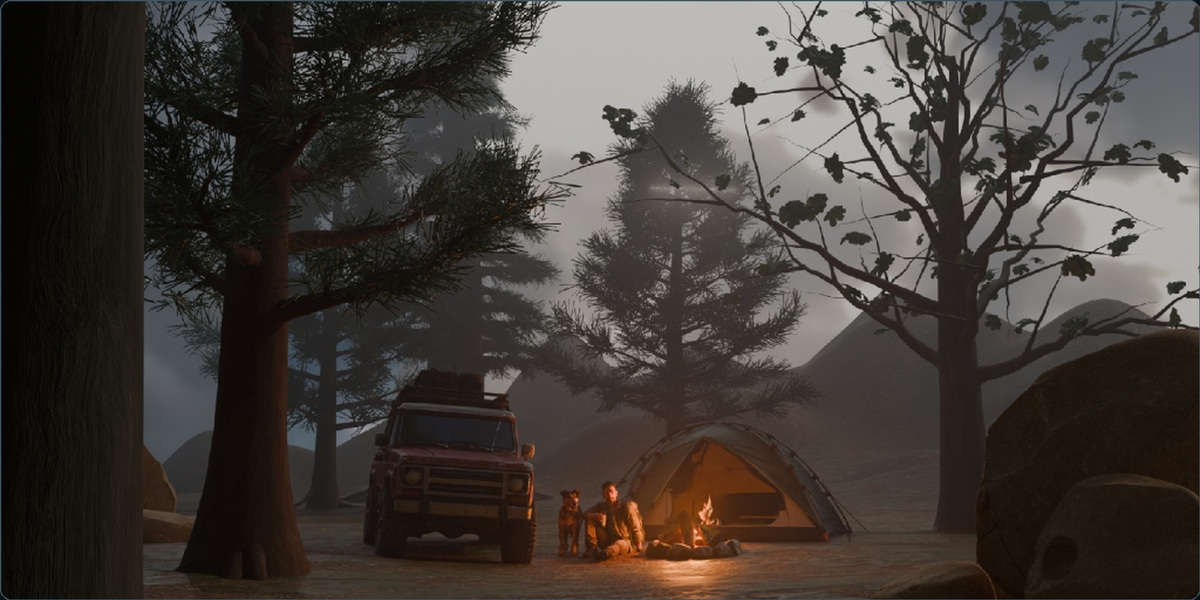
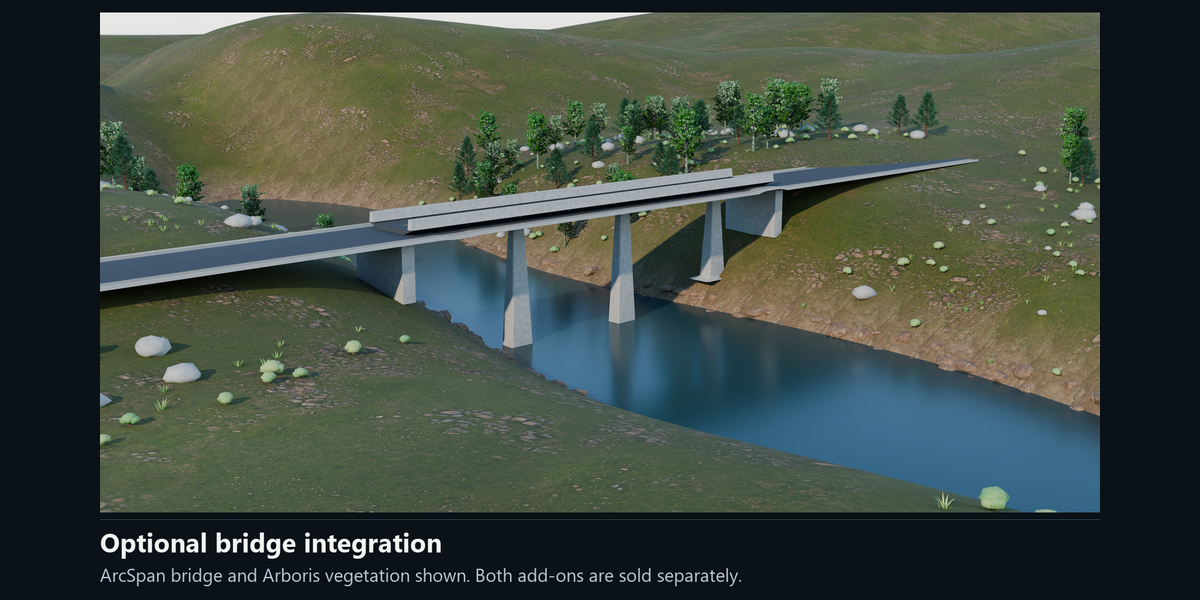
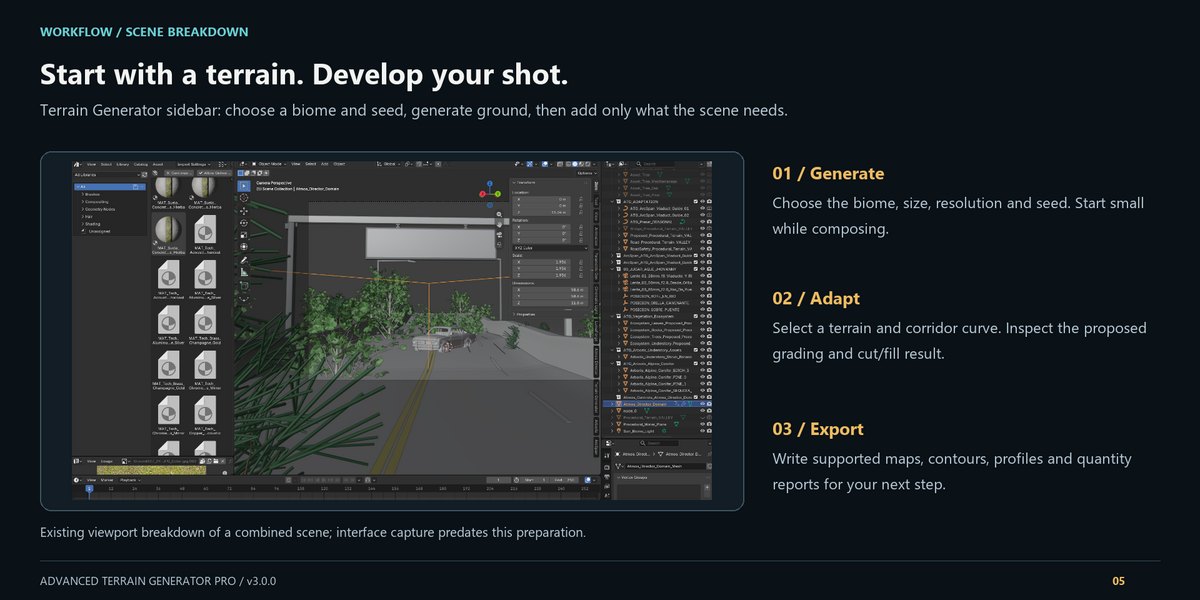
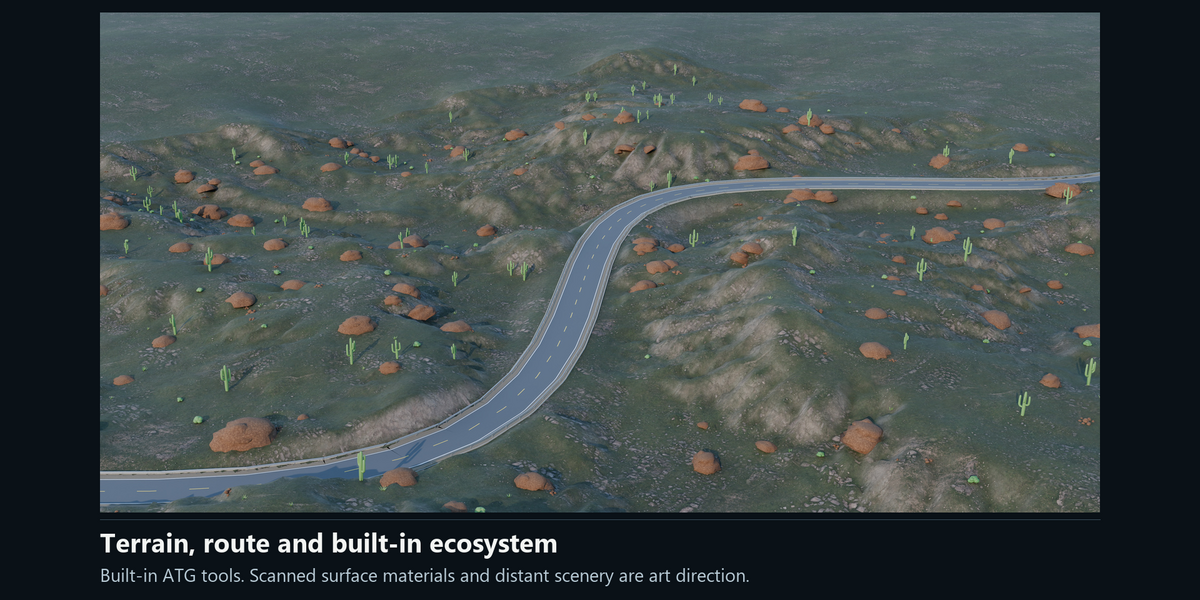
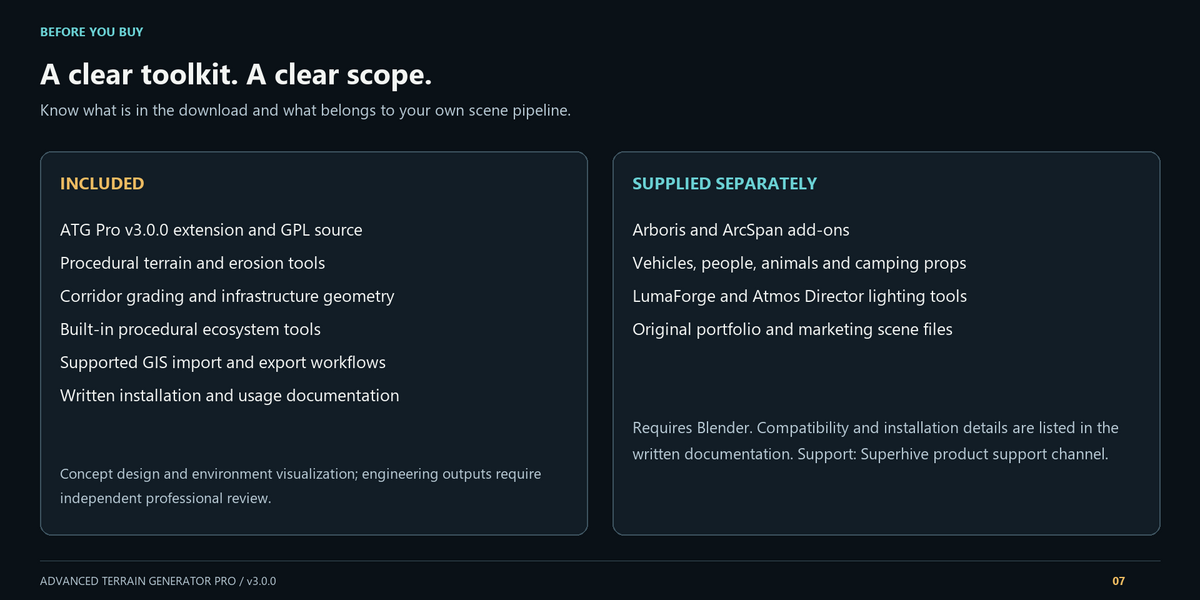
Advanced Terrain Generator Pro v3.0.0
Author and maintainer: Jhovanny M
Purpose: procedural environment creation, terrain adaptation and concept visualization
License: GPL-2.0-or-later; the full license is supplied in LICENSE.
ATG combines procedural terrain, road/rail corridor grading, built-in ecosystem tools and supported elevation-data import. It produces editable scene geometry, visual comparisons and selected exchange files. Arboris and ArcSpan are optional, separate add-ons.
Requirements and verified compatibility
| Item | Requirement or evidence |
|---|---|
| Minimum application version | Blender 5.0.0, as declared by this extension's manifest. |
| Exact tested builds and operating systems | Blender 5.0.1 and 5.2.1 on Windows, with standalone checks, native installation and fresh-process reopen recorded in QA_REPORT.md. Optional Arboris/ArcSpan integration checks were performed on 5.2.1 Windows. The minimum version does not validate every newer build, macOS, Linux or a particular GPU. |
| Core dependencies | Blender's bundled Python and NumPy. No separate global Python/GDAL installation is required for the supported import subset. |
| Optional Arboris integration | A separate, compatible Arboris installation, enabled in the current Blender session. |
| Optional ArcSpan integration | A separate, compatible ArcSpan installation, enabled in the current Blender session. |
| Filesystem access | Permission to read selected elevation files and write chosen exports. |
| Hardware | Memory and processing needs grow with grid resolution, erosion work and vegetation density. No universal speed or GPU-frame-time guarantee is made. |
Save your work before generating a large landscape. Begin at a moderate resolution and add detail after the composition is established. Unsupported older versions, operating systems or external applications are not implicitly validated by the manifest.
Install the native extension
- Download
advanced_terrain_generator_pro_v3.0.0.zip. Do not unpack it and do not select a ZIP of the whole development project. - Open Edit → Preferences → Get Extensions.
- Open the menu in the top-right corner and choose Install from Disk. The same command may also appear in the Add-ons menu.
- Select the installer ZIP and the intended local extension repository. Confirm installation.
- In Preferences → Add-ons, search for Advanced Terrain Generator Pro and enable it if necessary.
- Open a 3D Viewport, press N, and open the Terrain Generator sidebar tab.
- In the add-on preferences, select Auto, English or Español. The viewport also exposes a language selector.
The ZIP contains a native extension manifest. Install it through the extension workflow rather than manually placing its source in a legacy scripts folder. See the official extension installation guide.
Upgrade without duplicate installations
- Save your
.blendfiles and keep the previous installer for rollback. - Identify any earlier Advanced Terrain Generator installation in Preferences. A legacy add-on and a native extension are different installation locations; do not enable both.
- Disable the old copy. If replacing a native extension, use its normal update/reinstall workflow in the same repository. Remove a legacy installation only after preserving your own changes to that copy.
- Restart Blender, install/enable the final v3.0.0 ZIP, then confirm that only one ATG entry is enabled.
- Test a new scene before opening important production work. A new version does not automatically migrate or regenerate every older scene.
To temporarily stop using ATG, disable the add-on. Existing generated geometry remains in the scene, while its ATG operators and property panels require the extension to be enabled.
Quick start without optional add-ons
This is the most direct way to learn the core workflow.
- Open a new scene or a saved copy of your current scene. Work in meter-scale coordinates.
- In Terrain Generator, select a biome: Mountain, Dunes, Canyon, Volcano or Valley.
- Set a size, seed and moderate subdivisions, for example a 100 m scene with around 80 subdivisions. The exact result depends on the other parameters.
- Leave optional Arboris integration off. Start with erosion and dense scatter off while evaluating the base landform.
- Use Generate Terrain. Inspect the mesh and adjust the seed, height and noise settings as needed.
- Turn on erosion selectively, then regenerate. Higher subdivision counts and droplet/iteration settings increase work.
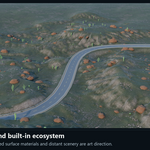
- Add the built-in ecosystem with Populate 3D Ecosystem. Start with modest density; enable rocks and leaf litter only when useful to the shot.
- Save a new
.blendbefore moving on to adaptation or detailed manual editing.
Generated content can be rebuilt by later commands. Keep a saved original and duplicate geometry for manual edits you want to preserve. Regeneration is not a nondestructive history of every earlier setting.
Terrain Generator panel
| Area | Use |
|---|---|
| Construction mode | Choose the available terrain generation approach. Mesh mode exposes the erosion workflow. Use an editable mesh for adaptation, reports and compatible exports. |
| Topography and biome | Set subdivisions, physical size, noise scale, height and seed. Aspect, strata and dendritic controls vary the landform. |
| Chunks/tiling | Build an organized tiled landscape with shared-edge generation. This is not an independently streamed terrain system; a large master domain still needs memory. |
| Hydraulic and thermal erosion | Adjust droplets, transport parameters, iterations and talus-related settings to develop the surface. Recompute after changes. |
| Overhangs and caves | Add visual modifier-based surface effects. The numerical ground model remains a single-valued heightfield, not a volumetric cave model. |
| Ecosystem | Use built-in vegetation, understory, rocks and leaf litter, or opt into a separately installed Arboris engine. |
| Shaders and environment | Assign the biome material and set up the available light/world environment. These commands can change scene lighting; use a saved copy when preserving an existing lighting setup. |
| Water | Enable the plane, choose its level and apply the water setup. A water plane is not a fluid simulation. |
| Sculpt controls | Activate Sculpt Mode for manual editing. Choose and configure the actual Blender brush for your task; the buttons do not establish a validated geomorphological brush simulation. |
| Export maps | Export the supported map types and formats described below. Select the intended terrain explicitly. |
Ecosystem updates
Tree placement and mesh changes are a deliberate rebuild step. Changing tree density, tree scale, altitude limits or a placement/preset control can show Tree changes pending. Press Apply Tree Changes to regenerate placements. If there is no pending state, the same ecosystem action is labeled as a population command.
Rock and leaf controls can update existing Geometry Nodes scatter layers interactively. Their response depends on the scene and hardware; no millisecond or frame-rate target is guaranteed. If the layer does not exist yet, populate the ecosystem first. After significant terrain or tree changes, rebuild so that placement and under-canopy leaf distribution match the new scene.
Arboris species/season controls require the separate add-on. ATG's built-in vegetation is the standalone alternative, not a copy of Arboris's complete species library.
Botanical materials and prototype assets form a shared library within a .blend. Changing a preset or season can change the palette of another scene that uses those same materials/assets. Visibility and culling controls apply to the active scene, but that does not isolate shared material or prototype data. Use separate .blend files for independent scene looks. For manual material variations, make the relevant materials single-user; later procedural regeneration can rebuild shared assets, so separate files are the reliable boundary for independent preset/season work.
Hero scene presets
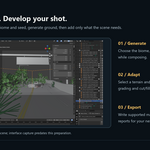
The Hero Scene action combines several ATG commands and changes scene settings. It is a starting composition, not a reproduction of a portfolio render. Use it in a new scene or saved copy. Presets may request optional Arboris or ArcSpan features; without those add-ons, inspect which standalone results were created and read any warnings. Check terrain, corridor, ecosystem and lighting separately after generation.
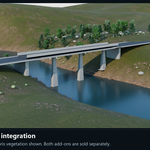
Starter setups do not create a camera in an empty scene. Bridge generation depends on the span/height thresholds and is not guaranteed by a preset name. Archaeological Site Base creates a pad/terrace base, not archaeological buildings or ruin assets.
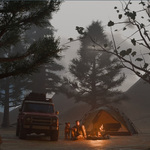
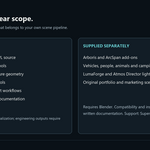
Vehicles, characters, animals, tents and other scene dressing visible in marketing artwork are not supplied by these presets. Original marketing .blend files and additional lighting add-ons are not part of the ATG installer.
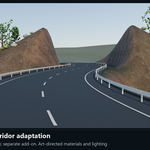
Terrain Adaptation / Cut-Fill Pro
Use an open curve for a road/rail corridor. The separate building-pad workflow uses a closed footprint.
- Choose an editable terrain mesh in Terrain. ATG terrains and supported imported heightfields are the intended inputs.
- Choose an open Corridor Curve, or select a corridor preset and use Create 3D Alignment. Bézier/NURBS curves are sampled into stations; spline tessellation and station spacing affect detail.
- Set Profile Source. Curve-Z uses the curve's elevations; terrain-offset samples ground and applies the chosen vertical offset.
- Set platform width, shoulder width, transition width, station spacing and cut/fill tolerance. Slopes use H:V ratios: a larger horizontal value makes a gentler slope.
- Run Validate and correct input errors. A closed corridor, missing terrain or invalid dimensions must be resolved first.
- Enable only the infrastructure you need, then use Adapt Terrain & Generate Infrastructure.
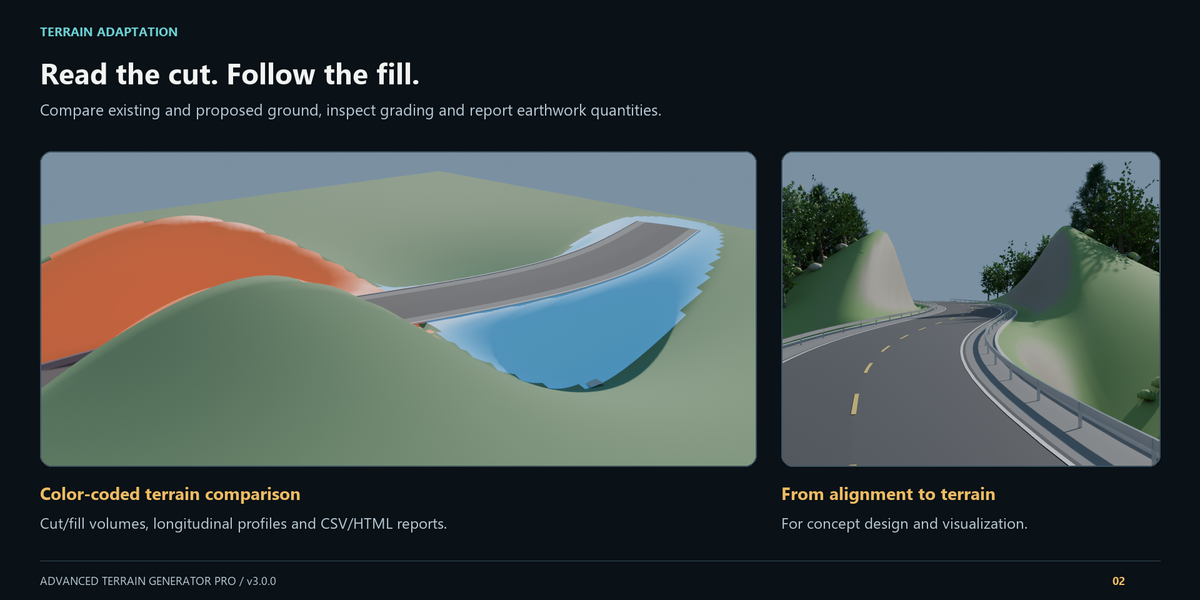
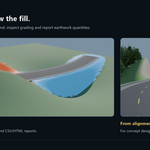
- Inspect the result summary. Use Compare Original/Proposed to cycle the comparison and Cut/Fill Shader to inspect the affected ground. Red marks cut/excavation and blue marks fill/embankment.
- After editing the source curve or settings, use Update and inspect the result again. Save before a substantial rebuild.
The proposed surface is generated separately from the selected source terrain. Clear Adaptation removes generated adaptation outputs; it is not a command for deleting arbitrary user scene objects. Keep ATG ownership metadata intact when relying on automated update/cleanup, and duplicate geometry outside that managed workflow for independent manual work.
Infrastructure options
- Road mesh: pavement thickness and optional curbs.
- Superelevation/crown: transverse slope controls and speed/radius-related geometry aids. A displayed design speed or compliance flag does not establish regulatory compliance.
- Drainage ditches: cut-side cross-section geometry.
- Cut/fill slopes: separate slope ratios and optional conceptual material/strata parameters.
- Bridges: span detection and basic bridge geometry. ArcSpan upgrades require the separate installed add-on and compatible presets.
- Tunnels: generated tunnel geometry based on coverage/shape settings; not a complete geological or excavation design.
- Retaining walls: selectable side and wall thickness for visualization.
- Intersections, roundabouts and interchanges: configure the secondary curve or geometric controls, rebuild and inspect connections. These are generated concepts, not traffic-engineering approvals.
- Road safety and signs: lane markings, barrier options, sign spacing, milestones and gantries are scene geometry.
- Culverts/hydrology: use manual dimensions or the available rainfall/runoff inputs. Catchment, flow and sizing calculations are simplified conceptual aids.
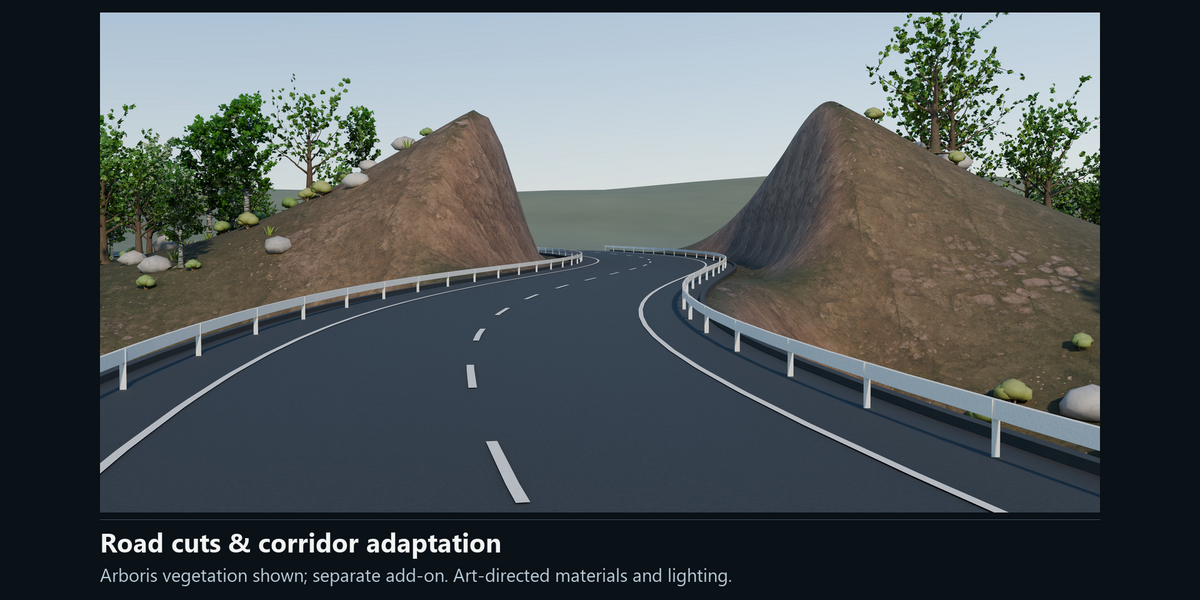
- Roadside vegetation: choose tree spacing/setback and slope vegetation, then populate the ecosystem after adaptation.
- Profile optimization and clothoids: generate or adjust a sampled alignment using the exposed constraints. Review the entire result; these tools do not certify a road standard.
Geotechnical stability indicators and quantity/cost estimates are simplified outputs. They do not validate soil investigation, structural safety, drainage adequacy or a construction budget. Use independently reviewed data and specialist tools before engineering reliance.
Road display layers and vegetation clearance
Road and safety visualization meshes sit 0.04 m above the finished terrain to avoid coincident-surface shading. The object property atg_visual_clearance_m records this separation. Alignment elevations, pure design buffers and analytical Cut/Fill quantities are unchanged; exports of the visible meshes include the clearance. Inspect coarse or sharply banked roads for other intersections.
Natural ecosystem placement checks the alignment's physical pavement and shoulder footprint even where the earthwork influence is zero. This filter includes a scale-dependent surrounding margin; it does not certify collision-free geometry for every crown or third-party asset.
The physical-footprint query transforms terrain-local candidates to alignment world coordinates and uses conservative scale/height envelopes. Tests cover translation, Z rotation and nonuniform scale, including vegetation beneath high viaducts and above deep tunnels when earthwork influence is absent or zero. This does not certify arbitrary shear/pitch/roll, legacy avenue or roundabout placement, or every optional asset. Existing nonzero earthwork influence continues to apply independently.
GIS and LiDAR
Import a raster DEM
- Open GIS & Real Topography → Import GeoTIFF / DEM / ASC.
- Select a file within the supported table below.
- Choose Max Grid Resolution for the longest dimension and Vertical Scale for elevation units or intentional exaggeration. Start smaller with large datasets.
- Optionally assign the active biome material, then import.
- Inspect horizontal dimensions, elevation range, orientation and source-origin metadata before adaptation.
Import a point cloud
- Use Import LiDAR LAS / XYZ.
- Choose the grid spacing and vertical scale. The point cloud is rasterized into terrain; it does not remain an unrestricted 3D point-cloud editing system.
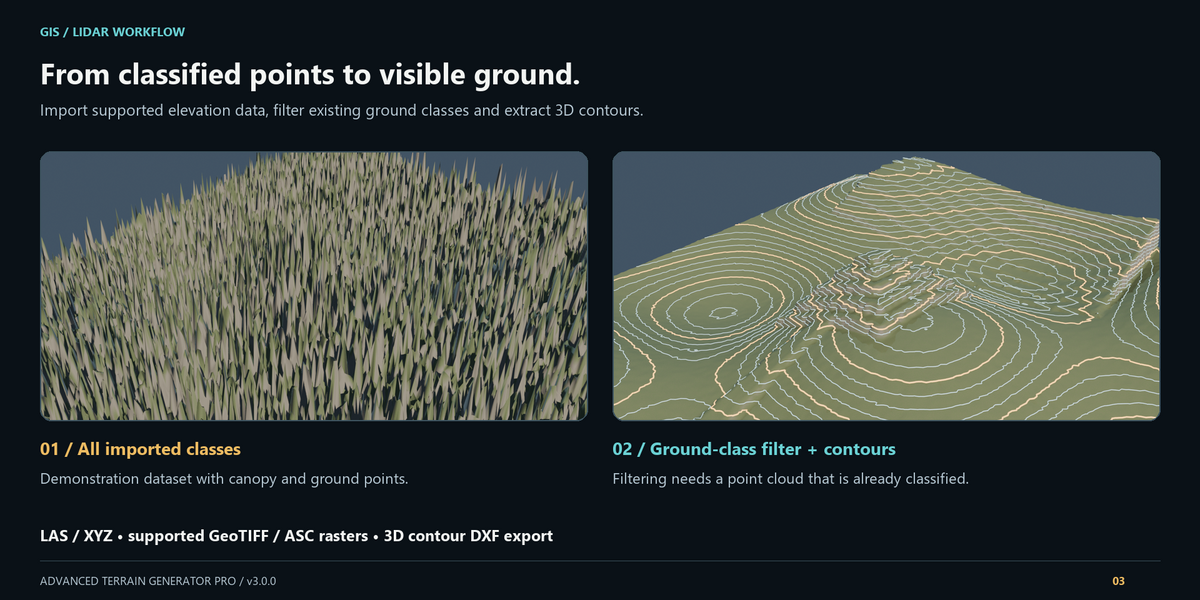
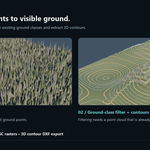
- For a LAS cloud with supplied classifications, turn on Ground Class Only to retain Class 2 points. Turn it off when deliberately using all classes or unclassified data.
- Import and inspect coverage and elevations. If no accepted points remain, including a ground-only selection with no Class 2 points, the import cancels without creating a terrain. Filtering cannot recover ground that was never measured. Sparse areas in a nonempty cloud are filled numerically; filled elevations are not new survey observations.
Supported import subset
| Input | Implemented scope | Important boundaries |
|---|---|---|
| LAS | Uncompressed LAS 1.0–1.4, point record formats 0–10; XYZ and classification extraction. | No LAZ, intensity/RGB/waveform import or CRS/datum transformation. Up to one million points are sampled before ground filtering. |
| XYZ / PTS / CSV text | First three numeric columns interpreted as X, Y, Z; whitespace or comma separators; # comments and nonnumeric headers skipped. |
No ground-class filtering for ASCII. Use dot decimal notation. Prepare consistent source units. |
| Classic GeoTIFF | Single-band 8/16/32-bit signed or unsigned integers and float32; strips/tiles; uncompressed, LZW or Deflate; predictor 1 and integer predictor 2. | No BigTIFF, JPEG/PackBits, multiband, rotated/sheared rasters or floating-point predictor 3. Convert unsupported files in a GIS application first. |
| ESRI ASCII Grid |
.asc / .grd elevation grids with the supported header and NoData handling. |
Not every unrelated .grd format is an ESRI ASCII grid. |
| XYZ raster text | Supported XYZ/text elevations converted into a regular terrain grid. | Preserve a source copy and inspect spacing/coverage after conversion. |
NoData, nonfinite raster values and sparse point-grid holes use numerical fallback/filling. The result is an interpolated visualization surface, not proof that the source contains reliable measured ground everywhere. See KNOWN_LIMITATIONS.md and the release QA for exact checked cases.
Coordinates and source metadata
The scene works in local coordinates for manageable geometry. Available GeoKeys/EPSG and source-origin metadata are retained. Detected supported projected foot/US-foot XY scales are converted to meters; original source-origin values remain in source coordinates. Elevation units are controlled separately with Vertical Scale and are not silently converted from a vertical datum.
Geographic rasters identified by their CRS metadata can use a limited local degree-to-meter approximation around their central latitude. This is limited to small extents (up to 5 degrees) away from the poles; it is not UTM, geodesic, datum or vertical-datum reprojection. Reproject large, polar, rotated or survey-critical data in external GIS software first. Without CRS metadata, the importer does not guess geographic coordinates merely from a small pixel size.
Store UTM Origin Metadata records a manually supplied zone, hemisphere, easting and northing. It does not move/reproject geometry or make a local export a certified georeferenced exchange. Confirm units, origin and orientation independently in the receiving software.
Contours
Set a minor contour interval and how frequently a contour is major, then use Generate 3D Contours. The proposed terrain is used when available; otherwise the selected terrain is used. The geometry is a sampled interpretation of the heightfield. Use a sensible contour interval for your ground resolution, and inspect the result before exporting DXF.
Railway
- In Railway & High-Speed Rail, select a valid open alignment curve or create an alignment preset.
- Choose single/double track, the gauge preset, track spacing, ballast dimensions and sleeper spacing.
- Optionally enable catenary and choose mast spacing.
- Keep ArcSpan Railway Viaduct off for standalone track generation. Turn it on only with a compatible separate ArcSpan installation and selected terrain.
- Generate the railway and inspect transitions, clearances, gauge appearance and supports. Rail geometry is a visualization model; high-speed naming does not certify a railway design.
For graded ground beneath the track, run terrain adaptation with the intended alignment/profile. Generating rails alone does not guarantee the underlying terrain has been adapted.
Urbanism and building pads
For a pad, select the terrain and a closed footprint curve in Urbanism & Building Pads. The automatic footprint action can create a rectangular contour. Set target elevation, cut/fill slope ratios and optional berm height/width, then grade the pad. Inspect the full footprint and its daylight slopes before adding buildings.
For a street, choose the alignment curve and set roadway, curb, sidewalk and verge dimensions. Enable lighting only if needed, set lamp spacing and generate the street. Use the terrain adaptation workflow separately when grading the ground to that route. Pad and road operations may rebuild managed output; keep a saved original.
Simulation and sight distance
In Simulation & Sight Distance, choose the alignment curve. Set speed, FPS, eye height, lateral offset and look-ahead, then create the drive-through camera. Inspect the generated animation and scene timing before rendering. It is a camera-path tool, not a vehicle dynamics simulation.
For sight distance, also select the terrain, reaction time, friction and sampling interval, then run the analysis. The result samples the selected terrain/heightfield. It does not provide a complete scene-obstacle, traffic, weather or regulatory safety assessment. Check camera geometry, terrain scale and the selected inputs before interpreting a result.
Export reference
Export to an explicit folder you control. Save the .blend, update the adaptation, inspect the result and then export. File writing may replace an existing file at the chosen path. Open a small sample in the receiving application before using a large exchange.
For terrain-map export, select the intended base regular grid. Temporarily disable overhang/cave modifiers and other modifiers that change the grid topology before exporting, then restore them for scene rendering. An independent duplicate of the base grid is useful when preserving a detailed shot setup. A visually plausible modified surface is not necessarily a valid elevation grid.
| Output | Contains | Boundaries |
|---|---|---|
| Terrain maps | Height, relative slope, flow/strata attributes and RGBA splat-map channels; 16-bit PNG/TIFF or 32-bit OpenEXR. | Select a regular XY grid; rectangular grids are supported and irregular topology is rejected. Export one chunk at a time. Height is normalized to the selected terrain's range; keep min/max, units and XY dimensions separately for reconstruction. FLOW requires v_flow, STRATA requires v_strata, and SPLATMAP requires both source attributes. Relative masks are not automatically calibrated survey rasters. |
| DXF | Major/minor 3D contour polylines and supported corridor geometry on separate layers. | A geometry exchange, not a full Civil 3D project or proof of source CRS transformation. |
| LandXML 1.2 | Existing/proposed terrain TINs, sampled alignment line segments, profile elevations and limited cross-section information. | The alignment is sampled, not a lossless parametric road model. Check schema/application acceptance, units and coordinates in your receiving tool. |
| IFC4X3_ADD2 | Geometry/quantity snapshot of terrain and supported managed infrastructure; cut/fill quantities recorded as properties. | No parametric alignment exchange or engineered cut/fill solid model. Tunnels use labeled proxies. It does not export every arbitrary scene object, foliage instance, shader or external asset. |
| PK CSV / HTML | Station-based earthwork table and related quantity/mass-haul presentation. | Sampling and profile settings influence values. Compare totals with the current scene analysis; station reports are not an independent certification of volumes or costs. |
| SVG | Longitudinal profile, station information, mass-haul and supported section presentation. | A drawing generated from the sampled model, not a signed engineering plan or universal CAD exchange. |
The heightfield-based calculation does not describe overhang or cave volume. Quantity, hydrology, stability and cost outputs require independent checking for any engineering use. No external-application compatibility is claimed beyond the cases recorded in release QA.
Scene management and persistence
ATG stores settings in the scene and tags its generated outputs for update/cleanup. Save the .blend to preserve the editable scene. Reopen with the compatible extension enabled to use ATG controls again. Saving a scene is not an export of a separately licensed optional add-on.
Before manual mesh editing, keep a duplicate or saved checkpoint. Rebuilding can replace generated outputs and can reset the result of manual changes to managed geometry. Keep source terrain, proposed terrain, optional integration objects and independent scene dressing logically separated. Use Blender Undo immediately when an operation produces an unwanted result; save checkpoints for changes that span sessions.
FAQ and troubleshooting
The sidebar is missing. Activate a 3D Viewport, press N, enable the extension and check for installation errors. The panels share the Terrain Generator tab; some are collapsed initially.
I see two ATG entries or registration errors. Disable duplicate legacy/native copies, restart, then enable only the intended native extension. Do not repair this by installing copies into additional script folders.
Arboris or ArcSpan is unavailable. Install/license it separately and enable it in the current session. A package merely present on disk is not proof that it is enabled or compatible. Use the standalone workflow when you do not need the integration.
Tree sliders changed but the scene did not. Read the pending-change notice and press Apply Tree Changes. Existing rock/leaf Geometry Nodes controls and tree-placement rebuilds have different update behavior.
A season/preset change affected another scene. Those scenes may share botanical materials/prototype assets in the same .blend. Use separate files for independent looks, or make materials single-user for manual variations. Scene-local visibility/culling does not make shared palettes independent.
Adaptation rejects my mesh/curve. Use an editable regular-grid heightfield and an open corridor curve with usable points. A closed pad footprint belongs in the building-pad tool, not the corridor command. Reduce complex modifiers, retain a source copy and validate inputs again.
The point import says no ground/accepted points. Ground-only needs actual Class 2 points. The importer cancels without creating terrain when none are accepted; preprocess/classify the cloud externally or deliberately turn off the class filter to inspect all supplied points.
The imported ground looks flat, stretched or mis-scaled. Check coordinate units, vertical scale, NoData, source coverage and supported format. Preprocess ambiguous data in external GIS software and inspect the import summary before proceeding.
The importer rejects a TIFF/LAS. Check the format table. Rename-only conversion does not change an unsupported encoding: export a supported classic single-band raster or uncompressed LAS from a GIS application.
Generation or export takes longer than expected. Reduce resolution, erosion droplets/iterations and vegetation density; test one feature at a time. Large tiled domains and high-resolution images still need significant memory. No fixed performance multiplier is promised.
A map or exchange file does not match another application. Confirm the selected terrain, regular XY grid topology, min/max normalization, units, origin and export limits. Height maps use the selected surface's minimum/maximum; no automatic geospatial calibration sidecar is written. Import a small sample and compare dimensions/elevations before exporting a production dataset.
Does the purchase include the gallery scenes and other add-ons? No. It includes ATG, its source and written documentation. Optional add-ons, original marketing scenes and scene-dressing assets are separate.
Support
Contact the author through the Superhive product support channel. Include ATG version, Blender build, operating system, exact steps, the complete error message and whether optional add-ons are enabled. A small .blend or permitted sample file is more useful than a screenshot of only the last line of an error. Remove private paths/data when sharing support material.
License and documentation
ATG is distributed under GNU GPL version 2 or later (GPL-2.0-or-later). The source is included and the complete license text is in LICENSE. The license's warranty and redistribution terms apply. Optional add-ons and external scene assets retain their own licenses and are not relicensed by this download.
Use KNOWN_LIMITATIONS.md for the release boundaries, CHANGELOG.md for v3.0.0 changes, ARCHITECTURE.md for maintenance context and QA_REPORT.md for the exact tested package and validation matrix. Descriptions of implemented features are not test results; the QA report is the authority for what was actually checked.
Have questions about this product?
Login to message
| Blender Extension Compatible | Yes |
| Published | about 6 hours ago |
| Blender Version | 5.0 - 5.2 |
| Extension Type | Add-on |
| License | GPL |