Advanced Weight Slider
 Fried Chickencat Store



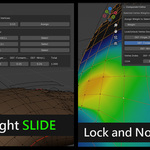
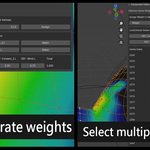
How do I modify only specific bone weights without affecting others?
Solution: Before adjusting weights, lock the vertex groups you don't want modified. During normalization, these vertex groups' weights will remain unchanged.
Best Practice: When adjusting weights, try to work with three or fewer vertex groups at a time to avoid weight instability during normalization.
Why is the weight table empty?
Possible Reasons:
No vertices selected - Please select vertices in Edit Mode
Selected vertices have no weights - Use Blender's weight paint tools to assign basic weights first
Vertex group names don't match bone names - Only vertex groups matching bone names will be displayed
Why can't I edit some vertex group weights?
Possible Reasons:
The vertex group may be in a locked state
The vertex group's weight value is 0
Solutions:
Unlock the vertex group in the Lock/Unlock Vertex Groups area.
Add weight values from other vertex groups to that vertex before adjusting.
The panel shows "Please assign an Armature object in the Armature modifier to edit weights."
Make sure your mesh object has an Armature modifier added, and a valid armature object is assigned in the modifier.