Advanced Wireframe Add-On
 Blender Easy
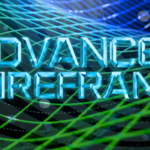
Advanced Wireframe | Documentation
Advanced Wireframe is a procedural tool for Blender (4.5 & 5.1+) designed to create high-quality, non-destructive wireframe overlays using Geometry Nodes. It automates the setup process, ensuring a clean workspace and professional results with a single click.
1. Installation
Standard Method
In Blender, go to Edit > Preferences > Add-ons.
Click Install... and select the
advanced_wireframe.zipfile.Search for "Advanced Wireframe" and check the box to enable it.
Blender 5.1 Drag-and-Drop
Simply drag and drop the
advanced_wireframe.zipfile directly into the Blender 3D Viewport.Click Install when the prompt appears.
2. How to Use
Initial Setup
Select your Mesh: Choose the object(s) you wish to convert.
Initialize: Open the Sidebar (N-Panel) and find the Advanced Wireframe tab.
-
Click "Initialize Advanced Wireframe":
The addon creates a new object named
AdvancedWireframe_Container.It moves your original objects into a new collection named
AdvancedWireframe.Auto-Hide: Your original meshes are automatically hidden in the viewport and render to prevent overlapping geometry (Z-fighting).
Adjusting the Look
Use the sidebar sliders to control the procedural output:
Wire Radius: Controls the thickness of the wireframe.
Subdivisions: Increases the smoothness of the wire strands.
Point Controls: Toggle and scale "Vertex Points" for a techy, stylized look.
3. Advanced Workflow
Non-Destructive Editing
Because the tool uses a "Container" method, your original mesh remains untouched.
To edit the base shape: Unhide the original mesh in the
AdvancedWireframecollection, edit it, and the wireframe will update in real-time.
Materials
By default, the addon applies a clean, neutral material. To change the color or glow:
Select the
AdvancedWireframe_Container.Go to the Material Properties tab.
Modify the material or replace it with your own (e.g., an Emission shader for a hologram effect).
 Included
Includes 12 months of
- Support from Blender Easy
- Product updates
Extend this product’s Support Period +12 months: 50% of product price
Have questions before purchasing?
Login to message
| Dev Fund Contributor | |
| Published | 6 months ago |
| Blender Version | 4.1 - 5.1 |
| Extension Type | N/A |
| Render Engine Used | Arnold, Blender-Internal, Blender-Game-Engine, Cycles, Eevee, Freestyle, Luxrender, Mental-Ray, Octane, Vray, Yafaray |
| License | Mit |