AeroVis
 Impression Sunrise


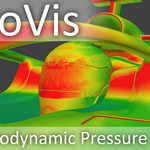
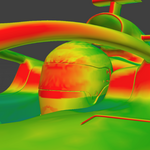
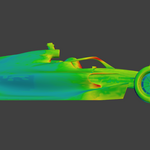
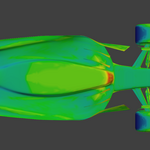
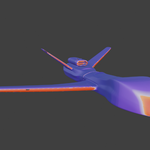
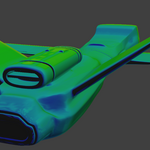
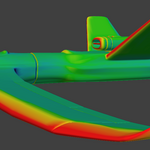
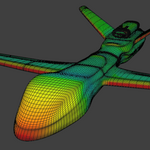
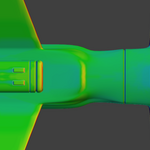
AeroVis bakes aerodynamic pressure output onto selected mesh objects inside Blender. It can generate a colour texture heatmap, a vertex-group weight map, or both at the same time.
The addon lives in View3D > Sidebar > AeroVis. It works on the currently selected mesh objects, and the solve must be started from Object Mode.
For a texture bake, the selected mesh objects need a valid active UV map. The active UVs must stay inside the 0..1 space and should not overlap. If needed, AeroVis can create or rebuild a dedicated PressureBakeUV map for you.
If you only want a vertex-group weight map, UVs are not required.
Clicking Simple Heatmap resets AeroVis to a fast texture-focused setup. In the current build it enables Texture, disables Weight Map, turns Transparency off, sets the texture size to 1024, enables Auto-fix Bake UVs, uses the Weight Paint texture preset, and hides the advanced panels.
1. Select one or more mesh objects.
2. Open the AeroVis panel in the 3D View sidebar.
3. Click Simple Heatmap to load the default texture-bake setup.
4. Choose the movement direction using the axis buttons, or enable Custom Vector to enter your own world-space direction.
5. Optionally change Output Size and Texture Colour Preset from the main panel.
6. Click Generate Heatmap.
For each selected mesh object, AeroVis creates or updates a float image named AeroVisColor_[ObjectName], builds or updates a material named AeroVisTexture_[ObjectName], and assigns that material to the material slots used by the solved faces.
If the object does not already have a valid active bake UV, AeroVis can automatically prepare a dedicated PressureBakeUV map first.
Click Advanced to reveal the extra panels: Outputs, Display Mapping, and Performance. This button only shows or hides the advanced controls. It does not reset your current settings.
1. Select one or more mesh objects and open the AeroVis panel.
2. Click Advanced.
3. In the main panel or the Outputs panel, choose whether you want Texture, Weight Map, or both.
4. If you are using texture output, set the texture size, decide whether AeroVis should auto-fix UVs, and enable transparency only if you need an alpha channel.
5. If you are using weight output, choose the weight mode, projection mode, and the vertex-group name.
6. In Display Mapping, choose how the raw pressure field is normalised and how the texture should look.
7. If needed, tune the Performance settings for responsiveness or heavier geometry.
8. Set the movement direction and click Generate Heatmap.
Texture only: Writes a baked heatmap image and auto-assigns the AeroVis material.
Weight Map only: Solves pressure at the mesh vertices, writes the result into a vertex group, and does not require UVs.
Texture + Weight Map: Creates both outputs in a single solve.
Simple Heatmap
Loads the default quick texture-bake setup. This is a preset button, not a separate locked mode.
Advanced
Shows or hides the advanced sub-panels. It does not reset your current output or display settings.
Output Size
Sets the resolution of generated texture outputs. Higher values can produce a more detailed heatmap, but they increase solve time and memory use.
Texture Colour Preset
Loads a predefined display style for the texture output. The presets mainly change normalization and display shaping rather than the raw solve itself. If you manually change the related display settings, the preset switches to Custom.
Texture
Enables or disables the baked colour texture output.
Weight Map
Enables or disables the vertex-group output.
Movement Direction axis buttons (+X, +Y, +Z, -X, -Y, -Z)
Sets the world-space direction the object is treated as moving through the air.
Custom Vector
Reveals a manual world-space direction vector. Turning this toggle off only hides the vector field; it does not automatically reset the current direction. If the current direction is a custom vector, AeroVis keeps using it until you choose one of the preset axis buttons or type a new vector.
Generate Heatmap
Starts the solve for the currently enabled outputs on the selected mesh objects.
Cancel
Appears while a solve is running and requests cancellation. Pressing Esc during the solve also cancels it.
Texture
Same as the main panel toggle. When enabled, AeroVis writes a heatmap image and assigns an AeroVis material to each solved receiver.
Weight Map
Same as the main panel toggle. When enabled, AeroVis writes a vertex group to each solved receiver.
Auto-fix Bake UVs
When texture output is enabled, AeroVis can automatically create or repair a dedicated PressureBakeUV map if the active bake UVs are missing, out of range, or overlapping. This is the easiest option for most models.
Transparency
Enables an alpha channel in the baked texture. When off, the texture is fully opaque.
Prepare Pressure UVs
Explicitly creates or rebuilds a dedicated, non-overlapping PressureBakeUV map on the selected mesh objects. Use this when you want predictable bake UVs in advance, or when a dense selection is too large for automatic UV preparation.
Weight Mode
Controls how the raw pressure field is converted into 0..1 vertex-group weights:
Signed maps the full signed range into the weight range.
Positive Only keeps only positive-pressure regions.
Negative Only keeps only negative-pressure magnitude.
Absolute Magnitude ignores sign and maps overall pressure strength.
Weight Projection
Chooses where the vertex pressure is evaluated:
Original Vertices evaluates using the original vertex positions while still borrowing the nearest evaluated surface normal where available.
Project To Evaluated Surface first projects each original vertex to the evaluated surface and then evaluates pressure there.
Vertex Group Name
Sets the name of the output vertex group created or updated by the weight export.
Invert Weight
Flips the final 0..1 weight values after they have been normalised.
Important: These controls do not change the underlying raw pressure solve itself. Most of them are display-only, but the normalization controls are also reused when weight-map values are normalized.
Texture Colour Preset
Loads a prepared combination of normalization and display settings. Presets are useful starting points:
Weight Paint gives a Blender-style weight-paint look.
Balanced is a more contrasty general-use presentation.
Tunnel is a more restrained, measured look with absolute normalization.
Wake gives more emphasis to low-pressure structure.
Showcase pushes contrast and presentation impact.
Custom appears automatically after manual edits.
Normalization Scope
Controls whether multiple selected receivers share one pressure range or each object gets its own:
Global keeps colours and weights comparable across the full selection.
Per Object rescales each object independently, which can improve contrast on smaller or weaker-response objects.
Value Mode
Controls which part of the pressure field is sent into the texture display ramp:
Signed shows positive and negative pressure on opposite sides of the ramp.
Positive Only shows only positive-pressure regions.
Negative Only shows only negative-pressure magnitude.
Absolute Magnitude ignores sign and shows overall pressure strength.
Range Mode
Controls how the raw pressure range is converted into display space and weight space:
Relative uses percentiles from the solved result.
Absolute uses a fixed physically scaled span derived from the current solve profile.
Manual uses the explicit min and max values you enter.
Low Percentile / High Percentile
Available in Relative range mode. These define the lower and upper percentile limits used for normalization. Tightening the range usually increases contrast, while widening it makes the mapping more conservative.
Manual Min / Manual Max
Available in Manual range mode. These are the explicit raw pressure bounds used for normalization.
Display Contrast
Applies display-only contrast shaping before the positive and negative gamma curves are applied.
Display Vividness
Boosts saturation and brightness after the colour ramp is applied. This only affects the texture colours.
Positive Gamma
Shapes the positive-pressure side of the display mapping.
Negative Gamma
Shapes the negative-pressure side of the display mapping.
Negative Gain
Boosts the negative side of the pressure field before display shaping. This is useful when you want wakes and suction regions to read more strongly in the texture.
Color Theme
Chooses the colour ramp used for the texture output.
Reverse Ramp
Reverses the chosen colour ramp without changing the raw solve.
Transparency Mode
Controls how the displayed texture values become alpha:
Low End Transparent fades out the low end of the display range.
Low Magnitude Transparent is especially useful in Signed mode, because it fades out the near-neutral middle and keeps stronger positive and negative regions more visible.
Alpha Low
Display values below this threshold become transparent.
Alpha High
Display values above this threshold become opaque.
Alpha Power
Shapes the transition between Alpha Low and Alpha High.
Filled Gap Alpha
Applies an extra alpha multiplier to pixels that were created by AeroVis during UV gap filling, rather than solved directly. Lower values make those post-filled areas more visually subdued.
Chunk Time Budget (ms)
Controls how much work AeroVis tries to do on each timer tick. Higher values can push more work through per update but may make Blender feel less responsive while the solve is running. Lower values keep the UI more responsive.
Max Proxy Triangles
Sets an upper limit on how many triangles AeroVis keeps in its occlusion and wake proxy representation after the quality preset is applied. Higher values can improve fidelity on complex models, but they increase compute cost.
Max Surfel Count
Sets the maximum number of wake-field surfels used to build the blockage and separation field. Increasing this can improve wake detail, but it also increases solve time and memory use.
No output / solve does not start: Make sure you are in Object Mode, that at least one mesh object is selected, and that at least one output target is enabled.
Texture output errors: The active UVs are missing, outside the 0..1 space, or overlapping. Enable Auto-fix Bake UVs or run Prepare Pressure UVs.
Auto-fix does not run on a heavy selection: If the objects that need new bake UVs are very dense, AeroVis may skip automatic UV creation and ask you to run Prepare Pressure UVs manually first. In the current build, the automatic path is blocked when that repair would cover more than about 100,000 faces.
Weight-only workflow: If you do not need a baked texture, disable Texture and leave Weight Map enabled. This avoids the UV bake path entirely.
Clean geometry helps: Better mesh quality and sensible topology usually lead to cleaner output. Very heavy geometry can produce richer detail, but it also increases solve time.
Have questions about this product?
Login to message
| Blender Extension Compatible | Yes |
| Dev Fund Contributor | |
| Published | 7 months ago |
| Blender Version | 5.0 - 5.1 |
| Extension Type | Add-on |
| Render Engine Used | Cycles, Eevee |
| License | GPL |
Discover more products like this
aircraft aerodynamics car aerodynamics weight map aerodynamic texture-baking weight paint vertex groups heatmap airflow pressure map aerodynamic design wind tunnel