AeroVis
 Impression Sunrise


Why is my solve taking so long?
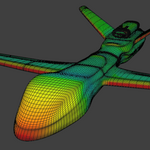
Texture output is the expensive path. When Texture is enabled, AeroVis has to build UV sample states, solve them, rasterize tiles, post-process the texture, write an image, and then hook the baked image into a material. Weight-only output skips that UV/image path and only solves mesh-domain values for the vertex group, so it is usually much faster.
Ways to speed it up: lower Output Size, turn off Texture if you only need a weight map, reduce mesh density where possible, and lower the performance caps in Advanced > Performance if you are experimenting on very heavy scenes.
Why is the heatmap showing the wrong side of the model as the front?
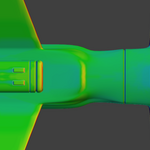
Because the movement direction is set in world space, not local object space. The +X, +Y, +Z and negative-axis buttons always use the scene axes. If your object is rotated, the direction you want may not match the object’s local forward axis.
How to fix it: choose the axis that matches the object’s motion in the scene, or enable Custom Vector and enter your own world-space direction. Also note that hiding the Custom Vector field does not reset the current direction by itself; AeroVis keeps using the current vector until you pick a preset axis or type a new one.
Why did AeroVis replace my material?
That is the intended behavior for Texture output. After the baked image is written, AeroVis builds or updates an AeroVisTexture_[ObjectName] material and assigns it to the material slots used by the solved triangles so you can see the result immediately.
Why won’t AeroVis start when I click Generate?
Checklist: switch to Object Mode, select at least one mesh object, make sure Texture or Weight Map is turned on, and choose one of the direction preset buttons if you are unsure whether the current vector is valid.
Why does AeroVis say my object is missing a UV map, outside 0..1, or has overlapping UVs?
That happens when Texture output is enabled and the active UV map is not valid for baking. In the current build, AeroVis checks for three things: an active UV map must exist, the active UVs must stay inside the 0..1 space, and non-PressureBakeUV active maps must not overlap or stack.
How to fix it: leave Auto-fix Bake UVs enabled, or click Prepare Pressure UVs in Advanced > Outputs to create or rebuild a dedicated PressureBakeUV map. If you only need a vertex-group result, disable Texture and leave Weight Map enabled.
Have questions about this product?
Login to message
| Blender Extension Compatible | Yes |
| Dev Fund Contributor | |
| Published | 7 months ago |
| Blender Version | 5.0 - 5.1 |
| Extension Type | Add-on |
| Render Engine Used | Cycles, Eevee |
| License | GPL |
Discover more products like this
pressure map aircraft aerodynamics weight paint texture-baking weight map vertex groups wind tunnel aerodynamic aerodynamic design heatmap airflow car aerodynamics