◆ VOYDE PROCEDURAL / ADD-ON / BLENDER 5.0+
AgeForge
One Slider Ages Any Object
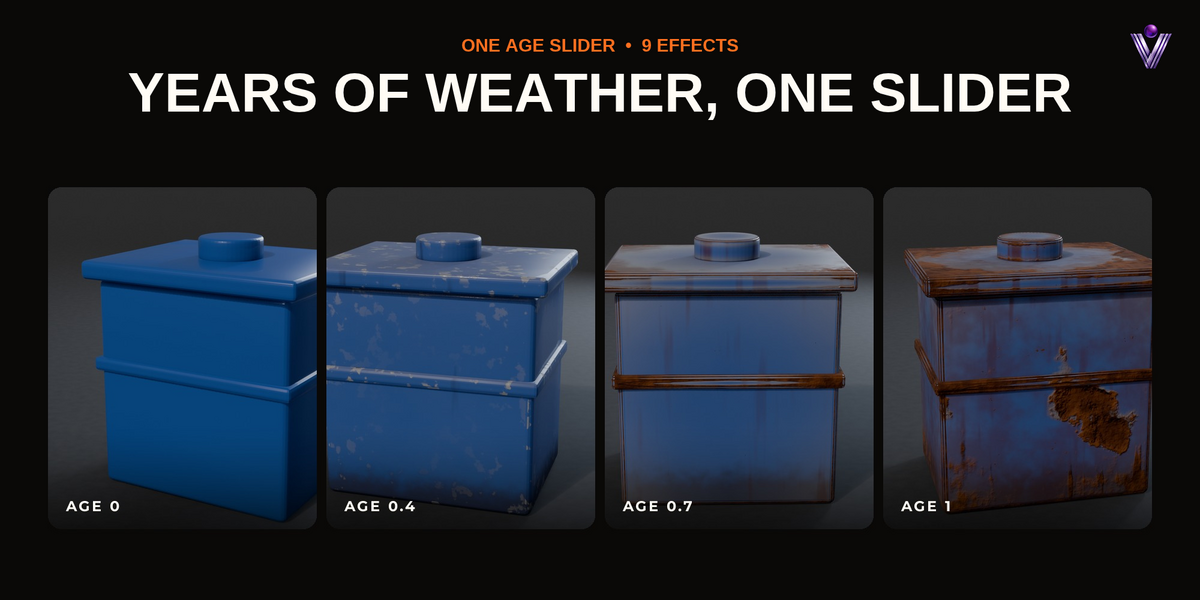
Drag one slider and anything grows old, in the order real things do.
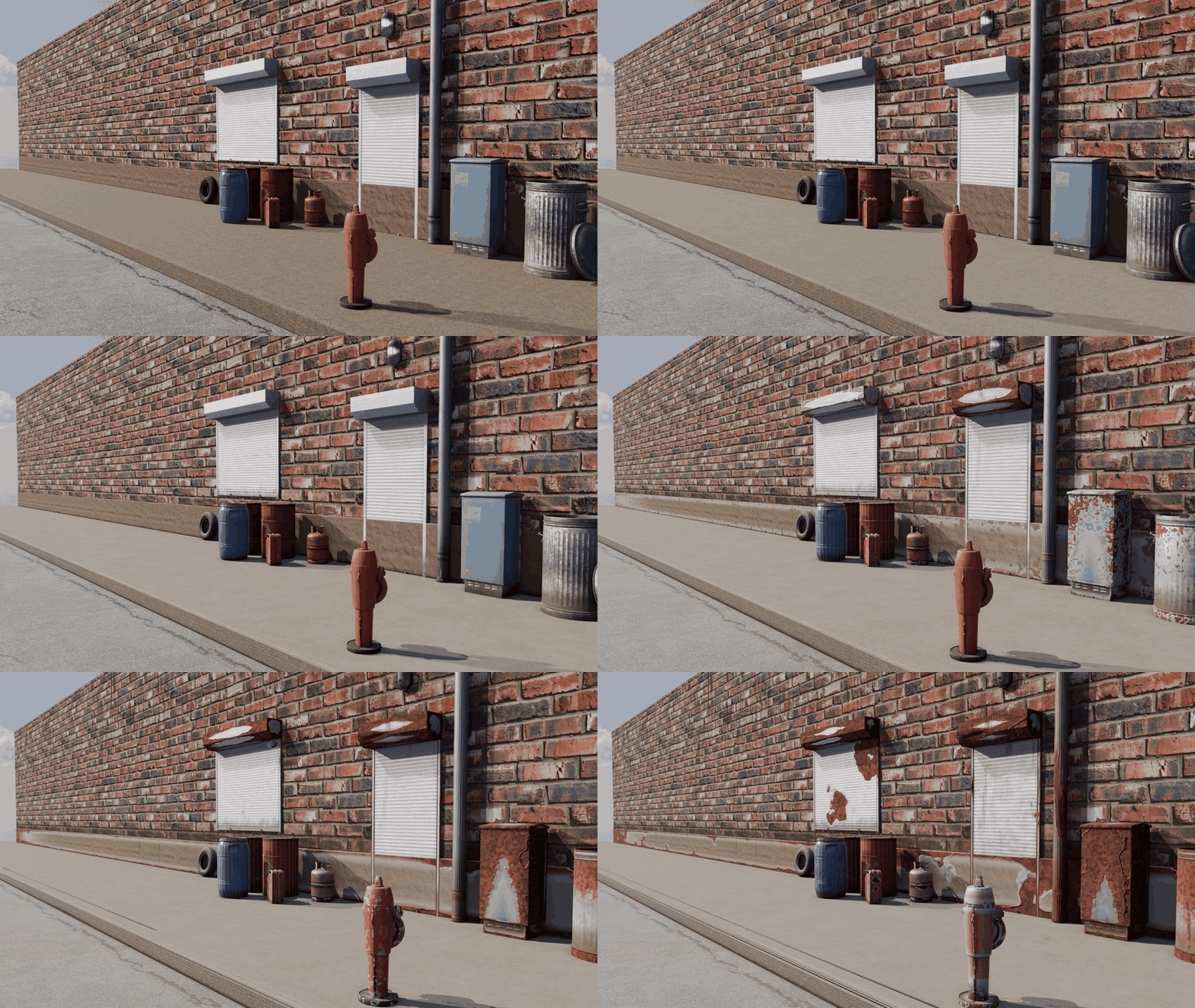
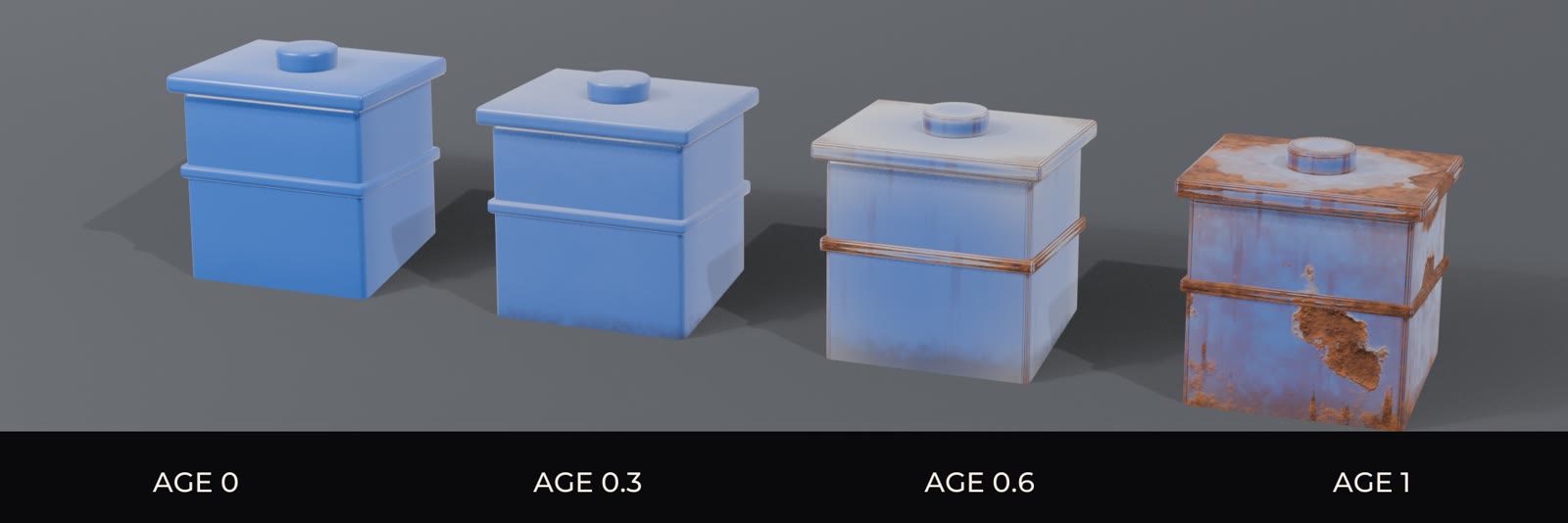
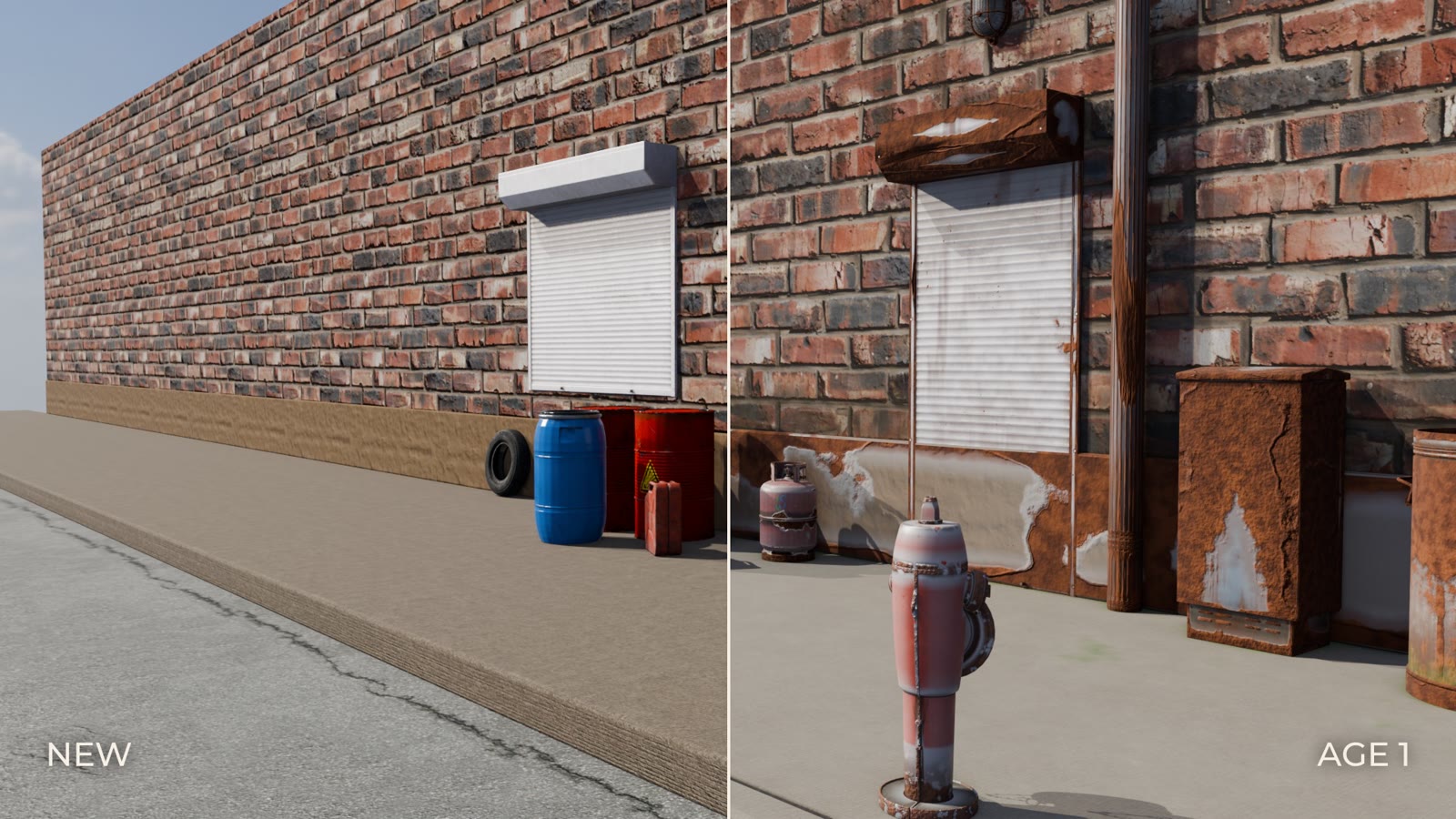
AgeForge ages anything in Blender with one Age slider. At 0 the object is new. Move it up and dust settles on the top and grime packs into the corners, the paint fades in the sun, rain leaves streaks under every ledge and the edges wear through to primer and bare metal. Further on, rust grows out of the worn spots and moss creeps up from the ground, and at the end the paint peels in sheets and the surface cracks.
Your material is never replaced. AgeForge slips one node group between your shader and the output, so a painted barrel, a scanned asset or a textured wall keeps its look under the ageing, and Remove Ageing gives it back exactly as it was. Everything is procedural and sized to the object, from a jerrycan to a whole building.
ONE AGE SLIDER9 EFFECTS IN ORDERKEEPS YOUR MATERIALTIME-LAPSE IN ONE CLICKCYCLES AND EEVEE
01 — KEY FEATURES
Years of weather on one slider
◆One Age slider
Every effect has its own place on the slider, so one value from 0 to 1 tells the whole story, and you never balance nine layers by hand.
◆Keeps your material
The ageing is mixed over the shader you already have, any shader, image textures and node groups included. Remove Ageing restores it untouched.
◆Rust that makes sense
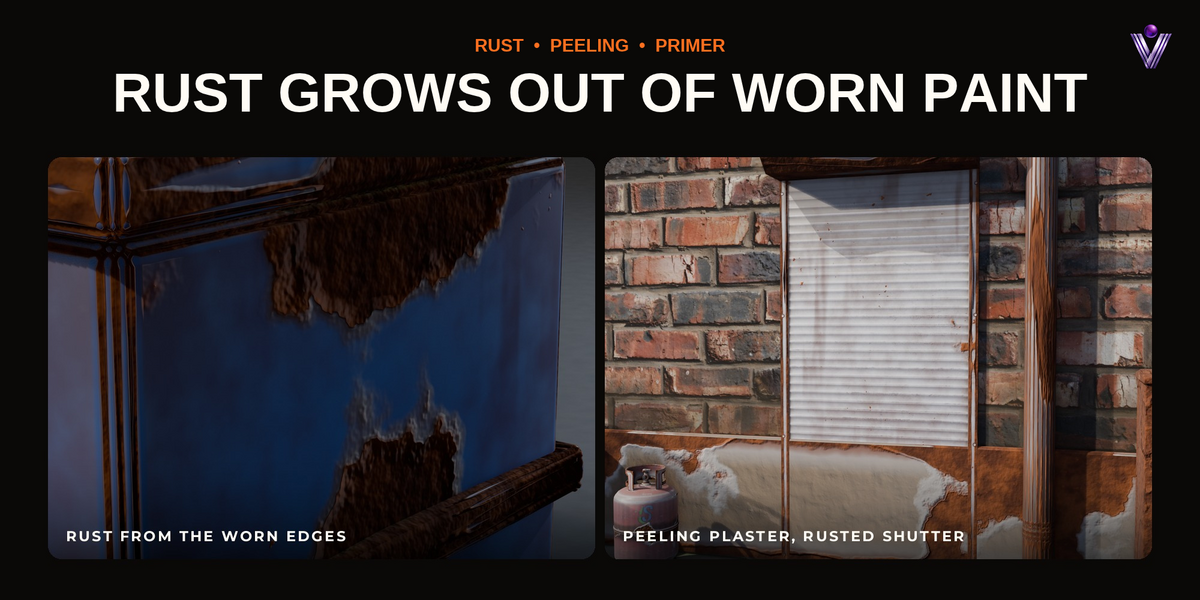
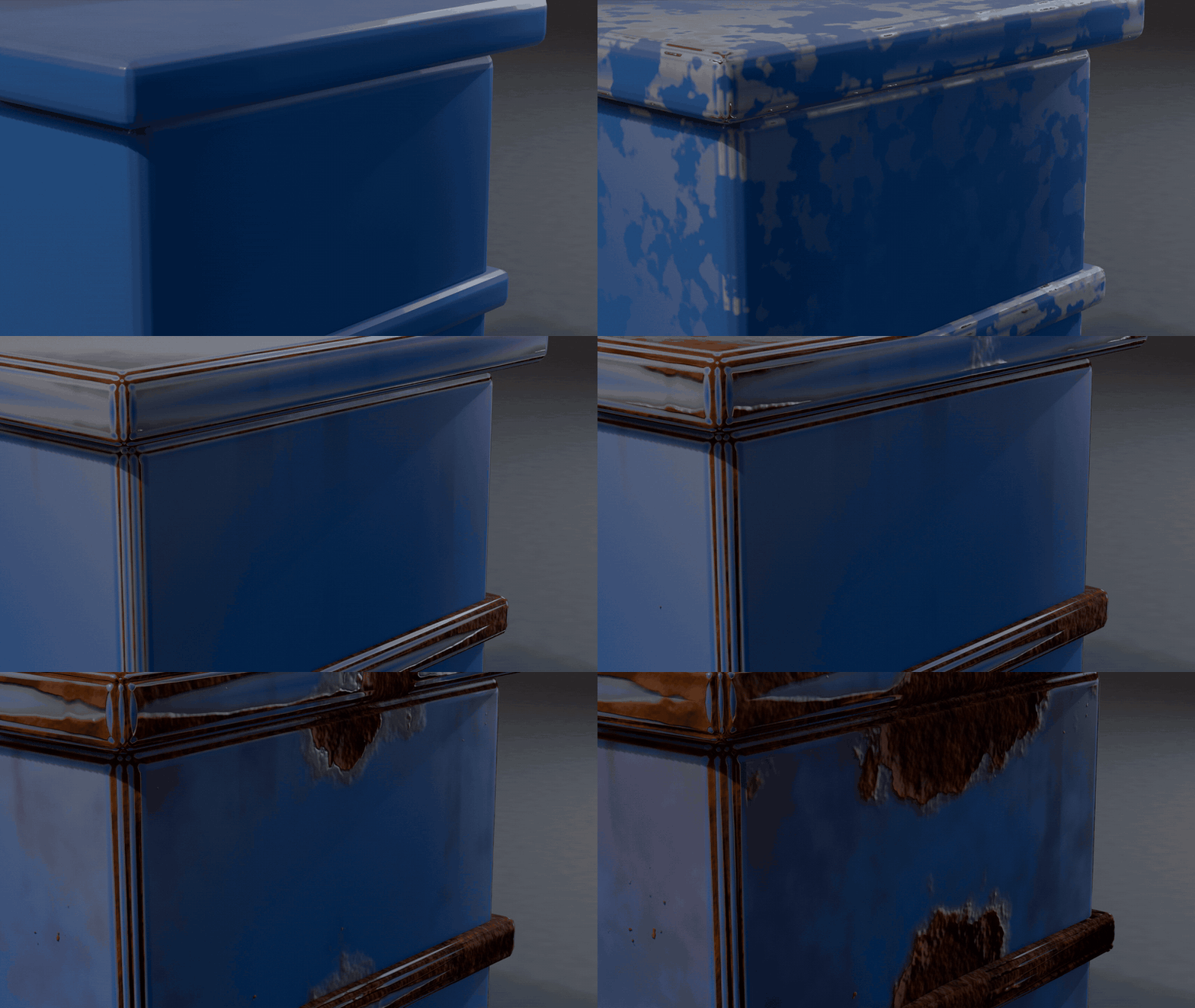
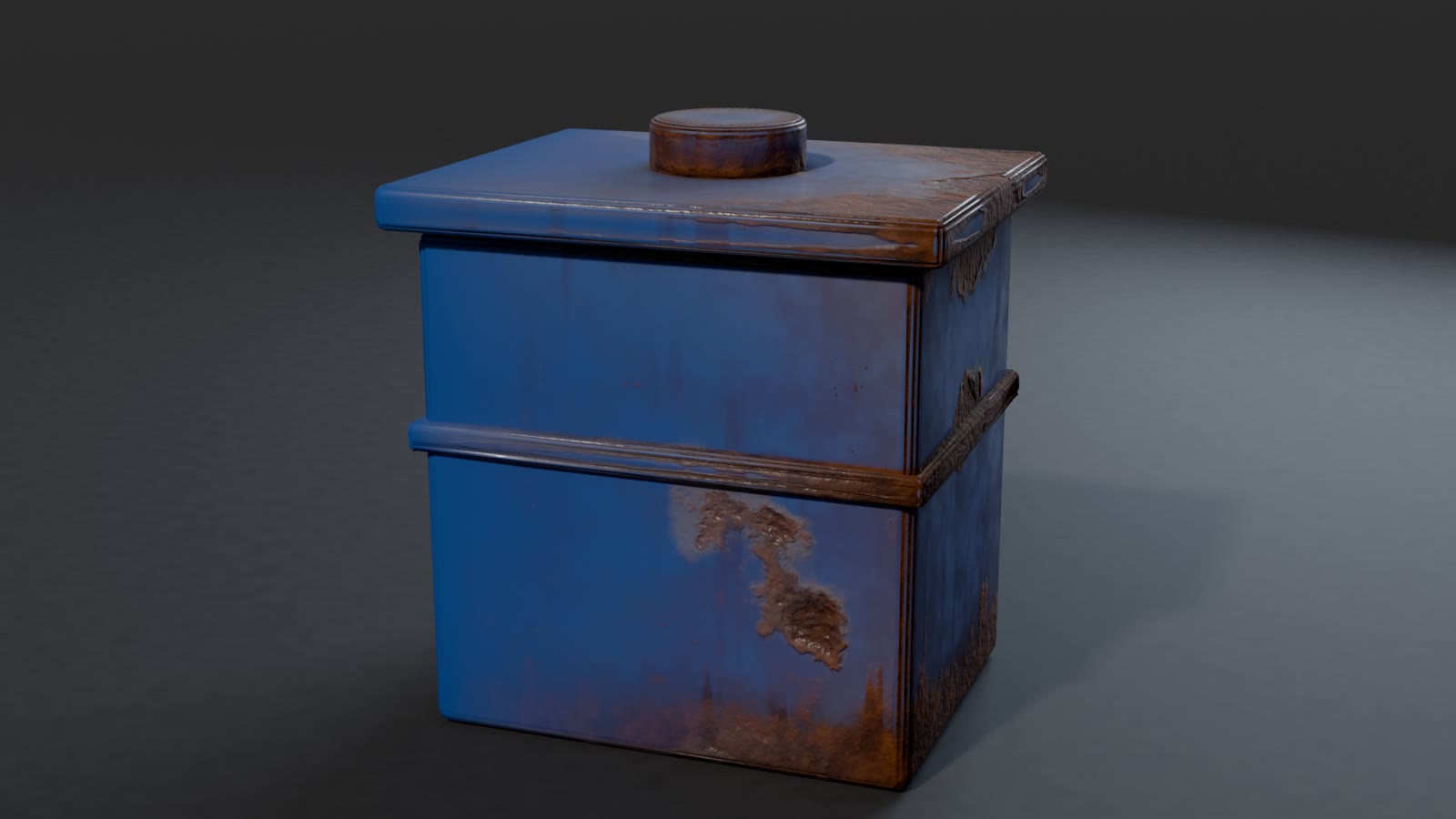
Rust starts where the paint is gone, on worn edges and peeled patches, then creeps along edges, into corners and up from the damp bottom. Small blisters break through the paint, and the rain streaks below turn rusty.
◆Primer under the paint
Worn and peeled spots show a rim of primer before the bare surface, and the peeled flakes lift at their edge.
◆Chipped edges
A small Geometry Nodes modifier finds the convex edges and pushes worn corners inward as the object ages, so the silhouette chips too.
◆Real-world sizes
Patterns are sized to each object up to a few metres, so a streak on a wall is as wide as one on a door, not ten times wider.
◆Per object
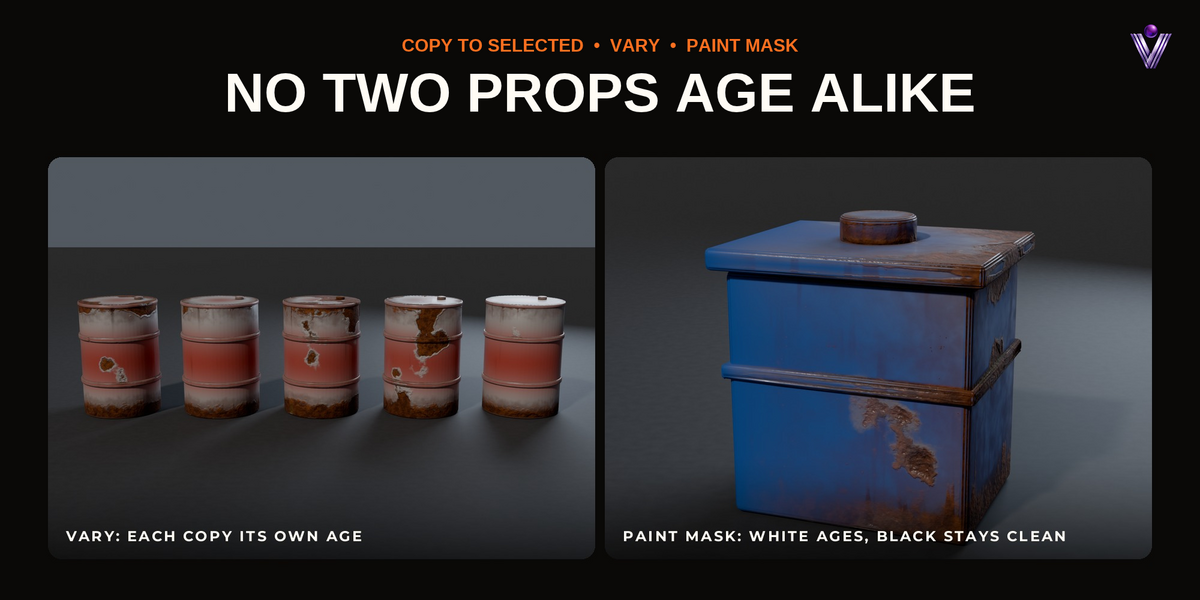
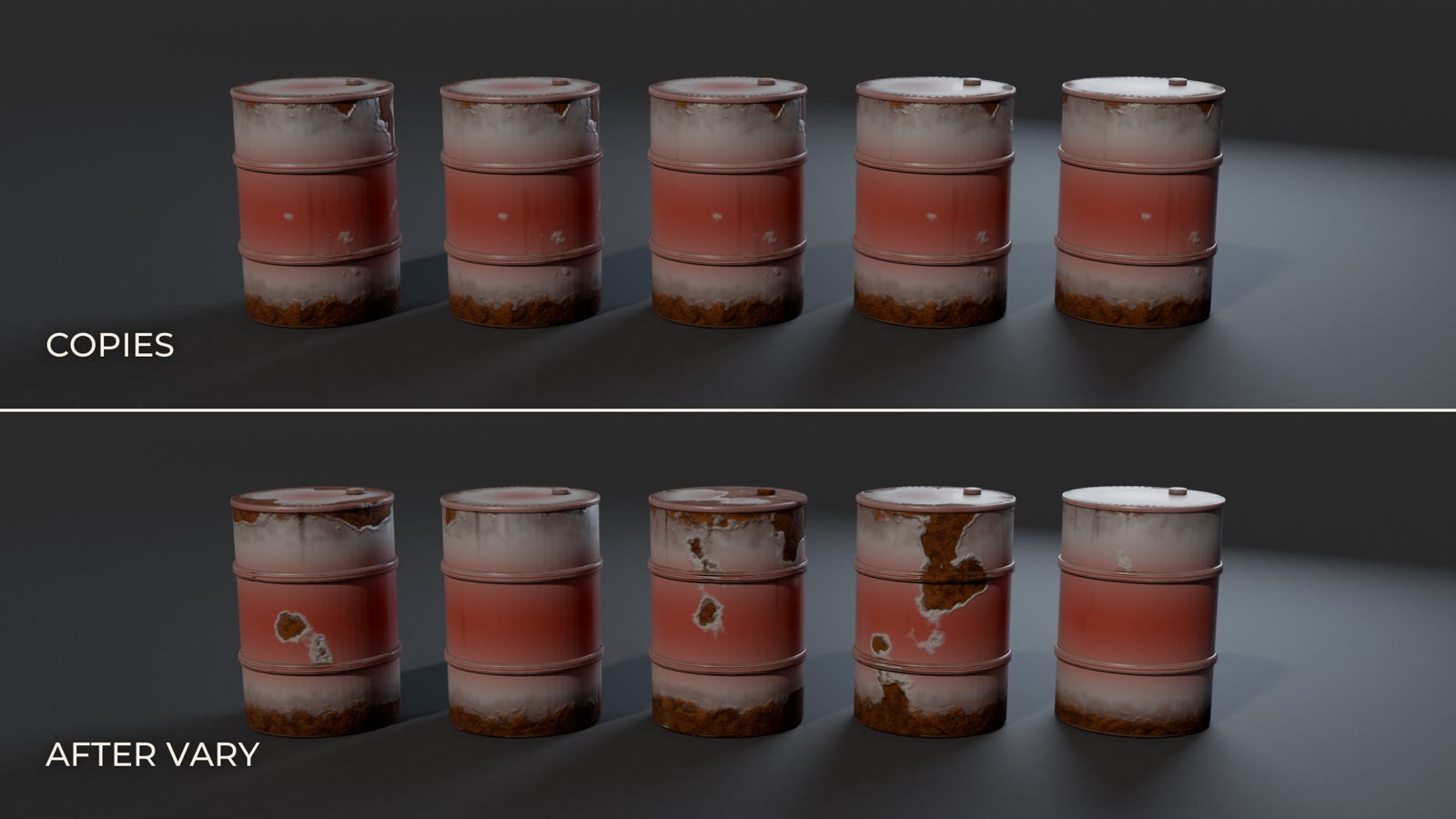
The age belongs to the object, so twenty barrels that share one material can each be a different age.
◆Time-lapse in one click
Animate Ageing keys the age from new to ruined over the scene's frame range, steady or eased.
◆Many objects at once
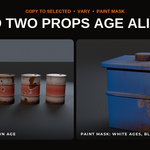
Copy to Selected gives a whole set of props the same look, and Vary nudges each one's age and pattern so repeated props stop looking copied.
◆Paint where it ages
A painted mask decides where the ageing goes; white ages, black stays clean.
02 — IN BLENDER
Select, Age Object, drag
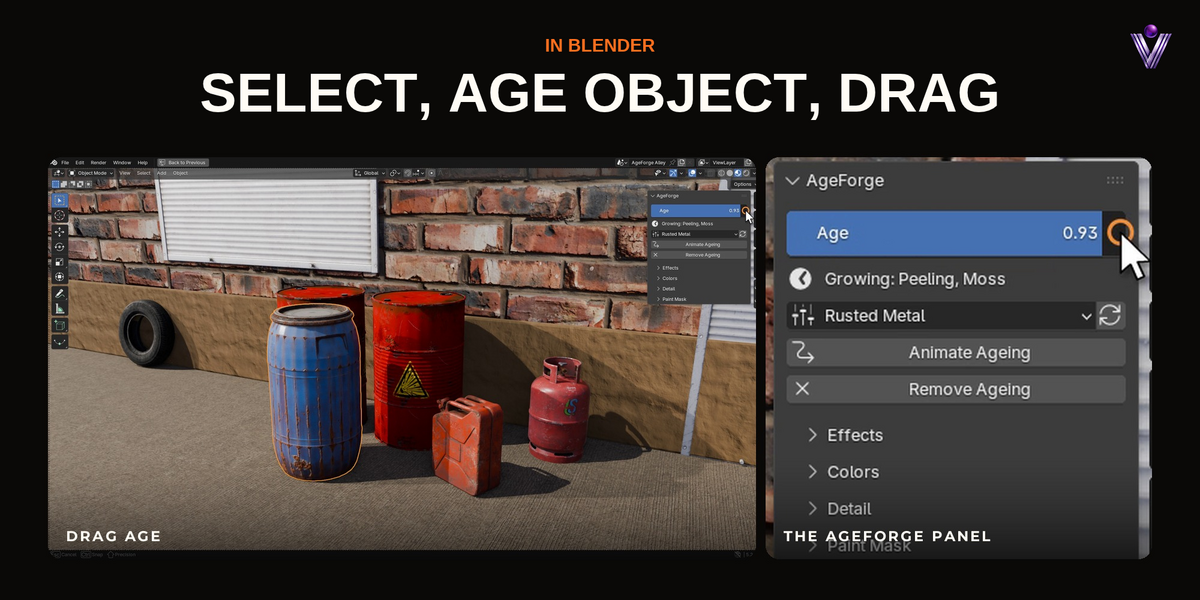
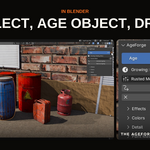
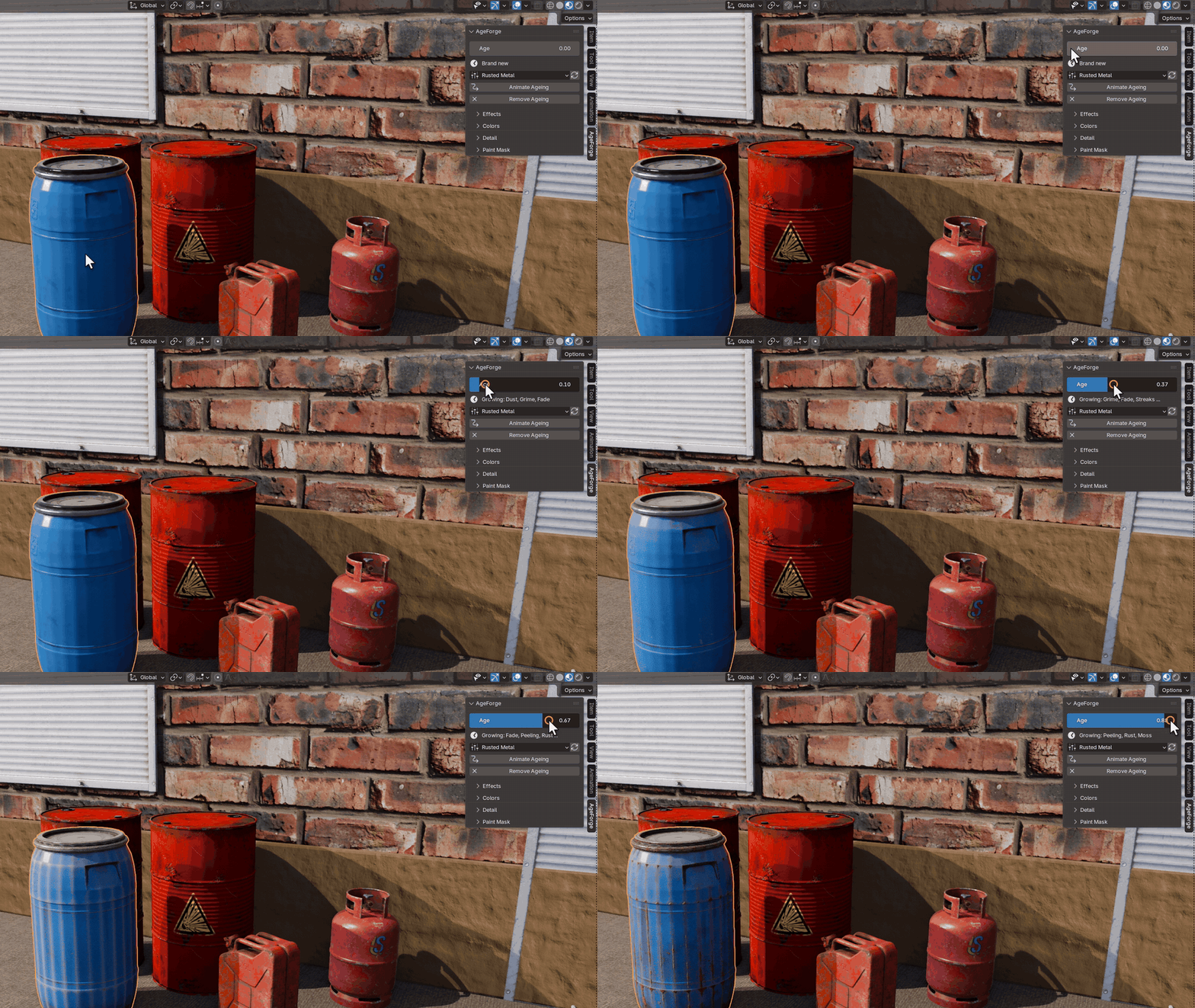
Select one object or a hundred and press Age Object. AgeForge picks a preset from each material (metal rusts, gloss peels, rough surfaces crumble), and the Age slider in the sidebar does the rest. The line under the slider tells you which effects are growing at the current age.
The viewport updates as you drag, in Material Preview and Rendered mode, EEVEE and Cycles.
03 — THE ORDER OF THINGS
Nine effects, one after another
Each effect starts at its own age and grows to full strength. The Effects panel sets how much of each one an object can get.
Dust
From the first moment. Settles on the faces that look up and in corners, unevenly.
Grime
Dark dirt packed into corners and crevices and splashed up from the ground, rising higher with age.
Fade
Sun-bleached, chalky paint, strongest on the faces that see the sky.
Streaks
Thin runs of dirty water down the sides, strongest under the top and in columns, not a curtain.
Edge Wear
Convex edges lose their paint, first a rim of primer, then the bare surface.
Rust
Grows out of the bare metal and along edges, corners and the bottom, darker where it is old.
Moss
Damp corners, horizontal surfaces and the ground.
Peeling
Large flakes with a hard border and a lifted rim, late in life.
Cracks
A warped network of cracks that widens at the end.
04 — RUST
It grows out of the worn paint
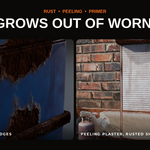
Rust does not appear in random blotches. It starts where the paint has worn through, creeps out along the edges and up from the damp bottom, and darkens where it is old. Once there is rust above, the rain streaks below carry its colour.
05 — ON REAL ASSETS
Scanned props, textured walls, your own models
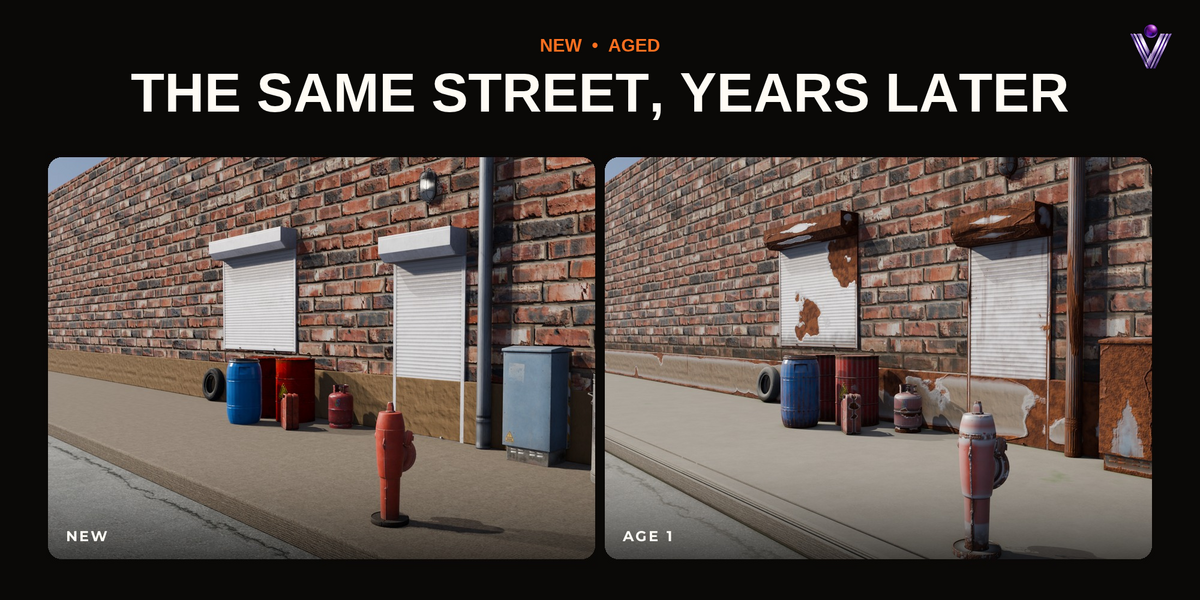
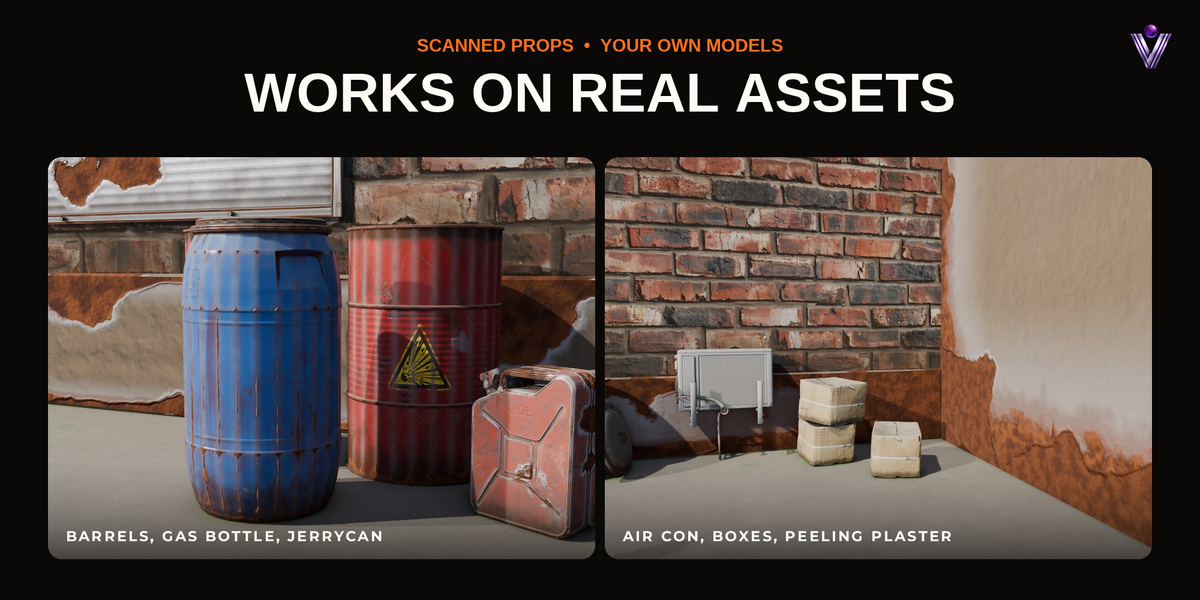
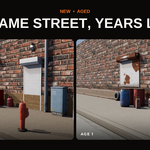
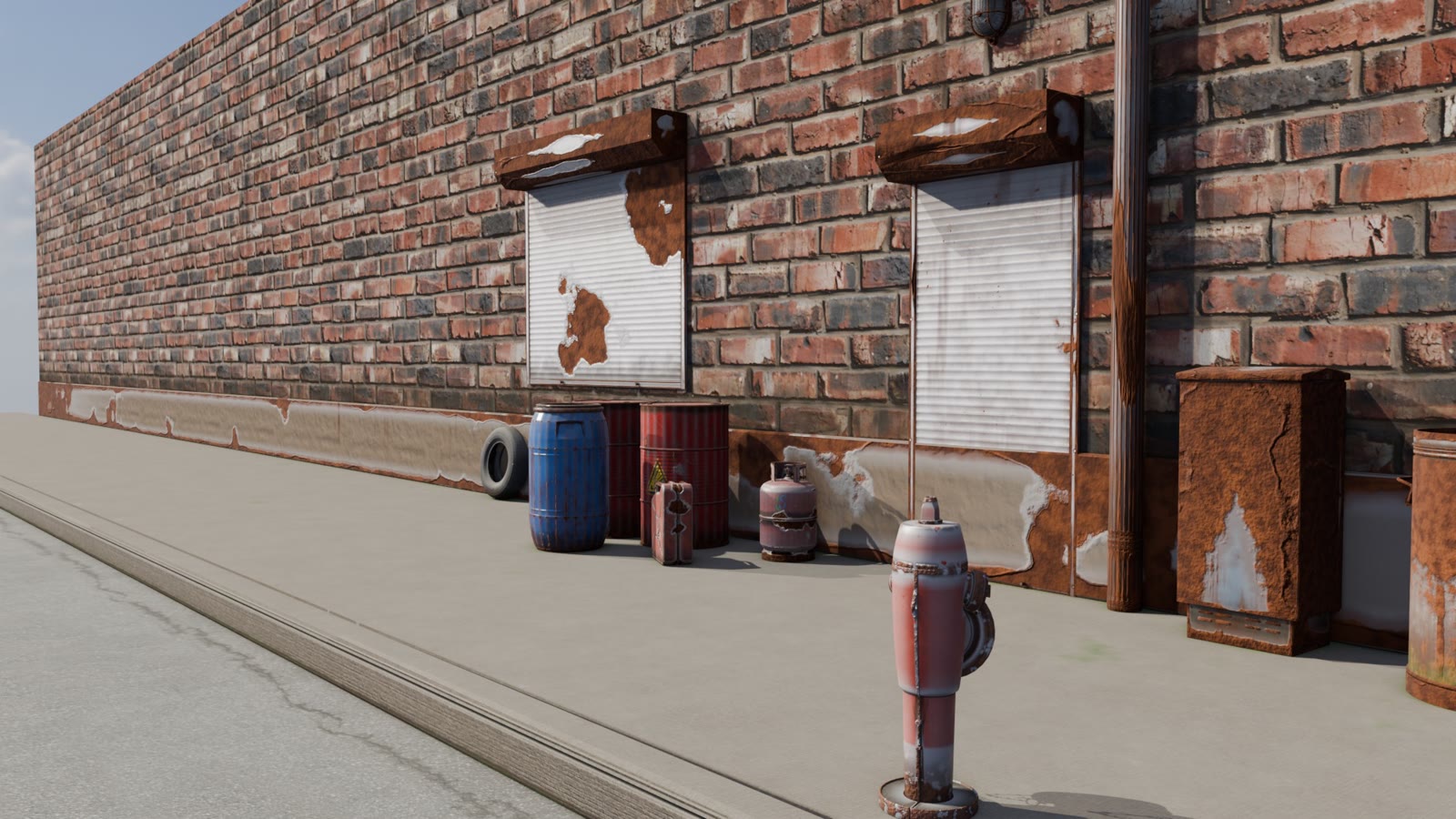
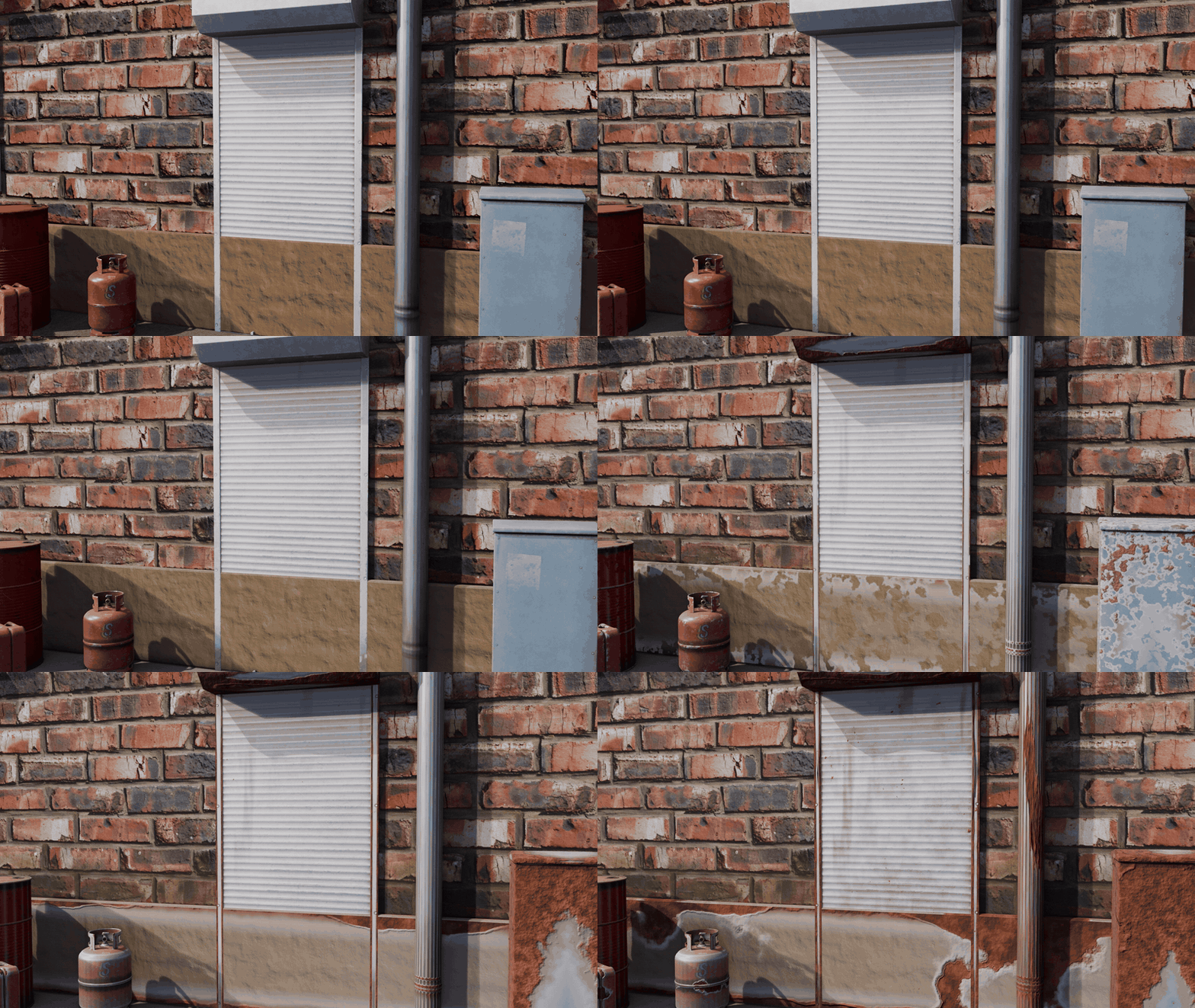
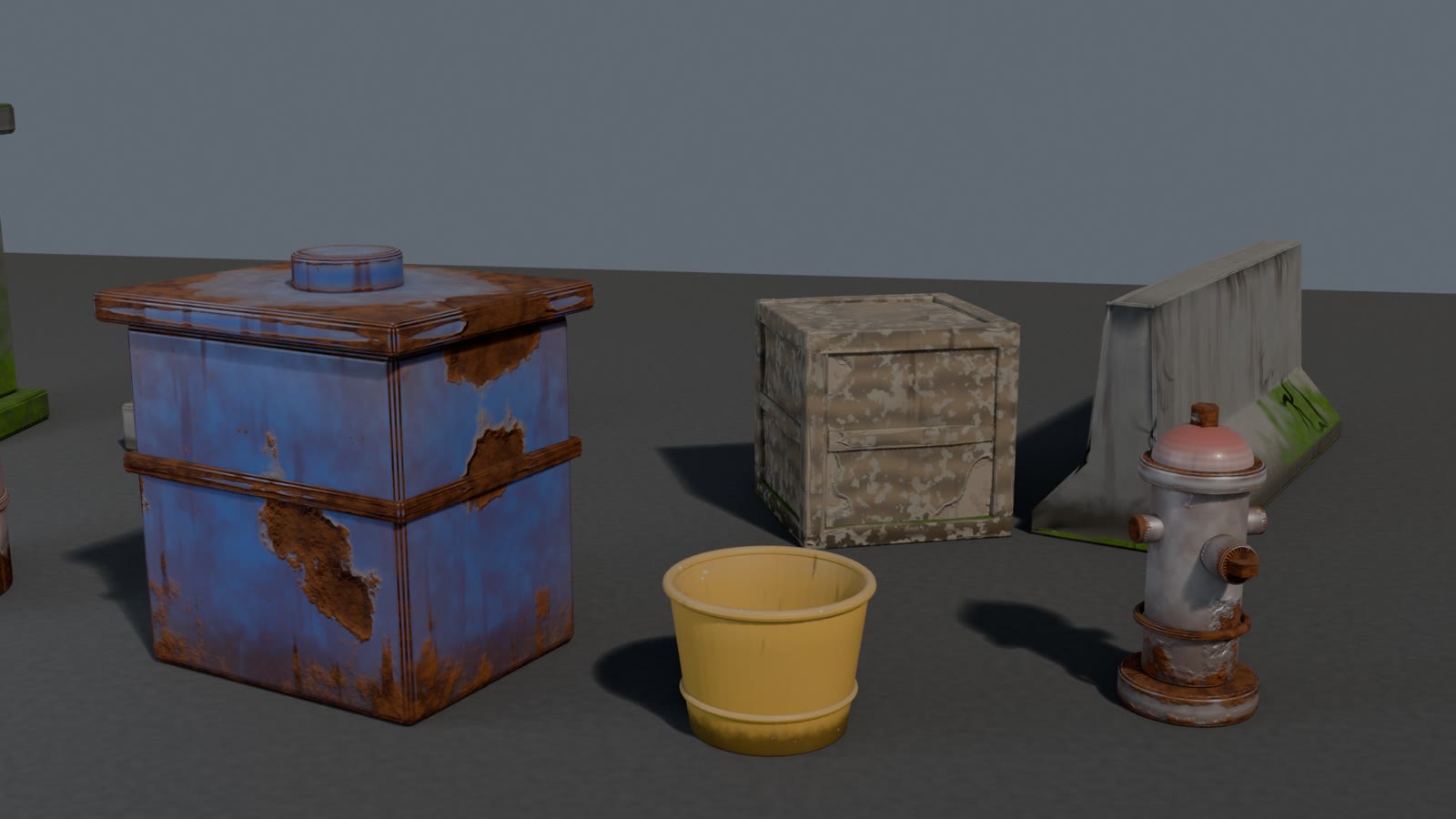
Every surface in this street was aged by AgeForge on top of its own PBR material: barrels, a gas bottle, a jerrycan, a roller shutter, a hydrant, a brick wall and the pavement. The street is included as an example scene.
06 — MANY OBJECTS
Twenty barrels, twenty ages
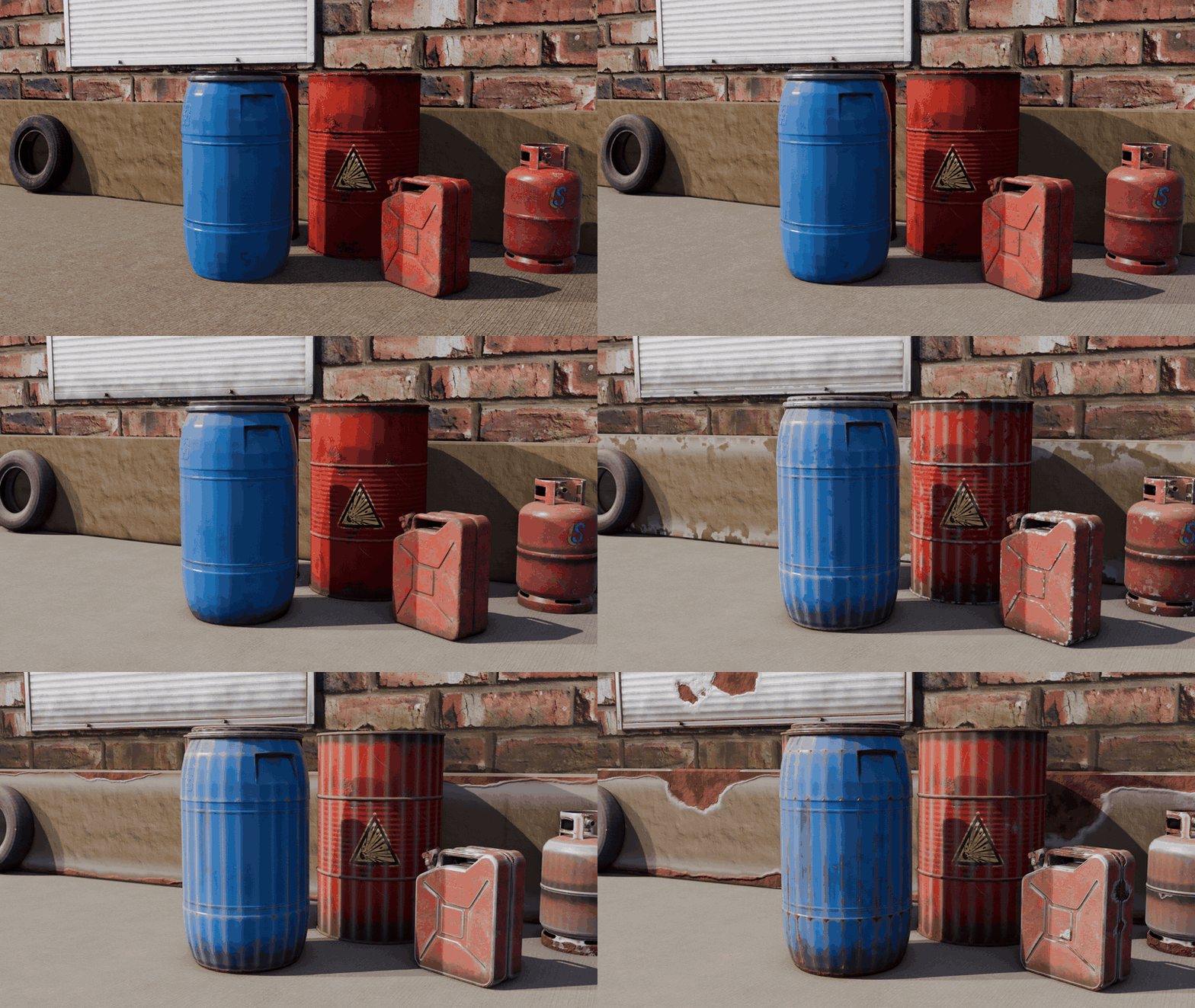
Copy to Selected gives the other selected objects the active one's age, preset and settings. Vary then nudges each object's age and pattern, so a row of identical props stops looking copied, even when they share one material.
07 — PAINT MASK
Paint where it ages
Start Clean gives a black mask and a white brush: paint where the ageing goes. Start Aged works the other way round. The mask is a colour attribute, so it survives any later change of age or preset.
08 — PRESETS
Six starting points
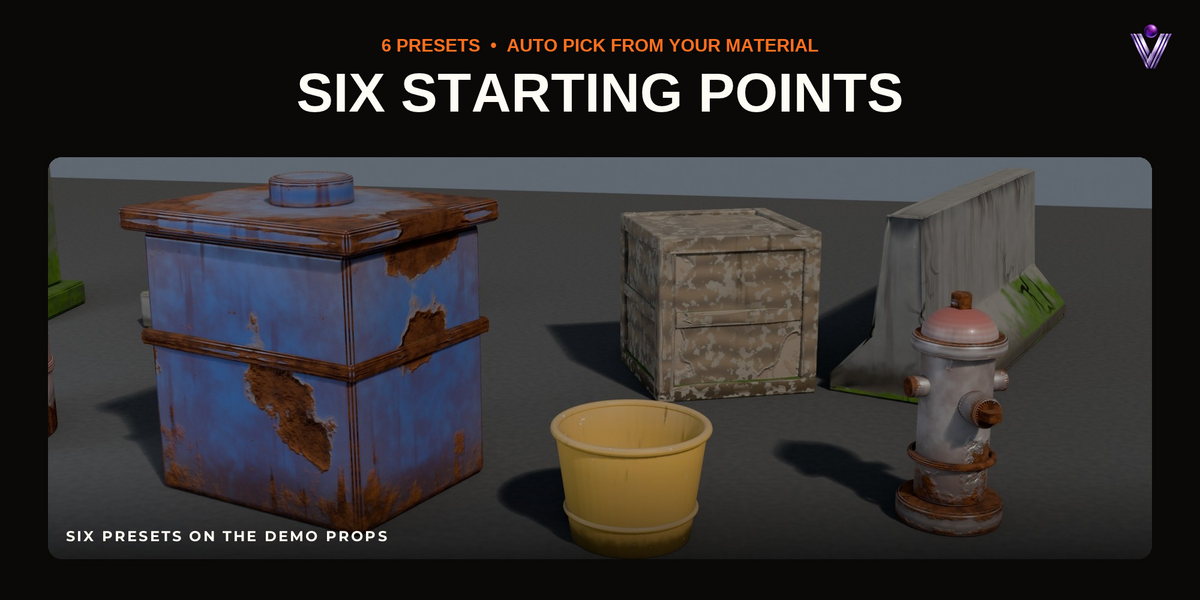
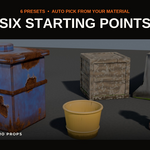
A preset only sets the effect amounts and colours; the age slider stays yours. With Auto, AgeForge picks one from your material.
Rusted Metal
Painted steel with worn edges, flaking paint and rust creeping out of them.
Weathered Wood
Greyed, cracked timber with moss in the shade.
Mossy Stone
Stone and brick with moss, rain streaks, cracks and crumbling corners.
Peeling Paint
Paint that lifts and flakes off a primed surface, with rust in the gaps.
Dusty Plastic
Plastic that sat in a garage, with dust, scuffed edges and a few hairline cracks.
Concrete
Weathered concrete with streaks, rust stains, cracks and moss.
09 — PERFECT FOR
Where it fits
◆Abandoned and post-apocalyptic scenes◆Street props and city dressing◆Hard-surface portfolio renders◆Product before and after shots◆Time-lapse animations◆Sci-fi and military hardware
10 — INSTALLATION
Up and running in a minute
1Download age_forge-1.0.0.zip from your Superhive library. Do not unzip it.
2Drag the zip into Blender, or go to Edit ▸ Preferences ▸ Get Extensions, open the ⌄ menu at the top right and choose Install from Disk.
3Press N in the 3D Viewport and open the AgeForge tab.
4Select one or more objects, press Age Object and drag Age. Use Material Preview or Rendered shading to see it.
11 — FAQ
Good to know
Does it replace my material?
No. It adds one node group between your shader and the material output. Remove Ageing takes it out again and reconnects your shader as it was.
Cycles or EEVEE?
Both. The edge and corner masks come from the modifier, not from Cycles-only nodes, so EEVEE shows the same ageing.
Does it need UVs or image textures?
No. Everything is procedural and sized to the object automatically. Pattern Scale makes it finer or coarser.
Does it work on scanned or downloaded assets?
Yes. The street in the example scene is made of scanned and modelled CC0 props with their own textures; AgeForge ages them on top.
Is it heavy?
The shader is one node group shared by every aged material. The modifier subdivides small meshes so edges can chip and leaves dense meshes as they are; lower Subdivisions for very large scenes.
Does the file render without the add-on?
Yes. The node group, the modifier and the age are stored in the .blend file.
Which Blender versions?
Blender 5.0 or newer. It was tested on Blender 5.0, 5.1 and 5.2.
Can I use it in commercial work?
Yes. Your renders and animations are yours to use in any project.
12 — DETAILS
What you get
Included
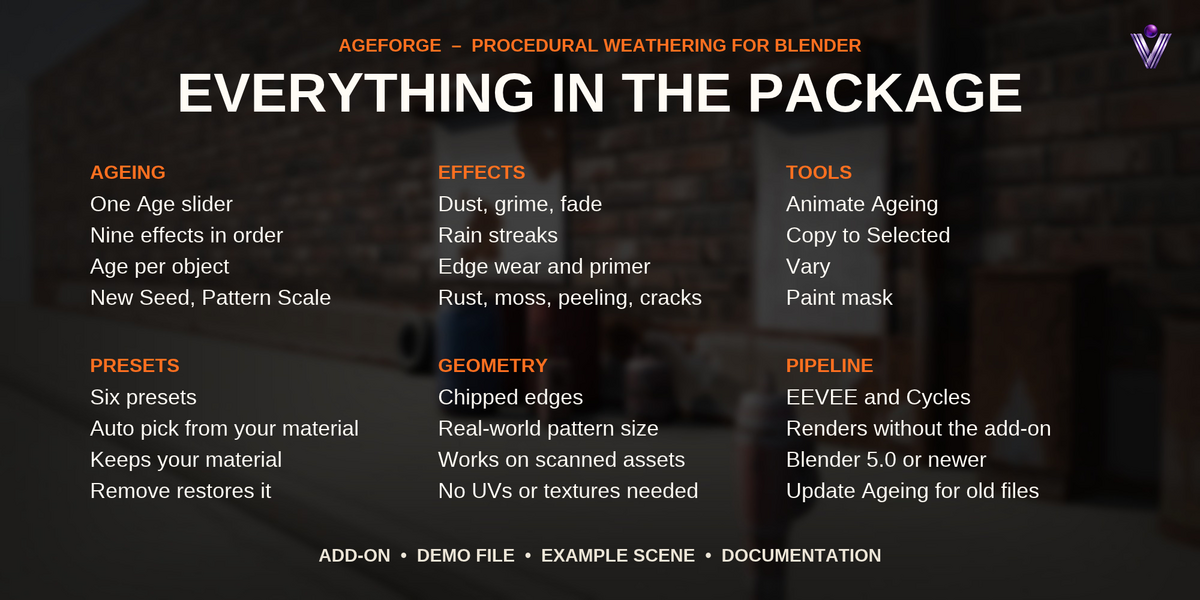
◆AgeForge add-on (Blender extension zip)
◆Six presets
◆Demo file with nine aged props and an animated time-lapse
◆Example scene
◆a back street with CC0 props
◆Documentation
Compatibility
◆Blender 5.0 or newer
◆Tested on Blender 5.0, 5.1 and 5.2
◆Cycles and EEVEE
◆The add-on code is licensed under GPL-3.0-or-later.
 Voyde Procedural

 VOYDE.PROCEDURAL
VOYDEPROCEDURAL.COM / ALL PRODUCTS / X / INSTAGRAM