AI Chat Bridge : Run Blender Python Scripts Directly From Your Browser
 Dani K Daniel

AI Chat Bridge: Documentation
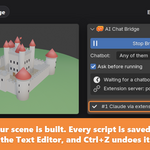
AI Chat Bridge runs the Blender Python that ChatGPT, Claude, DeepSeek, Gemini or Qwen write in your browser, directly in Blender. It has two parts: a Blender add-on, and a browser extension that sends the code from your chat to Blender.
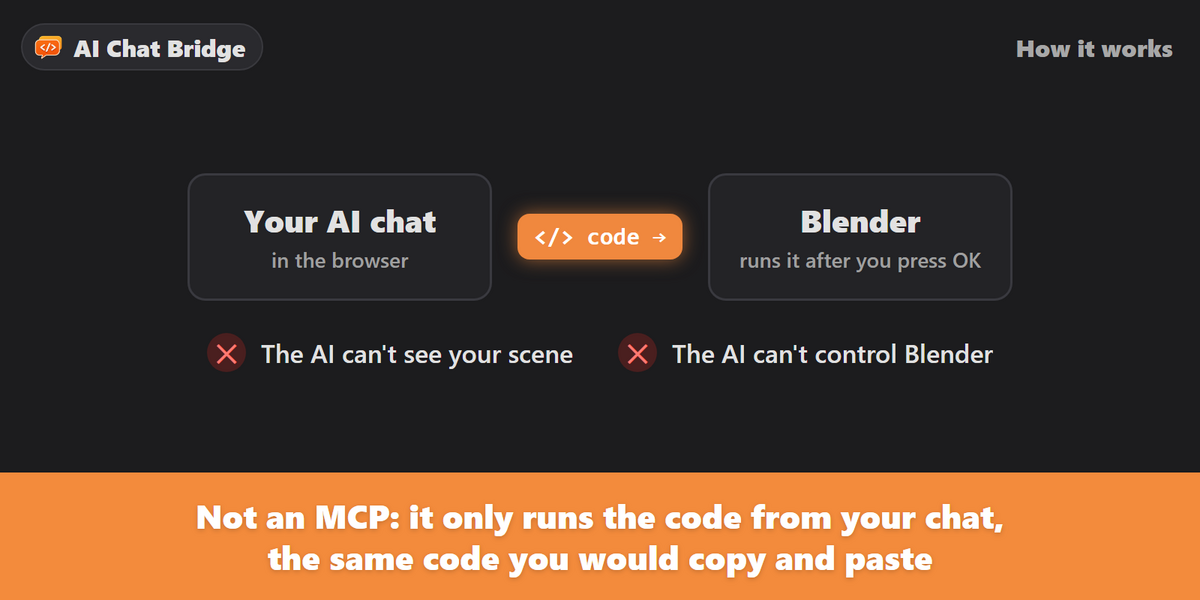
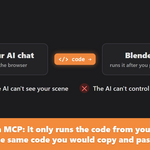
This is not an MCP. The AI never sees your scene and never controls Blender. The extension only takes the code your chatbot has already written in the chat, the same code you would copy and paste yourself, and Blender runs it.
Requirements
- Blender 4.2 or newer, including Blender 5.x (tested in 4.3 and 5.2).
- Chrome, Edge or Brave.
- An account on at least one supported chatbot. No API key is needed.
Supported chatbots
- ChatGPT: chatgpt.com
- Claude: claude.ai
- DeepSeek: chat.deepseek.com
- Gemini: gemini.google.com and aistudio.google.com
- Qwen: chat.qwen.ai
Installing the Blender add-on
- Unzip the download. Inside is
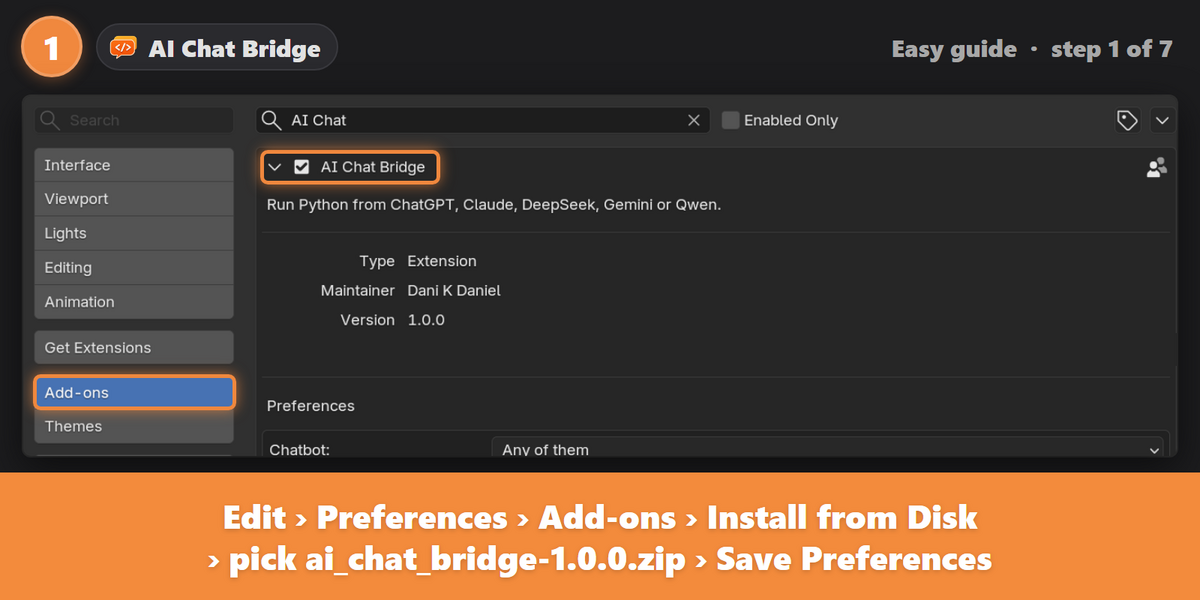
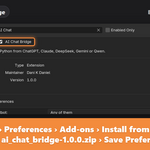
ai_chat_bridge-1.0.0.zip. Don't unzip that one. - In Blender, open Edit › Preferences › Add-ons.
- Click the drop-down arrow at the top right and choose Install from Disk.
- Select
ai_chat_bridge-1.0.0.zipand make sure AI Chat Bridge is ticked. - Click the ☰ menu at the bottom left of Preferences and choose Save Preferences, or turn on Auto-Save Preferences. Otherwise Blender switches the add-on off at the next start.
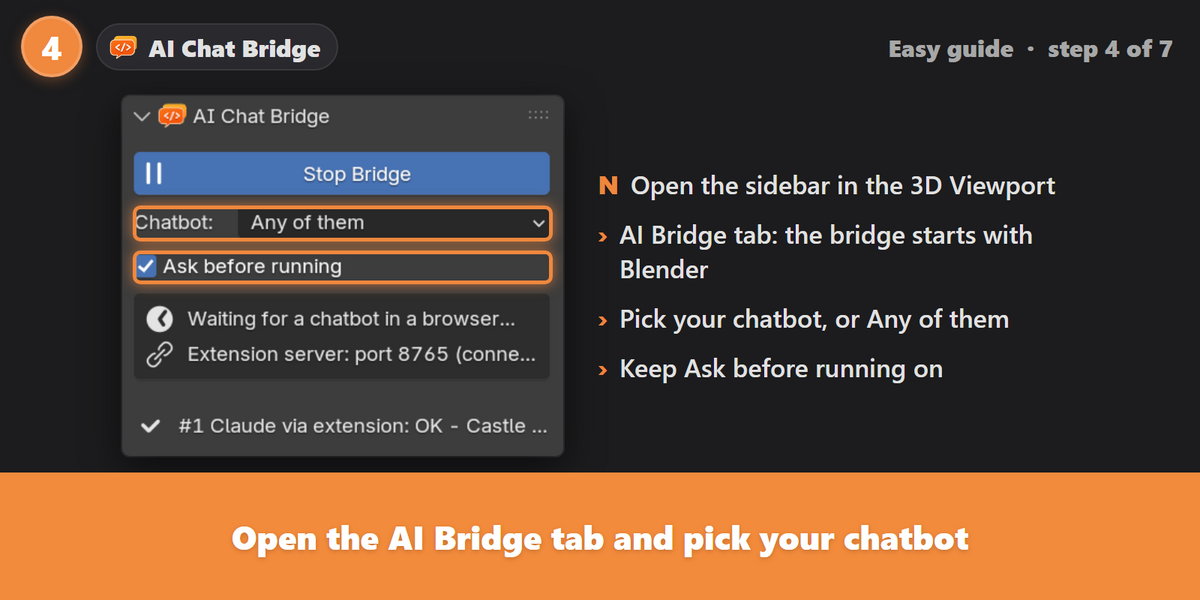
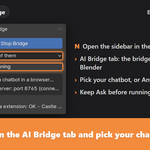
The panel is in the 3D Viewport sidebar: press N and open the AI Bridge tab.
Installing the browser extension
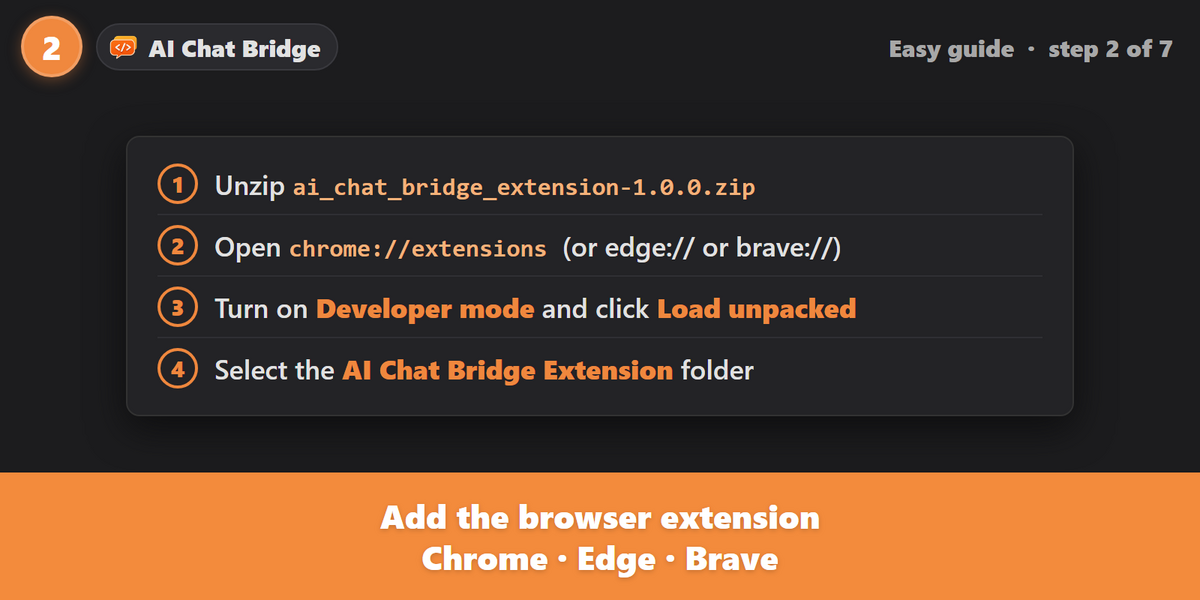
- Unzip
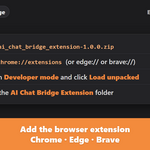
ai_chat_bridge_extension-1.0.0.zipinto a folder you'll keep, for example Documents. It contains the folder AI Chat Bridge Extension. The browser runs the extension from this folder, so don't delete it. - Open
chrome://extensions,edge://extensionsorbrave://extensions. - Turn on Developer mode.
- Click Load unpacked. Click once on the AI Chat Bridge Extension folder, the one with
manifest.jsoninside, and press Select Folder. Don't pick theiconsfolder inside it. - Pin AI Chat Bridge for Blender from the puzzle-piece menu so its icon stays on the toolbar.
Pairing
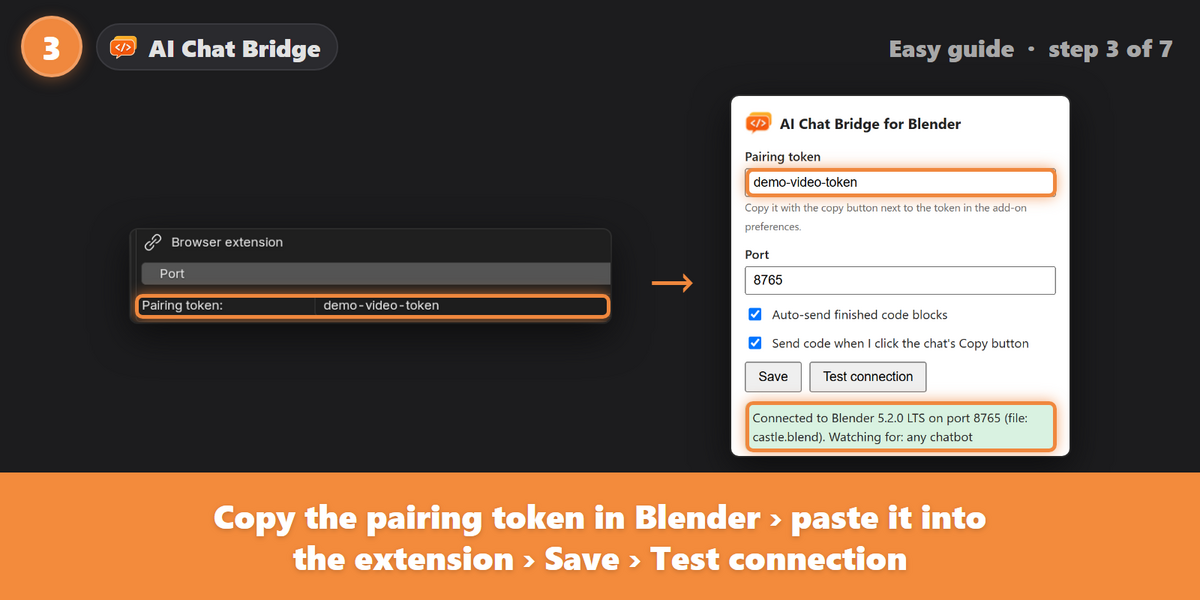
The pairing token is a private key, so only your extension can send code to your Blender.
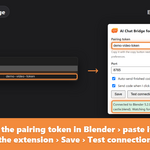
- In Blender, open Preferences › Add-ons › AI Chat Bridge and click the copy icon next to Pairing token.
- Click the extension's icon in the browser, paste the token, and check the Port matches Blender (default 8765).
- Click Save, then Test connection. "Connected to Blender" means it works.
- Refresh any chatbot tabs that were already open.
Using it
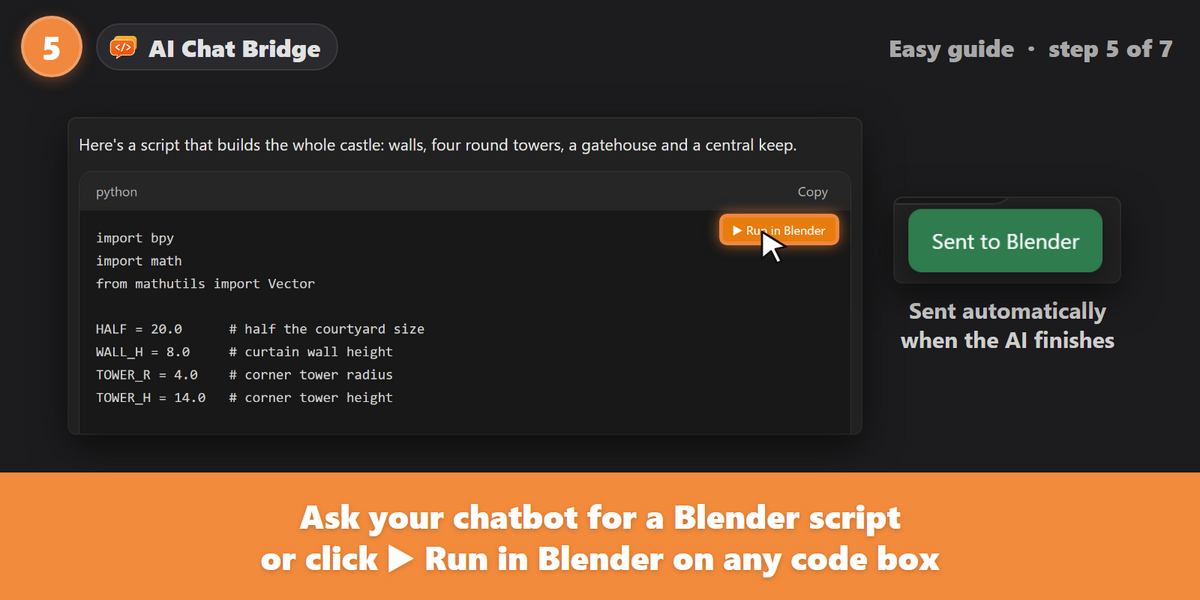
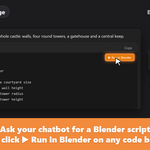
Open a chatbot and ask for a Blender script. A small message at the bottom right of the chat page shows whether it's connected to Blender. There are three ways to send code:
-
Automatically: when the AI finishes writing a code box that uses
bpy, it is sent to Blender. Old code from your chat history is never sent automatically. -
▶ Run in Blender: every Python code box gets an orange button in its top-right corner. It also works for boxes that don't mention
bpy. - The chat's Copy button: copying a Blender script also sends it. This can be turned off in the extension popup.
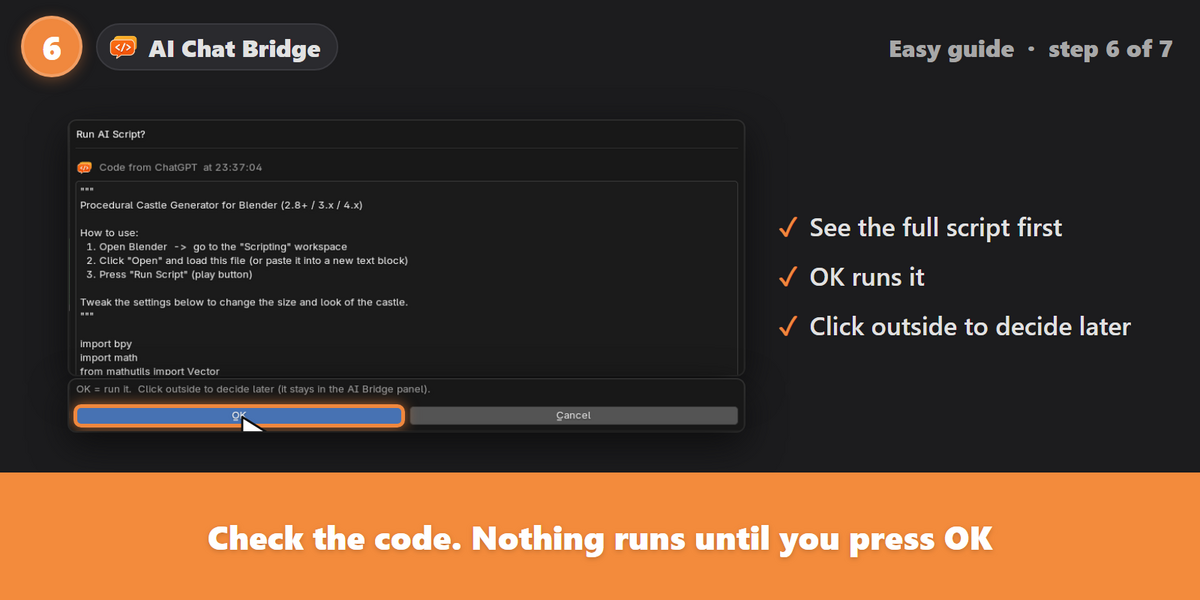
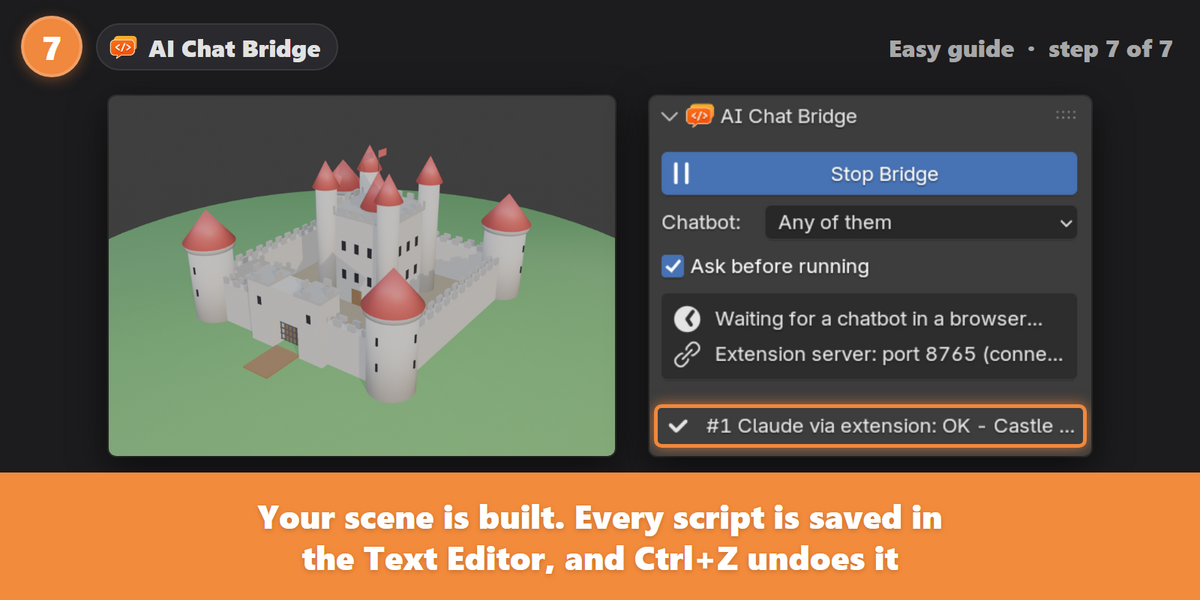
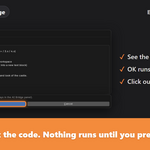
Every script opens in a Run AI Script? window first. Press OK to run it, or click outside the window to decide later. The script then waits in the AI Bridge panel with Run, Open in Text Editor and Discard buttons.
One-click mode
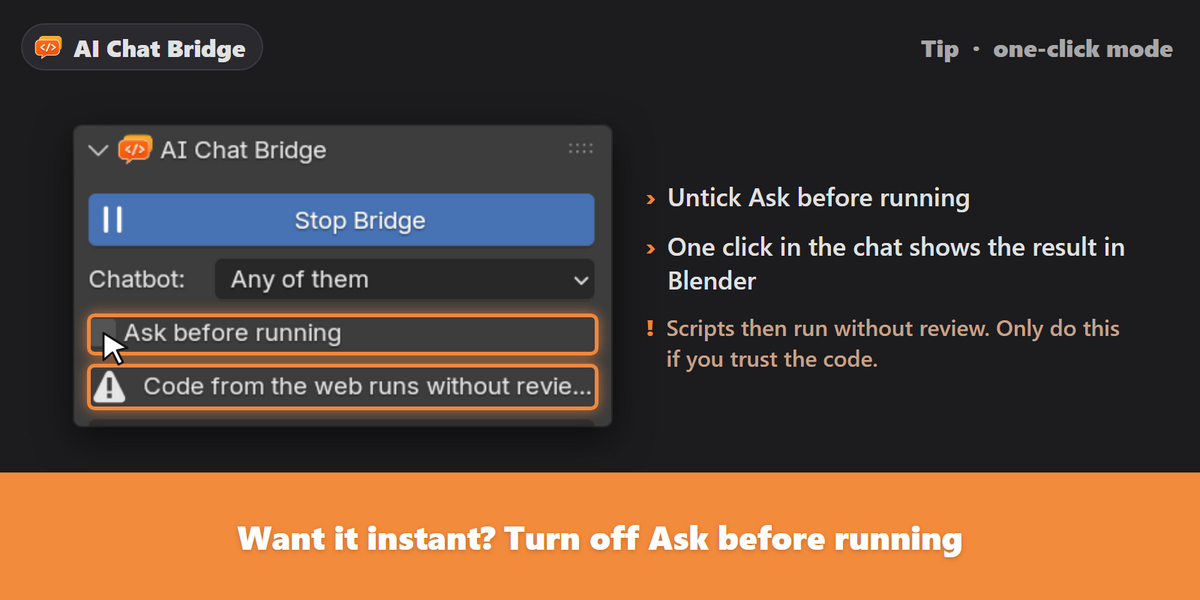
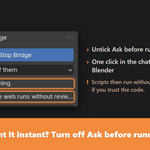
Untick Ask before running in the AI Bridge panel, and one click in the chat shows the result in Blender straight away. Scripts then run without you seeing them first, so only do this if you trust the code. The panel shows a red warning while it's off.
When a script fails
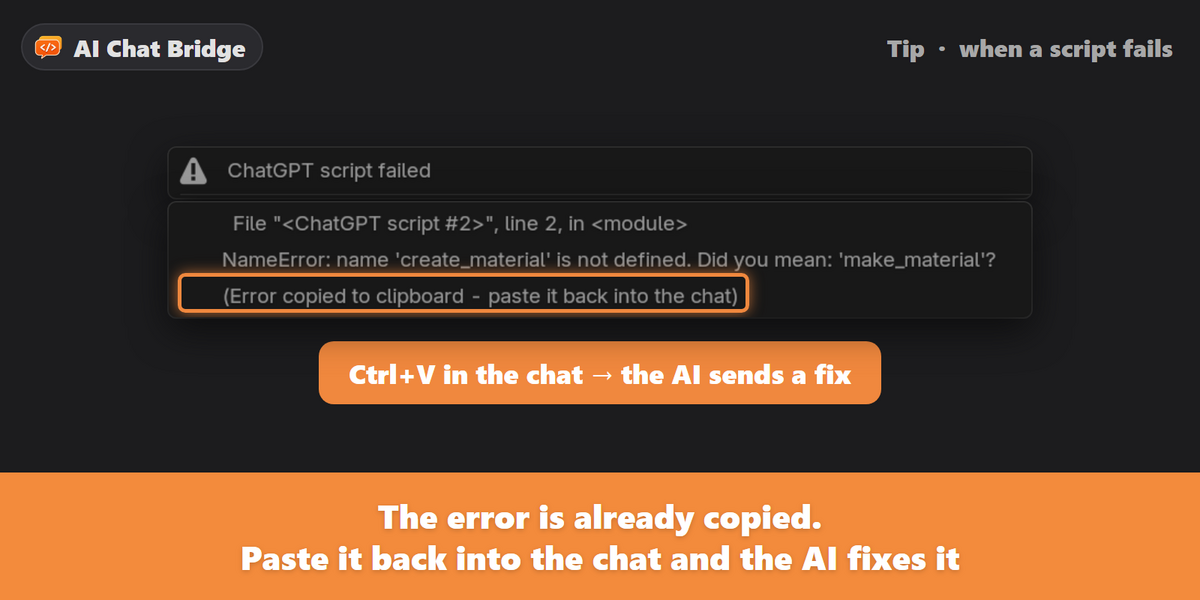
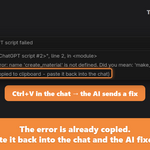
Blender shows the error and copies a ready-made "please fix it" message to your clipboard. Paste it into the chat and send. The fixed script comes back to Blender like any other.
Every script is saved in the Text Editor as AI_<Chatbot>_NNN.py, its output goes to the AI_Bridge_Log text, and Ctrl+Z undoes a script.
Answers split over several code boxes
Run the boxes from top to bottom. Later boxes can use the helpers that earlier boxes defined. Stopping and starting the bridge clears them.
Claude file panel
When Claude puts a script in a file panel at the side, the ▶ Run in Blender button appears on that panel. These files aren't sent automatically. Use the button or Claude's Copy button.
Add-on settings
- Chatbot: only code from this chatbot is accepted. Default: Any of them.
- Start with Blender: starts the bridge automatically. Default: on.
- Port: where Blender listens for the extension. Must match the extension. Default: 8765.
- Pairing token: your private key. The refresh icon creates a new one, and the extension then needs the new key.
- Ask before running: shows each script before it runs. Default: on.
-
Only Blender scripts: automatic sends must use
bpy. Default: on. - Alert when chatbot opens: shows a pop-up in Blender when your chatbot opens in the browser. Default: on.
- Copy errors to clipboard: copies a "please fix" message when a script fails. Default: on.
- Keep scripts in Text Editor: saves every script as a text block. Default: on.
Extension settings
- Auto-send finished code blocks: sends a script when the AI finishes writing it. Default: on.
- Send code when I click the chat's Copy button: copying a Blender script also sends it. Default: on.
- Copy debug info: copies a technical report about the current chat page, for support.
Safety and privacy
- Blender only listens on your own computer (127.0.0.1). Other computers can't reach it.
- Blender only accepts requests carrying your pairing token, and refuses requests from web pages.
- The extension only runs on the supported chatbot sites and only talks to Blender on your computer. Nothing is sent to any other server.
- AI-written code can do anything a Blender script can do. Keep Ask before running on unless you trust the code, and save your work first.
Troubleshooting
- "Blender is not reachable": open Blender and check the AI Bridge panel shows Stop Bridge, meaning it's running. Check the port is the same in Blender and the extension.
- "Blender rejected the token": copy the pairing token from Blender again, paste it into the extension popup and click Save.
- "No pairing token set": pair the extension with Blender (see Pairing).
- "Blender is set to … so code from … is ignored": set Chatbot to that chatbot, or to Any of them.
- "Extension was reloaded. Refresh this page": press F5 on the chat page.
- "Port 8765 is already in use": another Blender is using that port. Close it, or give each Blender its own port.
-
"Manifest file is missing or unreadable" when loading the extension: you picked a folder inside the extension, such as
icons. Pick the AI Chat Bridge Extension folder itself. - Two orange buttons on each code box: two copies of the extension are loaded. Remove the older one on the extensions page.
- No orange button and no message on the chat page: refresh the page. After updating the extension, reload it on the extensions page first.
- The add-on is off after restarting Blender: enable it and click Save Preferences.
Uninstalling
- Blender: in Preferences › Add-ons, click the drop-down arrow at the right end of the AI Chat Bridge row and choose Uninstall.
- Browser: on the extensions page, click Remove on AI Chat Bridge for Blender, then delete its folder.
Version 1.0.0 · by Dani K Daniel · GPL-3.0-or-later
Have questions about this product?
Login to message
| Blender Extension Compatible | Yes |
| Published | about 2 hours ago |
| Blender Version | 4.2 - 5.2 |
| Extension Type | Add-on |
| Render Engine Used | Cycles |
| License | GPL |