 Skava
Skava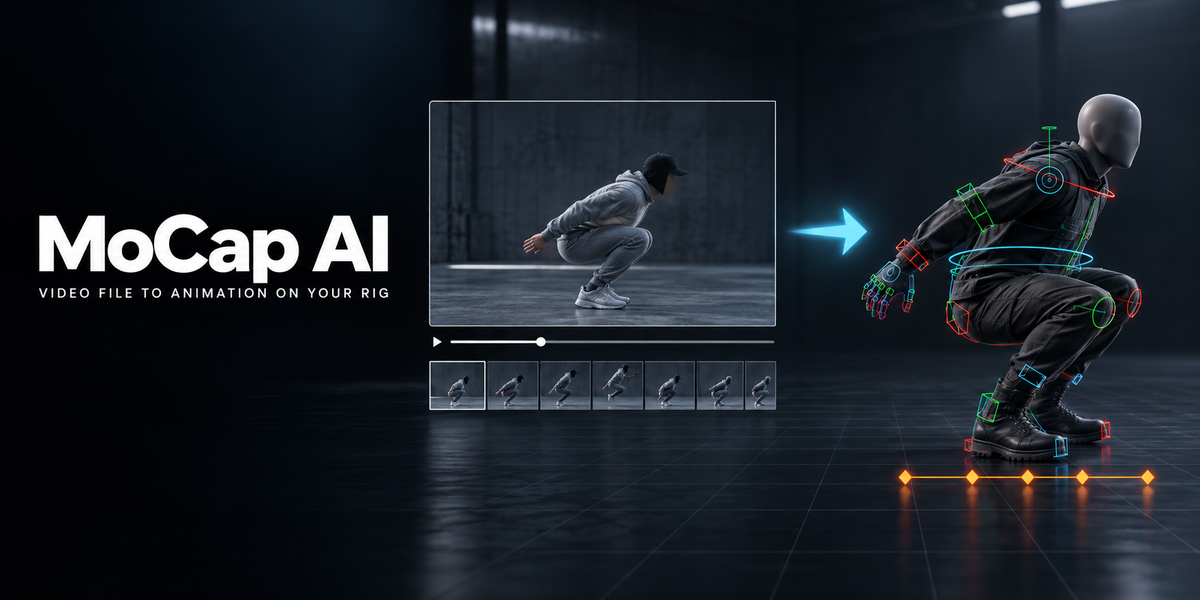
MoCap AI — Documentation
Version 1.3.0 · Blender 4.2 LTS, 5.1, 5.2 · Windows / macOS
1. Install the add-on
- Download the MoCap AI add-on ZIP (do not unpack it).
- Open Edit, then Preferences, then Add-ons, then Install from Disk. Pick the ZIP and enable MoCap AI.
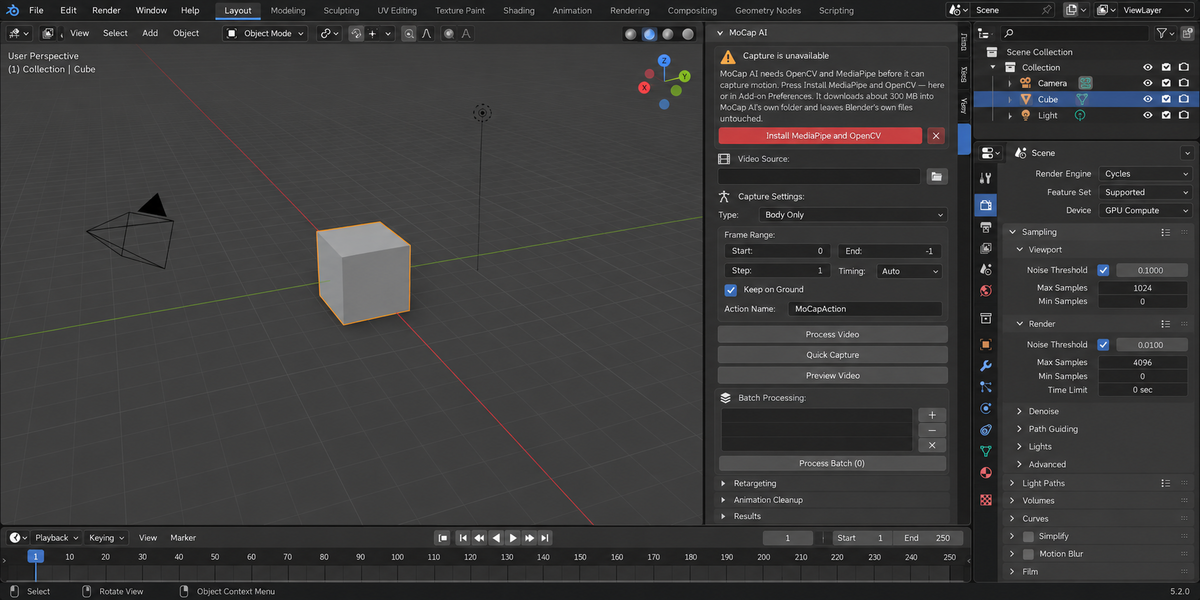
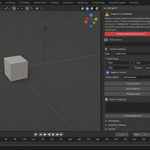
- Press the N key in the 3D Viewport: the MoCap AI tab appears in the sidebar. Press Install MediaPipe and OpenCV there.
2. Dependencies (required)
Capture needs two free Python packages that are not part of Blender:
- mediapipe — the on-device body, face and hand estimator (the add-on uses the modern MediaPipe Tasks interface).
- opencv-contrib-python — decodes the video.
Both run entirely on-device. Nothing is uploaded anywhere. The pose, face and hand landmark models are already bundled inside the add-on, so there is no separate model download and nothing to fetch at run time.
The Install button
Until the packages are present, the MoCap AI panel and the add-on's entry in Preferences both show an Install MediaPipe and OpenCV button. It downloads about 300 MB — MediaPipe, OpenCV, NumPy 2 and what they depend on — into a folder that belongs to MoCap AI, named mocap_ai_deps, inside the scripts folder next to your Blender settings. Blender's own files are not changed. The status bar shows what the installer is doing while it works; the button is disabled while an install runs, and the Cancel Install button next to it stops it. When it finishes, capture is available in the same session.
If the install fails, the message says why in plain words — no connection to the package index, or a settings folder that cannot be written — followed by what the installer itself reported. A folder that is incomplete — an install that was interrupted or cancelled — is recognised as such: press Install again, or Remove Packages.
Remove Packages, in the add-on's entry in Preferences, deletes that folder. It only touches a folder MoCap AI created and never deletes through a link. On Windows the libraries a capture has loaded are locked until Blender exits: the button then says so, and pressing it again after a restart finishes the job. Install in that same session is refused for the same reason, before anything is downloaded. A folder that is incomplete is never loaded from. The installer keeps its own download cache elsewhere on the disk; that cache is not removed.
What the packages do to your Blender session
Blender's files are untouched, but one Python process can hold only one NumPy. Blender 4.2 ships NumPy 1 and MediaPipe needs NumPy 2, so while MoCap AI is enabled the session — every add-on in it — gets NumPy 2 from MoCap AI's folder. If another add-on of yours needs NumPy 1, disable MoCap AI while you use it. Blender 5.x ships NumPy 2 itself; there Blender's NumPy stays the session's NumPy and MediaPipe uses it. Disabling MoCap AI takes its folder off Python's path; modules already loaded stay loaded until Blender restarts.
The versions it installs
MediaPipe from 0.10.30 up to but not including 1.0, OpenCV from 4.10 up to but not including 5.1, and NumPy 2.
The upper bound on MediaPipe is not optional. On macOS, loading any capture model from MediaPipe 1.0 aborts Blender outright: the window disappears with no error and no chance to save. An add-on cannot catch that, so MoCap AI reads the installed version before it touches the capture interface and refuses that build in plain words.
Which Blender can capture
Blender 4.2 LTS, 5.1 and 5.2. Versions of MoCap AI before 1.3.0 refused to capture on Blender 5.x; that was correct for MediaPipe's older builds and is no longer true, because since 0.10.30 MediaPipe ships one build per platform for every Python 3.
Installing by hand
Only needed on a machine where Blender has no internet access. Use Blender's own Python and its built-in installer, give it the version ranges above, and point it at the mocap_ai_deps folder. The README included with the add-on has ready-to-paste commands for Windows and macOS. Restart Blender afterwards. The folder is checked the first time Blender starts with it, which takes a few seconds; if MediaPipe, OpenCV and NumPy load from it, it is used. Pressing Install does the same check before downloading anything. A folder left by MoCap AI 1.2.0 is taken over the same way. A folder made this way is yours: Remove Packages leaves it alone, and to remove the packages you close Blender and delete the folder.
3. Quick start
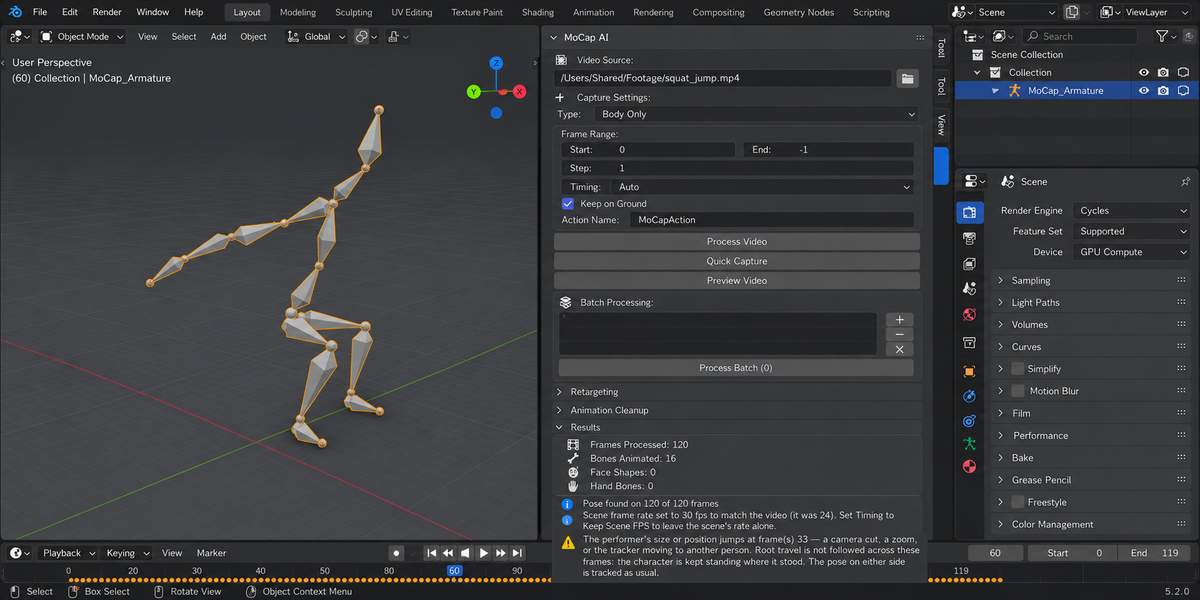
- Pick a video file (Video Source).
- Pick a Capture Type: Body, Body plus Face, Body plus Hands, or Full.
- Say which armature to animate (section 4), or leave the scene without one.
- Click Process Video.
The file does not have to be saved first, and nothing is written to disk during a capture. What the capture changed or could not do is listed in the Results panel.
4. Which armature is animated
One rule for every button — Process Video, Quick Capture and the clean-up buttons — and never a guess:
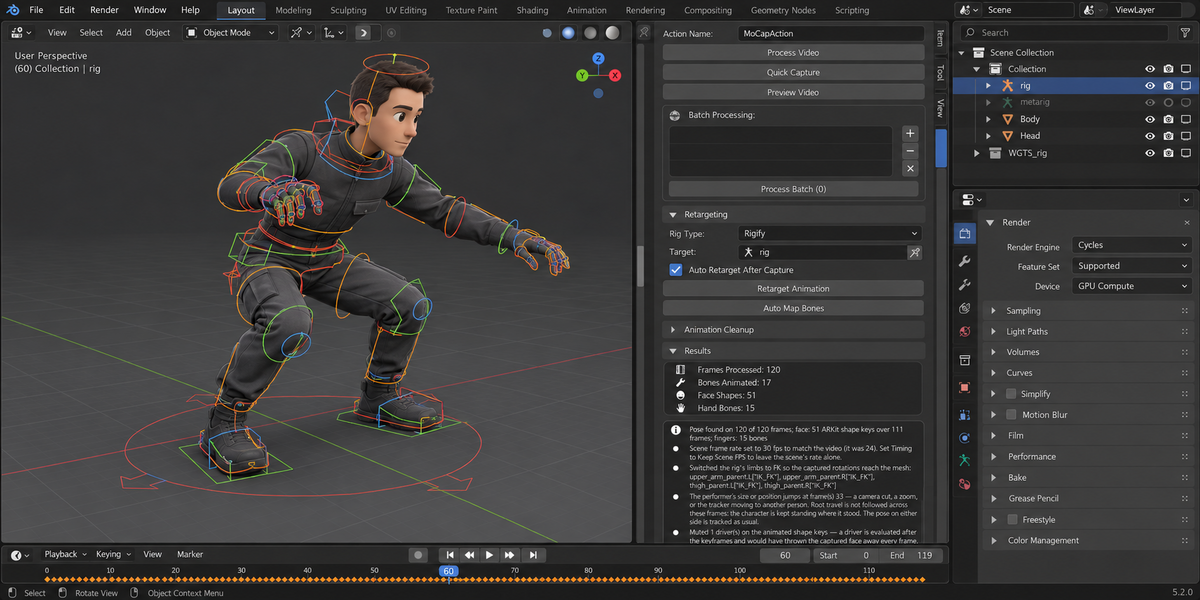
- the Target picked in the Retargeting panel, when Auto Retarget is on, with the rig type chosen there;
- otherwise the active object, if it is an armature;
- otherwise the only armature in the scene, if there is exactly one — the Results panel says so;
- in a scene with no armature at all, MoCap AI builds its own 18-bone armature;
- with several armatures and none chosen, the capture stops and says what to pick, including when a Target is picked but Auto Retarget is off.
A rig linked from a library file cannot keep animation in your file. The capture stops and says so: make a library override first (Object, Library Override, Make) and pick the override.
For rules 2 and 3 the rig is recognised by what it is: a Rigify, Auto-Rig Pro or Mixamo rig gets its own control names; any other rig has its bones looked up by the body part in the bone's name.
An action the armature already had is kept: it gets a fake user and the Results panel names it. A capture that cannot be completed puts everything back as it was — the rig's action, IK and FK switches and rotation modes, the scene's frame rate and frame range — and leaves nothing behind. The capture gives back the mode it was started in.
5. What gets animated
- Limbs — upper arm, forearm, hand, thigh, shin and foot on each side. Each bone points where the tracker says the performer's limb points.
- Pelvis, spine and head — full orientation, so a turn of the shoulders or the head is a turn and not a lean. The chest's turn is spread over the spine bones the rig has.
- Root height comes from the rig's own limbs — see Keep on Ground below.
- Root travel sideways is the hips' distance from the camera's axis, worked out per frame from the performer's size in the picture, so a zoom or a walk towards the camera is not read as travel. Travel towards or away from the camera is not tracked: one camera gives no trustworthy distance.
- Size — travel and jump height are carried over by leg length.
- Camera cuts and zooms — a sudden change in the performer's size or position is not taken for movement. The Results panel names the frame, and the character is kept standing where it stood.
- Fingers, in Body plus Hands and Full — three bones per finger, on rigs that have finger bones.
- Face, in Body plus Face and Full — see section 12.
A joint the tracker cannot see gets no key on that frame. MediaPipe still returns a guess for hidden joints; in a waist-up video the legs therefore stay at rest. The Results panel says on how many frames the performer was found.
Keep on Ground
On by default: on every frame the lowest part of the rig's body is on the floor — the feet when standing or squatting, the hands in a handstand, the pelvis when sitting on the floor. The height of the hips comes from the rig's own limbs, so the feet do not hover or sink on a rig whose legs are not the performer's. The cost is that nothing ever leaves the floor: a jump is flattened, a step up onto a box stays at floor level, and a performer on a chair with dangling feet is seated lower than the chair. When the picture shows the performer more than 0.06 m off the floor on two frames or more, the Results panel says so; a standing performer reads up to 0.05 m, so less than that is not reported.
It is the rig's bones that meet the floor, not the surface of the mesh. Feet are thin, so standing looks right; lying down, the mesh sinks below the floor by about half the thickness of the body.
Turn it off to capture jumps and steps. The height above the floor is then read from the picture: where the floor line is for the performer's distance, and how far the lowest point of the body is above it. That needs a camera that does not move — a picture shaking by 3 percent of its height is the same picture as a performer hopping 15 to 20 centimetres — and a performer who stands on the floor for part of the clip.
6. Frame range and timing
Start Frame, End Frame and Frame Step select which video frames are read. Timing decides what happens when the video's frame rate is not the scene's:
- Auto, the default — the scene takes the video's frame rate when nothing in the scene is animated yet. If something is, the scene's rate is kept and the motion is resampled onto the scene's frames. Animated means an action, an NLA strip or a driver that reads the frame number, on any object of the scene, its data, its shape keys or materials, on the world or on the scene — the rig about to be animated included, if it already has an action. Simulations, geometry nodes, Grease Pencil frames and the sequencer are not looked at; for such scenes set Timing to Keep Scene FPS.
- Match Scene FPS — the scene always takes the video's rate. Other animation in the scene then plays faster or slower.
- Keep Scene FPS — the scene's rate is never changed; the motion is resampled, with a key on every scene frame.
When the scene has the video's rate, one video frame is one scene frame: Start Frame 10 with Frame Step 2 places keys on frames 10, 12, 14 and so on. In every case the clip lasts as long in Blender as it does in the video, the scene frame range is set to match, and the Results panel says what was done. Resampling interpolates between video frames; at a lower scene rate, detail faster than the scene's frames is averaged away. A file that reports an impossible frame rate — variable-rate recordings report 1000 or 90000 — leaves the scene's rate alone and says so.
7. Model accuracy and detection confidence
In the add-on Preferences, Model Accuracy controls how strictly a landmark must be present before it is accepted: Fast is the loosest and keeps more frames, Balanced is in between, and Accurate is the strictest for cleaner tracking. Detection Confidence is the minimum confidence for a pose to be accepted; lower it if a valid subject is being missed. Both settings drive the MediaPipe Tasks options directly.
8. Batch processing
Add several videos to the Batch list at the bottom of the sidebar. Each video becomes its own body action named after the file, or a per-item override, and, when a face is captured, its own face action with _Face added to the name. The batch runs sequentially with the same settings; the last video's actions are the ones left assigned, and the others stay in the file.
9. Smoothing and Remove Jitter
Smoothing is a Gaussian filter on the curves: None, Low, Medium, High. Higher is smoother but rounds off fast movements: on the test clip Medium kept the limbs within 1.4 degrees of the tracker on average and let the fastest frames drift by up to 24. Set it to None to keep every frame exactly as tracked.
Remove Jitter is a separate button. It levels out a channel only where it stays within a hair's breadth of one value for at least half a second — a channel at rest with tracker noise on it. Anything that is moving, however slowly, is left alone, and the button reports how many keys it levelled.
10. Retargeting
Pick your character's rig as Target, leave Auto Retarget on, and choose its type. Rigify, Auto-Rig Pro and Mixamo are found by their own control names and nothing else; Custom recognises those three by the rig itself and otherwise finds bones by the body part in the bone's name. Auto Map Bones tells you how many it recognised. The pose is solved on the target rig directly: each bone's rotation is worked out parent-first against Blender's own evaluation of the rig and then checked against it, so the result does not depend on the rig's rest pose, bone rolls, helper bones or constraints between controls.
On Rigify and Auto-Rig Pro the limbs are switched to FK, because the captured rotations are keyed on the FK controls; the Results panel names the switches it changed. Bones that a constraint drives are skipped and named rather than keyed in vain.
Retarget Animation copies the animation of the active armature onto the Target with the same solver, FK switch included.
11. Fix Foot Sliding
Off by default. It holds the standing foot where it touched down by correcting the root's travel, and brings feet that hover or sink a little onto Ground Height. It is meant for shots where a foot is planted on the floor most of the time. It takes the travel out of a run, and out of any stretch where both feet are off the ground while Keep on Ground is on, because then one foot is always on the floor. Set Ground Height to the floor the character stands on; if the feet are found far from it, the button says where they are instead of doing nothing. The status line reports how many frames a foot was held on. If the hips were never visible there is no root travel to correct, and the button says so.
12. Face capture: Faceit, ARKit and MetaHuman rigs
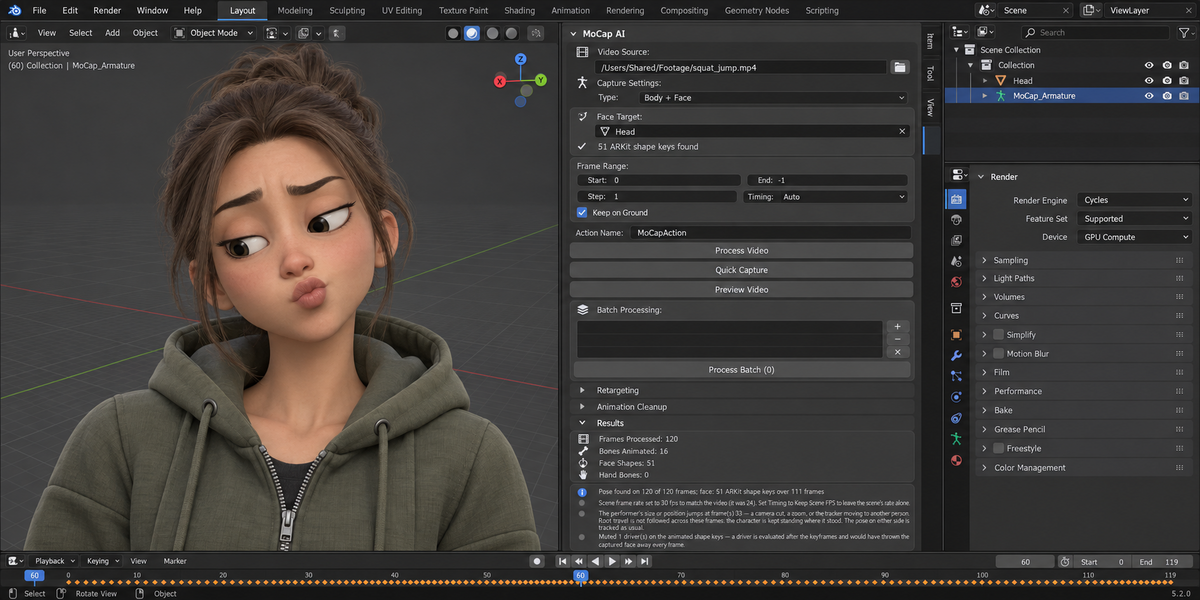
If your character already carries ARKit shape keys — what Faceit builds, and what ARKit, Live Link Face and MetaHuman exports contain — MoCap AI drives them directly. The face model bundled with the add-on carries a blendshape head whose outputs are named exactly like the ARKit set, so a captured value lands on the shape key your rig already uses. Nothing has to be mapped by hand.
- Set Capture Type to Body plus Face, or to Full.
- Pick the character's mesh in Face Target. The panel tells you how many ARKit shape keys it found on it. Left empty, the first mesh under the armature that has ARKit shape keys is used.
- Capture. Every matching channel is keyframed into a new action named after the body action with _Face added; an action the mesh already had is kept. Anything the model predicted that your rig has no shape key for is reported by name instead of being dropped in silence.
Spelling does not have to match exactly: jawOpen, jaw underscore open and JawOpen are all recognised as the same shape.
Drivers are muted on the channels MoCap AI animates. On control rigs a shape key value is usually driven, and a driver is evaluated after the keyframes — leaving it in place would throw the captured face away on every frame while the report still claimed success. The report says how many drivers were muted, so you can put them back if you want them.
MoCap AI never creates shape keys. A mesh without ARKit shape keys gets no face animation, and the Results panel says so. Versions up to 1.2.0 added eight empty shape keys to such a mesh and keyed those; they deformed nothing.
If no face was found in the footage, MoCap AI says so. It does not report a successful capture of nothing. In a full-body shot the face is small; when the face model finds nothing in the whole frame, MoCap AI looks again at the head region the body tracker reports.
13. Preview Video
Loads the clip once and shows it as the scene camera's background (look through the camera to see it) and in a Movie Clip Editor if one is open. Background images are switched on for that camera, so its other backgrounds show too; the message says so. The scene's frame range is not changed. With no camera and no Movie Clip Editor the button says there is nowhere to show the clip.
14. Troubleshooting
MediaPipe or OpenCV not installed — press Install MediaPipe and OpenCV in the panel (see section 2).
Files in the package folder are in use by this Blender session — on Windows, after Remove Packages in a session that has captured. Restart Blender, then press Install or Remove Packages again.
The package folder is incomplete — press Install again to complete it, or Remove Packages (after restarting Blender, if files were in use) to delete it.
Installed but cannot be loaded — the message gives the reason. On Blender 4.2 the usual one is that another add-on loaded Blender's older NumPy before MoCap AI started; restart Blender, and if the message stays, disable that add-on while capturing.
The scene has several armatures and none of them is chosen — pick the rig as Target in the Retargeting panel with Auto Retarget on, or make it the active object.
A Target is picked, but Auto Retarget is off — the Target is then not used by the capture. Turn Auto Retarget on, or make the armature you mean the active object.
The rig is linked from a library file — a linked object cannot keep animation in this file. Make a library override (Object, Library Override, Make) and pick the override as Target.
The package folder was not filled by this version's Install button, and what is in it does not load — a hand install or an earlier version left packages that cannot be used; the message quotes why. Press Install to complete the folder, or close Blender, delete the folder and install again.
The character does not jump — Keep on Ground is on. Turn it off; the camera must not move.
The character bobs up and down — Keep on Ground is off and the camera moves. Turn it on.
The armature is switched to Rest Position — switch it to Pose Position in the Armature properties.
The armature is not being evaluated — the rig is hidden or excluded from the view layer and nothing visible depends on it. Make it visible and capture again.
No person was found — the subject is too small, too dark or mostly hidden. Lower Detection Confidence in Preferences or try a different video.
None of the tracked bones could be placed — the rig has no bones under the names of the chosen rig type; when the rig is recognised as another type, the message names it. Switch the type to match or to Custom, and press Auto Map Bones to see how many bones are recognised.
No face animation was written — the face mesh has no ARKit shape keys, or no mesh was picked in Face Target.
15. Compatibility and limitations
- Blender 4.2 LTS, 5.1 and 5.2, capture included, on Windows and macOS. Linux uses the same code and the same MediaPipe builds but has not been run by us.
- The MediaPipe 1.0 abort described in section 2 was measured on macOS. MoCap AI refuses that version on every platform.
- One performer is tracked. With several people in frame MediaPipe picks one and may change its mind; a jump from one person to another is reported like a camera cut.
- The floor. With Keep on Ground on, the default, nothing leaves the floor: jumps, steps up and sitting on a chair come out at floor level, and it is the bones, not the mesh surface, that are put on the floor — lying down, the mesh sinks by about half the body's thickness. With it off the camera must not move — a hand-held or panning camera lifts and drops the character — and the performer must stand on the floor for part of the clip. Footage shot entirely off the floor has no floor to find.
- Travel towards or away from the camera is not captured. Twist along a limb's own axis, such as forearm roll, is not captured either: two joints define a direction, not a roll.
- On rigs whose rest pose has the arms down, an arm that is raised overhead and brought down by another way than it went up — up through the side, down through the front — has its roll brought back over up to 30 frames, 6 degrees a frame, on the way down.
- The tracker's sense of depth is approximate. A performer standing upright usually comes out leaning 10 to 20 degrees forward, and the head a little more. MoCap AI passes the tracker's depth on as it is.
- Shoulders (clavicles) are not animated.
- A webcam is not read live: record the clip, then process the file.
- Auto-Rig Pro control names are built in, but that rig is not part of our test set; Rigify (the standard human and basic human meta-rigs), Mixamo-named rigs and a plain humanoid are. A Rigify rig whose spine is not the standard four bones gets a warning: its chest turn may be off.
- Face capture drives ARKit shape keys that already exist on your mesh. It does not create or sculpt them; Faceit and comparable tools build them.
- Capture runs on the main thread; long videos block the UI while the progress indicator advances.
16. Changelog — version 1.3.0
- The skeleton now takes the pose the tracker reports. Rotations were computed in armature space and written as local bone rotations, with the bone hierarchy ignored: keys were written, bones moved, and the pose was not the one in the video. Measured on a real clip, a bone pointed on average 74 degrees away from the direction the tracker gave for its limb, and 89 on Rigify, where a random direction gives 90. The pose is now solved parent-first against Blender's own evaluation of the rig and checked against it. On our 120-frame test clip, with Smoothing set to None, the same angle over 10 limb bones is 0.0 degrees on MoCap AI's armature, a plain humanoid, a Mixamo-named rig and the deforming bones of a Rigify rig; with the default Medium smoothing it averages 1.4 degrees and reaches 24 on the fastest frames. This measures that the rig does what the tracker says, not how right the tracker is.
- The Install button finishes on Windows. The installer's output went into a pipe that was only read after the installer had exited; it filled the pipe, blocked, and the button said downloading for ever. Measured on Windows 11: 25 minutes, nothing installed. The output is now read continuously and shown in the status bar. The button is disabled while an install runs, Cancel Install stops it, an incomplete folder is recognised as incomplete, and a Remove Packages button deletes the folder.
- Capture works on Blender 5.1 and 5.2. The add-on refused to capture there, saying MediaPipe had no build for Python 3.13. It has had one since 0.10.30. On Blender 5.x MediaPipe now uses Blender's own NumPy.
- A first capture no longer ends in a traceback. Frames were written to a cache folder whose default resolved to an unwritable place in a file that had never been saved. Frames are now decoded in memory; the cache, its preference and the Clear Frame Cache button are gone, and so are the roughly 2 MB per frame it left on disk.
- The character stands on the floor. Root height is taken from the rig's own limbs (Keep on Ground, on by default) or, with that off, from the limbs plus how far the picture shows the body off the floor, instead of from where the hips are in the picture. Camera cuts and zooms are not read as the performer flying, and travel and jump height are scaled by leg length. On the test clip, which has one cut, the feet stay within 2 mm of the floor on all 120 frames at default settings.
- The armature is never guessed. With several armatures in the scene and none chosen, the capture took the first one and replaced its action. It now stops and says what to pick; every button follows the same rule, and a Rigify, Auto-Rig Pro or Mixamo rig is recognised without being told. An action the rig already had is kept with a fake user, and a capture that fails puts the rig and the scene's frame rate back as they were.
- Fingers and limbs move on Rigify. Finger keys went to the DEF bones, which copy other bones through constraints and ignore their own keys, and every finger chain started one joint too early. Keys now go to the finger controls. Limbs are switched to FK, in capture and in Retarget Animation, so the keyed rotations reach the mesh.
- Joints out of frame are left alone instead of receiving the tracker's guess. In a waist-up video the legs stay at rest.
- The clip keeps its length. A 30 fps video in a 24 fps scene played for 5 seconds instead of 4. Timing decides whether the scene takes the video's frame rate or the motion is resampled onto the scene's frames; the scene's rate is not changed when other animation is in the scene unless you ask for it. Simulations, geometry nodes, Grease Pencil frames and the sequencer are not looked at; for such scenes set Timing to Keep Scene FPS.
- Face: nothing is created, and nothing is left over. A mesh without ARKit shape keys no longer receives eight empty ones. Each capture writes its face into a new action, so a shorter clip no longer keeps the tail of a longer earlier one, and a batch gives each video its own face action. The estimate of eight expressions from landmark distances is removed.
- A bone no longer spins when its target is opposite its rest direction. Arms that rest hanging down and are raised overhead rolled by up to 175 degrees in one frame. On an arm circling overhead the roll now changes by 2 to 12 degrees a frame, a repeated movement repeats exactly, and an arm raised and held still stays still.
- Fix Foot Sliding does something. It looked for location keys on the feet, found none, changed nothing and reported success. It now holds the standing foot by correcting the root, is off by default, and is described for what it is: a tool for shots where a foot is planted most of the time.
- Smoothing no longer runs Remove Jitter behind your back. Medium turned a slow, steady movement into a staircase. Remove Jitter is its own button and only levels channels that are at rest.
- Preview Video works. It failed on every press, after changing the scene's frame range and loading another copy of the clip.
- Left is left: MoCap AI's own armature had its arms mirrored and a 0.3 m torso, and depth was flipped. Faces are found in full-body shots by looking again at the head region. Only one OpenCV package is installed, and OpenCV and NumPy are version-bounded like MediaPipe. What a capture changed or could not do is listed in the Results panel. Batch Add, Remove and Clear can be undone.
17. Changelog — version 1.2.0
- Face capture could not survive a detected face. Face and hand landmarks carry a visibility value that is empty, and the converter passed it straight to a number conversion; the first frame where a face was actually found raised an error and the capture died. Fixed, and covered by a regression test.
- MediaPipe 1.0 no longer takes Blender down with it. That build aborts the process when a capture model is loaded, which is not something an add-on can catch. MoCap AI now checks the installed version before touching the capture interface and refuses in plain English instead.
- New Install button in Add-on Preferences: one click installs the two packages, at the versions MoCap AI is tested with, into a folder of its own. Blender's own packages are left untouched.
- Face capture now drives ARKit shape keys directly, so Faceit, ARKit and MetaHuman rigs are animated on the names they already use. Drivers on the animated channels are muted so the capture cannot be silently overwritten.
- Channels your rig has no shape key for are named in the report. A capture that found no face says so instead of reporting success.
- Long panel messages wrap to the real panel width instead of being cut in the middle.
- Stated compatibility was corrected to Blender 4.2 through 5.2 for the add-on itself. (1.2.0 also said capture needed 4.2 LTS; 1.3.0 captures on 5.1 and 5.2.)
18. Support and License
Through marketplace messaging. GPL-3.0.
Changelog
1.3.0 — The skeleton now takes the pose the tracker reports: bone rotations are solved parent-first against Blender's own evaluation of the rig and checked against it, instead of being written in the wrong space. The Install button finishes on Windows, where it waited for ever on a full pipe. Capture works on Blender 5.1 and 5.2. A first capture in an unsaved file no longer ends in a traceback: frames are decoded in memory and the frame cache is gone. The character stands on the floor, and camera cuts are not read as movement. The armature is never guessed, a previous action is kept, and a failed capture puts the rig back. Fingers and limbs move on Rigify. The clip keeps its length whatever the scene's frame rate. No shape keys are created on your mesh. Fix Foot Sliding corrects the root instead of doing nothing and is off by default, and Smoothing no longer runs Remove Jitter.
1.2.0 — Face capture could not survive a detected face: an empty visibility value on face landmarks raised an error on the first frame where a face was actually found. Fixed. MediaPipe 1.0, which aborts Blender when a capture model is loaded, is now refused in words before it can. Add-on Preferences gained an Install button that fetches the two packages at the tested versions into a folder of MoCap AI's own, leaving Blender's packages untouched. Face capture now drives ARKit shape keys directly, so Faceit, ARKit and MetaHuman rigs are animated on the names they already use, and drivers on those channels are muted so the capture is not silently overwritten.
1.1.1 — The add-on panel draws again on Blender 5.x. It asked for an icon named STACKED, which no longer exists, and a bad icon name aborts the whole draw — the MoCap AI tab came up empty, with nothing in it to click. Every icon name in the add-on is now checked against Blender's own list.
Have questions about this product?
Login to message
Discover more products like this
body tracking hand tracking face-tracking animation mocap pose estimation motion capture live link vtubing webcam retarget mediapipe