 Skava
Skava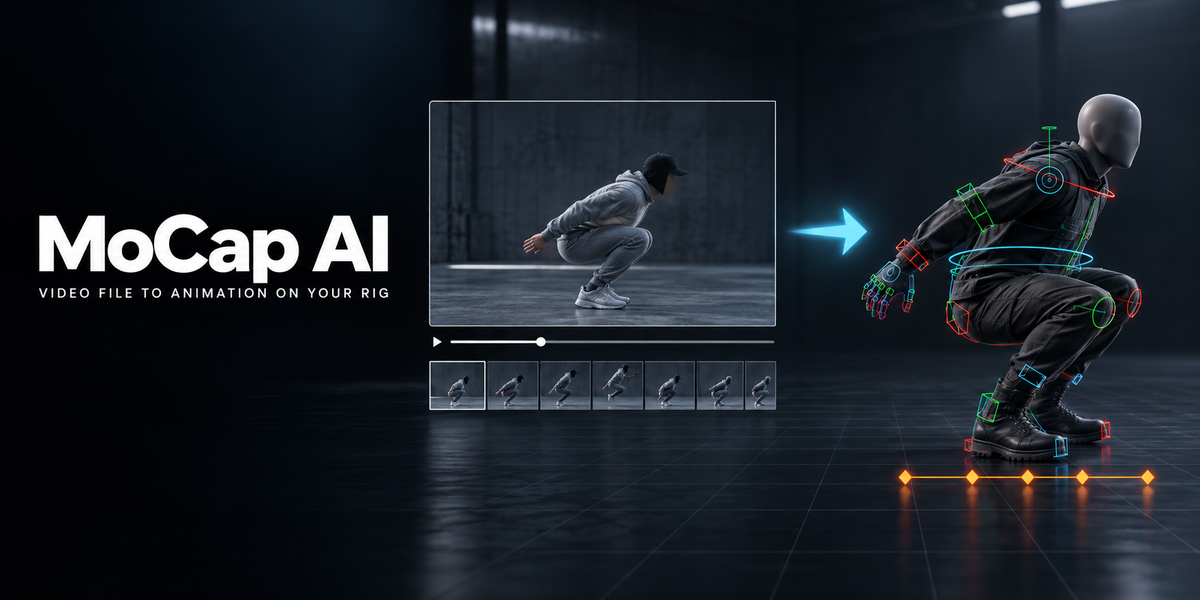
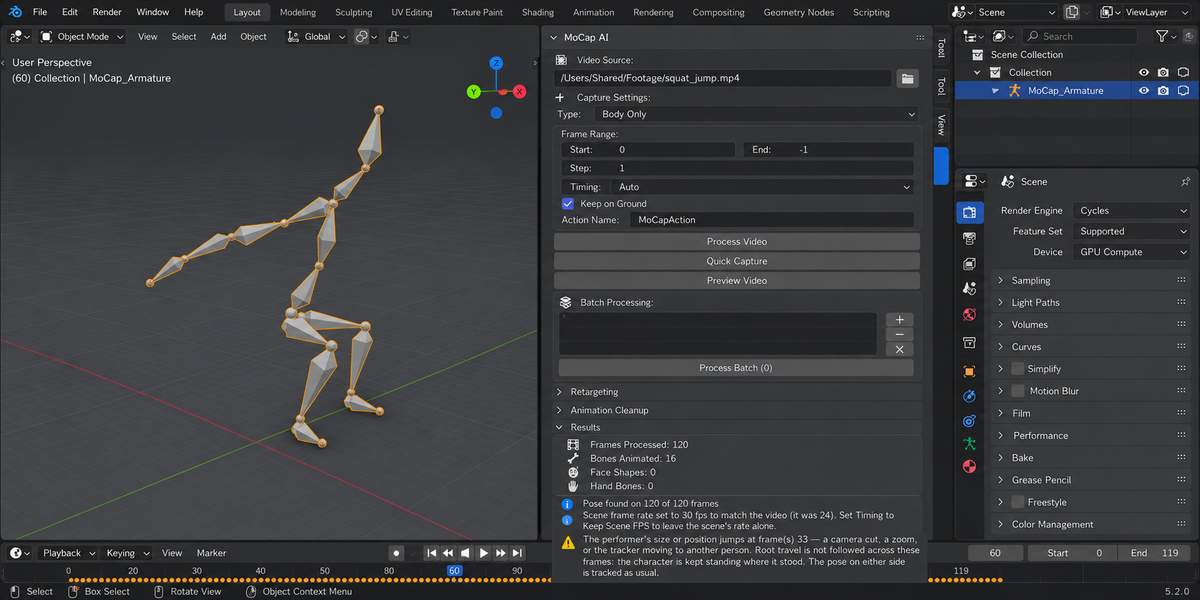
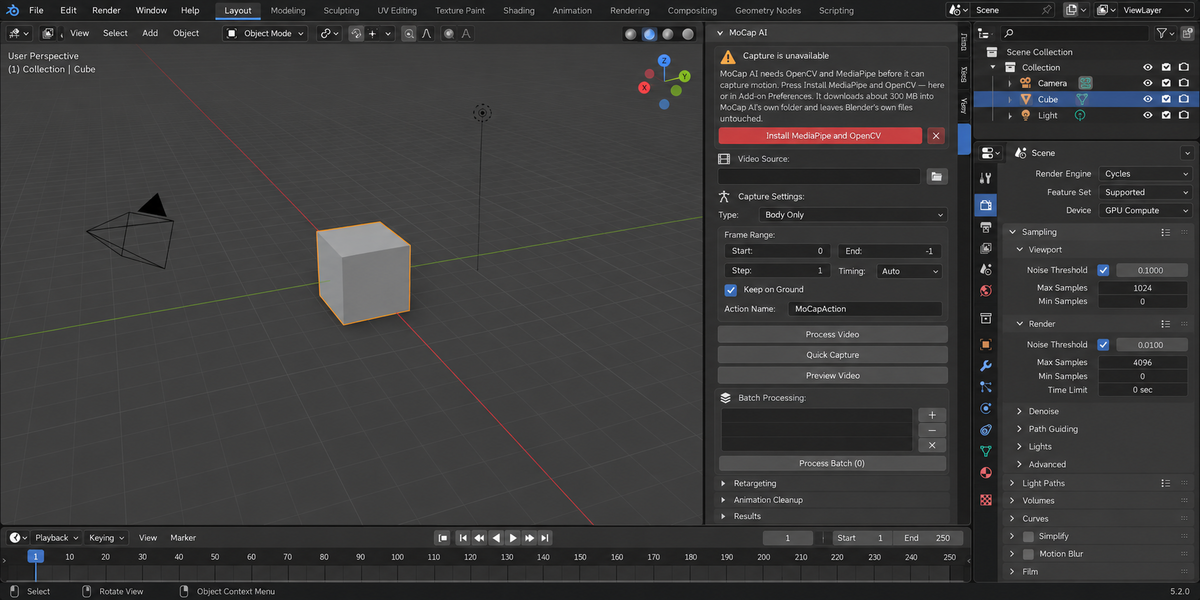
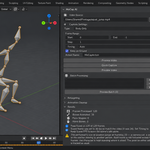
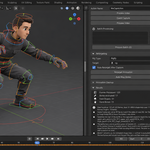
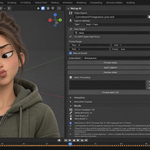
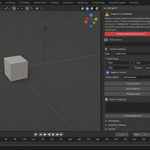
AI Mocap Studio (MoCap AI in Blender) — Video-to-Armature Motion Capture
MediaPipe-powered body, face and hand tracking with retargeting. 100% local on your machine. No cloud, no marker suit, no network during capture — just a video and a click.
Why MoCap AI
Traditional mocap needs a suit, a stage, and a five-figure budget. AI pose estimation runs on ordinary phone or webcam footage and is good enough for indie game characters, virtual influencers, and animatic blocking. MoCap AI plumbs it into Blender's animation system with proper retargeting so the output drops onto your existing rig. Everything runs on your own computer with Google MediaPipe — your footage never leaves the machine.
Features
- Local MediaPipe capture (modern Tasks interface) — body, face, hand bones, or full body; landmark models are bundled, so capture runs fully offline
- The pose is solved, not copied. Each bone's rotation is solved parent-first against Blender's own evaluation of your rig and then checked against it, so a bone points where the tracker says the limb points — measured on rigs with different rest poses, bone rolls and helper bones. Joints the tracker cannot see are left alone instead of receiving a guess
- The character stands on the floor. Keep on Ground (on by default) takes the height of the hips from the rig's own limbs, so the feet do not hover or sink; turn it off to capture jumps and steps from a camera that does not move. Camera cuts and zooms are not read as movement
- Your scene is not guessed at. The capture animates the Target you pick, the active armature or the only armature there is, builds its own only in a scene that has none, keeps the action the rig already had, and puts the rig and the scene's frame rate back if it cannot finish
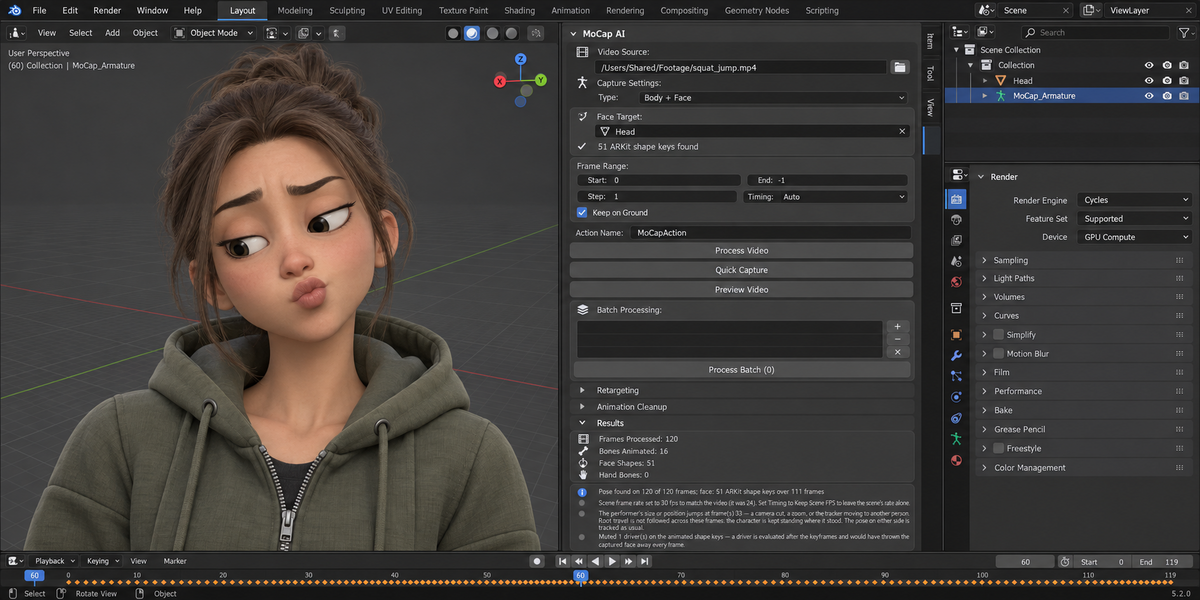
- Faceit, ARKit and MetaHuman face rigs are driven directly. The bundled face model predicts the ARKit expression set by name, so captured values land on the shape keys your character already has — nothing to map by hand. MoCap AI never creates shape keys: a mesh without ARKit shape keys gets no face animation, and the Results panel says so
- Drivers on the animated shape keys are muted, so a control rig cannot silently overwrite the captured face
- One-click dependency install from the panel or Add-on Preferences, at the versions MoCap AI is tested with, into a folder of its own (about 300 MB). Blender's own files are not changed; Cancel Install stops it and Remove Packages deletes the folder again
- Frame range and step controls for partial captures. Whatever the scene's frame rate, the clip lasts as long in Blender as it does in the video: the scene takes the video's rate, or the motion is resampled onto the scene's frames. Simulations, geometry nodes, Grease Pencil frames and the sequencer are not looked at; for such scenes set Timing to Keep Scene FPS.
- Model Accuracy (Fast, Balanced, Accurate) and Detection Confidence — real MediaPipe options in Preferences
- Smoothing — Gaussian filter on bone curves (None, Low, Medium, High). It rounds off fast movements; None keeps every frame as tracked. Remove Jitter levels only channels that are at rest
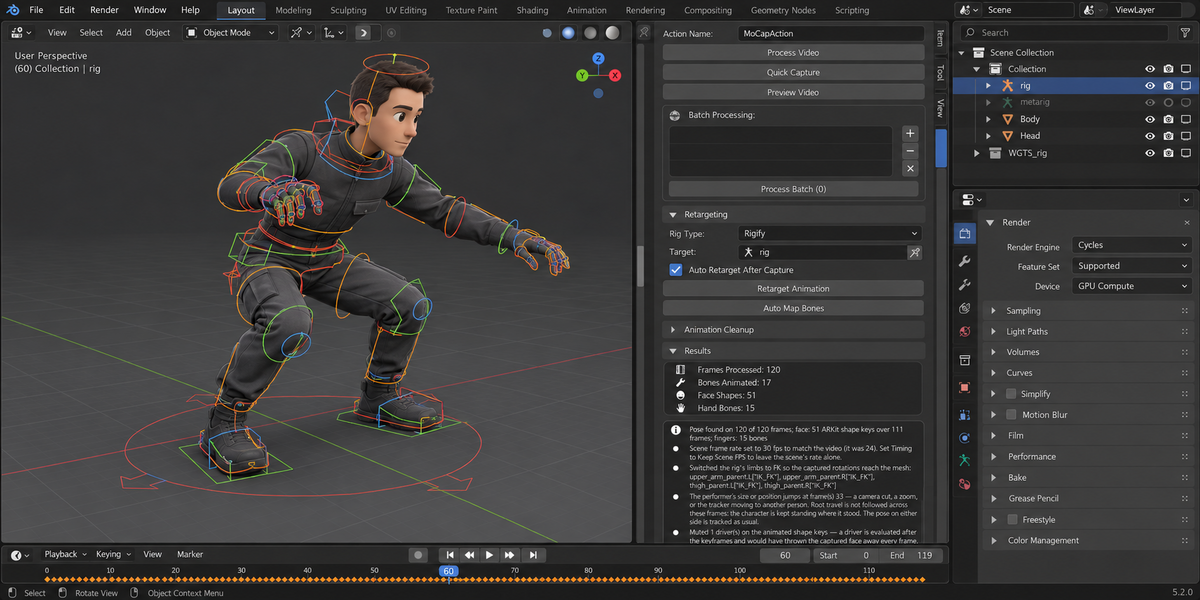
- Retargeting to Rigify, Auto-Rig Pro and Mixamo by their own control names — the rig type is recognised from the rig — and to other humanoid rigs by the body part in the bone name. Rigify limbs are switched to FK so the keyed rotations reach the mesh
- Fingers on rigs that have finger bones
- Fix Foot Sliding (off by default) holds the standing foot where it touched down by correcting the root's travel — for shots where a foot is planted most of the time
- Batch processing — queue several videos; each becomes its own body action and its own face action
- Wait-cursor and progress feedback during long captures
Compatibility
- Blender: 4.2 LTS, 5.1 and 5.2 — capture included.
- OS: Windows and macOS are tested live. Linux uses the same code and the same MediaPipe builds but has not been run by us.
- Dependencies: the free MediaPipe and OpenCV Python packages (both run entirely on-device), installed by one button into a folder of the add-on's own. The landmark models ship inside the add-on, so there is no separate model download. On Blender 4.2, whose own NumPy is 1.x, the session uses NumPy 2 from that folder while MoCap AI is enabled; on Blender 5.x Blender's own NumPy is used.
What you get
- MoCap AI add-on. Its own code is Python; the MediaPipe and OpenCV packages it installs contain compiled libraries
- README with quick-start and install guide
- Free updates for the 1.x series
- Support through marketplace messaging
Limitations
- Capture runs on the main thread; long videos block the UI while the progress indicator advances.
- One performer is tracked. Travel towards or away from the camera is not captured, and neither is twist along a limb's own axis.
- With Keep on Ground on (the default) nothing leaves the floor: jumps, steps up and sitting on a chair come out at floor level. With it off the camera must not move and the performer must stand on the floor for part of the clip.
- The tracker's sense of depth is approximate: a performer standing upright usually comes out leaning 10 to 20 degrees forward.
- A webcam is not read live: record the clip, then process the file.
- Auto-Rig Pro control names are built in, but that rig is not part of our test set; Rigify, Mixamo-named rigs and a plain humanoid are.
- Face capture drives ARKit shape keys that already exist on your mesh; it does not create or sculpt them. Faceit and comparable tools build them.
Install
Open Edit, then Preferences, then Add-ons, then Install from Disk. Pick the MoCap AI add-on ZIP and enable it. Press the N key in the 3D Viewport to open the MoCap AI tab and press Install MediaPipe and OpenCV — it fetches both at the tested versions (about 300 MB), into a folder of its own, without changing Blender's own files. The landmark models are already inside the ZIP. Instructions for installing by hand on a machine without internet access are in the included README.
Changelog — version 1.3.0
- The skeleton now takes the pose the tracker reports. Rotations were computed in armature space and written as local bone rotations, with the bone hierarchy ignored: keys were written, bones moved, and the pose was not the one in the video. Measured on a real clip, a bone pointed on average 74 degrees away from the direction the tracker gave for its limb, and 89 on Rigify, where a random direction gives 90. The pose is now solved parent-first against Blender's own evaluation of the rig and checked against it. On our 120-frame test clip, with Smoothing set to None, the same angle over 10 limb bones is 0.0 degrees on MoCap AI's armature, a plain humanoid, a Mixamo-named rig and the deforming bones of a Rigify rig; with the default Medium smoothing it averages 1.4 degrees and reaches 24 on the fastest frames. This measures that the rig does what the tracker says, not how right the tracker is.
- The Install button finishes on Windows. The installer's output went into a pipe that was only read after the installer had exited; it filled the pipe, blocked, and the button said downloading for ever. Measured on Windows 11: 25 minutes, nothing installed. The output is now read continuously and shown in the status bar. The button is disabled while an install runs, Cancel Install stops it, an incomplete folder is recognised as incomplete, and a Remove Packages button deletes the folder.
- Capture works on Blender 5.1 and 5.2. The add-on refused to capture there, saying MediaPipe had no build for Python 3.13. It has had one since 0.10.30. On Blender 5.x MediaPipe now uses Blender's own NumPy.
- A first capture no longer ends in a traceback. Frames were written to a cache folder whose default resolved to an unwritable place in a file that had never been saved. Frames are now decoded in memory; the cache, its preference and the Clear Frame Cache button are gone, and so are the roughly 2 MB per frame it left on disk.
- The character stands on the floor. Root height is taken from the rig's own limbs (Keep on Ground, on by default) or, with that off, from the limbs plus how far the picture shows the body off the floor, instead of from where the hips are in the picture. Camera cuts and zooms are not read as the performer flying, and travel and jump height are scaled by leg length. On the test clip, which has one cut, the feet stay within 2 mm of the floor on all 120 frames at default settings.
- The armature is never guessed. With several armatures in the scene and none chosen, the capture took the first one and replaced its action. It now stops and says what to pick; every button follows the same rule, and a Rigify, Auto-Rig Pro or Mixamo rig is recognised without being told. An action the rig already had is kept with a fake user, and a capture that fails puts the rig and the scene's frame rate back as they were.
- Fingers and limbs move on Rigify. Finger keys went to the DEF bones, which copy other bones through constraints and ignore their own keys, and every finger chain started one joint too early. Keys now go to the finger controls. Limbs are switched to FK, in capture and in Retarget Animation, so the keyed rotations reach the mesh.
- Joints out of frame are left alone instead of receiving the tracker's guess. In a waist-up video the legs stay at rest.
- The clip keeps its length. A 30 fps video in a 24 fps scene played for 5 seconds instead of 4. Timing decides whether the scene takes the video's frame rate or the motion is resampled onto the scene's frames; the scene's rate is not changed when other animation is in the scene unless you ask for it. Simulations, geometry nodes, Grease Pencil frames and the sequencer are not looked at; for such scenes set Timing to Keep Scene FPS.
- Face: nothing is created, and nothing is left over. A mesh without ARKit shape keys no longer receives eight empty ones. Each capture writes its face into a new action, so a shorter clip no longer keeps the tail of a longer earlier one, and a batch gives each video its own face action. The estimate of eight expressions from landmark distances is removed.
- A bone no longer spins when its target is opposite its rest direction. Arms that rest hanging down and are raised overhead rolled by up to 175 degrees in one frame. On an arm circling overhead the roll now changes by 2 to 12 degrees a frame, a repeated movement repeats exactly, and an arm raised and held still stays still.
- Fix Foot Sliding does something. It looked for location keys on the feet, found none, changed nothing and reported success. It now holds the standing foot by correcting the root, is off by default, and is described for what it is: a tool for shots where a foot is planted most of the time.
- Smoothing no longer runs Remove Jitter behind your back. Medium turned a slow, steady movement into a staircase. Remove Jitter is its own button and only levels channels that are at rest.
- Preview Video works. It failed on every press, after changing the scene's frame range and loading another copy of the clip.
- Left is left: MoCap AI's own armature had its arms mirrored and a 0.3 m torso, and depth was flipped. Faces are found in full-body shots by looking again at the head region. Only one OpenCV package is installed, and OpenCV and NumPy are version-bounded like MediaPipe. What a capture changed or could not do is listed in the Results panel. Batch Add, Remove and Clear can be undone.
Changelog — version 1.2.0
- Face capture could not survive a detected face. An empty visibility value on face landmarks raised an error on the very first frame where a face was actually found, and the capture died. Fixed, and held in place by a regression test.
- MediaPipe 1.0 no longer takes Blender down with it. That build aborts the process when a capture model is loaded — Blender closes with no error and no chance to save, and no add-on can catch it. MoCap AI now reads the installed version before touching the capture interface and refuses in plain English instead.
- One-click dependency install in Add-on Preferences, at the versions MoCap AI is tested with, into MoCap AI's own folder. It reports what the installer actually said if it fails, and says when a restart is needed.
- Face capture drives ARKit shape keys directly — Faceit, ARKit and MetaHuman rigs are animated on the names they already use, read from the bundled model's own expression head instead of estimated from landmark distances. Drivers on those channels are muted so the capture is not silently overwritten.
- Predicted channels your rig has no shape key for are named in the report; a capture that found no face says so instead of reporting success.
- Long panel messages wrap to the panel width instead of being cut in the middle.
Changelog — version 1.1.0
- Migrated capture to the modern MediaPipe Tasks interface, so it runs on the current MediaPipe releases that install on today's Blender (the older interface it previously relied on was removed upstream).
- Bundled the official pose, hand and face landmark models inside the add-on — capture is fully offline with no separate model download.
- Now a 100% local pipeline. Removed the OpenPose backend and the remote upload path entirely — no video frames ever leave your machine and there are no network calls anywhere.
- Added full per-OS dependency install instructions and in-app detection with a clear plain-English message when MediaPipe or OpenCV is missing.
- Fixed frame extraction so the pipeline always reads back exactly the frames it wrote.
- Each capture uses a fresh frame cache, so stale frames from an earlier video can never be re-used. Added a Clear Frame Cache button.
- Keyframes now honour Start Frame and Frame Step.
- The generated armature no longer contains unanimated bones — neck, head and feet are now driven from MediaPipe landmarks.
- Replaced the non-functional Model Path and Enable GPU settings with real MediaPipe options (Model Accuracy and Detection Confidence).
- Compatibility now correctly stated as Blender 4.2 through 5.1, including the new action system in 4.4 and later.
License
GPL-3.0. Standard for Blender add-ons.
1.1.1 — The add-on panel draws again on Blender 5.x. It asked for an icon named STACKED, which no longer exists, and a bad icon name aborts the whole draw — the MoCap AI tab came up empty, with nothing in it to click. Every icon name in the add-on is now checked against Blender's own list.