 NineLine


1. Product Overview
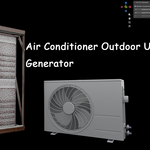
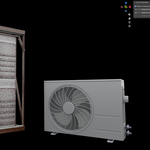
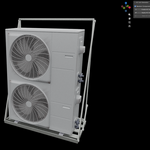
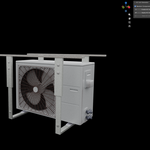
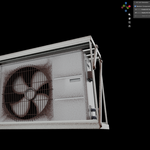
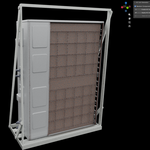
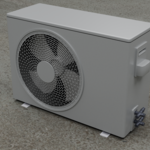
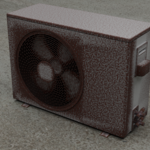
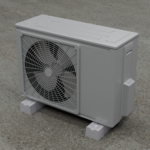
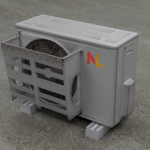
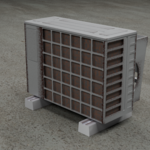
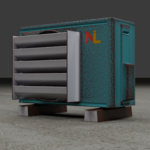
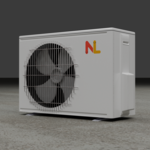
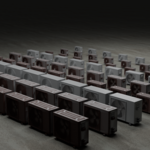
Air Conditioner Outdoor Unit Generator provides multiple part variations across 8 customizable sections.
The customizable sections are:
* Front
* Fan Guard
* Top
* Left Side
* Right Side
* Back
* Front Louver Grille
* Base Support
You can also adjust appearance-related options such as base color, rust amount, rear condenser coil color, and dust amount.
2. Installation
1. Open Blender.
2. Go to **Edit > Preferences**.
3. Open the **Get Extensions** tab.
4. Click the menu in the top-right corner and choose **Install from Disk**.
5. Select the extension `.zip` file.
6. After installation, the **AC Unit Generator** tab will appear in the right sidebar of the 3D Viewport.
3. UI Overview
3.1 Create AC Unit Generator
Creates an object with the `AC_UnitGenerator_Geometry Nodes` setup applied.
3.2 Apply AC Unit Generator
Applies the generated Geometry Nodes result to the selected AC unit object.
3.3 Bake AC Unit Generator
Bakes the textures of the applied AC unit object and assigns new baked materials.
The baking process may cause Blender to pause for a while.
It is recommended to save your Blender file before baking.
A `Textures` folder will be created next to the saved Blender file, and the baked texture files will be saved there.
After baking, several useful vertex groups will also be created and organized.
4. Geometry Nodes Parameters
4.1 Component Selection
This section controls the part variations of the AC unit.
* Front: 7 types
* Fan Guard: 7 types
* Top: 5 types
* Left Side: 3 types
* Right Side: 3 types
* Back: 2 types
* Front Louver Grille: 3 types
* Base Support: 6 types
4.2 Appearance
This section controls the visual appearance of the AC unit.
* **Base Color**
Changes the main body color of the AC unit.
* **Rust Amount**
Controls the amount of rust on the AC unit.
* **Rear Condenser Coil Color**
Changes the color of the rear condenser coil.
* **Rear Condenser Coil Dust Amount**
Controls the dust amount on the rear condenser coil.
4.3 Extra Settings
* **Logo On/Off**
Enables or disables the logo on the AC unit.
* **Size Offset**
Adjusts the additional size offset of the AC unit.
5. Changing the Logo Image
If you want to change the logo image, apply the AC unit first using **Apply AC Unit Generator**.
After applying, find the `Mat_Logo` material in the material slots and replace the image used in its Image Texture node.
Then use **Bake AC Unit Generator** to bake the final textures.
Have questions about this product?
Login to message
| Blender Extension Compatible | Yes |
| Published | 3 months ago |
| Blender Version | 5.1 - 5.2 |
| Extension Type | Add-on |
| Render Engine Used | Cycles |
| License | GPL |
Discover more products like this
simple Generator prop outdoor airconditioner procedual geometrynode