Anim Favorites
 G42 Studios




Anim Favorites
Blender Add-on Documentation
Version 1.0.0
1. Overview
Anim Favorites is a lightweight workflow utility for the Graph Editor and Dope Sheet. It allows you to save filter text as reusable favorites directly in the editor header.
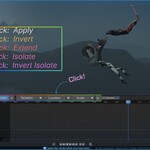
Instead of repeatedly typing filter keywords to isolate channels, you can apply them instantly with a click — including modifier-based variations such as extend, invert, and isolate (Graph Editor only).
The add-on does not generate animation data or modify rigs. It only manages channel filtering and visibility.
2. Installation
-
Download the add-on package (.zip).
-
Open Blender.
-
Go to Edit → Preferences → Add-ons.
-
Click Install from Disk and select the .zip file.
-
Enable Anim Favorites.
The Favorites toggle will appear in:
-
Graph Editor header
-
Dope Sheet header
3. Interface Overview
In the Graph Editor or Dope Sheet header:
-
Favorites (toggle button)
Expands or collapses the favorites panel. -
Add (+) Button
Saves the current search filter as a local favorite.
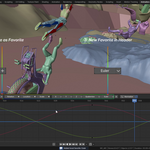
When expanded, the panel displays:
-
Global Favorites (if any exist)
-
Local Favorites (per .blend file)
-
Clear (X) button (clears filter and resets invert)
Each favorite row contains:
-
Clickable favorite name (apply button)
-
Options dropdown button
4. Saving a Favorite
To save a filter as a favorite:
-
Type your desired filter text into the search field.
-
Click the + button.
-
The filter text is saved as a Local Favorite for the current .blend file.
Notes:
-
Empty search fields cannot be saved.
-
Duplicate names (local or global) are prevented.
-
Local favorites are stored in the Scene.
-
Global favorites are stored in Add-on Preferences and persisted to JSON.
5. Applying Favorites
Clicking a favorite applies it to the active editor (Graph Editor or Dope Sheet).
Default Click (Standard Mode)
Replaces the current filter text with the favorite’s text.
Invert is disabled.
Modifier Click Behavior
These work when clicking directly on a favorite:
Shift + Click → EXTEND
Appends the favorite text to the existing filter text.
Ctrl + Click → INVERT
Replaces filter text and enables Invert Filter.
Alt + Click → HIDE & ISOLATE (Graph Editor only)
• Reveals hidden channels
• Clears selection
• Applies filter
• Selects matching channels
• Clears filter text
• Hides unselected channels
This essentially hides (H) all channels whose name do not match the filter text
Ctrl + Alt + Click → INVERT HIDE & ISOLATE (Graph Editor only)
Same sequence as above, but hides matching channels instead.
If used outside the Graph Editor, isolate modes are blocked.
6. Apply Menu (Options Dropdown)
Each favorite has an options button.
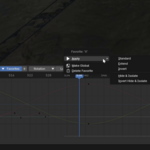
Clicking it opens a pop-up menu containing:
Apply
Opens a submenu with:
-
Standard
-
Extend
-
Invert
-
Hide & Isolate (Graph Editor only)
-
Invert Hide & Isolate (Graph Editor only)
These mirror the modifier-click behaviors.
Make Global / Make Local
-
Local favorites can be promoted to Global.
-
Global favorites can be demoted to Local.
-
Global favorites take precedence if name conflicts exist.
-
Global changes are written to a JSON file.
Delete Favorite
Removes the favorite from its respective scope.
7. Clear Filter Button (X)
The X button:
-
Clears filter text
-
Resets Invert Filter to False
This ensures the editor returns to a clean state.
8. Local vs Global Favorites
Local Favorites:
-
Stored per .blend file
-
Saved inside the Scene
-
Not available in other projects
Global Favorites:
-
Stored in Add-on Preferences
-
Persisted to a JSON file inside the add-on directory
-
Available across all Blender projects
On file load:
-
Local favorites that duplicate global names are automatically removed.
-
Global names take precedence.
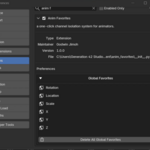
9. Add-on Preferences
Location:
Edit → Preferences → Add-ons → Anim Favorites
The Preferences panel contains a (collapsible) list of all the global favorites:
-
The list is Read-Only.
-
Individual global favorites cannot be edited or deleted here.
-
A Delete All Global Favorites button is available.
-
Deleting all globals updates the JSON file.
This section is strictly for viewing and clearing global favorites.
10. Data Storage
Global favorites are saved to:
global_favorites.json
Located inside the add-on directory.
This file:
-
Stores a simple list of strings
-
Is loaded when the add-on is enabled
-
Is synced on file load
No external network or system access is used.
11. Supported Editors
Fully supported:
-
Graph Editor
-
Dope Sheet
Isolate modes:
-
Available only in Graph Editor
12. Intended Workflow Use
Anim Favorites is designed for:
-
Complex character rigs
-
Dense animation scenes
-
Repeated channel filtering
-
Rapid switching between property types
It reduces repetition in filter-based channel isolation without altering animation data.
Have questions about this product?
Login to message
| Blender Extension Compatible | Yes |
| Sales | 10 |
| Published | 8 months ago |
| Blender Version | 4.2 - 5.0 |
| Extension Type | Add-on |
| Render Engine Used | Arnold, Blender-Internal, Blender-Game-Engine, Cycles, Eevee, Freestyle, Luxrender, Mental-Ray, Octane, Vray, Yafaray |
| License | GPL |

Discover more products like this
graph editor dopesheet Blender UI Animation animation animation tools favorites blender ui tools Header animator Animation Workflow filtering channel filtering