 Animates


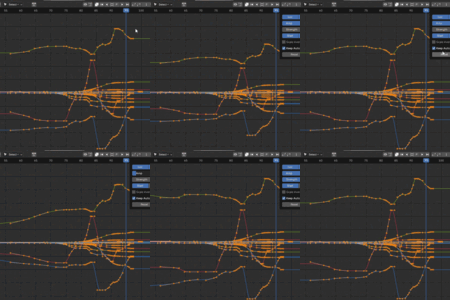
Installation
Installing the Animates addon
Once downloaded you can directly drag the zipped folder (do no unzip) into the Blender window, from there it will automatically install after pressing ok.
Or click through Edit, Preferences –
then Install from Disk in the top right of that window.

Key Features
1. Select Keys
Select Keys
The header tools are designed for workflow efficiency, holding Shift increases selections, holding Cntrl reverses that tool's function.
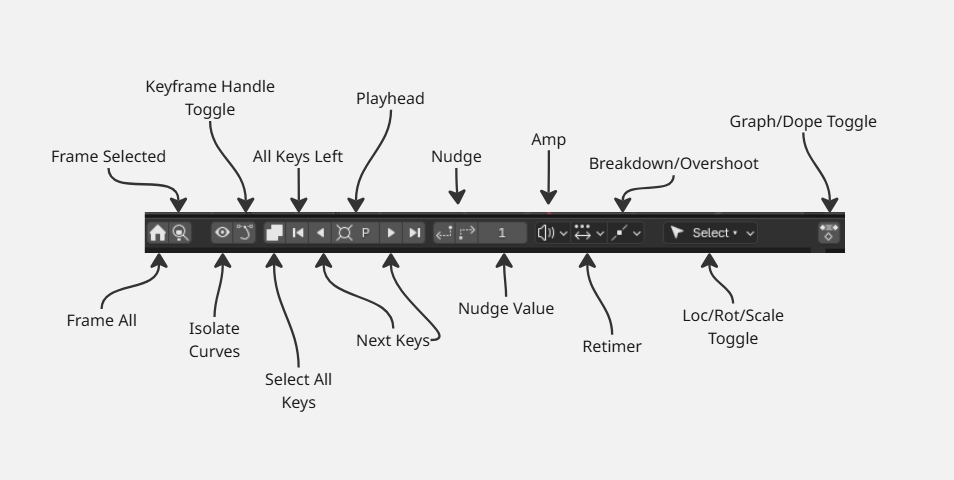
The Playhead button serves as a grow button. Press it once to select the keys on the playhead, it will search for the nearest key if none exist there. Repeated pressings collect more keys, holding Cntrl reverses the selection.
The Next buttons take the selection in either direction, holding Shift also grows the selection.
Select all in either direction does exactly that.
The Select All button collects all the keys, the button also inverts the selection when Alt is pressed.
There is also a visibility toggle to more easily isolate location, rotation and scale in the graph editor.
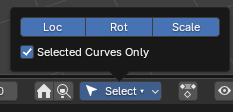
Here you can see some of the functions being used
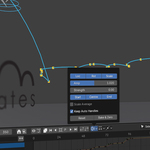
2. Retimer
As you can see below, at the top of the popover the retimer tool has an easy access visibility toggle for Loc, Rot and Scale.
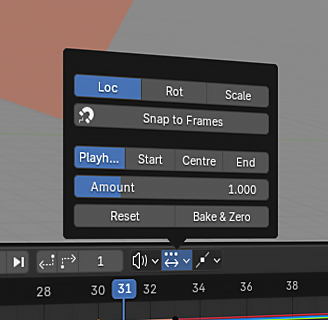
Under those you can then choose from where related to your selected keys, you wish to scale from, use the reset button to return the slider to 1. Bake & Zero commits the keys and puts the slider back to one. The Retimer works in the Graph Editor, Dope Sheet and Timeline too.
Holding Shift smooths the operation of the slider.
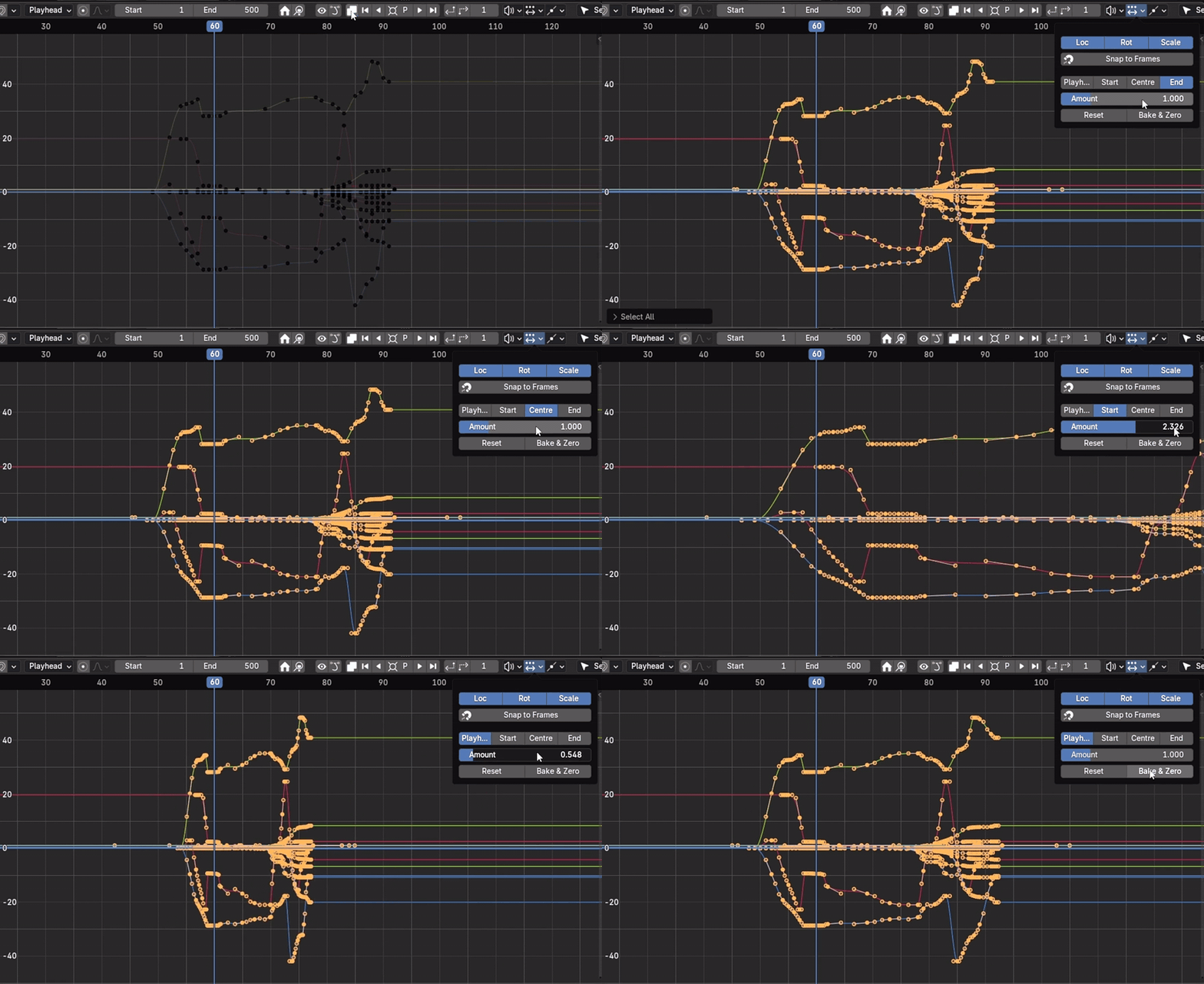
The Snap to Frames button moves selected keys onto the nearest frames, useful to avoid non-integer placement after the slider has been implemented.
3. Key Amp
The Key Amp works alongside the following sub selections to quickly and easily isolate and adjust your keys –
Loc, Rot, Scale visibility toggle
Start, Centre and End of keys selected.
The strength slider allows more specific and isolated amplification. Turning it up will concentrate the choices upon the Start, Centre or End, whichever is being used.
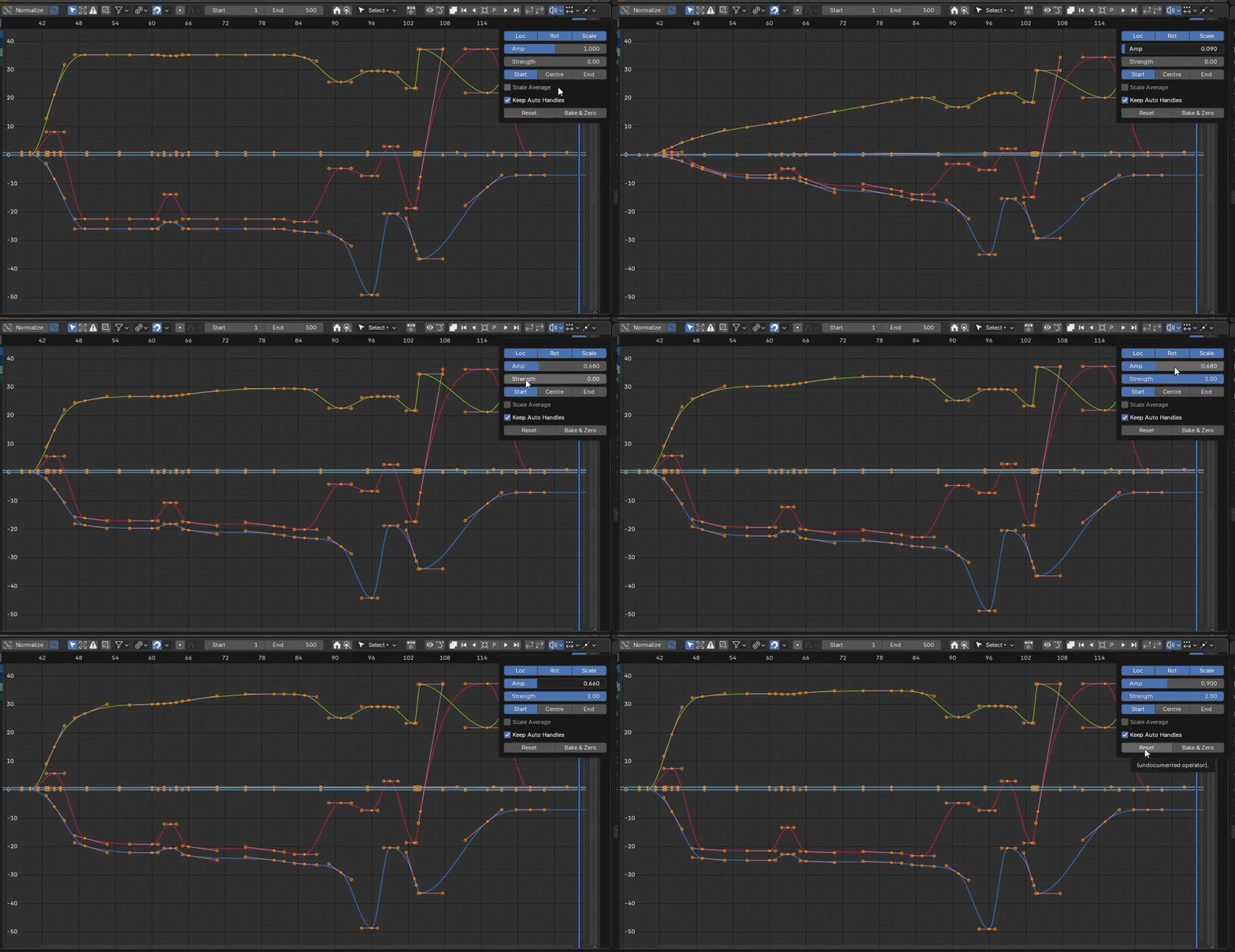
Scale Average calculates the average across the keys selected.
The Reset button operates like an undo. The Bake & Zero button commits the keys and returns the slider value to one, like the Retimer.
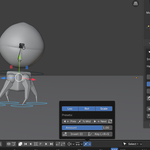
4. Breakdown/Overshoot
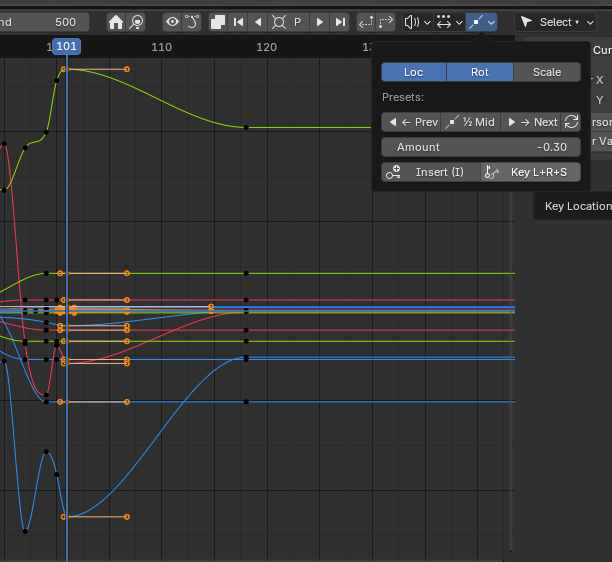
The Breakdowner works not only bones but object(s) too – it automatically calculates the values of the prev and next keys from the playhead, without the need to select anything.
Using the buttons below toggle between different pre set values easily. The slider works from - 0.3 to 1.3, allowing easy to set overshoots etc. It updates visually in the 3D viewport and Graph Editor most effectively.
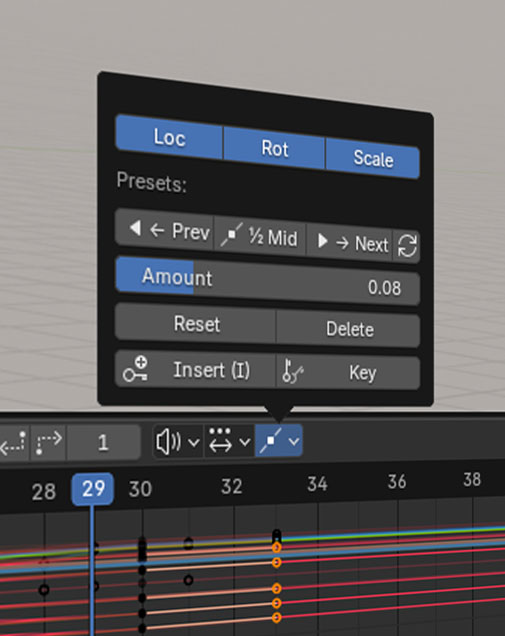
Pressing the Prev, 1/2 Mid and Next buttons give a visual preview of those values in the 3D viewport, as does the slider. Pressing the Key button commits the desired change.

Multiple objects can be used at once, choosing between the Loc, Rot and Scale transforms.
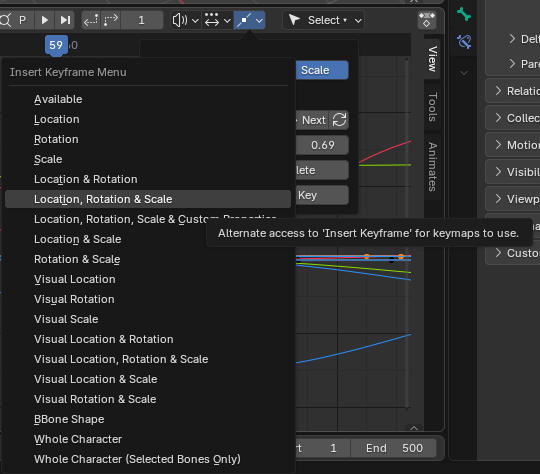
Pressing the Insert (I) button allows specific keying choices.
Pulling the Amount slider into negative here has produced an overshoot from the prev key –
5. Onion Skinning
Toggling the ON eye button activates the skins, it can be a rig or object, or multiples.
The frame range can be manipulated to show up to 200 frames backwards and forwards if needed. Here it is set at 15, with a skin every 3 frames.
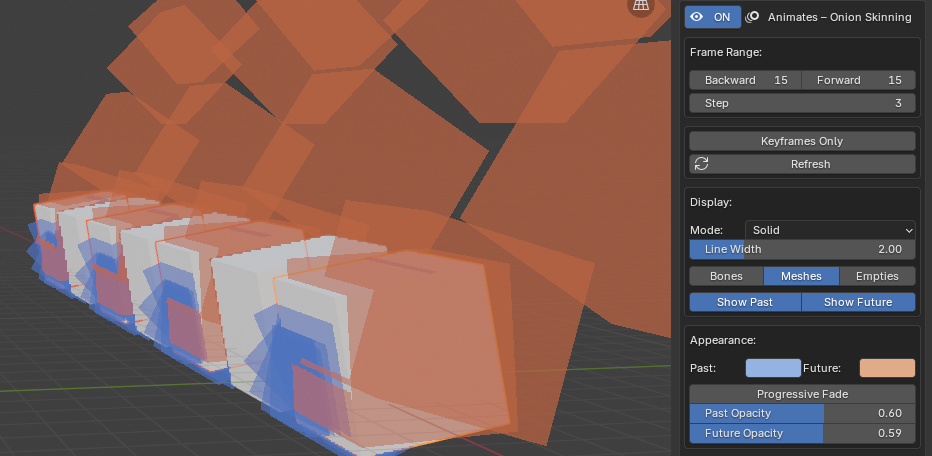
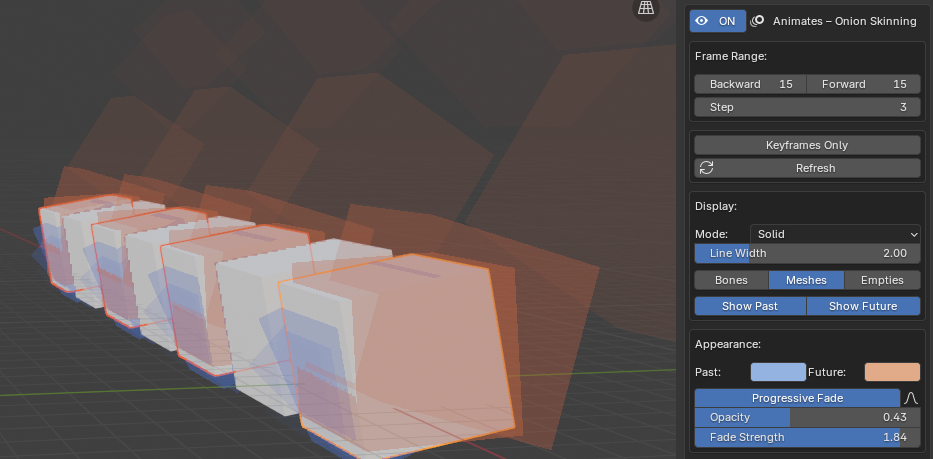
Pressing the Progressive Fade button, and altering the strength gives a good visual description of distance.
Toggling the Keyframes Only button is great for blocking. Here, the skins are set to wireframe.
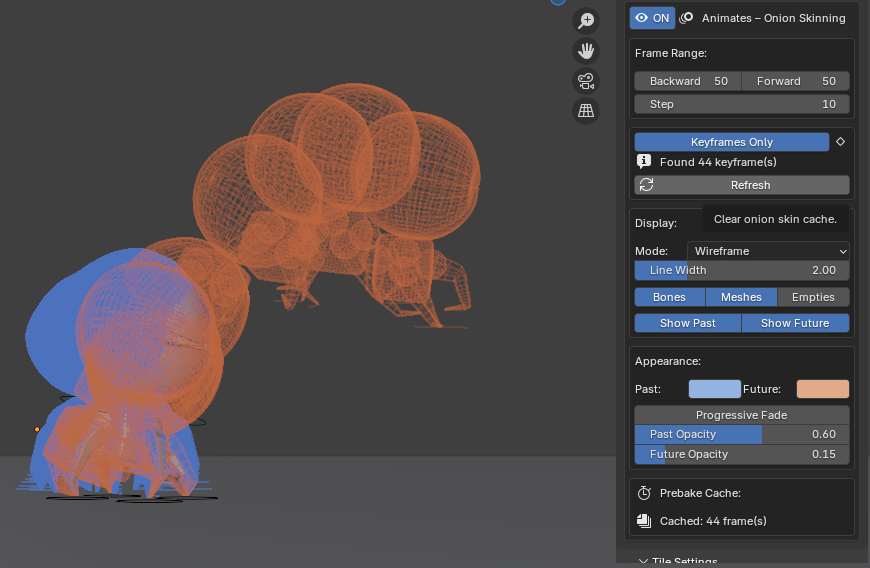
Not only meshes but Bones can be onion skinned too, you can also alter the Line Width thickness for clarity –
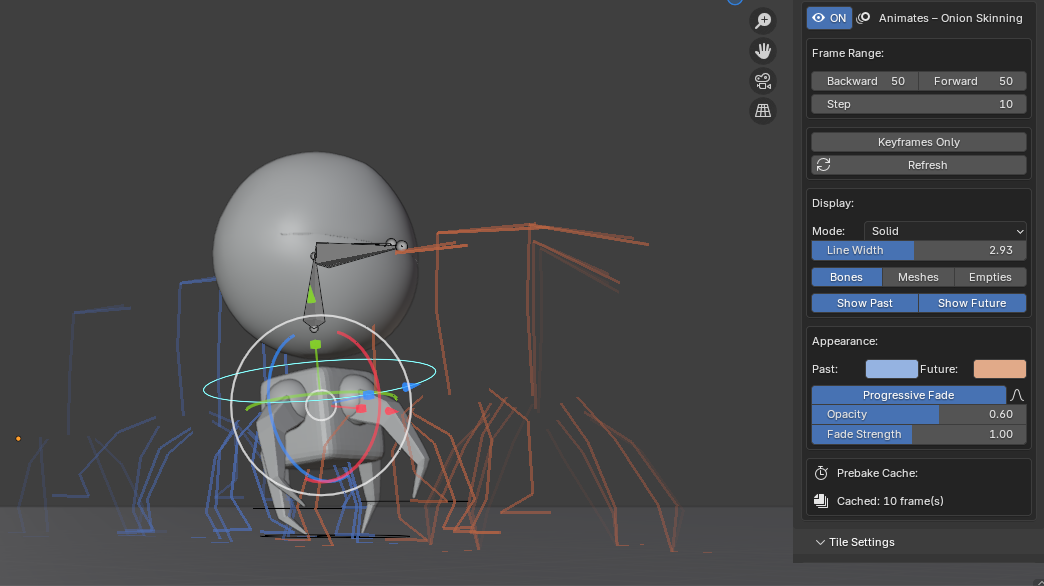
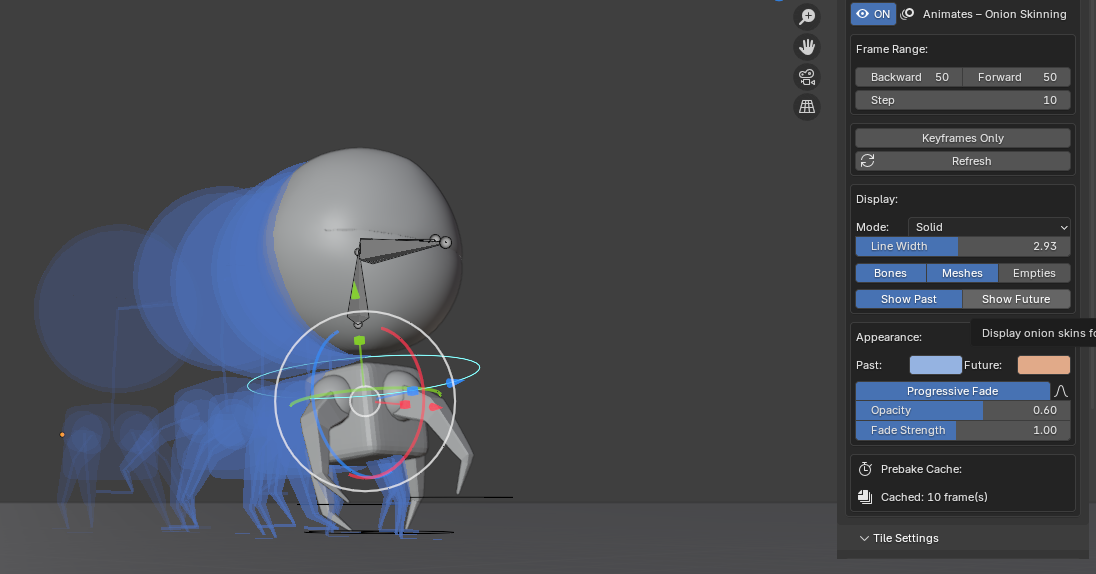
The Show Past and Show Future visibility toggles can show only the past skins, or vice versa.
6. Motion Paths
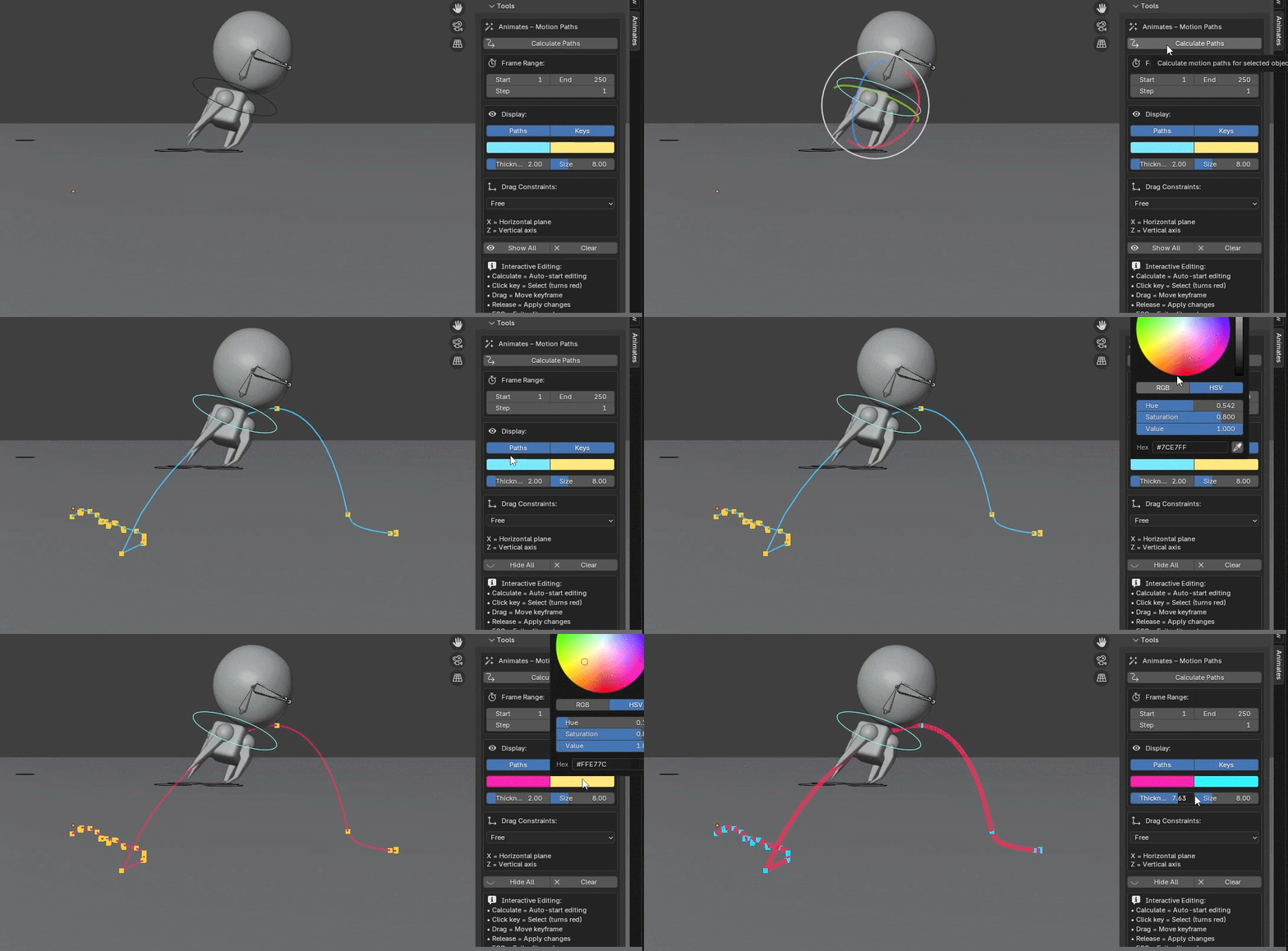
Motion paths are activated by choosing the bone/controller(s) then pressing the Calculate Paths button.
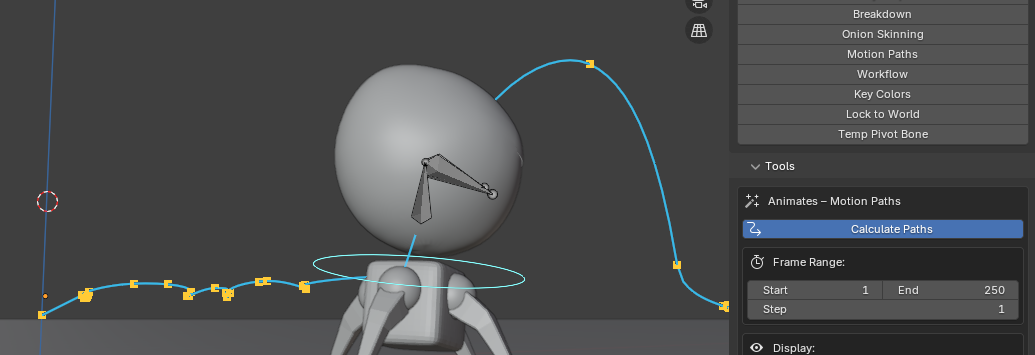
Multiple trails can be used at once.
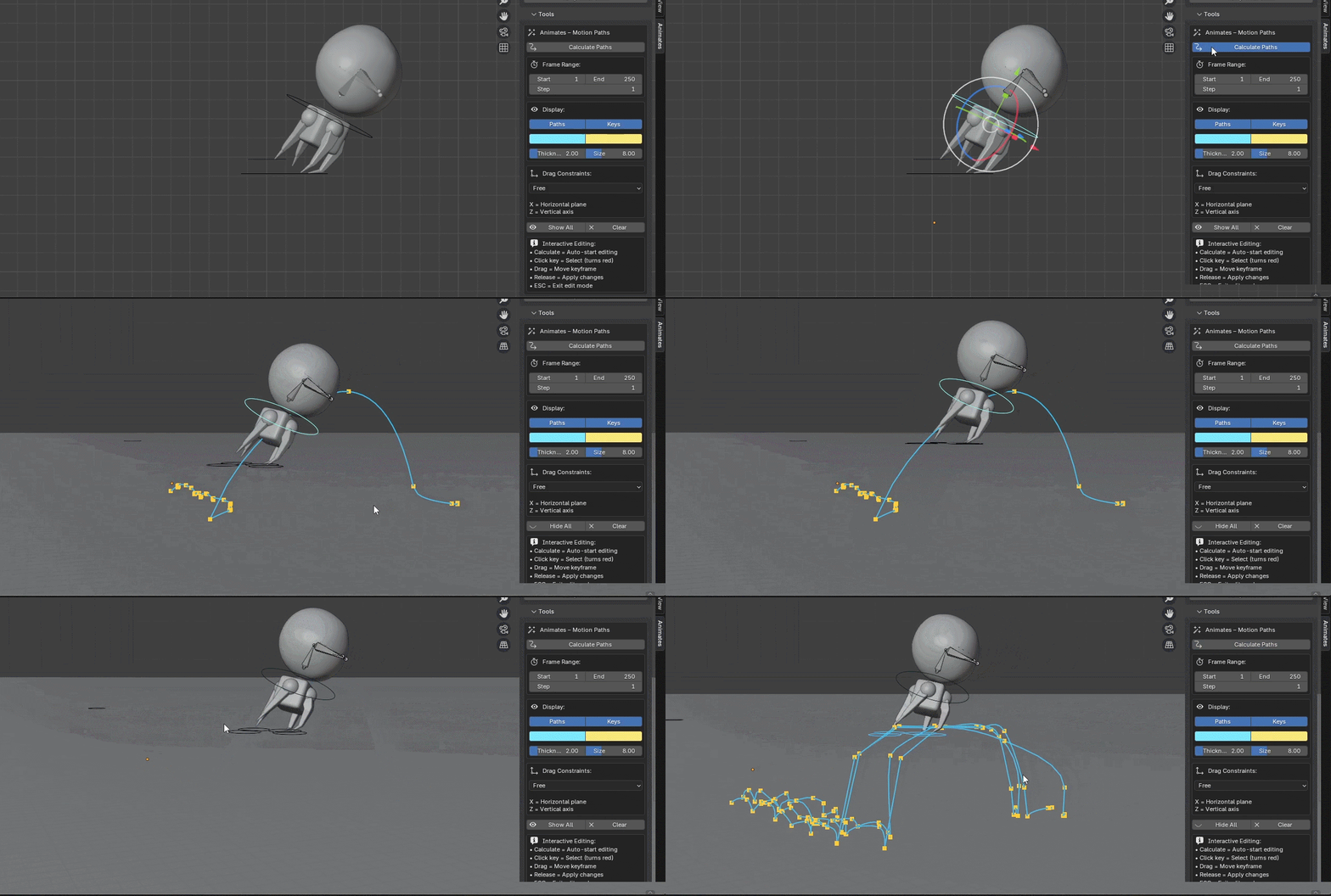
In the Display section, the trails can be visually changed colour and thickness, the keys similarly by colour and size.
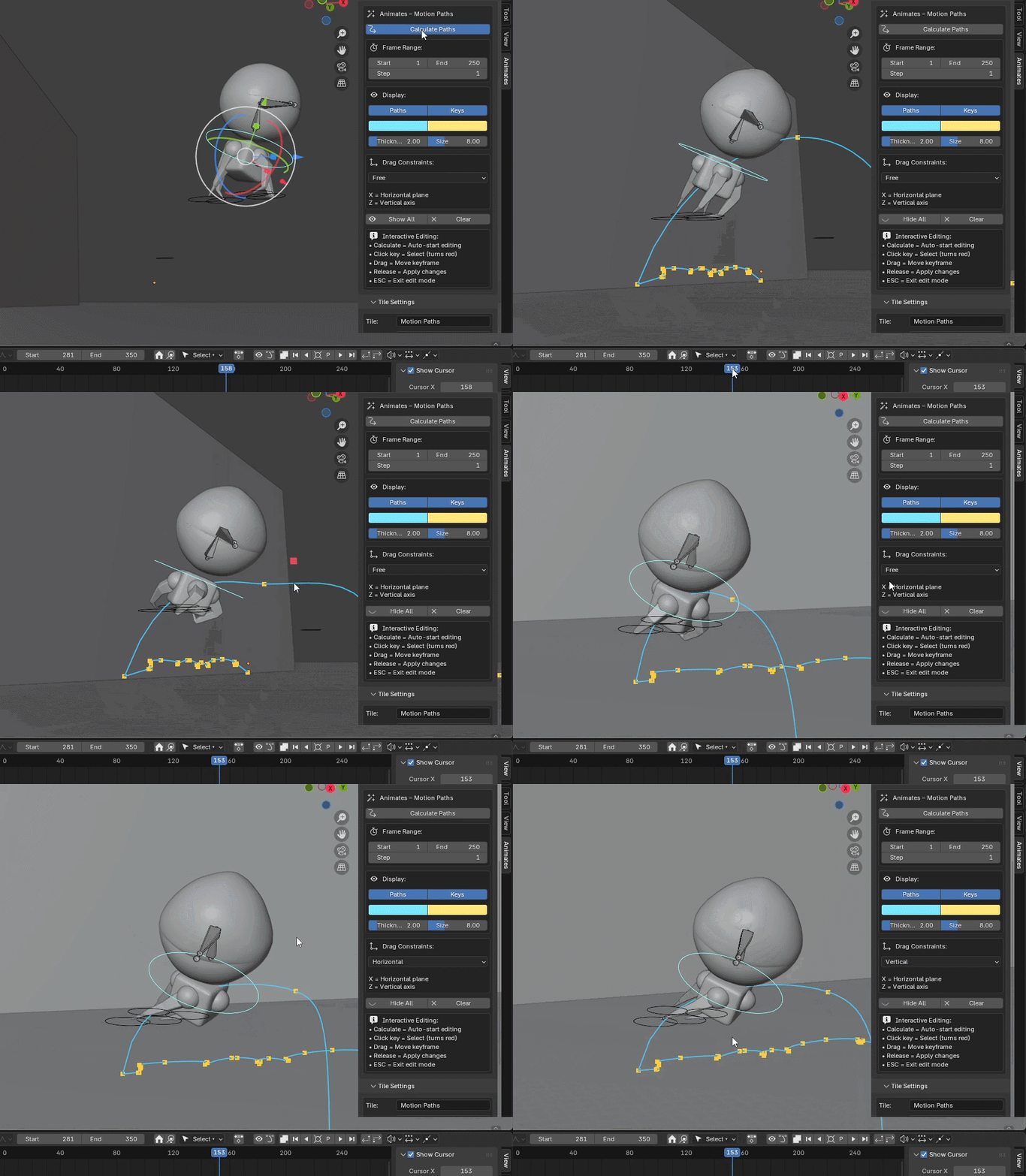
The keys can be manipulated live in the viewport with instant feedback, either freely, vertically or horizontally.
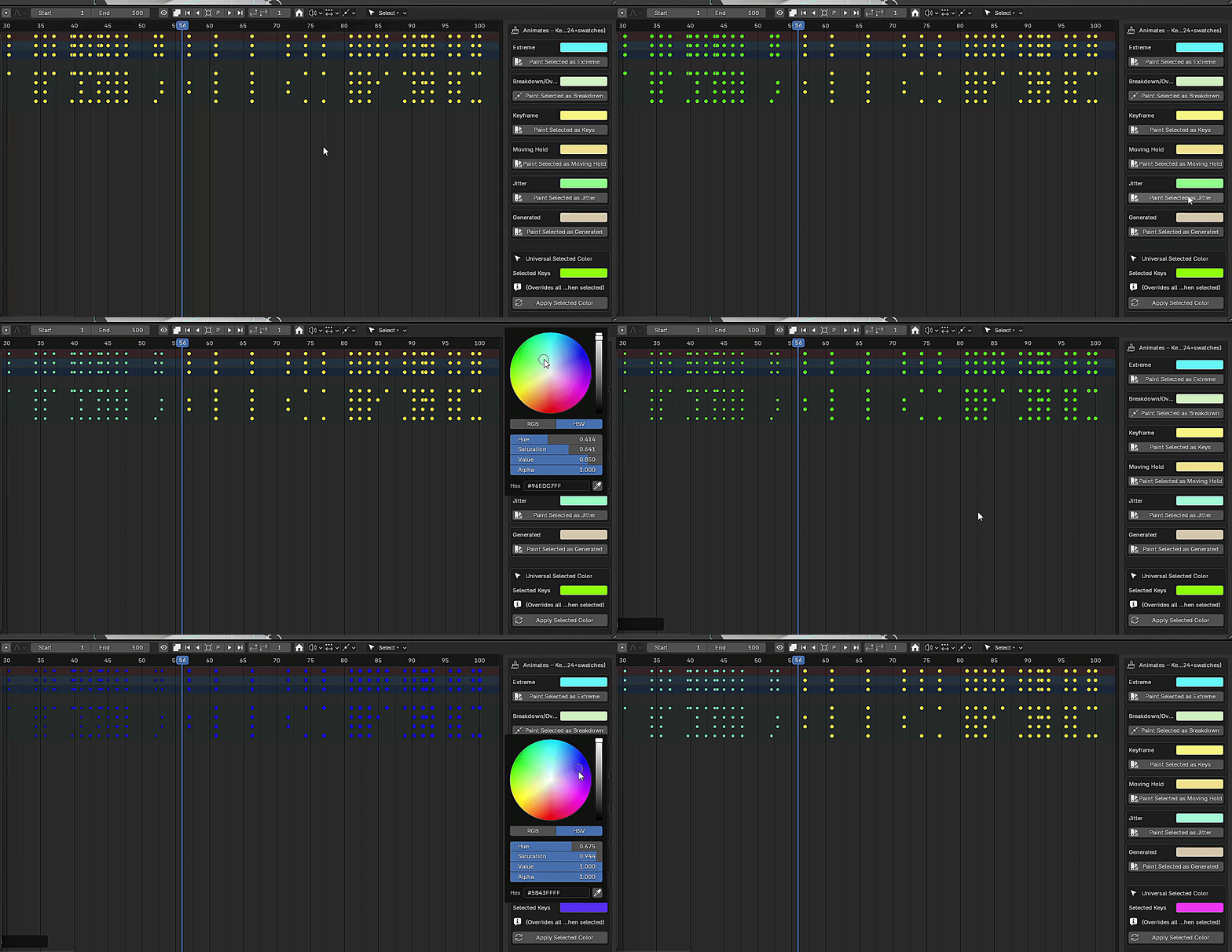
7. Key Colours
The Key Colours tool enables quick allocation of colours to keys, these can be simply changed en-masse with easy.
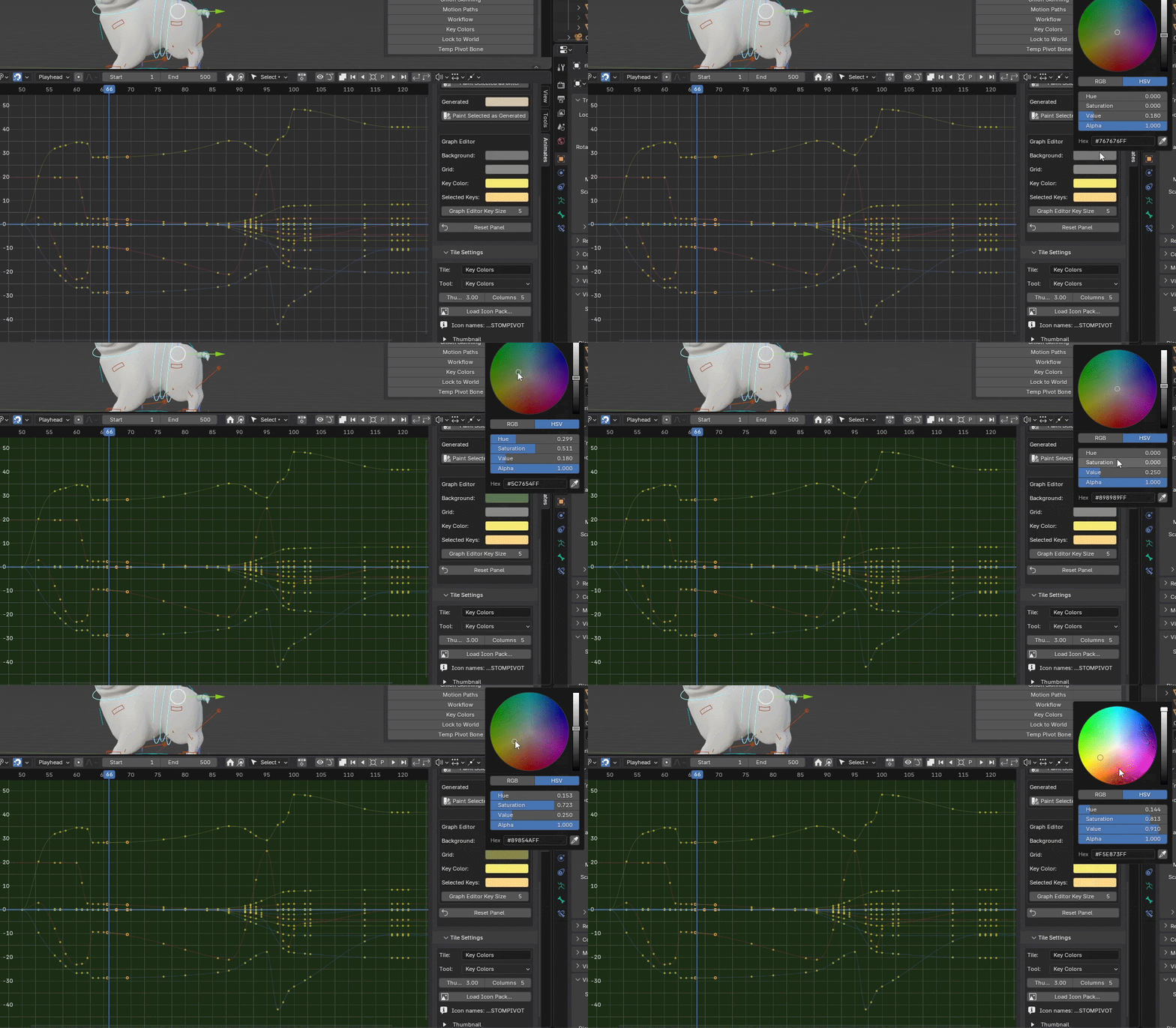
The Graph Editor colour scheme can also be enjoyed!
8. Lock To World
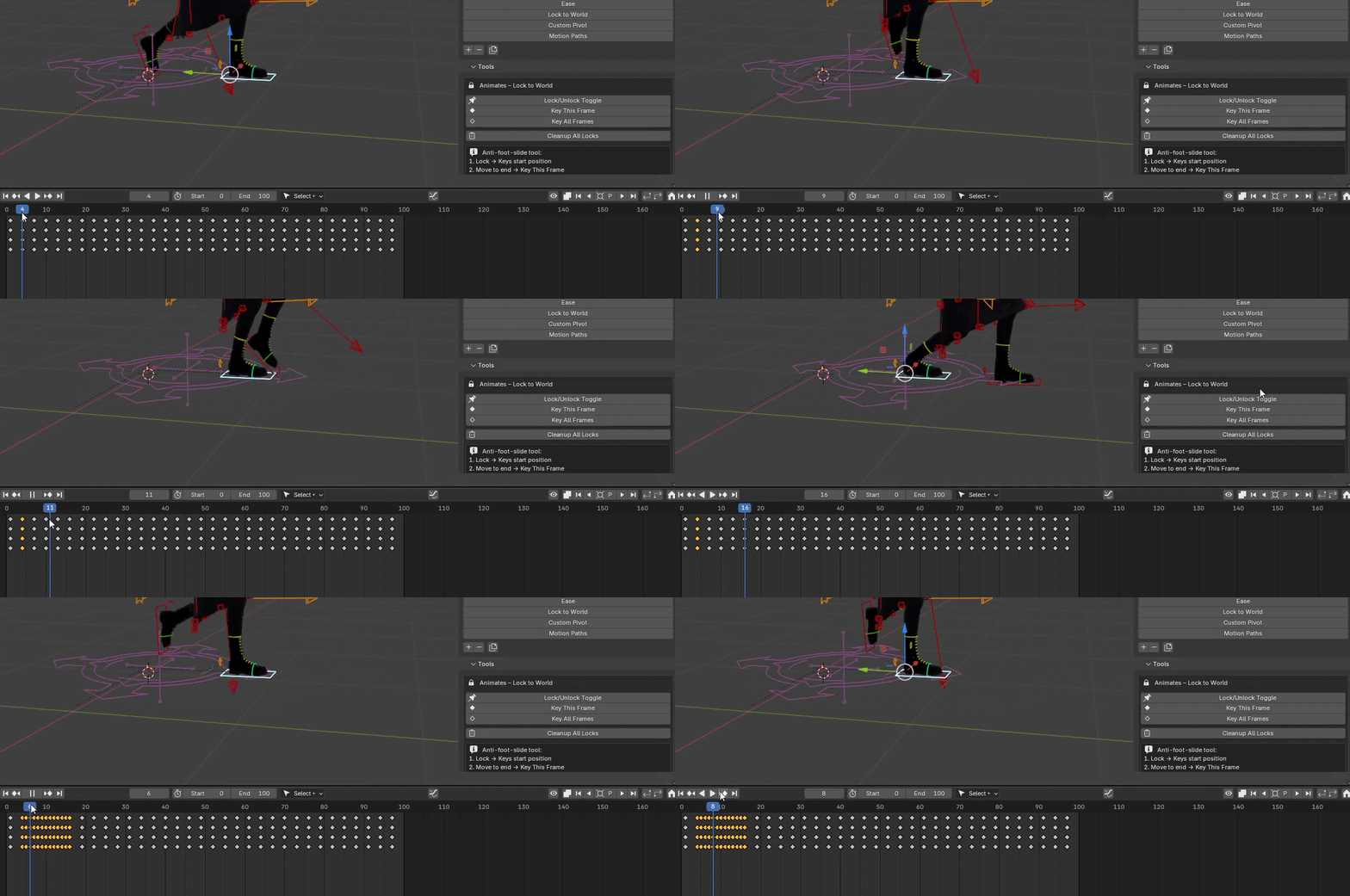
The Lock to World function is applied with the Lock/Unlock button. The controller is then held in world space.
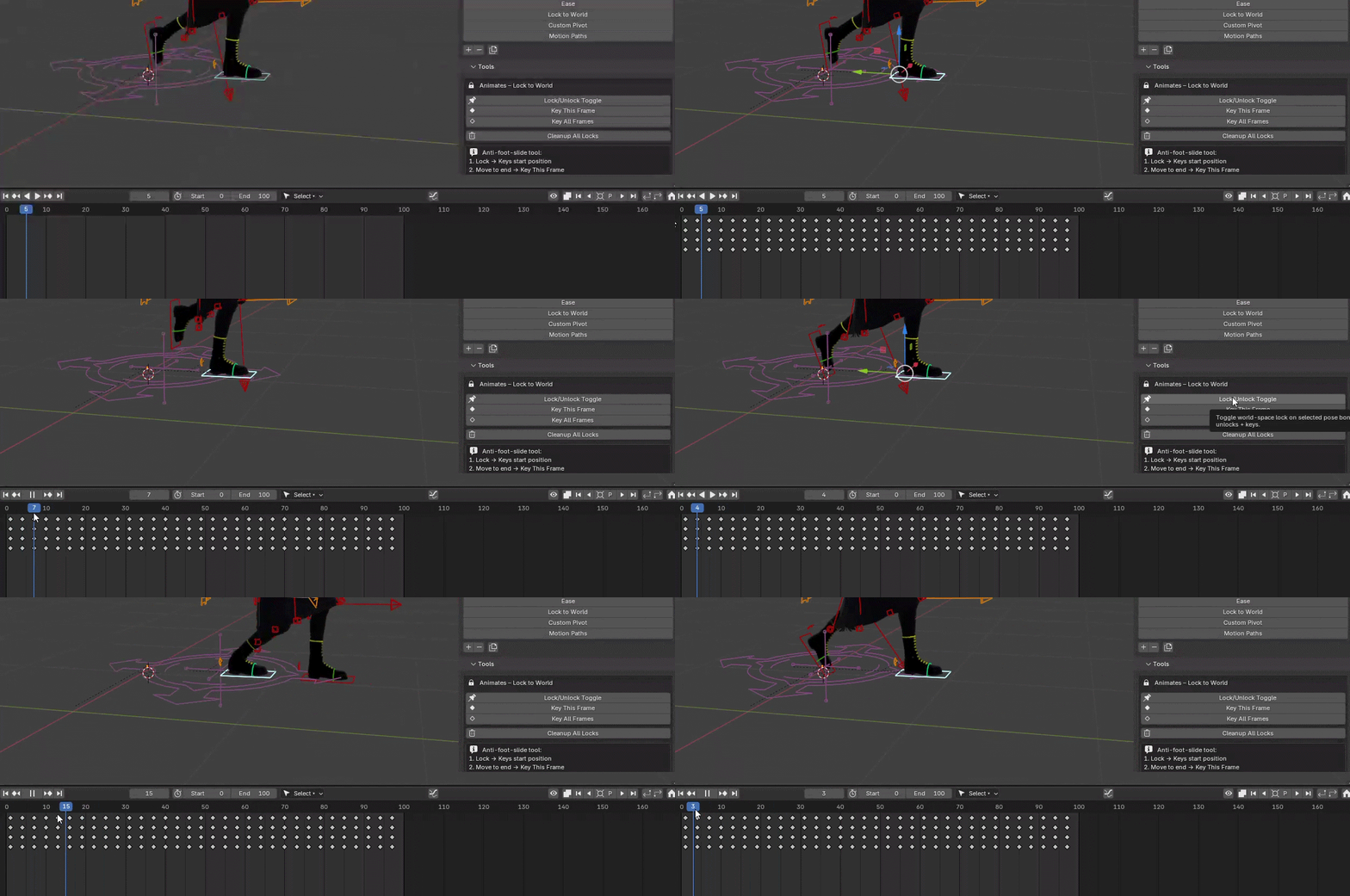
To key the desired section, first decide upon the start frame then press the Key This Frame button. Go to where you want it released, then press the Key All Frames button followed immediately by the unlock toggle. This will lock the controller in the desired time section only.
9. Custom Pivot
The Temp Pivot is created by pressing the Create Pivot Bone button. Move the pivot to your new desired location by pressing the Move Pivot button.
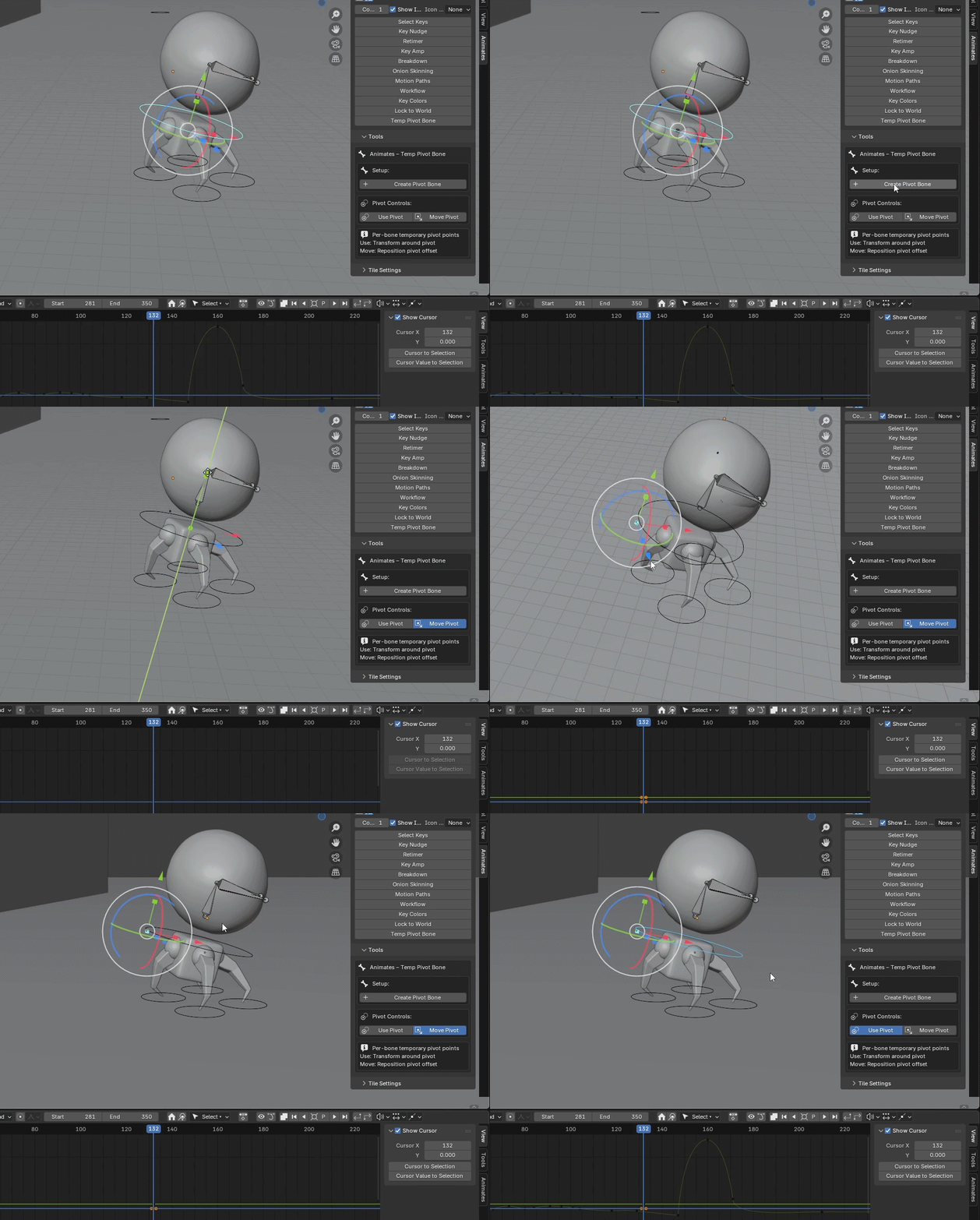
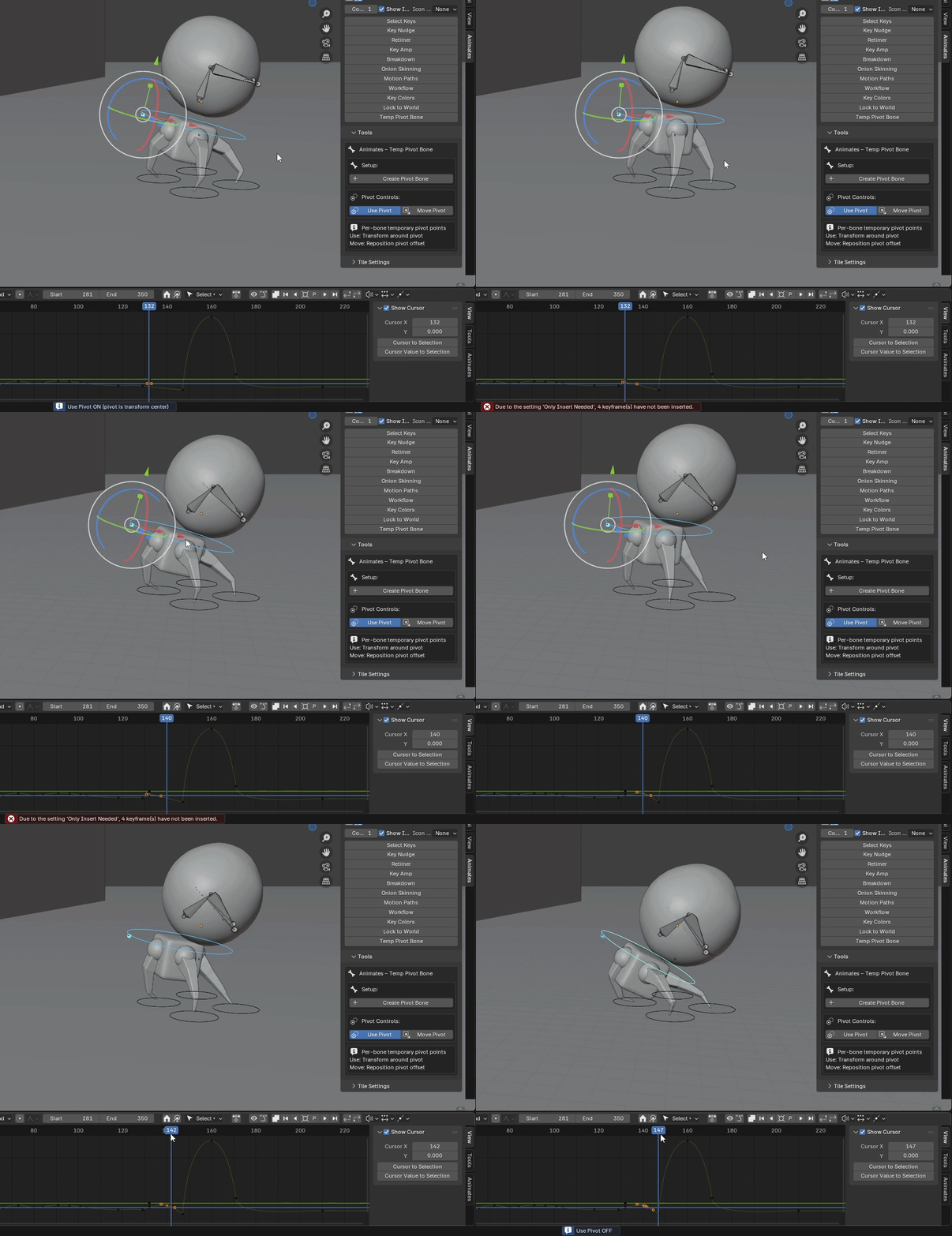
Once in position, press the Use Pivot button and keyframe as normal. Pressing the Use Pivot button again will release the function and maintain curves.
10. Workflow
The Workflow tool has a variety of features –
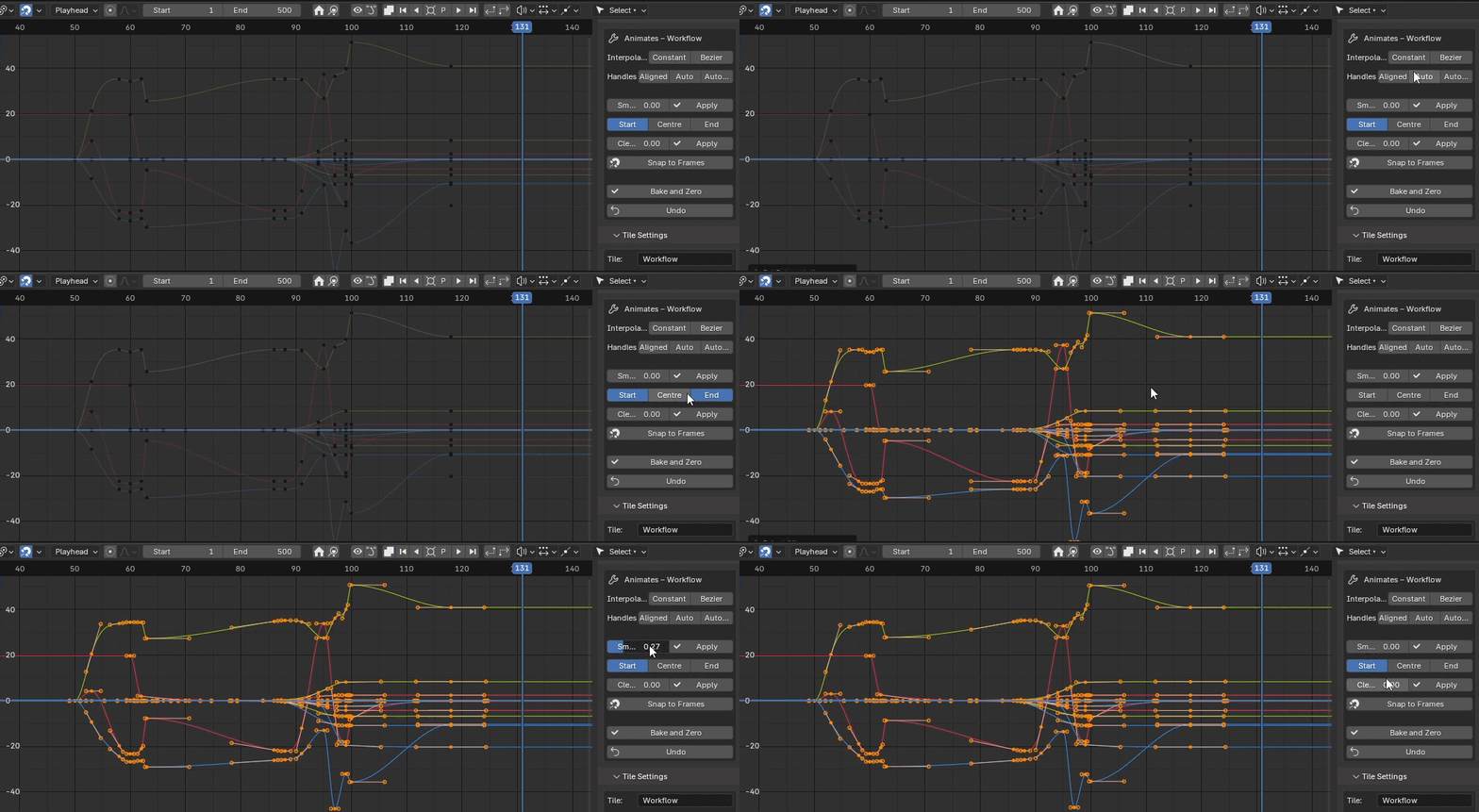
Interpolation toggle for quick and easy blocking/spline. A smoothing tool slider that can also be applied across keyframe selected options of Start, Centre and End.
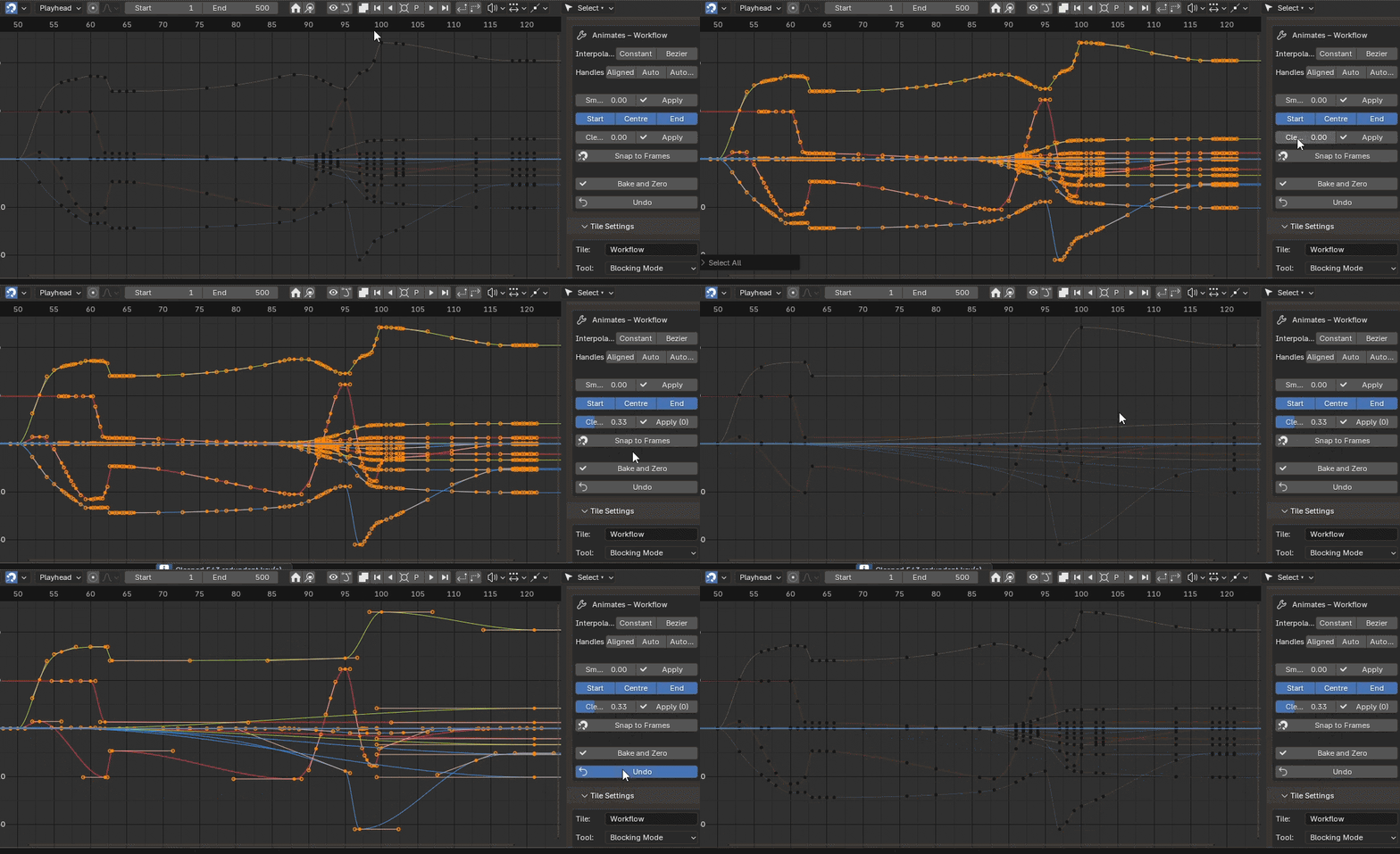
Cleaning keys slider for eliminating redundant keys.
Launcher Grid
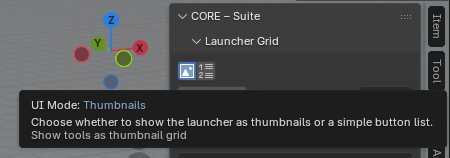
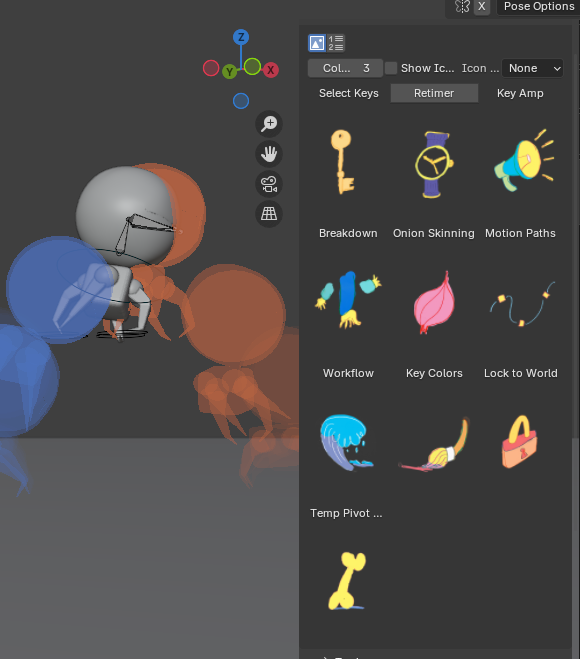
The Launcher Grid is a fun way of displaying your own custom images for each tool. First choose the Thumbnail mode button.
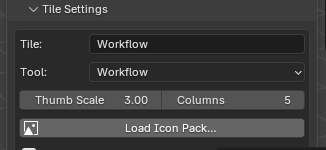
Then open up the Tile Settings and press the Load Icon Pack button, this will ask for a folder where your icons can be preloaded from.
Or you can use a similar folder path in the Preferences, at the bottom.
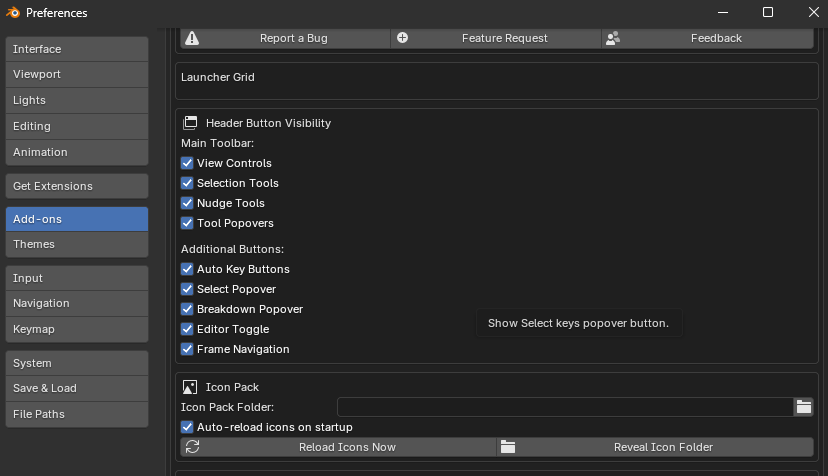
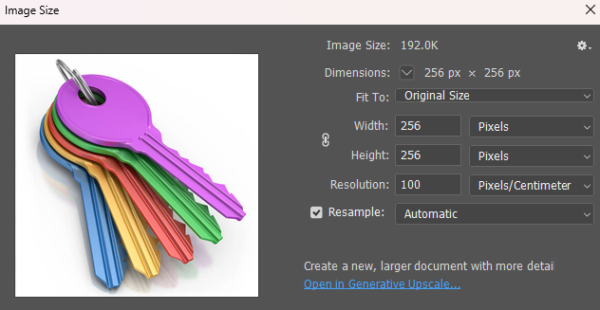
The Icons can be scaled using these two variables –

These are ideal dimensions –
Whilst it would be my ideal, quirky customisable UI to have all buttons being able to be hit in full, it is only the top where the text lies that is clickable
nonetheless, have fun!
https://www.animates.uk/documentation/
-
$65
The complete Animates toolkit for one animator. A daily-driver set of tools that speed up blocking, breakdowns and polish through a whole host of intuitive buttons and tools.
-
$199
The full Animates toolkit for up to five animators in the same studio or department. Keep everyone using the same tools and shortcuts, without juggling individual purchases
-
$40
The full Animates suite, discounted with an educational email address.
Have questions about this product?
Login to message
Discover more products like this
3dlock amp 3d animation Object Pivot editable motion trail 3D workflow blender graph editor tools AnimationRetimingTool selection tools Onion Skin