 Ikari Ltd


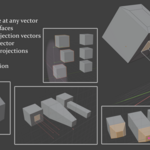
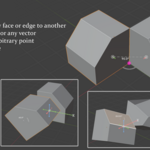
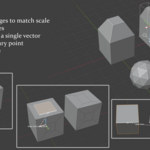
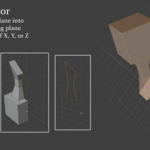
Quick Move (Included in Free Edition):
While the Arbitrary Align tool is selected 
Normal Blender Movement
Pressing and letting go of G will invoke blender's normal move command.
Teleport
While an object or objects are selected hold "G" and click on any point to "teleport" the object(s). The pivot point setting is respected and will be used as the movement point.
Dragging Movements
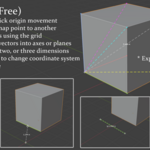
To specify the origin of movement, instead of clicking, hold "G" and drag between two points.
Relative Movements
Dragging can also be done on the grid or any other snap points, allowing one to describe a relative movement.
For example, one can drag 3 units on an X-axis grid line to move something 3 units X+. It's also possible to express things like:
"Move this object the height of this other objects"
"Move this object on the diagonal I'm drawing on the grid"
"Move this point A to that point B"
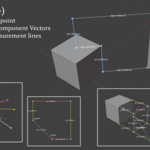
Component Vectors
While holding "G", before clicking to teleport an object, or before letting go of a dragging movement, pressing Shift will create component vectors at your current snap point (mouse position).
Use these to only take a portion of the movement, such as the X, Y, or Z component, or a planar component (XY, XZ, YZ).
This is very useful for aligning! For example:
Align two objects vertically: Hold "G" and drag between the centers of two objects, press shift and let go on the XY component vector.
Drop object to floor: Hold "G", drag between the bottom of an object and any place on the floor grid. Create the component vectors and choose the Z component.
Move an object without changing its height: Hold "G" and drag between two points. Create and use the XY component vector.
Duplicate Move
While holding "G", press the Space bar to toggle duplicate mode. Upon teleporting or creating a relative movement, a copy will be moved instead.
This is useful for "painting" an object onto a scene.
Warning: There is a bug when duplicating objects, if you undo before deselecting Blender will crash. Working on a fix for this.
Arrays
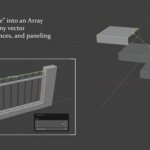
After a Quick Move has completed, use the operator's "Array Count" modifier to create an interpolated array between the two movement points.
This is an intuitive way to create arrays in non-XYZ space.
Array Example: Creating a Fence
Here we first drag from the right side of the board to our endpoint. We then use shift to create projections and choose the Y projection.
Let go of "G" to finish the motion. The Array Count is then adjusted until we like the spacing.
Mesh Movement
Every kind of movement that can be done with objects can be done with mesh points!
Select a vertex and hold "G" click to instantly snap it to any grid point or other snap point.
Drag edges and faces exactly where you want.
Extrusions (Mesh Edit Mode)
When doing a Teleport or Relative Movement (while still holding G), press the Control key to toggle extrusion mode.
As long as "G" is held down, you can continue to click and do multiple extrusions.
You can also choose the operator's "Extrude" checkbox after the operation to retroactively extrude.
Edge Extrude Demo
An edge is extruded to create a custom boundary in a single continuous Quick Move operation.
Note pivot point is set to Active Element so that simple clicks will use the bottom vertex as an origin.
Vertex Extrude Demo
Quick Axis Movement
While holding "G", instead of dragging with the Left Mouse Button, drag with the Mouse 4 Button.
Global vectors will appear that allow for quick movement along the X, Y, or Z axis. Use the Snap Increment
setting in the Arbitrary Align side panel to enable snapping or set a custom snapping length.
Note: If you don't have a Mouse 4 button or would prefer another approach, begin a normal dragging movement (Hold "G", Left Mouse Down to start dragging) and press "A". Drag to the nearest Global Vector.
Bounding Boxes
In the Arbitrary Align side panel (press N to access), you can select additional help snap points to display during operations. The "Boundary" option will create points on the boundary faces of the object, matching object rotation.
This is especially useful when blocking out complex geometry, as each object can be represented as a volume. The "Corners" option will also create bounding corner points
Vector-Constrained Movement
This can be a little tricky. While doing a Quick Move relative motion (Holding "G", clicking and dragging), instead of releasing of the Left Mouse Button, release the "G" key first.
This will invoke Blender's standard move operator, but constrained to the line you were dragging. Also works with Component Vectors.
Vector-Constrained Movement with Bounding Boxes
Vector constrained movement can also be triggered by hovering over a Bounding Box Face Vector and releasing G.
This allows the ability to rapidly tweak position using the objects local coordinate system.
Define Origin (Included in Free Version)
Press Shift + P to invoke the Define Origin operator.
Click to set object origin. Multiple objects can be set at the same time.
Dragging the origin will cause it to set to the center of the dragged line.
Measuring Tool (Included in Free Version)
Press Alt + M to access the Measuring Tool.
The Measuring Tool leverages the Snap Point system of Arbitrary Align to allow the creation of quick and intuitive measurements!
During the operator, click and drag between Snap Points to create measurement lines. Component Vectors work here as well.
Press "A" to toggle showing angles, which are automatically generated between all touching points.
Ctrl+Z will undo the measurement. Press "C" to clear all measurements.
Note: The measurements are currently temporary, they disappear once the operator is cancelled (Right Click). If there is interest, they can be added as semi-permanent data to the scene.
Getting Started (Older docs, working on updating documentation for all non-free features)
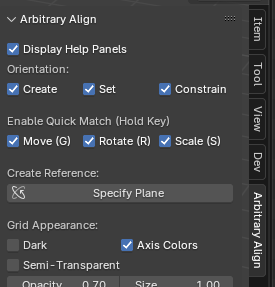
Arbitrary Align is a toolbar-based add-on for Blender. To use the tool, first activate it by selecting the Arbitrary Align icon from the left-hand toolbar in the 3D Viewport. The add-on also uses a panel, accessed by pressing 'N'. The panel houses a large variety of settings and misc. tools.
Core Concepts
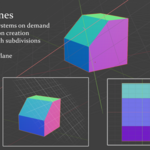
Arbitrary Align is built around two primary constructs: snap points and reference planes.
Snap Points
Snap points are points such as vertices, edge-midpoints, face center, face surface, and grid points. Snap points also have a visible normal, which will be color-coded when they match global axes. When using a modal operator, users are often prompted to define one or more snap points. These serve as anchors for aligning, projecting, or transforming geometry.


Note: Most features are demonstrated in these videos:
Quick Match
https://www.youtube.com/watch?v=MJZ52JdRogE
Reference Planes
https://www.youtube.com/watch?v=LgKGb364lZE
Projection (and other tricks)
https://www.youtube.com/watch?v=Nsqz0I3yBbg
Quick Match
Hotkeys: Hold G, Hold R, Hold S
While holding a transform key, Arbitrary Align enables a quick snap-based alternative to Blender’s standard transform tools. Releasing the key reverts to Blender’s default modal. Must be enabled in panel (under "Enable Quick Match")
-
G (Translate):
Click to teleport the selection to the snap point under the mouse.
Drag between two snap points to translate the selection precisely along that vector.
-
R (Rotate):
Click while hovering over a snap point to rotate the selection to match the normal direction.
Drag between two snap points to rotate from point A toward point B.
-
S (Scale):
Drag between two edge-based snap points. The selection scales so the A-to-B length matches.
Define Origin
Hotkey: Shift + P
Sets the origin of the selected object(s) to a user-defined snap point. Works in both Object and Edit modes.
Define Reference Plane
Hotkey: D
Creates a reference plane from a snap point. Automatically generates and sets a custom orientation if in the panel.
Clear Reference Plane
Hotkey: Alt + D
Removes the currently defined reference plane and associated orientation.
Define Proxy Point
Hotkey: Ctrl + D
Sets a proxy point used as the origin for projection operations.
Clear Proxy Point
Hotkey: Ctrl + Alt + D
Clears the currently defined proxy point.
Transfer Reference Plane
Hotkey: T
Transfers the active reference plane to a new location using a snap point.
Adjust Grid Spacing
Hotkey: Ctrl + T
Modifies the spacing and subdivision of the reference plane grid.
Project Geometry
Hotkey: C
Projects selected objects or geometry to the active reference plane using a defined projection vector. Prompts for a temporary reference plane if one is not already set.
Quick Projection
Hotkey: Alt + C
Performs a projection using the reference plane’s normal as the projection vector. Bypasses the modal if a reference plane is set.
Mirror Geometry
Hotkey: Ctrl + M
Mirrors the selected geometry across the active reference plane.

Discover more products like this
hard surface modeling match blender addon align precision modeling snap custom transform low-poly modeling reference planes blender snapping mesh projection