ArcSlice
 Artmesh Studios
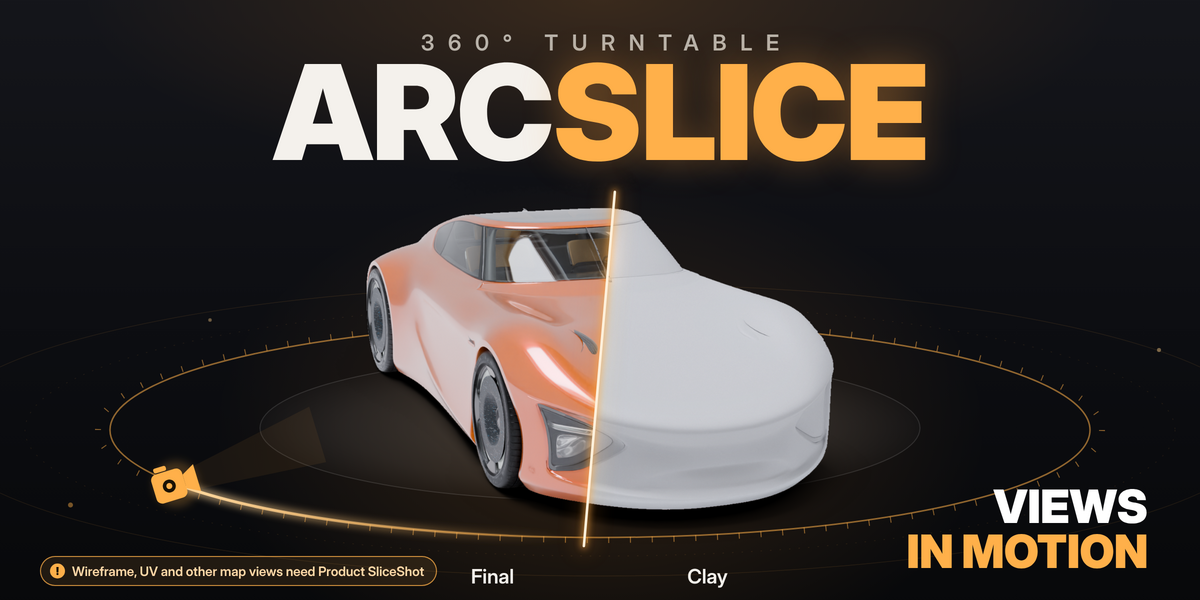
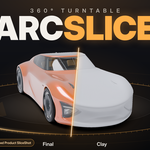
Important: map views need Product SliceShot. Clay and Final work on their own. Wireframe, UV, Normal, AO, Base Color, Roughness, Metallic and Opacity are rendered by Product SliceShot 1.1 or newer, sold separately or in the SliceShot + ArcSlice bundle. Without it, those views are greyed out in ArcSlice.
Requirements
| Blender | 4.5 LTS and newer (tested on 4.5 LTS and 5.2) |
| Operating system | Developed and tested on Windows. Pure Python with no compiled parts, so macOS and Linux are expected to work but are not tested yet |
| Render engines | EEVEE and Cycles. Map views from Product SliceShot are always rendered with Cycles |
| Map views | Product SliceShot 1.1 or newer, installed and enabled. Not needed for Clay and Final |
| Package | Blender extension (.zip), installs by drag and drop |
| License | GPL-3.0-or-later |
Blender 4.2 and older are not supported.
Installation
- Download arcslice-1.0.2.zip from your Superhive receipt. Do not unzip it.
- Drag the zip file into an open Blender window and confirm. Or: Edit → Preferences → Get Extensions, open the ˅ menu at the top right, choose Install from Disk… and pick the zip.
- Make sure ArcSlice is enabled in the extensions list.
- In the 3D Viewport, press N to open the sidebar and click the ArcSlice tab.
Updating: install the new zip the same way; it replaces the old version and works right away, no restart needed. If you connected Superhive as a remote repository in Blender, updates are offered with one click.
For the map views (Wireframe, UV, Normal and more), install Product SliceShot 1.1 or newer the same way.
Quick start
- Save your .blend file (renders go to a folder next to it).
- Select your product and, in the ArcSlice tab, press Set Up Turntable. The model is framed and the frame range set.
- Optional: in the Sequence tab, turn on Use Sequence and add parts with +, for example Clay → Final. Pick a transition for each part.
- In the Output tab, pick a preset, for example Vertical 9:16 for Reels and Shorts.
- In the Render tab, press Preview for a quick test video, then Render Sequence (or Render Turntable without a sequence).
The result is Name_9x16.mp4 in its own new folder, for example ArcSlice_Renders/Shoe_9x16_20261127-101500. Press Reset when you are done to remove the rig and restore your scene.
Settings
All settings live in the ArcSlice tab of the 3D Viewport sidebar (N), in four tabs: Setup, Sequence, Output and Render. Every setting has a tooltip; the ⓘ buttons explain the less obvious ones.
Setup
| Set Up Turntable | Builds the rig around the selected objects (children included), frames them and sets the frame range. Lights, cameras, light probes and speakers in the selection are ignored. |
| Rebuild | Builds the rig again, for example after you changed the selection, the spin mode or the model. |
| Reset | Removes the rig and puts back your camera, frame range and resolution. |
| Spin Mode | Camera Orbit: the camera circles the model; lights and environment stay put. Object Spin: camera and lights stay still and the model turns. Press Rebuild after changing it. |
| Direction | Counter-Clockwise or Clockwise, seen from above. |
| Turns | Full 360° turns in the loop, 1 to 10. |
| Duration (s) | Length of the turntable. With a sequence, the parts set the length instead. |
| Elevation | Camera height angle above the model's center, −89° to 89° (default 15°). |
| Padding | Extra space around the model in the frame, 0 to 200% (default 10%). |
| Focal Length | Camera lens, 10 to 300 mm (default 50 mm). |
Background
| Background | Gradient (default), Solid Color, Image (your picture, scaled to fill), Transparent (PNG only) or Scene (your own world and HDRI, as they render). |
| Preset | Dark Studio, Light Studio, Sky Studio, Midnight, Warm Paper, Neutral Grey. The same presets as Product SliceShot. Changing a color switches to Custom. |
| Type, colors, Angle, Size | Linear (top to bottom, turned by Angle) or Radial (center to edge, reach set by Size). |
| How it works | Gradient, Solid and Image are added behind the rendered frames; they are not shown in the viewport. Your world or HDRI still lights the model and shows in reflections. |
Sequence
| Use Sequence | On: the loop is made of parts with different views. Off: the whole turntable shows the Final view. |
| Part list | One row per part: view, length and the transition into the next part. |
| + / − / arrows | Add a part (pick its view from the menu), remove the selected part, change the order. |
| Viewport | Shows the sequence as colored strips at the bottom of the 3D viewport. |
| View | Clay: the product in a plain clay material. Final: your scene as it renders. Wireframe, UV, Normal, AO, Base Color, Roughness, Metallic, Opacity: rendered by Product SliceShot with its own settings. Needs Product SliceShot 1.1 or newer (sold separately). |
| Duration (s) | Length of the selected part, 0.1 to 600 seconds. |
| Transition to the next part | Crossfade, Slice (a line sweeps across and reveals the next part) or Cut. The last part always loops back to the first with a cut. |
| Length (s) | Length of the transition, centered on the change. 1 s or longer looks best for Slice. |
| Slice Line | Shown when a part uses Slice. Line Width in pixels (0 = no line), Line Color (alpha sets its strength) and Line Angle (−45° to 45°, 0 = straight). |
Output
| Preset | Vertical 9:16 (1080 × 1920), Square 1:1 (1080 × 1080), Landscape 16:9 (1920 × 1080), TurboSquid Turntable, CGTrader Video (1920 × 1080 MP4 for YouTube or Vimeo), Gallery Stills, Custom (your scene's resolution). |
| Format | MP4 (H.264), PNG or JPG sequence, as far as the preset allows. Transparent backgrounds need PNG. |
| JPG Quality | 1 to 100% (default 90%). |
| Frames (TurboSquid) | Frames for one full turn, 12 to 36 and even (default 24), numbered Name_01, Name_02 … at 1920 × 1080. |
| Angles (Gallery) | Still images at evenly spaced angles around one turn, 2 to 12 (default 6). |
| Folder | Where renders go (default //ArcSlice_Renders/, next to the .blend file). Every render gets its own new subfolder, so nothing is overwritten. |
| Name | Base name of the files. Empty = the name of the first turntable object. |
TurboSquid and Gallery presets render the Final view only, so every frame of the spin looks the same.
Render
| Summary | Output, size, length, engine, background, sequence and folder of the next render, at a glance. |
| Problems list | Anything that would stop the render (unsaved file, missing background image, Transparent with MP4, missing Product SliceShot) is listed in red before you press Render; the arrow next to it opens the tab where it is fixed. |
| Preview | Renders a small test video and opens it when it is done. Previews always start fresh and are never resumed. |
| Size / Samples | Preview resolution as a percentage of the output (default 25%) and preview samples (default 16). The full render uses your scene's samples. |
| Play last preview | Opens the last preview video again. |
| Unfinished render | After Esc or a crash: Resume continues where it stopped; Discard deletes its frames. Resume works only if the settings that change the image are the same; otherwise it tells you what changed. |
| Render Sequence / Render Turntable | Renders the frames, joins the transitions and writes the video or images. Esc stops at any time. While rendering, the panel shows only the progress. |
| Open Output Folder | Opens the folder of the last render. |
Support
Questions, bug reports and feature requests: please send a message to Artmesh Studios through Superhive. To keep support fast for customers, all support runs through Superhive messages. It helps a lot if you include:
- your Blender version and operating system,
- a screenshot of the ArcSlice panel (the Render tab shows the summary of your settings),
- the text from Blender's Info editor or system console if an error appeared.
License
ArcSlice is licensed under the GNU General Public License v3.0 or later (GPL-3.0-or-later). The full license text is included in the download. The videos and images you render with ArcSlice are yours to use, including in commercial listings.
Add-on by Artmesh Studios.
 Included
Includes 12 months of
- Support from Artmesh Studios
- Product updates
Extend this product’s Support Period +12 months: 50% of product price
Have questions before purchasing?
Login to message
| Blender Extension Compatible | Yes |
| Published | about 8 hours ago |
| Blender Version | 4.5 - 5.2 |
| Extension Type | Add-on |
| Render Engine Used | Cycles, Eevee |
| License | GPL |
Discover more products like this
clay-render product render portfolio Turntable animation turntable presentation showcase 360-turntable object-spin product-visualization breakdown camera orbit