Render Pro
 AS Formworks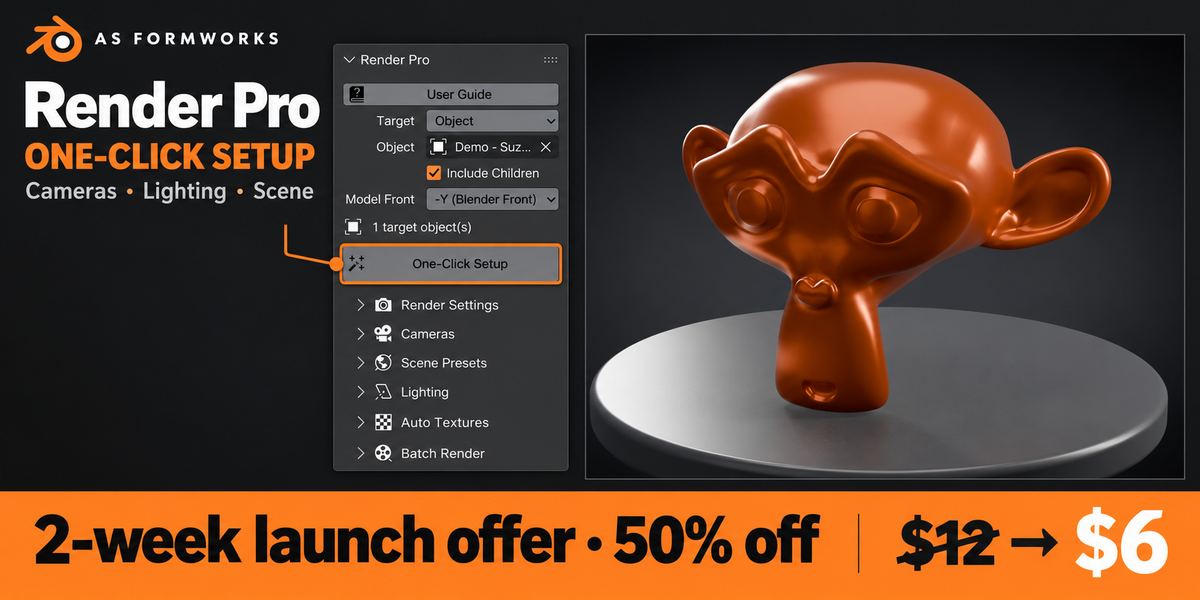




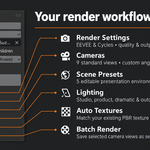

Render Pro 1.0.1 — User Guide
Validated configuration: Blender 5.2.1 LTS on Windows, using EEVEE and Cycles. Other versions and operating systems have not been validated. The complete offline USER_GUIDE.html is included in the download and opens from the addon’s User Guide button.
Installation
- Extract the outer Customer Bundle ZIP.
- In Blender, open Edit → Preferences → Add-ons → menu → Install from Disk.
- Select render_pro-1.0.1.zip without extracting that installer. Enable Render Pro.
- In the 3D View press N and open the Render Pro tab.
When updating, finish active renders and disable the old copy before enabling the new one. Do not enable legacy and extension copies together. Old 1.0.0 generated scene elements are not automatically deleted; remove an old setup manually in a saved copy before rebuilding.
Quick start
- Save your .blend file and select your model. Choose Selected Objects, or assign an explicit Object/Collection target.
- Set Model Front to your model’s forward axis, default -Y.
- Choose an engine, resolution and Preview quality.
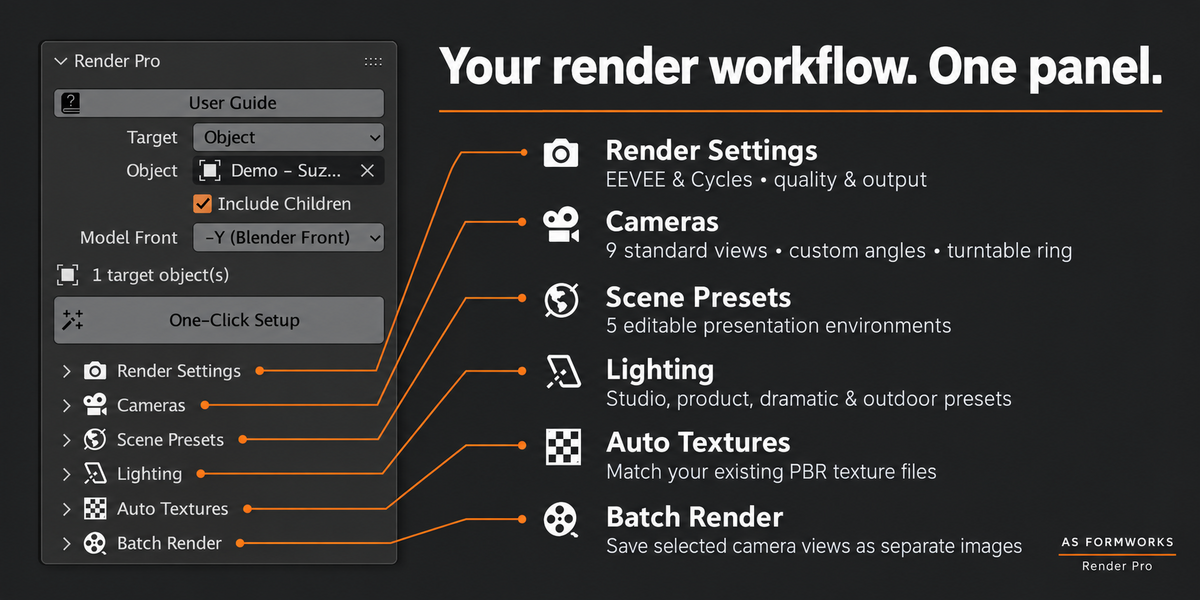
- Choose Gradient or Showcase Pedestal with Auto lighting, and enable the desired camera angles.
- Click One-Click Setup, review the result, and adjust the framing or lighting.
- Choose an output folder and the correct camera source, then use Render All Cameras.
One-Click Setup creates a starting scene; it does not immediately render. An empty explicit target stops the action. Include Children expands a hierarchy. Existing user lights remain and can affect the result.
Camera and timeline controls
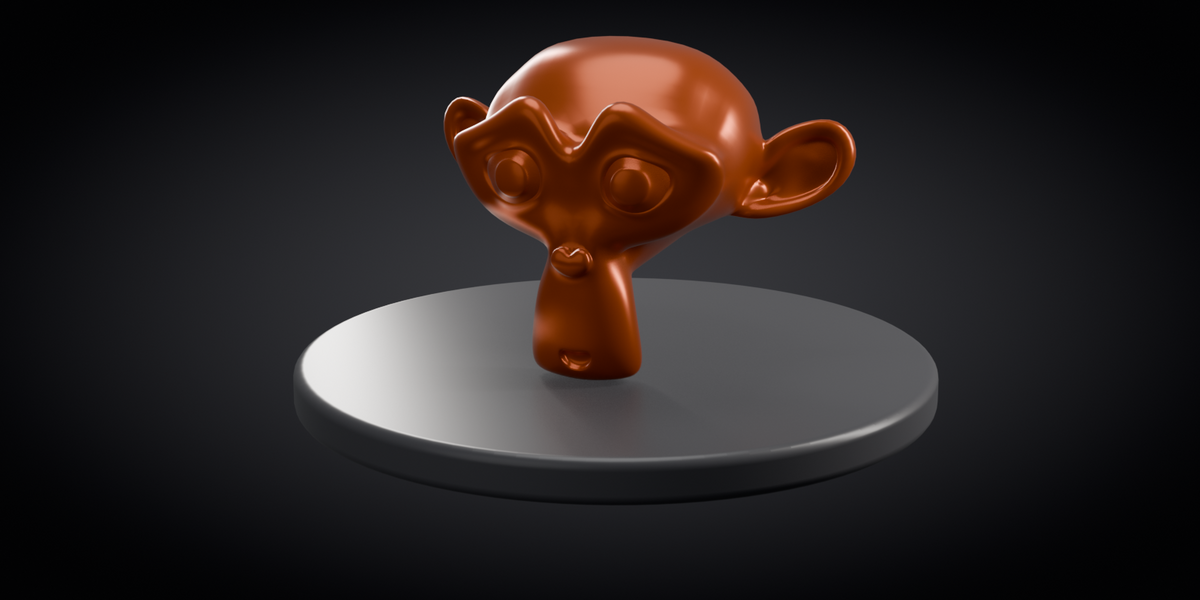
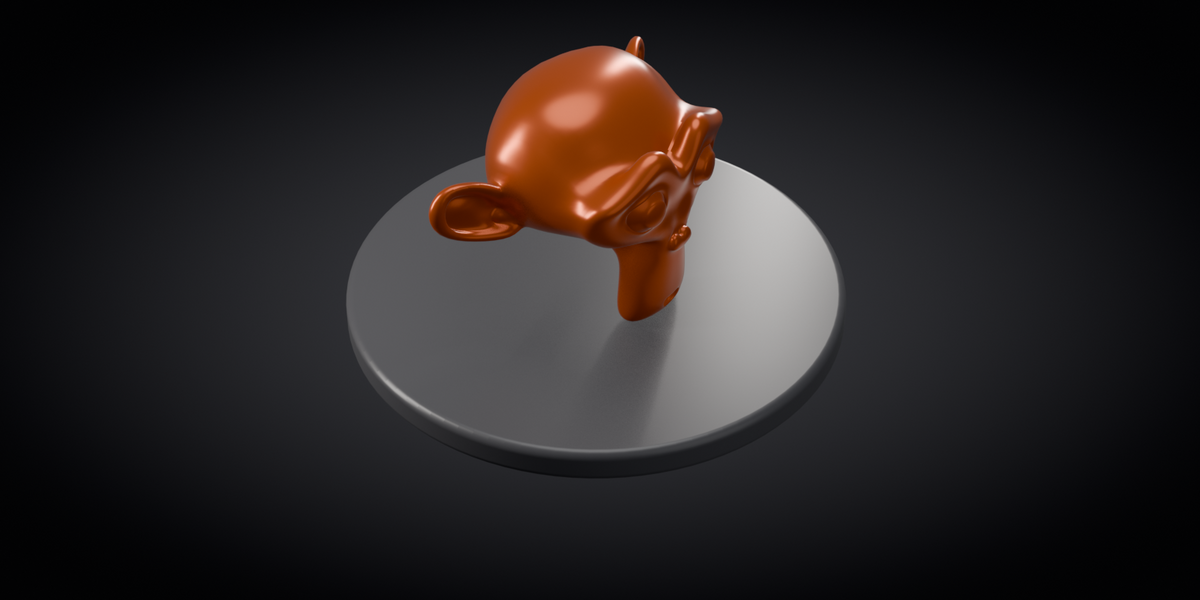
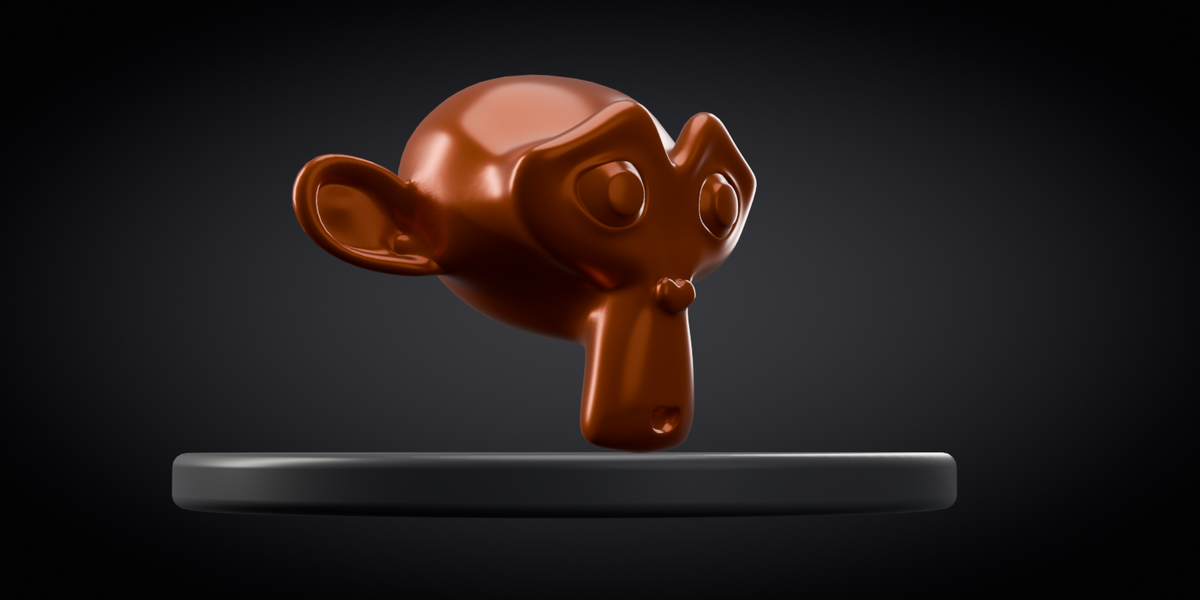
Choose nine standard angles, add custom azimuth/elevation/lens values, or create a 2–72 view ring. Lens 0 on a custom angle uses the global lens. Frame Padding reserves empty space. Adaptive Geometry Framing uses exact vertices within a shared budget and conservative evaluated bounds for dense geometry. Orthographic Flat Views applies to front, side, back and top views. Keep Above Ground adjusts perspective views.
Bind to Timeline Markers places views at frames 1, 2, 3… and changes the timeline range. Turn it off to keep an animation range. The ring creates still-view cameras; it does not animate an orbit. Refit Active Camera intentionally modifies the active camera’s framing.
Environments and lighting
Solid Color and Gradient provide clean backgrounds. Studio Cyclorama adds a seamless curved backdrop. Showcase Pedestal adds a display base with size, height and material controls. Reapply presets for structural changes. Auto lighting chooses a studio rig, or outdoor lighting for the ocean. Soft Studio, Dramatic, Product and Outdoor Sun provide other starting points.
Stylized Ocean uses Geometry Nodes, procedural shading and toon clouds; it is not a fluid simulation. Control water level, swell, waves, chop, calm region, foam, sky and colors. Animation Phase may be keyframed manually. Use Regenerate Clouds after changing cloud count or seed. Start with low grid resolution: 101 means 10,201 vertices, default 561 means 314,721, and 2001 means 4,004,001. The shadow floor is a Cycles option. Transparent film hides the visible background.
Render settings
Quality presets control samples and selected engine settings. Resolution percentage also applies. CPU is the default for Cycles; Prefer Configured GPU uses enabled devices already configured in Blender Preferences, with CPU fallback if no compute GPU is configured. It does not install drivers or guarantee sufficient GPU memory. Use PNG, TIFF or EXR for alpha; JPEG cannot store transparency.
Texture matching
Select a focused texture folder, material scope and Scan (Preview) before assigning. Empty folder uses the saved project folder. All Materials covers used materials across the file. Example: M_BrushedMetal matches BrushedMetal_basecolor.png, BrushedMetal_normalgl.png and BrushedMetal_roughness.png. Use separators and review ambiguous names. The scan is capped at 30,000 images.
Only Missing keeps existing links. Replace updates matched inputs while preserving unmatched inputs. Supported maps include base color, normal, roughness, inverted glossiness, metallic, AO, emission, alpha and optional height-as-bump. ORM uses R=AO, G=roughness, B=metallic; separate maps take precedence. Marked DirectX normals have green flipped. Color maps use sRGB and data maps Non-Color, with image copies when needed. The addon expects a directly connected Principled BSDF; complex Surface shaders and linked/read-only materials are skipped with result messages. It does not generate textures, unwrap UVs or infer channels from image contents.
Batch output and stopping
Choose Checked Cameras, Render Pro Cameras or All Cameras. Camera checkboxes initially include existing cameras, so review the source. All chosen cameras render the current frame. Filename tokens: {blend}, {scene}, {camera}, {angle}, {index}. The default is {blend}_{index}_{angle}. Existing files and duplicate names get suffixes such as _001. Avoid multiple Blender processes writing into the same folder.
//Renders/ resolves beside the saved blend file. Unsaved projects need an absolute output path. Date Subfolder groups a run by local timestamp. Camera-bound markers are temporarily suspended. Completion or handled failure restores the original camera, frame/subframe, marker bindings and output path; a crash cannot run restoration. ESC in the batch context requests a stop after the current camera. Cancelling Blender’s current render stops the queue. Completed images remain.
Generated data, license and support
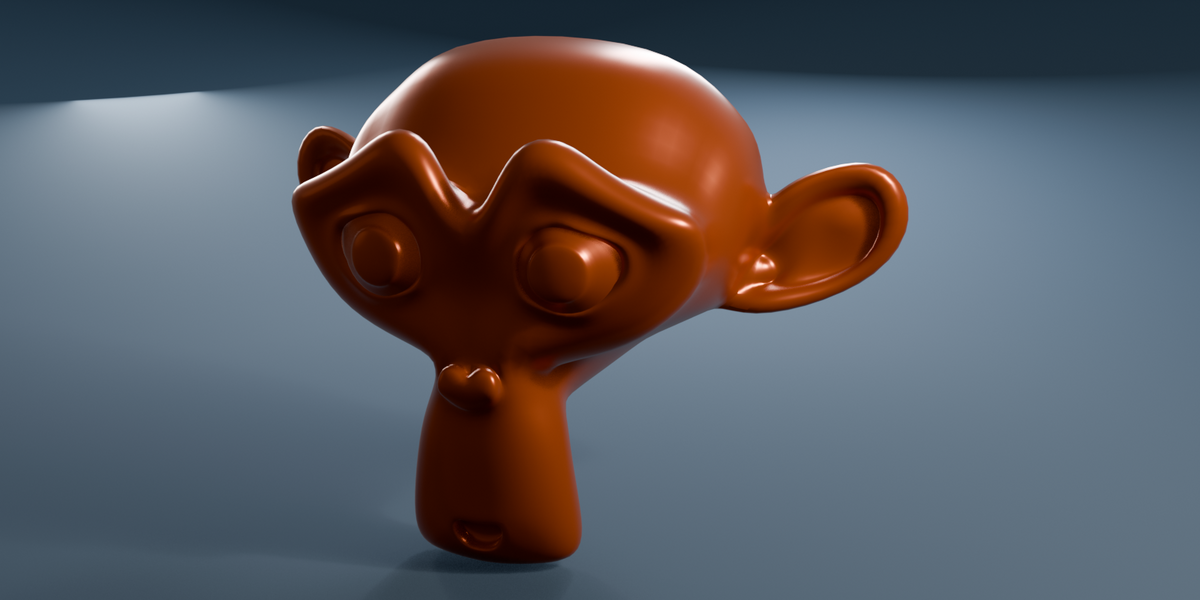
Generated elements are tagged per scene. Cleanup preserves similarly named user data and foreign objects placed in generated collections. Remove Scene restores the previous world; a world you manually switched to is kept. The demo uses Blender’s built-in Suzanne and procedural materials, not a separate commercial asset pack.
Code is GPL-3.0-or-later, with full Python source and license text included. The addon operates offline without an API key or external downloads. For support, contact AS Formworks through Superhive with the addon version, exact Blender version, engine, operating system, reproduction steps and complete error message.
Have questions about this product?
Login to message
| Blender Extension Compatible | Yes |
| Published | about 3 hours ago |
| Blender Version | 5.2 |
| Extension Type | Add-on |
| Render Engine Used | Cycles, Eevee |
| License | GPL |
Discover more products like this
procedural environments texture-assignment portfolio product-visualization batch render Studio Lighting rendering cameras