Audio Oven (Procedural Audio Manipulation)
 Baraka Chacha
in VSE
Baraka Chacha
in VSE
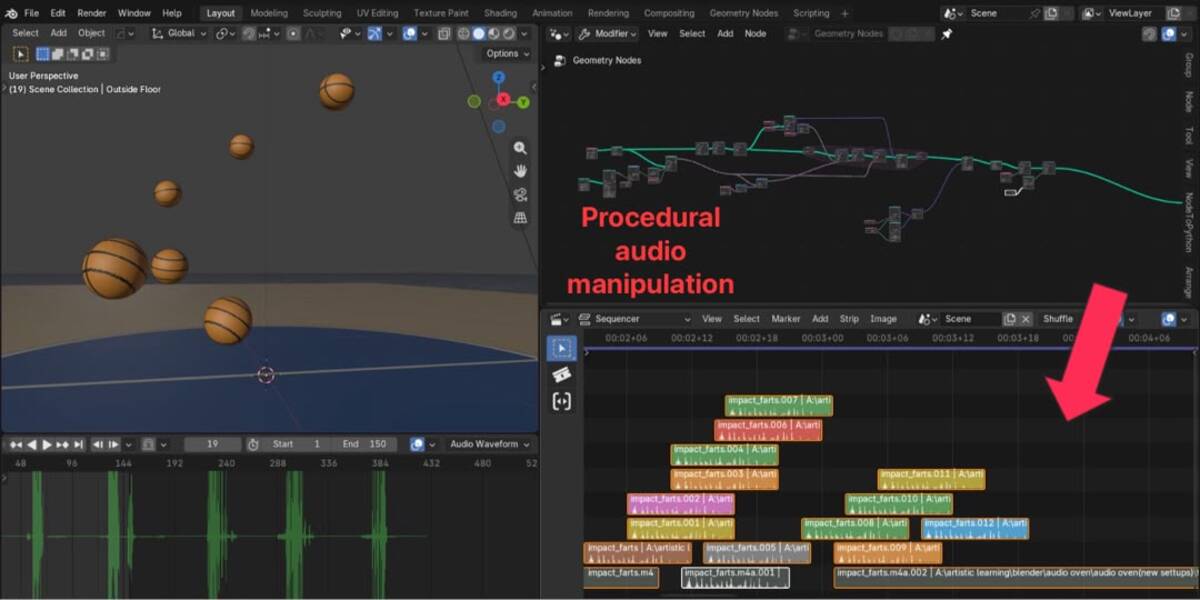
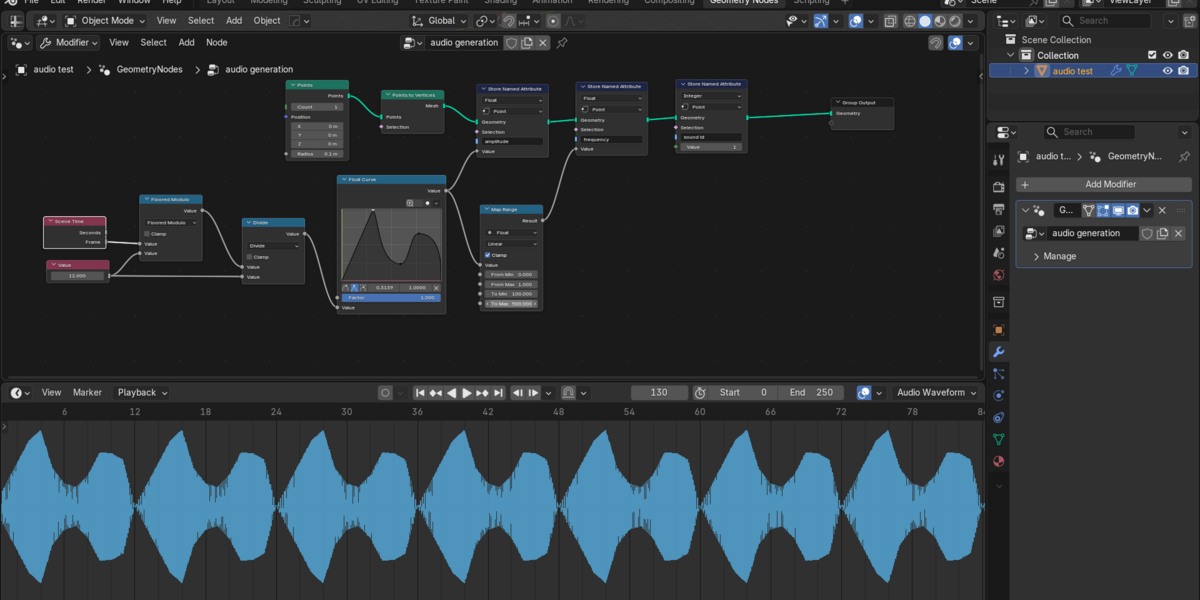
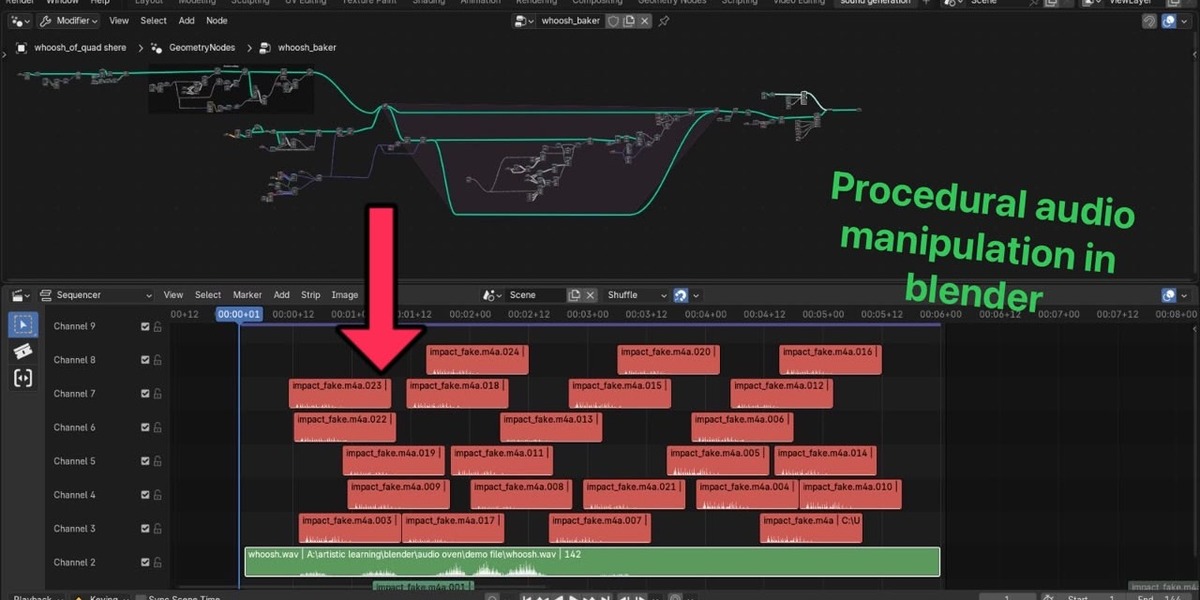
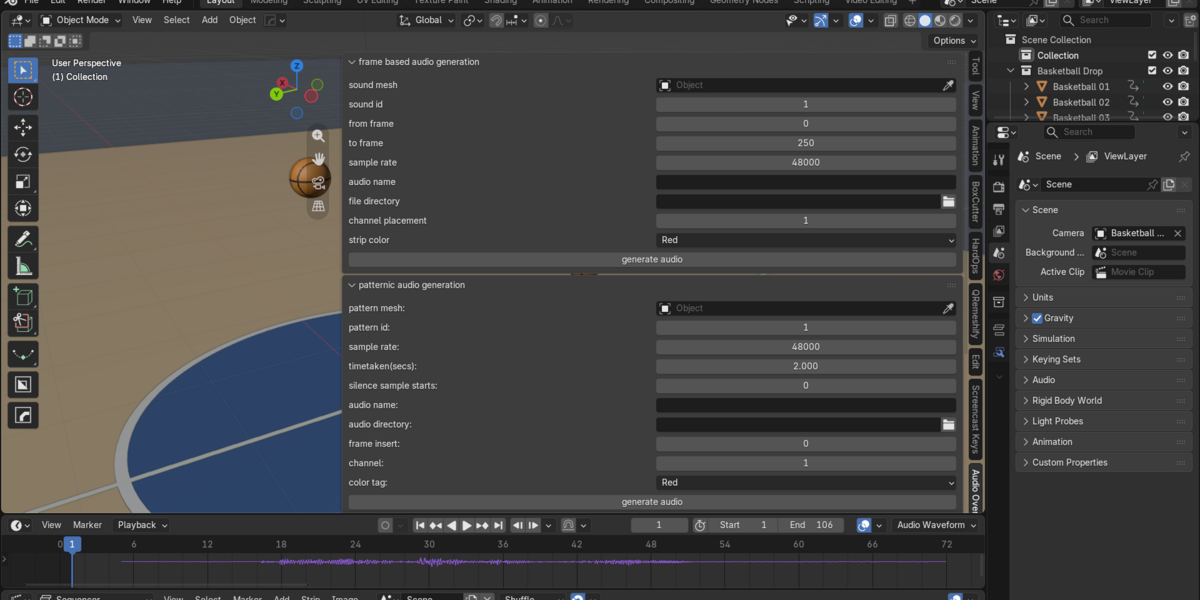
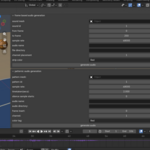
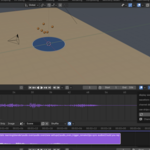
Audio Oven Documentation
Audio Oven is a Blender add-on that turns animated mesh data into sound. It has four tools in one add-on:
- Trigger: places an existing sound file in the Video Sequencer whenever animated points on a mesh match an ID.
- Frame Based Audio Generation: creates a new sound from the amplitude and frequency of animated mesh points.
- Patternic Audio Generation: repeats a pattern of sample values stored on a mesh into a sound file.
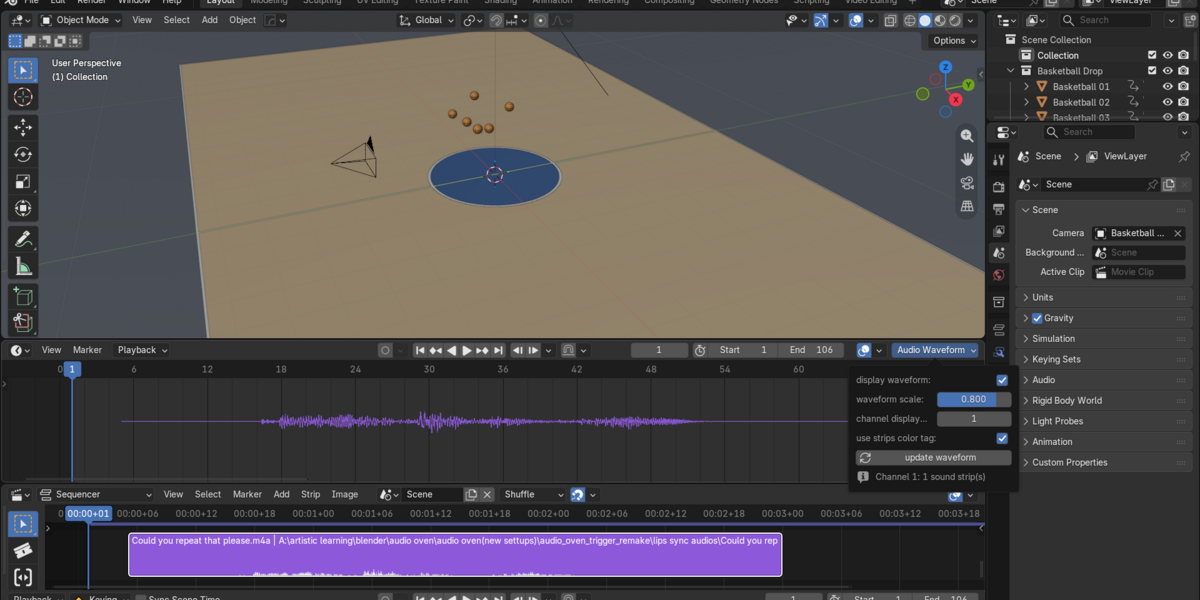
- Waveform Display: draws the waveform of your sound strips over the animation editors, which helps with timing, lip-sync and sound design.
You control the audio with named attributes on a mesh. You can create them with Geometry Nodes, modifiers, or by hand, and animate them like anything else in Blender.
Requirements
- Blender 5.2 or newer
- A folder where Blender can save generated audio files
- Mesh objects with the attributes described in each section below
- For Trigger mode, a sound file that Blender can read
Audio Oven needs nothing else. There are no extra libraries to install.
Installation
- Download the ZIP file. Do not unzip it.
- In Blender, open Edit → Preferences → Get Extensions.
- Click the small arrow in the top-right corner and choose Install from Disk.
- Select the ZIP file and click Install.
- Make sure Audio Oven is enabled in the list.
Where to find the controls
-
3D Viewport: press N to open the sidebar, then open the Audio Oven tab. It contains the trigger, frame based audio generation and patternic audio generation panels.
-
Dope Sheet / Action Editor, Graph Editor and NLA Editor: press N and open the Audio Oven tab to find the waveform controls.
- The Dope Sheet header also has an Audio Waveform popover with the same controls.
A quick note about mesh attributes
All three generators read attributes, which are named data layers on a mesh's points (vertices). Audio Oven only looks at attributes on the Point domain, and the names must match exactly, including spaces and lowercase letters.
You can create attributes in the Object Data properties, or with Geometry Nodes using nodes such as Store Named Attribute. Because Audio Oven reads the evaluated mesh, any animation, modifier or Geometry Nodes setup is taken into account.
1. Trigger: place sounds from animated mesh points
Trigger mode scans your scene's frame range. Every time it finds a point whose trigger id matches the one you chose, it places your sound file on the sequencer at that frame.
Mesh attributes
| Attribute | Type | Required | Purpose |
|---|---|---|---|
trigger id |
Integer | Yes | Points with the chosen ID create sound strips. |
volume |
Float, 0 to 1 | No | Sets the strip's volume. Replaces the panel's default volume. |
color tag |
Integer, 1 to 9 | No | Sets the strip's color tag. Replaces the panel's default color. |
Steps
- Choose the audio file to play.
- Choose the trigger mesh.
- Set the trigger id you want to detect.
- Set the default volume and default color tag.
- Set the from channel and to channel. This is the range of sequencer channels Audio Oven may use. If several triggers happen at the same time, they are spread across free channels in this range.
- Set the start trim (how much of the beginning of the sound to skip) and the maximum strip duration.
- Click generate triggers.
Audio Oven goes through the scene's animation and then returns to the frame you were on.
Important: channel cleanup
Before generating, Trigger mode removes all existing strips on every channel in your from/to range. Keep your other strips outside that range, or save a copy of your project first.
Copy settings from an existing strip
Select a sound strip in the Video Sequencer, open its context menu (right-click) and choose Strip Info to Trigger Panel. Its settings are copied into the Trigger panel.
2. Frame Based Audio Generation
This mode builds a new sound from animated mesh data. Each selected point acts like a sine-wave oscillator. Its animated amplitude and frequency are read frame by frame and blended smoothly between frames. All oscillators are mixed into one mono sound, saved as a WAV file and added to your sequencer.
Mesh attributes
| Attribute | Type | Required | Purpose |
|---|---|---|---|
sound id |
Integer | Yes | Points with the chosen ID are used. |
amplitude |
Float | Yes | How loud the oscillator is (limited to -1 to 1). |
frequency |
Float | Yes | Pitch in Hz (limited to 20 to 20,000). |
phase offset |
Float | No | Shifts the start of the wave. |
All attributes must be on the Point domain.
Steps
- Choose the sound mesh.
- Set the sound id to use.
- Set from frame and to frame. The range must cover at least one frame.
- Choose the sample rate. The minimum is 32,000 Hz. Audio Oven refuses lower values because they sound poor.
- Enter an audio name and choose a file directory.
- Choose the channel and strip color for the new strip.
- Click generate audio.
Things to keep in mind
- The points with your chosen sound id must stay the same, in the same order, for every frame in the range. If points appear or disappear, or their order changes, Audio Oven will report an error.
- If the finished sound would clip, it is automatically scaled down so it stays within range.
- If you leave the file directory empty, Audio Oven saves the file in a default folder next to your saved
.blend file, named after the project.
- The new strip is placed on your chosen channel starting at the from frame. Any existing strip on that same channel is replaced.
- The result is a standard mono 16-bit WAV file.
.blend file, named after the project.3. Patternic Audio Generation
This mode takes a list of sample values stored on a mesh, repeats them until the sound is as long as you want, and saves the result as a WAV file. It is useful for simple tones, textures and repeating waveforms.
Mesh attributes
| Attribute | Type | Required | Purpose |
|---|---|---|---|
pattern id |
Integer | Yes | Points with the chosen ID make up the pattern. |
sample amplitude |
Float | Yes | The sample value of each point in the pattern. |
The points with your chosen ID are read in order and repeated over and over to fill the duration.
Steps
- Choose the pattern mesh.
- Set the pattern id you want to use.
- Set the sample rate, the duration, and optional leading silence (in samples).
- Enter an audio name and choose a directory.
- Set the insertion frame, channel and color tag.
- Click generate audio.
Things to keep in mind
- If the directory is left empty, the file is saved in a folder beside your saved
.blend file. If the project has not been saved yet, Audio Oven uses a folder in your home directory and tells you where.
- Before inserting the new strip, this mode removes any existing strips on the chosen channel. Use a spare channel, or save a copy first.
- The result is a standard mono 16-bit WAV file.
.blend file. If the project has not been saved yet, Audio Oven uses a folder in your home directory and tells you where.4. Waveform Display
Waveform Display draws the real waveform of the sound strips on one sequencer channel directly in your animation editors. It is only a visual aid and never changes your audio.
Steps
- Open the Dope Sheet / Action Editor, Graph Editor or NLA Editor.
- Press N and open the Audio Oven tab.
- Turn on display waveform.
- Choose the channel that holds your sound strips.
- Adjust waveform scale (0 to 1) to change how tall the waveform is.
- Optionally turn on use strips color tag to color each waveform with its strip's color. Otherwise the waveform is bright green.
- Click update waveform if you change the source audio or need to refresh the display.
The waveform follows the strips' volume and updates automatically when you move strips, change the channel, change volume or change colors.
Saving and moving your project
- Generated audio is saved as WAV files, and the sequencer strips point to those files.
- If you move or share your project, keep the audio files with it, or pack or relink them using Blender's file tools.
- Trigger mode clears every channel in its range, and Patternic mode clears its chosen channel. Save a copy of your project before you generate if your existing sequencer work would be hard to recreate.
Troubleshooting
The Audio Oven panels are missing.
Check that the add-on is enabled in the Preferences. In the 3D Viewport, press N and select the Audio Oven tab. The waveform controls are in the sidebars of the Dope Sheet, Graph Editor and NLA Editor.
No trigger strips were created.
- Check that the audio file path exists.
- Check that the object is a mesh with a
trigger idattribute on the Point domain. - Make sure the selected trigger id matches the values on your points.
- Make sure the scene's frame range includes the animation.
- Make sure there are enough free channels in your from/to range.
Frame generation reports a missing attribute.
Check the spelling, the data type and that the attribute is on the Point domain. Also check that points with your chosen sound id exist on every frame in the range.
Frame generation reports that the sample rate is too low.
Use a sample rate of 32,000 Hz or higher.
Pattern generation finds no points.
Check that the mesh has both pattern id and sample amplitude, and that at least one point has the ID you chose.
The waveform is blank.
Make sure a sound strip is on the channel you selected, the audio file can still be found, and display waveform is on. Then click update waveform.
A WAV file was not created.
Check that the output folder exists, that Blender has permission to write to it, and that your disk has free space.
Frequently Asked Questions
Do all four tools create new audio?
No. Trigger places an existing sound file, Frame Based and Patternic create new WAV files, and Waveform Display only draws a visual.
Can I use the generated audio outside Blender?
Yes. The generators write standard mono 16-bit WAV files that work in any audio or video software.
Does the Waveform Display change my audio?
No. It is only a visual overlay.
Can I animate the attributes?
Yes. Trigger and Frame Based mode read your animation frame by frame, so keyframes, modifiers and Geometry Nodes setups all work.
Do I need to install anything else?
No. Audio Oven works with Blender 5.2 or newer as it is.
License
Audio Oven is written by Baraka Chacha and released under the GNU General Public License, version 3 or later. The full source code and license text are included in the download.
Have questions about this product?
Login to message
| Blender Extension Compatible | Yes |
| Published | 2 days ago |
| Blender Version | 5.2 |
| Extension Type | Add-on |
| License | GPL |

Discover more products like this
VFX geometry nodes 3DMotionGraphics blender motion graphics Blender Add-on procedural tools sound design audio video sequencer Workflow animation