Audio Waveform Display
 Baraka Chacha
in VSE
Baraka Chacha
in VSE
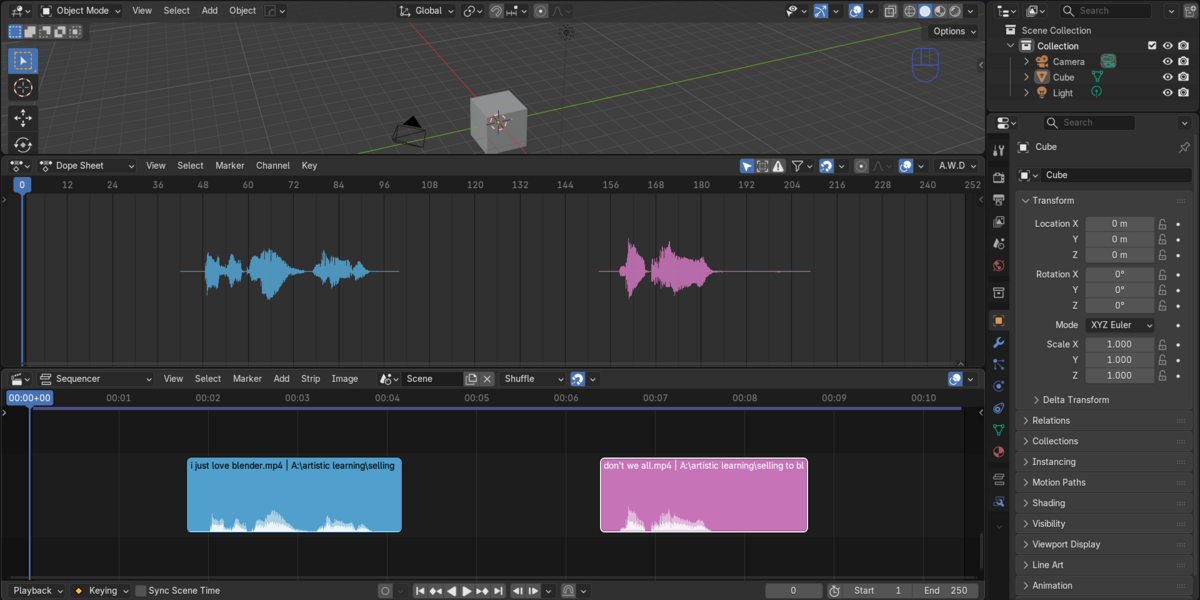
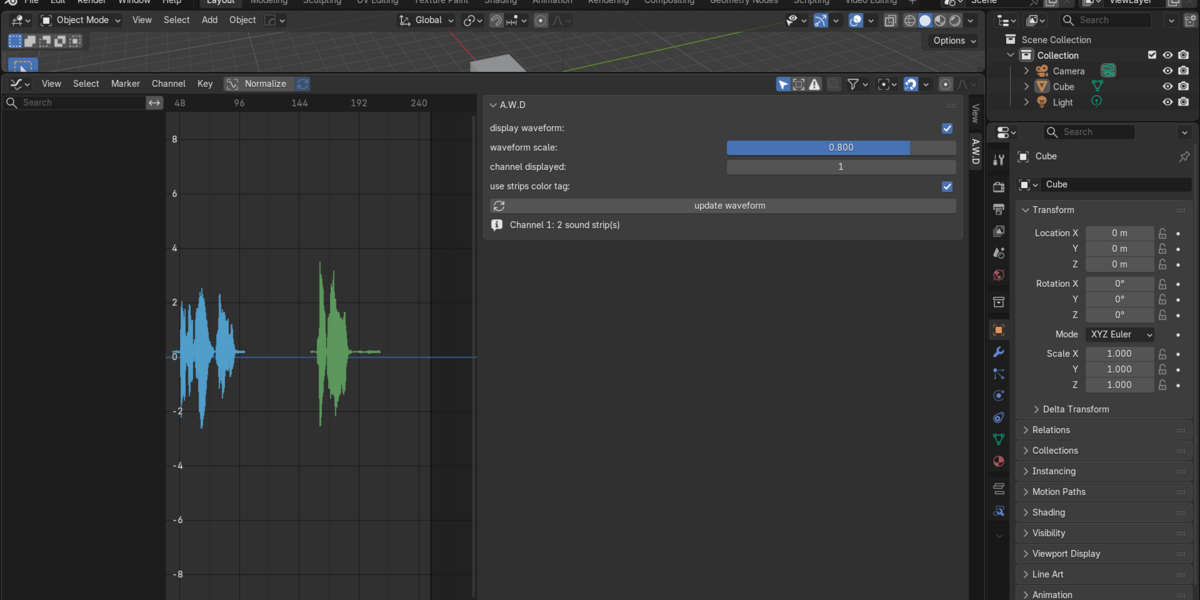
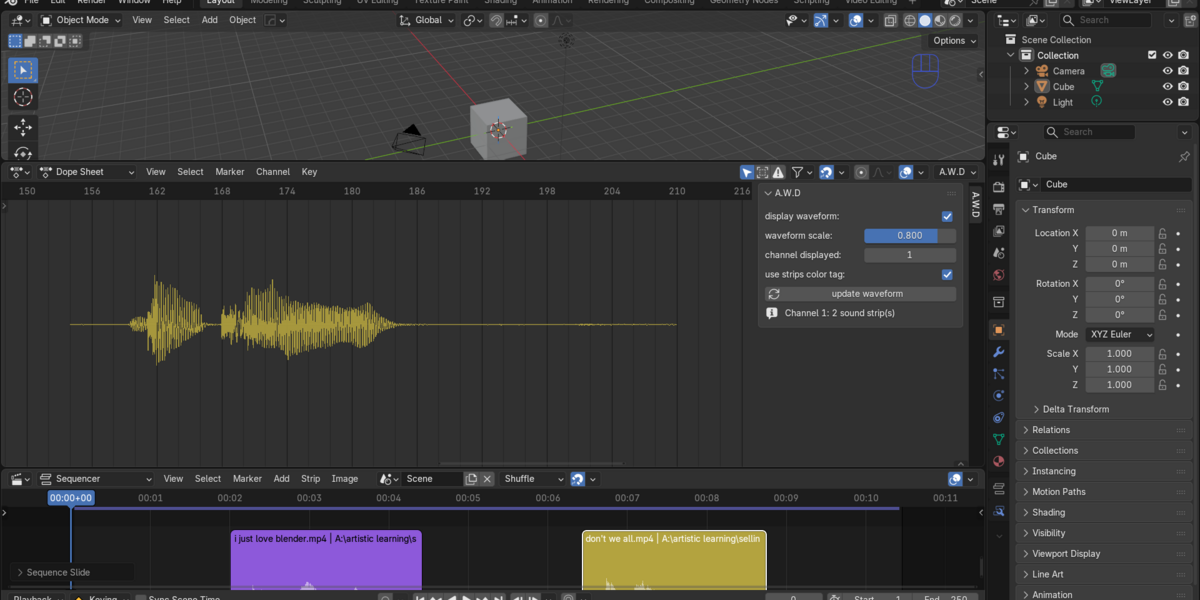
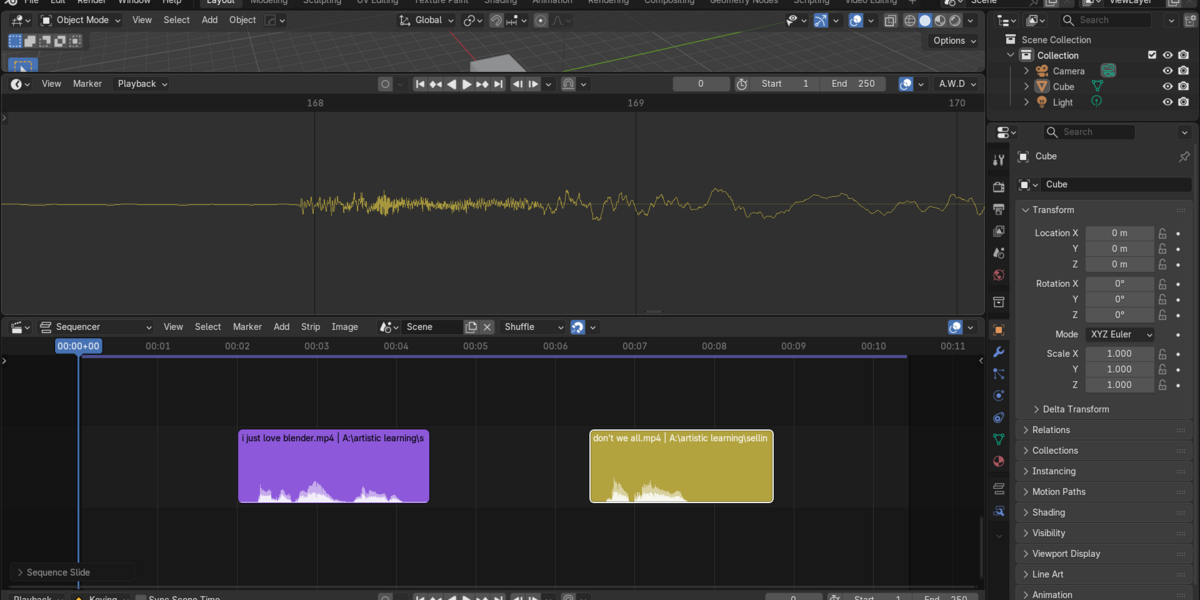
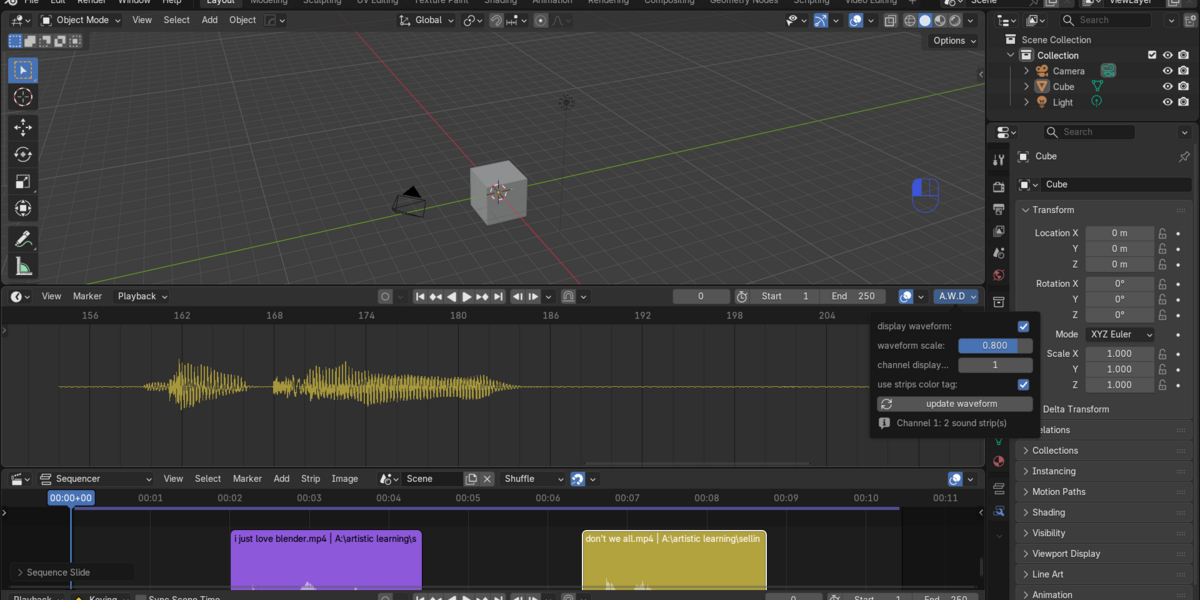
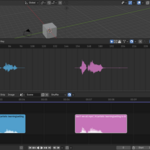
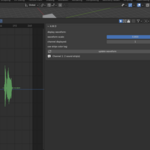
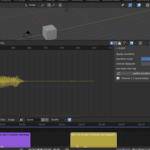
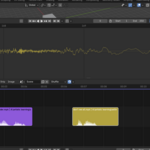
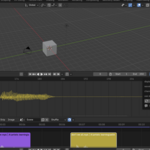
A.W.D (Audio Waveform Display) Documentation
What is A.W.D?
A.W.D draws the real waveform of the sound strips in one Video Sequencer channel directly on top of the Timeline, Dope Sheet, Graph Editor and NLA Editor. You can see where words, sounds and beats start and end without leaving your animation workspace.
It is made for lip-sync, sound design and any animation that has to line up with audio.
What you get
- Waveform display in the Timeline, Dope Sheet, Graph Editor and NLA Editor
- A sidebar panel named A.W.D in each of those editors
- An A.W.D menu in the Timeline and Dope Sheet header for quick access
- Waveform scale, channel selection and strip color options
- An update waveform button to refresh the display
What A.W.D does not do
- It does not create, edit or change your audio or your sound strips. It only reads them and draws the waveform.
- It does not detect phonemes or create lip-sync automatically.
- It does not play audio. Blender's own playback does that.
Requirements
- Blender 5.2 or newer
- Sound strips in the Video Sequencer (VSE)
- NumPy, which is included with Blender
Installation
- Open Blender and go to Edit > Preferences > Get Extensions.
- Click the small dropdown arrow in the top right corner.
- Choose Install from Disk and select the A.W.D zip file. You can also drag the zip into the Blender window.
- Enable Audio Waveform Display in the list.
Do not unzip the file. Install the zip as it is.
Quick start
- Open the Video Editing workspace or the Video Sequencer and add your audio as sound strips. Note the channel number they are on.
- Go to an animation editor: Timeline, Dope Sheet, Graph Editor or NLA Editor.
- Open the sidebar with N.
- Click the A.W.D tab.
- Turn on display waveform.
- Set channel displayed to the channel number that holds your audio.
The waveform now appears behind your keyframes and curves. Scrub and zoom the timeline as usual and the waveform follows.
You can also open the same settings from the A.W.D menu in the Timeline or Dope Sheet header.
The panel explained
display waveform
Turns the waveform on or off. It is off by default. Each scene keeps its own setting.
waveform scale
Sets how tall the waveform is, from 0 to 1. The default is 0.8.
At 1, the loudest possible sound touches the top and bottom of the editor. Lower values make the waveform smaller. Anything louder than the limit is cut off at the edge instead of drawn outside the editor.
channel displayed
The Video Sequencer channel whose sound strips are drawn. The default is 1. Every sound strip on that channel is shown. Strips on other channels are ignored.
use strips color tag
Off: the waveform is drawn in bright green.
On: each part of the waveform takes the color tag of its sound strip, so you can tell dialogue, music and effects apart. Strips with no color tag are drawn in green.
update waveform
Re-reads your audio files and rebuilds the waveform from scratch. Use it after replacing an audio file on disk with a new version of the same name.
Status line
When the waveform is on, the panel shows a short message, for example how many sound strips are being drawn on the chosen channel, or "No sound strips in channel 3". Problems with a strip, such as a missing audio file, are listed under it in red.
How the waveform looks
A.W.D draws the real waveform, not a simplified shape. Sound going up and sound going down are both shown, with a faint line through the middle for silence.
- Zoomed out: each pixel column shows a vertical line from the lowest to the highest sound in that moment. Peaks are never lost, even on very long audio.
- Zoomed in: the waveform becomes a line through the actual audio samples. Zoom in far enough and a small square marks every single sample.
What it follows automatically
The waveform stays in step with your strips, so you do not need to refresh it by hand:
- Moving, trimming or offsetting a sound strip
- Strip volume, including animated volume and fades
- Muting a strip (muted strips are drawn dimmed)
- Changing a strip's color tag
- Changing the channel or the scale
- Replacing the audio file of a sound
Supported audio
A.W.D can display any audio format that Blender can read. Stereo and multi-channel audio is mixed down to a single waveform. Packed sounds (audio stored inside the .blend file) are supported.
Tips for lip-sync
- Zoom the timeline in until a word fills a good part of the screen. The start and end of each sound are then easy to see.
- Put dialogue on its own channel and set channel displayed to that channel, so music and effects do not clutter the view.
- Turn on use strips color tag and color-tag different speakers to tell them apart.
- If the waveform looks too small or too large, adjust waveform scale.
Troubleshooting
I see no waveform.
Check that display waveform is on, that channel displayed matches the channel of your sound strips, and that the strips are sound strips (not video strips). Then look at the status line in the panel for a hint.
The status says "No sound strips in channel X".
There are no sound strips on that channel. Change channel displayed to the correct number.
The status says "audio file not found".
Blender cannot find the audio file on disk. Relink the sound in the Sequencer, or pack it into the .blend file.
The waveform is faint.
The strip is muted, or its volume is very low.
The waveform does not match my edited audio file.
Click update waveform to re-read the file.
The waveform is cut off at the top and bottom.
The audio is very loud for the current scale. Lower waveform scale or the strip volume.
The waveform does not appear in some editor.
Make sure you are in the Timeline, Dope Sheet, Graph Editor or NLA Editor. The waveform is not drawn in the 3D Viewport or the Sequencer itself.
Permissions
A.W.D reads audio files from your disk. For sounds packed inside a .blend file, it writes a temporary copy so the audio can be read, and removes these copies when the addon is disabled. It does not use the internet and does not change your files.
Uninstalling
Go to Edit > Preferences > Get Extensions, find Audio Waveform Display, and choose Uninstall. Your scenes are not affected.
Support
If you have a question or run into a problem, send a message through Superhive and include your Blender version and a short description of what you see.
Have questions about this product?
Login to message
| Blender Extension Compatible | Yes |
| Dev Fund Contributor | |
| Published | 1 day ago |
| Blender Version | 5.2 |
| Extension Type | Add-on |
| Render Engine Used | Cycles |
| License | GPL |

Discover more products like this
animation video sequencer lipsync audio graph editor timeline dope sheet dialogue sound strips audio waveform audio visualization character animation