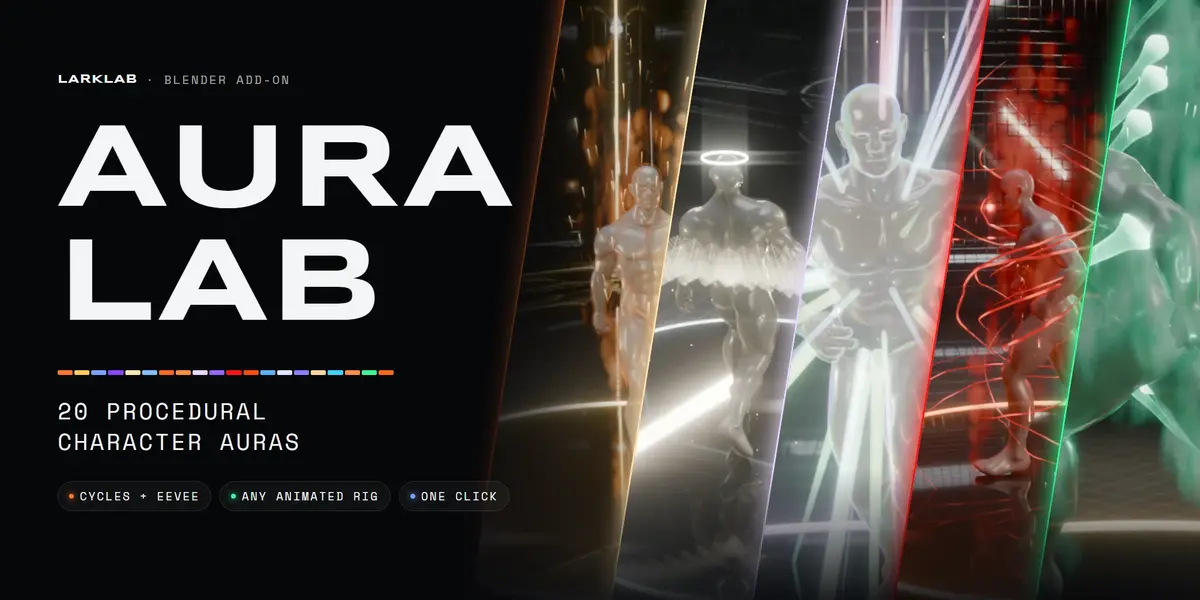
Aura Lab: 20 Procedural Character Auras
 LarkLab
Documentation / v1.0.0
AURA LAB DOCS
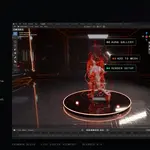
How to install Aura Lab, add an aura to a character, tune it, time it and render it. The add-on lives in the Aura Lab tab of the 3D Viewport sidebar (N).
5.0+ Blender2 Cycles + Eevee0 dependencies
|
01 / 09 Guide INSTALL, UPDATE, REMOVE |
- Download aura_lab1.0.zip from your Superhive downloads. Don't unzip it.
- In Blender open Edit › Preferences › Get Extensions, open the arrow menu at the top right, choose Install from Disk… and pick the zip. Dragging the zip onto Blender works too.
- In the 3D Viewport press N and open the Aura Lab tab.
Update: install the new zip the same way. Auras already in your files keep working.
Remove: select the aura in Edit and press Remove Aura. It deletes the aura object, its lights and, for Ashen Dissolve, the dissolve modifier on the character.
|
02 / 09 Guide ADD AN AURA |
|
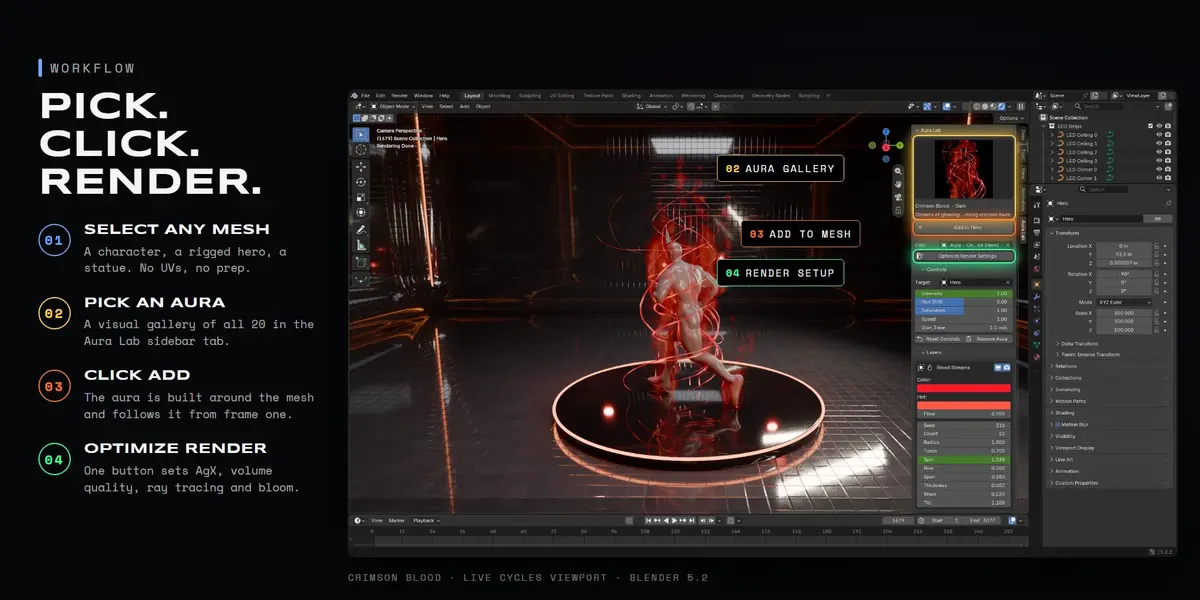
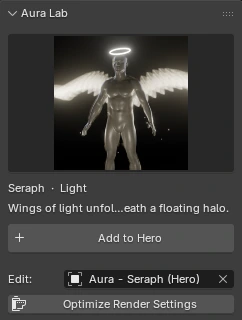
1. Select the mesh: a character, a creature, a statue. It does not need UVs. 2. Click the large preview to open the gallery and pick one of the 20 auras. The name, category and a one-line description show under it. 3. Click Add to <mesh>. A new object Aura - <name> (<mesh>) is created; it reads the mesh live, so you never need to move or parent it. 4. Press Optimize Render Settings once per scene (see below). You can add several auras to one mesh, or the same aura to several meshes. Edit picks the aura the panels below control. |
|
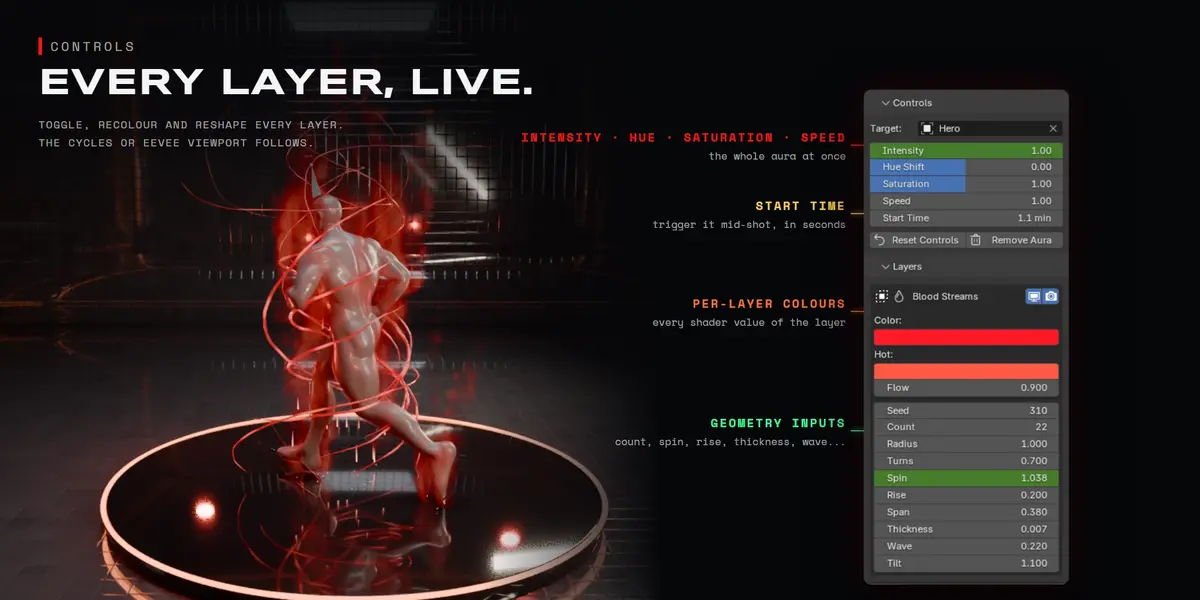
03 / 09 Guide CONTROLS |
|
|
04 / 09 Guide LAYERS |
|
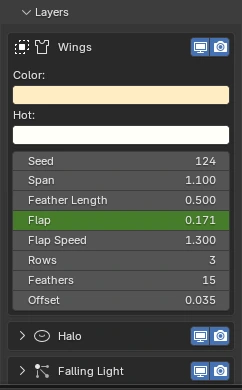
Every aura is a stack of layers: one signature layer (wings, chains, tentacles, beams...) plus support layers such as a rim shell, a volume (fire, mist, smoke) and particles (embers, sparks, ash). The two icons on each layer toggle it in the viewport and the render. Open a layer to edit its material values (colours, glow, flow) and all its geometry inputs (count, length, radius, spin, rise, flap, writhe...). Every value is a normal Blender property: hover and press I to keyframe it, or right-click to add a driver. |
|
05 / 09 Guide RENDERING |
| Optimize Render Settings | Sets AgX view transform, finer volume steps, ray tracing in Eevee (for ice and water refraction) and a bloom/glare compositor. Run it once per scene. |
| Cycles | Best quality for volumes (fire, smoke, mist) and refraction. A GPU with OptiX or HIP is recommended. |
| Eevee | Fast previews and stylized renders. Turn on Raytracing for Glacial and Hydro. |
| Motion blur | Supported. Auras are regular geometry and volumes, so motion blur, depth of field and view layers work as usual. |
| Volumes | Each aura has at most one volume layer. If a volume looks blocky, lower its Voxel Size in Layers. |
|
06 / 09 Guide ANIMATED CHARACTERS |
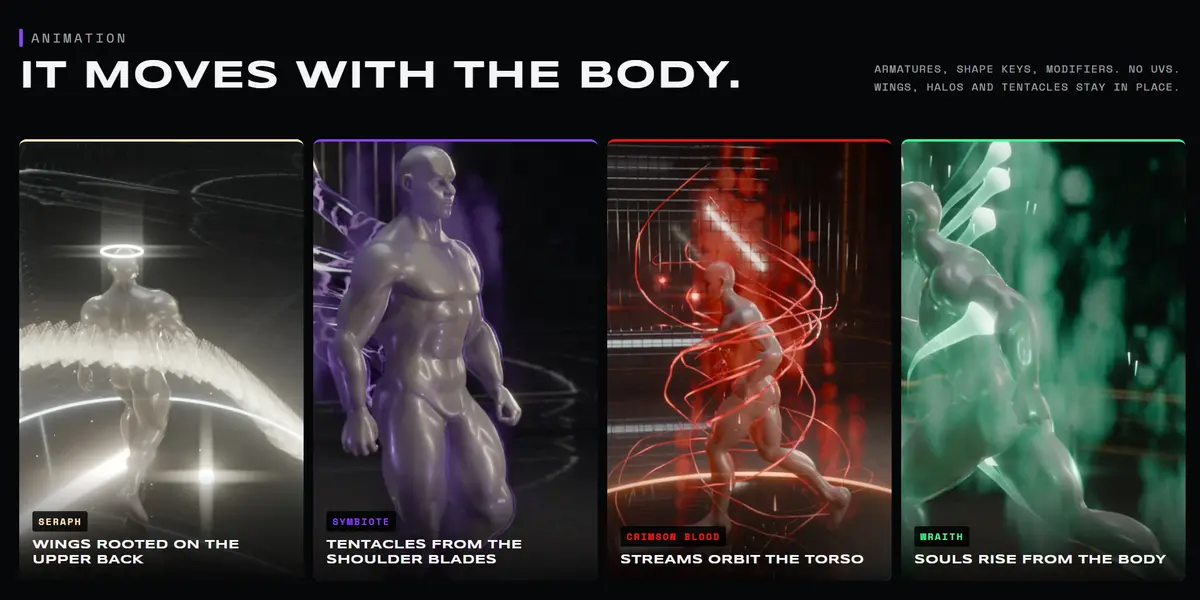
Auras read the target's evaluated mesh every frame, after armatures, shape keys and modifiers. Wings, halo, tentacles, blood streams and soul wisps are anchored to skin patches chosen in the rest pose: Aura Lab turns on the mesh's rest position attribute for this automatically.
| Works with | Armatures (Mixamo, Rigify, Auto-Rig Pro, custom), shape keys, deforming modifiers and Geometry Nodes |
| Scale | Designed for human-sized characters (about 1.6–2 m). For very large or small meshes, adjust Radius, Length and Voxel Size in Layers. |
| Cloth and hair | Only the target mesh is read. Pick the body as the Target. |
|
07 / 09 Guide TIMING EFFECTS |
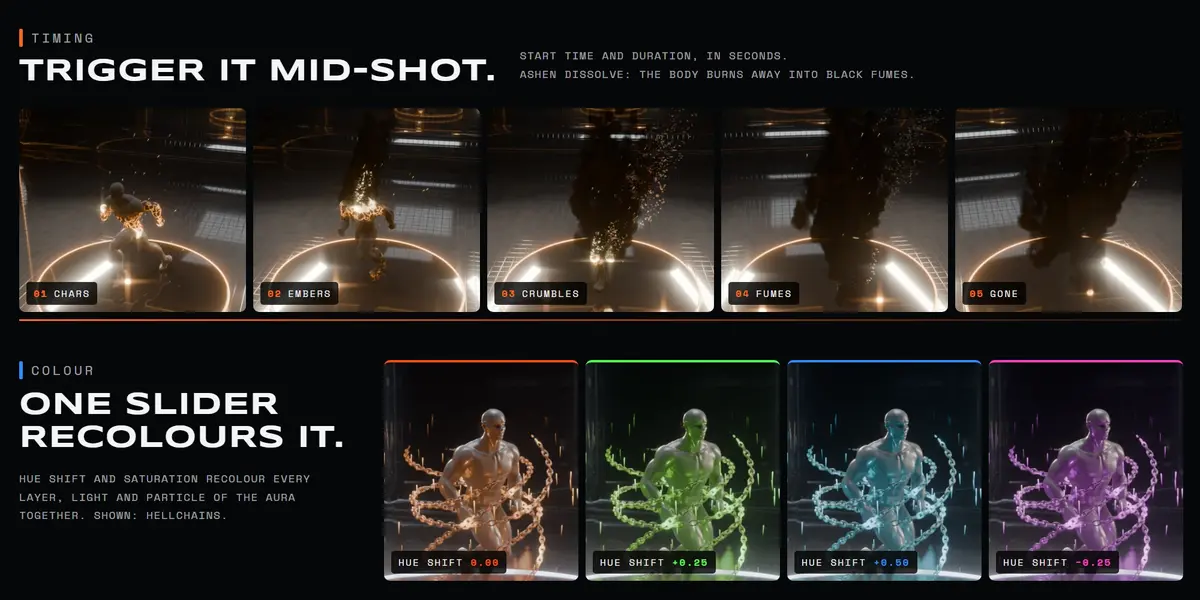
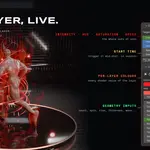
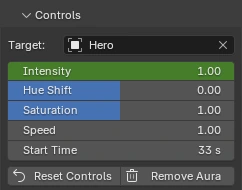
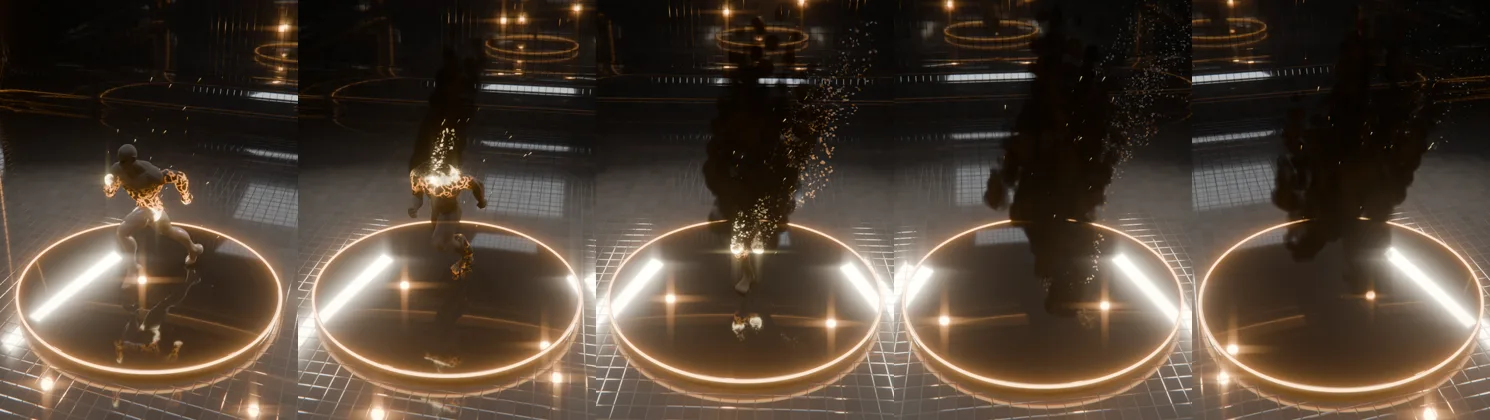
Start Time (Controls) is when the aura begins, in seconds. Auras that develop over time also have duration values in their layers:
| Ashen Dissolve | The body chars, crumbles away and leaves as black fumes. It starts at Start Time and follows Speed. The body itself is hidden by an AL_Dissolve modifier that Aura Lab adds to the character (Remove Aura removes it). |
| Glacial | Ice grows out of the skin and frost creeps up from the feet over Grow Time. |
| Titan Awakening | The ground splits open, then rock tears loose and rises. |
|
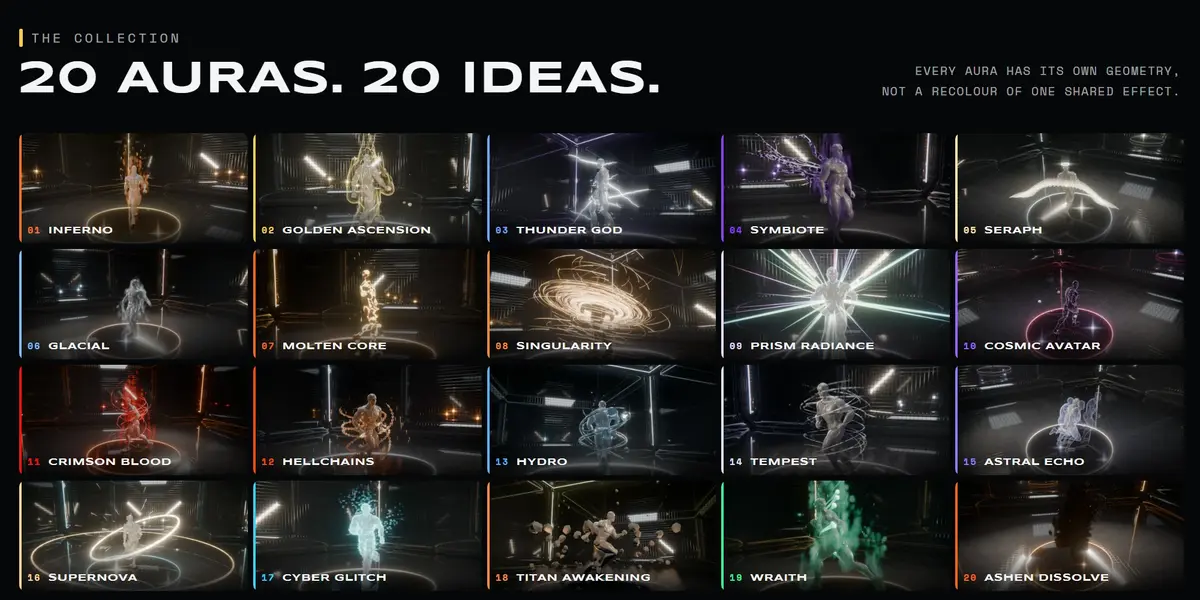
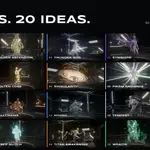
08 / 09 Guide THE 20 AURAS |
| 01 Inferno | Elemental · Roaring volumetric fire licking up the body, sparks drifting away. |
| 02 Golden Ascension | Energy · The anime power-up: a blazing ki envelope with flame spikes, surging streaks and lifting rocks. |
| 03 Thunder God | Energy · Lightning leaps off the body in re-striking arcs; static crawls over the skin. |
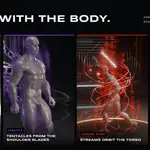
| 04 Symbiote | Dark · Glossy black tentacles burst from between the shoulder blades and writhe, trailing shadow. |
| 05 Seraph | Light · Wings of light unfold behind the shoulders beneath a floating halo. |
| 06 Glacial | Elemental · Clear ice crystals grow out of the body while frost creeps up from the feet. |
| 07 Molten Core | Elemental · The skin turns to cracking basalt over flowing magma; molten drops fall and pool. |
| 08 Singularity | Dark · The body collapses into a black hole: a photon-ring silhouette swallowing a spiral of light. |
| 09 Prism Radiance | Light · Spectral beams of light burst from the body and sweep, over a shifting iridescent skin. |
| 10 Cosmic Avatar | Energy · The body becomes a window into deep space, planets orbiting around it. |
| 11 Crimson Blood | Dark · Streams of glowing blood spiral up around the body through a rising crimson haze. |
| 12 Hellchains | Dark · Red-hot chains whip around the body above a ring of hellfire. |
| 13 Hydro | Elemental · Living water: floating orbs and spiralling streams with real refraction. |
| 14 Tempest | Elemental · A howling vortex of wind tearing dust and stones off the ground. |
| 15 Astral Echo | Light · Afterimages of the body peel away and dissolve, as if the spirit is leaving it. |
| 16 Supernova | Energy · A blinding core pulses out shockwave rings and a spray of radiant sparks. |
| 17 Cyber Glitch | Energy · The body digitises into flickering voxels and hologram scan lines; pieces break away. |
| 18 Titan Awakening | Elemental · The ground splits open with molten light as rock tears loose and rises. |
| 19 Wraith | Dark · Spectral green soul-fire pours off the body as ghostly smoke while wailing wisps spiral up around it. |
| 20 Ashen Dissolve | Dark · The body chars to ash from the head down, then crumbles away and pours out as black fumes. |
|
09 / 09 Guide TROUBLESHOOTING |
| Nothing appears | Check the frame is after the aura's Start Time, and that the viewport is in Material Preview or Rendered mode. |
| Effects frozen or black after opening a file | Allow Auto Run Python Scripts for the file (Blender asks when it opens). Aura timing uses drivers. |
| Wings or tentacles in the wrong place | The Target must be the body mesh. If the mesh was replaced, press Remove Aura and add it again. |
| Blocky smoke or fire | Lower Voxel Size of the volume layer, or raise volume quality in Render settings (Optimize Render Settings does this). |
| Slow viewport | Hide the volume layer in the viewport (its screen icon) while animating; it still renders. |
| Ice or water looks flat in Eevee | Turn on Raytracing in Eevee render settings (Optimize Render Settings does this). |
Have questions about this product?
Login to message
| Blender Extension Compatible | Yes |
| Published | about 7 hours ago |
| Blender Version | 5.0 - 5.2 |
| Extension Type | Add-on |
| Render Engine Used | Cycles, Eevee |
| License | GPL |
Discover more products like this
procedural geometry nodes power up Lightning character effects VFX anime fire superhero magic aura energy