 NovaStrikes


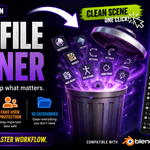
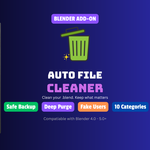
🧹 Your .blend File Is Bigger Than It Needs To Be. Fix That In One Click.
Every project you've ever iterated on is dragging around dead weight — abandoned materials, orphaned textures, meshes nothing points to anymore. Auto File Cleaner finds all of it, shows you exactly what's about to go, backs your file up automatically, and now in v3 — tells you exactly how much space you got back and keeps a written log of every cleanup so you're never guessing what happened to your file.
v3.1.1 tightens up duplicate detection accuracy and fixes backup/restore reliability — cleanup runs safer, and the numbers you see are more trustworthy.
WHAT IT CLEANS
✅ Materials ✅ Images ✅ Meshes ✅ Node Groups ✅ Curves ✅ Armatures ✅ Lights ✅ Cameras ✅ Texts ✅ Collections
🧹 Auto File Cleaner — v3.1.1
Scan. Preview. Clean. Prove it. — A Professional .blend Housekeeping Add-on for Blender 4.0 to 5.0+
You already know the feeling — you open a project from three months ago, and it's 400MB for no reason. Auto File Cleaner gives you a safe, visual, non-destructive way to find every unused datablock, delete only what you approve, and now walk away with proof of exactly what changed.
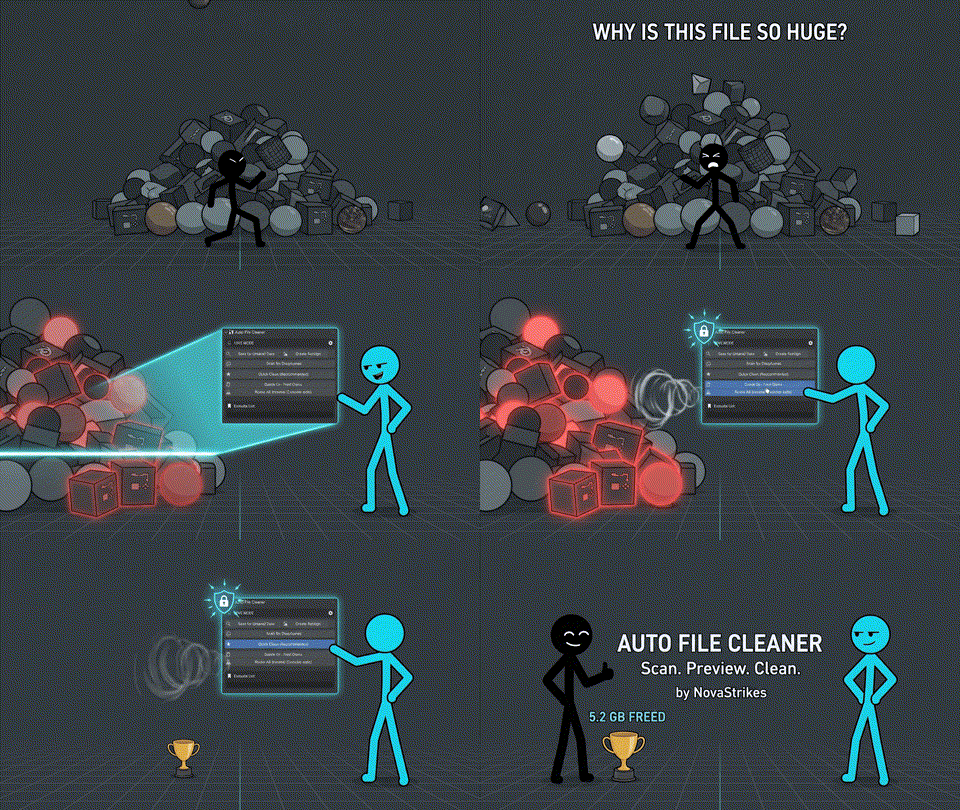
This video was AI-generated and is intended for preview/promotional purposes only.
⚡ Key Features
-
🆕 📉 See Exactly How Much Space You Freed
What it does. Every Delete, Deep Purge, and Quick Clean now reports an estimated amount of space freed, right in the panel — no more guessing whether cleaning actually did anything.
Why it matters. You get a real number to look at. "Last cleanup freed ~253 MB" hits different than a silent operation you just have to trust happened.
-
🆕 🧬 Duplicate Material & Texture Detector (Beta)
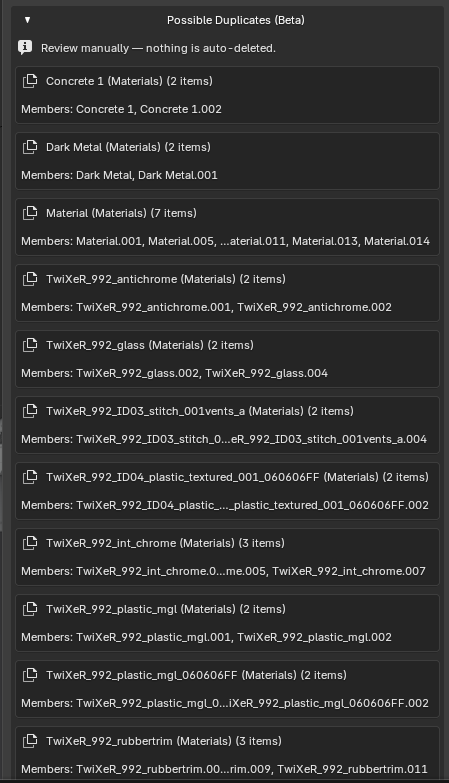
What it does. Scans your file for materials and images that look like accidental duplicates —
Wood,Wood.001,Wood.002with identical setups, or images with matching size/data. Flags them for you to review.Why it matters. Nothing gets auto-deleted here — it's a heads-up, not a hammer. You stay in full control while still catching bloat that a normal orphan-scan would miss entirely.
-
🆕 ⚡ Quick Clean — One Click, Zero Learning Curve
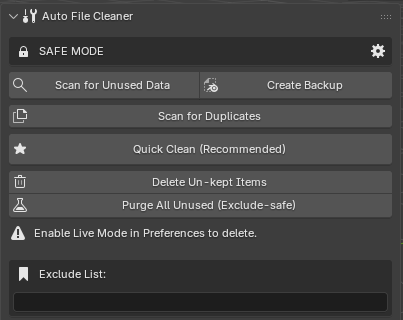
What it does. Skip the manual Scan → Review → Delete workflow entirely. Quick Clean scans, respects your Exclude List and fake users, and cleans everything safe to remove — all behind one confirmation click.
Why it matters. If you just want your file clean and don't want to babysit a UIList, this is the button for you. Still fully protected by Safe Mode and automatic backups.
-
🆕 🔗 Linked Library Safety Guard
What it does. Automatically detects datablocks that are linked from external libraries or are library overrides, and skips them during scanning — even if they show zero local users.
Why it matters. If you work with linked assets or studio pipelines, this closes a real edge case where a "zero user" reading is misleading. Your linked data stays untouched, guaranteed.
-
🆕 📝 Automatic Cleanup Logs — Proof of What Happened
What it does. Every cleanup writes a timestamped log entry — both a plain-text log you can open and read, and a structured JSON log — saved right next to your automatic backups.
Why it matters. Freelancers and studio pipelines: now you have a written record of exactly what was removed and when. Show a client, check your own history, or just have peace of mind that nothing vanished without a trace.
-
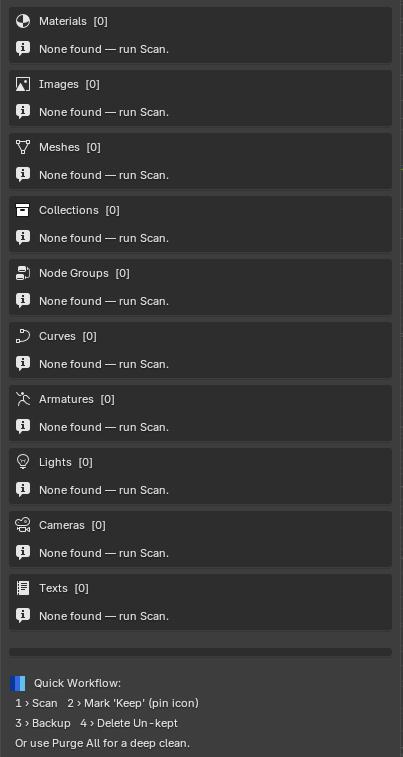
🔍 Smart Scan — Across All 10 Datablock Categories
What it does. One click on Scan for Unused Data searches every supported datablock type in your .blend and populates a scrollable preview list for each category — before anything is deleted.
Why it matters. You always see exactly what will be removed. No surprises, no silent deletions. Each category shows an item count badge so you immediately know how cluttered each section is.
Categories scanned: Materials, Images, Meshes, Collections, Node Groups, Curves, Armatures, Lights, Cameras, and Texts.
-
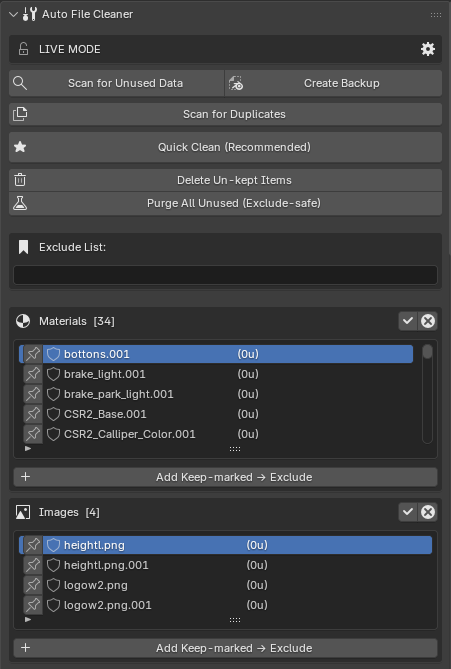
📋 UIList Preview — Pin Items to Keep Before Deleting
What it is. Each category has its own scrollable, searchable
UIListpanel — the same professional list component Blender uses in its own editors. Every unused datablock appears here with its user count and fake-user status.Why it matters. You can mark individual items as Keep (the pin icon) before running any deletion. Only un-pinned items get removed. It's a full visual preview system, not a blind batch delete.
Select / deselect all. Each category header has quick Select All and Deselect All buttons so you can manage large lists in seconds.
-
🔒 Safe Mode — Zero Accidental Deletions
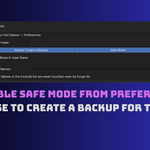
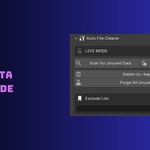
What it is. Safe Mode is enabled by default. When it is on, the Delete and Purge buttons are locked and cannot be triggered — even accidentally.
Why it matters. New users and professionals alike benefit from having a hard lock between scanning and deleting. You must consciously switch to Live Mode in the add-on preferences before any data can be removed. Scanning and creating backups always work regardless of Safe Mode.
-
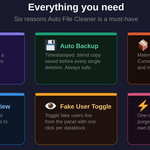
💾 Automatic Timestamped Backups
What it is. Before any deletion, Auto File Cleaner saves a timestamped copy of your entire .blend file to a folder of your choice.
Why it matters. Even if you remove something you later need, you always have an exact restore point. Backup filenames follow the pattern
autoclean_backup_YYYYMMDD_HHMMSS.blendso they sort cleanly in any file explorer.Manual backup button. You can also trigger a backup independently at any time without running any deletion — useful before major edits.
-
👁 Per-Item Fake User Toggle
What it is. Every item in the UIList has a fake-user icon button. Click it to toggle
use_fake_useron that specific datablock directly from the panel — no need to go to the Properties editor.Why it matters. Fake users keep datablocks alive in Blender even with zero real users. Now you can review and manage fake-user flags right inside the cleaner without changing workspaces.
-
📌 Exclude List — Permanently Protect Named Datablocks
What it is. A comma-separated list of datablock names that Auto File Cleaner will never touch — not in normal deletion and not in Deep Purge.
Why it matters. Some datablocks look unused but need to stay — default materials, shared node groups, studio templates. Add their names once to the Exclude List and they are permanently safe from all clean operations.
Add Keep-marked → Exclude. Any item you pin as Keep in the UIList can be promoted to the permanent Exclude List with one button click so it is protected in every future session.
-
⚡ Deep Purge — Exclude-Safe Recursive Cleaning
What it is. A multi-pass recursive purge that removes all zero-user datablocks from all 10 categories in a single operation — while fully respecting your Exclude List.
Why it matters. Blender's built-in Purge All operator ignores any custom exclude rules — it deletes everything. Auto File Cleaner's Deep Purge runs its own controlled loop that checks every datablock name against your Exclude List before removing it. Your protected items are always safe.
Multi-pass logic. Runs up to 5 passes because removing one datablock can cause another to drop to zero users. The loop stops early when a pass finds nothing new to remove — giving you a genuinely thorough clean without over-deleting.
🔄 Workflow — How to Use It
- Open the N-panel in the 3D Viewport and click the File Cleaner tab.
- Click Scan — all 10 categories populate with unused datablocks instantly. Check the new Duplicates panel too.
- Review the lists — pin any items you want to keep using the pin icon.
- Click Backup — save a timestamped copy of your .blend (optional if Always Backup is on).
- Disable Safe Mode in preferences, then click Delete Unkept Items, Deep Purge, or just hit Quick Clean if you want it handled for you.
- Done. See exactly how much space you freed, check the log file for a full record, and the scan refreshes automatically.
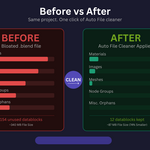
📊 Before vs After
A typical production .blend file after months of iteration:
| Category | Before | After | Removed |
|---|---|---|---|
| Materials | 47 | 6 | 41 |
| Images | 38 | 4 | 34 |
| Meshes | 29 | 2 | 27 |
| Node Groups | 22 | 0 | 22 |
| File Size | ~340 MB | ~87 MB | 74% smaller |
v3 now shows you this exact freed-space number in the panel after every cleanup — plus a saved log entry confirming it.
📍 Where to Find It
After installation, open the N-panel in the 3D Viewport (N key) and click the File Cleaner tab. Every feature — Scan, Backup, UIList, Delete, Deep Purge, Quick Clean, Duplicates, Logs, and Exclude List — is in one compact panel.
🧩 Version & Compatibility
Auto File Cleaner v3.1.1
Supports Blender 4.0+ and 5.0+. Install by dropping the Auto_Cleaner_v3 folder into your Blender add-ons directory and enabling it in Preferences → Add-ons.
🤖 AI Disclosure
I wrote the original add-on. AI assistance (Claude by Anthropic) was used during the improvement process — specifically for UI enhancements, Blender 5.0 compatibility fixes, bug fixes, and the v3 feature set (file size reporting, duplicate detection, Quick Clean, library safety guard, and logging). All creative direction, product concept, and core code are my own work.📜 License
This software is licensed under the GNU General Public License v3 (GPL).
Free to use, modify, and redistribute under the GPL terms. No warranty expressed or implied.
📌 Attribution is appreciated but never required.
💡 Created with ❤️ by Hamayl — NovaStrikes