Auto File Cleaner - Remove Unused Materials, Images & Meshes | Blender 4.0–5.0+
 NovaStrikes




🧹 Auto File Cleaner — Documentation
Version: 2.0.0
Compatibility: Blender 4.0, 4.1, 4.2, 5.0+
Category: Workflow / Utility
Auto File Cleaner is a professional-grade housekeeping tool for Blender artists. It solves the "bloated file" problem by scanning, previewing, and purging orphaned datablocks with surgical precision. Whether you are a freelancer trying to meet a storage quota or a studio artist managing complex scenes, this add-on ensures your .blend files stay lean and organized.
🚀 Getting Started
Installation
Go to Edit > Preferences > Add-ons.
Click Install and select the
Auto_Cleaner_v2folder/zip.Enable the add-on by checking the box.
Where to find it?
Open the 3D Viewport, press N to open the side panel, and look for the File Cleaner tab.
🛠 Key Features
🔍 Smart Scan (10 Categories)
Unlike Blender’s native "Purge," which acts as a "black box," Auto File Cleaner scans your files across 10 specific categories:
Materials & Images
Meshes & Curves
Armatures & Node Groups
Lights, Cameras, Collections, and Texts
📋 Professional UIList Preview
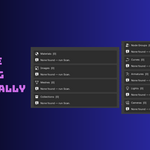
Every category features a dedicated, scrollable list.
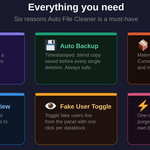
Pin Icon: Mark specific items to "Keep" them. Even if you run a delete, pinned items stay.
Fake User Toggle: Manage
use_fake_userdirectly from the list without digging through the Properties editor.
🔒 Safety First: Safe Mode & Live Mode
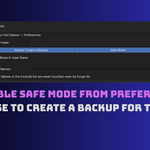
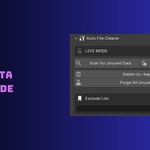
By default, the add-on starts in Safe Mode. In this state, the "Delete" and "Purge" buttons are locked. This prevents accidental data loss while you are exploring the UI. To perform a cleanup, you must toggle to Live Mode in the preferences.
⚙️ Preferences & Advanced Settings
Configure the add-on to fit your specific pipeline in the Add-on Preferences menu.
Backup Folder: Choose exactly where your safety copies go.
Always Create a Backup: Automatically saves a timestamped
.blendcopy before any deletion.Safe Mode Toggle: Lock or unlock the "Delete" buttons.
Exclude List: Type-specific names (e.g.,
Studio_HDRI,Default_Mat) separated by commas. These items will never be touched by the scanner or the Deep Purge.
🔄 The Recommended Workflow
To get the most out of Auto File Cleaner, follow these five simple steps:
Scan: Click Scan for Unused Data. The category badges will update with the count of orphaned items.
Review: Open the category tabs and Pin any assets you might want to use later.
Backup: Click Create Backup (or ensure "Always Backup" is on) to create a restorable version of your current progress.
Unlock: Switch to Live Mode in the preferences or panel.
-
Clean: * Use Delete Un-kept Items to remove everything except your pinned assets.
Use Deep Purge for a recursive clean that respects your Exclude List.
📊 Performance Impact
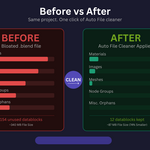
A typical production file can see massive improvements in both speed and storage.
| Category | Before | After | Status |
| Materials | 47 | 6 | Cleaned |
| Images | 38 | 4 | Cleaned |
| Node Groups | 22 | 0 | Cleaned |
| File Size | 340 MB | 87 MB | -74% Reduced |
📜 License & Support
License: GNU General Public License v3 (GPL).
Support: For bugs or feature requests, contact Hamayl — NovaStrikes via the Superhive messaging system.
Note: Deep Purge runs up to 5 recursive passes. This ensures that if deleting a Material makes a Node Group "unused," that Node Group is also removed in the same operation.
Have questions about this product?
Login to message
| Blender Extension Compatible | Yes |
| Sales | 10+ |
| Dev Fund Contributor | |
| Published | 5 months ago |
| Blender Version | 4.0 - 5.0 |
| Extension Type | Add-on |
| Render Engine Used | Cycles, Eevee |
| License | GPL |
Discover more products like this
Workflow automation file size cleaner asset production optimization unused data blender file cleaner auto cleaner purge