Auto Quad Filler Pro – One-Click Quad Topology Transitions Between Uneven Edge Loops
 blenderustad


What does Auto Quad Filler Pro actually do?
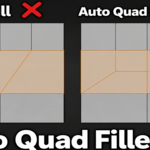
It fills the gap between two selected open edge chains that have a different number of edges, using a quad-first topology transition instead of a triangle fan — similar to how an experienced modeler would place a pole by hand.
How is this different from Blender's built-in Grid Fill?
Grid Fill connects two loops with straight diagonal edges across the whole gap, which turns into stretched triangles under subdivision. Auto Quad Filler Pro instead builds a proper transition with quads on the outside and a controlled pole or small n-gon only where geometry requires it, so the result subdivides and shades correctly.
Do I need to select a closed loop, or just edges?
You select two separate open boundary edge chains (or, in some cases, one closed perimeter that the add-on can split into two opposite sides). Closed loops that can't be split into two open chains are not supported in this version.
What loop ratios are supported?
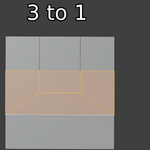
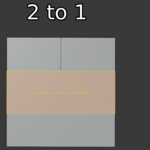
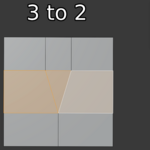
Dedicated reference templates exist for 4→1, 3→2, 3→1, and 2→1. Other even and odd differences (like 5→3, 6→2, or 4→2) are handled by the same strip-reduction system, breaking the difference into individual two-strip reduction points.
What if the two chains have an odd difference in edge count, like 5 and 2?
The add-on automatically adds one supporting vertex on a side you choose (left or right) so the mesh still closes into clean quads. You don't have to calculate or place that extra edge yourself.
Will it change my original selected edges?
No. The vertices and edges you select as the two boundary chains are never moved, merged, or split. Only the interior gap between them is filled.
Is the result always all-quads?
Not always, and it tells you exactly what to expect. Each template has a fixed, known face profile — for example 4→1 produces 4 quads and one 5-sided face, while 3→1 produces 4 quads with no triangles or n-gons at all. The N-panel shows the exact quad/triangle/n-gon count after every run.
What happens if the operation can't find a valid topology?
What happens if the operation can't find a valid topology? Nothing is written to your mesh. The add-on validates the entire result on a working copy first; if it fails, you get a clear error message and your mesh stays exactly as it was.
Is this undo-safe?
Yes. It's a standard Blender operator with full undo support (Ctrl+Z), and because it only commits validated results, there is no partial or broken state to clean up.
Does it work with Subdivision Surface modifiers?
Yes — the templates are designed so the transition reads correctly after subdivision, which is the main reason to use it instead of a plain diagonal Grid Fill.
What is the "Preserve Symmetry" option for?
It rewards placing the generated transition symmetrically when your selection is on a mirrored or symmetrical part of the mesh, so left and right sides match.
What does "Relax Internal Vertices" do?
It smooths the shape of newly created internal vertices for better surface flow, without ever moving your original selected boundary vertices.
What is Debug Mode?
It highlights the generated transition faces with a dedicated debug material and writes a detailed breakdown of the candidate layouts that were scored, so you can see exactly what was built and why it was chosen over alternatives.
Does it work on any mesh, or only specific shapes?
It works on any mesh in Edit Mode where you can select two separate open boundary edge chains. It does not require a specific base shape, but the boundary must currently be an actual open edge (a mesh boundary or wire edge), not an interior edge with faces on both sides.
Do I need to be an experienced topology artist to use this?
No. The add-on encodes the pole-placement decisions an experienced artist would normally make by hand, so beginners get the same kind of clean transition without needing to know where to place a pole manually.
Is there a keyboard shortcut?
Yes, Shift+F in Mesh Edit Mode runs the fill directly, in addition to the N-panel button and the Edit Mode right-click context menu.
$7
Have questions about this product?
Login to message
| Blender Extension Compatible | Yes |
| Sales | 10+ |
| Published | 3 months ago |
| Blender Version | 3.0 - 5.2 |
| Extension Type | Add-on |
| Render Engine Used | Cycles, Eevee |
| License | GPL |

Discover more products like this
modeling subdivision-surface hard surface quad-topology mesh cleanup retopology edge-loops topology Poly Modeling