AutoSave & Professional Version Control for Blender - Snapsave Pro
 Snapsave


INSTALLATION
Blender 4.2 and above:
1. Download snapsave_basic.py
2. Open Blender and go to Edit → Preferences → Add-ons
3. Click Install and select the downloaded file
4. Tick the checkbox next to SnapSave to enable it
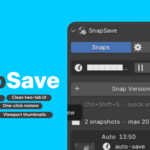
5. Open the N-sidebar in any 3D viewport (press N) and click the SnapSave tab
Blender 4.0 – 4.1:
Same steps as above using the .py file.
────────────────────────────────────────
FIRST USE
────────────────────────────────────────
1. Save your .blend file at least once before using SnapSave (the addon needs a file path to save backups next to)
2. The panel shows a live countdown — auto-save is already running
3. Press Ctrl+Shift+S at any moment to save a named manual backup
4. Click the arrow on any snapshot card to expand it and access restore and edit options
────────────────────────────────────────
TAKING A MANUAL BACKUP
────────────────────────────────────────
Method 1 — Keyboard shortcut:
Press Ctrl+Shift+S from anywhere in the 3D viewport. A backup is saved instantly with a timestamped name. No dialog, no interruption.
Method 2 — Save Backup button:
Click Save Backup in the SnapSave panel. A dialog opens where you can enter a label, choose a tag (Stable / Milestone / WIP), and add notes before saving.
────────────────────────────────────────
RESTORING A BACKUP
────────────────────────────────────────
1. Find the snapshot you want in the panel list
2. Click the arrow (▶) on the right side of the card to expand it
3. Click Restore
4. Confirm the dialog — Blender opens that version in the current window
Note: Restore replaces your current session. Make sure you have saved any current work first, or use SnapSave to take a quick backup before restoring.
────────────────────────────────────────
AUTO-SAVE SETTINGS
────────────────────────────────────────
Open the Settings tab in the SnapSave panel to configure:
- Enabled / Paused — toggle auto-save on or off
- Interval — how often to auto-save (1–120 minutes, default 10)
- Max auto-saves — oldest auto-saves are removed when this limit is reached
- Capture thumbnails — enable or disable viewport screenshots
- Save location — subfolder next to .blend file, or a custom global folder
────────────────────────────────────────
WHERE ARE MY FILES SAVED?
────────────────────────────────────────
Manual backups: yourfilename_backups/ folder next to your .blend
Auto-saves: yourfilename_autosave/ folder next to your .blend
Each backup is a complete, standalone .blend file. You can open it in any version of Blender without SnapSave installed.
────────────────────────────────────────
UPGRADING TO SNAPSAVE PRO
────────────────────────────────────────
SnapSave Pro (v1.5) adds open-in-new-window, append objects, overwrite backups, filter bar, and all future features. Install Pro over Basic — your full snapshot history carries over automatically.
Have questions about this product?
Login to message
| Blender Extension Compatible | Yes |
| Dev Fund Contributor | |
| Published | 6 months ago |
| Blender Version | 3.0 - 5.1 |
| Render Engine Used | Cycles |
| License | GPL |
