AutoMorph Lite

Ocelot VFX in Rigging


Add-on Setup Guide

SYSTEM REQUIREMENT WARNING: This tool is packaged as a standard Blender Extension (.zip) and, as such, should be compatible to install using Blender 4.2+. However, this tool has not been tested in versions lower than Blender 5.2 so functional compatibility cannot be guaranteed.

IMPORTANT NOTE: The add-on in the Installation guide is a generic example and not indicative of the purchased product.

Installation
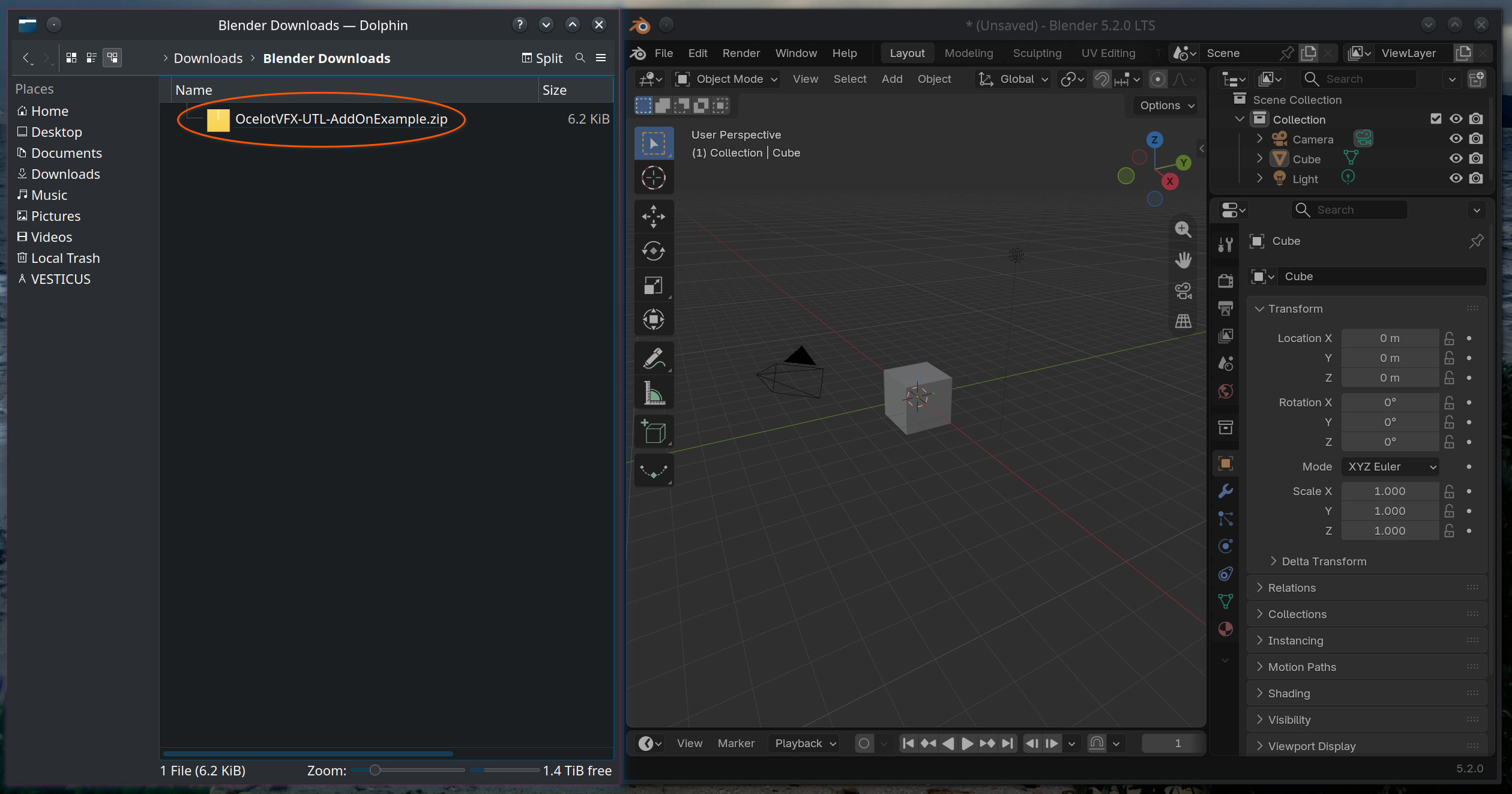
Preliminary: Download the file

Download [OcelotVFX-EXT-{Add-On-Name}.zip] but do not extract it. Blender installs it directly in archive form.

Option 1: Install via Shortcut

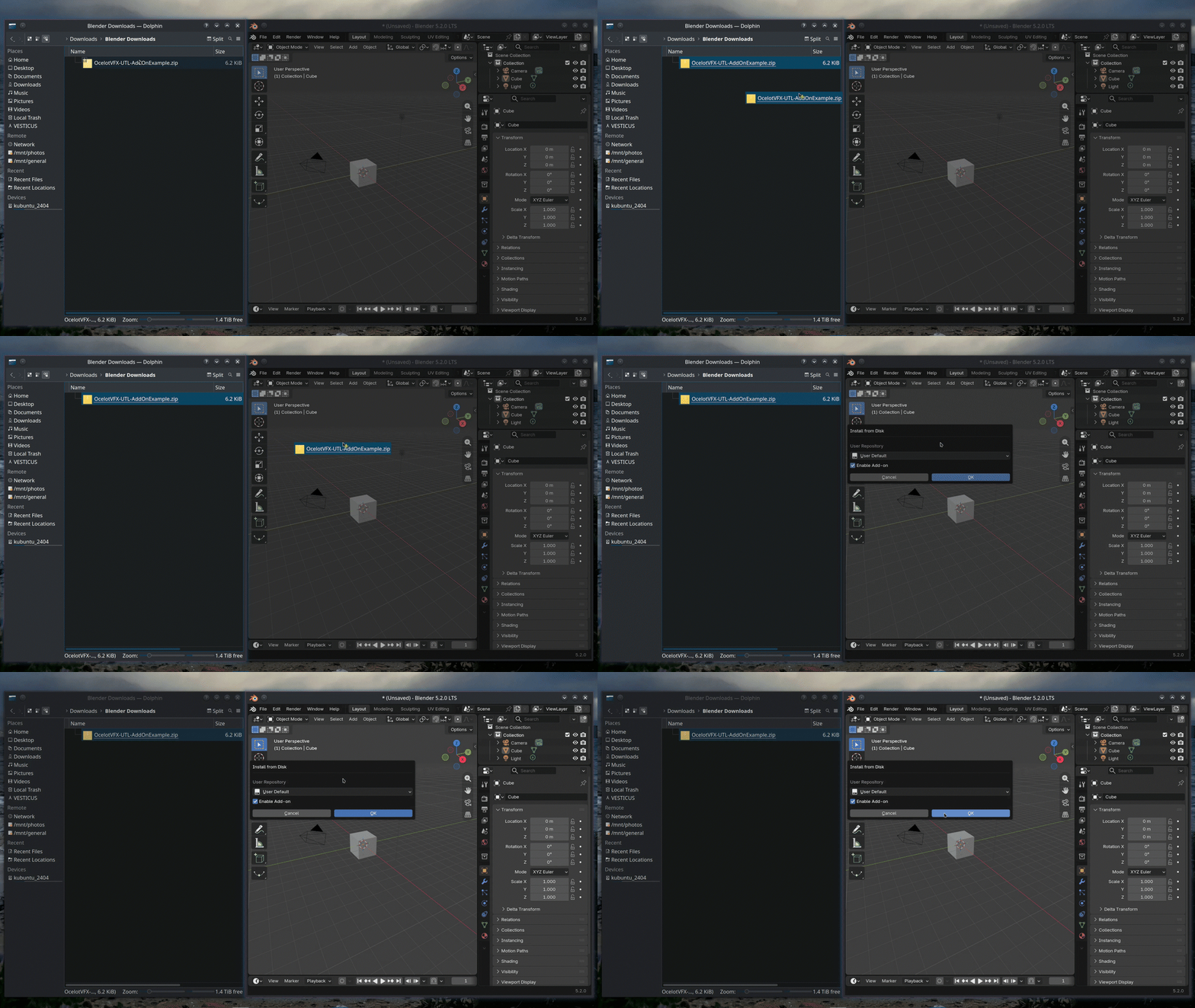
Drag the .zip from your file browser into your Blender viewport, ensure that "Enable Add-on" is checked, and click "OK".


If this method doesn't work, or you want to confirm the installation was successful, proceed to the alternative method below.

Option 2: Install via Preferences

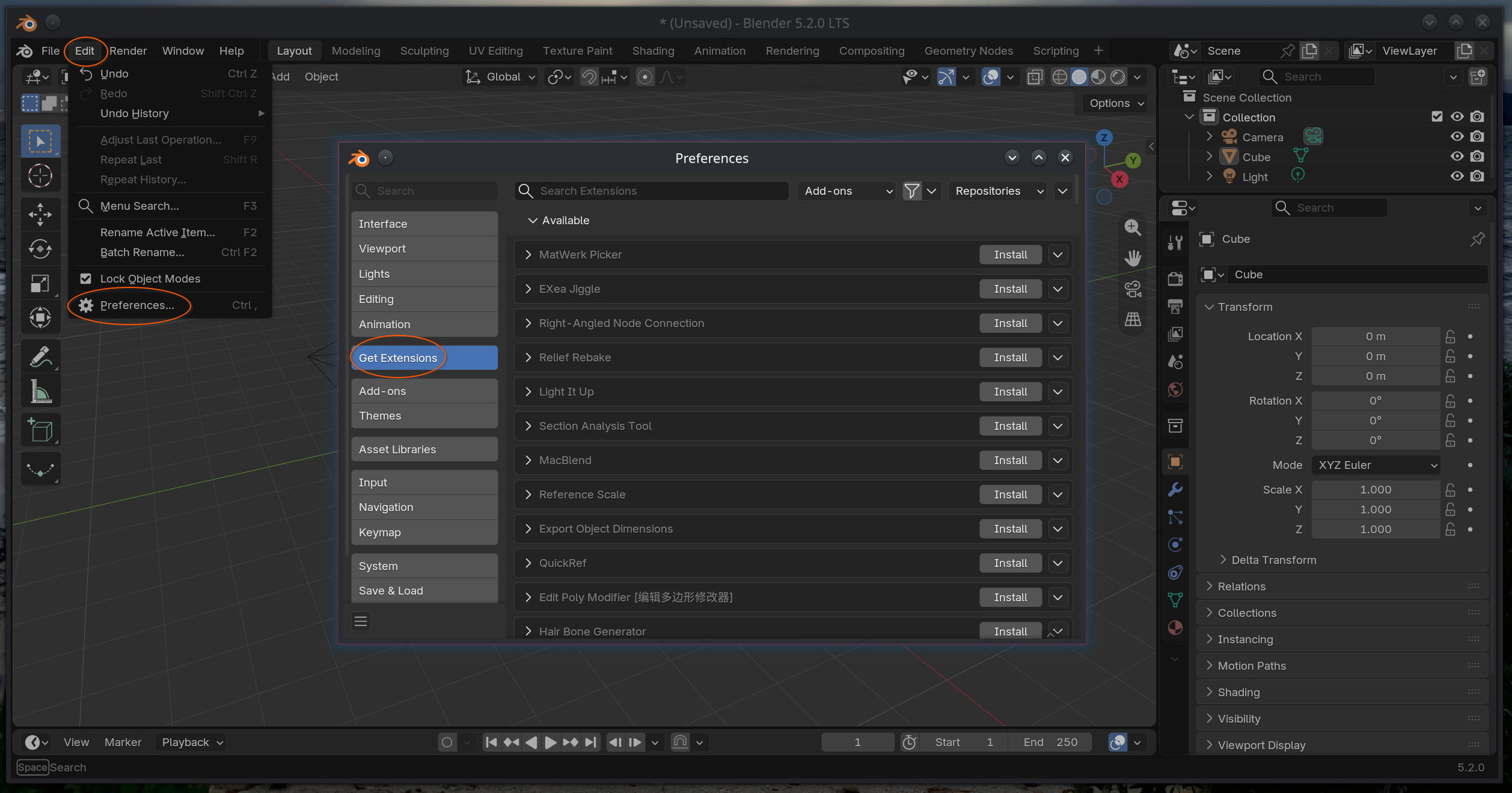
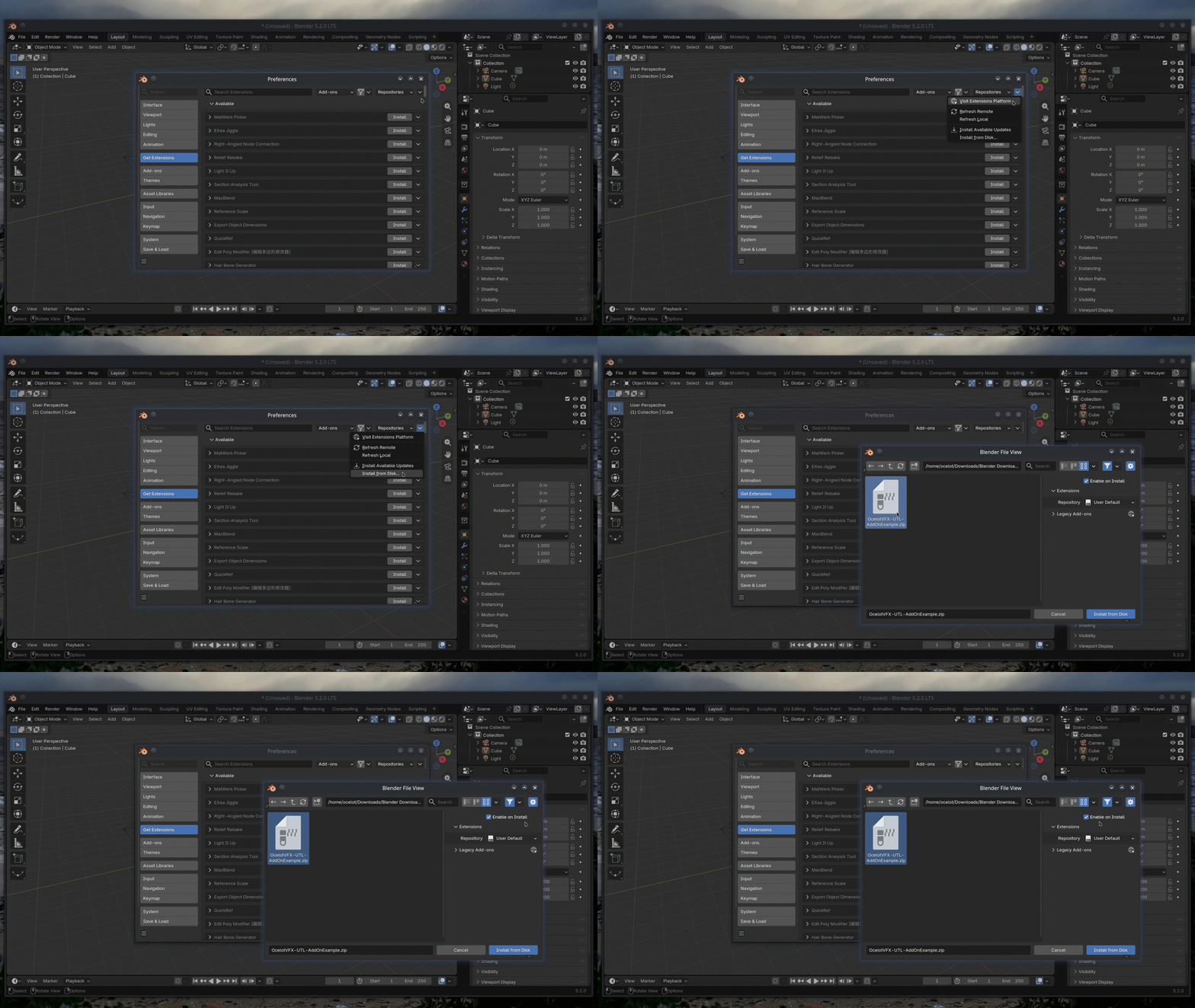
Go to Edit > Preferences > Get Extensions.

Click the dropdown arrow in the top-right corner and select "Install from Disk...".


In the popup file browser, locate and select [OcelotVFX-EXT-{Add-On-Name}.zip]. Ensure that "Enable on Install" is checked, then click "Install from Disk".

Conclusion: Confirm Installation

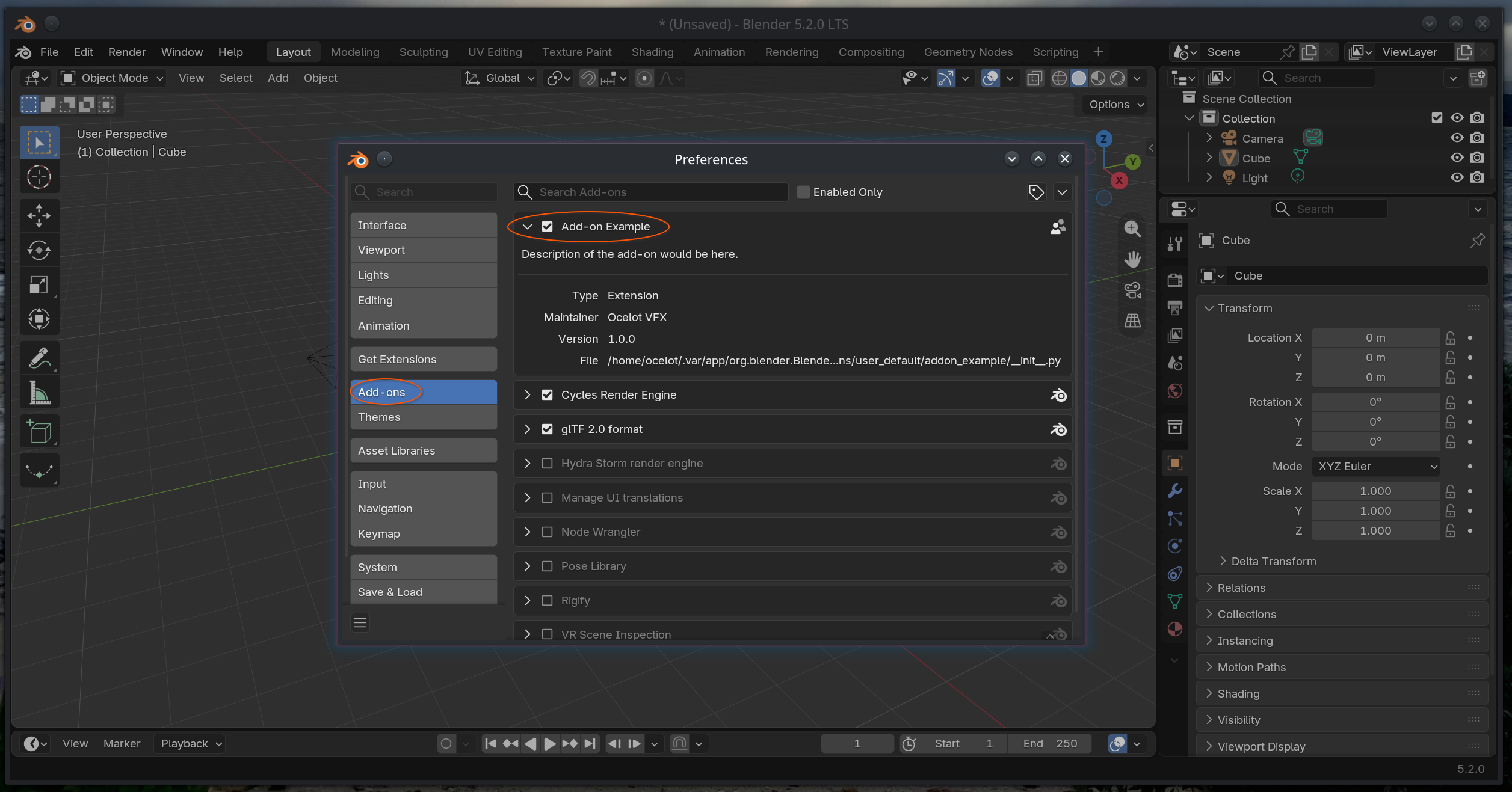
The add-on should activate automatically, but this can be confirmed by navigating to Edit > Preferences > Add-ons, and ensuring that the corresponding checkbox is enabled.

AutoMorph Usage


PRODUCT REQUIREMENT WARNING: The drivers depend on AutoMorph being installed to edit or evaluate them. Additionally, the Linked feature uses a custom driver function and requires Auto-Run Python Scripts to be enabled (Preferences > Save & Load). 
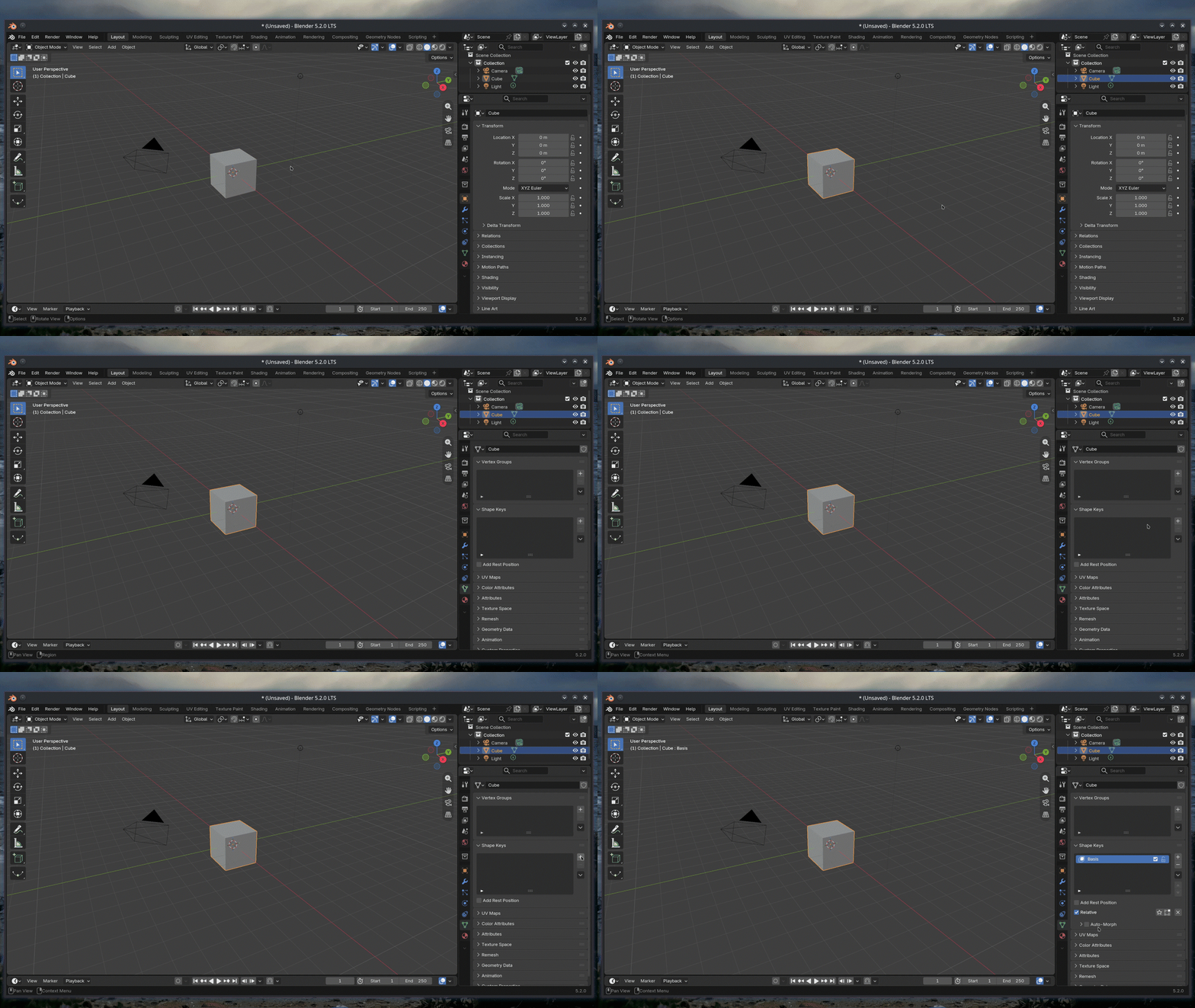

Location & Requirements

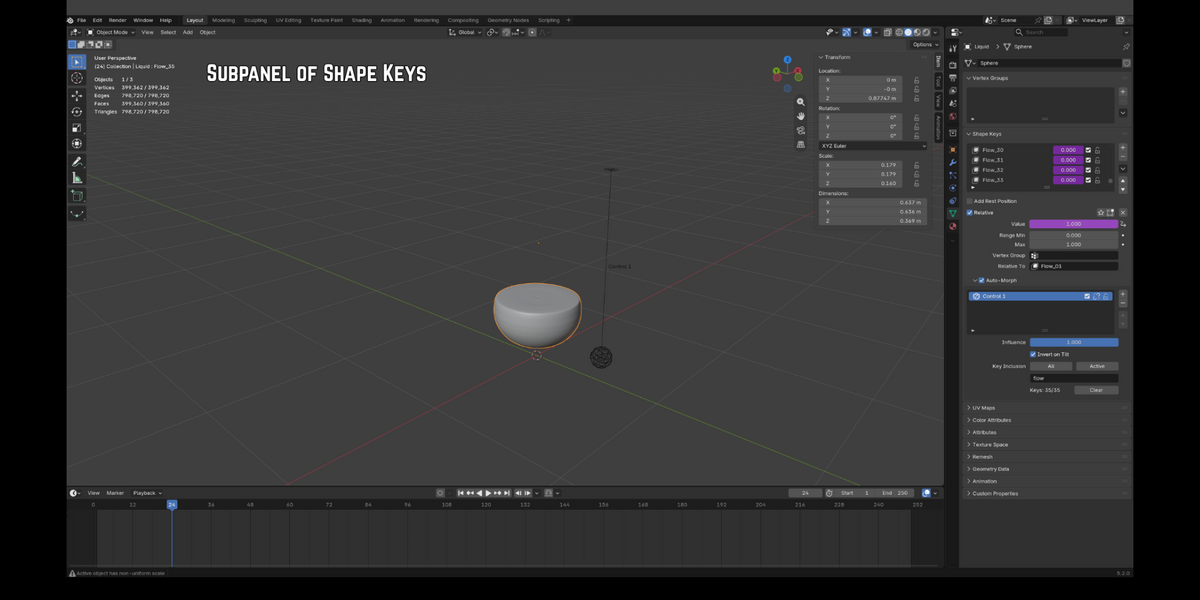
After the add-on has been installed, it will appear as a subpanel within the Data > Shape Keys menu.


Note: This subpanel will only appear on meshes with shape key data.

Control Creation

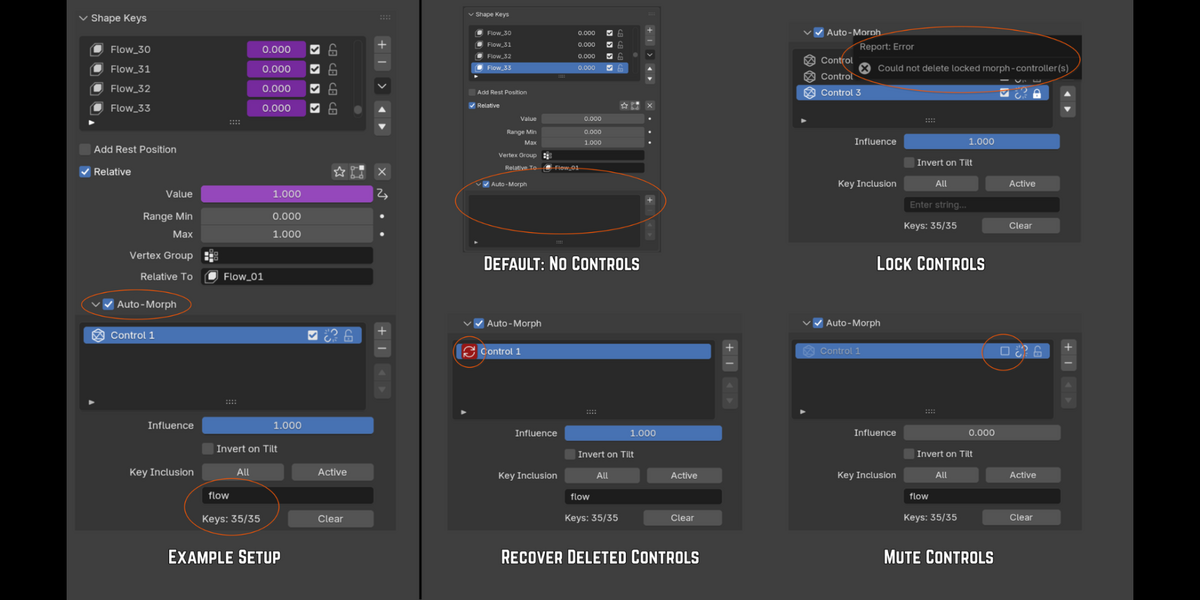
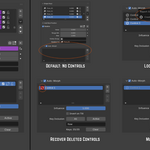
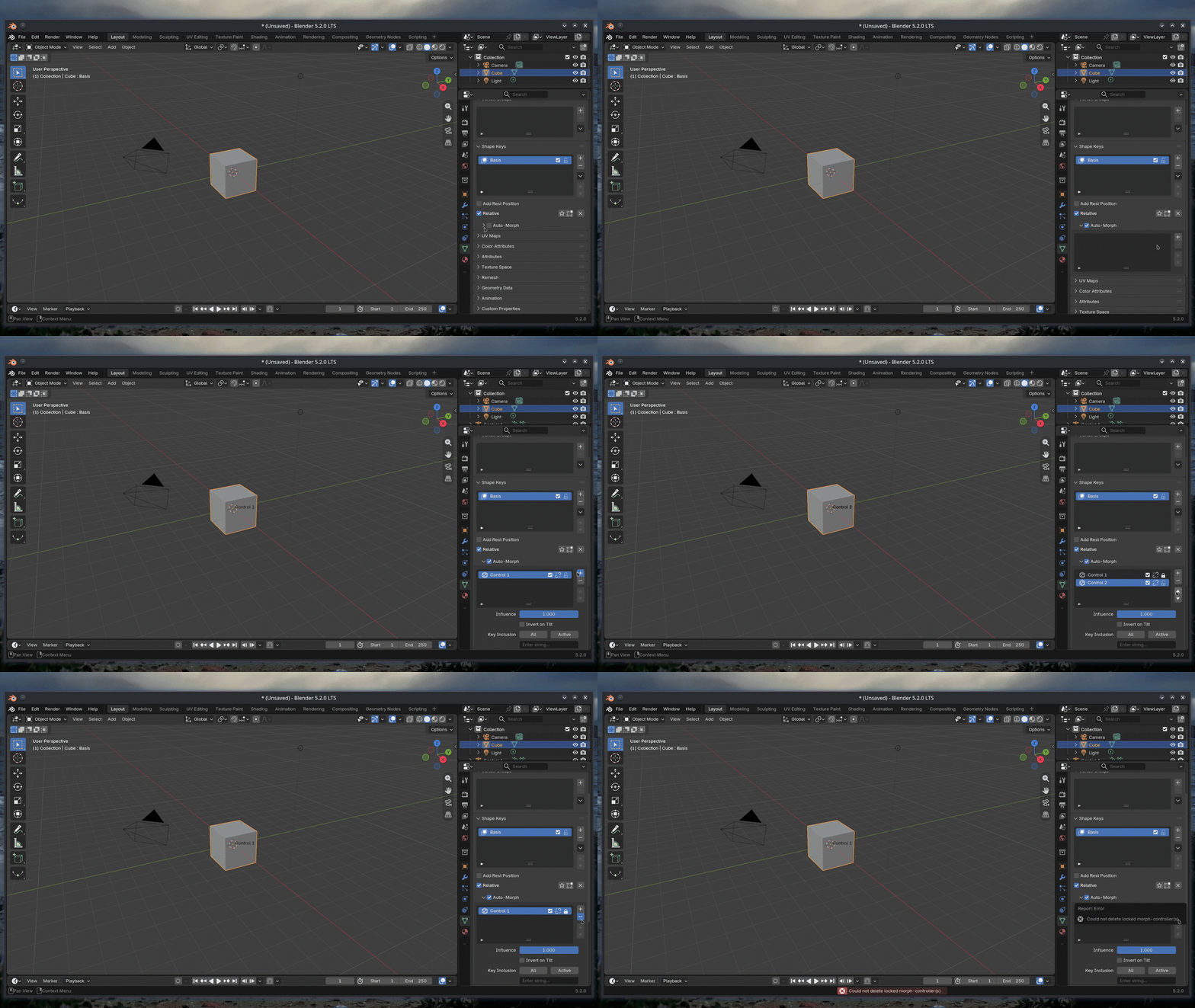
The tool is off by default, and can be turned on using the checkbox alongside its name. This toggle can be used at any point to temporarily remove the effects of the tool. After expanding with the drop-down icon, an empty list will be visible.


  • Add / Remove: Controls can be added and removed via the +/- icons on the right-hand side.
  • Reorder: Move items up or down using the arrow icons.
  • Lock: The Lock icon on each Control listing can be toggled to prevent accidental deletion.

Key Selection

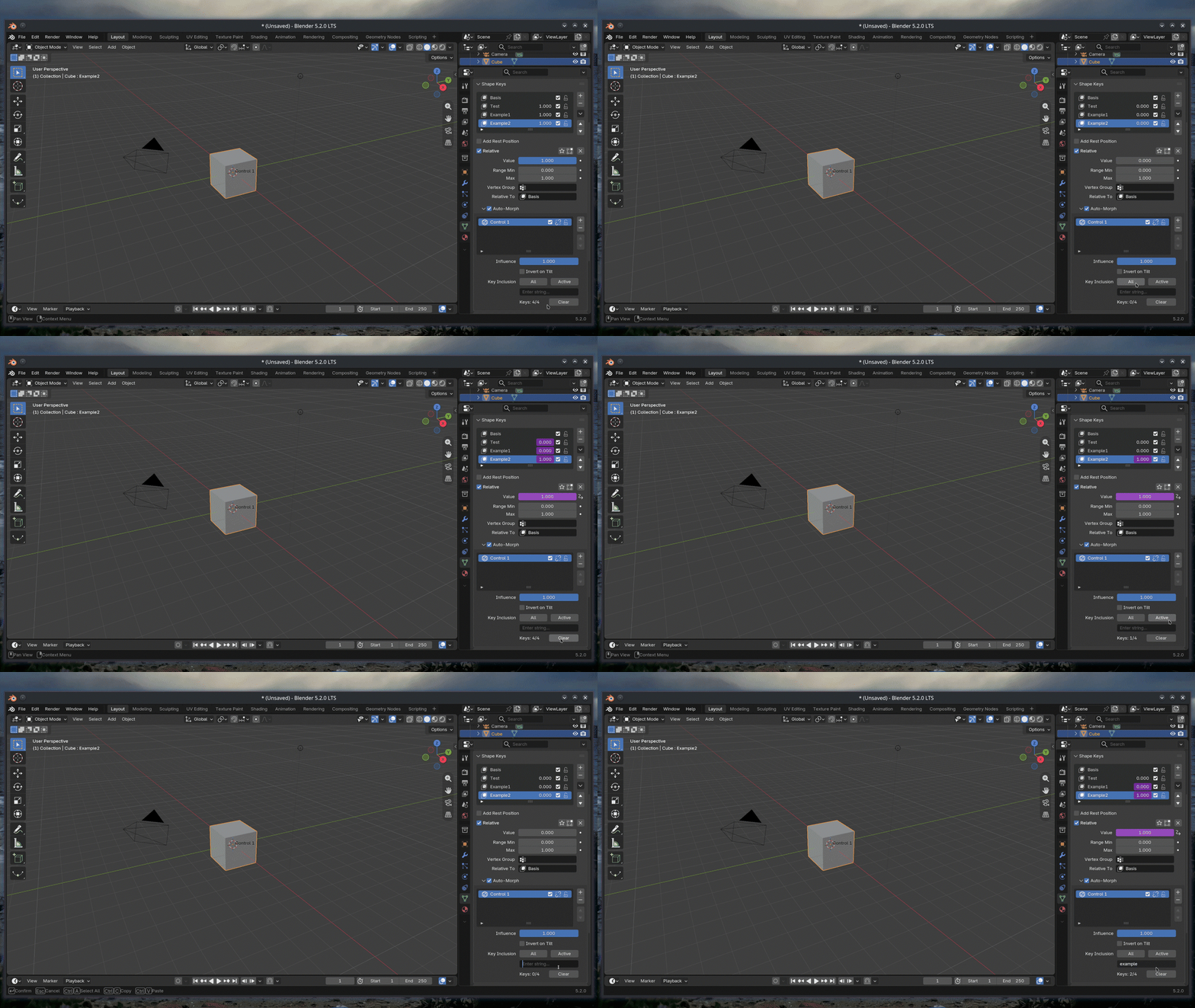
Shape Keys can be assigned to a Control via the Key Inclusion section. The total number of selected keys for the current Control will be updated dynamically in the lower-left corner of this section.

  • [All]: Assigns all shape keys to the Control (this is the default setting).
  • [Active]: Assigns only the currently-selected shape key.
  • Text field: Assigns any keys containing the input string. Note: After typing your string, ensure you hit Enter on your keyboard to update the program.
  • [Clear]: Must be used to reset the included keys to zero before a customised selection can be made.

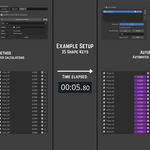
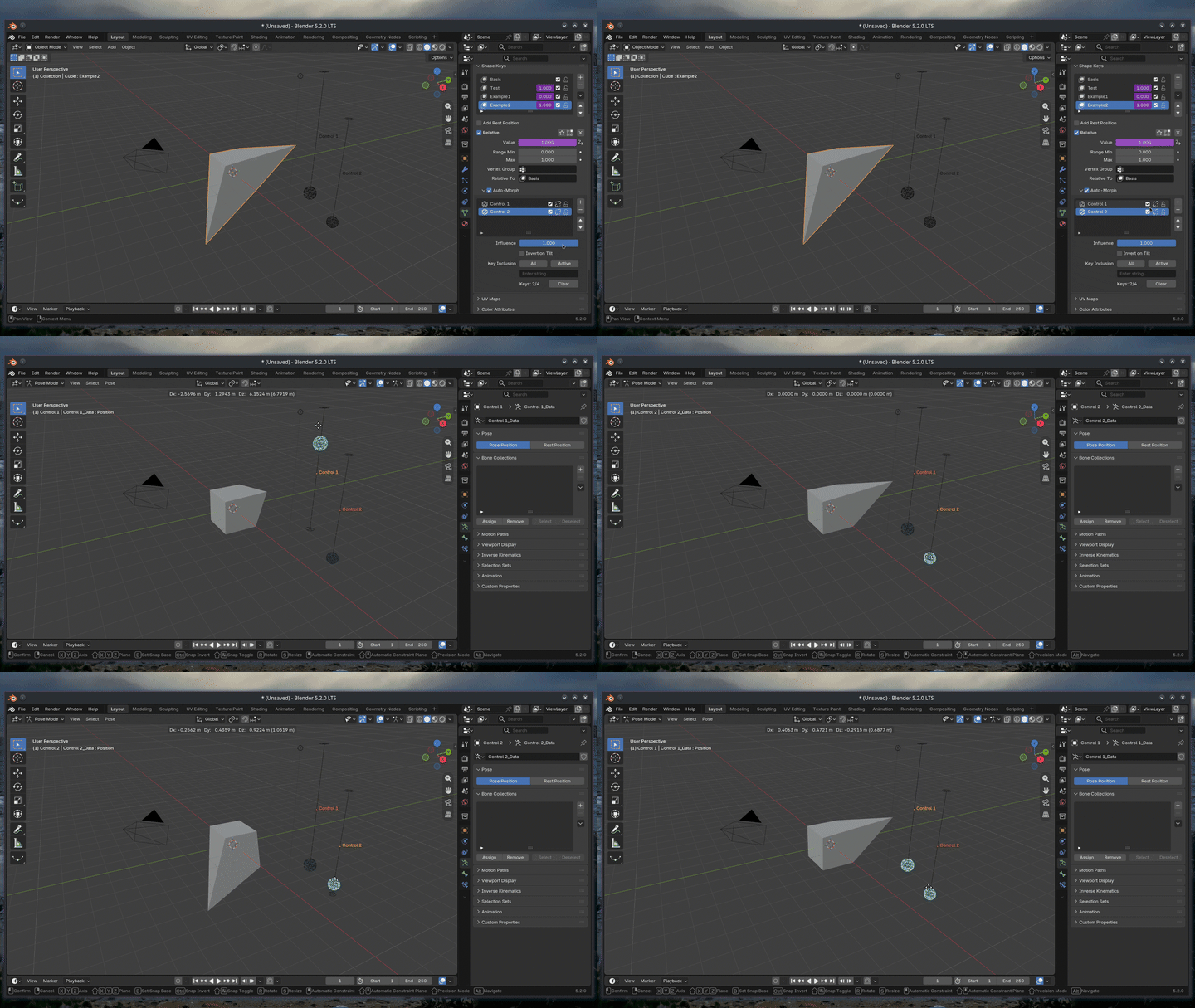
Once selection is complete, you will notice that each of those shape keys contains a purple Value field, indicating that drivers have been created instantly. This will automatically update if the key selection is changed.

Viewport Behaviour

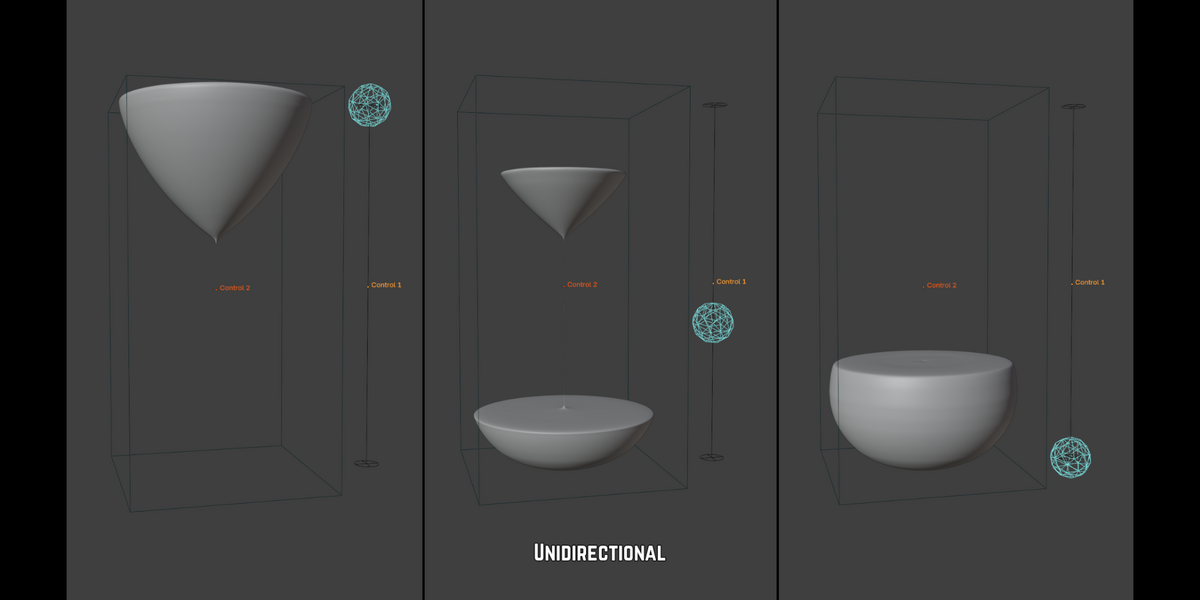
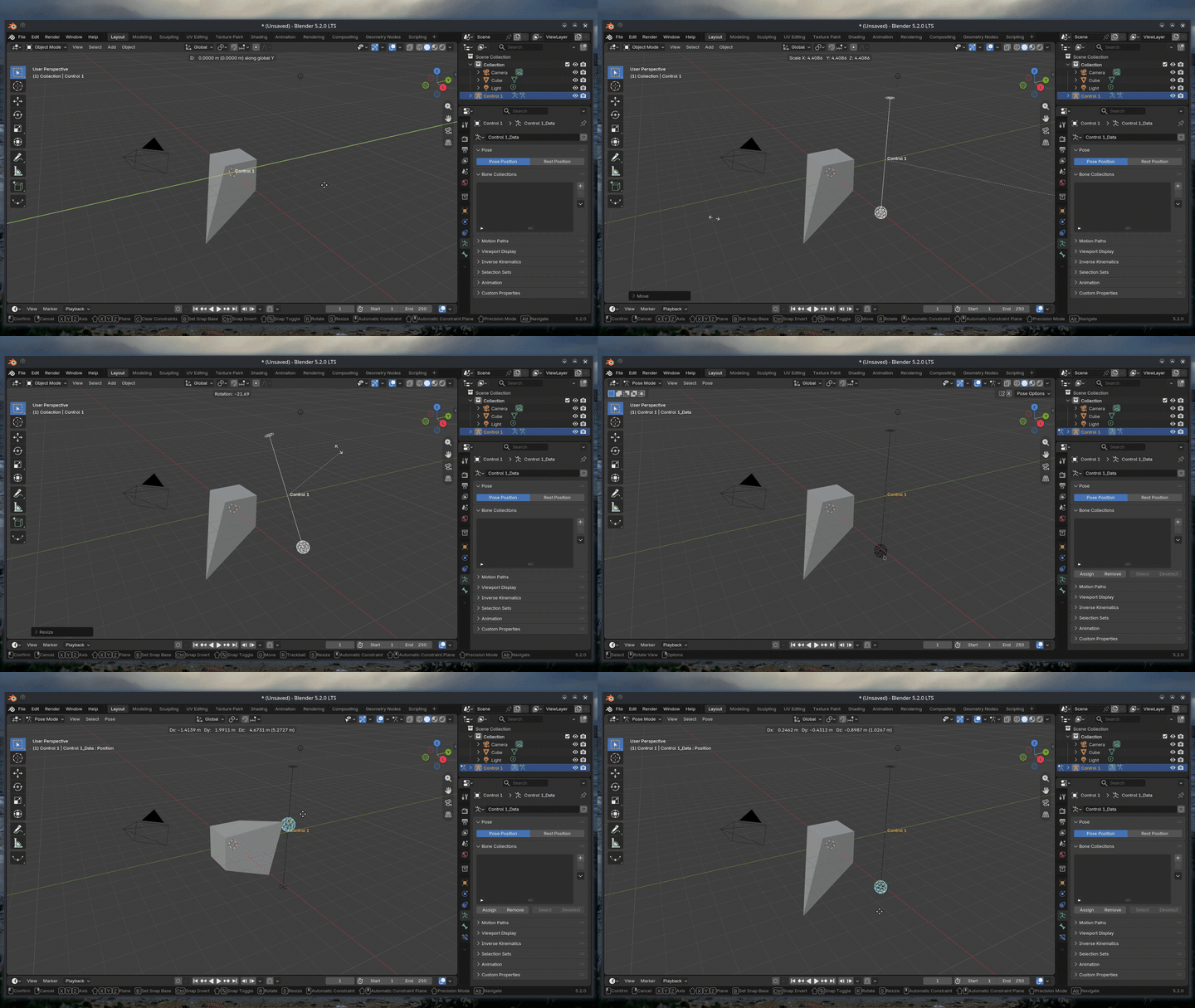
For every Control created, a corresponding armature will appear in the viewport. With the default settings, this can be transformed (Location / Rotation / Scale) in Object Mode without causing any impact on the morph itself. This allows you to position it to suit your scene, whether that's alongside the mesh, in an off-camera Control zone, or another configuration.

The armature consists of two bones:

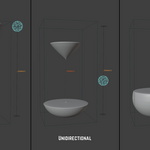
  1. Position Bone (Sphere shape): Selectable in Pose Mode (Ctrl + Tab). Dragging this bone (which is locked to its range to ensure precise movement) will interpolate between the shape keys. The topmost position corresponds to the shape key at the top of the assigned keys.
  2. Range Reference Bone: Provides a visual guide for the bounds of movement.

Render Visibility: The Control armature itself will not affect your final renders as it contains no faces (rendering completely invisible).

Viewport Labels: It features a viewport label (e.g., "Control 1") to differentiate it from other Controls. To hide this, select the armature, navigate to Object > Viewport Display, and toggle Show Name off. 

Influence

There are several ways to adjust the Influence of a Control, which refers to the overall impact a given Control has on the mesh*.


  • Influence slider: Visible underneath the list. This can be dragged/animated manually or controlled via a driver.
  • Mute: A quick, non-destructive method to switch specific Controls on or off.

For more advanced setups where the influence of Controls should dictate each other, the Linked feature can be utilised. This works via an opt-in per Control method, toggled with the Linked chain icon on each listing.

Note: Enabling this will automatically remove any existing Influence drivers on the selected Control.


The Linked feature automates the process of Influence driver-creation by using a hierarchical system:

  • Inactive** controls will yield to Active*** controls, meaning they hold no influence.
  • If there are tiebreaker situations, the higher Control in the list takes precedence.
    > Example 1: If there are multiple Active Controls, whichever is higher in the list stays at 1.000 while the lower one reverts to 0.000.
    > Example 2: If there are no Active Controls, whichever Control is highest defaults to 1.000.

* Full influence (1.000) means its selected shape keys are also at full influence, while no influence (0.000) means that its selected shape keys also have no influence. This can be used to distribute the morph (e.g., two Controls with 0.500 influence each). There is no restriction on the number of Controls with full influence, but this is only recommended if the shape keys control different vertices (e.g. an eye vs a mouth) rather than the same vertices (e.g. two different arm positions), which can inadvertently cause "double-displacement".
** Inactive: Defined as being at the absolute end of its range (i.e. the top or base position).
*** Active: Defined as being within its range of motion (i.e. NOT at the top or base position).

Extra Features

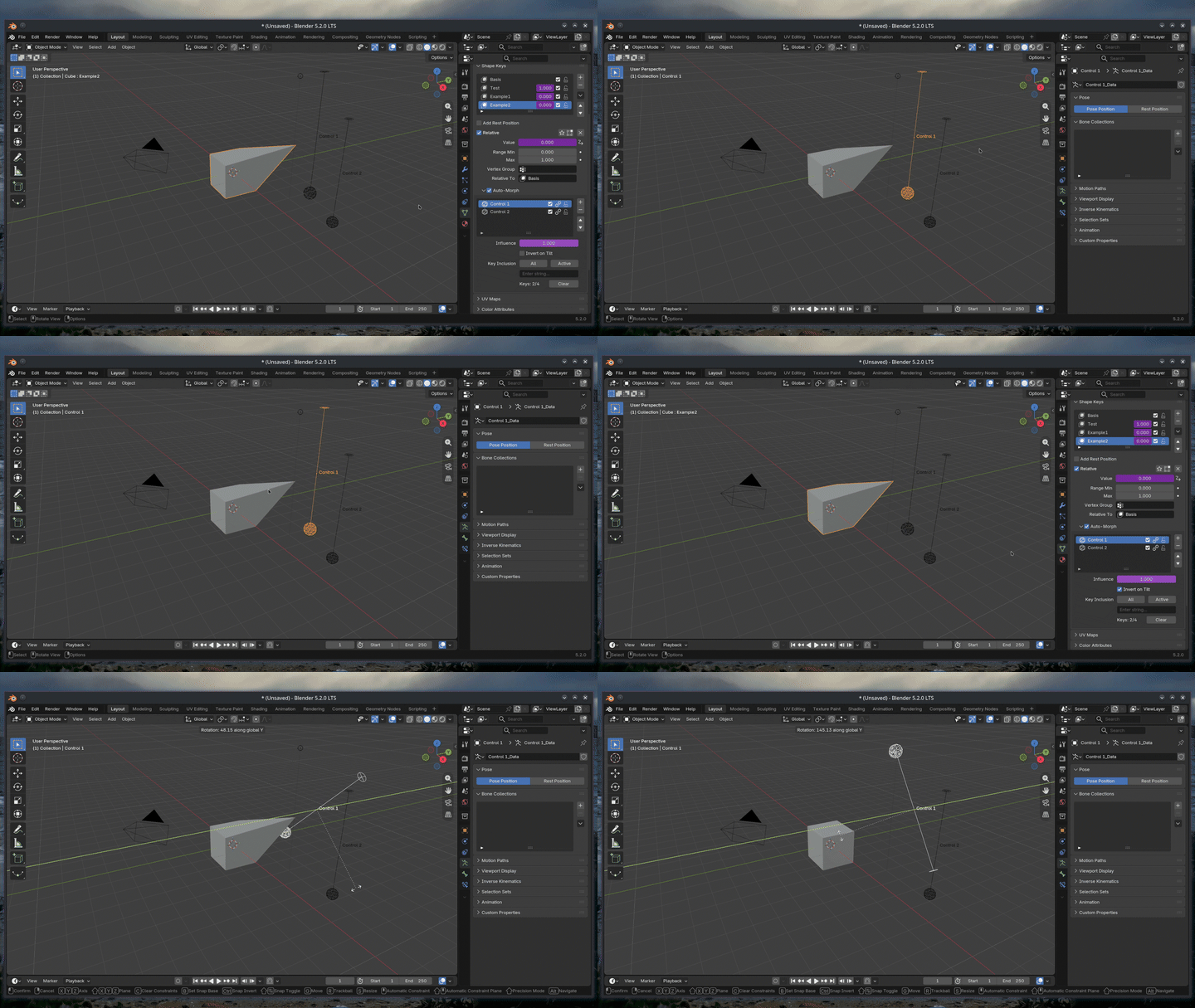
Invert on Tilt: By default, a Control interpolates in the same order regardless of orientation. This feature changes that behaviour once the Control crosses the hemisphere line, automatically alternating the direction. This is beneficial if the Control is parented to a rotating object or needs to switch direction based on environmental factors.

Smart Deletion: Designed to prevent data loss without creating confirmation dialogues or other disruptions.

  • Deleting a Control from within the UI list assumes deliberate intent (especially given the option to use the Lock).
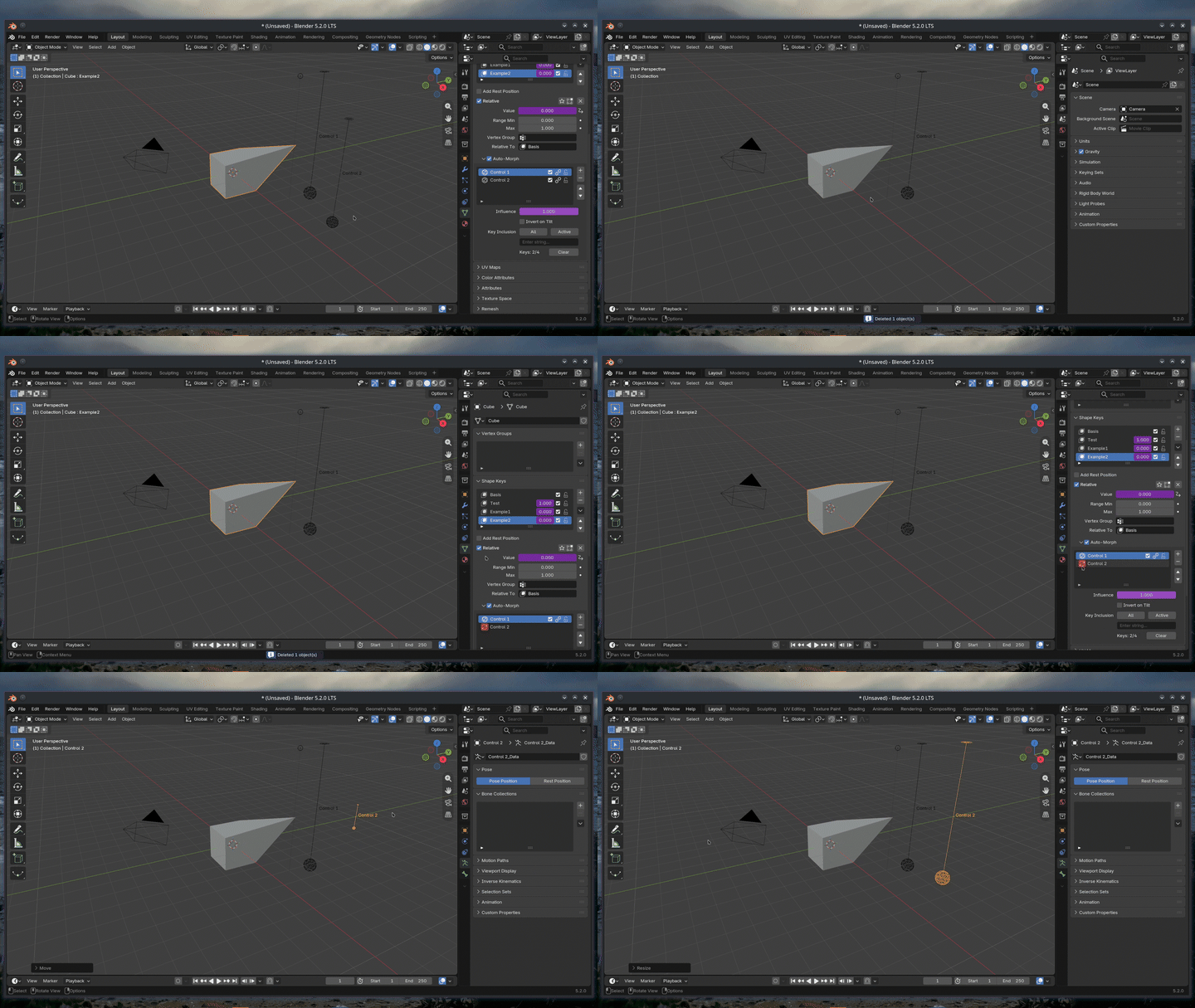
  • However, given the ease at which a thin armature can be caught in a viewport box-selection, deleting the armature directly in the viewport will not remove the Control listing. Instead, a red Regenerate button will appear on the relevant listing, allowing you to instantly rebuild the armature when clicked.
  • For individual artists, students, or indie creators with UNDER $100,000 USD in annual revenue. Valid for unlimited personal or commercial projects within this revenue cap.

    $14 $20
  • For freelancers, studios, or corporate entities with OVER $100,000 USD in annual revenue, or teams requiring multi-seat access. Valid for unlimited commercial gain with no revenue restrictions.

    $28 $40
$14

Support Period Included

Includes 12 months of

Extend this product’s Support Period +12 months: 25% of product price

Have questions before purchasing?
Login to message

Details
Blender Extension Compatible Yes
Published about 4 hours ago
Blender Version 5.2
Extension Type Add-on
Render Engine Used Cycles
License GPL
Discover more products like this

control interface shape keys automation extension tool rigging