B- Node Painter - Procedural Texturing
 RobertRoss_VFX


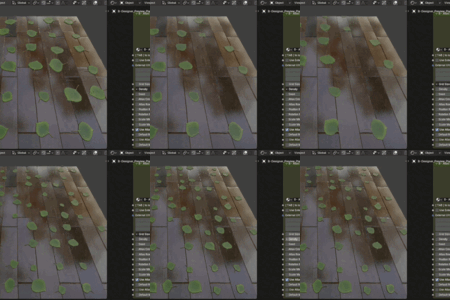
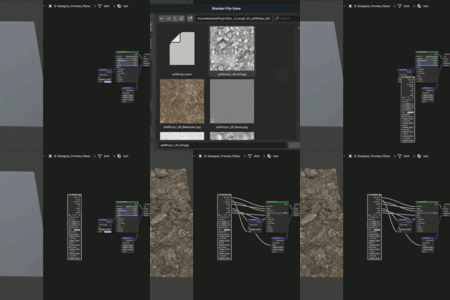
B- NodePainter: Official User Manual
Welcome to B- NodePainter! This tool brings industry-standard procedural texturing and layer-based workflows directly into Blender. Because Blender’s shading environment differs fundamentally from standalone texturing software, please read these crucial workflow guidelines to get the most out of your new tool.
Pro Tip: Explore the Example Scene! We highly recommend opening and exploring the included Example Scene before starting your own projects. Reverse-engineering this pre-made material is the fastest way to understand the layering system, the baking workflow, and how to effectively use Smart Groups in practice.
🎨 1. Visual Color Coding System
To help you instantly read your graphs, B- NodePainter automatically color-codes nodes based on their function and requirements:
- Default (Dark Grey): Standard mathematical filters, generators, and blending nodes.
- Olive Green: Nodes that require a loaded Image Texture to function properly (e.g., Make It Tile, Atlas Scatter, Slope Blur).
- Purple: Nodes that output Vector data (e.g., UV coordinates, Absolute UVs) and needs to be placed before the target node
- Red: The temporary B-Preview Node (do not edit this manually; use the Node Preview shortcut).
- Orange: Legacy nodes (archived versions kept to prevent your old projects from breaking).
⚠️ 2. Crucial Differences vs. Standalone Texturing Software
If you are coming from software like Substance Designer, you must adjust your mindset regarding how vector math works in Blender.
A. Node Placement (The "Reverse" Workflow)
In standalone software, you usually apply a Blur or Warp after generating a texture. In Blender, spatial nodes that manipulate coordinates (like B- Blur, B- Warp, or B- 2D Transform) manipulate the UV vectors, not the pixels.
-
Rule: You must place spatial nodes BEFORE the Image Texture or Generator, plugging their output into the
Vector/External UVinput.
B. UV Propagation & The "Baking Lock"
Because spatial nodes (like Blur or Directional Warp) alter the underlying UV grid, this distortion propagates endlessly through the node chain. If you attempt to use value-based filters (like B- Levels or B- Histogram Scan) on a heavily warped texture, the results will break because the filter is receiving distorted vectors, not a flat pixel map.
-
The Solution: Whenever you heavily alter UVs and need to run pixel-math filters afterward, you must Bake the result. Simply select the texture/generator node and use Fast Bake Selected. This freezes the UV distortion into a flat 32-bit image, allowing
Levelsand other filters to work perfectly downstream. - Tip: Use the B- Fast Bake Pin node to mark specific choke points in your graph that require caching.
C. Gradients & Color Management (AgX / Filmic)
If your B- Gradient Linear or B- Gradient Radial nodes look washed out, clamped, or strange in the viewport—do not panic. The math inside the nodes is 100% physically accurate.
- The Culprit: Blender's default Color Management (AgX or Filmic) applies a cinematic view transform that distorts raw mathematical gradients.
- The Solution: Whenever you are editing masks or gradients, click the Node Preview tool. B- NodePainter will automatically switch the viewport to "Raw" or "Standard" color space, showing you the true, undistorted mathematical values. It will revert to your original settings once you disable the preview.
⚙️ 3. Core System Tools Overview
The top N-Panel provides a suite of tools designed to eliminate repetitive tasks:
-
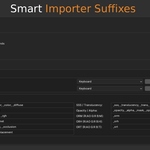
Smart Import Material: Select an object, click this button, and select your textures. The addon reads the suffixes (e.g.,
_BaseColor,_Normal,_Roughness), automatically builds the full PBR graph, and connects everything to your BSDF. -
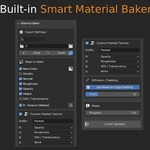
Fast Bake Selected: Select any node chain and instantly cache it to disk as a 32-bit EXR file. The addon handles UV generation, isolates the render to avoid Geometry Node glitches, disables
Selected to Active, and swaps the wires for you automatically. - Sync Loaded Images: Complex nodes (like Slope Blur or Make It Tile) sometimes use 4-8 texture samplers under the hood. Load your image into the node labeled "1. BASE IMAGE" and click this tool—it will automatically populate the image across all internal samplers.
- Update B- Designer: Did we release new nodes? Click this to inject the latest library into your project. Existing nodes are safely updated, and modified custom ones are archived as Legacy.
- Using the B- Clipboard Native Blender copy-pasting between different materials or files can often lead to lost references or erratic behavior, especially with complex custom groups.
-
How to use: Select the nodes you want to transfer and click B- Copy in the N-Panel. Switch to your target material (or open a completely different
.blendfile) and click B- Paste. - Why use it: This tool safely serializes your selected nodes, ensuring that all specific B- NodePainter parameters, custom settings, and links are preserved flawlessly across different graphs and projects.
-
How to use: Select the nodes you want to transfer and click B- Copy in the N-Panel. Switch to your target material (or open a completely different
- Auto-Detect Format (Fast Bake) When using the Fast Bake tool, the Auto setting intelligently determines the absolute best file format, bit-depth, and color space for your cache by analyzing the Node's Label and the Output Socket Name. Here is how the logic determines the format:
-
16-bit EXR (Non-Color): Used for precise math and gradients to avoid stepping artifacts. (Trigger keywords:
height,disp,blur,sdf,gradient,distance) -
16-bit PNG (Non-Color): High precision for directional vectors without the heavy weight of an EXR. (Trigger keywords:
normal,nrm,nor) -
8-bit PNG (sRGB): Standard format for visual data intended for the human eye. (Trigger keywords:
base color,albedo,diffuse,color) - 8-bit PNG (Non-Color) [Fallback]: The default, lightweight format for standard PBR data (0.0 to 1.0) like Roughness, Metallic, or Custom Masks. (Triggers automatically if none of the above keywords are found).
-
16-bit EXR (Non-Color): Used for precise math and gradients to avoid stepping artifacts. (Trigger keywords:
- Smart Groups: Standardization & Organization As your materials grow, the node graph can become overwhelming. Smart Groups solve this by wrapping complex node clusters into standardized containers.
- How to use: You can either create an "Empty Smart Group" to build inside of, or select a cluster of existing nodes and click Convert Selected to Smart Group.
- How it works: The addon automatically configures the group with 8 standardized outputs (Base Color, Normal, Height, Roughness, and 4 Custom Masks). This ensures that every sub-component of your material connects perfectly to your master blend nodes.
- Auto-Baking & Performance: Smart Groups are built for speed. When combined with the Fast Bake tool, the addon automatically caches all connected outputs simultaneously and effectively mutes the entire internal node tree. This guarantees maximum viewport performance and high FPS, no matter how heavy the procedural math inside gets.
📁 4. Studio Pipeline & Version Control
B- NodePainter uses 100% native Blender math and nodes.
- Zero Dependency: Materials created with B- NodePainter will open and render perfectly for other users, even if they don't have the addon installed.
-
VCS Support: All baked caches and textures strictly respect Blender's relative (
//) and absolute path settings, ensuring flawless compatibility with Git, SVN, and Perforce pipelines.
⚠️ 5. Performance & Crash Troubleshooting (Low RAM)
If you are working on a system with limited RAM and experience frequent crashes when building highly complex materials, please know that we are actively working on performance improvements, and an update will be rolling out soon. Unfortunately, these memory spikes and crashes are deeply rooted in Blender's core architecture (specifically how its dependency graph and undo system evaluate node trees), making them extremely difficult to bypass at the add-on level.
Temporary Workarounds:
- Bake Smart Groups: Do not leave massive procedural chains live. Bundle your heavy layers into a Smart Group and use the Fast Bake tool. This freezes the heavy mathematical calculations into a static image and effectively mutes the internal nodes, instantly freeing up system resources.
-
Tweak Blender's Memory Limits: Blender's Undo system is notorious for hoarding RAM in the Node Editor. Go to Edit > Preferences > System > Memory & Limits. We highly recommend reducing your Undo Steps to
10 - 20and setting the Undo Memory Limit to4000(MB). This forces Blender to aggressively clear its memory cache, preventing fatal RAM overflows.
Have questions about this product?
Login to message
| Blender Extension Compatible | Yes |
| Dev Fund Contributor | |
| Published | 5 months ago |
| Blender Version | 4.2 - 5.1 |
| Extension Type | Add-on |
| Render Engine Used | Cycles, Eevee |
| License | GPL |