B- Node Painter - Procedural Texturing
 RobertRoss_VFX


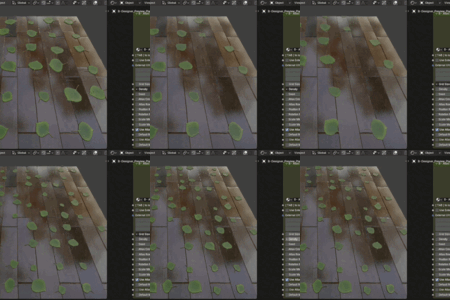
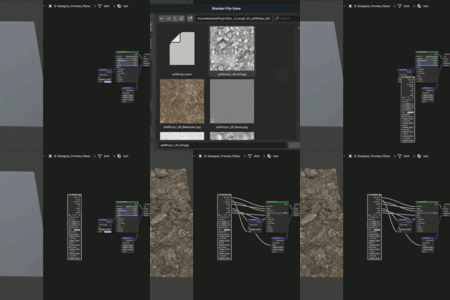
Will materials created with B- NodePainter work for other people who don't own the addon?
Yes, absolutely! All generators, filters, and materials are built using 100% native Blender nodes and math under the hood. You can share your .blend files or export your baked textures, and they will work perfectly for anyone, anywhere—no installation required on their end.
What are Smart Groups and why should I use them?
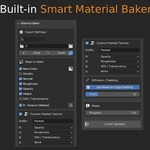
Smart Groups are native Blender node groups that B- NodePainter automatically sets up with standardized PBR and custom mask outputs. You should use them to bundle different parts of your material (e.g., "Wood Base", "Dirt Layer") into clean, single nodes. Additionally, because they are optimized for the Fast Bake system, baking a Smart Group mutes its internal calculations, saving you massive amounts of viewport FPS.
Do I still need external texturing software to create professional materials?
The ultimate goal of B- NodePainter is to free you from external software and monthly subscriptions. It currently features a robust procedural node-based engine, and our upcoming (free for early adopters) update will introduce a comprehensive layer and brush system directly into Blender's Shader Editor.
Which versions of Blender are supported?
B- NodePainter is fully optimized and heavily tested for full compatibility with Blender 4.2 and 5.0. It leverages the latest rendering architecture and native node updates to ensure maximum performance and stability for your projects.
My gradients and masks look washed out or gray in the viewport. Is it a bug?
No, the math inside the nodes is perfectly accurate! The issue is Blender's default Color Management (AgX or Filmic), which applies a cinematic color curve that visually distorts raw 0.0 - 1.0 mathematical values. To see your true masks, simply use the Node Preview tool—it will temporarily switch your viewport to "Raw" / "Standard" color space to show the true data.
Why aren't nodes like "Levels" working properly after I use a "Blur" or "Warp" node?
In Blender, spatial nodes (like Blur, Warp, or 2D Transform) manipulate the UV coordinate vectors, not the flat pixels. If you plug distorted UVs into a pixel-value filter like Levels, the math breaks.
Solution: Use the Fast Bake Selected tool on your warped or blurred node to cache it into a flat 32-bit image, then apply your Levels or Histogram Scan filters to the baked result.
$45
Have questions about this product?
Login to message
| Blender Extension Compatible | Yes |
| Dev Fund Contributor | |
| Published | 5 months ago |
| Blender Version | 4.2 - 5.1 |
| Extension Type | Add-on |
| Render Engine Used | Cycles, Eevee |
| License | GPL |