Multi-Mat Baker - Bake Multiple Materials Into One PBR Texture Set in One Click
 blenderustad


Multi-Mat Baker — Full Documentation
Version 1.2.0 | Blender 3.0 – 4.x | Author: Blender Ustad
Table of Contents
- What Is Multi-Mat Baker?
- Installation
- Quick Start — One Click Workflow
- Step-by-Step Guide
- Output — What You Get
- Baked Maps Reference
- Progress Tracking
- Tips & Best Practices
- Compatibility
- FAQs
- Support & Contact
1. What Is Multi-Mat Baker?
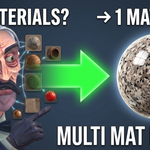
Multi-Mat Baker is a Blender addon that converts models with multiple materials into a single optimized material and texture set for game engines.
When you download a 3D model with 20–30 separate materials, using it in Unity, Unreal Engine, or Godot requires consolidating everything into a single material. Doing this manually means setting up UV channels, packing islands, creating bake targets in every material, running individual bake operations for each map type, and then wiring everything into a final material — a process that can take 30–60 minutes per model.
Multi-Mat Baker automates the entire pipeline in one click.
Select your objects → click Generate → get a game-ready single material.
2. Installation
Blender 4.2 and above (Extensions)
- Download
multi_mat_baker.zip - Open Blender → Edit → Preferences → Add-ons
- Click Install from Disk (top right)
- Select
multi_mat_baker.zipand click Install Add-on - Enable Multi-Mat Baker in the list
Blender 3.0 – 4.1
- Download
multi_mat_baker.zip - Open Blender → Edit → Preferences → Add-ons → Install
- Select
multi_mat_baker.zipand click Install Add-on - Enable Multi-Mat Baker in the list
Accessing the Panel
After installation, open the N-Panel in the 3D Viewport by pressing N, then click the Baker tab.
3. Quick Start — One Click Workflow
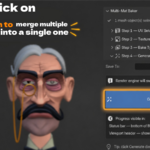
This is the fastest way to use the addon. All steps run automatically using sensible defaults.
- Select all mesh objects whose materials you want to consolidate
- Open the N-Panel → Baker tab → Step 4 — Generate
- Set an output folder (recommended — see note below)
- Click Generate Baked Material
That's it. The addon will:
- Fix UV channel names
- Create and pack a shared BakeUV channel
- Bake all 6 PBR maps
- Build a single clean Principled BSDF material
- Remove all old materials and assign the new one
Important: Always set an output folder before baking. Baked images are stored inside Blender's data block and will be lost if the
.blendfile is closed without saving, unless they have been saved to disk.
4. Step-by-Step Guide
The addon is divided into 4 steps. You can run each step independently for full control, or skip them all and click Generate — it will run everything internally with current settings.
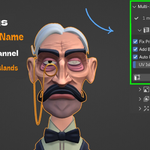
Step 1 — UV Setup
Location: N-Panel → Baker → Step 1 — UV Setup
This step prepares UV channels on all selected objects for baking.
| Setting | Default | Description |
|---|---|---|
| Fix Primary UV Name | On | Renames the first UV channel to UVMap — Blender's default name. Required for correct baking when models use custom UV names. |
| Add BakeUV Channel | On | Adds a secondary BakeUV channel to every selected mesh. All maps will be baked into this channel. |
| Auto Pack BakeUV Islands | On | Packs all BakeUV islands from all selected objects into one shared 0–1 UV canvas. Ensures all objects fit into a single texture without overlap. |
| UV Island Margin | 0.020 | Space between UV islands when packing. Increase if you see colour bleeding between islands. Range: 0.000 – 0.500. |
Click Run UV Setup to apply this step independently without running the full bake.
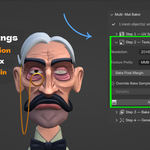
Step 2 — Texture & Settings
Location: N-Panel → Baker → Step 2 — Texture & Settings
This step controls bake quality and output file naming.
| Setting | Default | Description |
|---|---|---|
| Resolution | 2048 px | Output texture size for all baked maps. Options: 512 / 1024 / 2048 / 4096 / 8192 px. |
| Texture Prefix | MMB | Name prefix for all baked images. Example: Hero → Hero_Diffuse_2048, Hero_Normal_2048. Max 64 characters. |
| Bake Pixel Margin | 16 | Pixel bleed around UV island edges. Prevents visible seams at island borders. Rule of thumb: 16 for 2K, 32 for 4K, 64 for 8K. |
| Override Bake Samples | Off | Temporarily override the Cycles sample count during baking. Restores the original value automatically when baking finishes. |
| Samples | 128 | Cycles samples used during baking. Only active when Override is enabled. Lower = faster preview. Higher = cleaner final result. |
Warning: 4096 and 8192 px resolutions can take many minutes depending on scene complexity. A warning is shown in the panel when these are selected.
Click Add Bake Node to Materials to create the bake target node in all materials independently.
Step 3 — Bake Types
Location: N-Panel → Baker → Step 3 — Bake Types
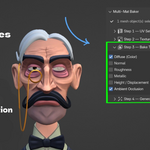
Choose which PBR maps to bake. All are enabled by default.
| Map | Notes |
|---|---|
| Diffuse (Color) | Baked with pass_filter=COLOR — raw albedo, no lighting contribution. |
| Normal | Baked in tangent space as a 32-bit float image. Standard for Unity and Unreal Engine. |
| Roughness | Native Cycles bake type. No special handling required. |
| Metallic | No native Blender bake type — uses Emission trick automatically. Your original material wiring is fully restored after baking. |
| Height / Displacement | No native Blender bake type — uses Emission trick automatically. Reads from Displacement socket or Displacement/Bump nodes. |
| Ambient Occlusion | Native Cycles bake type. Left unconnected in the final material — multiply with Diffuse manually if needed. |
Missing map detection: If any checked map has no relevant data in your materials (for example, no Normal map connected to any Principled BSDF), a confirmation dialog appears before baking starts, listing all missing maps. You can confirm to auto-uncheck and skip them, or cancel to go back and adjust your materials first. This prevents wasted bake time on empty maps.
Step 4 — Generate
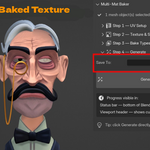
Location: N-Panel → Baker → Step 4 — Generate
The main bake pipeline. Runs all previous steps internally.
| Setting | Description |
|---|---|
| Save To | Optional output folder. All baked textures are saved as PNG files automatically after each map is baked. Leave empty to keep images only inside Blender's data block. Supports Blender-relative paths (// prefix). |
If the current render engine is not Cycles, the addon will switch to Cycles automatically before baking and a notice will appear in the panel.
Click Generate Baked Material to run the full pipeline.
5. Output — What You Get
After a successful bake you will have:
-
One material named
MMB_Bakedassigned to all selected objects - All old materials removed from every selected object
-
Baked images stored in Blender's data block (named e.g.
MMB_Diffuse_2048,MMB_Normal_2048) - PNG files on disk if an output folder was set
The final MMB_Baked material is a clean Principled BSDF with all textures wired correctly:
| Baked Map | Connected To |
|---|---|
| Diffuse | Base Color |
| Normal | Normal Map node → Normal |
| Roughness | Roughness |
| Metallic | Metallic |
| Height | Displacement node → Material Output Displacement |
| AO | Present in node tree, unconnected — for manual blending |
All texture nodes use the BakeUV channel as their UV source.
6. Baked Maps Reference
Diffuse / Base Color
Baked using Blender's native DIFFUSE type with pass_filter=COLOR. This captures raw albedo without any lighting, which is the correct approach for game engines. Saved with sRGB colour space.
Normal
Baked using Blender's native NORMAL type in tangent space. Baked as a 32-bit float image for maximum precision. Tangent space is the standard for game engines (Unity, Unreal, Godot). Saved with Non-Color colour space.
Roughness
Baked using Blender's native ROUGHNESS type. Saved with Non-Color colour space.
Metallic
Blender has no native Metallic bake type. Multi-Mat Baker uses the Emission trick: it temporarily routes the Metallic value through an Emission shader and bakes as EMIT. The original material wiring is fully restored after baking. Saved with Non-Color colour space.
Height / Displacement
Blender has no native Height bake type. Multi-Mat Baker uses the Emission trick: it reads from the Displacement socket of the Material Output node, or falls back to any Displacement or Bump node found in the material. The value is routed through Emission and baked as EMIT. Original wiring is fully restored after baking. Saved with Non-Color colour space.
Ambient Occlusion
Baked using Blender's native AO type. Left unconnected in the final material. To use it, multiply it with the Diffuse map using a MixRGB node set to Multiply mode.
7. Progress Tracking
Because Blender's bake call is blocking — the UI freezes while each map renders — progress updates appear between maps, not during a single map bake.
Two indicators are shown during baking:
- Status bar — a thin progress bar at the very bottom of the Blender window
-
Viewport header — shows the current step and map name, e.g.
MMB [3 / 6] — Baking Roughness…
Both indicators are cleared automatically when baking finishes or if an error occurs.
8. Tips & Best Practices
UV Island Margin A value of 0.02–0.05 is sufficient for most models. Increase to 0.05–0.08 if you see colour bleeding between different material regions at the seams.
Bake Pixel Margin Match this to your resolution: 16 for 2K, 32 for 4K, 64 for 8K. A too-small margin causes visible seams at UV island borders, especially on curved surfaces.
Bake Samples For preview bakes, 32–64 samples is enough to check results quickly. For final export, 128–256 samples gives cleaner AO and smoother results.
4K / 8K Resolution These resolutions can take many minutes for complex scenes. Always do a quick 1024 or 2048 preview bake first to verify your materials are set up correctly before committing to a high-resolution bake.
Save To Folder Always set an output folder before baking. Baked images stored only in Blender's data block will be lost when the file is closed without saving. Setting a folder saves all maps as PNG automatically as each one finishes.
Working with Downloaded Assets
If your model has custom UV names or missing UV channels, Step 1 handles this automatically. The addon renames the primary UV to UVMap and creates the BakeUV bake target channel.
AO Map The AO map is left unconnected in the final material intentionally. Different workflows use it differently — some multiply it with Diffuse in Blender, others import both maps into Substance Painter or a game engine and blend there. Connect it manually to suit your pipeline.
9. Compatibility
| Item | Details |
|---|---|
| Blender versions | 3.0, 3.1, 3.2, 3.3, 3.4, 3.5, 3.6, 4.0, 4.1, 4.2, 4.3+ |
| Render engine | Cycles (addon switches automatically if needed) |
| Material type | Principled BSDF based materials |
| UV packing API | Uses temp_override on Blender 3.2+ and legacy dict override on 3.0–3.1 |
| Extension system | Includes blender_manifest.toml for Blender 4.2+ Extensions |
| Platform | Windows, macOS, Linux |
Materials not using a Principled BSDF (e.g. pure Emission, Glass, or custom node groups) will still have their Diffuse and AO baked. Normal, Roughness, Metallic, and Height maps require a Principled BSDF node to be detected.
10. Support & Contact
| Channel | Link |
|---|---|
| Website | https://blenderustad.com |
| [email protected] | |
| YouTube | https://www.youtube.com/@BlenderUstad |
| Store | https://superhivemarket.com/creators/blenderustad |
For bug reports, please include your Blender version, operating system, and a brief description of what you were doing when the issue occurred. Screenshots or a minimal .blend file are very helpful.
Have questions about this product?
Login to message
| Blender Extension Compatible | Yes |
| Sales | 10+ |
| Published | 5 months ago |
| Blender Version | 3.0 - 5.1 |
| Extension Type | Add-on |
| Render Engine Used | Blender-Internal, Blender-Game-Engine, Cycles |
| License | GPL |
