 Dongvp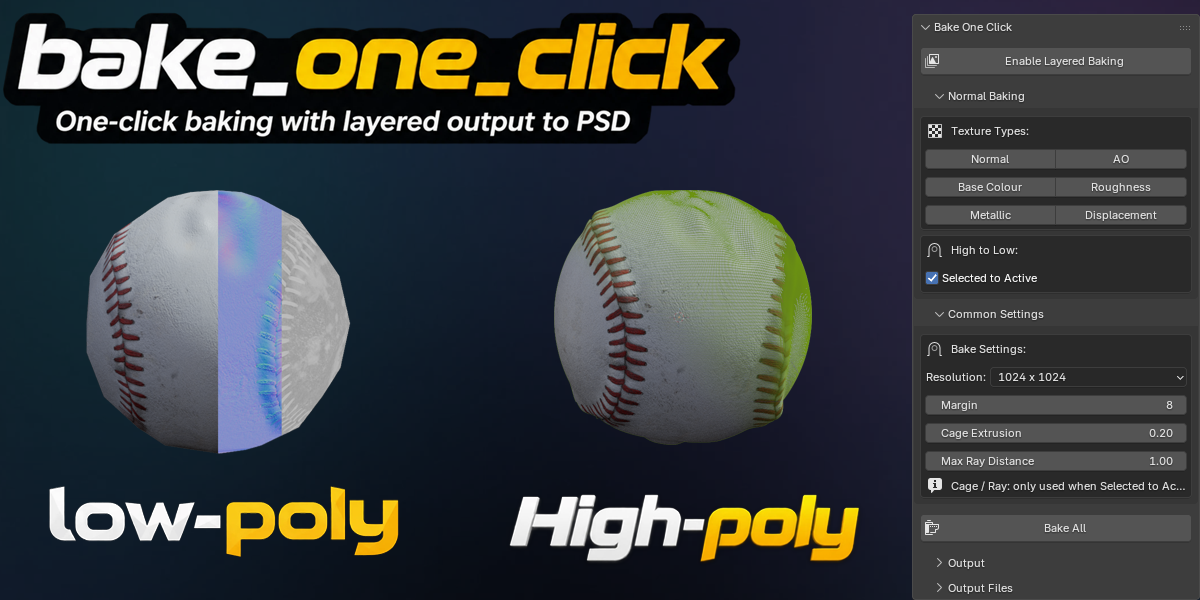
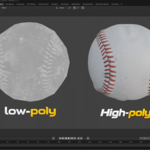
Bake One Click - Documentation
---
Installation
Method 1: Blender Extension System (Recommended)
1. Download the .zip file from Superhive.
2. Open Blender 5.1 or newer.
3. Go to Edit > Preferences > Get Extensions.
4. Click the dropdown arrow (top right) and select Install from Disk...
5. Select the downloaded .zip file.
6. Restart Blender to complete installation.
Verify Installation:
Open the 3D viewport, press N, and look for the "Bake One Click" tab in the sidebar.
---
Interface Overview
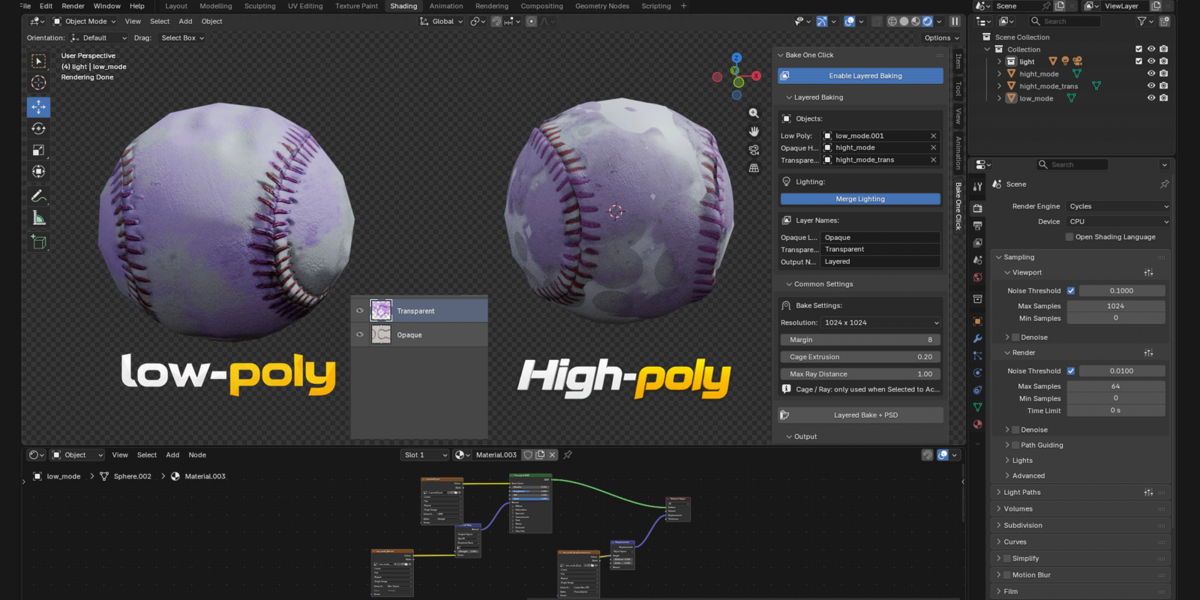
The add-on appears in the 3D viewport sidebar (N key) under the "Bake One Click" tab.
Top Section:
- Enable Layered Baking: Toggle between Standard and Layered baking modes.
- Resolution: Bake texture resolution (256 to 4096).
Standard Baking Panel:
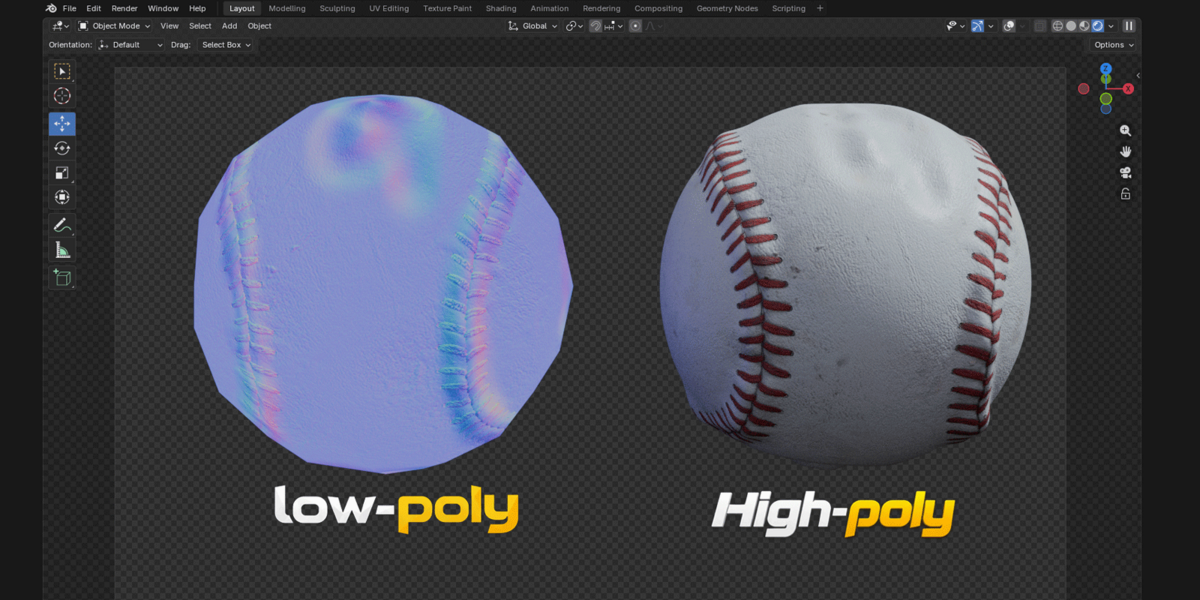
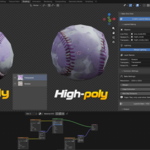
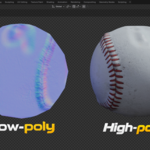
- Texture Types: Choose which maps to bake: Normal, AO, Base Color, Roughness, Metallic, Displacement.
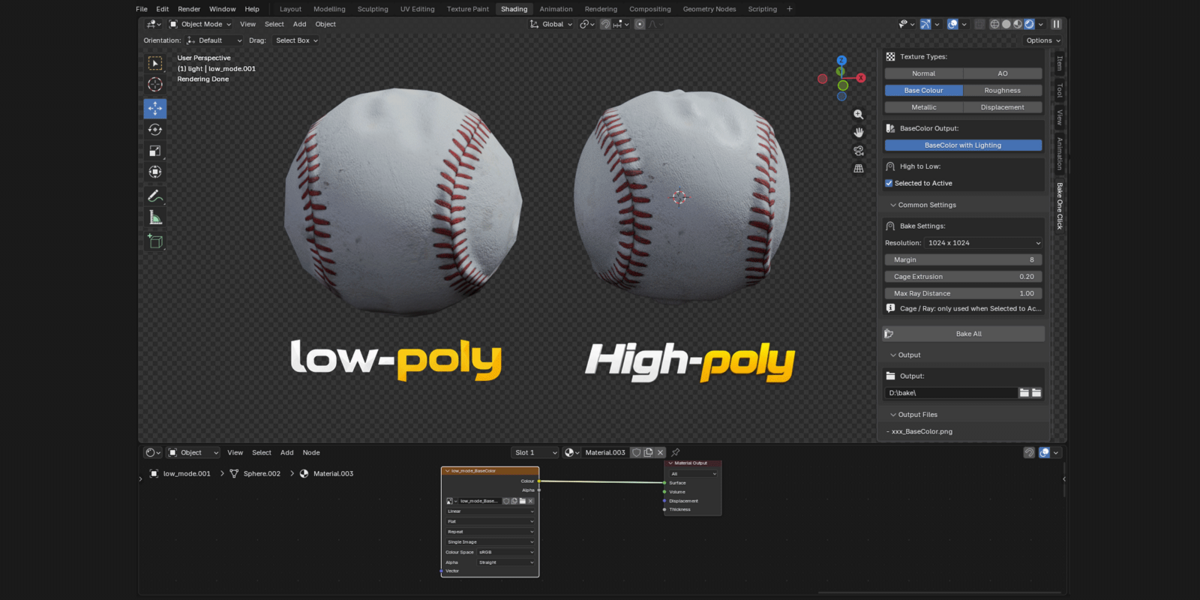
- Base Color Output: Toggle "with Lighting" (uses COMBINED bake with scene lights).
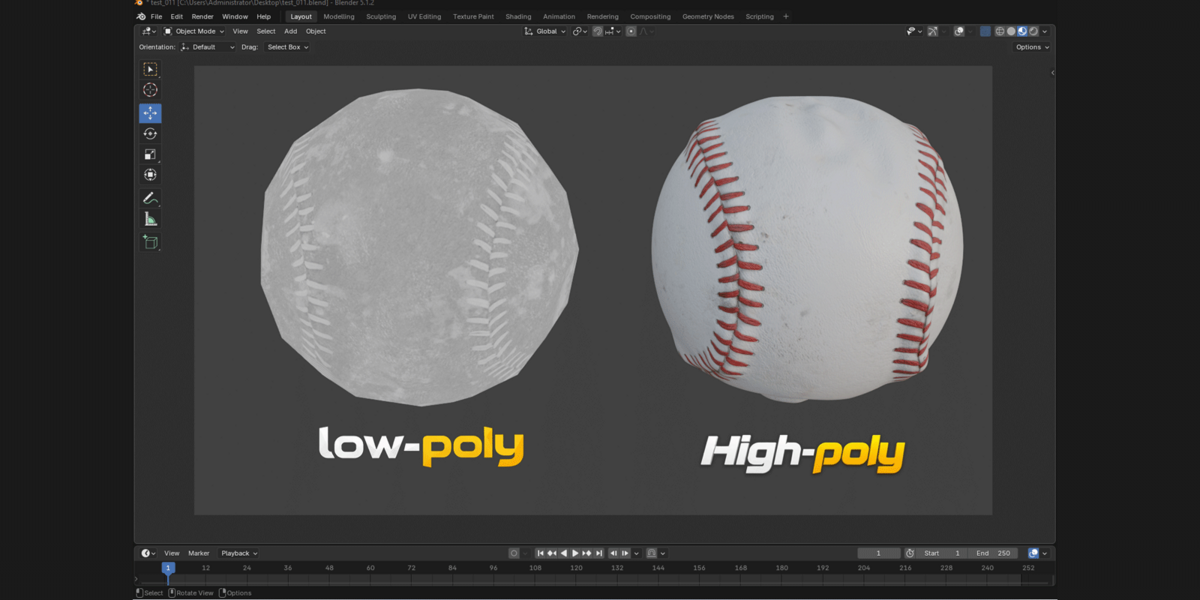
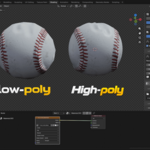
- High to Low: Enable Selected-to-Active baking.
- Common Settings (collapsible): Margin, Cage Extrusion, Max Ray Distance.
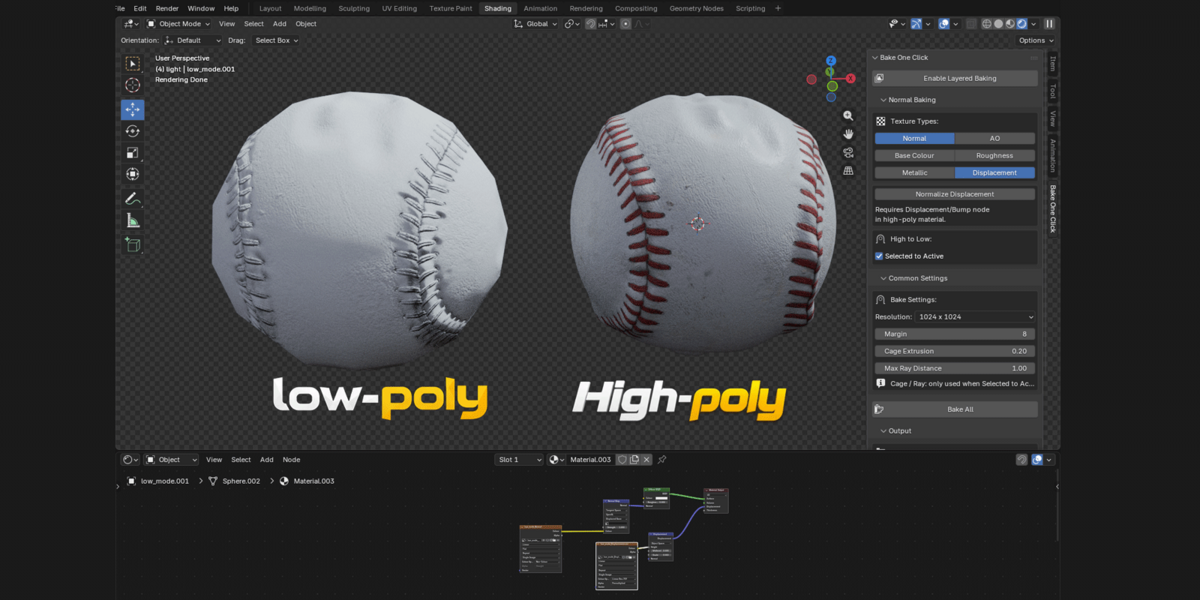
- Displacement Override: Appears when both Selected to Active and Displacement are enabled. Displacement has independent Cage Extrusion and Max Ray Distance.
- Output Dir: Where baked files are saved.
- Bake All: Starts the bake.
- Output Files: Lists the files that will be created.
Layered Baking Panel:
- Low Poly: The mesh that receives the bake.
- Opaque High Poly: High-poly mesh for opaque parts.
- Transparent High Poly: High-poly mesh for translucent parts.
- Bake Settings: Cage extrusion, max ray distance, margin.
- Layer Names: Customize output layer names in the PSD.
- Layered Bake + PSD: Starts the layered bake.
---
Standard Baking Workflow
Case 1: Bake a Single Object (Self-Bake)
1. Select your mesh in the viewport.
2. Make sure it has a Principled BSDF material.
3. Make sure the mesh has a UV map.
4. Save your .blend file (required for relative output paths).
5. Open the Bake One Click panel.
6. Check the maps you want to bake.
7. Set the output directory.
8. Click Bake All.
Output files are saved as:
/_Normal.png
/_AO.png
/_BaseColor.png
/_Roughness.png
/_Metallic.png
/_Displacement.exr
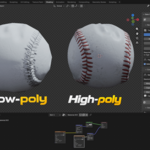
Case 2: Bake High-Poly to Low-Poly (Selected-to-Active)
1. Select both the high-poly and low-poly meshes.
2. Make the low-poly the active object (last click).
3. Enable Selected to Active in the panel.
4. Optionally adjust Cage Extrusion and Max Ray Distance.
5. Click Bake All.
---
Displacement Baking
Displacement is baked geometrically using ray casting from the low-poly surface to the high-poly mesh. It requires Selected-to-Active mode.
Requirements:
- Two meshes: a low-poly object (receives the bake) and a high-poly object (provides the geometry detail).
- Both must be roughly in the same world position.
- Selected to Active must be enabled.
- Displacement must be checked in Texture Types.
How it works:
- Rays are cast from the low-poly surface along its normals towards the high-poly mesh.
- The signed distance is stored per pixel.
- Output range: [0, 1] with 0.5 representing zero displacement.
- Saved as 32-bit EXR for full precision.
Recommended settings:
- Displacement Cage Extrusion: 0.02 (smaller than the standard Cage Extrusion).
- Displacement Max Ray Distance: 0.5 (also defines the normalization range).
Note: Displacement uses its own Cage Extrusion and Max Ray Distance, independent from the other maps. This is because displacement detail can be lost if the ray starts too far from the low-poly surface.
---
Layered Baking Workflow
The layered mode is designed for models with mixed opaque and translucent parts, such as foliage, cloth, or glass.
Setup:
1. Enable Layered Baking in the top panel.
2. Assign three objects: Low Poly, Opaque High Poly, Transparent High Poly.
3. Configure bake settings: Cage Extrusion, Max Ray Distance, Margin.
4. Set layer names and output file name.
5. Click Layered Bake + PSD.
Output:
A single .psd file with two layers:
[Opaque] (top layer, with margin)
[Transparent] (bottom layer, no margin)
Open it in any standard PSD-compatible image editor. The layers are ready for compositing.
Layer behavior:
- Opaque layer: Alpha derived from RGB (fully opaque where geometry exists).
- Transparent layer: Alpha from Principled BSDF's Alpha input.
- Composite view: Both layers pre-composited with straight alpha.
---
Tips & Best Practices
1. Always save your .blend file first. If the output directory uses a relative path (//bake_output), Blender needs a saved .blend file to resolve it.
2. Use the right resolution: 512-1024 for real-time/mobile; 2048 for standard game assets; 4096 for film/high-detail.
3. Set up proper UVs: The add-on bakes to whatever UV map is active. Make sure your UVs have adequate spacing.
4. Margin matters: For non-tiling textures, 8-16 pixels is enough. For tiling textures, set margin to 0 to avoid seams.
5. Lighting for Base Color: Merge Lighting OFF bakes the raw Base Color (recommended for game engines). Merge Lighting ON bakes the scene with lighting.
6. Displacement-specific Cage: Displacement benefits from a smaller Cage Extrusion than other maps. Use the Displacement Override settings to tune it separately.
---
Troubleshooting
The bake output is black:
- Cause 1: No lights in the scene and Merge Lighting is enabled.
Fix: Add a light, or disable Merge Lighting.
- Cause 2: Base Color is set to black.
Fix: Check the material's Base Color value.
- Cause 3: AO bake on isolated geometry.
Fix: This is normal. AO can be black if no ambient light reaches the surface.
"Please save the .blend file first":
The output directory is a relative path (//bake_output) and requires a saved .blend file. Save first, or set an absolute path.
The bake takes a long time:
- Bakes use Cycles at 64 samples.
- Reduce resolution to speed up testing.
- Displacement baking uses Python ray casting and can be slow at high resolutions. Start with 512 x 512 for testing.
Displacement map is flat (all mid-gray):
- Cause 1: No high-poly geometry. Displacement requires a high-poly mesh.
- Cause 2: Selected to Active is not enabled.
- Cause 3: Displacement Cage Extrusion is too large. Reduce it to 0.02 or lower.
- Cause 4: Max Ray Distance is too small. Increase it.
PSD file won't open:
- Make sure your viewer supports layered PSD files.
- Some basic image viewers do not support layered PSD. Use a dedicated PSD editor.
---
License
GPL-3.0-or-later. See the LICENSE file included in the package for the full text.
Source code: https://github.com/Dongvp/bake_one_click
 Included
Includes 12 months of
- Support from Dongvp
- Product updates
Extend this product’s Support Period +12 months: 50% of product price
Have questions before purchasing?
Login to message
| Blender Extension Compatible | Yes |
| Published | about 4 hours ago |
| Blender Version | 5.1 - 5.2 |
| Extension Type | Add-on |
| Render Engine Used | Cycles |
| License | GPL |
Discover more products like this
roughness psd normal map opacity Game asset baking translucent metallic Workflow texture bake ao