Desk Bat Addon
 one99addons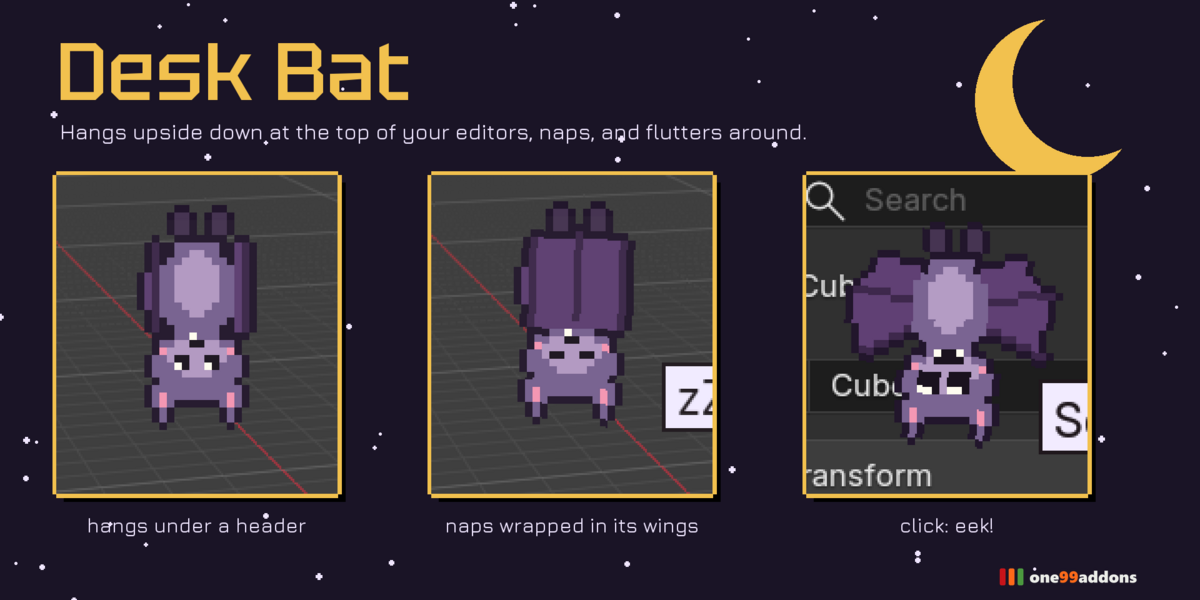
Desk Bat - Documentation
1. Install
- Download desk_bat_v1.0.0.zip. Do not unzip it.
- In Blender: Edit > Preferences > Add-ons, click the drop-down arrow at the top right and choose Install from Disk...
- Pick desk_bat_v1.0.0.zip and tick "Desk Bat" in the list.
- If Auto-Save Preferences is off, click Save Preferences (bottom left).
2. Where to find it
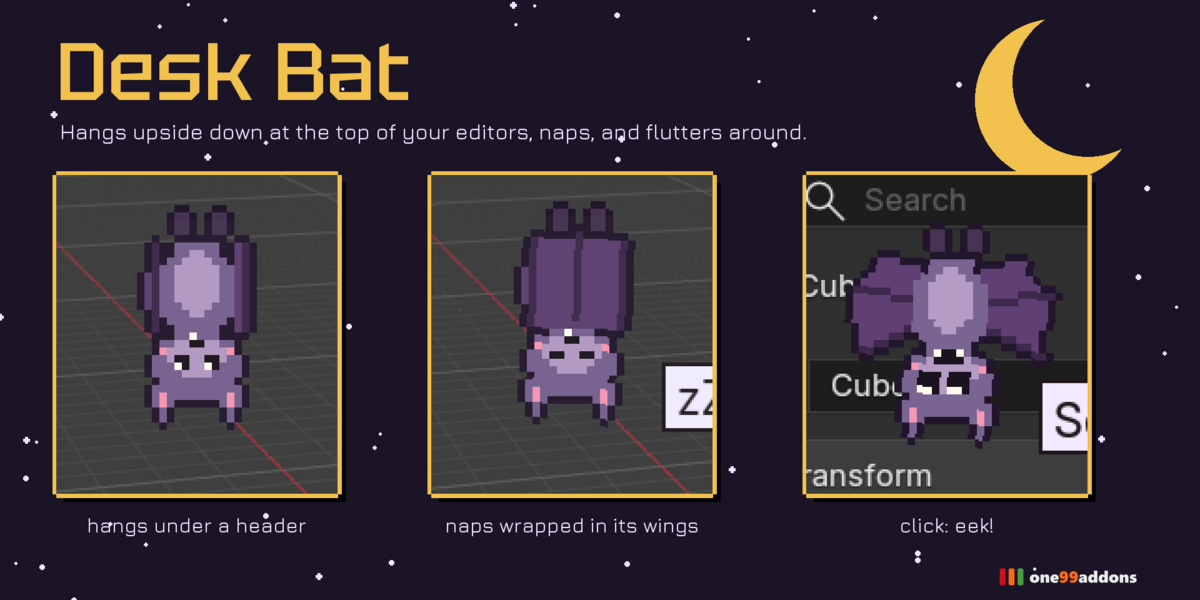
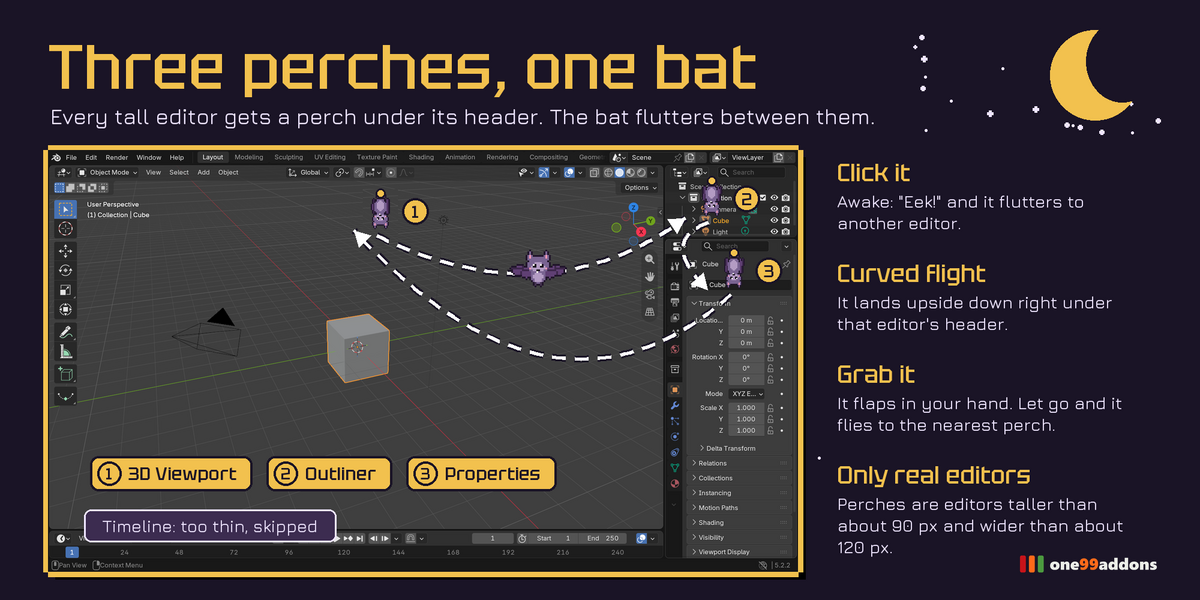
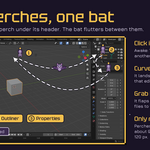
- It hangs upside down just under the header of a tall editor (3D Viewport, Outliner, Properties...) in your main window.
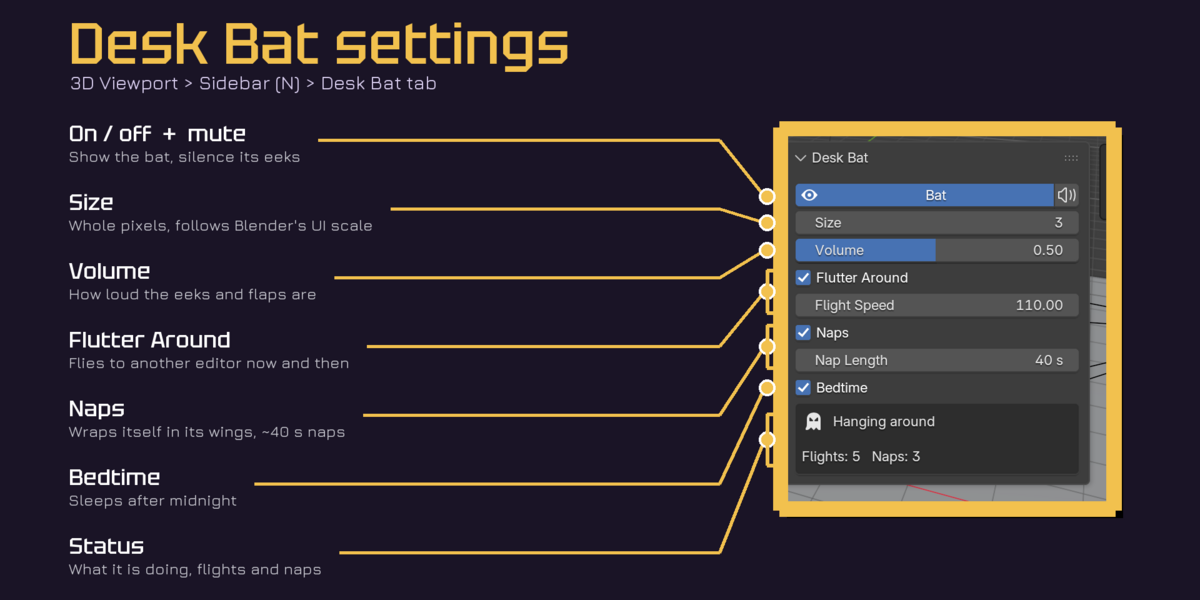
- Settings: 3D Viewport > Sidebar (press N) > Desk Bat tab, or Edit > Preferences > Add-ons > Desk Bat (expand it)
3. How to use it
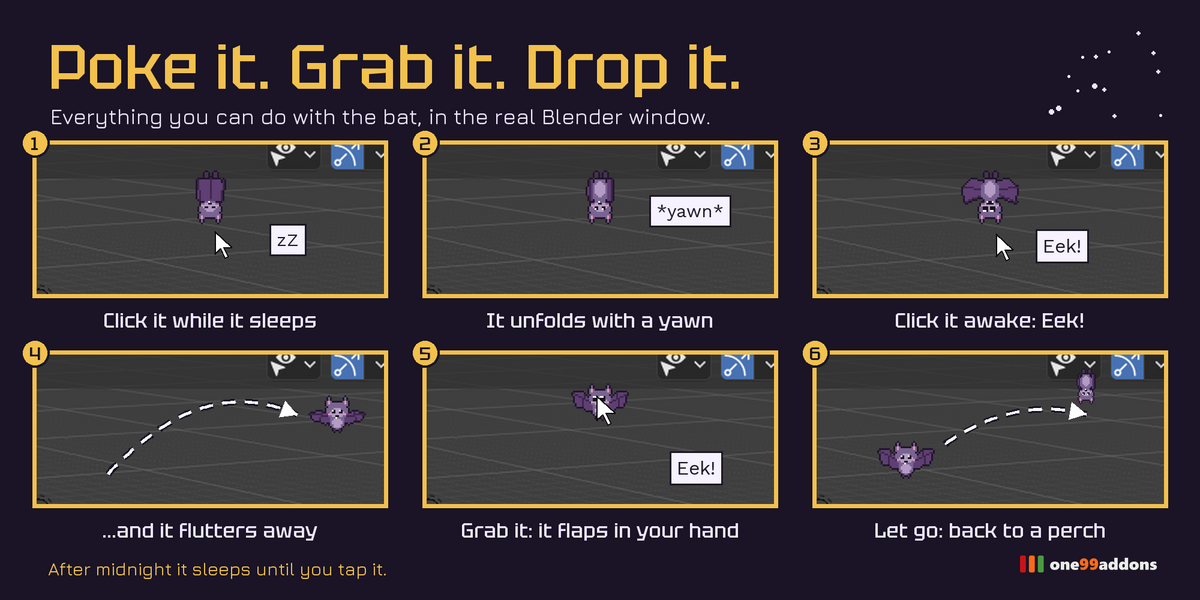
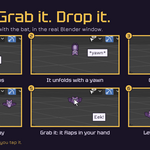
- Click it while it sleeps: it unfolds with a yawn.
- Click it while awake: "Eek!" and it flies to another editor.
- Grab it: it flaps in your hand. Let go: it flies back to the nearest perch.
- It naps wrapped in its wings (Nap Length) and sleeps after midnight until you tap it.
4. Settings
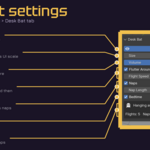
- Bat / Mute: show it, silence it.
- Size 1 to 8: whole pixels, multiplied by Blender's UI scale.
- Volume: for eeks, yawns and flaps.
- Flutter Around / Flight Speed: flies to another editor now and then.
- Naps / Nap Length: wraps itself in its wings (default 40 s naps).
- Bedtime: sleeps after midnight, tap to wake.
- Status: what it is doing, flights and naps this session.
5. Troubleshooting
- Check the Bat toggle in the Desk Bat tab or Window > Desk Bat.
- Only editors taller than about 90 px and wider than 120 px are perches: make an editor bigger if your layout has none.
- It only lives in the first (main) Blender window.
- No sound? Volume and Mute are in the settings. Sounds use Blender's own audio system: if Blender has no audio device (Edit > Preferences > System > Sound), it stays silent.
- Install error? Make sure you picked the .zip itself, not an unzipped folder, and that you are on Blender 5.2 or newer.
6. Updating
- Download the new zip from your Superhive library, uninstall the old version in Edit > Preferences > Add-ons, restart Blender, then install the new zip.
7. Uninstall
- Edit > Preferences > Add-ons, expand Desk Bat and choose Uninstall. It never writes anything into your .blend files.
Support
- Have a question, a bug or an idea for a new feature? Mail me at [email protected]. Please include your Blender version and operating system.
$1.99
Have questions about this product?
Login to message
| Published | 1 day ago |
| Blender Version | 5.2 |
| Extension Type | N/A |
| Render Engine Used | Blender-Game-Engine, Cycles, Eevee |
| License | Mit |