Batch Modifier Apply/Remove
 Roham Rafi


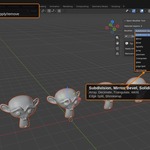
Will this affect objects I haven't selected?
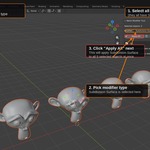
No. The tool only ever touches objects you have selected in the viewport.
Which modifiers are supported?
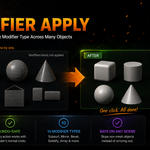
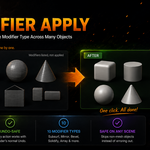
Subdivision Surface, Mirror, Bevel, Solidify, Array, Decimate, Triangulate, Weld, Edge Split, and Shrinkwrap.
Is this undo-safe?
Yes. Both Apply All and Remove All are full Blender operators, so Ctrl+Z reverts them like any other action.
What happens with non-mesh objects (like Curves or Empties)?
Applying modifiers only works on mesh objects — non-mesh objects are automatically skipped and reported, no errors. Removing modifiers works on any object type.
What happens if I select objects that don't have the chosen modifier?
They are simply skipped. The tool reports how many modifiers were actually applied or removed, so nothing breaks if some selected objects don't have that modifier.
Can I apply multiple modifier types at once?
Not currently. You select one modifier type at a time from the dropdown, then apply or remove it across all selected objects. Support for multi-select is planned for a future update.
Does this work with Blender 2.9 or older?
This add-on is tested on Blender 3.4 through 5.2. It relies on modifier operators that may differ in older versions, so it is not guaranteed to work below 3.4.
Have questions about this product?
Login to message
| Published | about 2 months ago |
| Blender Version | 3.4 - 5.2 |
| Extension Type | N/A |
| License | GPL |
Discover more products like this
modifier cleanup addons apply Workflow utility batch productivity 2026addon bevel and subdivision