Bexar Studio - Professional Color Grading
 BEXAR STUDIO







🧭 1. Introduction
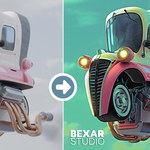
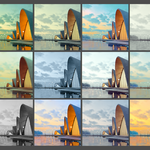
BEXAR STUDIO is a powerful color grading and compositing system built inside Blender.
It simplifies complex node workflows into an intuitive interface inspired by Lightroom.
⚡ 2. Quick Start
Step 1 — Activate BEXAR
-
Open Blender
-
Go to 3D View → BEXAR Panel
- Click ACTIVATE
Step 2 — Choose Your Mode
Scene Mode → For live renders
Photo Mode → For imported images
Step 3 — Apply a Preset
-
Open Presets Tab
-
Choose a preset
Done ✅
Step 4 — Adjust Settings
Go to Edit Tab
Control:
Exposure
Contrast
Color
Effects
🧩 3. Interface Overview
🔹 Main Tabs
Edit → Adjust your image
Presets → Browse and apply presets
Preferences → Customize addon behavior
Export → Export final images
🎨 4. Edit Panel (Core Controls)
Light
Exposure
Contrast
Highlights / Shadows
Color
Temperature
Tint
Saturation / Vibrance
Color Grading
Shadows / Midtones / Highlights
Effects
Vignette
Film Grain
Glow / Bloom
Curves
Advanced tonal control
📷 5. Photo Mode
What is Photo Mode?
Allows you to edit external images without rendering inside Blender.
How to use:
Add image
Apply preset
Adjust settings
Export final image
💡 Works like Lightroom but inside Blender
🎛 6. Presets System
Features:
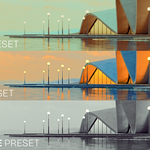
Preset Library
Thumbnail previews
Custom preset saving
Create Preset:
Adjust settings
Click Save Preset
📤 7. Export System
Options:
Export final image
Batch export presets
Custom file naming
⚙️ 8. Preferences
General
Reset addon
Refresh system
Update checker
Library
Set presets path
Manage thumbnails
🔄 9. Repair / Refresh System
If something breaks:
👉 Click Refresh BEXAR STUDIO
It will:
Fix missing nodes
Restore connections
Repair workspace
⚡ 10. Performance Tips
Use Realtime mode for fast preview
Disable heavy effects if needed
Use presets instead of manual tweaking
🧠 11. Tips & Best Practices
Start with a preset, then tweak
Use Photo Mode for batch workflows
Save your own presets for consistency
❗ 12. Troubleshooting
Problem: BEXAR not working
✔ Click Refresh
Problem: Missing nodes
✔ Use Repair system
Problem: UI not showing
✔ Make sure BEXAR is activated
🔄 13. Updates
Use Check for Updates inside Preferences
Install updates directly from addon