Blaya
 Thomas Pasieka


Blaya: Getting Started
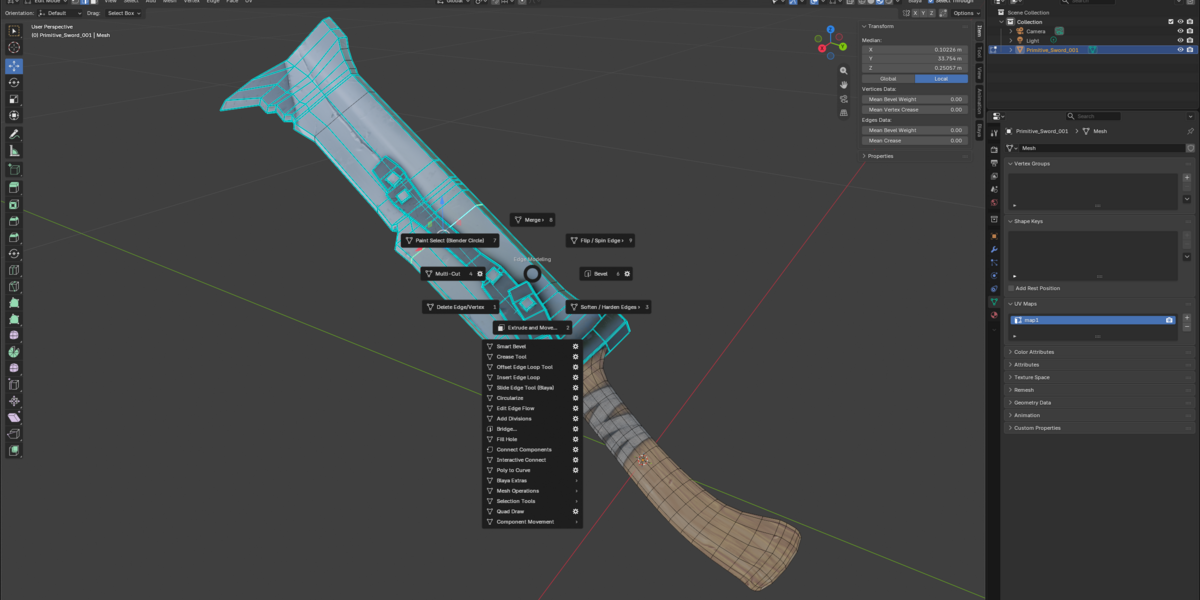
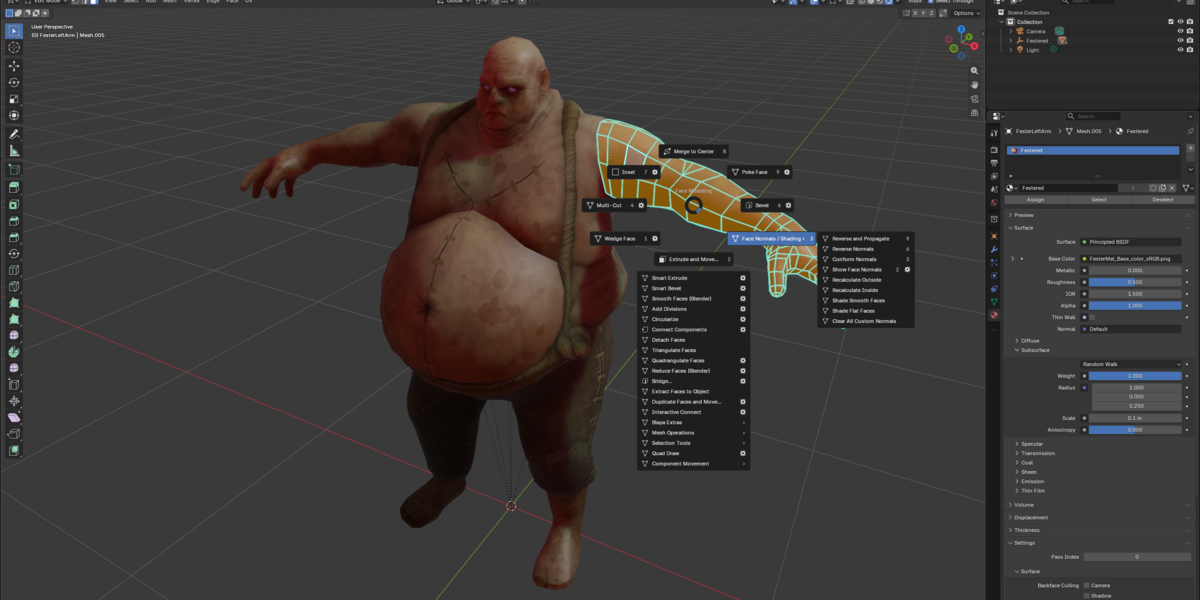
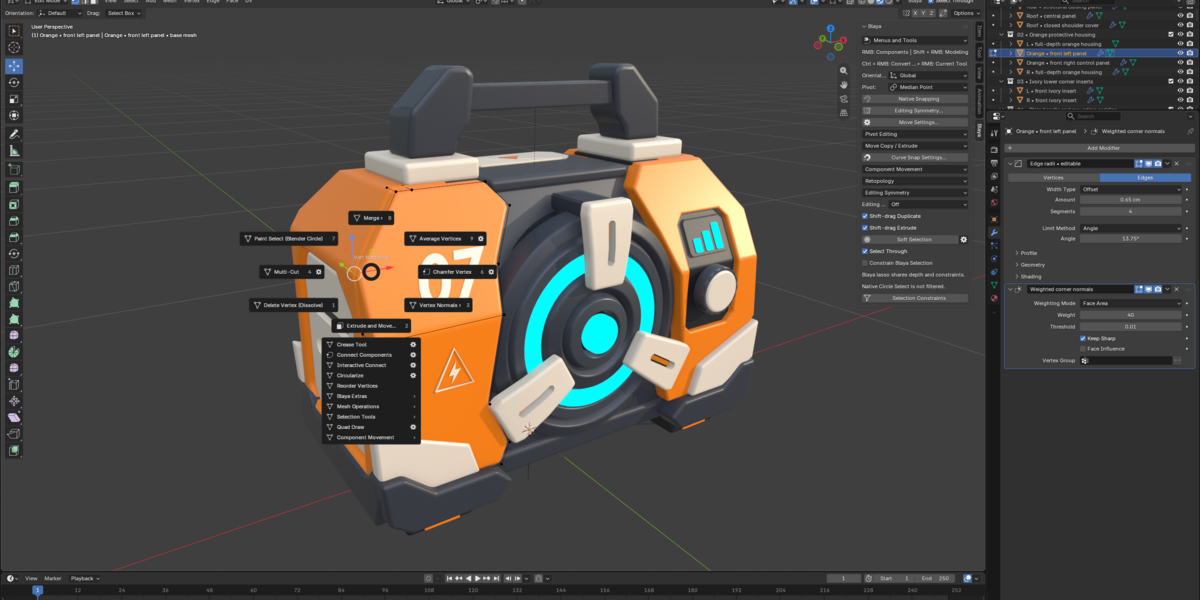
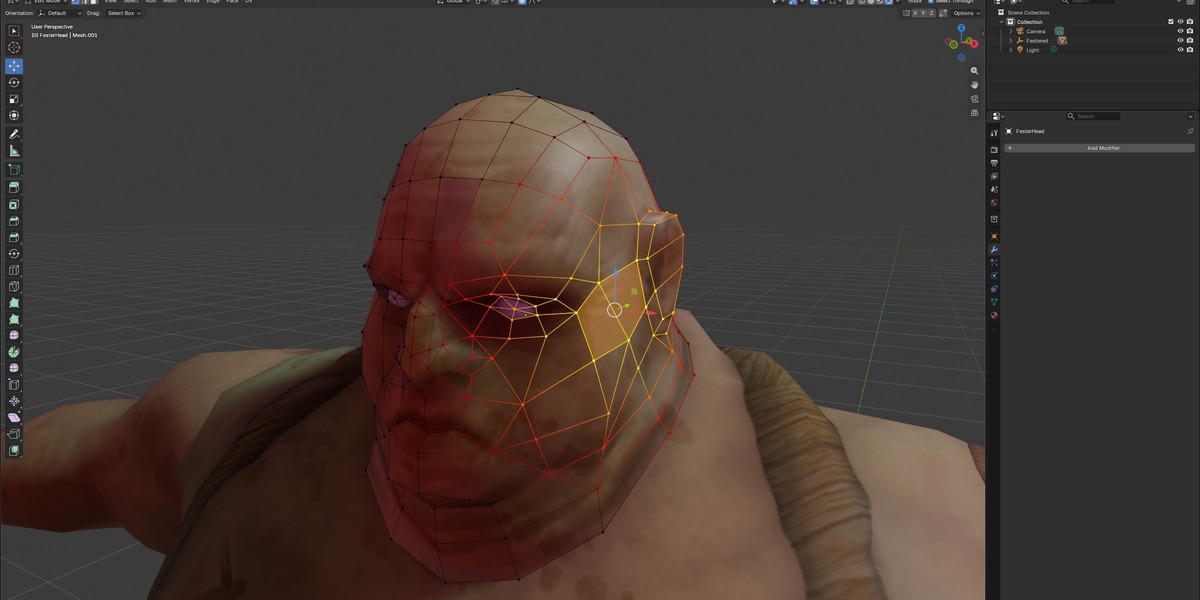
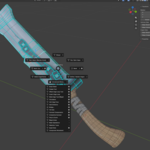
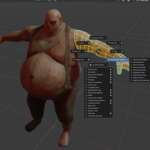
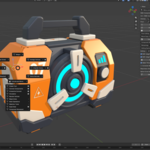
Blaya brings Maya-style navigation, component selection, marking menus and modeling interaction into Blender. Your work remains in Blender's editable meshes, materials and modifiers.
This quick start covers installation and your first edit. The full User Guide explains the individual tools, options and supported modeling workflows.
Requirements
- Blender 5.2.1 or higher (Windows x64)
- A mouse with left, middle and right buttons is recommended for the intended navigation and modeling controls.
- For the first lessons, use one local editable mesh in Vertex, Edge or Face mode.
1. Install Blaya
- Download the Blaya Extension ZIP from your product downloads. Keep it as a ZIP.
- Open Blender's Edit > Preferences > Get Extensions.
- Choose Install from Disk and select the Blaya ZIP.
- Enable Blaya, then restart Blender.
- Find Blaya Model and Blaya Select beside the viewport menus. The N > Blaya sidebar provides another way to browse tools and settings.
2. Learn the essential controls
Keep the pointer over the 3D View when using modeling shortcuts. LMB, MMB and RMB mean left, middle and right mouse button.
| Control | Action |
|---|---|
| Alt + LMB drag | Orbit |
| Alt + MMB drag | Pan |
| Alt + RMB drag | Dolly / zoom |
| F / A | Frame the selection / frame the scene |
| Q / W / E / R | Select / Move / Rotate / Scale |
| D / B | Pivot editing / basic Soft Selection |
| Ctrl + 1 | Toggle selected-object isolation |
| G / Y | Repeat a supported committed command / recall a modeling tool |
| Ctrl + Z / Ctrl + Y | Undo / Redo |
Native modal tools, including Bevel, use their own controls while active. Confirm or cancel the current operation before starting another command.
3. Use the marking menus
- RMB: Object and component modes.
- Shift + RMB: Modeling commands or creation tools for the current mode.
- Ctrl + RMB: Selection conversions and selection utilities.
- Ctrl + Shift + RMB: Actions and settings for the current tool.
Start by tapping RMB and releasing, then click a visible menu item. As the layout becomes familiar, hold RMB, move in a direction and release to make a gesture selection.
In the component menu, west selects Vertex, north selects Edge, south selects Face and northeast selects Object. The header menus provide the same modes without gestures.
4. Make your first edit
- Start with the default cube and press F to frame it.
- Use RMB > Face, or Blaya Select > Component Mode > Face, then click a visible face.
- Press W and drag a Move arrow a short distance. Release to commit.
- With the face selected, use Shift + RMB south > Extrude and Move. Move a short distance and press Enter to confirm.
- Try another extrusion and press Esc to cancel that pending edit.
- Use Ctrl + Z to undo the committed extrusion and Ctrl + Y to restore it.
For topology edits, prepare the component selection first. Double-click an edge to select a regular edge loop. In Face mode, Delete or Backspace deletes selected faces directly. In Edge mode, Delete or Ctrl + Backspace dissolves supported selected edge paths or loops while retaining the surrounding surface.
5. Find tools and adjust settings
Blaya Model groups extrusion, Bevel, cuts, loops, connections, repair, shading, transforms and retopology. Blaya Select groups modes, conversions, loops, paths and selection controls. Unavailable commands are grey until the mode and selection are suitable.
For a narrower viewport, choose Header Layout > Single Blaya Menu in either menu. This groups the tools under Blaya > Modeling / Selection.
A marking-menu gear or native Command Settings submenu opens a command's defaults. Apply Settings saves those defaults; run the command itself to edit the mesh. Ctrl + Shift + RMB follows the active tool's options.
Use G to repeat a supported committed command on the current suitable selection. Use Y to return to a modeling tool such as Multi-Cut, Target Weld or Quad Draw. Ctrl + Y performs Redo.
6. Continue with the full guide
Open Blaya Model > Open User Guide, or use the guide button in Blaya's Add-on Preferences. The included HTML guide works offline and covers selection, pivots, loops, Multi-Cut, Bevel, Smart tools, Target Weld, Poly to Curve, Make Live, Quad Draw and more. A separate PDF edition is available for offline reading.
To customize input, open Blaya's Add-on Preferences. Navigation, tool shortcuts, marking menus, transform interaction and viewport display have their own controls. Use Blender's Save Preferences when you want those preference changes saved.
Updating and getting help
Before updating, finish pending edits, save your scene, and keep your previous ZIP and a preferences backup. Install the new ZIP, restart Blender and check your preferred settings before continuing.
For help, contact the creator through Superhive with your Blender and Blaya versions, the tool and component mode, and steps to reproduce the issue. Blaya Model > Support > Export Diagnostic Report creates a local report you can inspect before sharing. It does not upload automatically.
Created by Thomas Pasieka.
 Included
Includes 12 months of
- Support from Thomas Pasieka
- Product updates
Extend this product’s Support Period +12 months: 75% of product price
Have questions before purchasing?
Login to message
| Blender Extension Compatible | Yes |
| Published | about 11 hours ago |
| Blender Version | 5.2 - 5.3 |
| Extension Type | Add-on |
| Render Engine Used | Arnold, Blender-Internal, Blender-Game-Engine, Cycles, Eevee, Freestyle, Luxrender, Mental-Ray, Octane, Vray, Yafaray |
| License | GPL |
