 Blaze
Blaze


Blaze Puppeteer FAQ
Common questions about Blaze Puppeteer
Common questions about Blaze Puppeteer, local generation, credits, rig setup, motion controls, limitations, and Kimodo.
Open live FAQQuick answers for the questions that usually come up before reading the full guides.
Local by default
Rig Setup, Preset Prompts, generation, History, and PostPro run on your machine. Login is only needed for Custom Prompts, Motion Refinement, and account actions.
No retargeting workflow
Blaze Puppeteer maps your character once and writes motion back onto that rig's own controls.
Control, not replacement
Prompts define intent. Anchors, Waypoints, Dense Path, Prompt Sequencer, History, and PostPro give you direction and cleanup control.
Kimodo-based
Blaze Puppeteer uses a bundled local Kimodo runtime inside a Blender addon workflow.
Local, Login, And Credits
Without Login
You can use the local workflow without logging in or spending credits:
- Rig Setup
- Text to Motion with Preset Prompts
- Inbetweening
- Waypoints
- Dense Path
- History
- PostPro
Preset prompts are not a fallback
Preset Prompts are local and are sufficient for most shots when combined with Anchors, Waypoints, Dense Path, and Prompt Sequencer. The preset library will keep expanding to reduce reliance on Custom Prompts.
With Login
Login adds account-backed services:
- Custom Prompts, which send typed prompt text for remote text embedding
- Motion Refinement, which sends skeletal motion data from Blaze Puppeteer's proxy rigs
- Credit display, refresh, and purchase flow
Logging in does not move normal generation into the cloud.
| Feature | Uses credits? | Processing | Data sent |
|---|---|---|---|
| Preset Prompts | No | Local | Nothing |
| Anchors, Waypoints, Dense Path, History, PostPro | No | Local | Nothing |
| Custom Prompts | Yes | Remote text embedding, then local generation | Typed prompt text |
| Motion Refinement | Yes | Account service | Skeletal motion data from Rig Setup proxy rigs |
Avoiding cloud processing
Stay signed out, use Preset Prompts, and avoid Motion Refinement if your pipeline must avoid all remote data transmission.
Rig Setup
Does it retarget motion?
No. Blaze Puppeteer is not a retargeting workflow. You run Rig Setup once, then generated motion is transferred back onto that character's own rig controls.
Which rigs work?
Rigify, Auto-Rig Pro, CloudRig, Mixamo, Blender Studio rigs, and custom rigs can work when the required controller chains are mapped correctly.
Do I need a root controller?
No. Enable No Root Controller if the rig does not have one. Generation still works, but Root Extraction needs a root controller to write into.
What helper rigs are created?
Rig Setup creates YourRig_Blazed for generation/source skeletal data and YourRig_TPOSE for calibration.
Do not edit helper rigs directly
Avoid renaming, deleting, constraining, or animating the _Blazed and _TPOSE helpers. If they fall out of sync, run Rig Setup reconstruction again.
Generation Modes
Intent
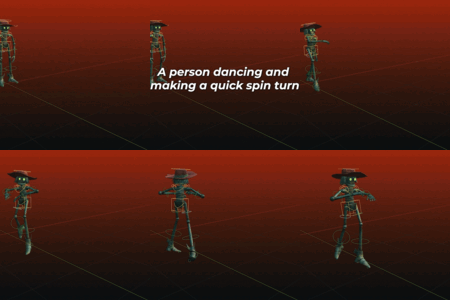
Kimodo uses the prompt to understand the motion intent. The prompt is not the only control. It gives the model context, then Blaze Puppeteer lets you shape the result with task-specific guides.
Controls
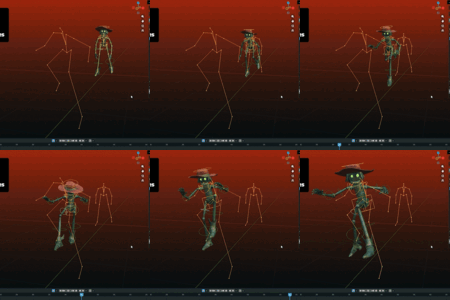
- Anchors define important poses for Inbetweening
- Waypoints guide root trajectory at specific frames
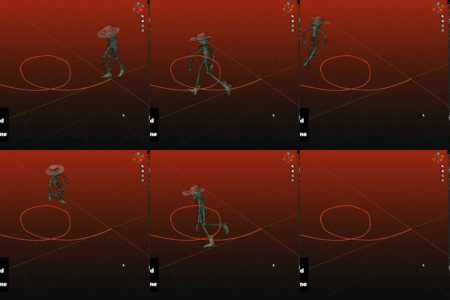
- Dense Path guides continuous root trajectory
- Prompt Sequencer controls prompt timing across the generated range
Fresh Takes
Each Generate or Retry run can produce a fresh take from the current prompt and constraints. Use Seed controls when you need repeatability.
Text to Motion
Starts a new clip from a preset or custom prompt and a frame range.
Inbetweening
Fills motion between blocked poses that you mark as Anchors.
Waypoints
Uses frame-specific trajectory points on the ground plane.
Dense Path
Uses a continuous editable curve for root trajectory guidance.
Can I combine controls?
Yes. You can combine controls such as Anchors, Waypoints, Dense Path, and Prompt Sequencer. Keep the controls consistent with each other. If the prompt, Anchors, Waypoints, and Dense Path ask for contradictory motion, Kimodo may ignore some guidance or produce artifacts.
Visual Guides
Anchors
Anchors are the guide poses used for Inbetweening. A regular keyframe does not become an Anchor until you mark it as one.
Badges
Badges are visual markers for anchored frames in timeline-style editors.
Ghost
Ghost overlays draw anchored poses in the 3D Viewport so you can compare the current pose against stored guide poses.
Color Bands
Prompt strip colorbands show prompt timing across timeline-style editors.
History, Refinement, And PostPro
History
History stores generated motions per armature. It also manages motions derived from earlier results, such as refinements or loops. Use History to select a generated motion, remove one take, remove a full family, purge derived results, or clear the armature's generated motion list.
Motion Refinement
Motion Refinement appears when you are logged in and a generated History motion is selected.
- Variation
- Extend/Shorten
- Loop
Variation is different from normal generation
Normal generation uses the current setup: prompt, task, timing, Anchors, Waypoints, Dense Path, and prompt strips. Variation works from a selected History motion and creates related versions of that saved motion.
PostPro
PostPro contains cleanup tools applied after generation or refinement:
- Root Extraction moves trajectory, facing rotation, and ground tracking onto the Root Controller when available
- Unbaking reduces dense generated keyframes while keeping the motion editable
Limits And Best Practices
Known Kimodo limitations
Kimodo generates controllable motion, but constraints are not guaranteed to be hit perfectly by the model alone. Generated motion can include foot sliding or imperfect contact. PostPro and normal Blender animation tools are still part of the final polish workflow.
10 seconds per generation
Each generated motion can be up to 10 seconds. Split longer actions into multiple generated segments or Prompt Sequencer strips.
Sparse constraints work best
Keep constrained frames under 20 per constraint type, excluding Dense Path root trajectory guidance.
Keep prompts focused
Use direct, medium-detail prompts that describe one clear behavior, or at most two closely related behaviors.
Avoid contradictions
Conflicting prompts, Anchors, Waypoints, or Dense Path curves can lead to ignored constraints, artifacts, or unexpected motion.
- For long actions Split the performance into shorter generated segments or Prompt Sequencer strips.
- For multi-prompt motion Make sure each prompt strip has enough context on its own. Write “A person walking forward slows down and comes to a stop” instead of only “then stops.”
- For contact-heavy motion Use PostPro and Blender cleanup tools. Foot contacts, constraint hits, and IK transfer may need final polish.
Are fingers generated?
No. Finger animation is not generated. The model focuses on full-body motion.
Kimodo
What is Kimodo?
Kimodo is NVIDIA's kinematic motion diffusion model for controllable human and humanoid motion generation.
What does Kimodo control?
Kimodo combines text prompts with constraints such as full-body keyframes, end-effector targets, 2D paths, and 2D waypoints.
What does Blaze Puppeteer add?
A Blender workflow: Rig Setup, Preset Prompts, Custom Prompts, Inbetweening, Waypoints, Dense Path, Prompt Sequencer, History, Motion Refinement, and PostPro.
Is it the same as the Kimodo demo?
No. Blaze Puppeteer uses Kimodo concepts inside a Blender addon workflow and transfers motion back onto your rig controls.
For the underlying model concepts, see NVIDIA's Kimodo documentation and Best Practices.
Quick Links
Installation
Install the addon and let the bundled runtime install automatically.
Rig Setup
Map controller chains and prepare your character.
Motion Generation
Use prompts, Anchors, Waypoints, Dense Path, History, and refinement.
Troubleshooting
Fix readiness, account, installation, and authoring issues.
For the newest FAQ updates, use docs.blazeanimation.com/reference/faq/.
-
$59
Single-user license. Local generation is included; 500 credits are included for optional cloud features.
-
$199
Five-seat studio license. Local generation is included; 2500 credits are included for optional cloud features.
-
$349
Ten-seat studio license. Local generation is included; 5000 credits are included for optional cloud features.
Have questions about this product?
Login to message
| Blender Extension Compatible | Yes |
| Sales | 100+ |
| Rating | 11 ratings |
| Dev Fund Contributor | |
| Published | 5 months ago |
| Blender Version | 4.2 - 5.2 |
| Extension Type | Add-on |
| License | GPL |
Discover more products like this
rigify rigging ai kimodo animation text to motion motion generation retargeting character animation AI Animation inbetweening auto-rig pro motion inbetweening