 Blaze
Blaze


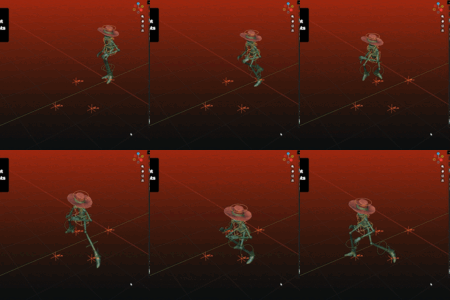
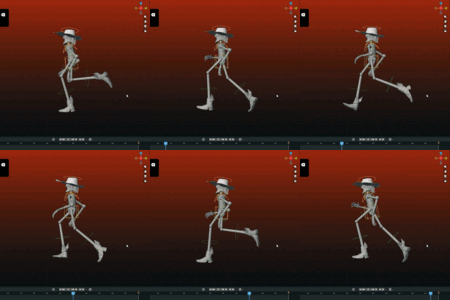
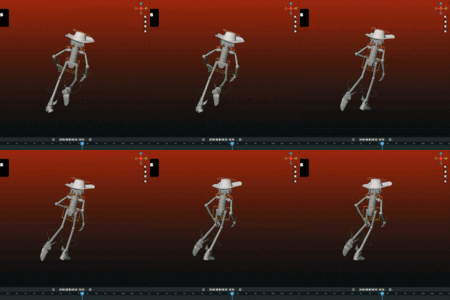
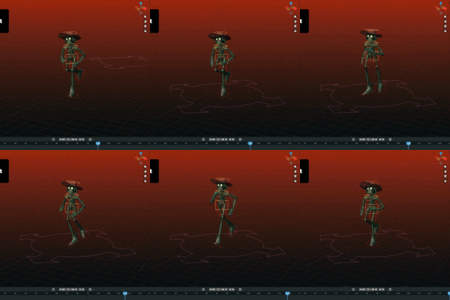
Full Tutorial YouTube Video
Watch the full Blaze Puppeteer tutorial
This is a full tutorial YouTube video for Blaze Puppeteer setup and workflow.
Blaze Puppeteer Documentation Mirror
Blaze Puppeteer setup and workflow docs
This product page contains the core documentation for Blaze Puppeteer. The live documentation site is easier to search and may contain newer screenshots, videos, and support notes.
Open docs.blazeanimation.comOverview
Blaze Puppeteer
Rig-aware motion generation for Blender with local Kimodo generation, anchor-driven inbetweening, path guides, and optional account-backed prompt embeddings and refinement.
Built Around Your Rig
Blaze Puppeteer learns your controller layout instead of forcing a template character. After one Rig Setup pass, generation and transfer stay aligned with the controls you already animate.
Local Generation First
Generation runs through the local Kimodo runtime on your machine. Signing in adds Custom Prompts, Motion Refinement, and account actions, but it does not switch Blaze Puppeteer into cloud generation.
Guided Motion Authoring
Use Anchors, Prompt Sequencer, Waypoints, and Dense Path directly in Blender to steer the result instead of rebuilding the idea elsewhere.
Review Per Generation
Every generation lands in History. Retry, remove, branch, refine, or apply PostPro settings per action without overwriting earlier results.
Generations are always local
The actual generation workflow always stays local. Remote requests only provide text embeddings for Custom Prompts or transmit skeletal motion data, not mesh data, for Motion Refinement.
Read These Pages In Order
- Install and prepare the local runtime. Start with Installation to install the extension, choose the panel location, and run Prepare Runtime.
- Teach Blaze Puppeteer your rig. Use Rig Setup to fill the five chain lists, choose Root Controller or No Root Controller, then run Reconstruct and finish the T-pose pass.
- Generate your first motion. Use Quick Start for the shortest first-generation workflow, then Motion Generation for the full Motion panel reference.
- Clean up or branch the result. Use Post-Processing for root extraction and unbaking, and Troubleshooting whenever the panel state or the result does not match what you expected.
What You Can Do In Motion Mode
- Start with the bundled 125-preset Kimodo library or switch to Custom Prompts after signing in.
- Use Inbetweening, Text to Motion, Waypoint, or Dense Path as the active task.
- Guide motion with Anchors, Prompt Sequencer, Waypoints, and Dense Path.
- Compare results in History, then run Motion Refinement when you want a variation, a different length, or a loop.
- Keep cleanup non-destructive with Extract Root Motion, Extract Rotation, Ground Tracking, and Unbaking.
Getting Started
Quick Start
Use this page to confirm the core workflow end to end: install the extension, prepare the local runtime, map one rig, and generate a first motion with Preset Prompts.
Prepare Once
Install the extension, choose the panel location you want, and run Prepare Runtime. Nothing else in Motion mode matters until the local runtime is ready.
Map Once Per Character
Rig Setup is a character-specific pass. Once the chain lists, root decision, and T-pose are correct, you normally only revisit it when the rig changes.
Review Per Generation
Generate, compare results in History, then keep the best result, retry, or clean it up with PostPro.

First launch reference
First successful run
Fastest Local Path
- Install the extension. Confirm the Blaze Puppeteer panel is visible in Blender.
- Prepare the local runtime. Run Prepare Runtime and wait until Local generation shows GPU or CPU readiness.
- Set up the rig. Switch to Rig Setup, choose Target Armature, fill the five body chains, choose Root Controller or No Root Controller, and click Reconstruct.
-
Finish the T-pose. On the generated
_TPOSEhelper rig, use Confirm Front View, then switch to the top check and use Finalize T-Pose. - Generate your first motion. Switch to Motion, stay on Preset Prompts, choose a preset, choose the task you want to test, add only the guides that task needs, and click Generate.
- Review and polish. Review the result in History. If the generated motion is close, open PostPro for root extraction or unbaking. If it is not close, change the setup and generate again.
When To Sign In
An account is useful when you want Custom Prompts instead of the local preset library, Motion Refinement on an existing generated motion, or credit, purchase, and account actions inside the Motion panel. If you plan to stay on Preset Prompts, you do not need to sign in.
First-Generation Checklist
- The correct character is selected in Target Armature.
- The readiness area shows Rig Setup: Ready and a working Local generation label.
- The selected task matches the guides you actually set.
- If you are using Inbetweening, the start and end poses are really marked as anchors.
- You review the generated motion in History before changing the setup.
Start simple
For a first baseline test, use a short range, a clear idle or locomotion preset, and as few guides as possible. Add Prompt Sequencer, Waypoints, or Dense Path after the baseline run works.
Getting Started
Installation
Blaze Puppeteer installs as a Blender extension, but the extension alone is not enough. Motion generation depends on the local runtime being prepared on the same machine where Blender is running.
Local Generation Is Required
Signing in does not unlock a separate cloud-generation mode. Preset Prompts, Custom Prompts, Anchors, Waypoints, and Dense Path all still depend on a ready local runtime.
What You Are Setting Up
Blender Extension
Install the zip directly through Blender's extension flow. You can drag the zip into Blender or use Install from Disk. Do not unpack the archive first.
Panel And Preferences
Open preferences and choose whether the panel lives in the Sidebar, the Properties Tab, or both.
Local Runtime
Prepare Runtime installs the local dependency set, validates the bundled Kimodo assets, and selects the best provider available on your machine.
System Requirements
| Platform | Local generation support | Notes |
|---|---|---|
| Windows x64 | Yes | Uses NVIDIA CUDA when available, otherwise CPU fallback. |
| Linux x64 | Yes | Can use CUDA, ROCm, or CPU depending on the machine. |
| macOS Apple Silicon | Yes | Uses Apple MPS when available, with CPU fallback. |
| macOS Intel | No | Local generation is not supported on Intel macOS. |
Blender version: 4.2 or newer.
Step 1: Install The Extension
- Download the current
Blaze_Puppeteer.zipbuild from your order page on Superhive Market. - Open Blender Preferences from Edit > Preferences.
- Drag the zip file into Blender, or open Get Extensions, open the top-right menu, choose Install from Disk, and select the zip file.
- Confirm the extension is enabled, then select an armature in your scene and open the Blaze Puppeteer panel. You may need to disable and re-enable the extension to see the panel.
Installing and activating Blaze Puppeteer
Step 2: Choose Your Basic Preferences
| Setting | What it controls | Good default |
|---|---|---|
| UI Location | Shows the panel in the 3D Viewport sidebar, the Properties tab, or both. | Sidebar |
| Keep Kimodo Warm | Keeps the local Kimodo worker alive between runs so subsequent generations start faster. | Off unless you want faster results and do not mind GPU VRAM being used. |
| Timeout (s) | Controls how long Blaze Puppeteer waits on login, credit, and Motion Refinement requests. | Leave the default unless support asks you to change it. |
Step 3: Prepare The Local Runtime
- Open the Motion panel and use the readiness box, or open the add-on preferences.
- Click Prepare Runtime.
- If a previous setup was interrupted or damaged, use Repair in the Motion panel or Repair Runtime in preferences.
During setup, Blaze Puppeteer resolves the bundle that matches your platform and Blender Python version, installs shared Python dependencies plus torch, installs the bundled MotionCorrection wheel, validates the Kimodo model bundle, and selects the best provider available on your machine.
Step 4: Confirm Readiness
| Status | Meaning |
|---|---|
| Local generation: GPU (Torch CUDA) | Kimodo is using a CUDA-capable NVIDIA setup. |
| Local generation: GPU (Torch ROCm) | Kimodo is using a ROCm-capable Linux setup. |
| Local generation: GPU (Torch MPS) | Kimodo is using Apple Silicon acceleration. |
| Local generation: CPU (Torch) | Kimodo is ready, but running on CPU. |
The Motion panel also needs Rig Setup: Ready before you can generate against a character. Runtime readiness and rig readiness are separate checks.
Updating Blaze Puppeteer
- Remove the current extension from Blender.
- Restart Blender fully.
- Install the new zip.
- Open the add-on preferences and confirm the Local generation line still shows a ready label.
Getting Started
Rig Setup
Rig Setup is where you assign rig controllers of different chains in a specific order. You do this once per rig.
Five Ordered Chains
Fill the ordered lists for Leg R, Leg L, Hand R, Hand L, and Spine.
Root Controller Setup
Either assign a real root or master controller, or explicitly enable No Root Controller. Rig Setup does not guess this for you.
A Neutral T-Pose
After reconstruction, Blaze Puppeteer pauses for a two-stage T-pose alignment so the helper rig has a clean reference pose.
Optional IK Targets
IK assignments are optional, but they help Blaze Puppeteer transfer motion back onto the controls you actually animate with.
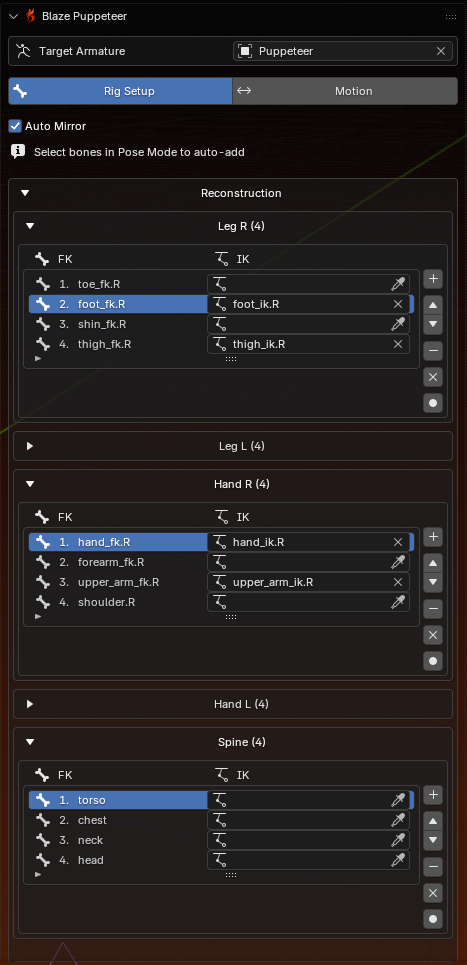
Chain order example
Reconstruct workflow
Chain Order
| Group | Build the list in this order |
|---|---|
| Leg R / Leg L | Foot end, such as toe or heel, toward the body. |
| Hand R / Hand L | Wrist or hand end toward the shoulder. |
| Spine | Bottom to top. |
Spine chain rules
When choosing spine controllers, start with pelvis or hips and end with head. Controllers in the spine chain that control joints below them should be ignored. The first entry of the spine chain should be the controller that controls the whole body.
Step-By-Step Setup
- Choose the correct character in Target Armature.
- Leave Auto Mirror on unless the rig is asymmetrical. When Auto Mirror is enabled, adjustments to one side are mirrored to the other side.
- Fill the five chain lists. Use Add Selected after selecting bones in Pose Mode, or REC to capture bones one by one in the order you select them.
- Set Root Controller or No Root Controller. Blaze Puppeteer blocks reconstruction until one of those two choices is made.
- Click Reconstruct. This rebuilds the helper rigs from your current lists and immediately moves into T-pose calibration.
- Confirm the T-pose. Adjust the pose so the arms are extended horizontally and legs are straight. Use Confirm Front View first, then check the top view and use Finalize T-Pose.
What Reconstruct Creates
| Helper | Purpose |
|---|---|
YourRig_Blazed |
The meta-rig Blaze Puppeteer uses for generation and source data. |
YourRig_TPOSE |
The calibration rig used as retarget reference frame. |
After the T-pose workflow is finalized, Blaze Puppeteer hides the helper collection so your scene stays cleaner. Treat these helpers as internal assets.
Do not edit the helpers directly
Avoid renaming, deleting, constraining, or animating the _Blazed and _TPOSE helpers yourself. If they fall out of sync with your setup, run Reconstruct again instead.
Root Controller vs No Root Controller
| Choice | What it means for later workflow |
|---|---|
| Root Controller assigned | Blaze Puppeteer can separate trajectory onto that control during PostPro. |
| No Root Controller enabled | Generation still works, but root extraction controls do not appear because there is no dedicated root control to write into. |
Ready For Motion When
- Every required chain has at least one entry.
- The list order reads correctly through the body.
- Your Root Controller or No Root Controller choice is set.
- The T-pose workflow is finished.
- Motion mode reports Rig Setup: Ready.
Guides
Motion Generation
The Motion tab is where you set prompts, add guides, generate motion, review History, and optionally run Motion Refinement or PostPro.
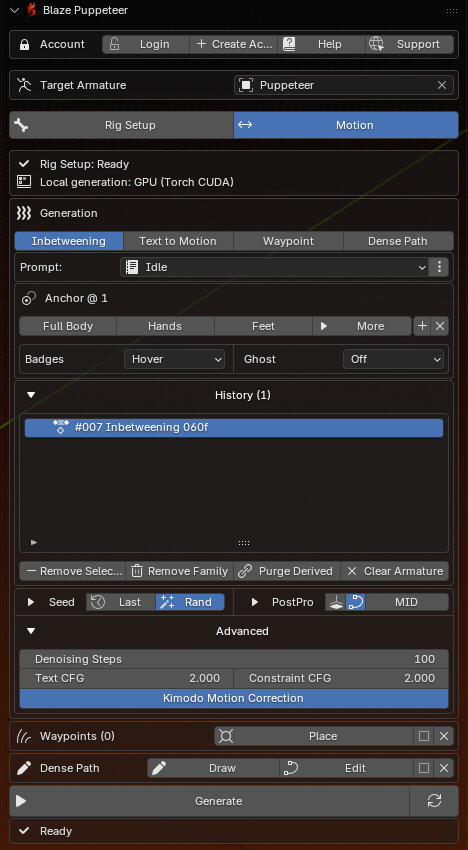
Motion panel layout
Read The Panel From Top To Bottom
Account Bar
Handles login, credits, Help, Support, and Logout.
Target Armature And Readiness
Choose the character in Target Armature, then read the Rig Setup and Local generation readiness lines.
Generation Box
Choose prompt mode, task, timing, anchors, History, Motion Refinement, Seed, PostPro, and Advanced settings.
Trajectory Tools And Actions
Waypoints, Dense Path, Generate, Retry, and the bottom status line live below the main generation box.
Choose A Prompt Mode
Preset Prompts
- No login required.
- Uses the bundled 125-preset Kimodo library.
- Best starting point for a first generation test.
Custom Prompts
- Requires login.
- Fetches remote text embeddings for the typed prompt.
- Still runs the actual generation locally afterward.
Pick A Task
| Task | Best for | Main setup |
|---|---|---|
| Inbetweening | Filling motion between blocked poses. | Anchors + Prompt. |
| Text to Motion | Starting a new clip from a prompt. | Prompt + timing. |
| Waypoint | Hitting clear trajectory points on specific frames. | Waypoints + timing. |
| Dense Path | Following a designed trajectory through the scene. | Dense Path + timing. |
Text to Motion
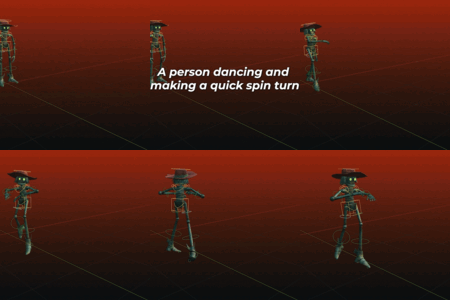
Use Text to Motion when you want to start a new clip from a preset or custom prompt.
Text to Motion overview
Inbetweening And Anchors
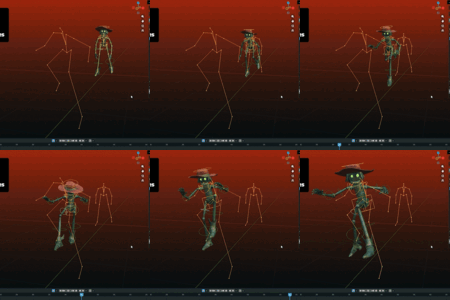
Use Inbetweening when you want to block important poses and let Blaze Puppeteer fill the motion between them. Anchors are the guide poses Blaze Puppeteer actually uses during inbetweening. Regular keyframes do not become anchors until you mark them.
Inbetweening overview
| Anchor scope | What it constrains |
|---|---|
| Full Body | The full pose at that frame. |
| Hands | Both hands end effector poses. |
| Feet | Both feet end effector poses. |
| More | Individual left or right hand and foot selection. |
The anchor editor includes current-frame add/remove, Clear Anchors, Badges for timeline indicators, and Ghost visual indicators of anchored poses in the 3D Viewport. Shortcuts: F toggles the current-frame anchor using the active anchor scope. D creates or removes a manual hands-and-feet anchor in most animation editors; in the Sequencer, D is reserved for prompt strips.
Prompt Sequencer
- Turn on Multi-Prompt with the three-dot toggle next to the prompt field.
- Open the Sequencer helper with Prompt Sequencer.
- Press D to create a Blaze Puppeteer prompt strip at the current frame.
- Press E to edit the prompt text at the current frame.
- Move or trim strips with normal Sequencer tools. Avoid overlapping strips because that may cause unexpected results.
Waypoints
- Click Place to enter waypoint placement mode.
- Left-click in the 3D Viewport to place a waypoint at the current frame.
- Right-click or press Esc to leave placement mode.
- If a waypoint already exists on that frame, the new click replaces it.
- When Waypoint is not the active task, enable Use Waypoints if you want placed waypoints layered onto another task.
Waypoint workflow
Dense Path
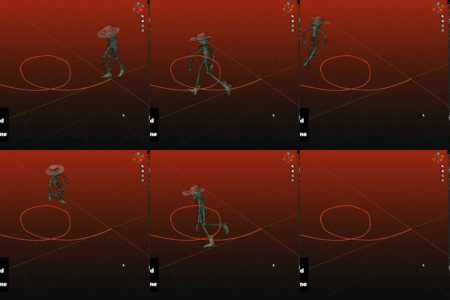
- Click Draw.
- Sketch the path in the viewport with the Annotation tool Blaze Puppeteer activates for this mode.
- Right-click or press Esc to finish and convert the stroke into an editable curve.
- Use Edit to adjust the curve later. When Dense Path is not the active task, enable Use Dense Path to layer the trajectory curve onto another task.
Dense Path workflow
Combining Tasks
Layering guides
You can combine tasks by checking Use Waypoints and Use Dense Path when those tasks are not active. This layers the waypoints or dense path onto the active task, such as Inbetweening. If the guides contradict each other, the results may be unpredictable.
History And Motion Refinement
| Action | What it does |
|---|---|
| Remove Selected | Removes only the selected History entry. |
| Remove Family | Removes the selected root generation and its derived children. |
| Purge Derived | Removes retries and refinements under the selected generation. |
| Clear Armature | Removes all generated History for the current armature. |
Motion Refinement only appears when you are logged in and a generated History action is selected. Variation requests alternate versions of the selected source motion. Extend/Shorten fits it to a new duration. Loop makes it loop. Refinement works from the selected History entry only and does not read the current anchors, waypoints, prompt text, prompt strips, Dense Path, or current task setup.
Seed, PostPro, And Advanced
| Section | What it is for |
|---|---|
| Seed | Controls repeatability. Use Last restores the last effective seed. Random creates a fresh variation. |
| PostPro | Gives quick access to root extraction and unbaking. Active settings are applied to newly created motions. |
| Advanced | Exposes local Kimodo controls such as Denoising Steps, Text CFG, Constraint CFG, and Kimodo Motion Correction. |
Advanced settings
Advanced settings are sensitive and can significantly affect generated motion quality. In most cases you do not need to change them.
Before You Click Generate
- The readiness area shows Rig Setup: Ready and a working Local generation label.
- Your guides match the active task: anchors for Inbetweening, prompt and timing for Text to Motion, waypoints for Waypoint, or a dense path for Dense Path.
- The prompt mode, prompt content, and timing match the motion you want.
- The active armature is the character you intend to animate.
Generate runs the current setup. Retry reuses the last cached generation setup to create another generated motion. Cancel only appears while generation is running.
Guides
Account And Remote Features
An account is optional until you need Custom Prompts, Motion Refinement, or account actions such as refreshing credits and opening the purchase flow.
Generations are always local
Logging in unlocks remote services around the local workflow, but it does not move generation out of Blender. The heavy lifting always stays on your machine.
What Login Unlocks
Custom Prompts
Typed prompts request remote text embeddings, then local generation continues on your machine.
Motion Refinement
Variation, Extend/Shorten, and Loop work from a selected History motion.
Credits And Browser Flows
The account bar lets you sign in, create an account, refresh credits, add credits, open Help, open Support, and log out.
Without Login vs With Login
| Capability | Without login | With login |
|---|---|---|
| Local preset generation | Yes | Yes |
| Custom Prompts | No | Yes |
| Motion Refinement | No | Yes |
| Credit display and refresh | No | Yes |
The Account Bar
Signed Out
Shows Login, Create Account, Help, and Support.
Signed In
Shows your email address, credit balance, Refresh, Add Credits, Help, Support, and Logout.
If you sign out while Custom Prompts is active, Blaze Puppeteer returns the prompt mode to Preset Prompts.
Browser Login Flow
- Click Login in the Motion panel account bar.
- Finish sign-in in your browser. Blaze Puppeteer does not ask for your password inside Blender.
- Return to Blender. Once the session is confirmed, the account bar updates automatically.
Signed-in account bar
Data Boundaries
Always Local
- Meshes, materials, and scene assets.
- The
_Blazedand_TPOSEhelper rigs. - Preset-driven local generation and PostPro.
Sent When Needed
- Login and session refresh requests.
- Typed prompt text for remote text embeddings.
- Skeletal motion data, not mesh or materials, for Motion Refinement.
Guides
Post-Processing
Post-processing is where you adjust generated motion without running generation again.
Per-Generation State
Each generated History entry remembers its own PostPro state.
Interactive Cleanup
If Extract Root Motion or Unbaking is enabled before generation, those settings are applied automatically to the new generated motion.
Non-Destructive Review
Turning a PostPro option off or changing it makes Blaze Puppeteer reprocess the motion or restore the baked result instead of forcing you to regenerate.
Root Extraction
Root extraction is only available when Rig Setup includes a real Root Controller. If the rig was set up with No Root Controller, Blaze Puppeteer can still generate motion, but separate root extraction controls do not appear.
Extracting trajectory to Root Controller
| Control | What it does |
|---|---|
| Extract Root Motion | Moves the main trajectory onto the root controller. |
| Extract Rotation | Moves yaw and facing changes onto the root controller. |
| Ground Tracking | Calculates the root controller's vertical motion. |
Root extraction helps with shots that need cleaner locomotion on the root control, export pipelines that expect movement on a root controller, and review passes where body motion should be separated from larger trajectory changes.
Unbaking
Generated motion usually arrives with baked keyframes. Unbaking simplifies the curves and reduces keyframes without affecting the motion.
Unbaking and keyframe reduction
| Quality | Result |
|---|---|
| Low | Keeps more keys and preserves more local detail. |
| Mid | Balanced keyframe reduction for most review and handoff work. |
| High | Stronger keyframe reduction while preserving the same overall motion. |
How PostPro Relates To History
- New generated motion receives the PostPro settings active at creation time.
- Selecting another History action restores that action's own cleanup state.
- Retry and refinement results also keep their own saved PostPro state.
- Cleanup is part of evaluating each generated motion, not a single global setting for the whole rig.
A Good Review Order
- Watch the raw motion first.
- Test Extract Root Motion first if the motion contains trajectory changes.
- Turn Unbaking on and compare Low, Mid, and High on the same motion.
- Keep, retry, or branch based on the cleaned result.
Reference
FAQ
Common questions about Blaze Puppeteer, local generation, credits, rig setup, motion controls, limitations, and Kimodo.
Local by default
Rig Setup, Preset Prompts, generation, History, and PostPro run on your machine.
No retargeting workflow
Blaze Puppeteer maps your character once and writes motion back onto that rig's own controls.
Control, not replacement
Prompts define intent. Anchors, Waypoints, Dense Path, Prompt Sequencer, History, and PostPro give you direction and cleanup control.
Kimodo-based
Blaze Puppeteer uses a local Kimodo runtime inside a Blender addon workflow.
Local, Login, And Credits
| Feature | Uses credits? | Processing | Data sent |
|---|---|---|---|
| Preset Prompts | No | Local | Nothing |
| Anchors, Waypoints, Dense Path, History, PostPro | No | Local | Nothing |
| Custom Prompts | Yes | Remote text embedding, then local generation | Typed prompt text |
| Motion Refinement | Yes | Account service | Skeletal motion data from Rig Setup proxy rigs |
Rig Setup FAQ
- Does it retarget motion? No. Blaze Puppeteer is not a retargeting workflow. You run Rig Setup once, then generated motion is transferred back onto that character's own rig controls.
- Which rigs work? Rigify, Auto-Rig Pro, CloudRig, Mixamo, Blender Studio rigs, and custom rigs can work when the required controller chains are mapped correctly.
- Do I need a root controller? No. Enable No Root Controller if the rig does not have one. Generation still works, but Root Extraction needs a root controller to write into.
-
What helper rigs are created? Rig Setup creates
YourRig_Blazedfor generation/source skeletal data andYourRig_TPOSEfor calibration.
Limits And Best Practices
Known Kimodo limitations
Kimodo generates controllable motion, but constraints are not guaranteed to be hit perfectly by the model alone. Generated motion can include foot sliding or imperfect contact. PostPro and normal Blender animation tools are still part of the final polish workflow.
- Each generated motion can be up to 10 seconds. Split longer actions into multiple generated segments or Prompt Sequencer strips.
- Keep constrained frames under 20 per constraint type, excluding Dense Path root trajectory guidance.
- Use direct, medium-detail prompts that describe one clear behavior, or at most two closely related behaviors.
- Avoid contradictory prompts, Anchors, Waypoints, or Dense Path curves.
- Finger animation is not generated. The model focuses on full-body motion.
Kimodo
Kimodo is NVIDIA's kinematic motion diffusion model for controllable human and humanoid motion generation. Blaze Puppeteer uses Kimodo concepts inside a Blender addon workflow and transfers motion back onto your rig controls. For underlying model concepts, see NVIDIA's Kimodo documentation and Best Practices.
Reference
Troubleshooting
Use this page when the panel does not look ready, the local runtime will not prepare, or a generated result is not reacting to the guides you authored.
Setup And Readiness
- No armature selected: Pick the character in Target Armature first.
- Rig not configured or Rig setup incomplete: Confirm all five required chains have entries, the chain order is correct, Root Controller or No Root Controller is set, and the T-pose workflow is finished.
- Reconstruction needed: Blaze Puppeteer cannot find the helper rigs it expects. Run Reconstruct again.
- Bone lists changed since last reconstruction: Use Reconstruct if the new lists are right, or Restore if you want to return to the previous reconstructed state.
Local Runtime
- Local generation: checking... Normal for a short time. If it never settles, reopen Blender and check the same status line in the add-on preferences.
- Local generation: setup required The runtime has not been prepared yet. Run Prepare Runtime.
- Local generation: unavailable Possible causes include unsupported platform, interrupted dependency install, missing runtime files, or damaged model files. Use Repair or Repair Runtime first.
- Prepare or Repair fails Check internet access, free disk space, security software, and whether Blender was restarted after installing a fresh build.
- Local generation is slow If the status line settles on CPU, the workflow still works but will be slower.
Account And Remote Features
- Login does not complete: Check that the browser flow finished successfully, Blender still has network access, and Blender can save the returned sign-in session.
- Credits look wrong or stale: Use Refresh in the account bar. If the value still looks wrong after a completed purchase, sign out and back in.
- Custom Prompts are unavailable: Custom Prompts require both a valid login session and a ready local runtime.
- Motion Refinement is missing: Refinement only appears when you are logged in and a generated History action is selected.
Authoring Problems
- Anchors are not shaping the result: Confirm blocked keyframes were turned into anchors, important start and end moments are anchored, and you are looking at the same armature the panel is targeting.
- Prompt strips are not doing anything: Prompt strips only work when Multi-Prompt is enabled and strips were created through Blaze Puppeteer's Sequencer workflow.
- Waypoints are ignored: Waypoints affect the result when Waypoint is the active task or Use Waypoints is enabled while another task is active.
- Dense Path is ignored: Dense Path affects the result when Dense Path is the active task or Use Dense Path is enabled on another task.
- Animation Restrictions Detected: Blaze Puppeteer found important controls with locked transforms or driven channels. Use the dialog to choose Override All or Skip Restricted.
History And Action Issues
- Generated motion exists in History but the rig does not move: Re-select the generated motion from Blaze Puppeteer History first, then inspect Blender's Action Editor if needed.
- History is cluttered: Use Remove Selected for one entry, Remove Family for a whole branch, Purge Derived to keep the base generation and drop retries/refinements, or Clear Armature to wipe generated History for that rig.
Still Stuck?
Open Blender's system console or launch Blender from a terminal and check the Blaze Puppeteer log output. On Windows, use Window > Toggle System Console. On Linux or macOS, start Blender from a terminal.
When contacting support, include the exact message shown in the panel, what task you were running, whether you were using presets, Custom Prompts, or refinement, and the relevant console lines.
For the newest screenshots, videos, and updates, use docs.blazeanimation.com.
-
$59
Single-user license. Local generation is included; 500 credits are included for optional cloud features.
-
$199
Five-seat studio license. Local generation is included; 2500 credits are included for optional cloud features.
-
$349
Ten-seat studio license. Local generation is included; 5000 credits are included for optional cloud features.
Have questions about this product?
Login to message
| Blender Extension Compatible | Yes |
| Sales | 100+ |
| Rating | 11 ratings |
| Dev Fund Contributor | |
| Published | 5 months ago |
| Blender Version | 4.2 - 5.2 |
| Extension Type | Add-on |
| License | GPL |
Discover more products like this
ai motion inbetweening retargeting rigify character animation auto-rig pro animation kimodo AI Animation text to motion inbetweening motion generation rigging